Activities
An Activity is a collection of connected bookings and cards created in the Visa Commercial Pay App. This allows Visa to combine the spend of all the connected cards and show you the total cost of your trip, event, project, or other business activity.
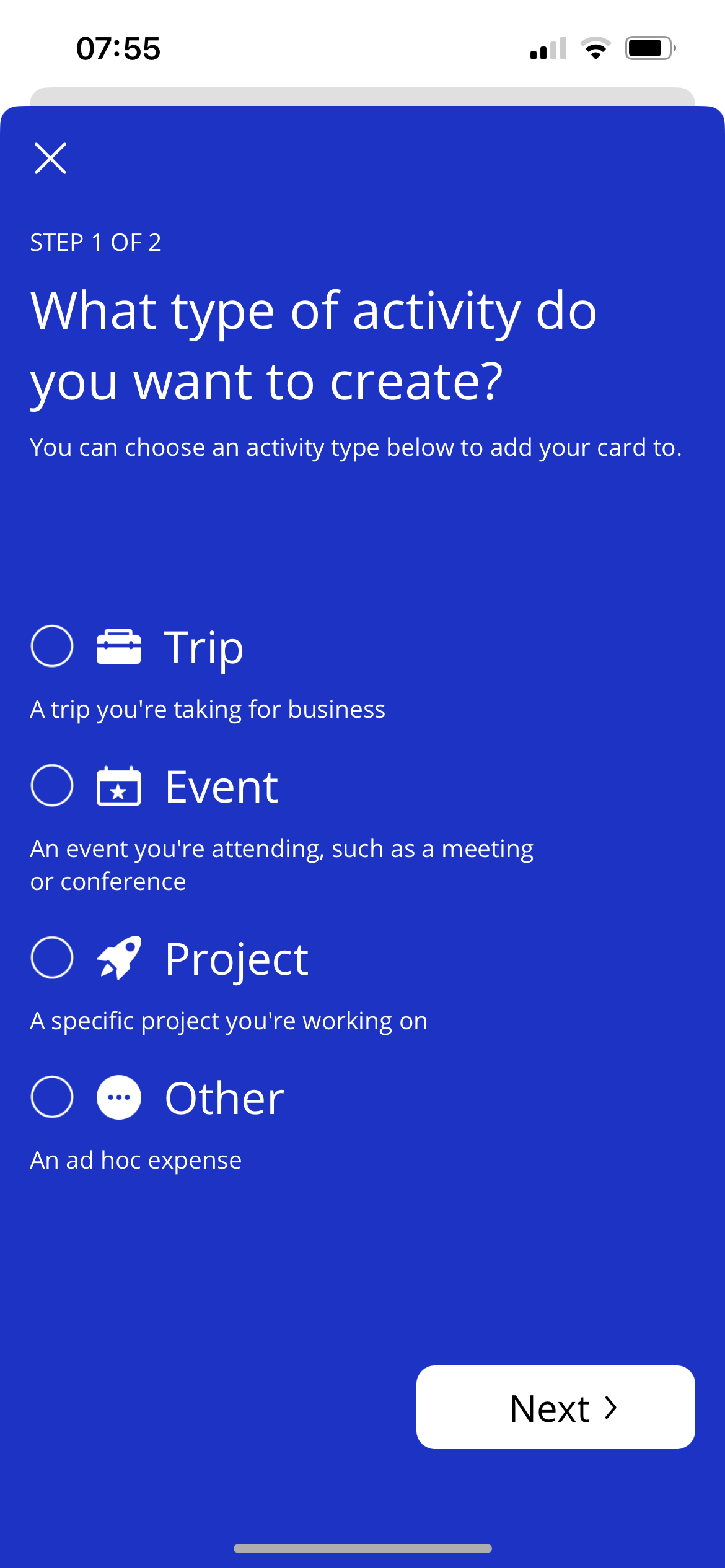
Activity types:
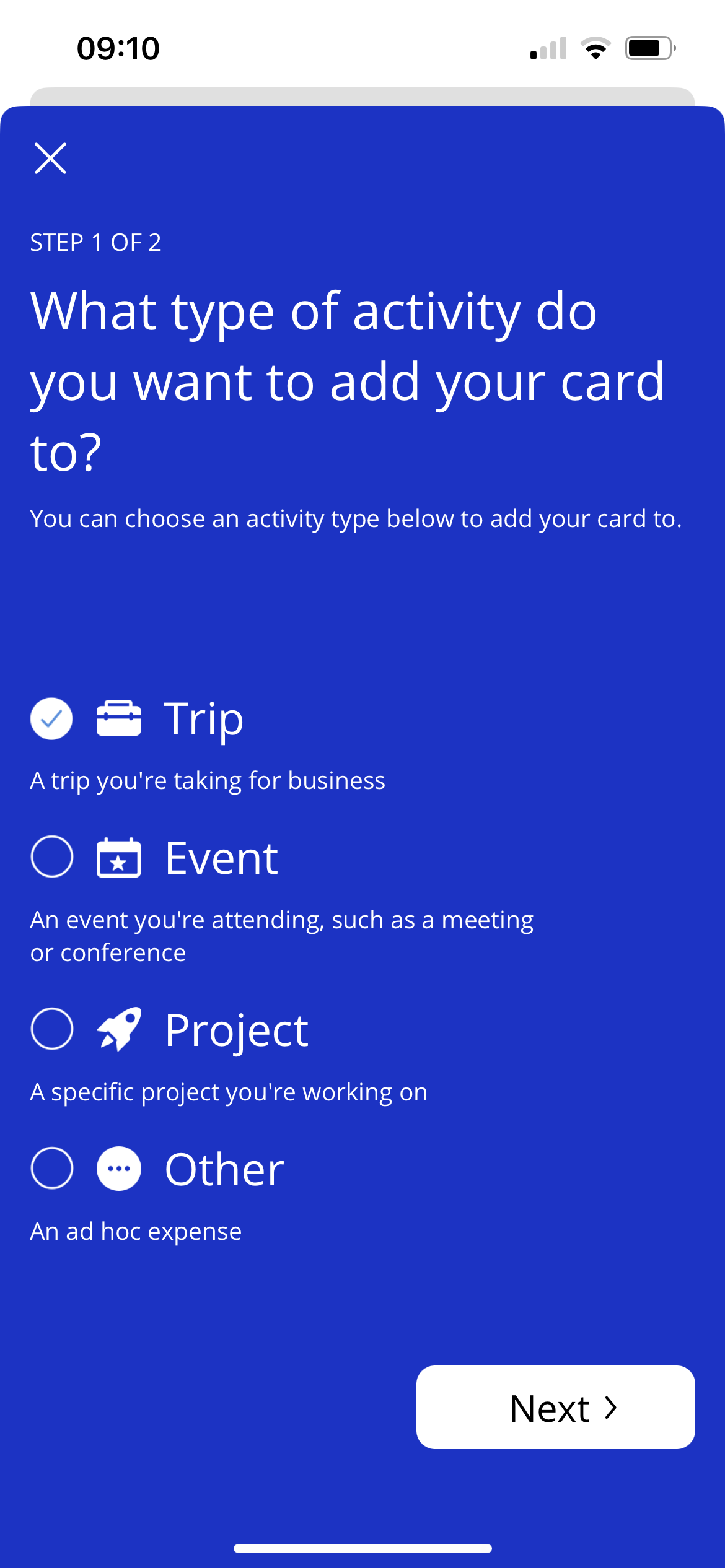
Trip—a trip you're taking for business
Event—an event you're attending, such as a meeting or conference
Project—a specific project you're working on
Other—an ad hoc expense
Creating an Activity
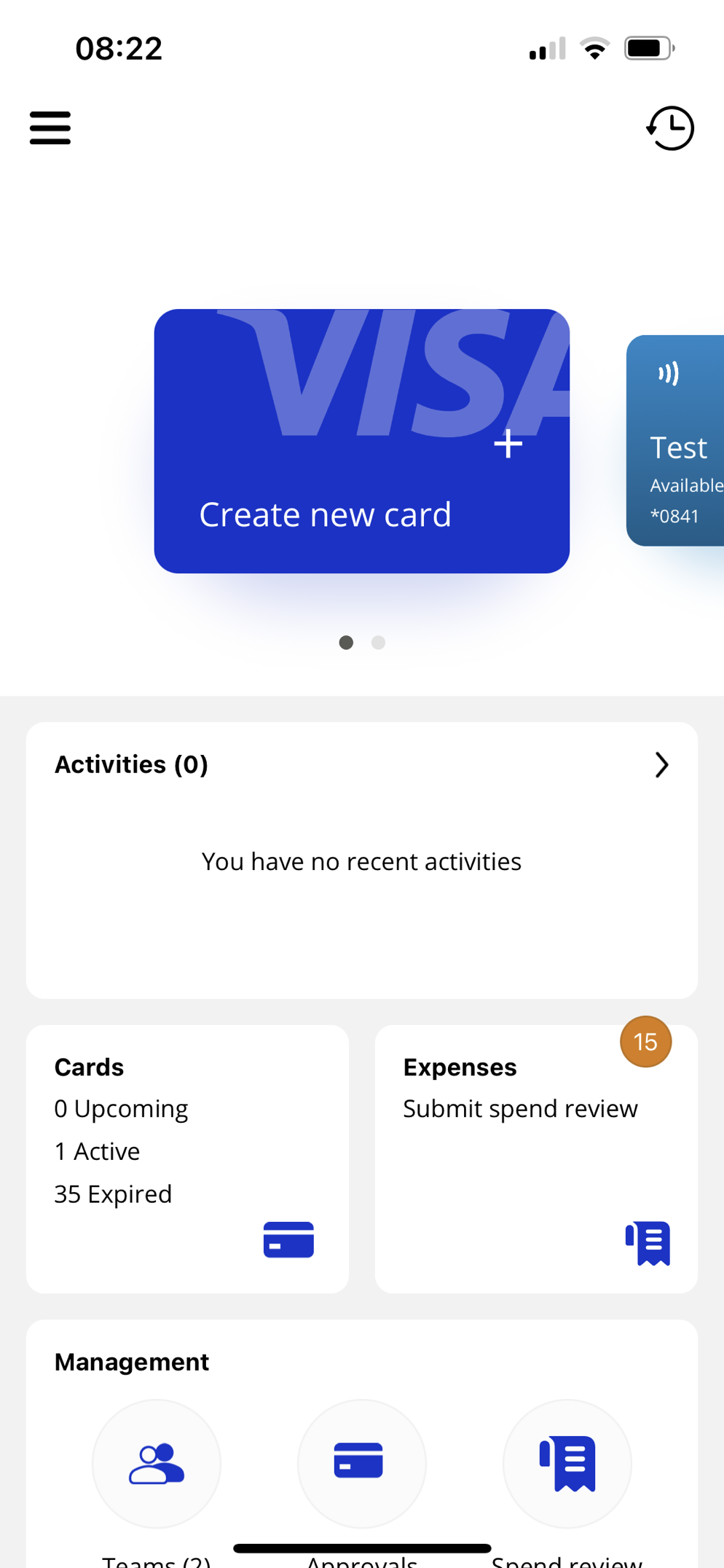
From the home screen, tap Activities.
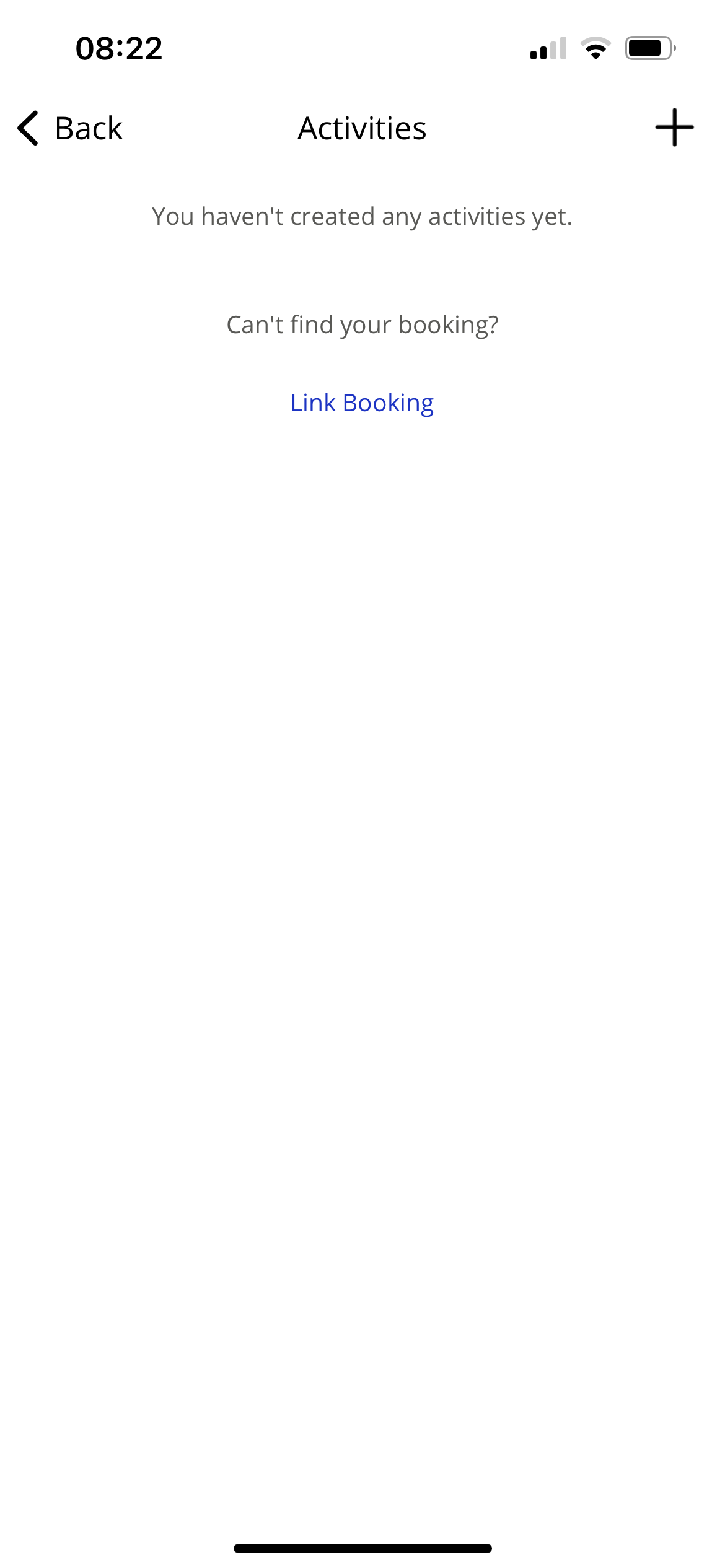
Tap the + icon in the top right corner of the screen.
Select the activity type you want to create.
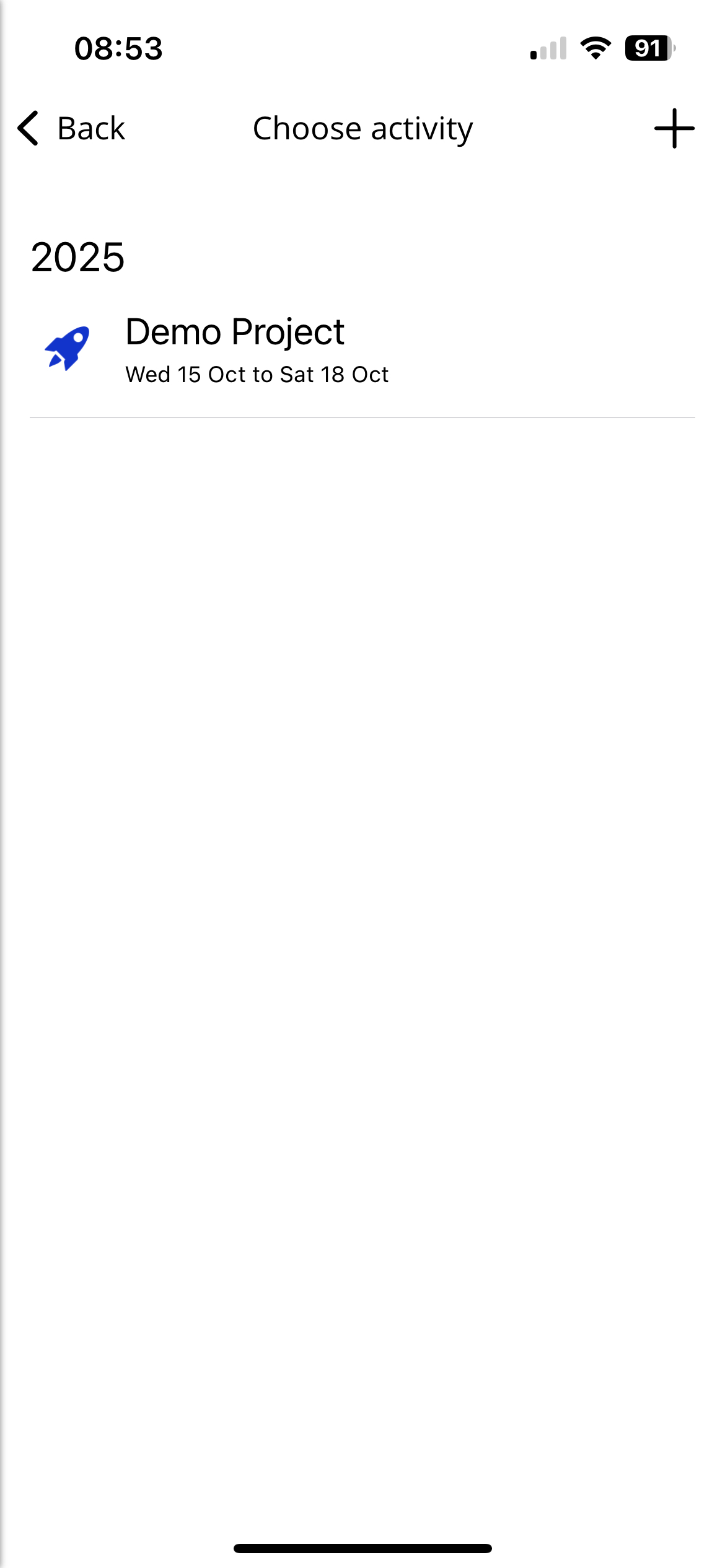
Enter a name for the activity, and select the active dates. Tap Create.
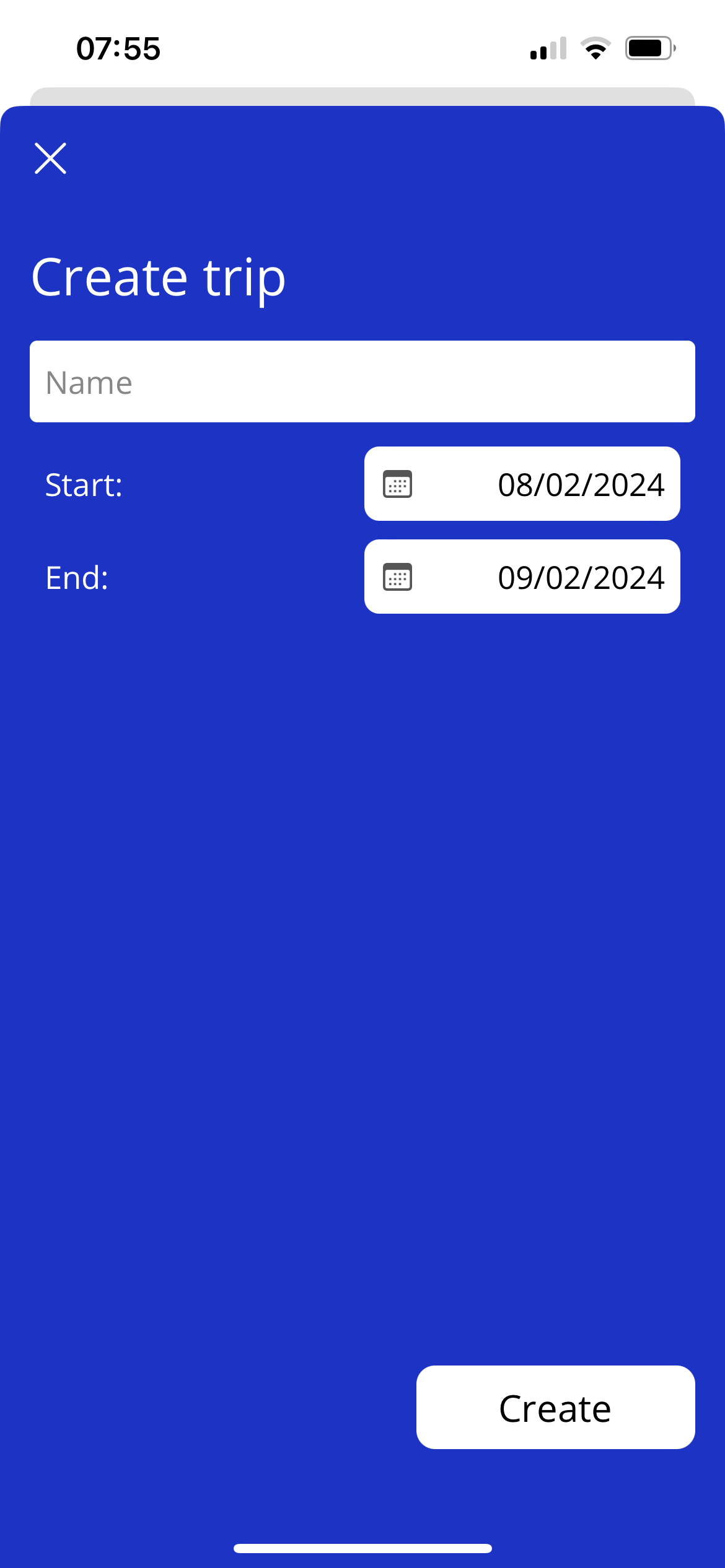
You will be redirected to the activities list.
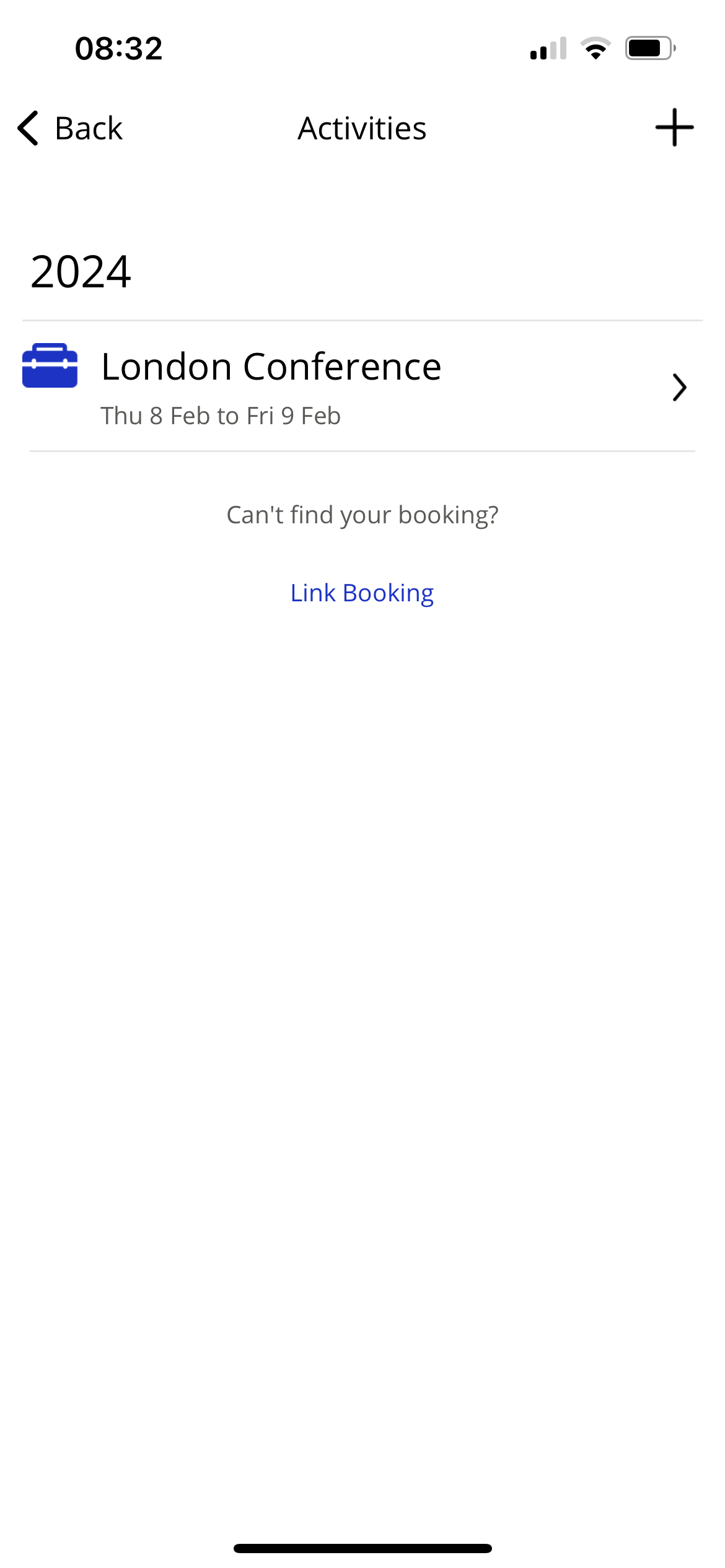
Creating a Trip
Hotel and Air Deployments are automatically linked when the traveler's email address is present on the deployment. Visa Commercial Pay also uses the hotel location, flight destination, and travel dates to group the bookings appropriately.
The city, name of the hotel, or destination airport is used as the name of the trip.
If we cannot identify a city from the booking details, we will use the hotel or supplier name. Your bookings are assigned to a Trip within 30 seconds of being created.
Editing an Activity
From the home screen, tap Activities.
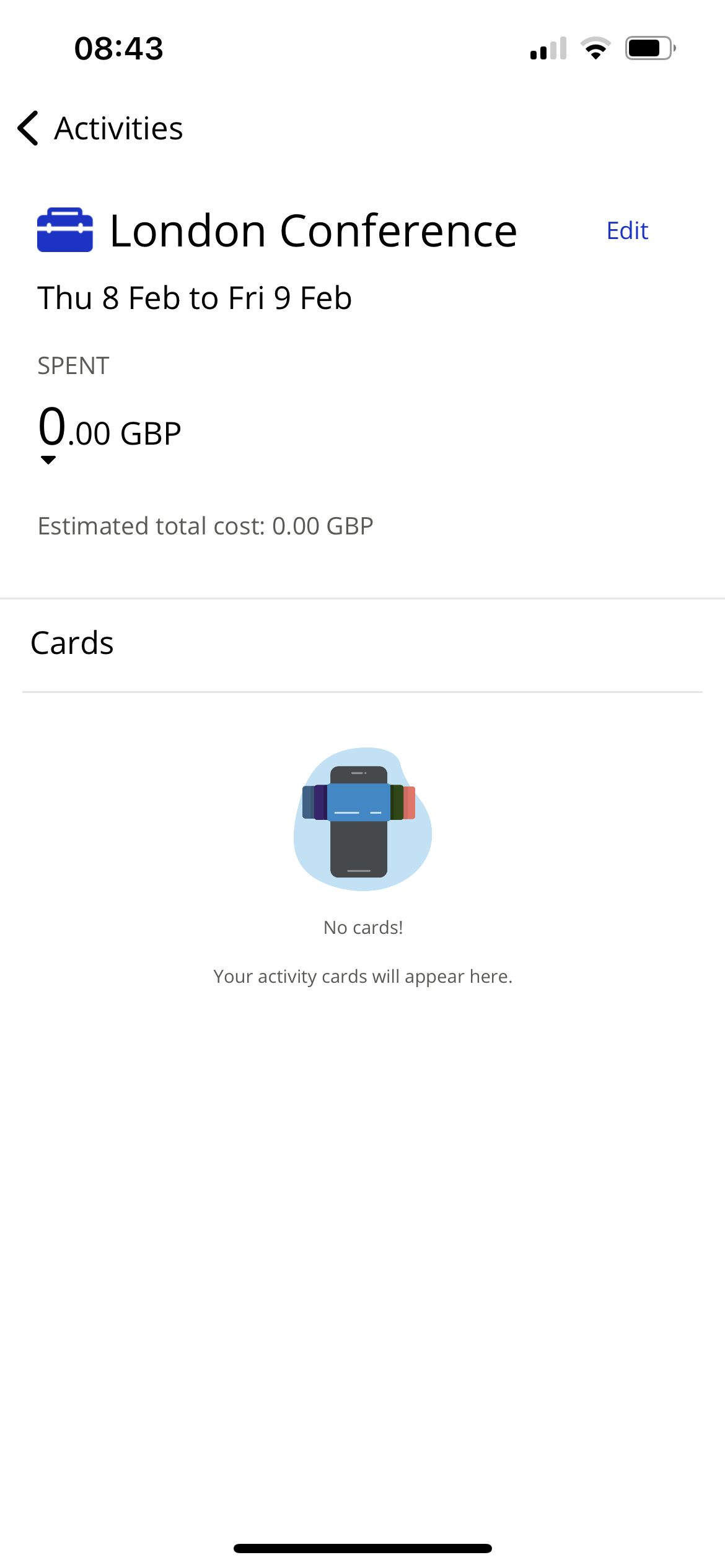
Select an event.
Tap Edit.
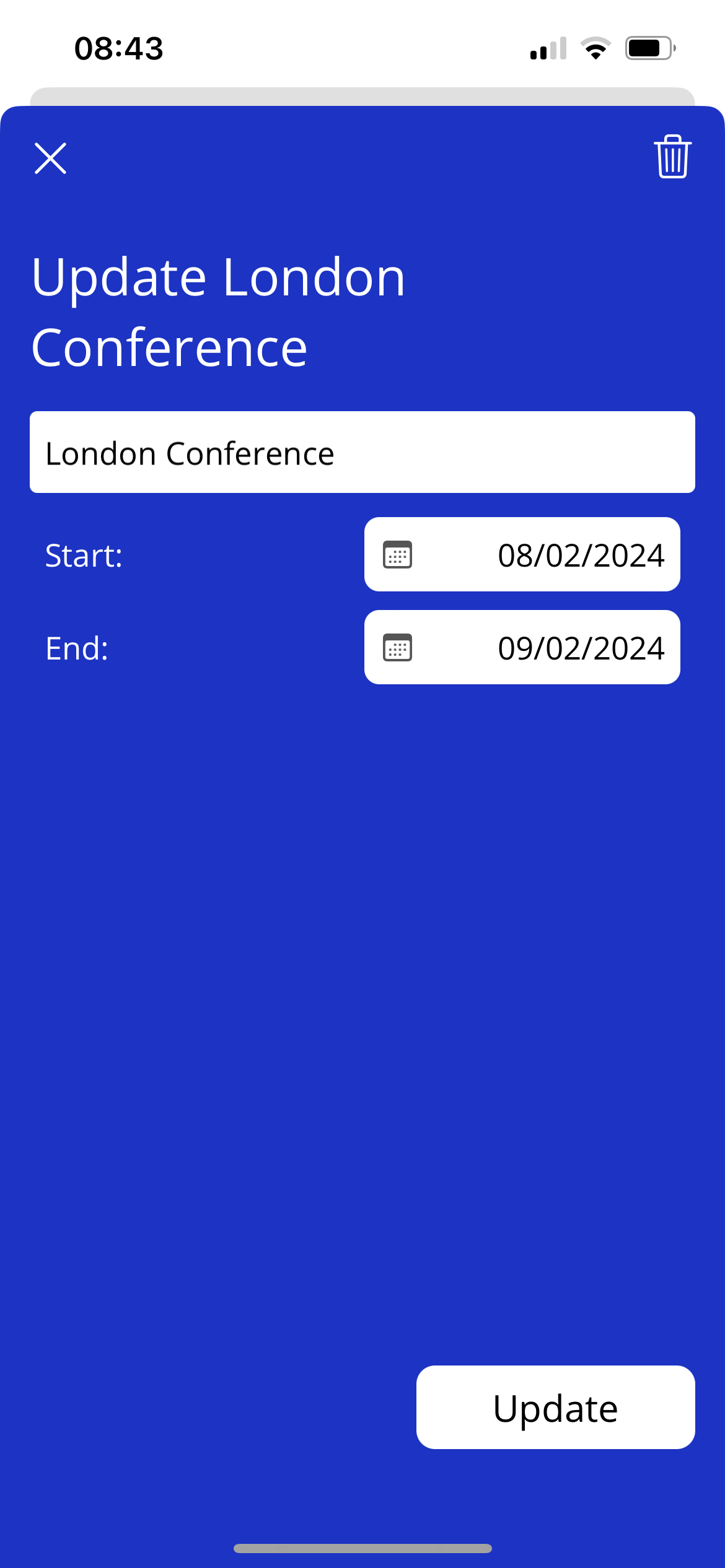
You can edit the name or the active dates, or you can delete the event.
Once you have changed the details, tap Update.
Assigning a Card to an Activity
To assign a card to an activity you must create a card first.
Once a card is created, you must:
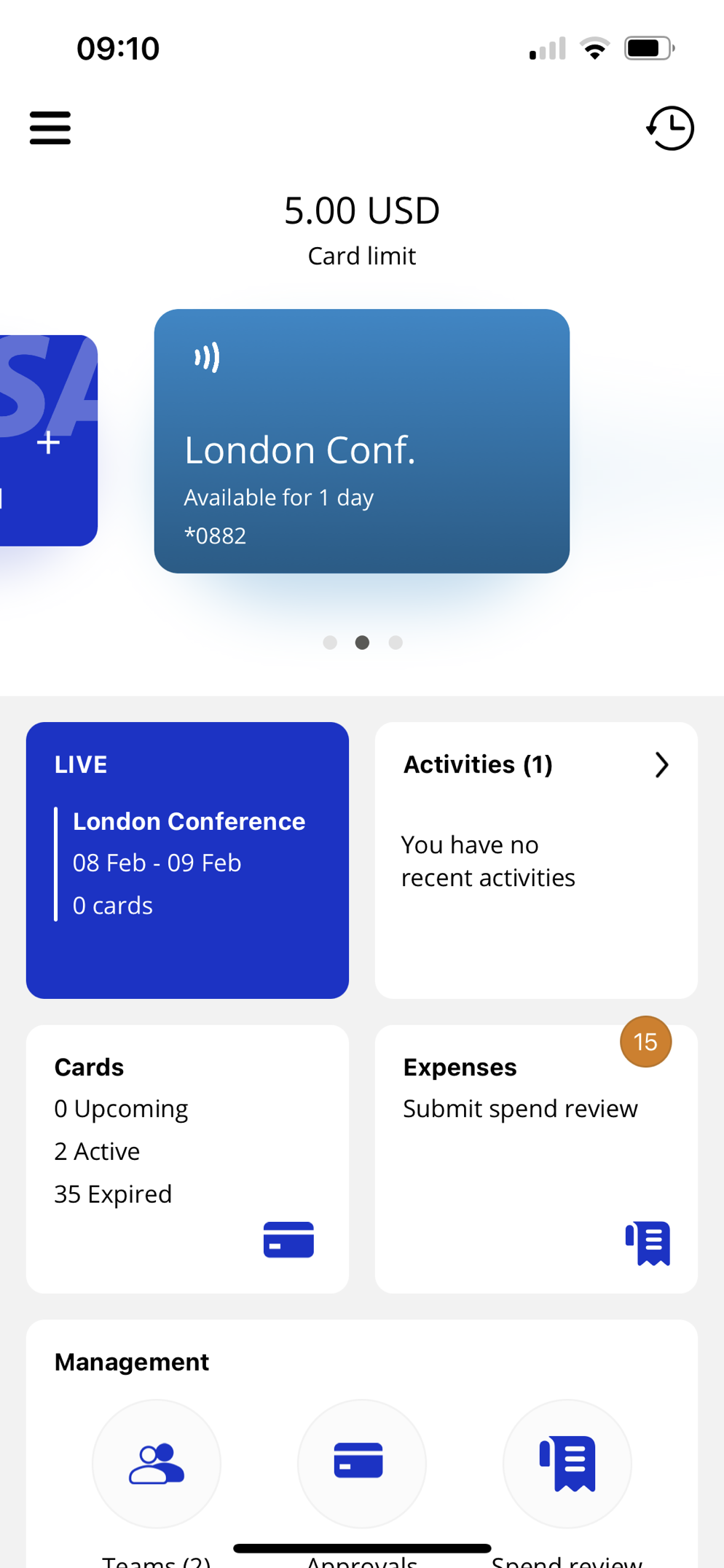
Select the card from the carousel on the home screen.
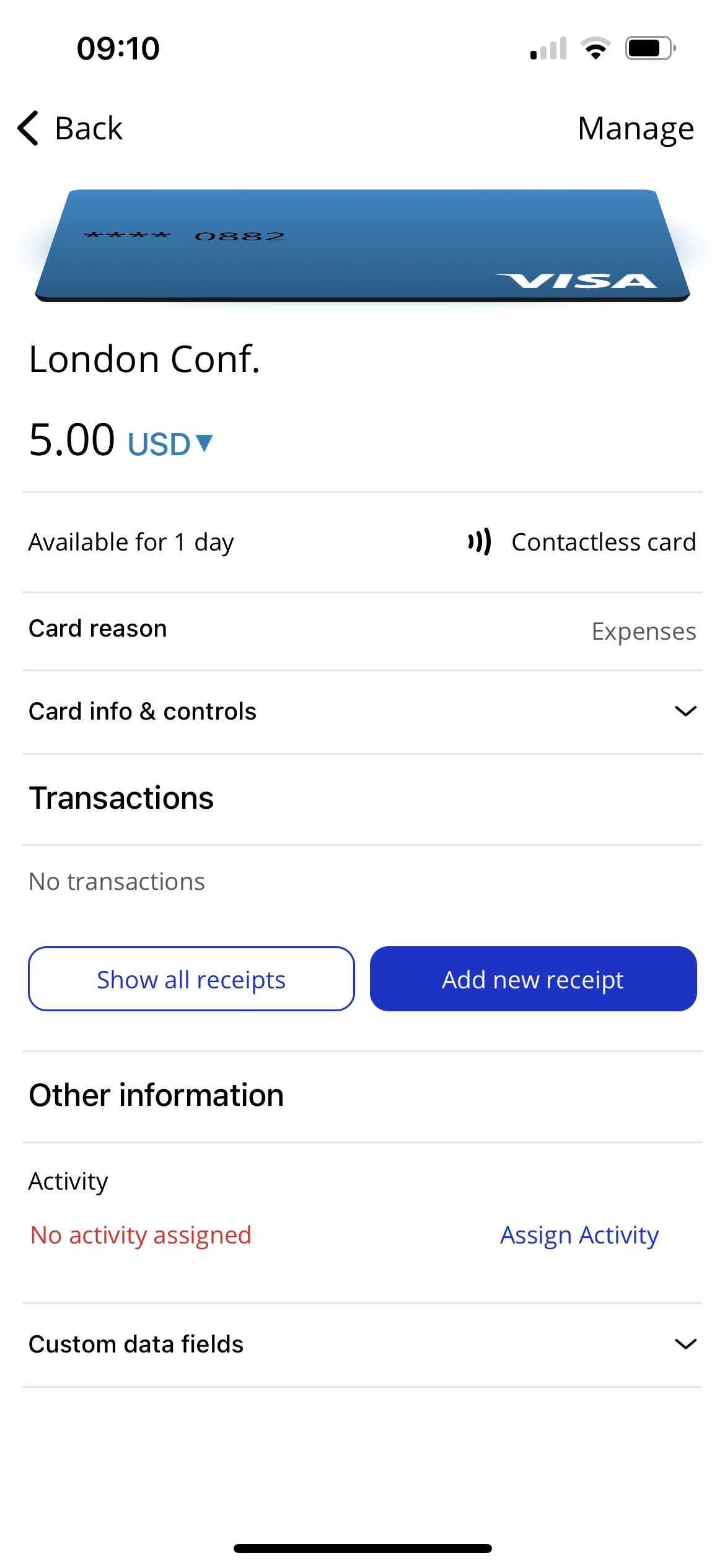
Scroll down to Other information and tap Assign activity.
Select an activity type.
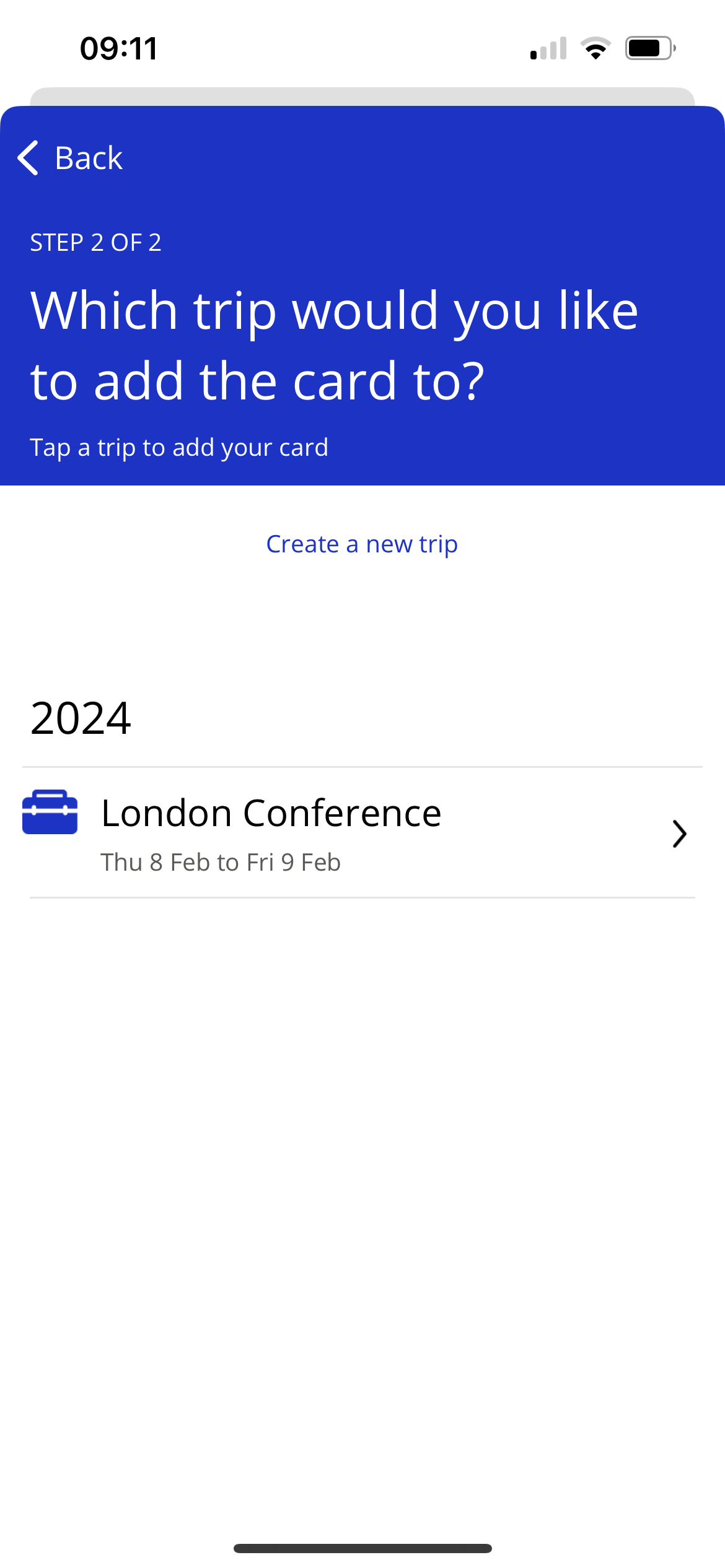
Tap an activity that has already been created from the list shown.
Alternatively you can click Create a new (trip, event, project, or activity) to create an activity.
Manually Linking a Trip to an Activity
You can manually link a trip to an activity. You'll need to create an activity first.
Warning
To do this, you must have an email domain on your account that matches the registered email domain against the virtual card account. We do not support public email domains for this feature, such as gmail.com or hotmail.com.
From the home screen, tap Activities and then scroll to the bottom of the page and tap Link booking.
Select the type of booking you are searching for.
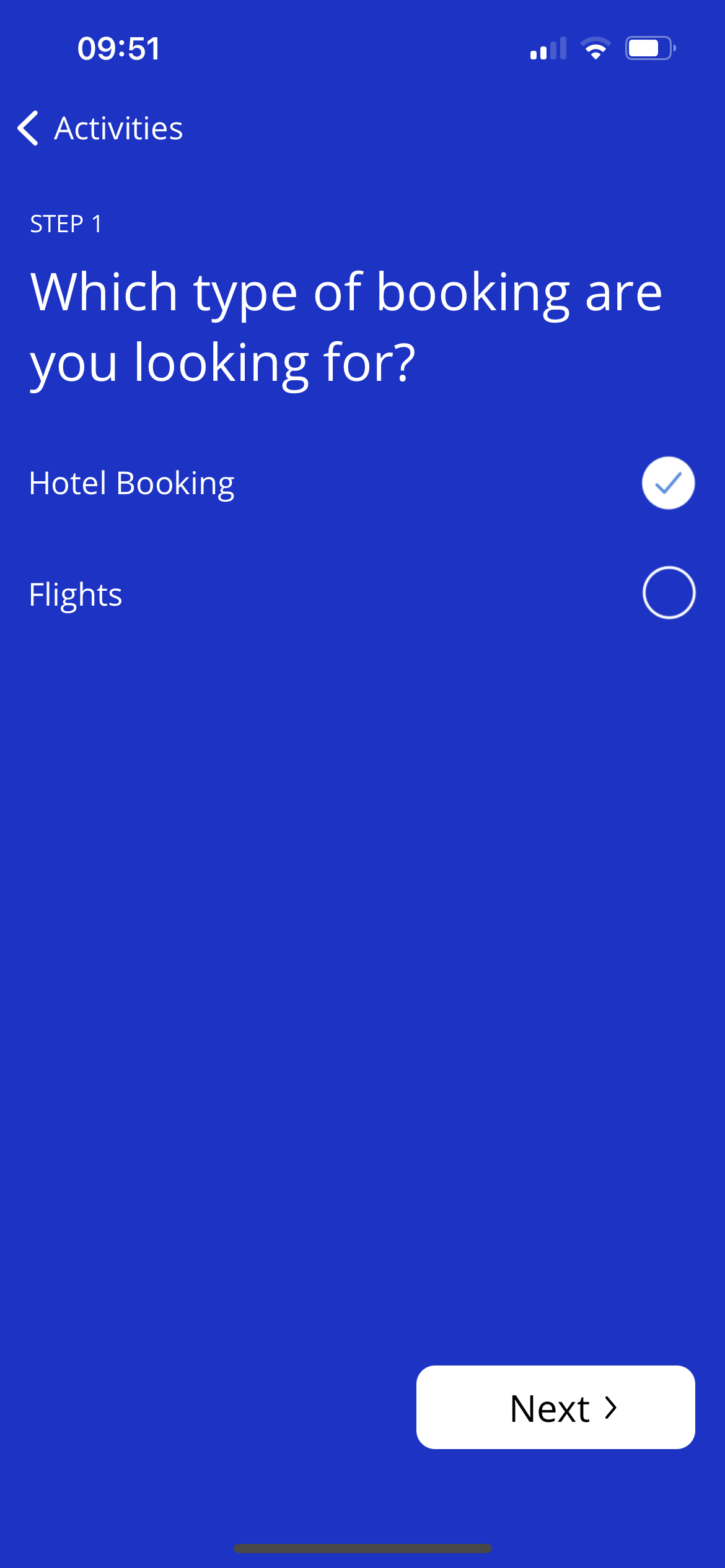
You will be prompted to enter the following information, depending on the type of card you are searching for:
For hotel cards:
Hotel confirmation reference
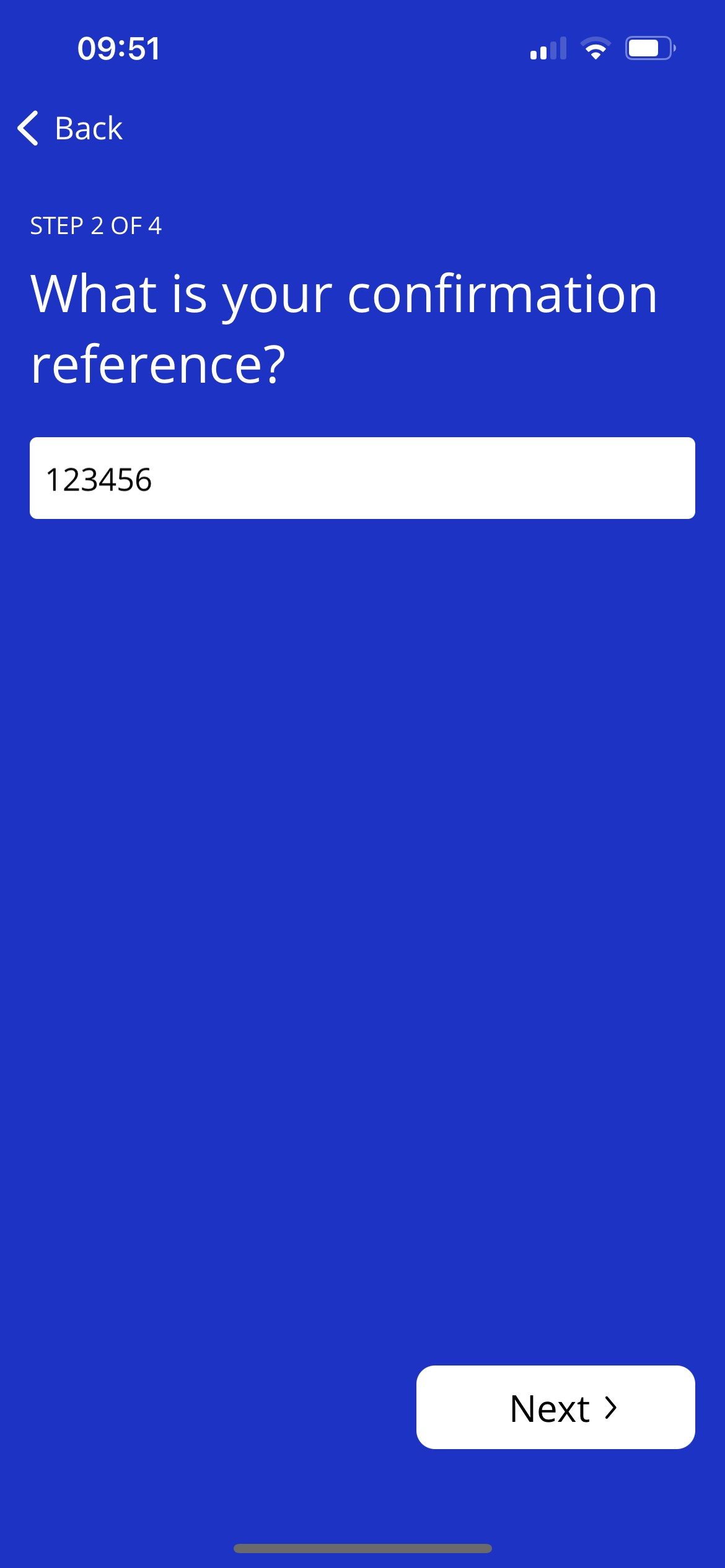
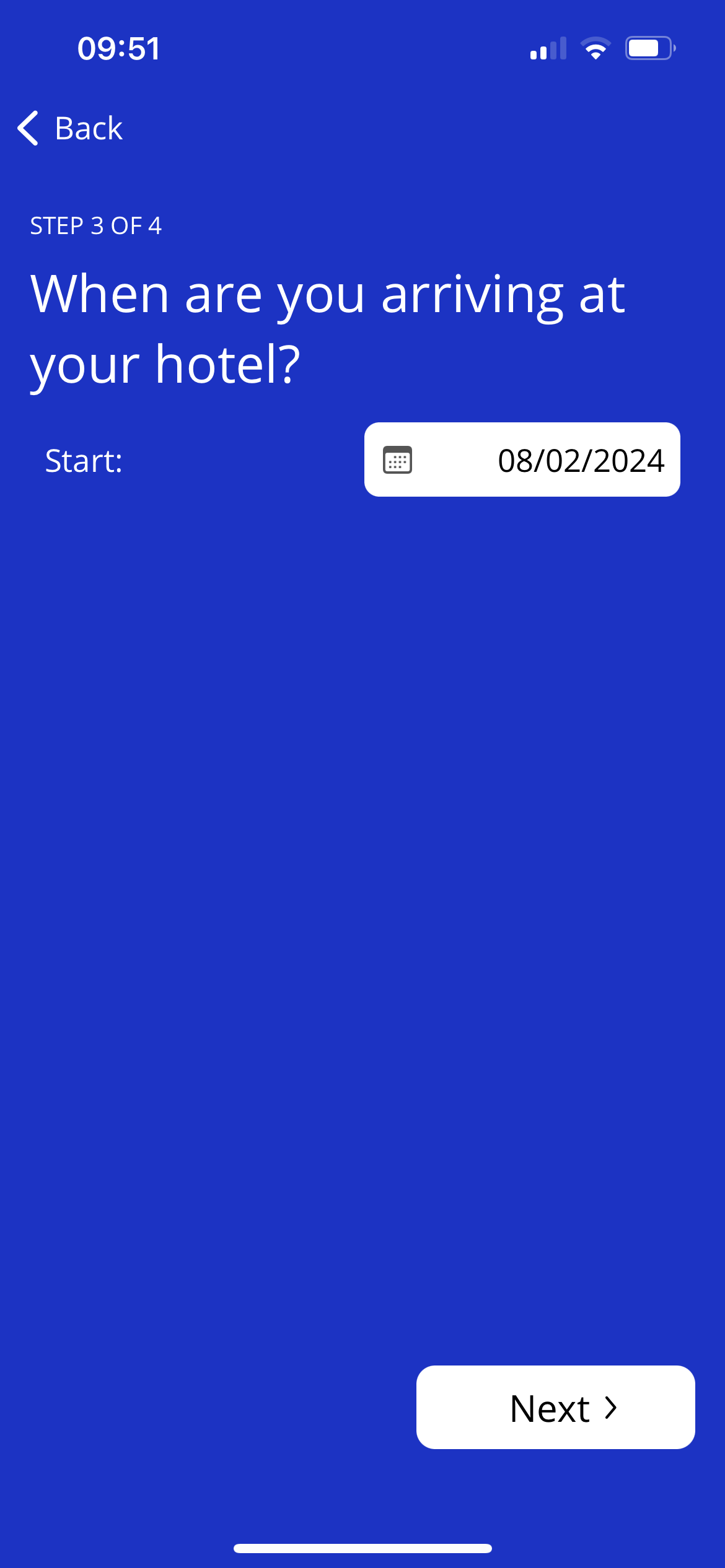
Check-in date
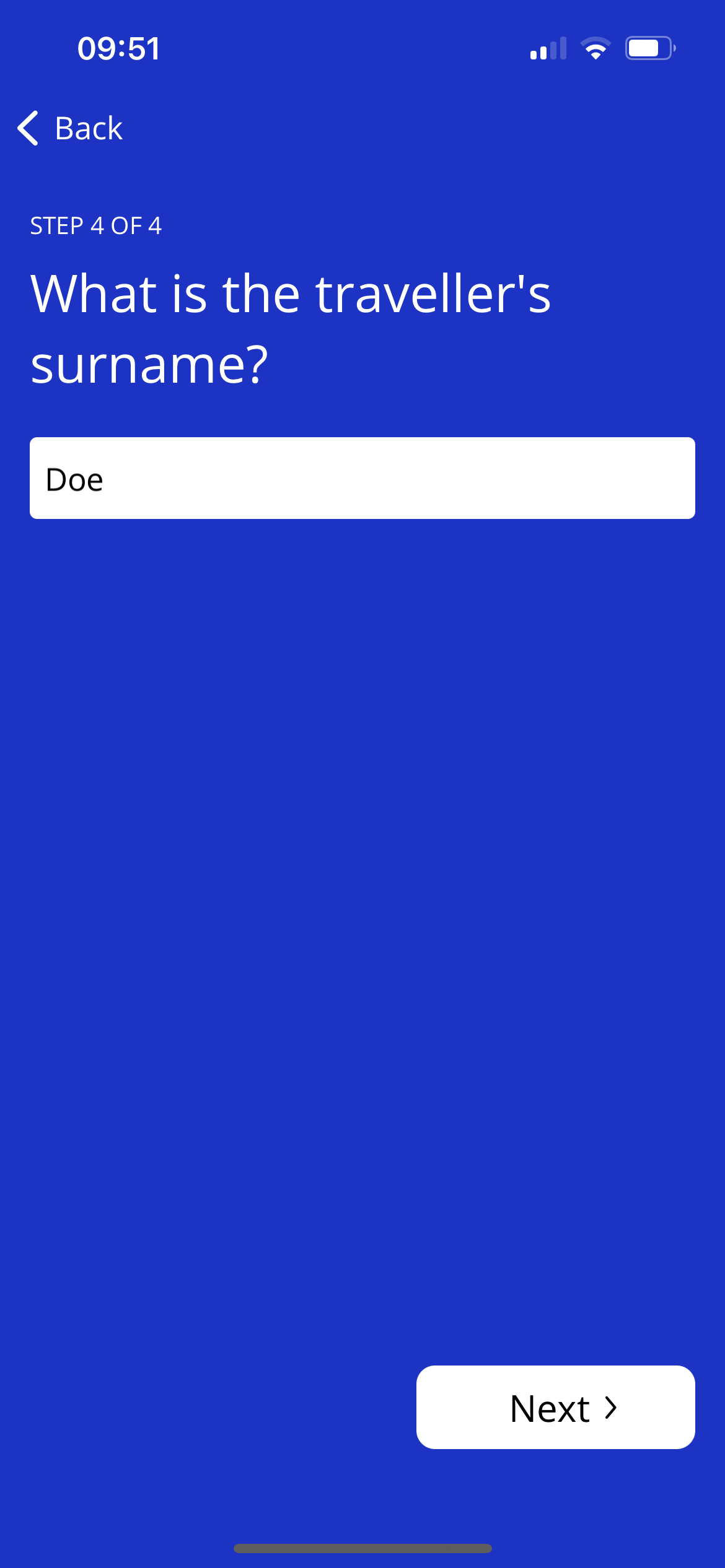
Traveler
For flight cards:
Ticket number
Departure airport code
Departure date
Traveler
Unlinking Cards from Activities
Users can unlink cards from an Activity if a card has been added incorrectly. This prevents users from being required to delete Activities to remove unwanted cards or to correct errors.
To unlink a card from an Activity:
Open the Activity where the card is linked.
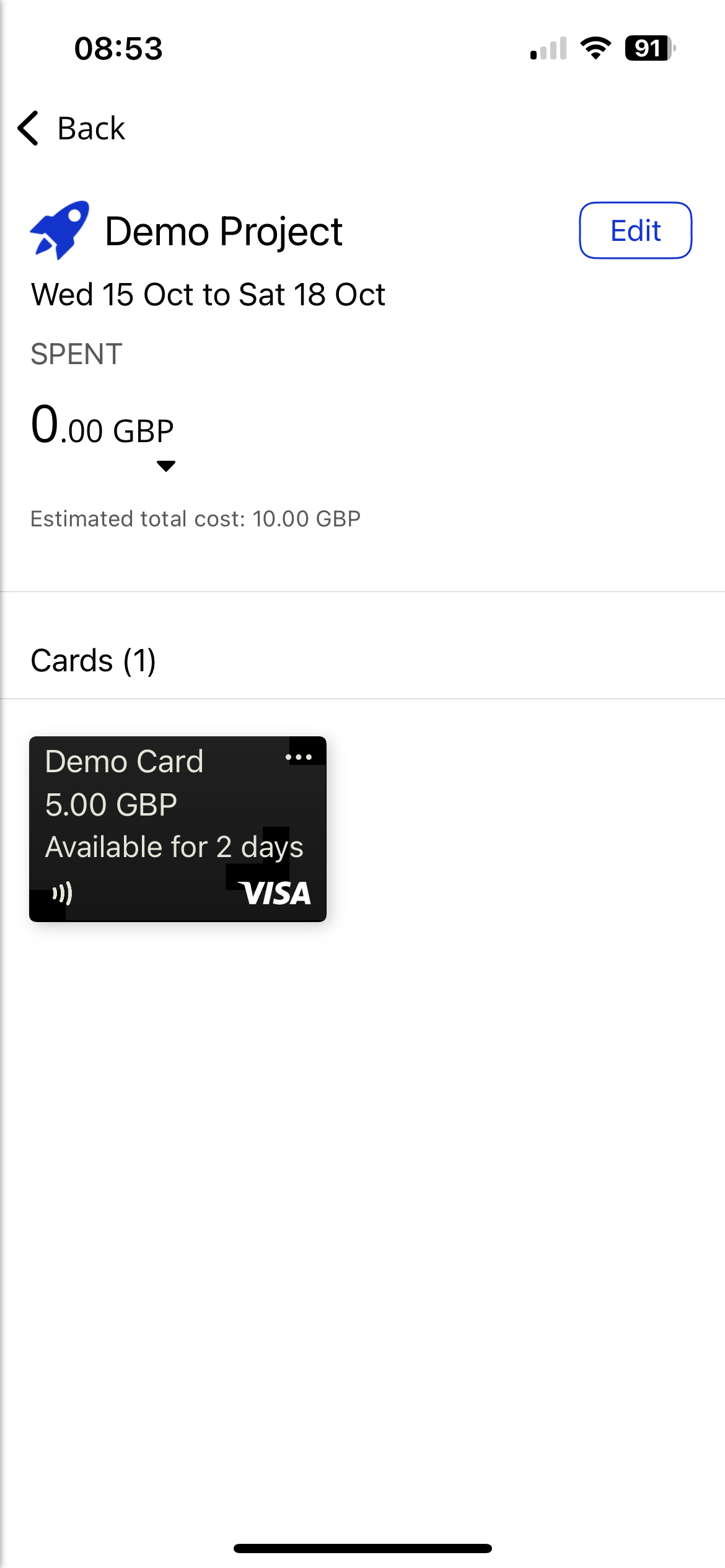
Tap the 3-dots in the top right-hand corner of the card that you want to unlink or move.
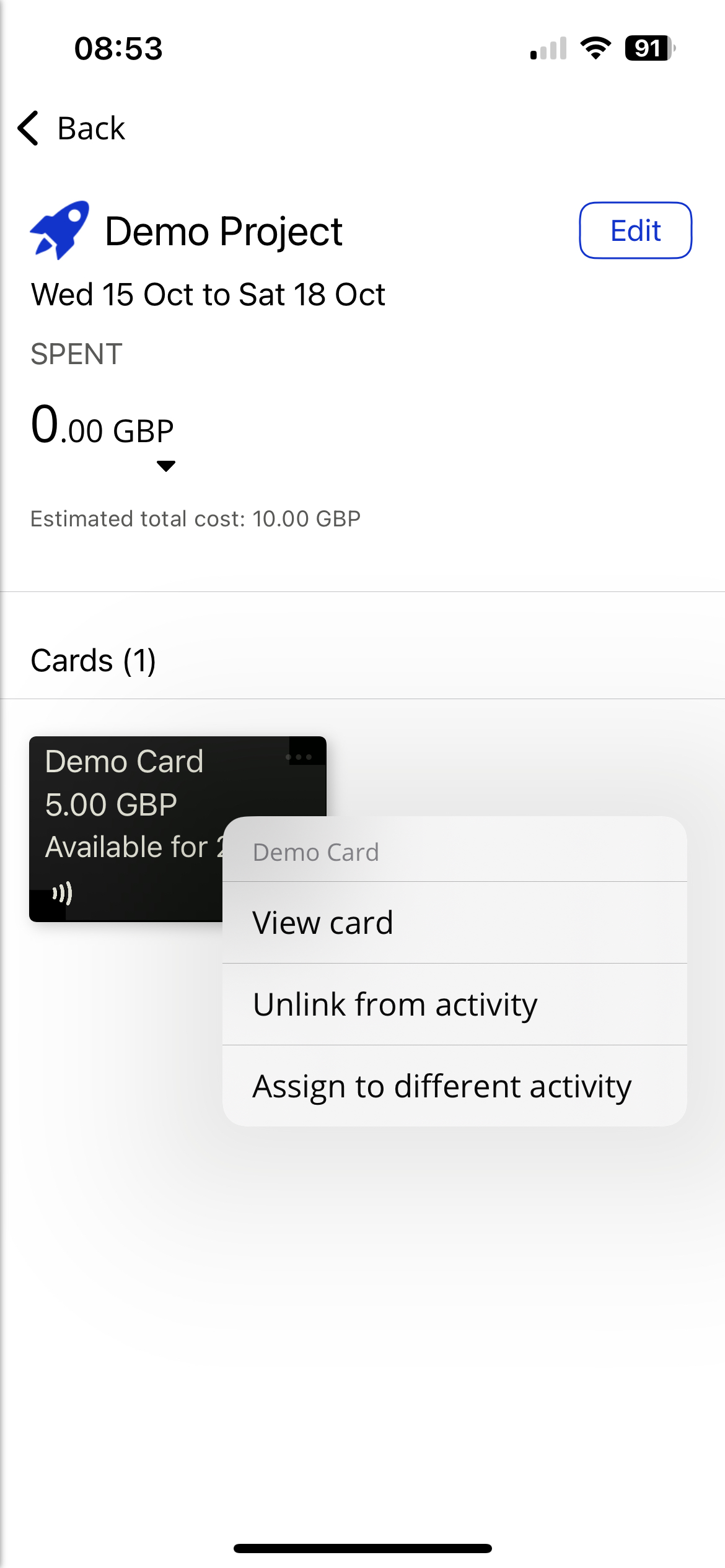
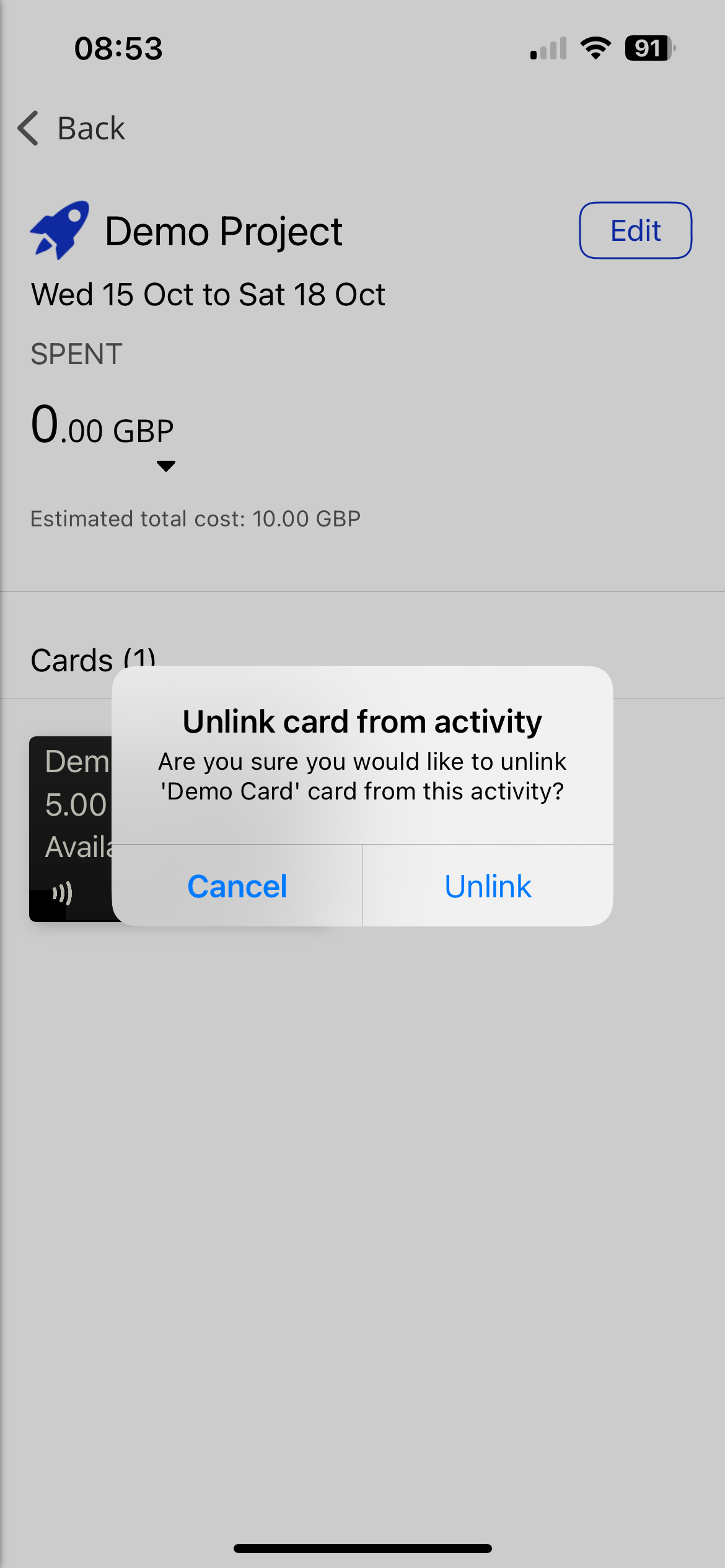
Tap Unlink from activity and then tap Unlink to remove the card from the Activity.
OR
Tap Assign to different activity, select the Activity that you want to move the card to and tap Assign.