Mobile Application v5.6 Release Notes
Mobile Application v5.6 introduces a check-in assistant, designed to improve virtual card payment acceptance.
Check-in Assistant
We have added a check-in assistant to provide support for app users when making a virtual card payment in-person at a hotel. The check-in assistant provides prompts to help users access their virtual card details during check-in, whilst also offering guidance for users that need assistance with virtual card acceptance when making a payment.
The check-in assistant is designed for two key purposes:
To support app users when making a payment at the hotel check-in desk using the app, without the need to contact support.
To improve the hotel's acceptance of virtual card payments.
This feature is available automatically to all app users who have been sent a hotel card. If the user is unable to make a virtual card payment after following the check-in steps, they will be prompted to contact their travel agent.
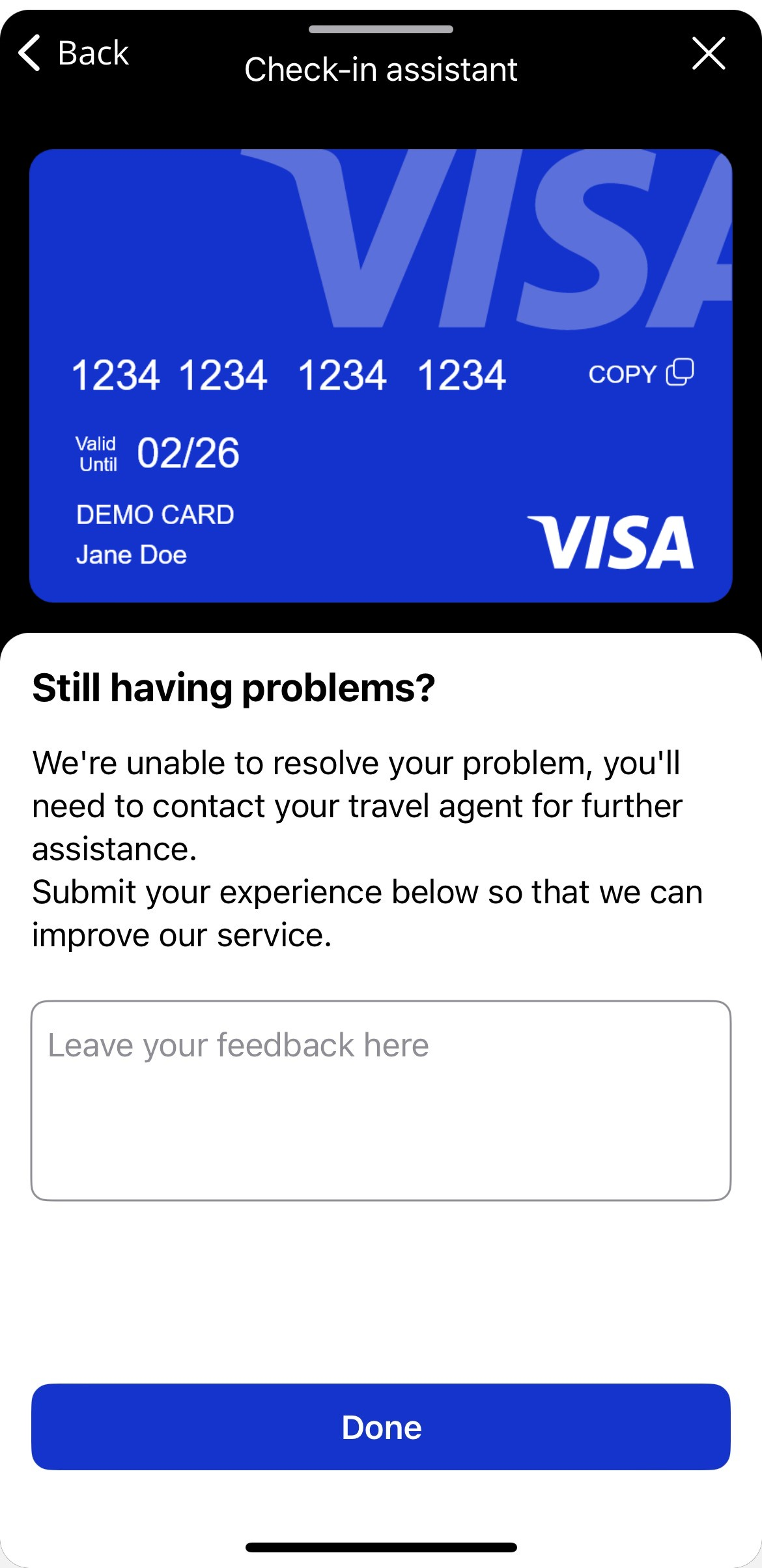
Users are also prompted to provide feedback on their check-in experience, this will be passed to our hotel team who will work with hotels to improve the process and improve the traveler journey.
Using the Check-in Assistant
Note
The troubleshooting tips that are available when using the check-in assistant are dependent on your TMC or card issuer.
When an activity linked to a hotel card is active, the check-in assistant will be shown at the bottom of the screen.
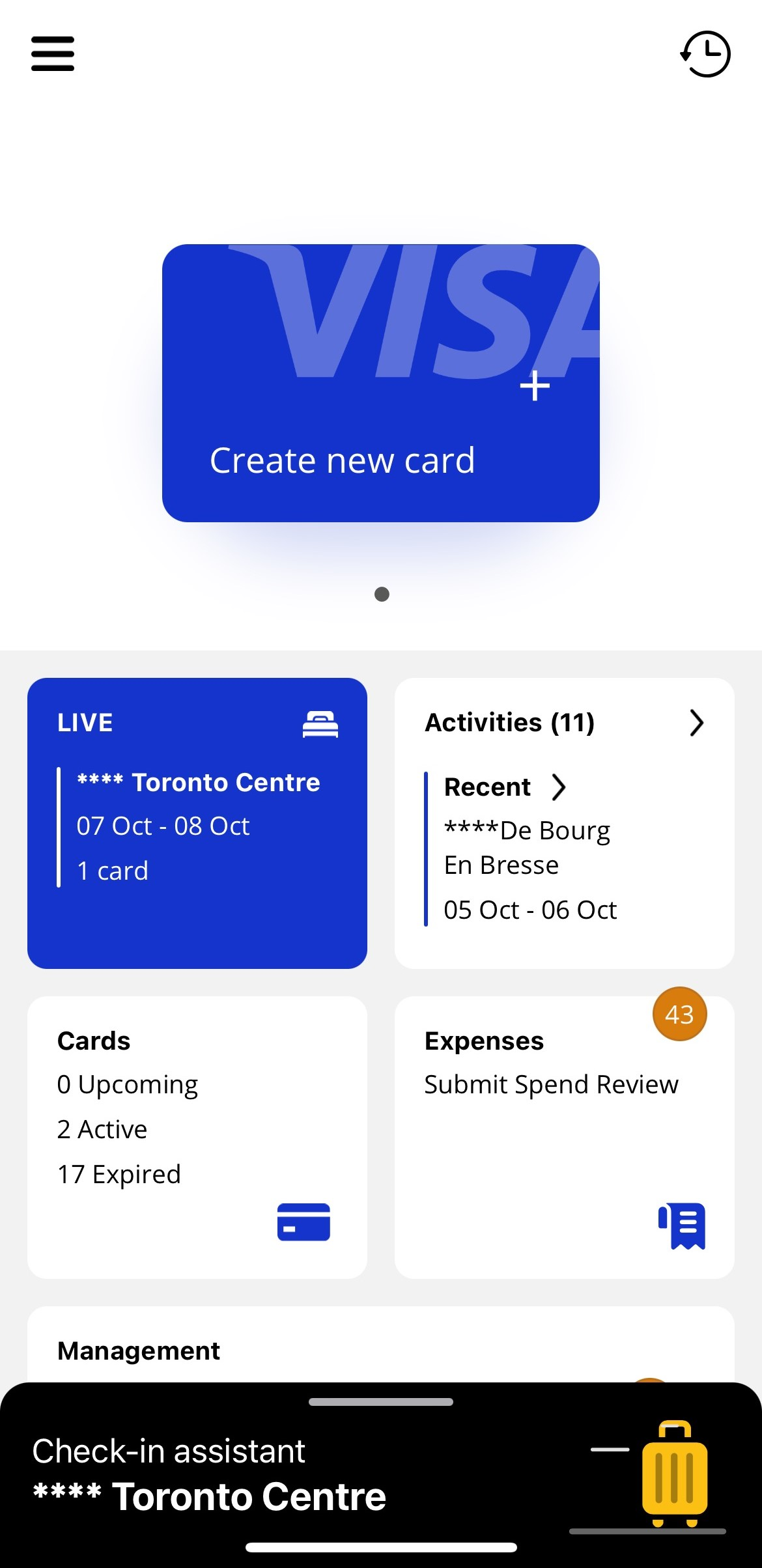
If the user is having trouble making a payment at a hotel, they should:
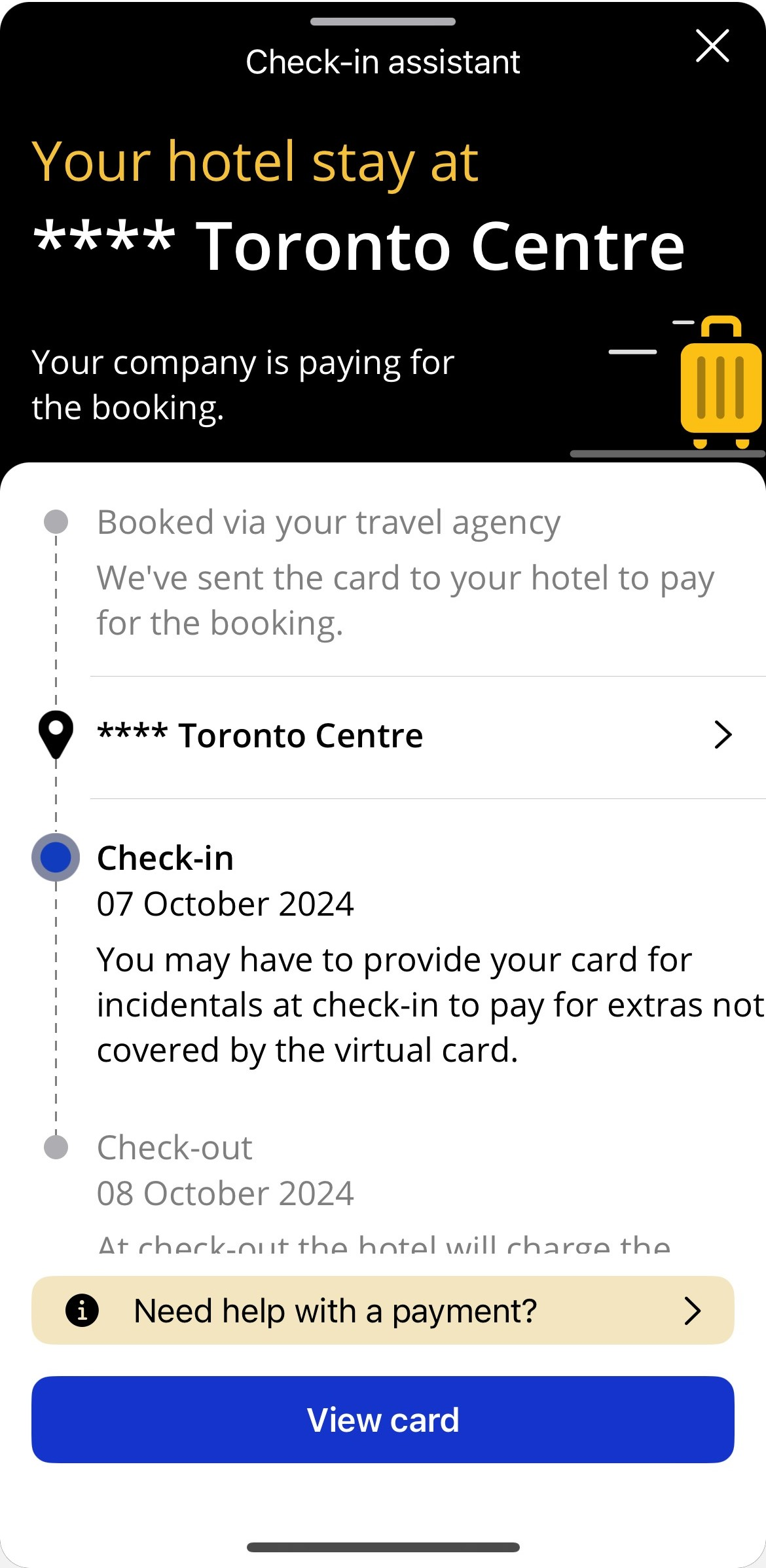
Tap the check-in assistant from the bottom of the screen, tap Need help with a payment? and then tap Hotel needs the virtual card details.
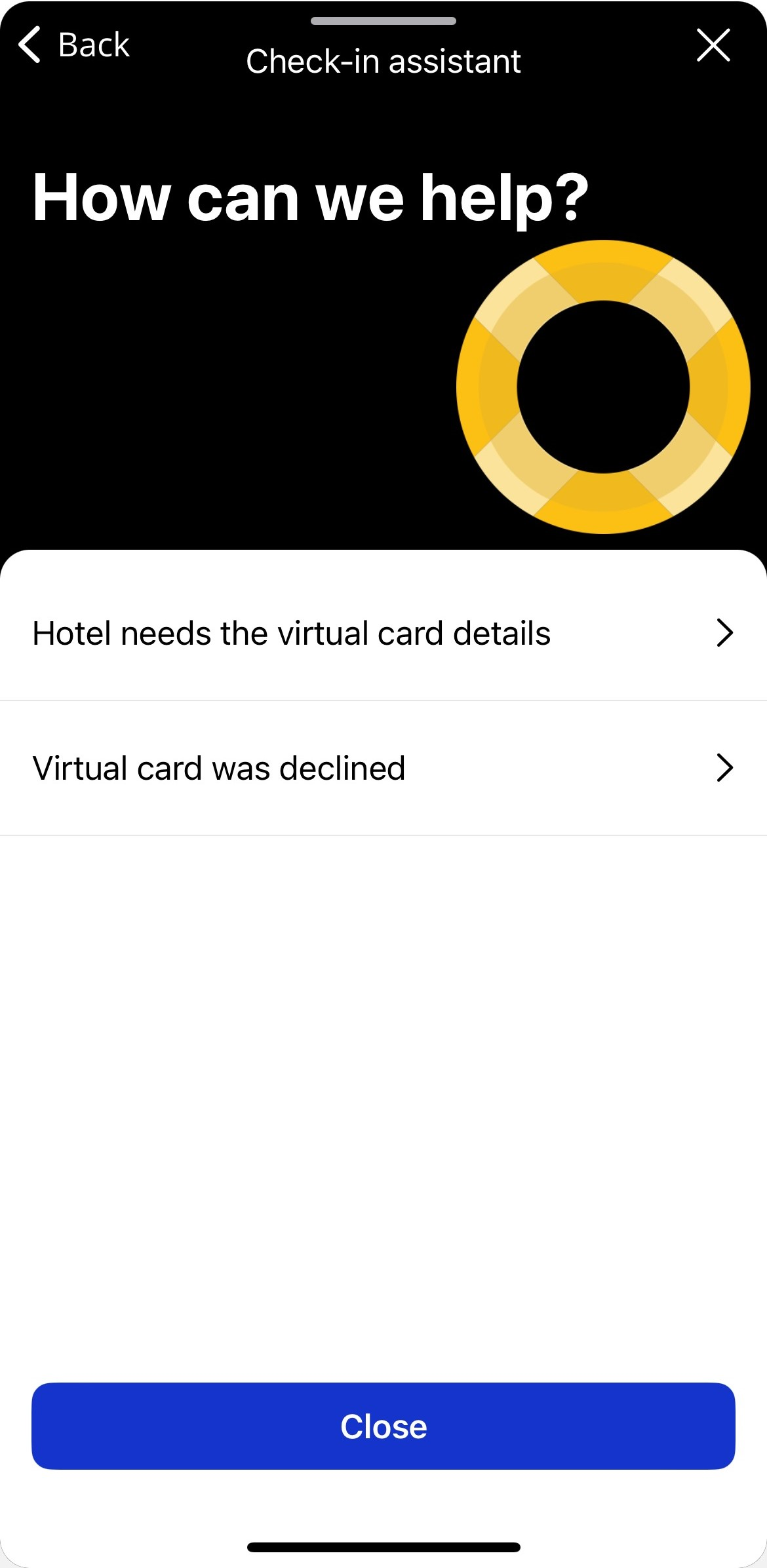
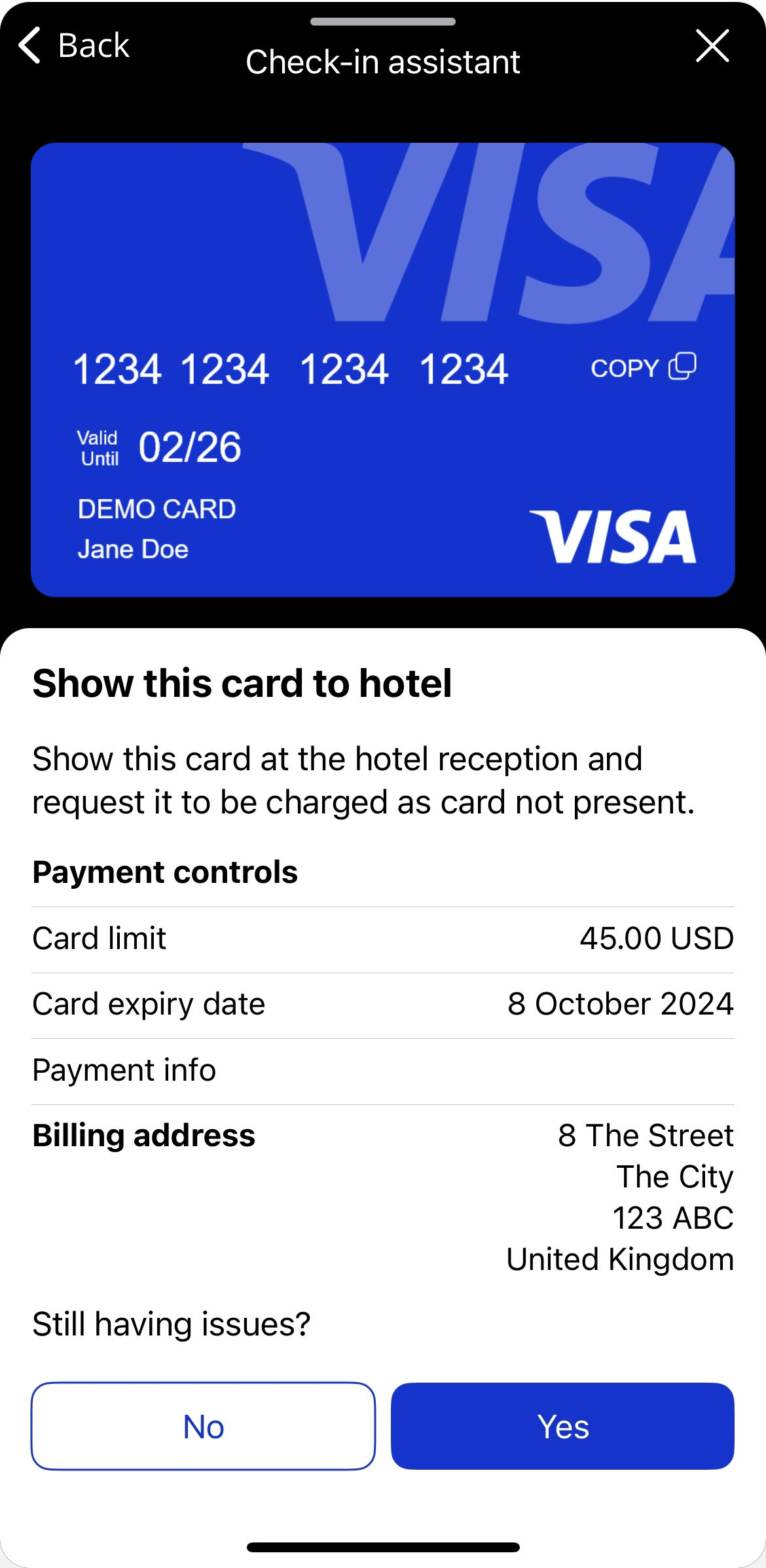
The check-in assistant displays the full card details on-screen, including the card number, expiry date, and security code.
If the hotel is unable to accept this form of payment, tap Yes below 'Still having issues?'.
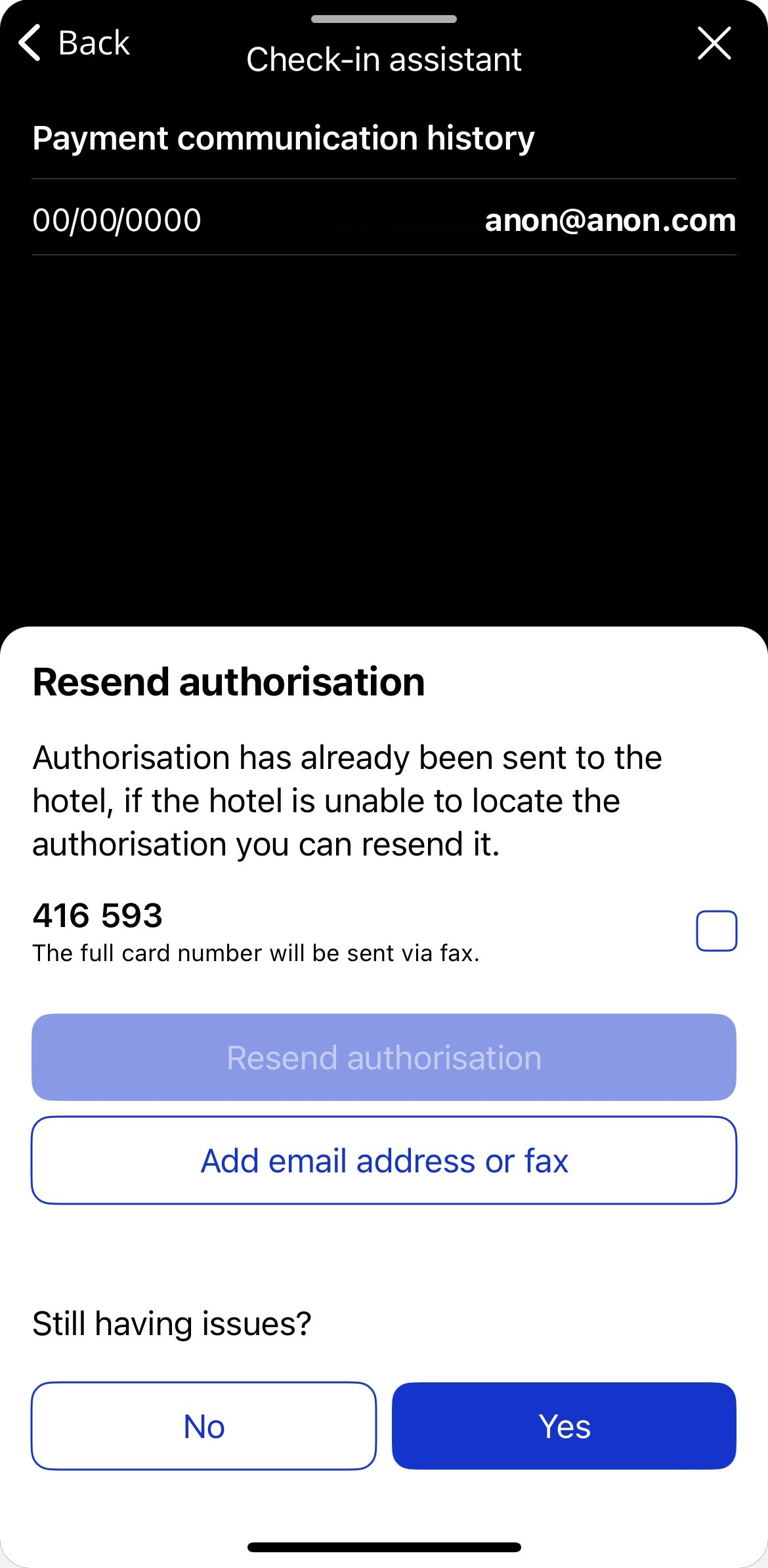
The check-in assistant displays the option to resend the payment authorisation. If the contact details are incorrect, tap Add email address or fax. If the contact details are correct, tap Resend authorisation. An email containing the full card details is sent to the hotel.
If the hotel is unable to accept this form of payment, tap Yes below 'Still having issues?'.
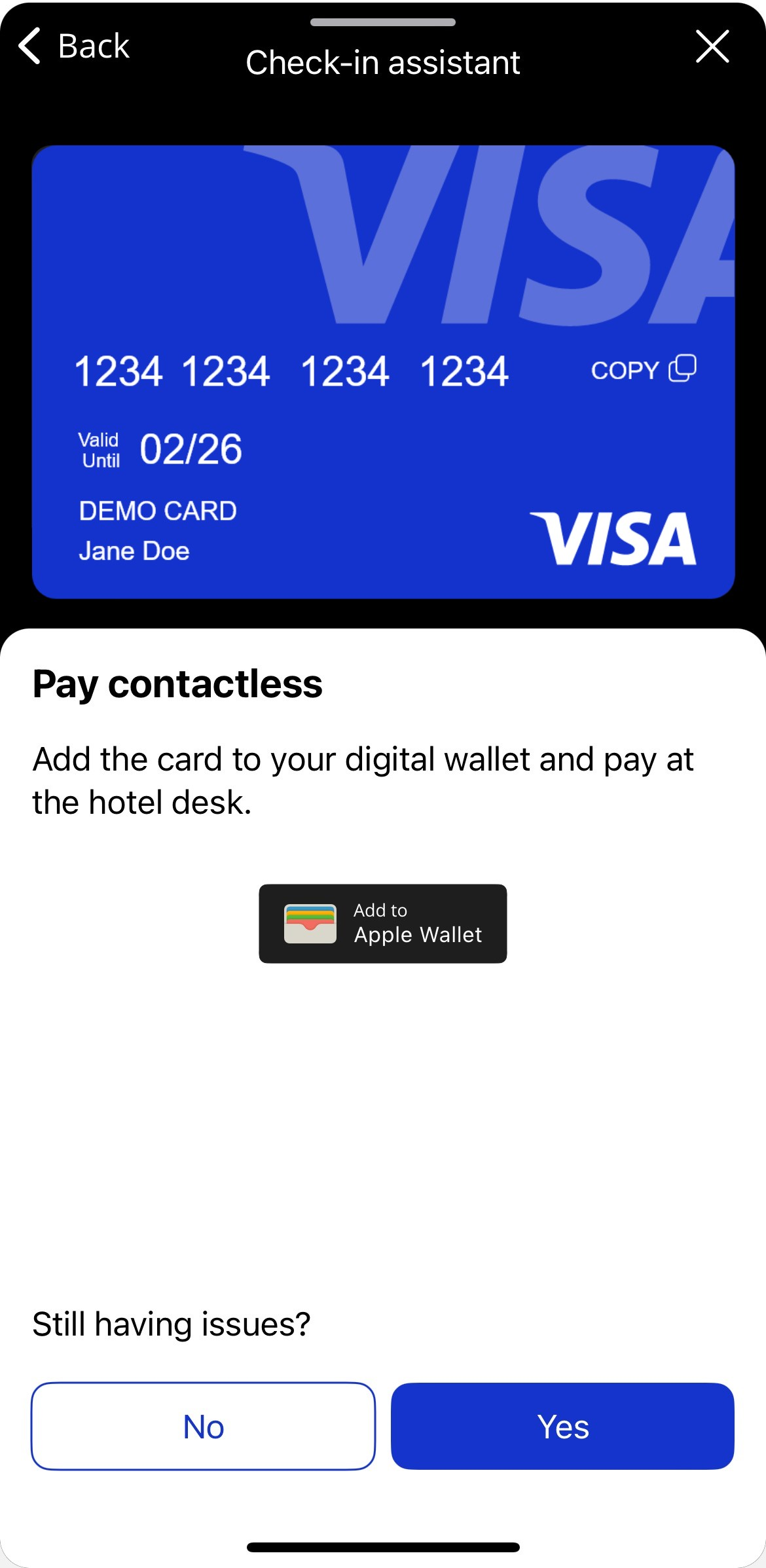
The check-in assistant displays the option to add the virtual card to your device's digital wallet. Tap Add to Apple Wallet or Add to Google Wallet. The card can be used to pay using the payment terminal at the hotel desk.
If the user is unable to complete their payment after using the check-in assistant they will need to contact their corporate travel agent.
Notable Bug Fixes
We have fixed an issue visible to Team Admins, where rejected users are incorrectly showing as active. This was seen in iOS and Android.
An issue where users were unable to upload PDF receipts has been descoped from v5.6 and will be fixed in a future release.
We have fixed an issue where empty Custom Data Fields display "null" if there was no content, an empty field is now shown. This was seen in Android only.