View Your Cards
Active Cards
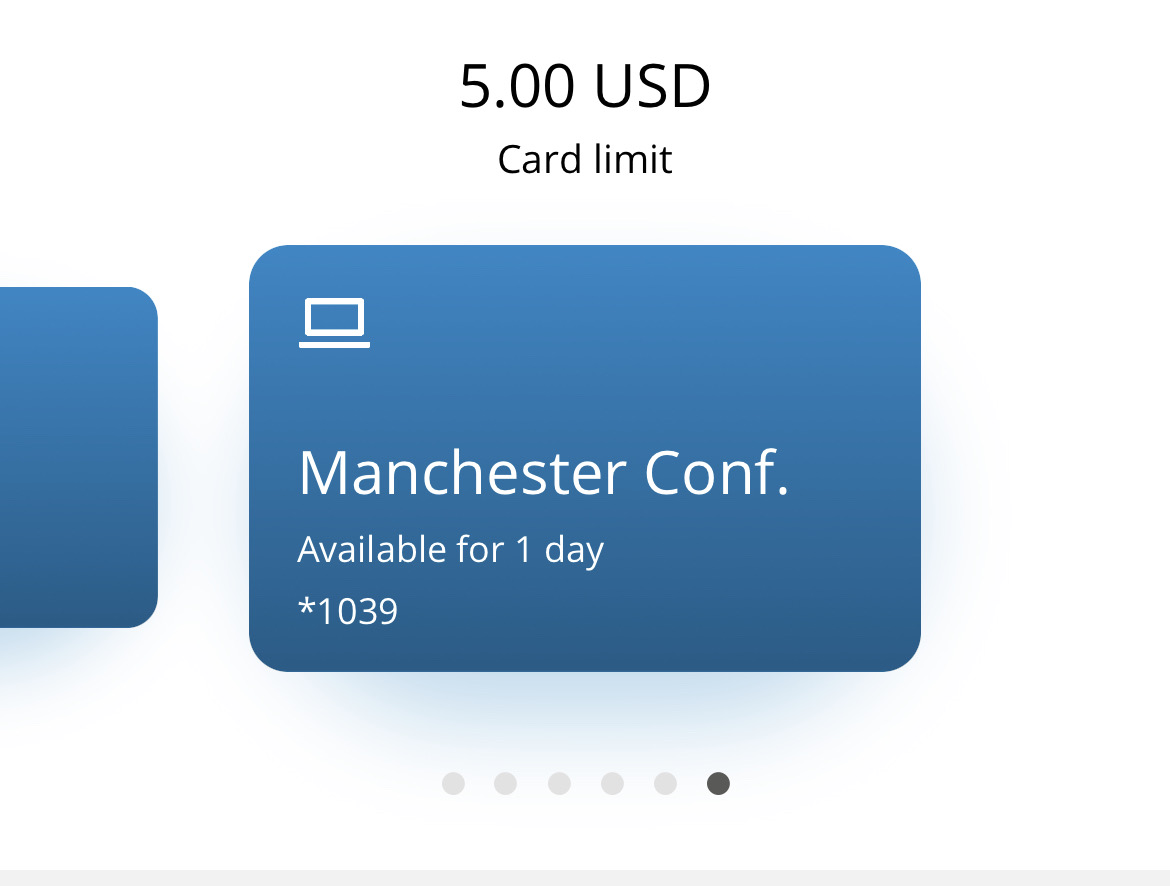
When you log into the Visa Commercial Pay App, the homepage will display all of your active or pending cards on a carousel. Swipe to move through this list to find the card that you need and view its status.
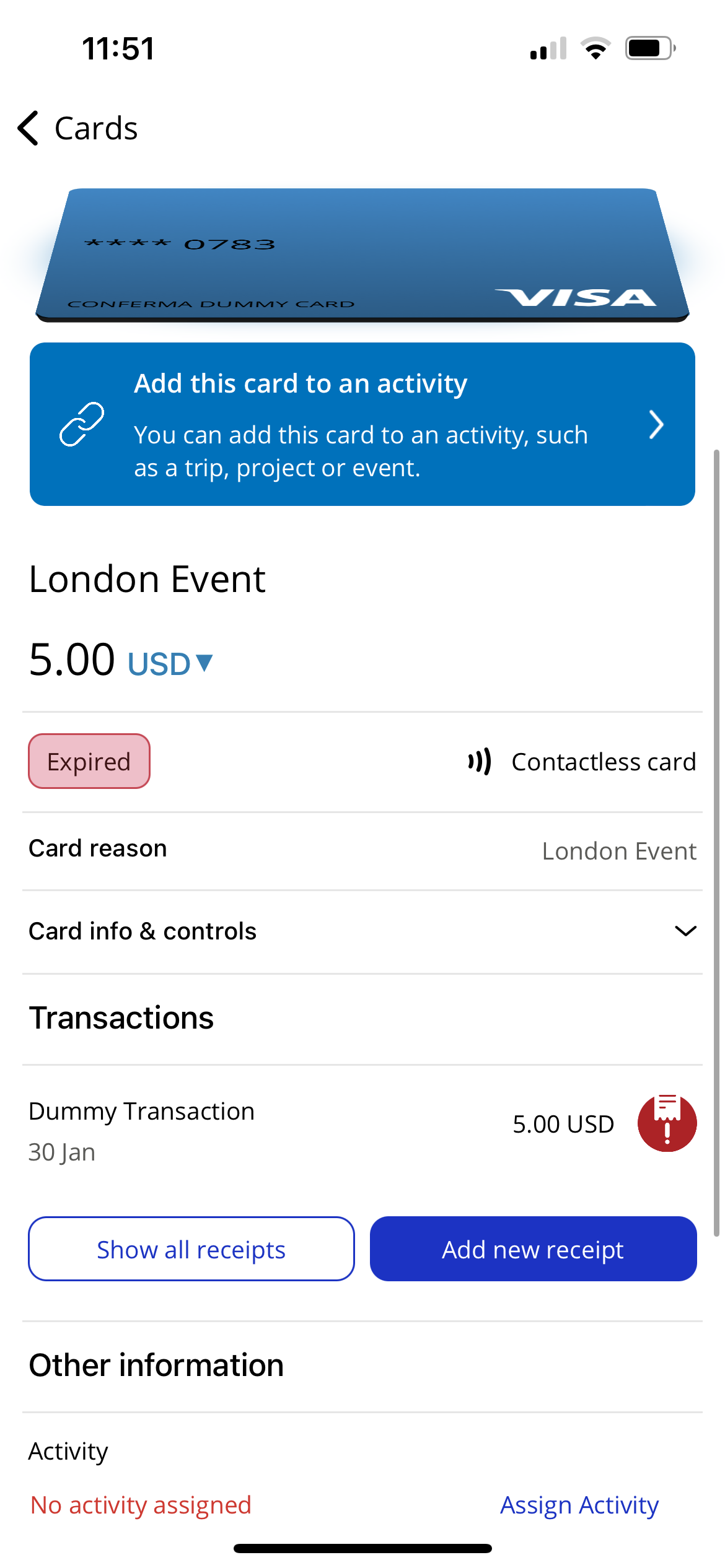
Tap a card to view the details.
You will see the remaining balance of the card and a list of transactions once you start spending, if Real Time Authorizations are supported by your issuer.
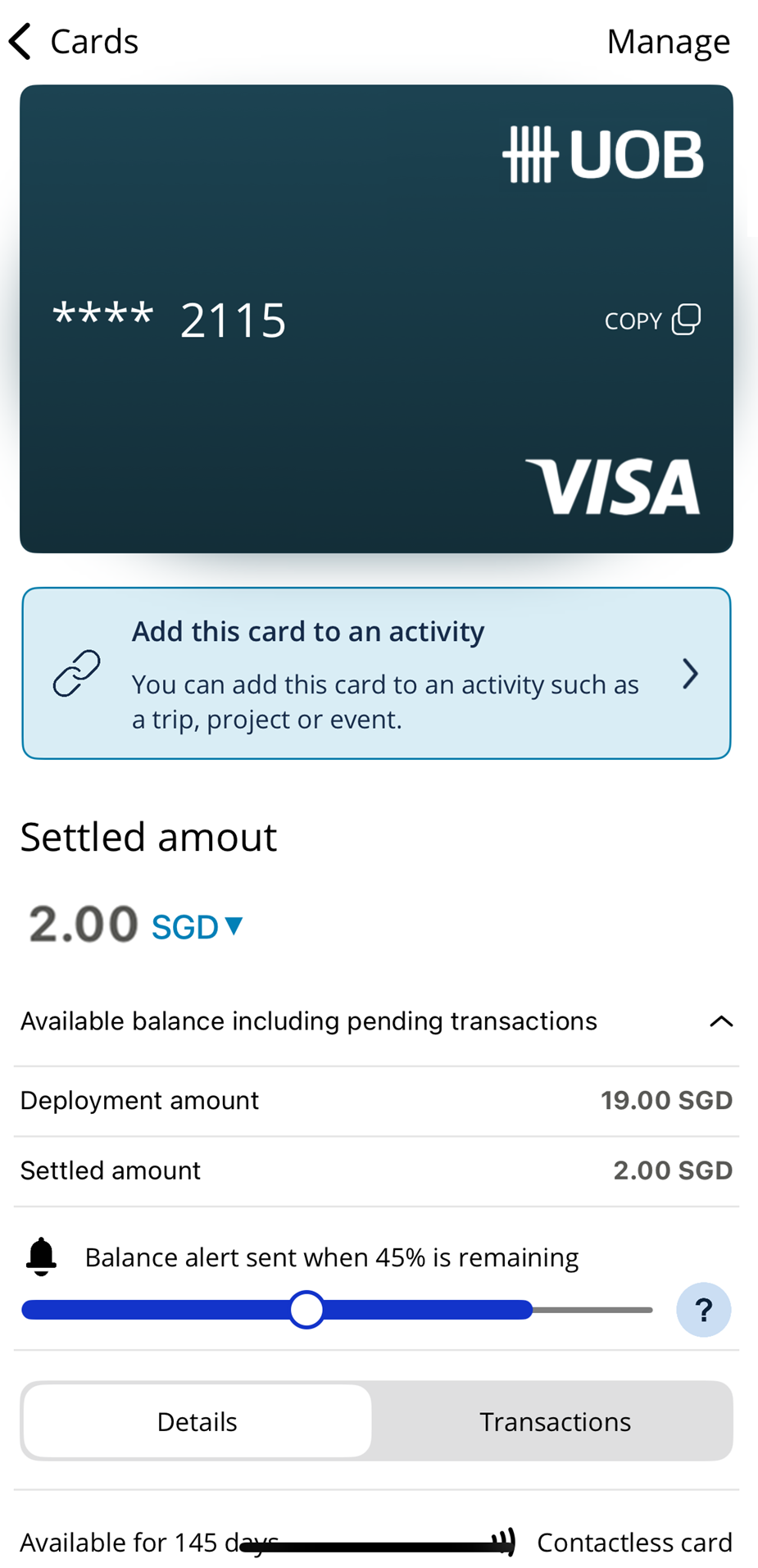 |
Recurring balance cards are clearly marked with a  and a card type indicator shows if a card is Online only
  or Contactless
  .
.
 |
You will also see the Create new card button displayed here. If your Corporate Administrator has granted you the access to create your own cards, you can tap this to begin creating a card. If your Corporate Administrator has not granted you this access, when you tap the button you will see a message to confirm this.
Advanced card controls that have been set will be visible within the Card info & controls section alongside the Card control template row.
View Your Expired Cards
Cards will be expired if:
The activation period has expired.
A card request was rejected during approval.
A card was cancelled.
Note
The last five expired cards will display automatically.
To view a complete list of expired cards:
Tap Cards from the Home screen.
Tap the Expired Cards tab.
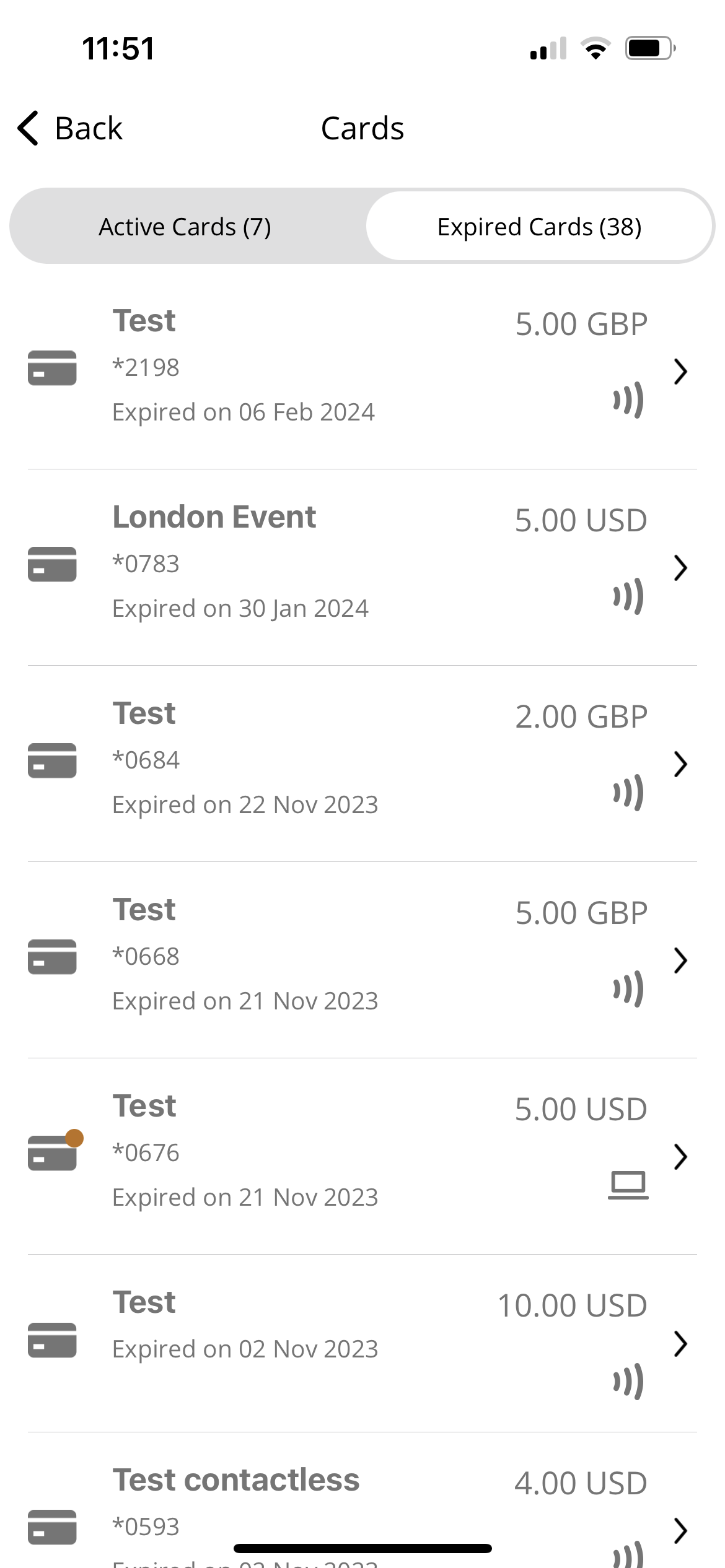
Tap an expired card to see further details.