Mobile Application v5.12 Release Notes
Mobile Application v5.12 introduces improvements to the registration flow and bug fixes.
Registration Flow with MFA
We have made changes to the Visa Commercial Pay App registration flow to allow users to select from different authentication methods. We have also made UI changes to improve the overall user experience of registering.
Note
Due to Android operating system limitations, users cannot choose which Authenticator app to open, which means that this functionality behaves differently from other operating systems, such as iOS. Both the Android and the iOS flows are documented below.
IOS Flow:
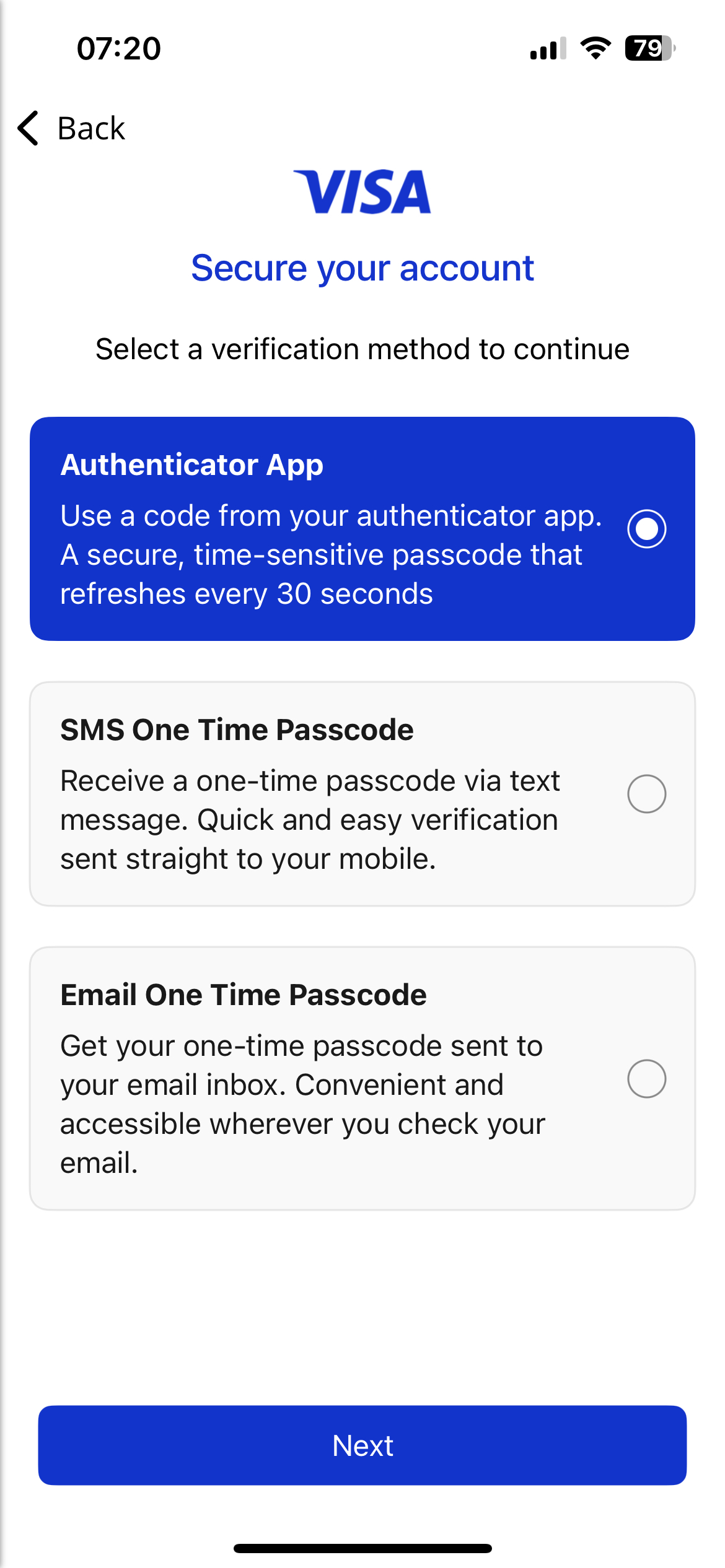
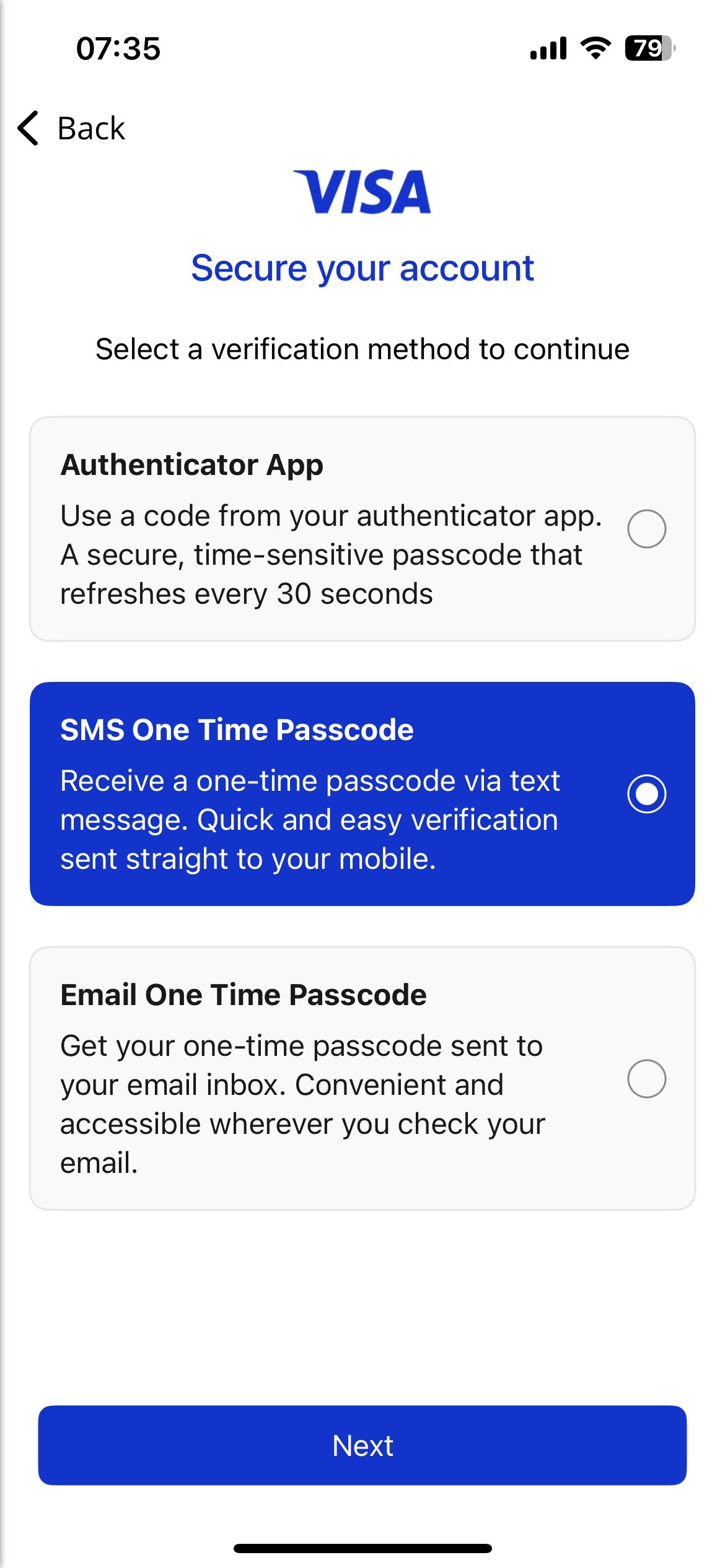
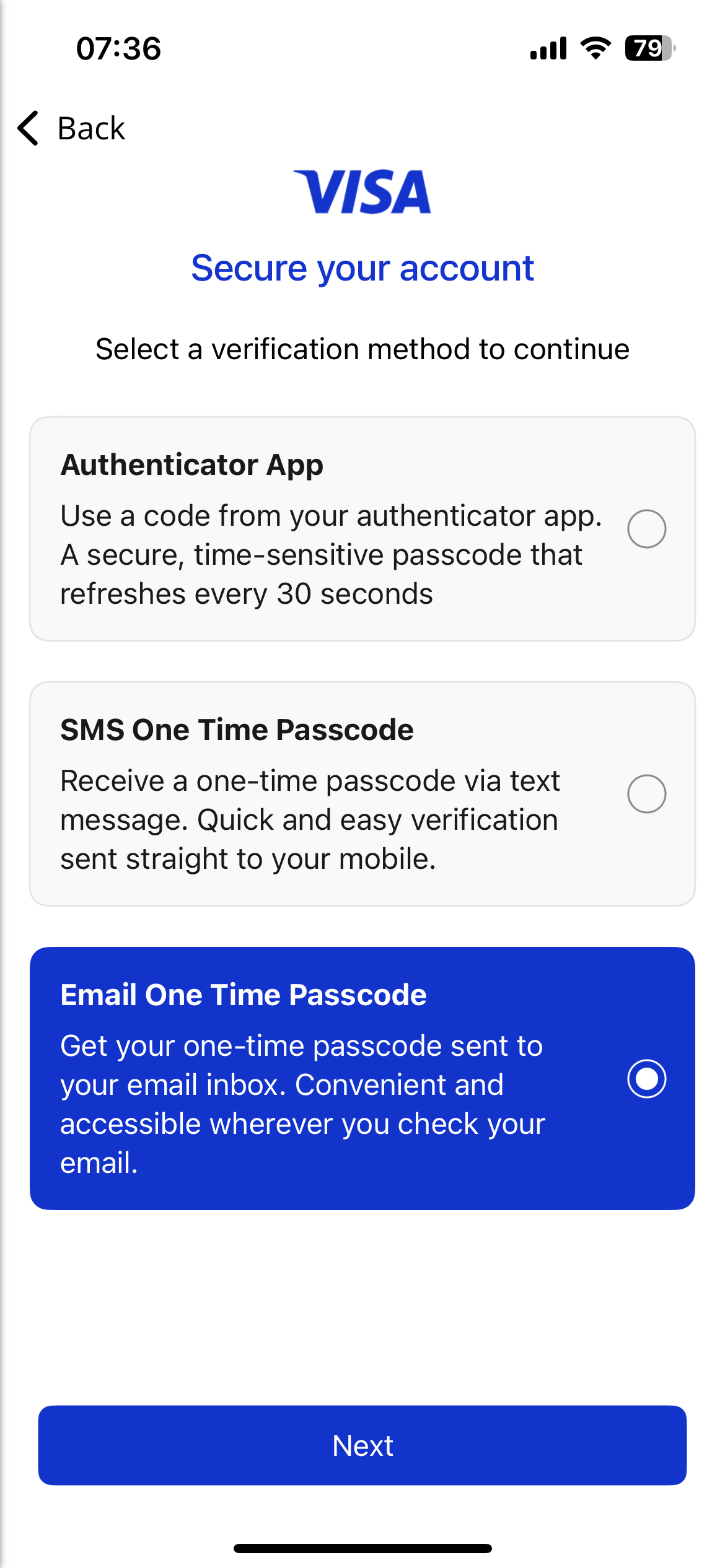
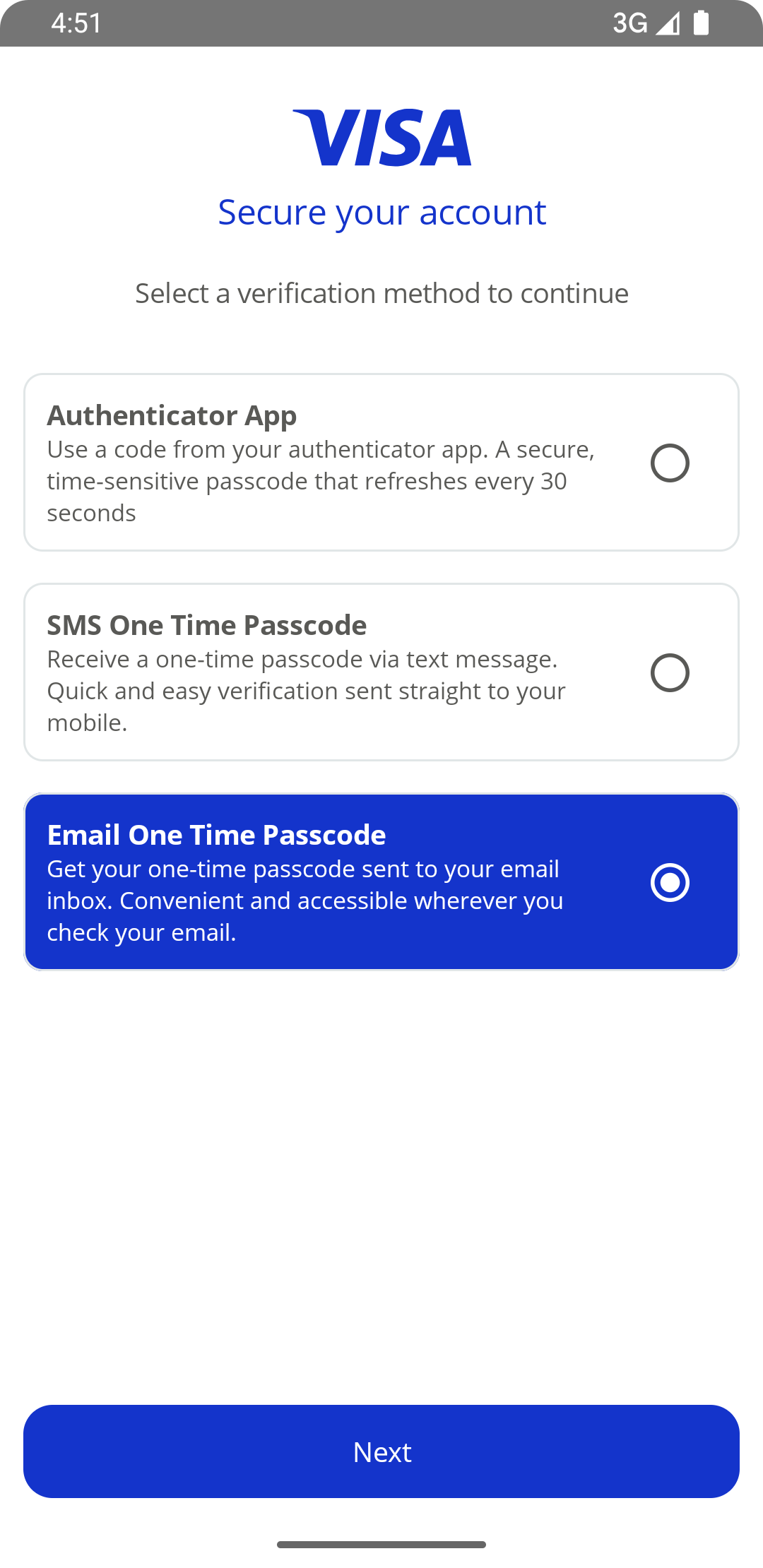
During the registration process users are required to secure their account via one of the following options:
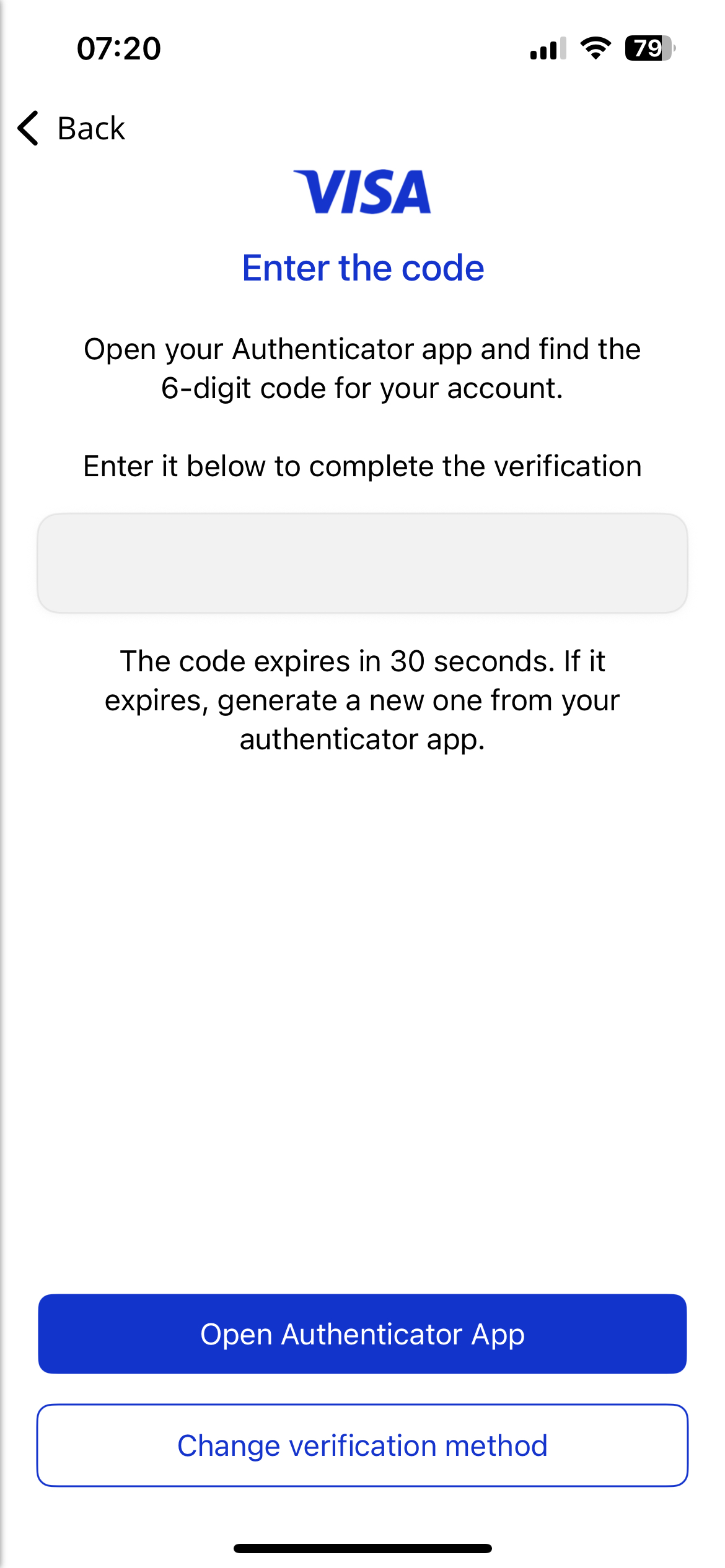
Authenticator App—a code generated by an authenticator app.
Tap Authenticator App and enter the code found on your chosen Authenticator App. You can tap Open Authenticator App to open your chosen Authenticator App. Once you enter the code, the button will change to Verify and you can tap this to request the verification.
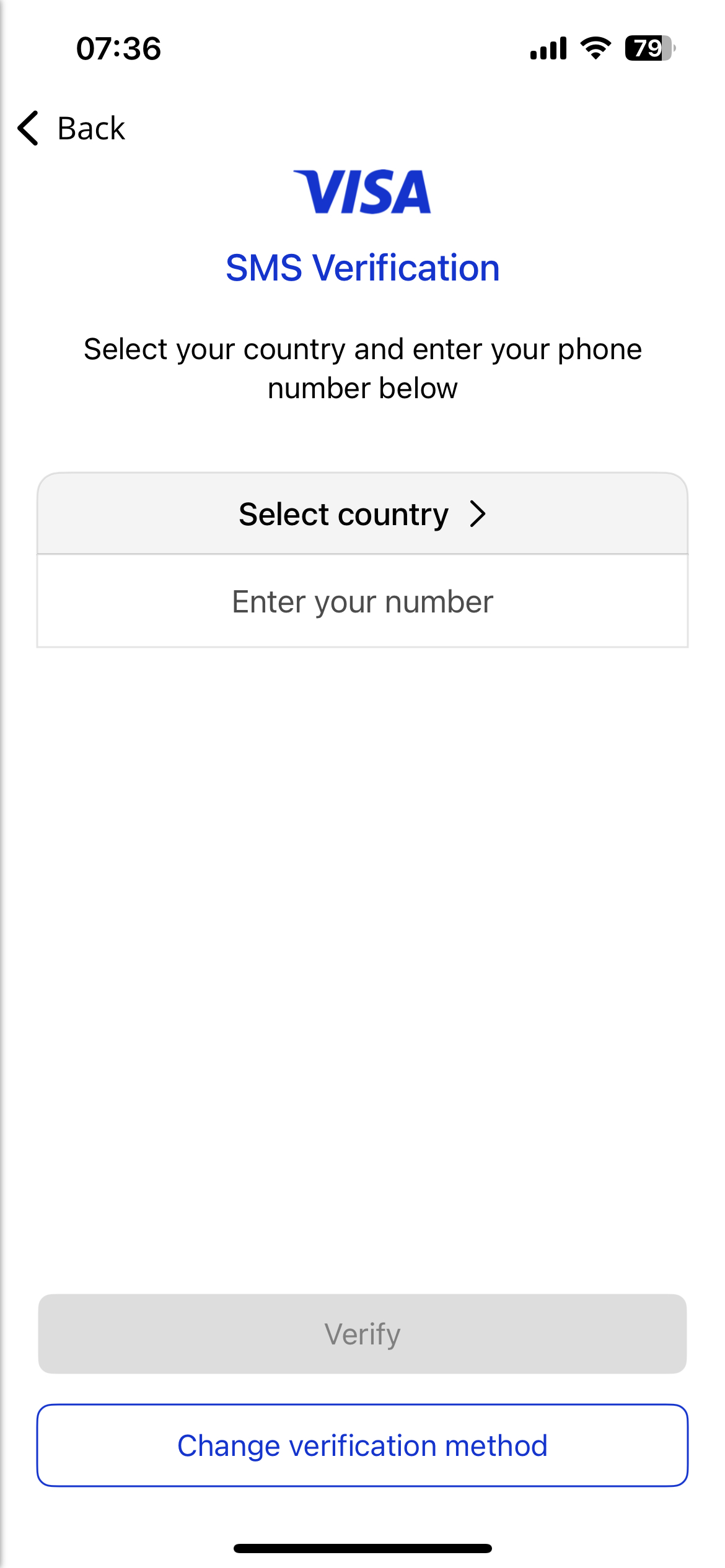
SMS One-Time Passcode (OTP)—a code sent to a mobile number.
Tap SMS One Time Passcode, select your country and enter your mobile number. When you have entered the code, tap Verify. The Verify button is greyed out until you enter a code.
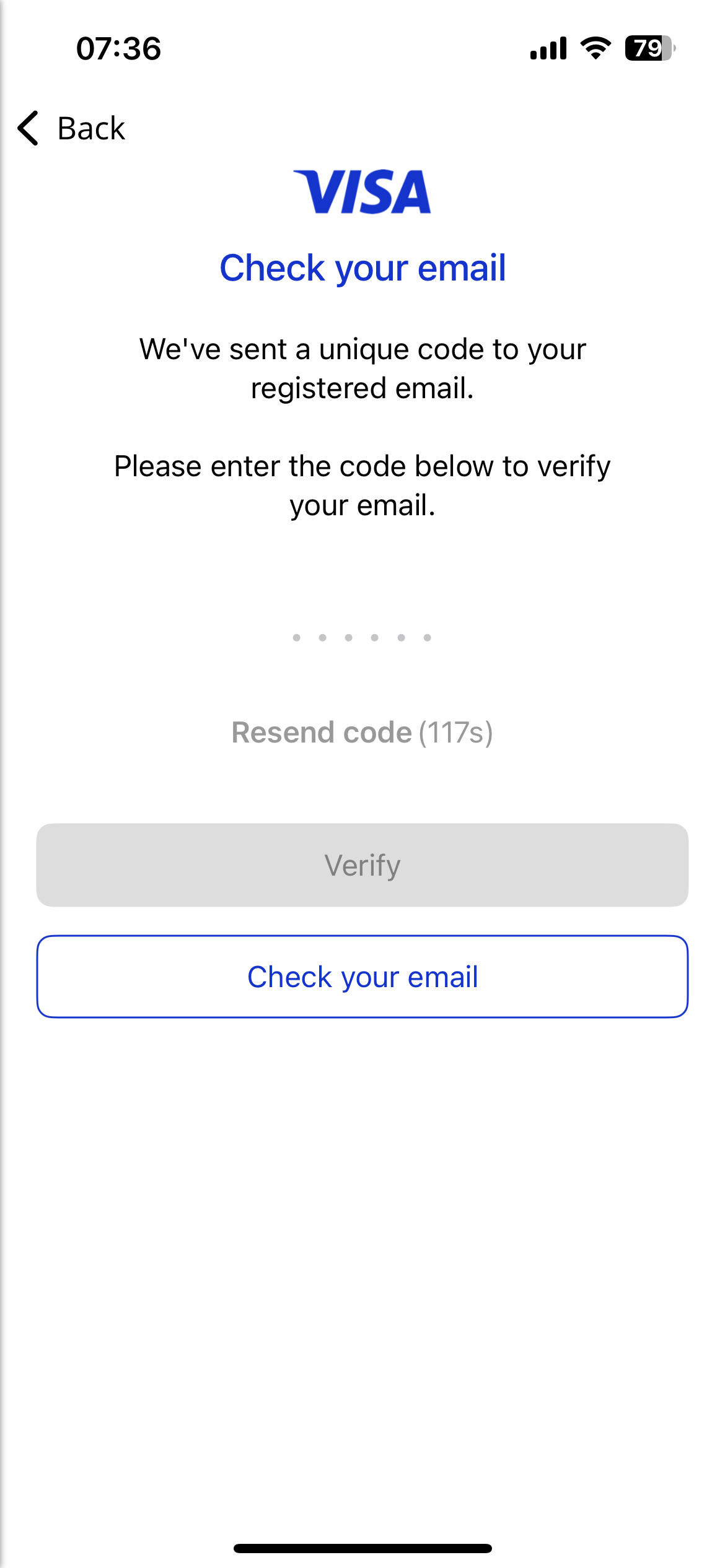
Email One-Time Passcode (OTP)—a code sent to the email address you have used to register.
Tap Email One Time Passcode and enter the code sent to your registered email address. When you have entered the code, tap Verify. The Verify button is greyed out until you enter a code.
|
|
| |||
|
| ||||
|
|
Android Flow:
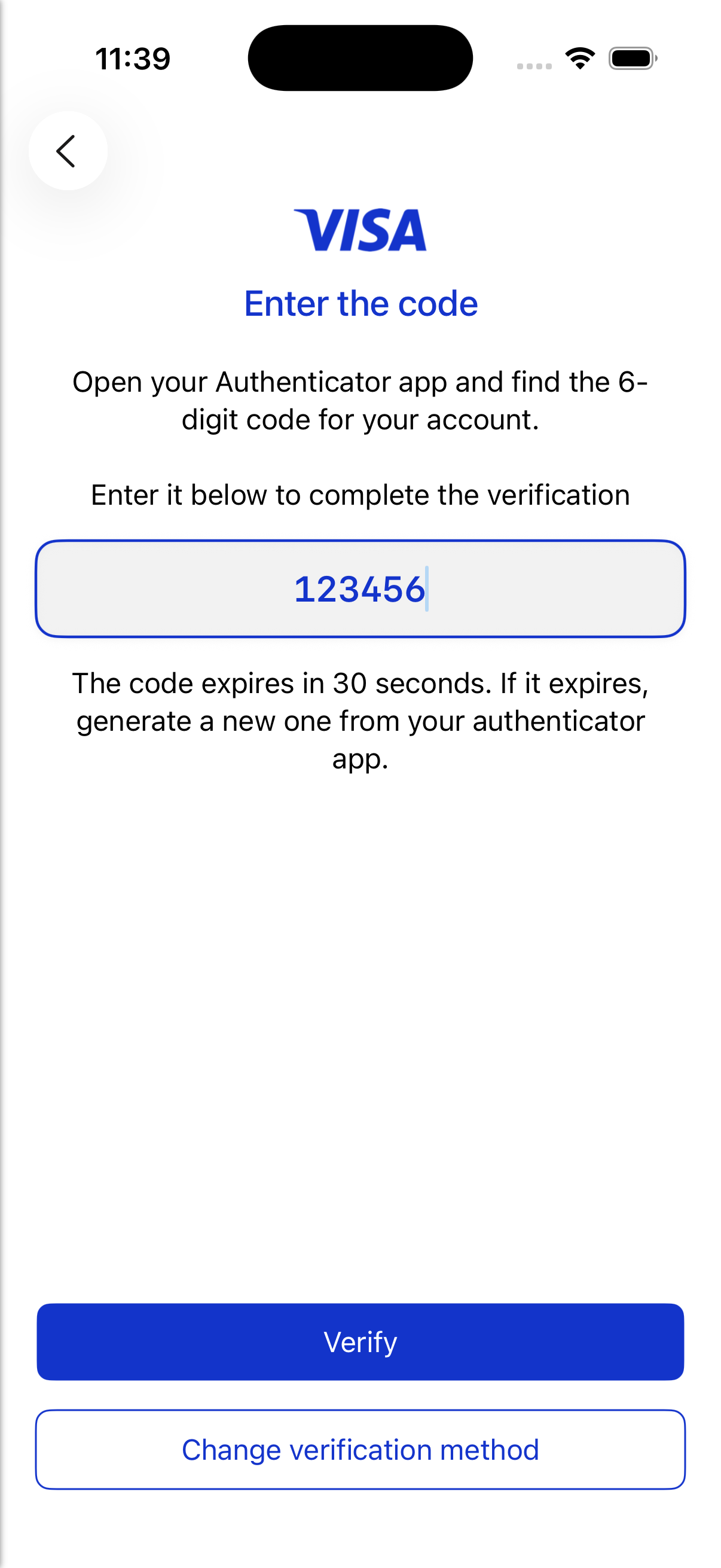
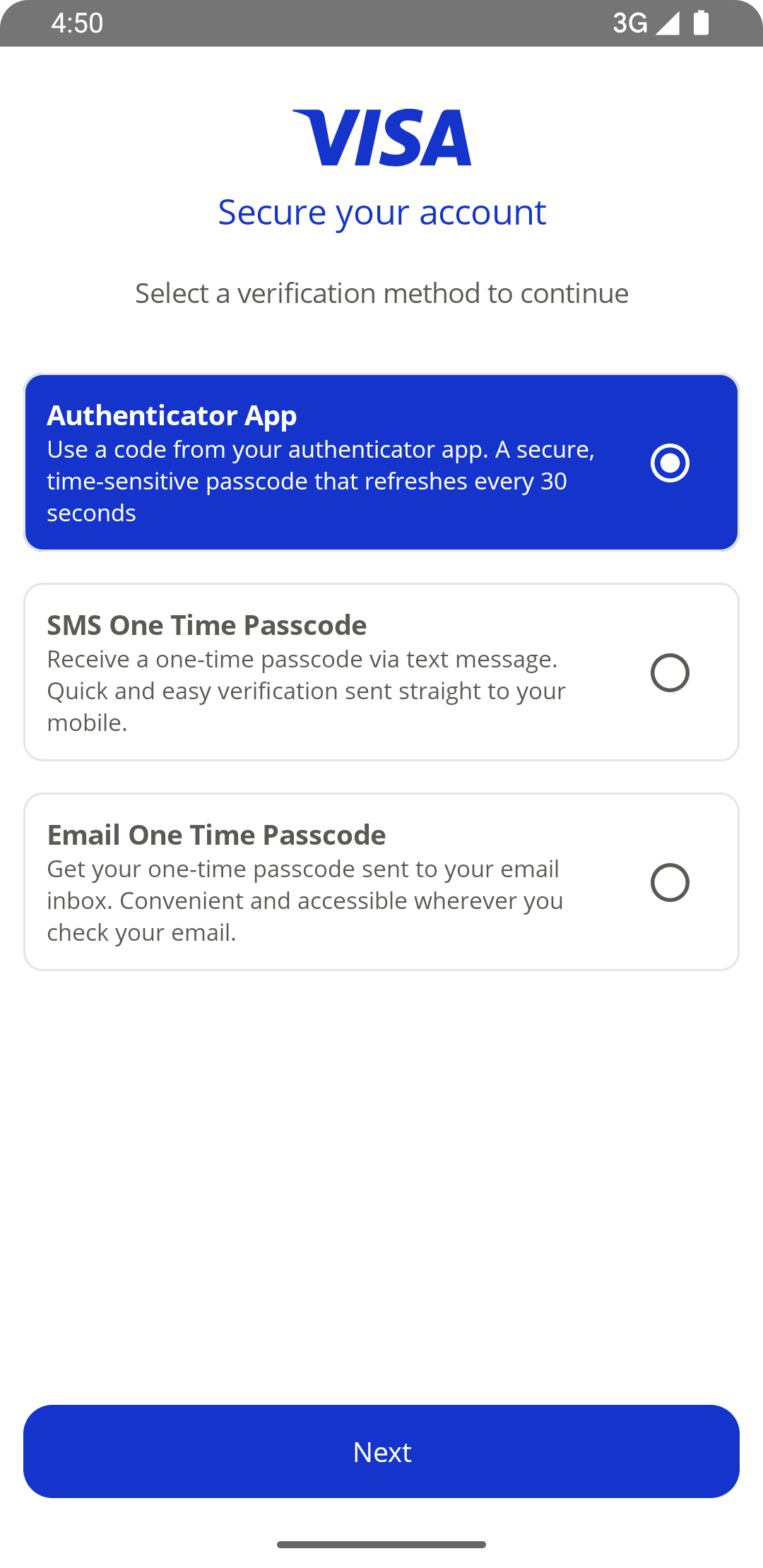
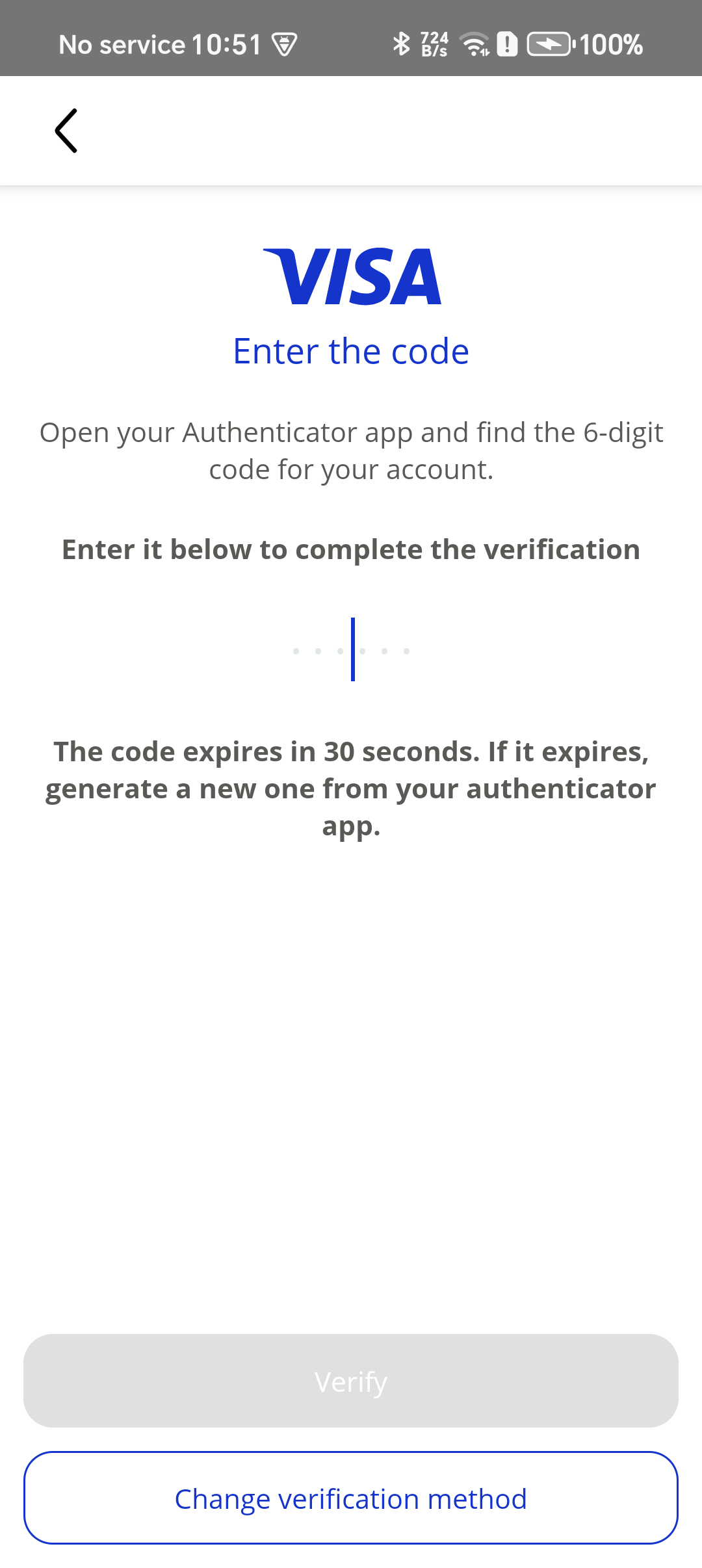
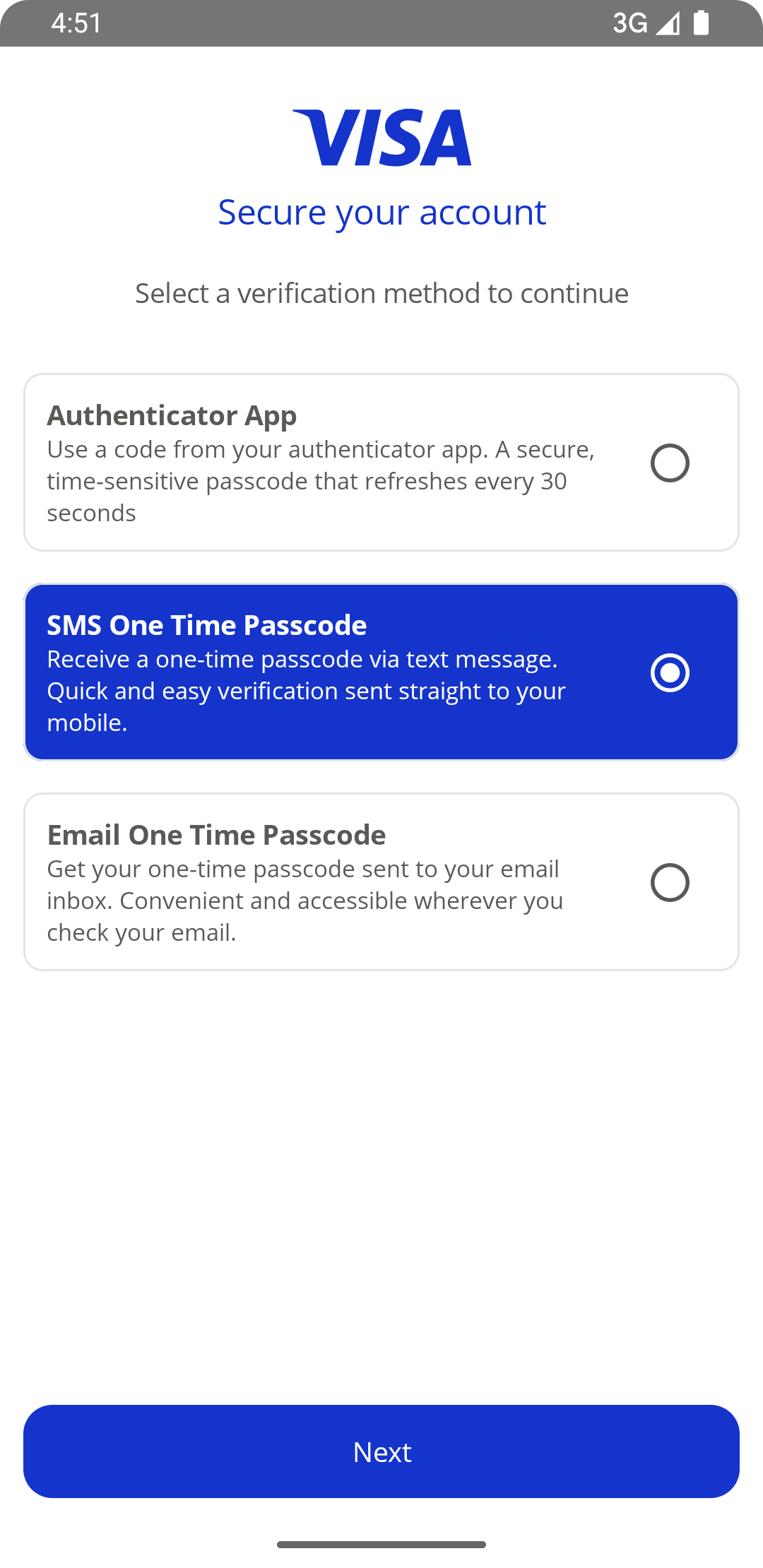
During the registration process users are required to secure their account via one of the following options:
Authenticator App—a code generated by an authenticator app.
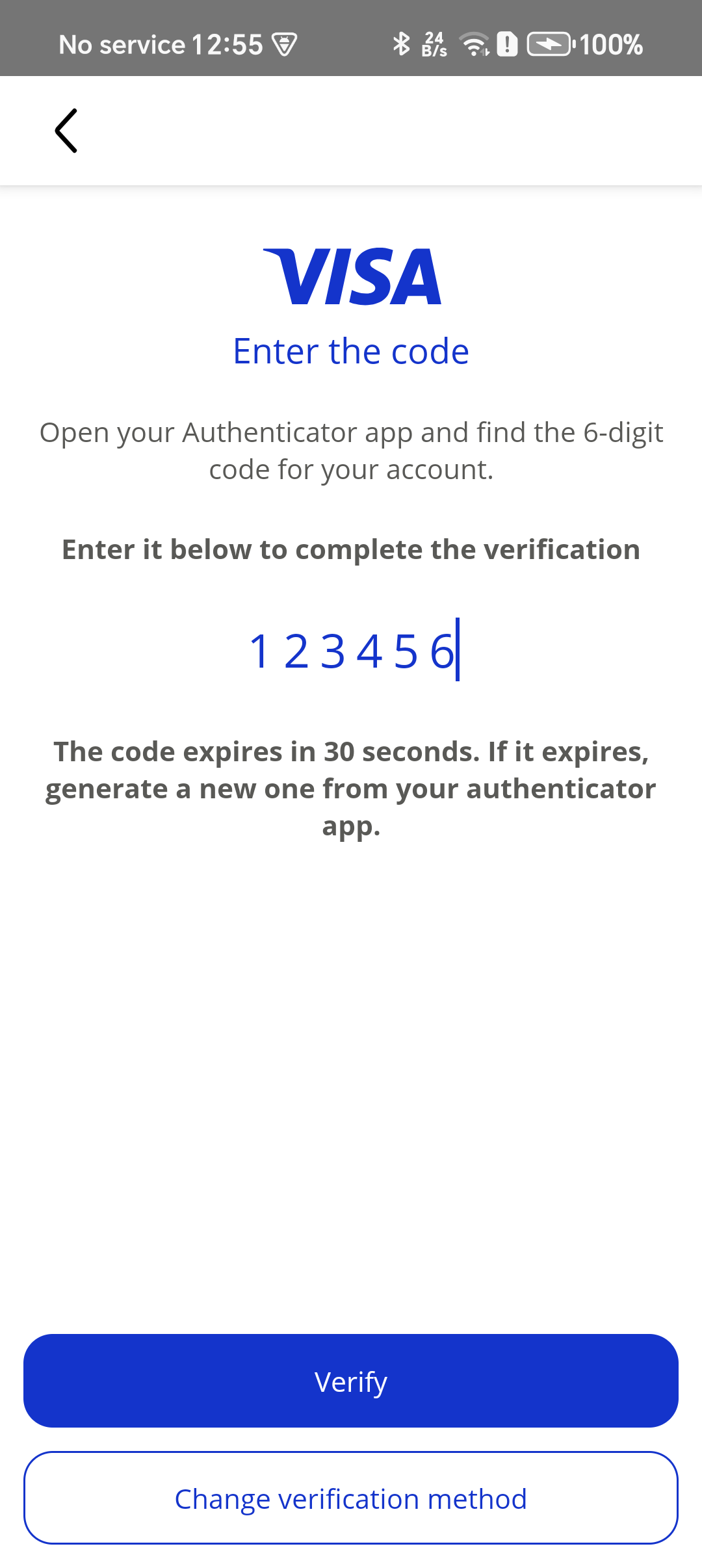
Tap Authenticator App and enter the code found on your chosen Authenticator App. When you have entered the code, tap Verify. The Verify button is greyed out until you enter a code.
SMS One-Time Passcode (OTP)—a code sent to a mobile number.
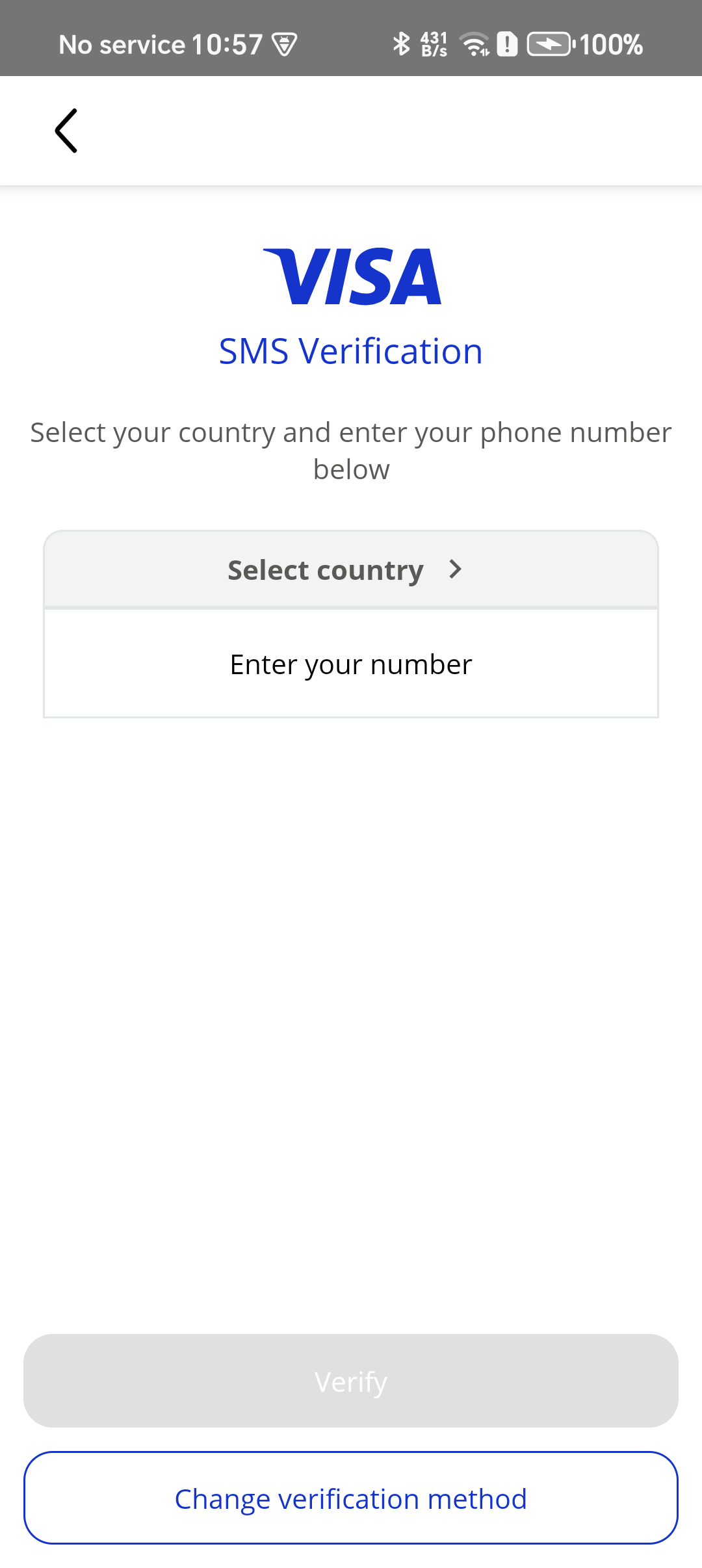
Tap SMS One Time Passcode, select your country and enter your mobile number. When you have entered the code, tap Verify. The Verify button is greyed out until you enter a code.
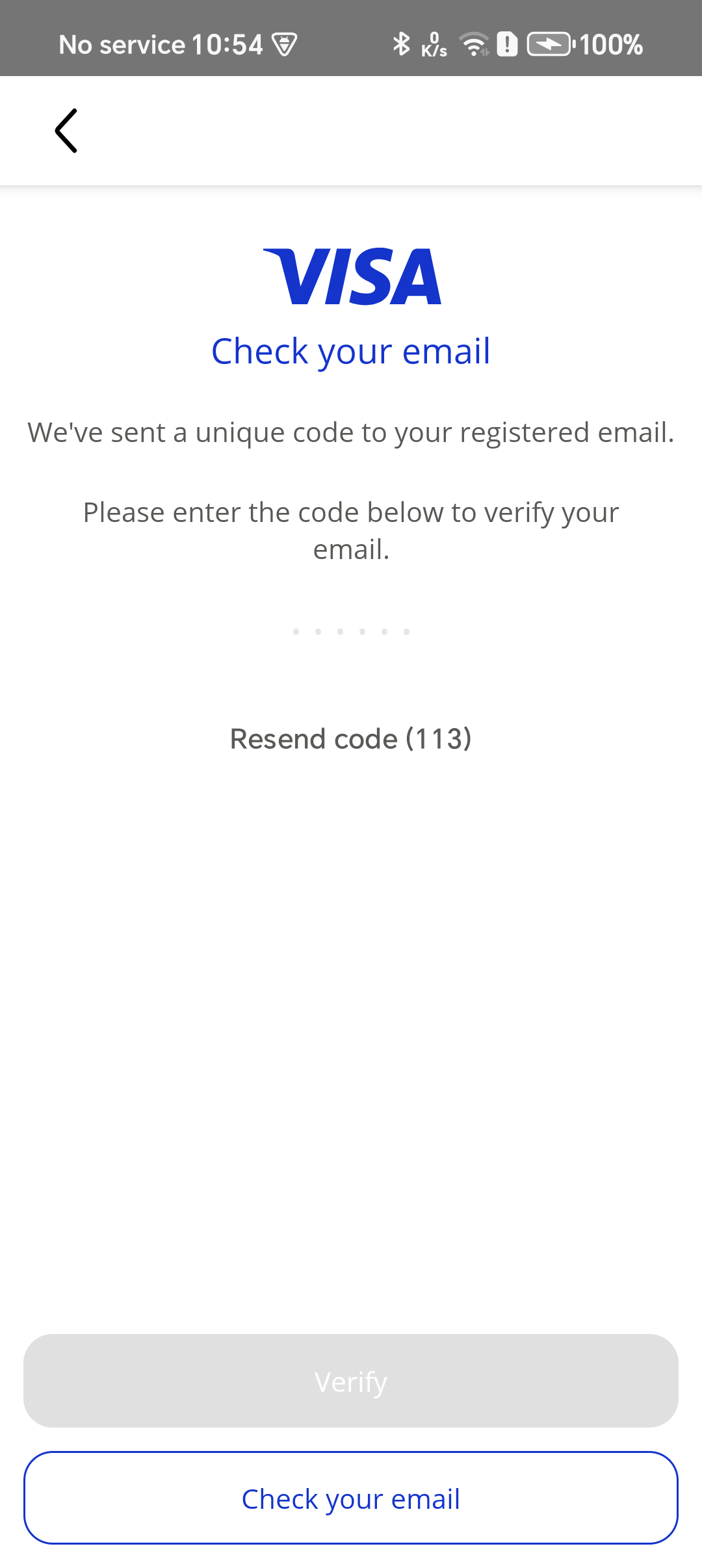
Email One-Time Passcode (OTP)—a code sent to the email address you have used to register.
Tap Email One Time Passcode and enter the code sent to your registered email address. When you have entered the code, tap Verify. The Verify button is greyed out until you enter a code.
|
|
| |||
|
| ||||
|
|
Note
For regions where SMS is unavailable as a verification method, users will be unable to select the country code when entering their mobile number.
SMS verification is available for the following countries:
North America | |
Anguilla | +1264 |
Antigua and Barbuda | +1268 |
Bahamas | +1242 |
Barbados | +1246 |
Bermuda | +1441 |
Canada | +1 |
Cayman Islands | +1345 |
Costa Rica | +506 |
Dominican Republic* | +1829, +1849, +1809 |
El Salvador | +503 |
Grenada | +1473 |
Guatemala | +502 |
Jamaica | +1876, +1658 |
Mexico | +52 |
Nicaragua | +505 |
Panama | +507 |
Puerto Rico | +1787 |
St Lucia | +1758 |
Trinidad and Tobago | +1868 |
Turks and Caicos Islands | +1649 |
United States | +1 |
Virgin Islands, U.S. | +1340 |
Asia | |
Bahrain | +973 |
China | +86 |
Georgia | +995 |
Hong Kong | +852 |
India | +91 |
Indonesia | +62 |
Iraq | +964 |
Israel | +972 |
Japan | +81 |
Korea (Republic of) | +82 |
Kuwait | +965 |
Kyrgyzstan | +996 |
Lebanon | +961 |
Malaysia | +60 |
Mongolia | +976 |
Nepal | +977 |
Philippines | +63 |
Qatar | +974 |
Saudi Arabia | +966 |
Singapore | +65 |
Taiwan | +886 |
Thailand | +66 |
Turkiye | +90 |
Turkmenistan | +993 |
United Arab Emirates | +971 |
Vietnam | +84 |
Europe | |
Albania | +335 |
Austria | +43 |
Belgium | +32 |
Bosnia and Herzegovina | +387 |
Bulgaria | +359 |
Croatia | +385 |
Cyprus | +357 |
Czech Republic | +420 |
Denmark | +45 |
Estonia | +372 |
Finland/Aland Islands | +358 |
France | +33 |
Germany | +49 |
Gibraltar | +350 |
Greece | +30 |
Guernsey/Jersey | +44 |
Hungary | +36 |
Iceland | +354 |
Ireland | +353 |
Isle of Man | +44 |
Italy | +39 |
Kosovo | +383 |
Latvia | +371 |
Lithuania | +370 |
Luxembourg | +352 |
Malta | +356 |
Moldova | +373 |
Montenegro | +382 |
Netherlands | +31 |
Norway | +47 |
Poland | +48 |
Portugal | +351 |
Republic of North Macedonia | +389 |
Romania | +40 |
Serbia | +381 |
Slovakia | +421 |
Slovenia | +386 |
Spain | +34 |
Sweden | +46 |
Switzerland | +41 |
Turkish Republic of Northern Cyprus | +90 |
Ukraine | +380 |
United Kingdom | +44 |
South America | |
Argentina | +54 |
Bolivia | +591 |
Brazil | +55 |
Chile | +56 |
Colombia | +57 |
Ecuador | +593 |
Peru | +51 |
Uruguay | +598 |
Venezuela | +58 |
Africa | |
Angola | +244 |
Burundi | +257 |
Cameroon | +237 |
Congo, Dem Rep | +243 |
Gabon | +241 |
Liberia | +231 |
Madagascar | +261 |
Mali | +223 |
Mauritius | +230 |
Rwanda | +250 |
Seychelles | +248 |
South Africa | +27 |
Sudan | +249 |
Tanzania | +255 |
Togo | +228 |
Zambia | +260 |
Oceania | |
Australia/Cocos/Christmas Island | +61 |
New Zealand | +64 |
*Pending
Notable Bug Fixes
(Android) We have fixed UI errors that occurred when viewing categories on the Expenses screen.
(iOS) We have improved loading times when users have over five active cards.
(iOS) We have fixed an issue where approval icons are ordered incorrectly.
We have made improvements to the Co2 Emissions and Spend Summary screens to align with WCAG standards.
We have fixed an issue where users were able to upload a document via share sheet when they were not logged in.
We have fixed an issue that prevented Deployers and Team Admins from editing a Purchase Level CDF.
Minimum iOS Version
The minimum supported iOS version for the Visa Commercial Pay App is iOS 16.
Minimum Android Version
The minimum supported Android version for the Visa Commercial Pay App is Android 14.