Orchestration
To enable Orchestration and configure an Orchestration Admin, contact Visa Commercial Pay support.
Orchestration allows you to configure rules for deployments.
You can create multiple rules to work alongside each other as long as the parameters that you set are compatible.
For example, you could create both a redirect and a block rule for the same Card Pool with the following parameters:
Redirect
Amount threshold: 50
Block
Amount threshold: 100
If you tried to deploy a card with a value equal to or greater than 50 the card would be redirected to another specified Card Pool.
If you tried to deploy a card with a value equal to or greater than 100 the card would be blocked.
Creating a New Rule
Select the Orchestration module from the navigation banner.
Click Routing rules from the navigation bar.
Click Create new rule.

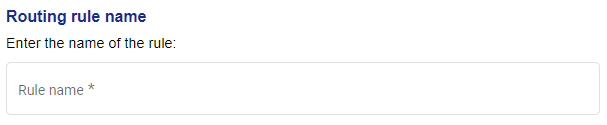
Enter a Routing rule name.
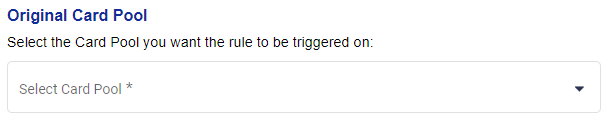
Select the Original Card Pool.
Enter the Rule parameters.

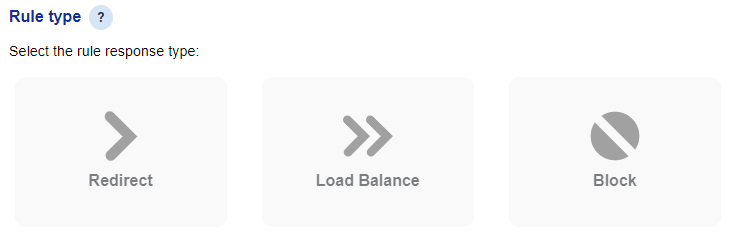
Select the Rule type.
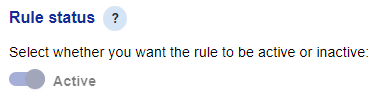
Select the Rule status.
Click Save and then click Confirm.
Route Types
You can configure the following Route types:
Redirect—re-route deployments that meet the parameters to another Card Pool
Load Balance—redirect deployments that meet the parameters to multiple Card Pools, weighted by a percentage
Block—prevent deployments that meet the parameters from being issued
Parameter Types
You can configure one or more of the following parameter types:
Spend types—required spend types for the routing rule to be applied e.g. air, hotel
Supplier ID—unique reference of the Supplier for the routing rule to be applied e.g. airline code
Currency—required three-letter currency code for the routing rule to be applied
Country code—required two-letter country code for the routing rule to be applied
Amount threshold—value threshold for the routing rule to be applied
Activation/deactivation date—dates to create temporary, delayed or indefinite routing rules
Supplier name—required name of the supplier for the routing rule to be applied
Note
You can enter multiple values for the following fields:
Country code
Currency
Supplier ID
Copying, Editing or Deleting a Rule
Copying an existing routing rule allows you to replicate a rule quickly and efficiently by carrying across all routing rules from the existing rule.
From the Orchestration dashboard, click the ellipsis next to the rule you want to copy.
From the drop-down, click Copy.
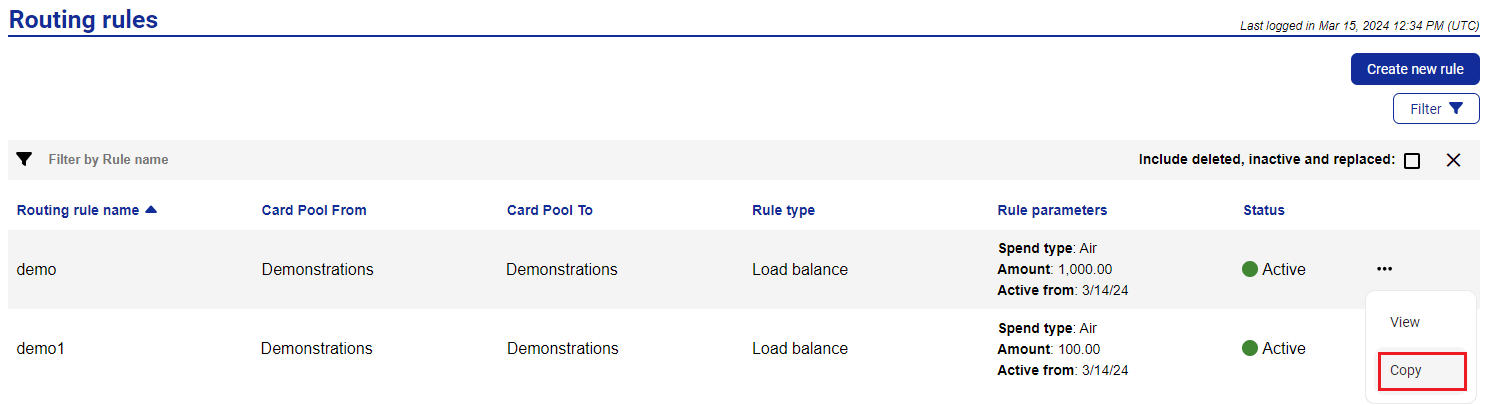
Once copied, users will be redirected to the new routing rule, where they can edit one or all of the the following fields:
Original Card Pool - the new rule can be triggered against the existing Card Pool or users can choose a different Card Pool from the drop-down list.
Rule parameters - the new rule can be triggered against the existing rule parameters or users can change one, or all of the parameters displayed.
Rule type - the new rule can be the existing rule response type or the user can choose from the other rule response types displayed.
Redirected Card Pool - users can redirect to one card pool, or multiple card pools. Weighting rules will need to be entered if multiple card pools are selected.
Rule status - users can choose whether they want the new rule to be active immediately, or the rule can be set as inactive and manually activated at a future date.
Note
You must at least change either the dates or the Card Pool. If the rule name is changed but all other details stay the same, the routing rule will be a duplicate and will fail to be created.
To edit or delete a rule - click the ellipsis against the rule you want to change or remove and select View.
 |
If you want to edit the routing rule, make your changes and then click Save.
 |
If you want to delete the routing rule, scroll to the bottom of the page and click Delete.
Advanced Card Controls
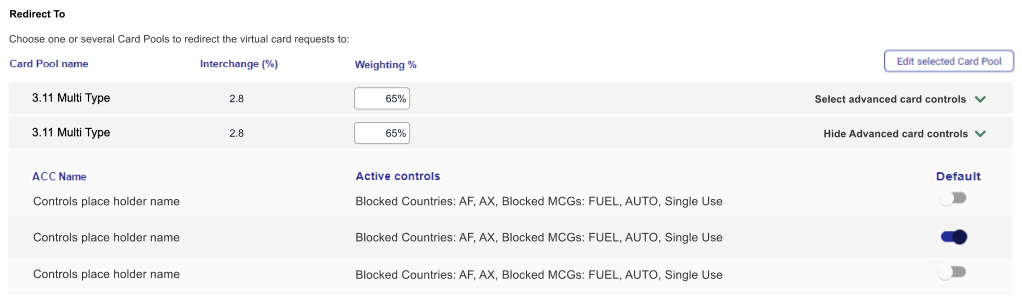
Advanced card controls give users more control over cards that are routed via Orchestration. If the Card Pool that is linked to a routing rule has advanced card control templates configured against it, they will be displayed as options to be set against the routing rule.
Selecting an advanced card control template when creating a routing rule will only affect rerouted cards.
When a routing rule is triggered the advanced card control template that has been configured will be applied to the card.
 |