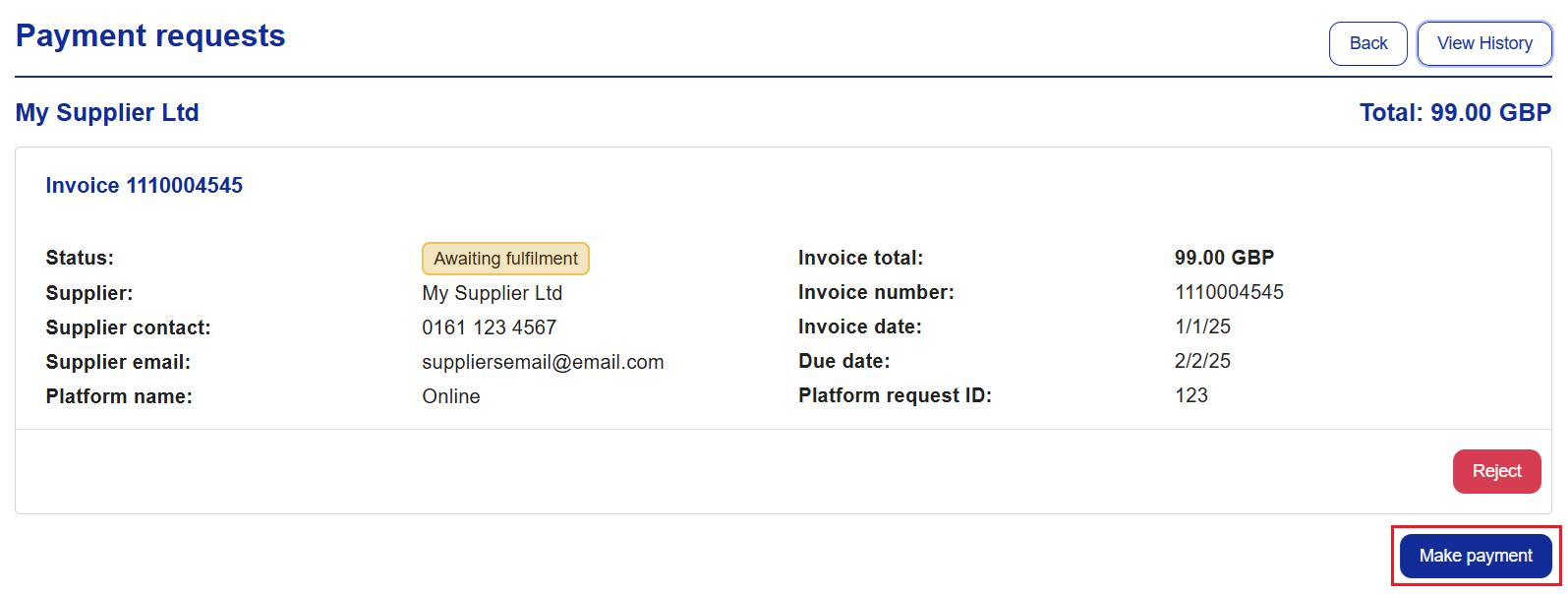
Invoice Payment Request
Users are able to group multiple payment requests into fewer cards, improving efficiency and simplifying payment management. Payments will be made on the date of the earliest invoice due date.
To submit a payment request:
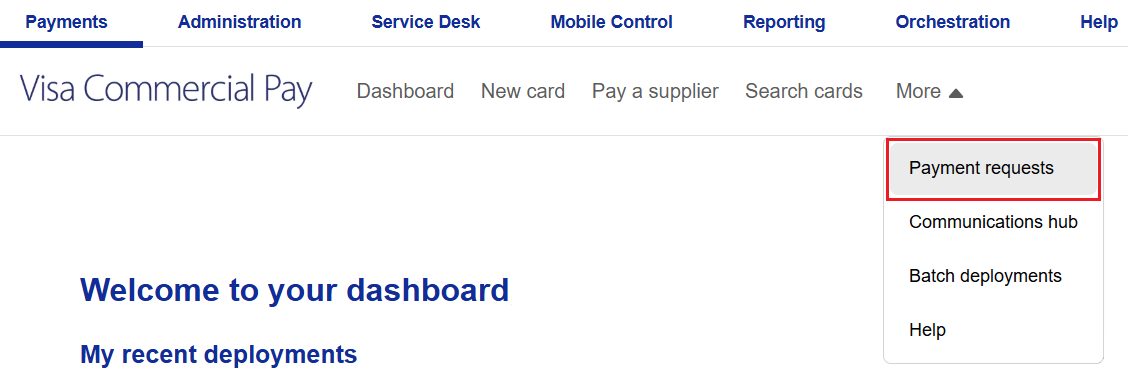
Go to Payments in the navigation bar.
Select Payment requests from the menu bar. If you can't see this, click More and the option will be displayed.
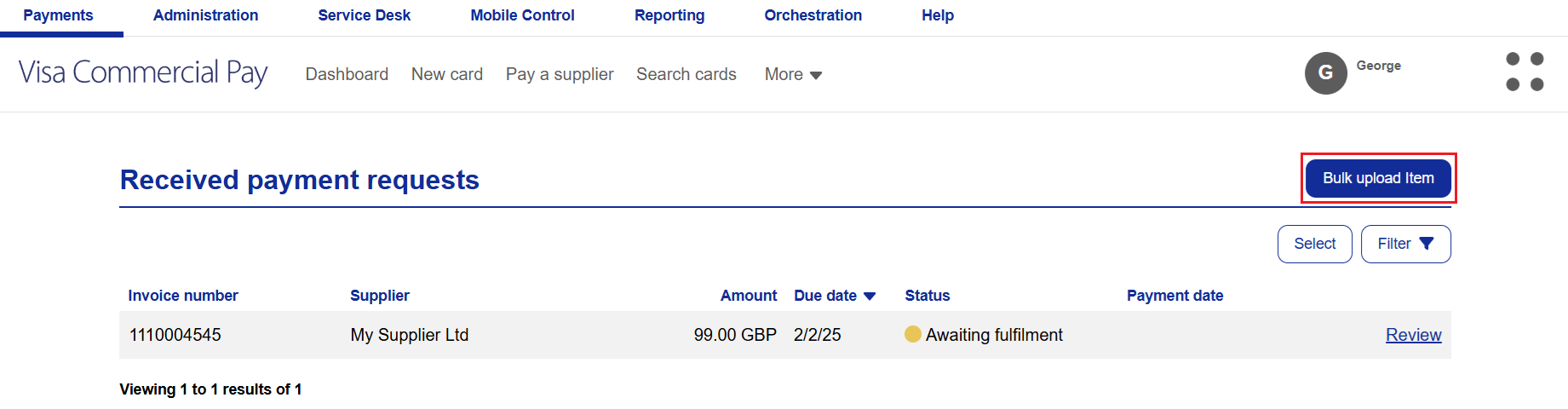
Users will see all previously uploaded payment requests. If there are no previously uploaded payment requests, users will be able to upload one.
Click Bulk upload item:
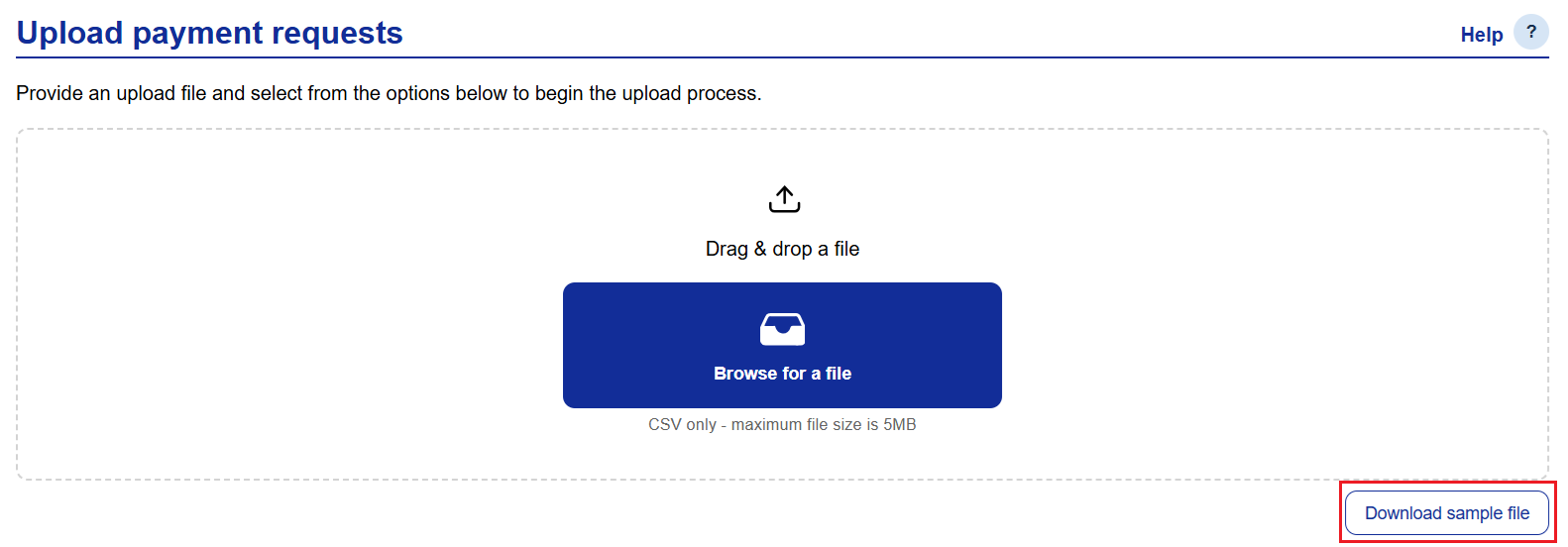
Upload your completed payment spreadsheet, or download and complete a sample file, containing the following headers:
Supplier identifier - this reference is a unique identifier used to group suppliers
Supplier name - name of the supplier
Supplier address - supplier address details
Supplier email address - supplier email address
Invoice number - invoice reference number
Invoice amount - total amount of the invoice
Invoice currency - currency of invoice
Payment due date - date payment is due by
Invoice date - date invoice was issued
During the file upload a history of previous uploads will highlight the number of rows created. This will look at each row individually and not if they have been grouped.
Configuration to access Payment Request can be set up at Card Pool group level.
When auto-fulfilment has been enabled, the system will automatically create a card from the selected default Card Pool. Payments will be fulfilled by the earliest payment due date of the grouped payments. To enable auto-fulfilment:
Select Administration from the navigation bar.
Select Payment requests followed by Settings.
Toggle on Auto fulfilment.
Select a Card Pool.
Click Save settings:
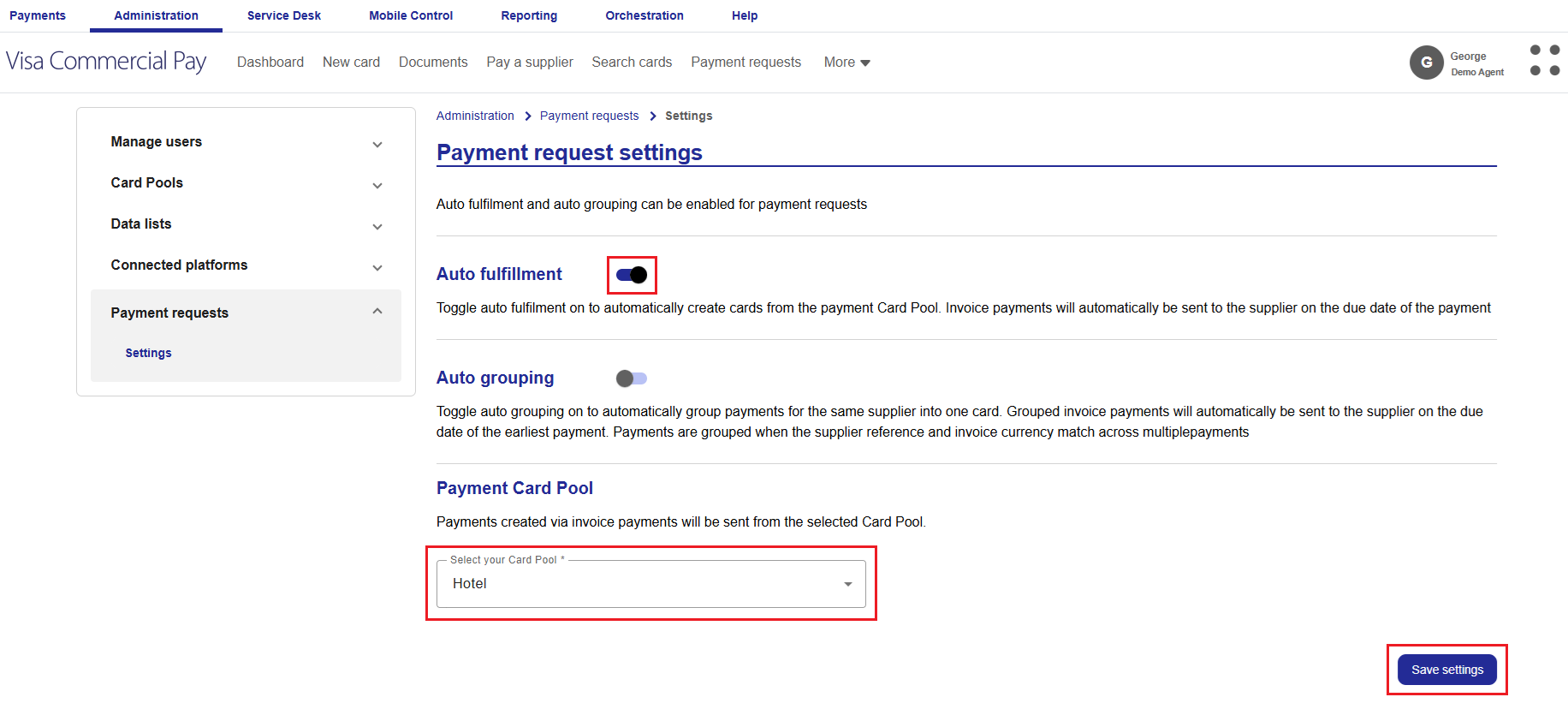
If the amount of the payment, or grouped payment, is not above zero the system will not auto-fulfil. Toggle on to enable.
Note
If the supplier is set up with a Straight-Through Payment Provider, the payment will be sent via that provider.
When auto-grouping is enabled in the settings, the uploaded rows will be reviewed and payments will automatically be grouped together when the supplier reference and invoice currency are an exact match. To enable auto-grouping:
Select Administration from the navigation bar.
Select Payment requests followed by Settings.
Toggle on Auto grouping.
Select a Card Pool.
Click Save settings:
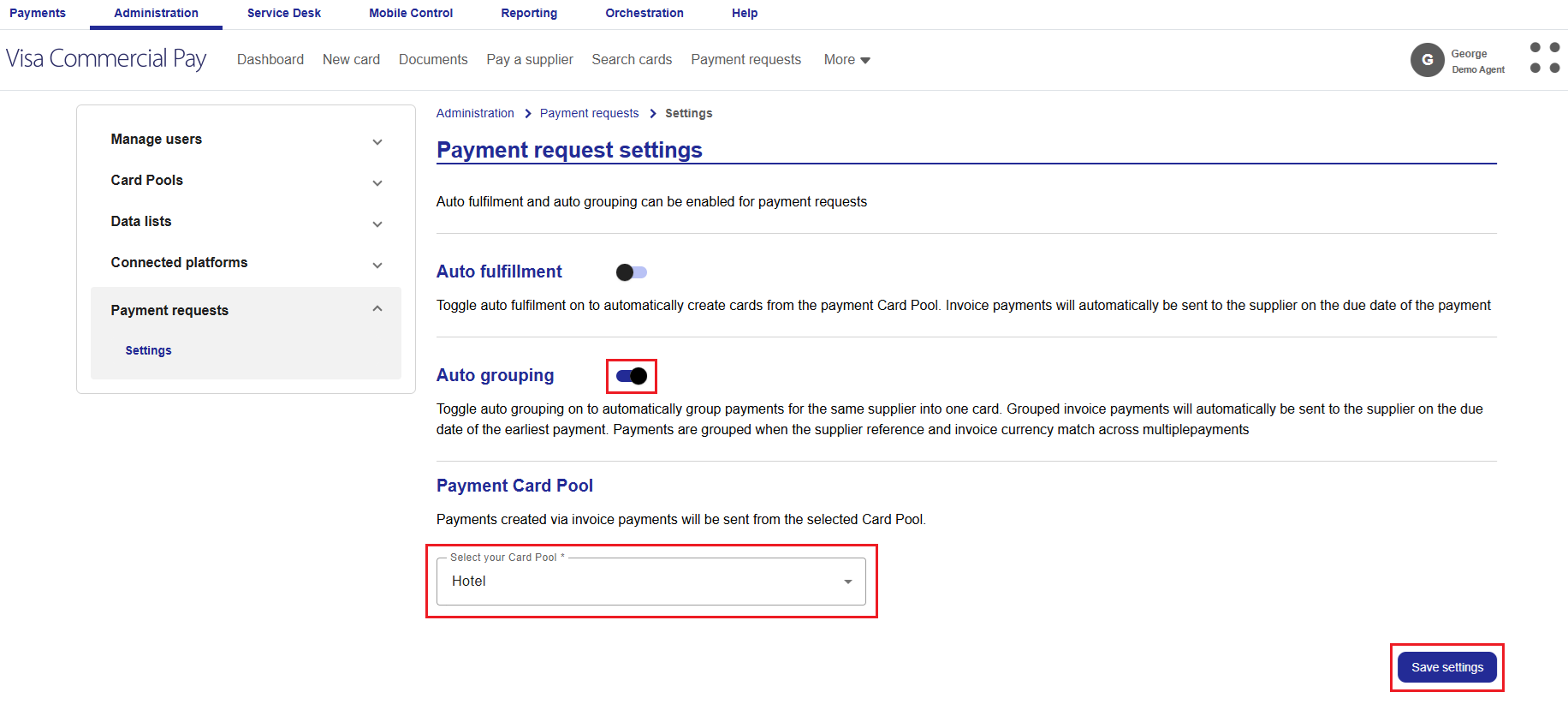
Note
If the system doesn’t match the payments, the row will appear in the payment request summary screen. The user can manually group the payment or add it to existing grouped payments, if the existing payments are awaiting fulfilment.
Reviewing Payments
To review payments:
Click Review to view the payment details:
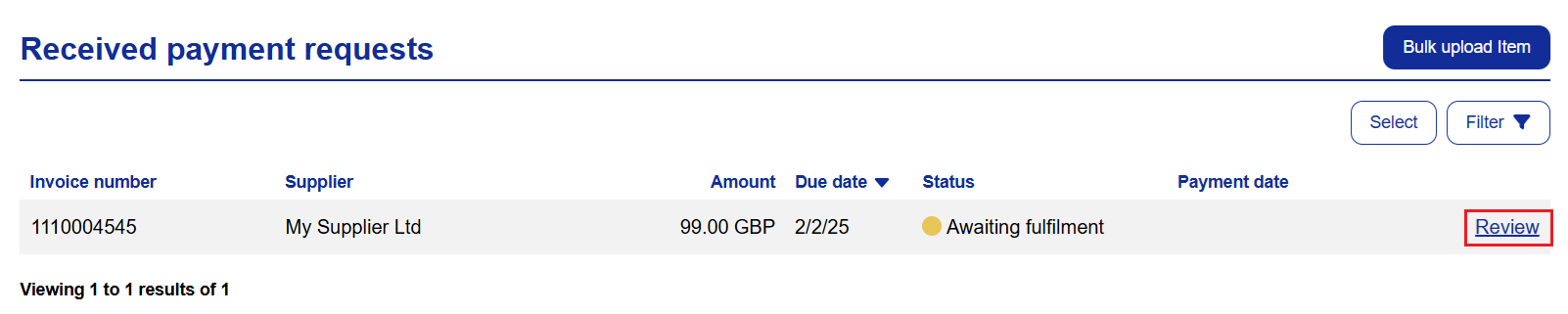
Click View History to view the fulfilment history:
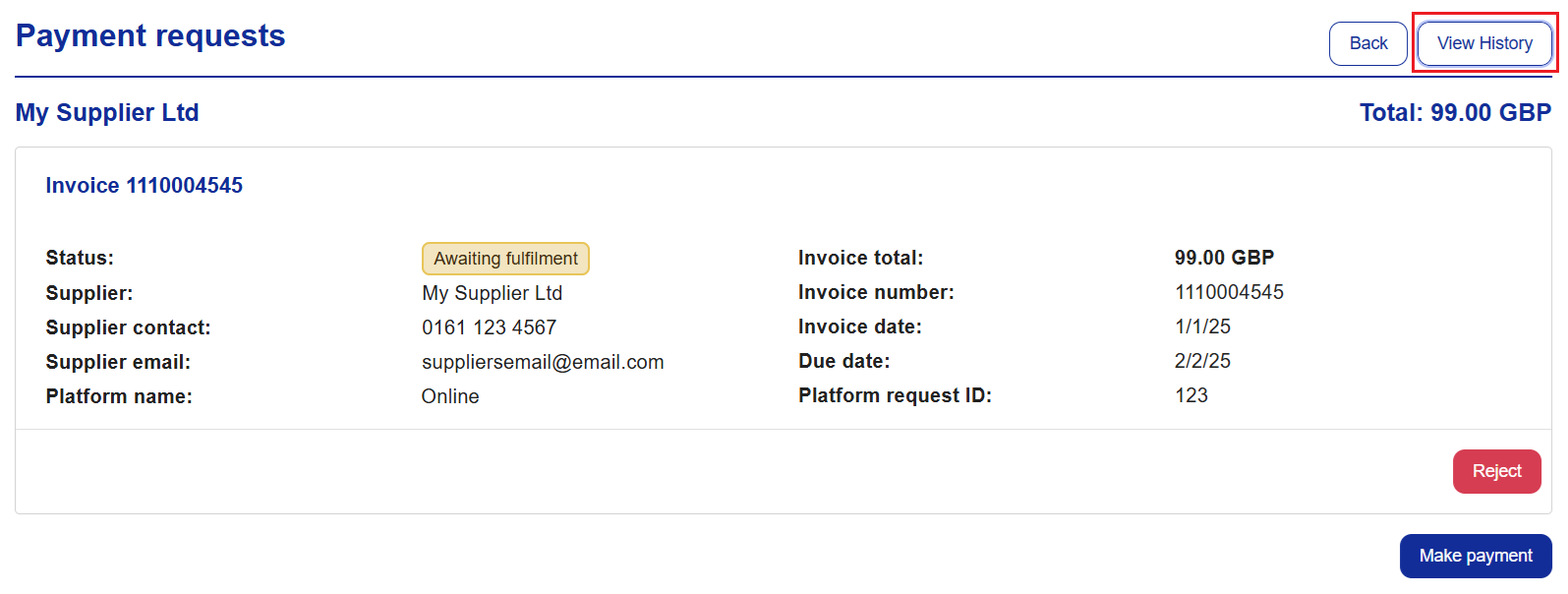
Click Reject to reject the payment request.
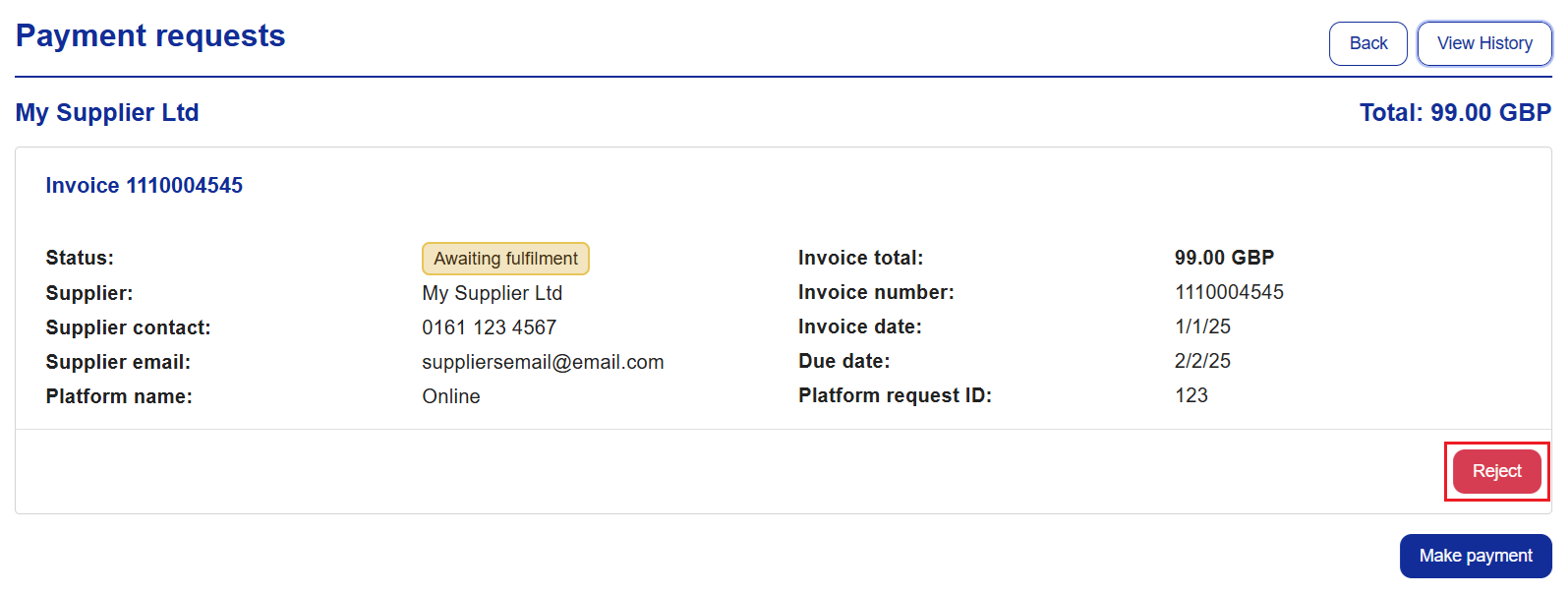
Click Make Payment to create a card for the invoice.