Creating a New Card in Online
You can create cards from the Visa Commercial Pay Online dashboard.
Visa Commercial Pay Online allows you to create cards using six different spend types. Each spend type requests specific information relevant to the purchase.
Note
Cards expire at 11:59pm on the 'Charge to' date.
Click New card to create a new card deployment.
Select a spend type.
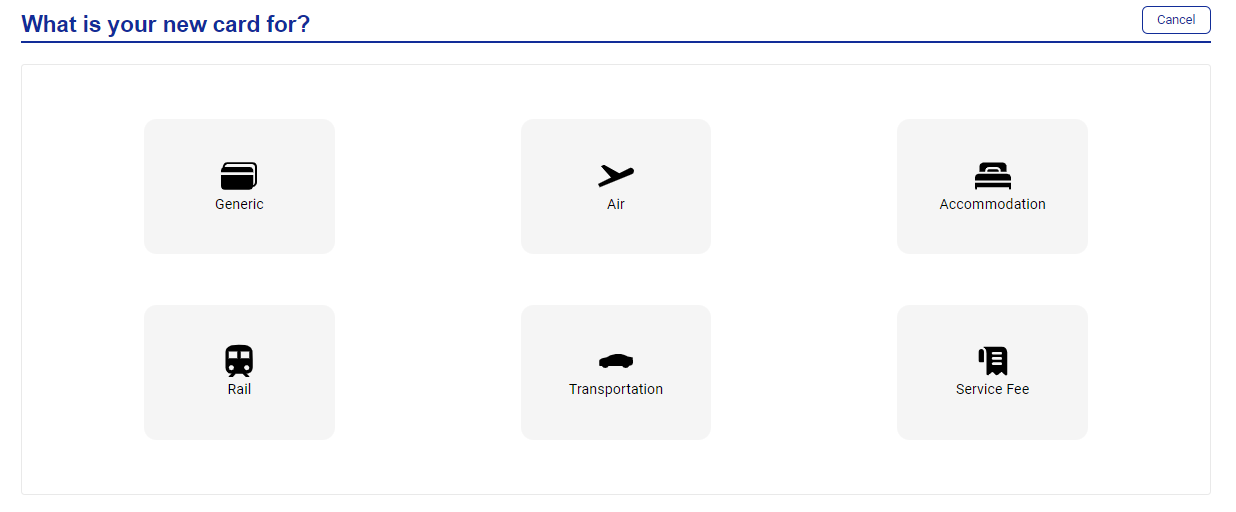
The spend types are:
You must select a Card Pool when creating a new card. Multi type Card Pools can be used across all spend types, whereas single type Card Pools can only be used with their respective spend type.
Note
If 6 or more digits are entered as the Charge amount a warning prompt will be triggered for the user to check that the value is correct.
 |
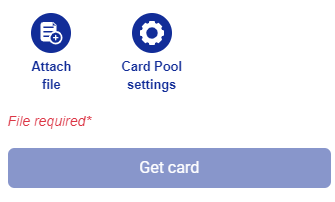
If a document upload threshold has been triggered, you must attach a file to successfully request the card.
 |
Card Deployment
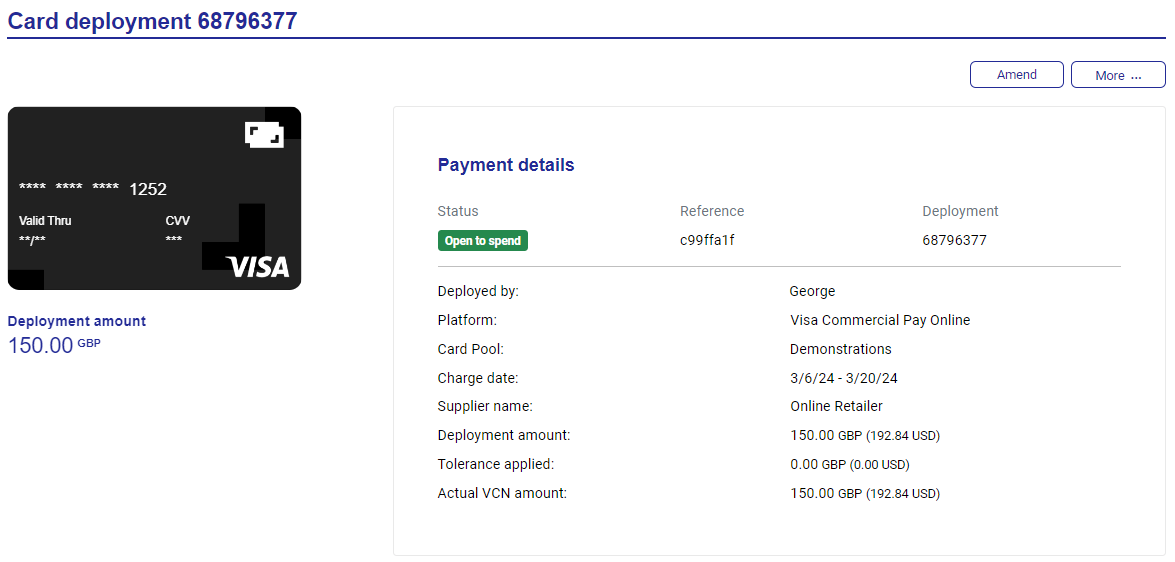
When the card is deployed, a unique reference number and card deployment ID are issued and displayed.
All details entered on the previous page will be displayed with an image of the virtual card containing the full 16-digit card number, expiry date and CVV number.
 |
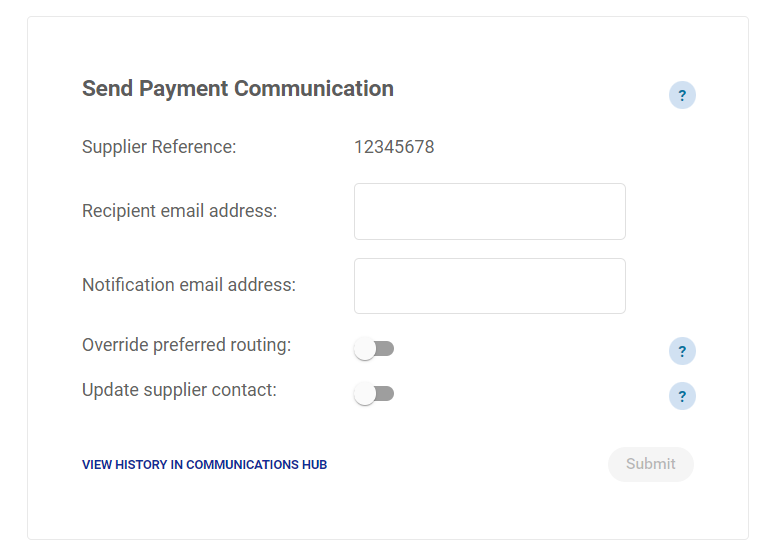
Payment details can be communicated to the supplier via secure email if required. Enter the supplier reference and recipient email address in the payment communication section and click Submit to generate the communication.
A secure email containing the payment and virtual card details will be sent to the supplier email address entered.
 |
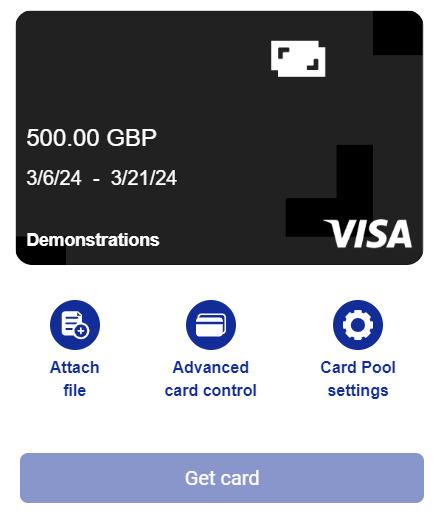
From the dashboard, each deployment has an icon to indicate if a file has been attached.
 |
Copy Card
You can copy an existing deployment. This allows you to replicate a deployment quickly and efficiently by carrying across all the deployment details from the existing deployment, except for any uploaded documents
From an existing deployment, click More and then click Copy card.
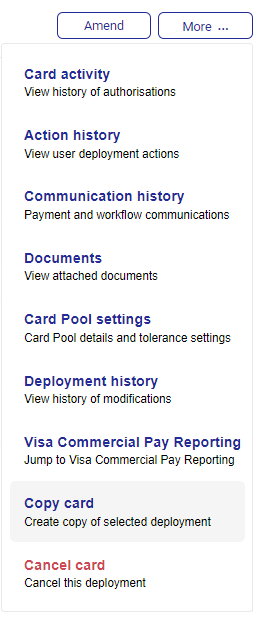
All deployment data from the original card is copied across into a new deployment form. You can edit any required fields before creating the deployment. Documents from the original deployment are not copied across to the new deployment.
Note
If you copy a card with charge dates ending in the past, you can edit the charge dates before creating the card. If you do not edit the charge dates, they will default to a one day charge period, starting on the day you created the card.
Click Get card to create the new deployment.
Cards Pending Approval
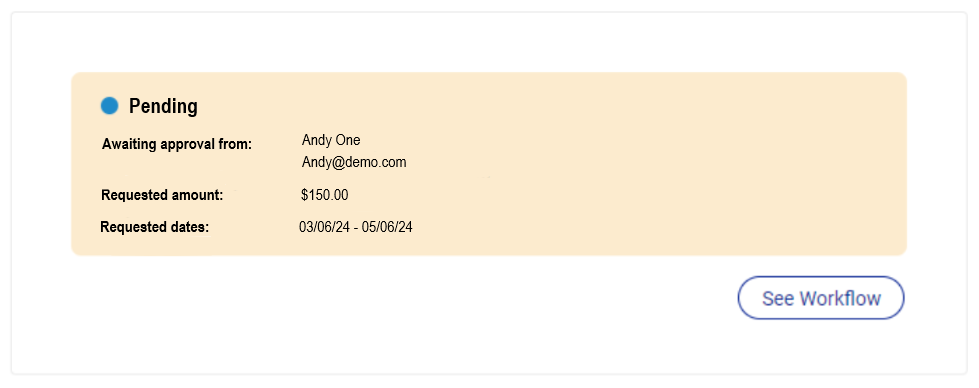
For cards pending approval, you will be able to see:
The name/s of the Approver/s that are required to approve the deployment.
The Approver/s contact details (email and/or telephone number).
The Requested Amount and Charge Dates of the deployment.
 |
Approved or Rejected Cards
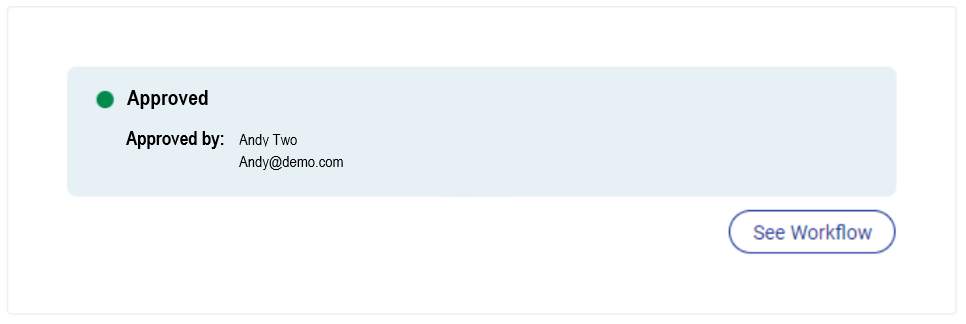
For cards that have been approved or rejected you will be able to see:
The name/s of the Approver/s that approved or rejected the deployment.
The Approver/s contact details (email and/or telephone number).
The date that the deployment was approved or rejected.
 |
Attach File
When creating a card you can attach a document from your device in either DOCX, PDF, JPG, or PNG format. This could be a copy of a quote, purchase order, invoice or approval email.
The document will be stored with the deployment details for future use in both Visa Commercial Pay Online and Visa Commercial Pay Reporting.
Click Attach file.
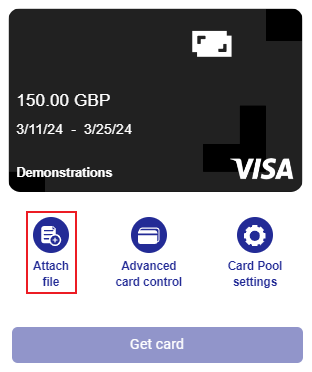
Open your file explorer and locate the file you want to upload.
Drag the file over the box in Visa Commercial Pay Online.
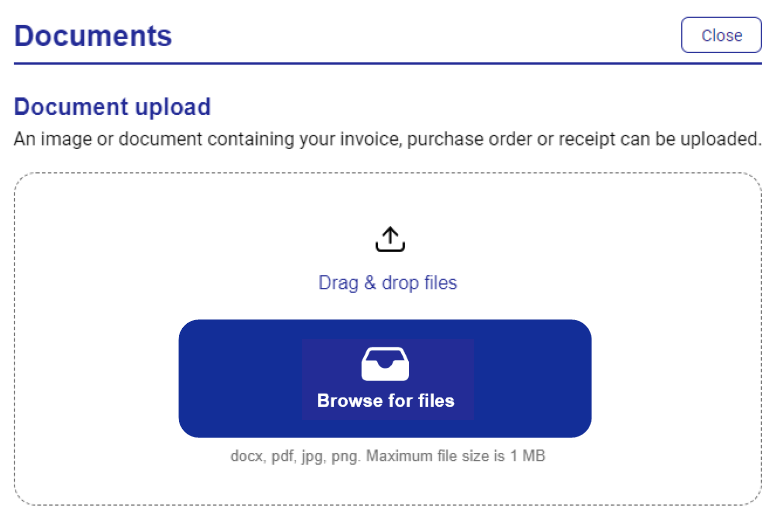
Your file will be uploaded automatically.
Advanced Card Control
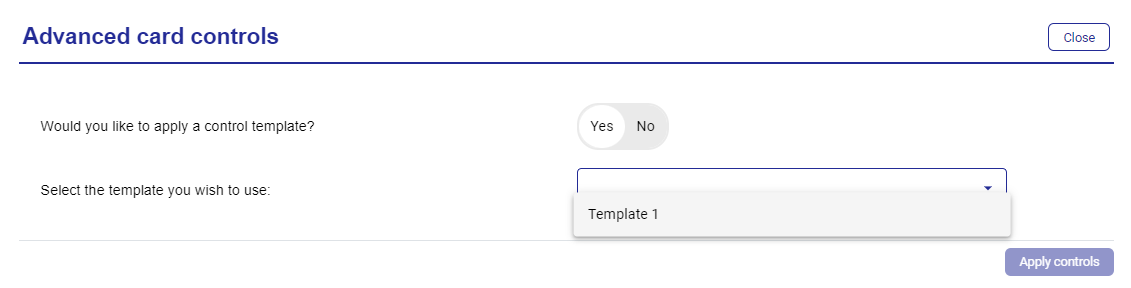
You can add advanced card controls to an individual deployment. You can use an advanced card control template to automatically configure controls, or set the controls per deployment.
 |
Once set, click Apply controls.
 |
Card Pool Settings
Click Card Pool settings to view the Card Pool details.
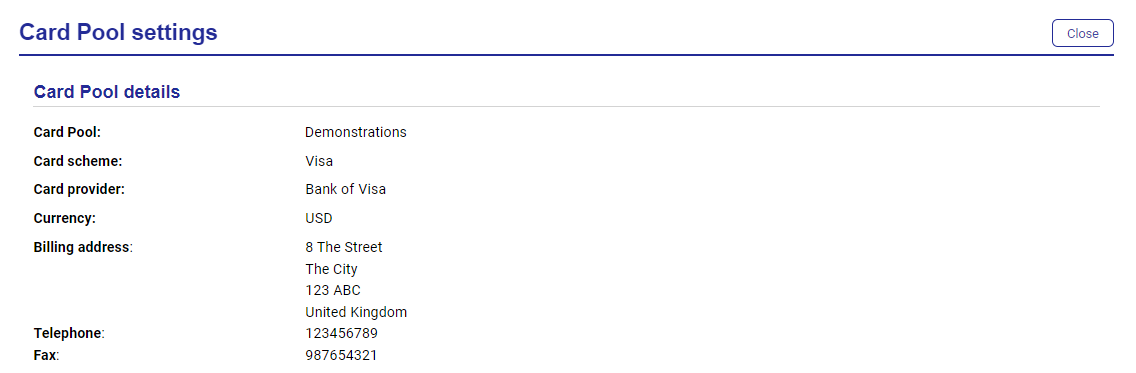 |
Card Pool
Card scheme
Card provider
Currency
Billing address
Telephone
Fax
'Deployment Name' Field
The 'Deployment Name' field allows users to enter a different data value to that entered in the 'Supplier Name' field to prevent unclear deployment labelling. This field is not available when creating batch deployments.
Note
The Deployment Name field is disabled by default.
The deployment name will be displayed in the following areas:
Editable under 'Supplier Information' when creating or editing a new card in Visa Commercial Pay Online
Editable under 'Supplier Reference' when completing a new supplier payment in Visa Commercial Pay Online
Displayed within the deployment details in Visa Commercial Pay Online
Displayed alongside the supplier reference in all transaction based reports in Visa Commercial Pay Reporting
Displayed alongside the supplier reference in all deployment based reports in Visa Commercial Pay Reporting
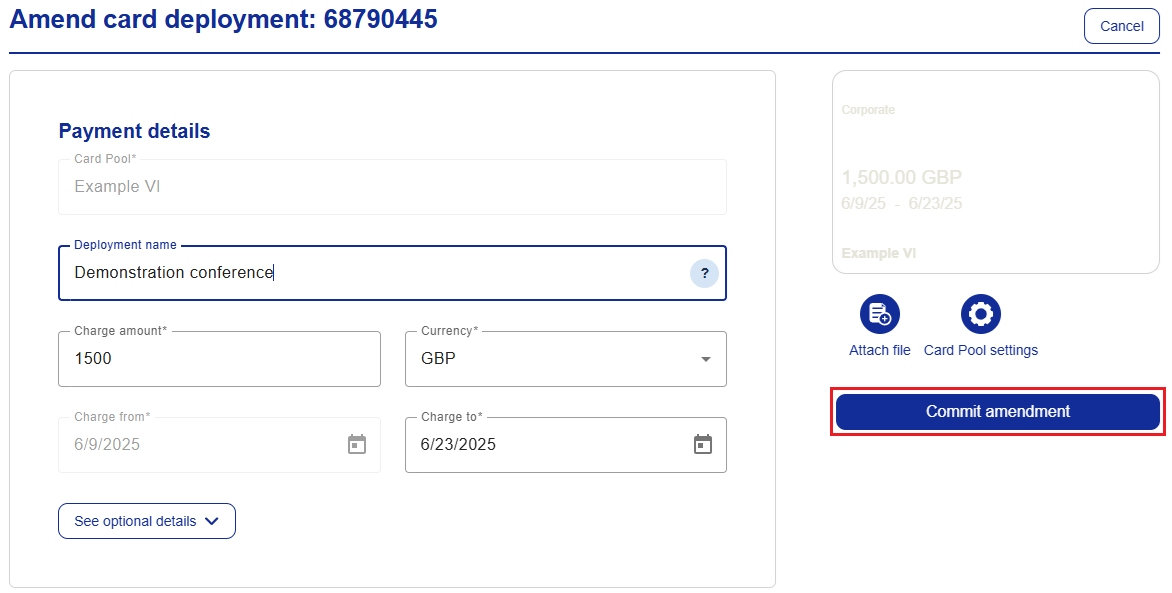
The 'Deployment Name' field can be amended when editing an active card, any changes will be captured in the audit log. If the field has been edited, previous transactions linked to the deployment will not be affected.
To enable the deployment name field:
From the navigation bar, click Administration.
Click Card Pool search, or select Card Pools from the options on the left and click Card Pool search.
Search for the card pool you want to enable the deployment name field on, either by name or spend type and click Search.
Select the card and tick the box next to Enable deployment name field, click Save and confirm your choice.
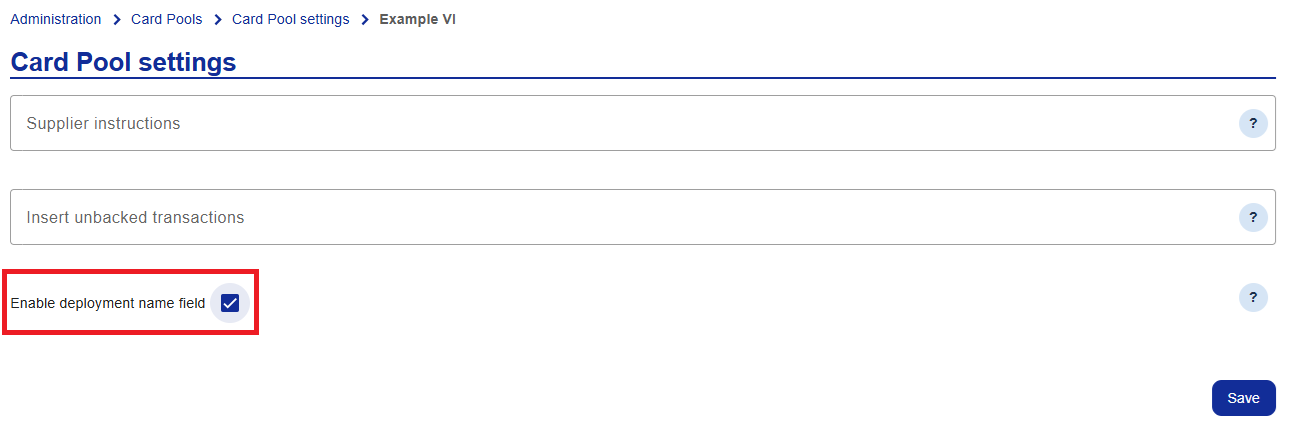
The Deployment name field will be visible when you create a card.
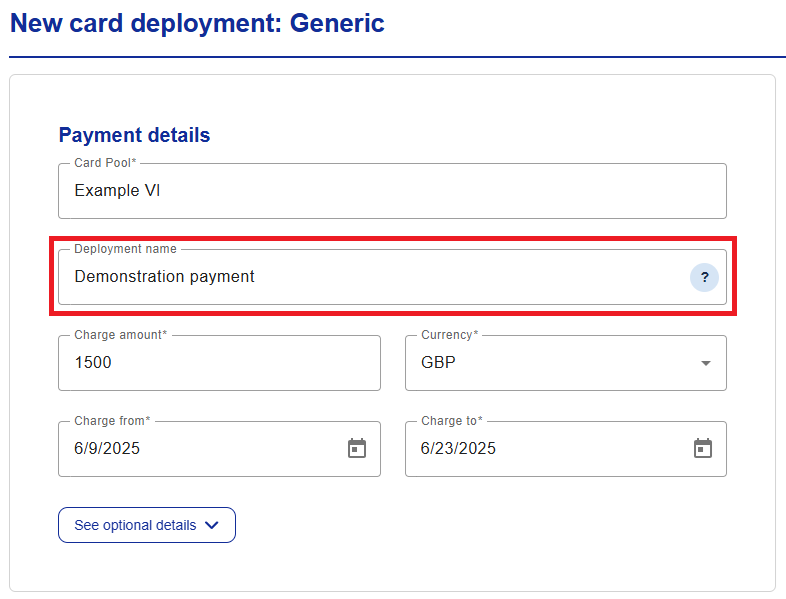
The Deployment name field will also be visible when you complete a new supplier payment.
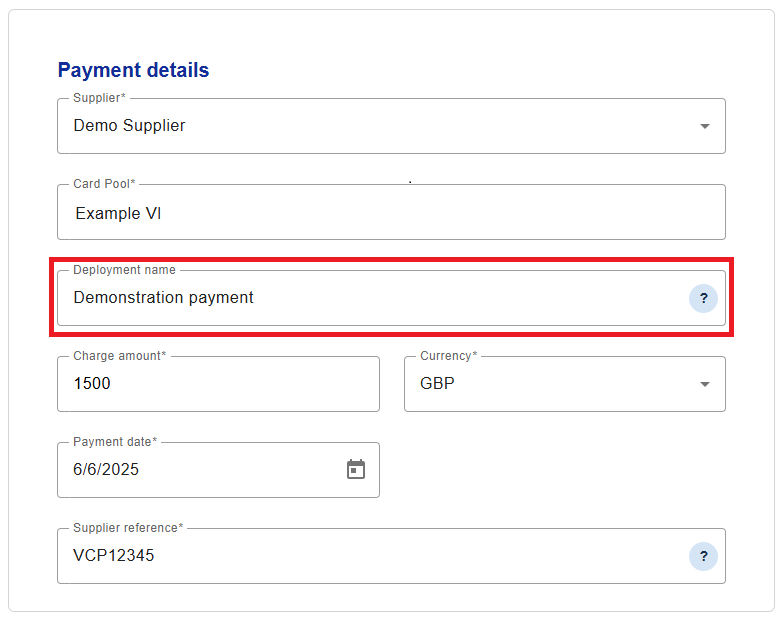
The deployment name can be edited up until the charge end date:
Open the deployment that you want to amend.
Click Amend to make any required changes.
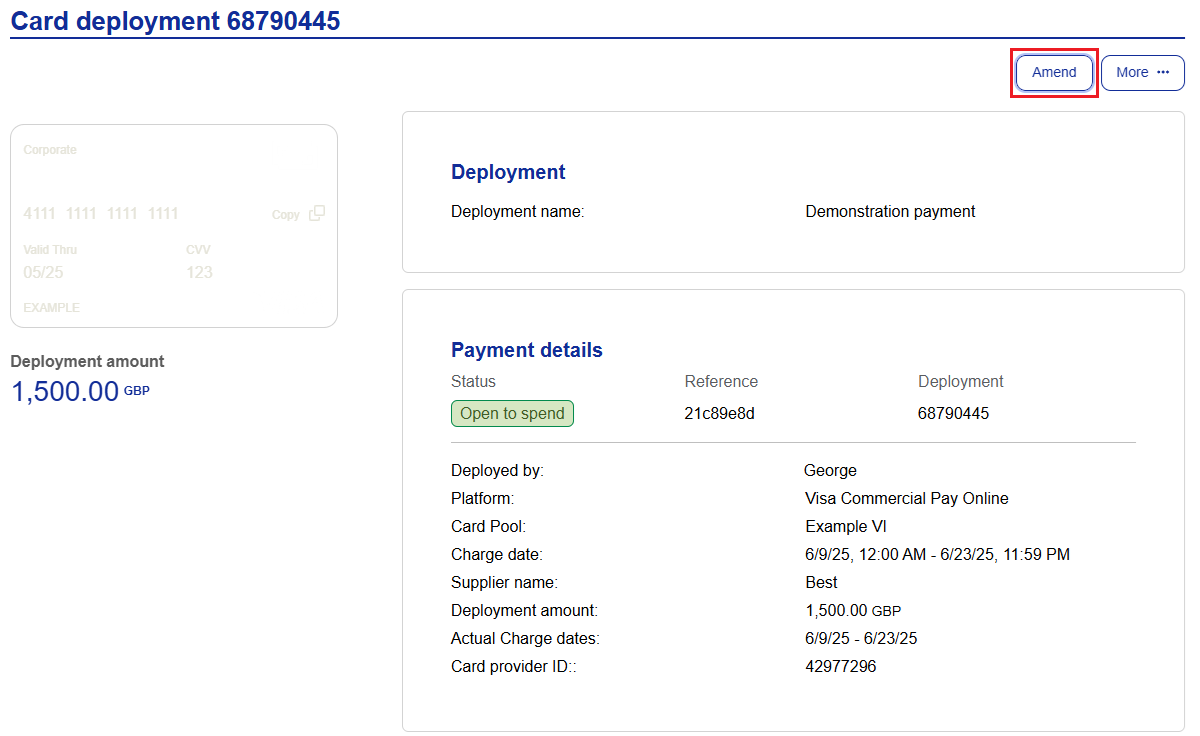
Click Commit amendment.
Note
User Roles Affected: All Visa Commercial Pay Online users able to deploy cards.
Availability: Configured per Card Pool.