Enhanced Approval Workflow: Approval Groups
Administrators can create an enhanced approval workflow which is made up of three key elements: an Approval Group, sequenced Approval Tiers, and Approvers. By creating Approval Tiers and assigning Approvers within an Approval Group, you can have multiple levels of approval based on an ascending approval limit across each tier. Approvers are notified of approval requests via an email, prompting them to log in and review the request.
How does this affect the Approval Workflow functionality?
Standard Approval Workflows are not be affected or changed by Enhanced Approval Workflows.
An Approver can be linked to an Approval Tier for Group Approval and have a threshold for Single Approval.
Enhanced Approval Workflows and Standard Approval Workflows can not both be configured for the same Deployer user. A Deployer users can only be linked to one of either Single Approval (Standard Approval Workflow) or Group Approval (Enhanced Approval Workflow).
By creating an enhanced approval workflow, you are able to:
Control spend across your team
Keep your approval workflow organised
Create multiple levels of approval
Enable card requests to be quickly and easily reviewed by the relevant approver
Approval Groups
Administrators can create an Approval Group via the Administration section of Visa Commercial Pay Online.
An Approval Group contains the following:
Approval Name–this is how the Approval Group is identified across the platform and email notifications.
Approval Tiers–these are layers of increasingly higher approval limits.
An Approval Tier contains the following:
Approval limit–this is the maximum amount that can be approved within the approval tier
Number of required approvers–this is the minimum number of users that must approve a card request
Approver users–these are the users that approval requests is sent to
We recommend a maximum of 10 Approval Tiers to be added per Approval Group.
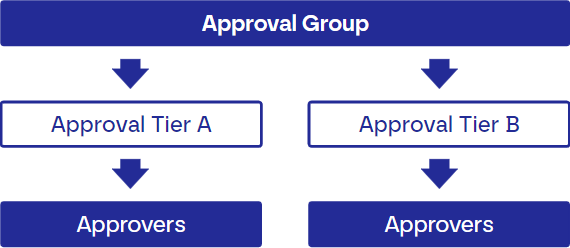
Approval Group | The Approval Group is the top level of the structure, containing a list of Approval Tiers that the Administrator creates. |
Approval Tier | An Approval Tier is a layer of approval within the Approval Group with a defined approval limit. The maximum Approval Tier is the maximum amount that a Deployer can be approved for. |
Approvers | The Approvers are the users within an Approval Tier who can approve card request from Deployers up to the approval limit. |
 |
Approvers and Approval Groups
An Approver can be added to more than one Approval Group, but they cannot be part of multiple Approval Tiers within the same Approval Group.
How to Create an Approval Group
To create an Approval Group:
From Administration, click Approval Groups and then click Create new approval group.
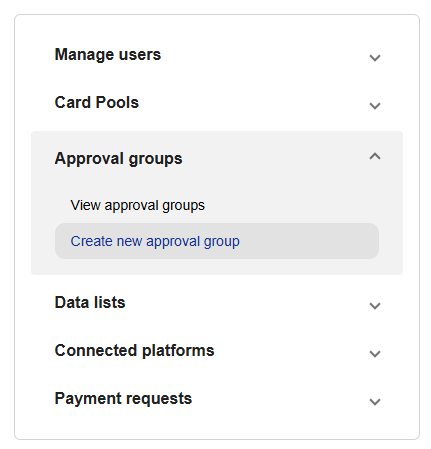
Enter a name for the Approval Group and select a currency from the dropdown.

To add approval tiers:
From Administration, click Approval Groups then click View approval groups.
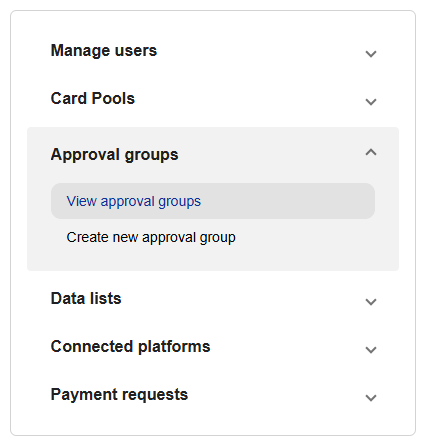
Click the three-dots icon on the approval group you want to view, and click View.
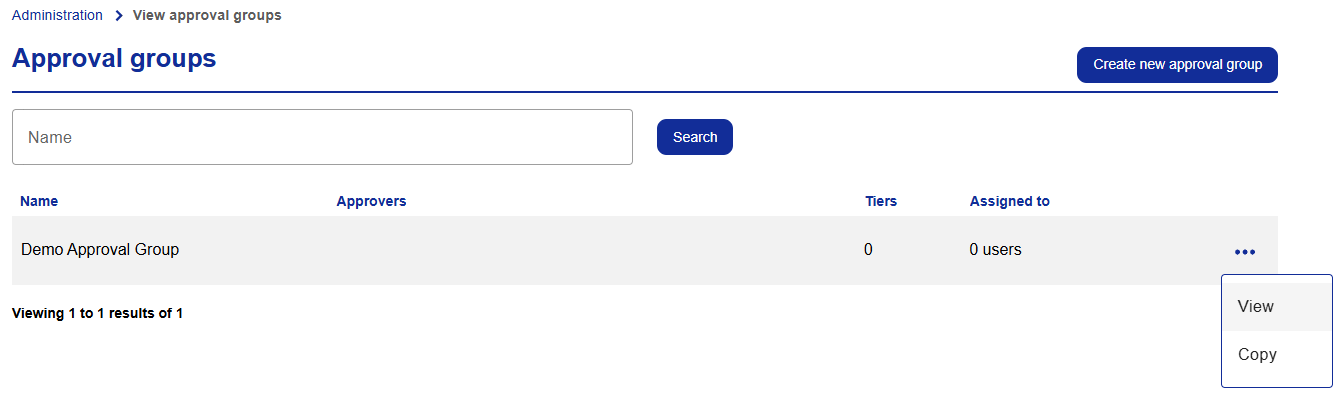
Click Add a tier.
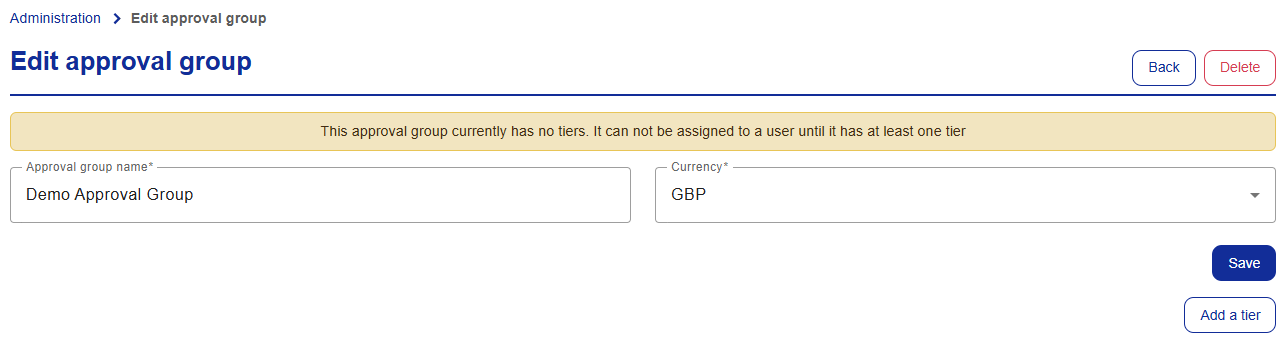
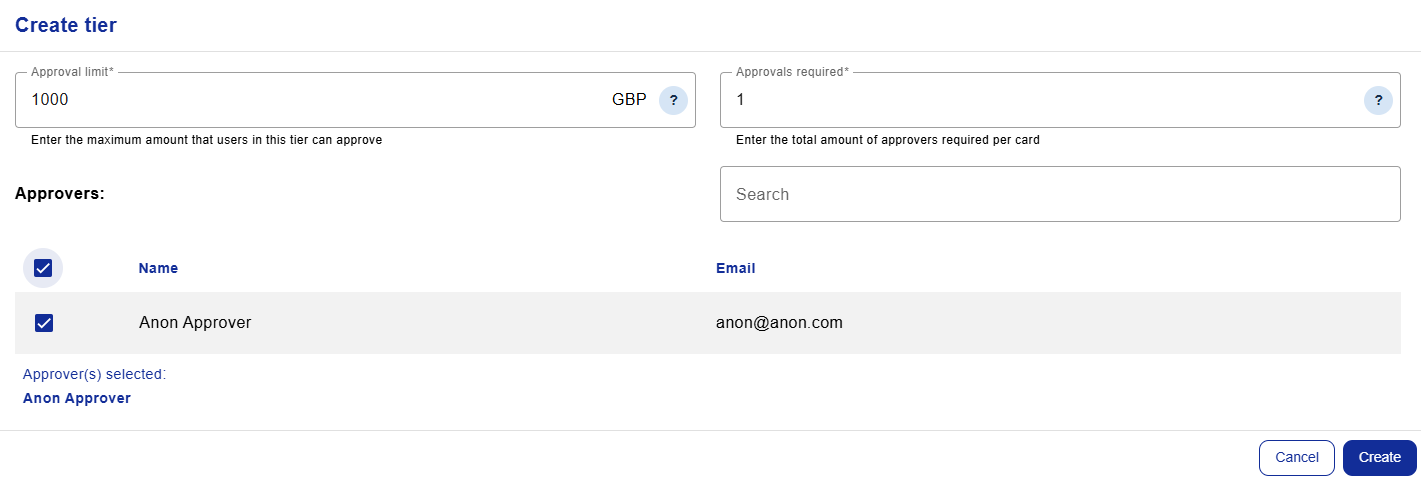
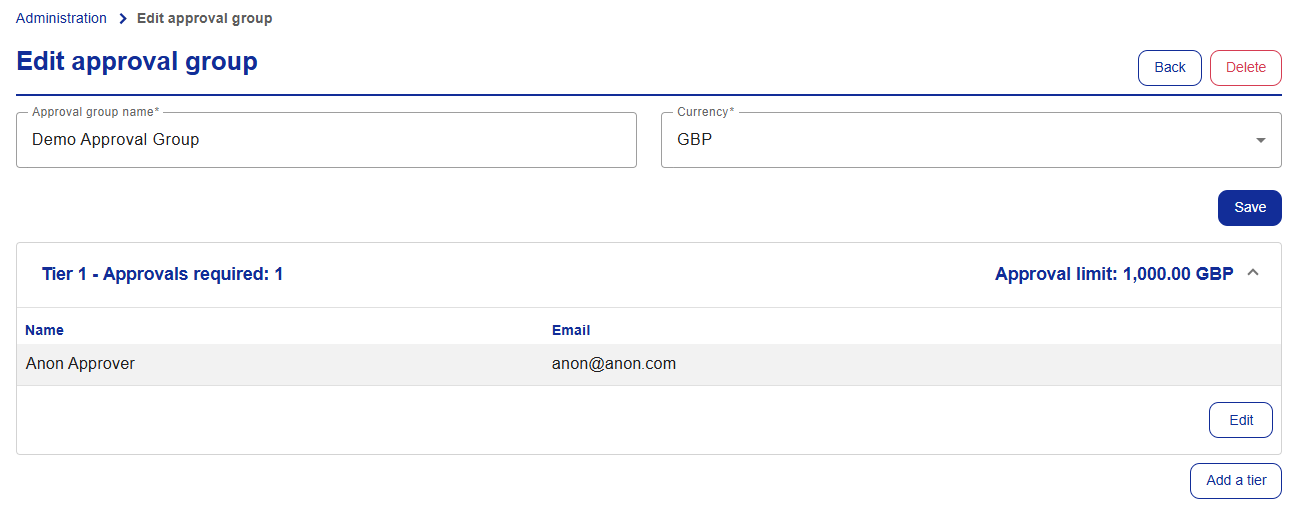
Enter the approval limit and the total amount of Approvers required per deployment. Tick the check-box option for each Approver that you want to link to the tier and click Create.
Deployers
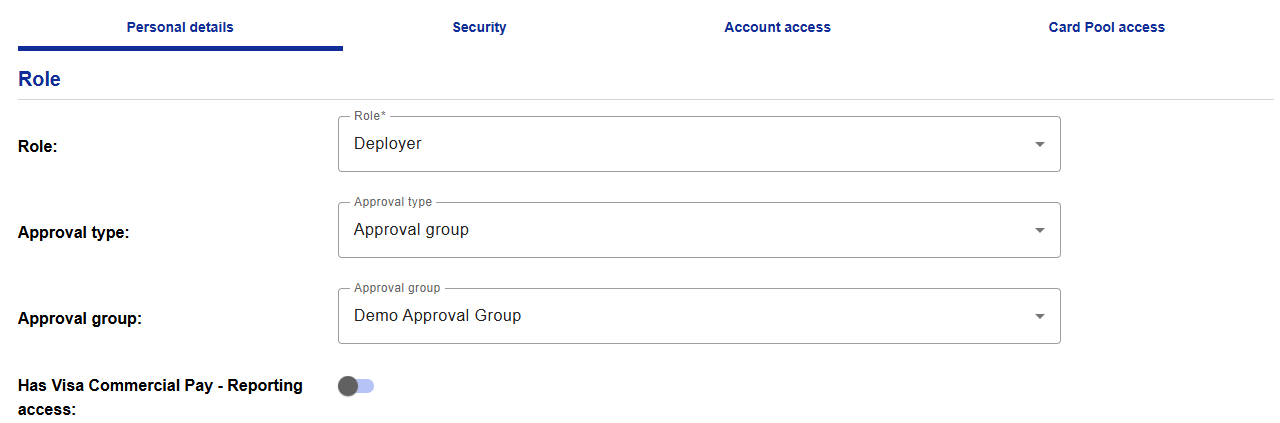
Once an Approval Group has been configured, each Deployer must be linked individually at a profile level. Within the Personal Details tab when editing or creating a user, an Administrator must set the following options:
Approval type–this option must be set to Group Approval
Approval group–this option must be set to the Approval Group that you want to link the Deployer to.
How to Link a Deployer to an Approval Group
To link a Deployer to an Approval Group:
Create or search for a Deployer.
From Personal Details, set the Approval type to 'Approval group', and set the Approval group to the desired group.
Click Update or finish creating the user.
The user is then linked to the Approval Group and any future card requests are subject to approval via the configured Approval Tiers.
Reviewing Deployment Requests as an Approver and Deployer
An Administrator or Approver can view the deployment requests that have been sent to their Approval Tier and receives an email notification when new requests require their approval. An Approver's Card Pool access 'Threshold' does not affect the amount they can approve when linked to an Approval Tier.
As an Approver:
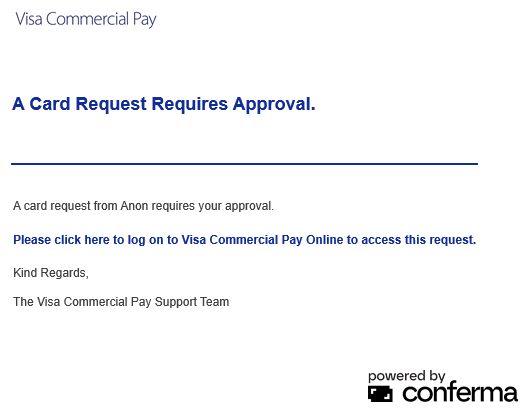
Once a deployment request has been created by a Deployer, the Approver receives an email notification.
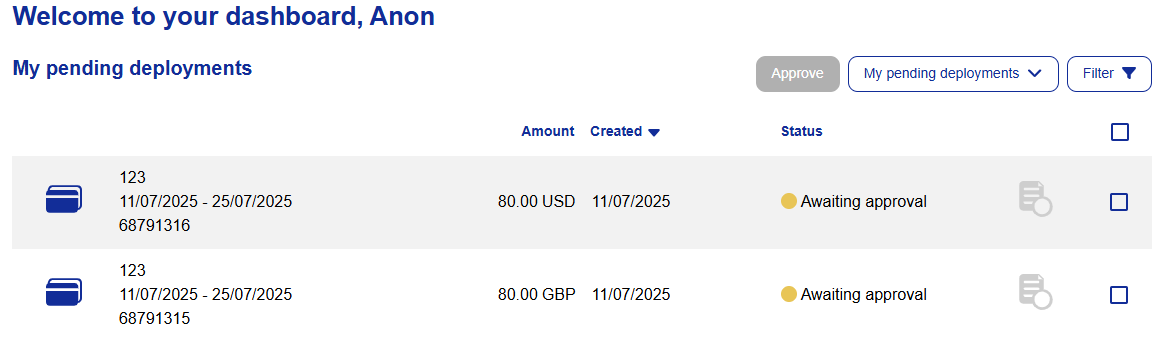
Log in to Visa Commercial Pay Online and review the pending deployment requests.
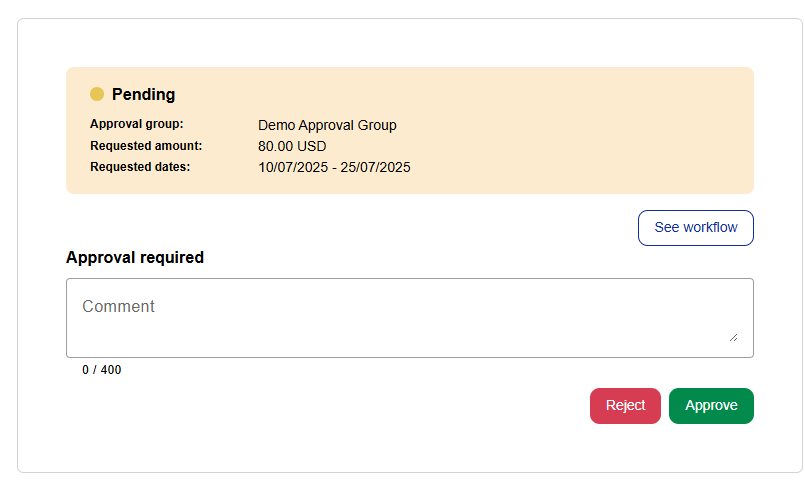
Tick the check-box option on the dashboard to approve multiple or single requests, or open the deployment to review the details and add a note.
Once reviewed, click Approve or Reject.
Which users can be added to an Approval Tier?
Only the following user roles can be linked to an Approval Tier as an Approver.
Approver 1
Approver 2
A Deployer can view their pending card requests within Visa Commercial Pay Online and can review rejection notes by opening a rejected card request. Deployers receive an email notification when their request is rejected or approved.
As a Deployer:
Once a deployment has been created that exceeds the Deployer threshold, it is sent for approval and is displayed on the dashboard as Awaiting Approval.
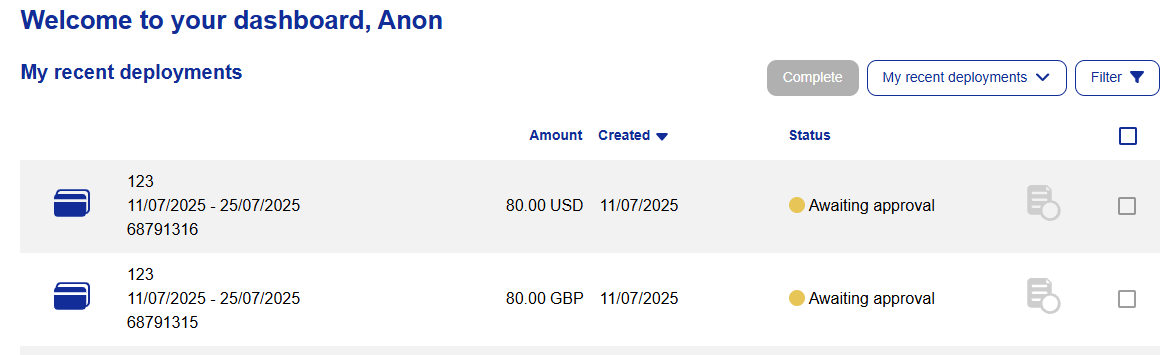
After the Approver has approved the deployment request, the Deployer receives an email notification that the request has been approved or rejected.
The Deployer can log in to view their Active card, or review the rejection reason within the deployment details.
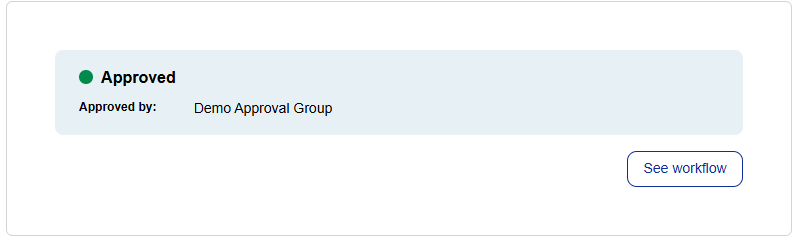
Action History
To audit who has approved a card request and when, any user with access to a card deployment via the Visa Commercial Pay Online dashboard can review the Action History of the card.
The following details can be viewed:
Date–the date of approval or rejection
Type–this defines if the card has been approved or rejected
Platform user name–the user who approved or rejected the request
Platform–the platform that the request was approved or rejected from
Description–the Approval Group that the Approver is linked to