Approval Workflows
Approval workflows allow you to send all deployments that exceed a specified threshold to designated Approvers. You can configure either a one-tiered or two-tiered approval workflow. Approval workflows are useful if you want all virtual card requests for supplier payments exceeding a certain threshold to be subject to approval by one or multiple Approvers before a virtual card can be created.
To configure approval workflows, you will need to:
Create users with the correct approver roles.
Configure Card Pool access and set thresholds for each user.
Two-Tier and One-Tier Approval Workflows
A two-tiered approval workflow is made up of at least three users in total, with two Approvers.
 |
A one-tiered approval workflow is made up of at least two users in total, with one Approver.
 |
Approver 2—this is the higher tier of approval, this user will approve requests that exceed the threshold of Approver 1.
Approver 1—this is the lower tier of approval, this user will approve requests that exceed the threshold of the Deployer.
Deployer—this user doesn't have approval permissions and can only generate card deployments within their own threshold.
Configuring an Approval Workflow
Follow the steps below to create an approval workflow:
Caution
If you have Dual Approval enabled, any new users you create will need to be approved by another Admin user.
Create Approver 2
If you require a two-tiered workflow, create Approver 2 first. If you require a one-tiered approval workflow, skip creating Approver 2 and only create Approver 1.
Click Administration and then click Create user.
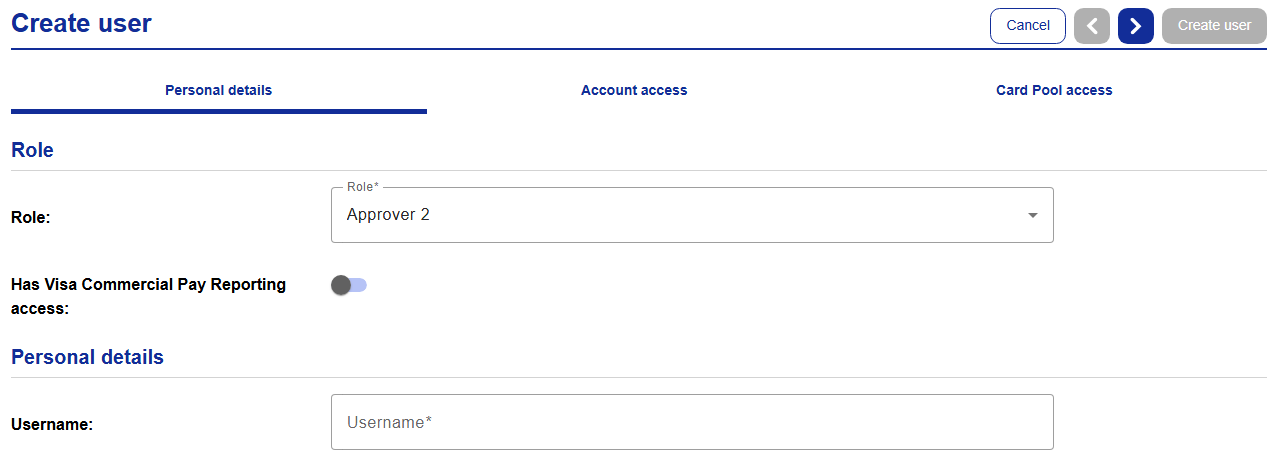
Set the Role as Approver 2, and enter all required details in the 'personal details' section.
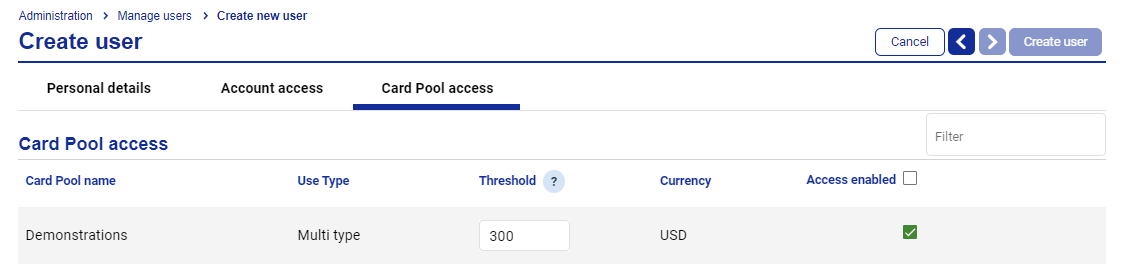
Select the Card Pool access tab. Tick the box to enable access to the corresponding Card Pool.
Note
Approver 2 should be able to approve all card requests, therefore a threshold cannot be set.
Click Create user.
Create Approver 1
Click Administration and then click Create user.
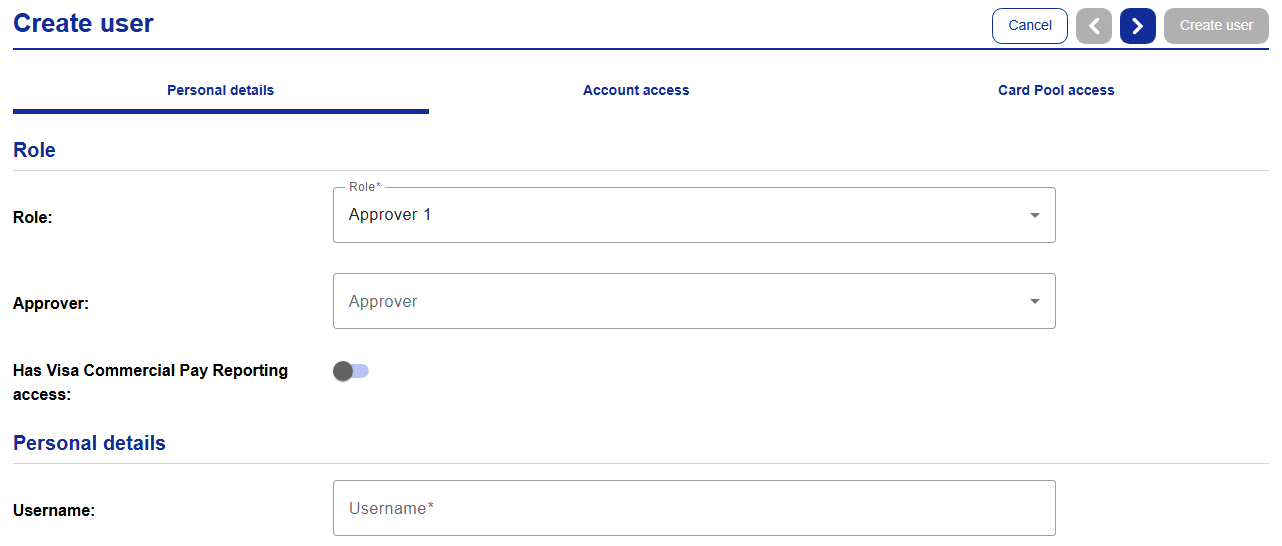
Set the Role as Approver 1, select an Approver, and enter all required details in the 'personal details' section.
Select the Card Pool access tab. Tick the box to enable access to the corresponding Card Pool and set the Threshold amount.
The threshold amount for the Approver is the maximum amount that the user can approve per card request.
Click Create user.
Create a Deployer
Click Administration and then click Create user
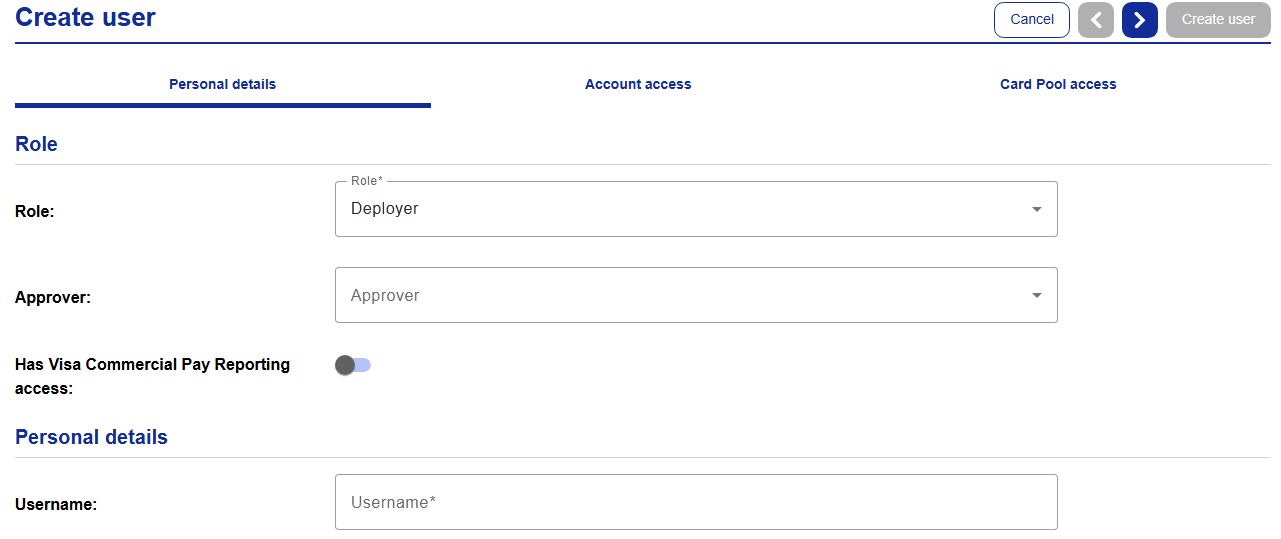
Set the Role as Deployer, select an Approver, and enter all required details in the 'personal details' section.
Select the Card Pool access tab. Tick the box to enable access to the corresponding Card Pool and set the Threshold amount.
The threshold amount for the Deployer is the maximum amount the user can request without requiring approval.
Click Create user.
Approval Process
As a Deployer you will be able to create a card within your threshold without approval. If the value of the card exceeds your threshold, the card must be approved.
If you have a card awaiting approval, the deployment details screen will display the:
Approver name and email address
Requested amount
Requested dates
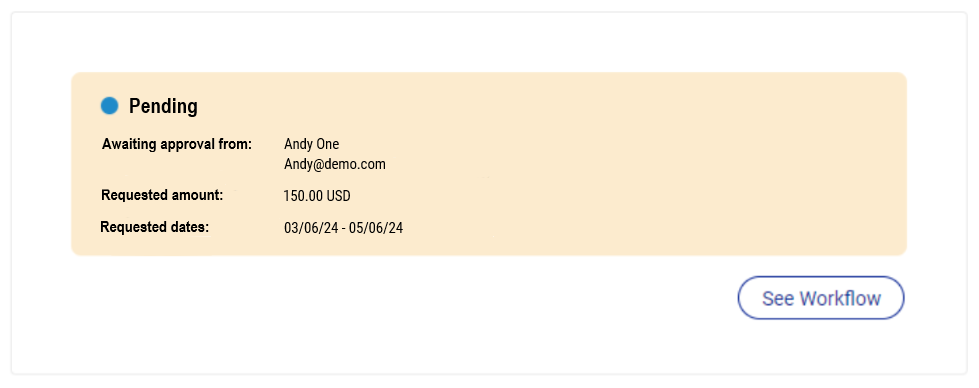 |
Click See workflow to view the deployment request workflow, this will show further details:
Deployer name and email address
Request threshold
Approver 1 will be prompted via email to approve or reject the request. Once logged in, the deployment will be on the approvers dashboard with the status 'awaiting approval'.
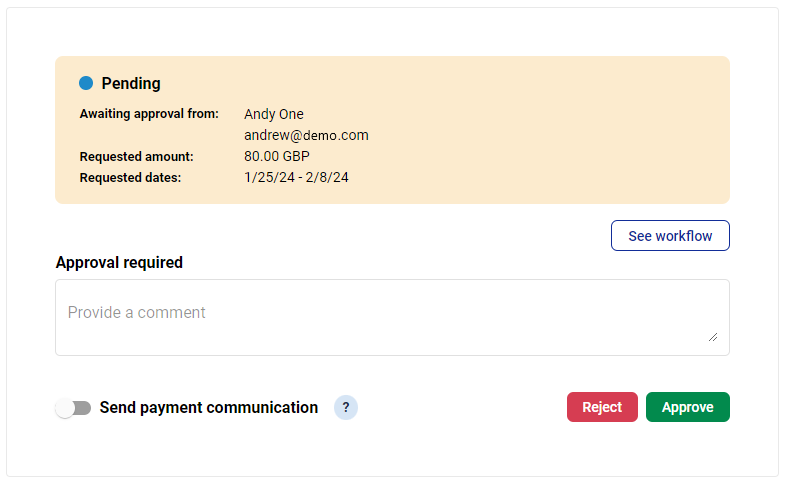
Select the deployment and then from the deployment details screen click Approve or Reject.
You can enter a comment into the field shown, if required. The comment will be visible in the deployment request workflow for the deployer and all approvers. Click See workflow to view the deployment request workflow.
If the value of the card exceeds both the deployer and Approver 1, then Approver 2 must approve the deployment.
Batch Deployment Approvals
When cards have been created via a batch deployment upload, the approver will have the option to resend payment communications on behalf of the deployer.
An Approver can trigger payment communication to the supplier at the point of approval. This functionality is available on the Approval page.
 |
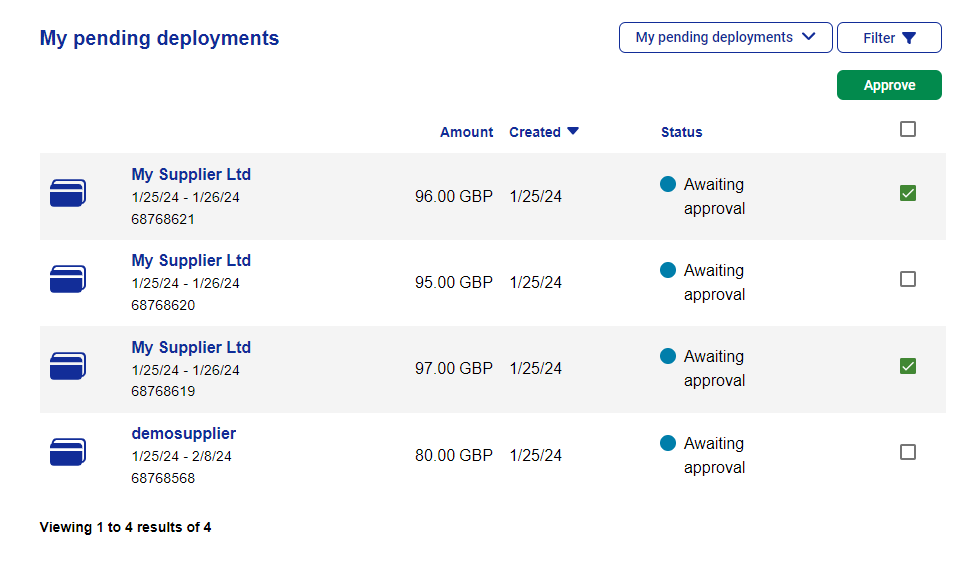
If multiple deployments from a batch deployment require approval, users will be able to select which deployments that they want to approve. Once the user has selected which deployments they want to approve, they will be prompted to send communications to all deployments selected.
 |
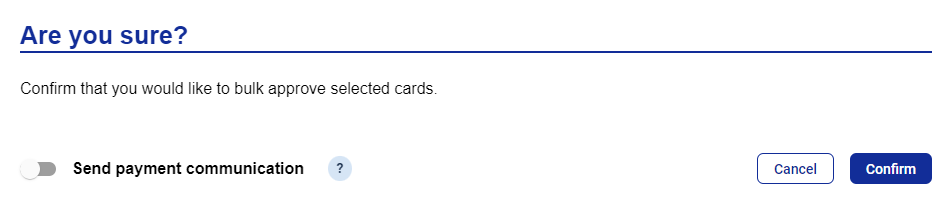 |
If a deployment requires approval, communications will be sent to the supplier upon approval if:
The supplier email address has been added to the deployment
Send Communication has been toggled on