Supplier Management
Visa Commercial Pay Online allows you to set up individual suppliers and link a preferred payment method, enabling you to send virtual card payments using the Pay a Supplier functionality. To access Supplier management, click More from the navigation bar and click Supplier management. If you cannot see the supplier management option, contact Visa Commercial Pay support.
Add New Suppliers
You can add new suppliers by entering the supplier information, contact information and enabling a payment provider.
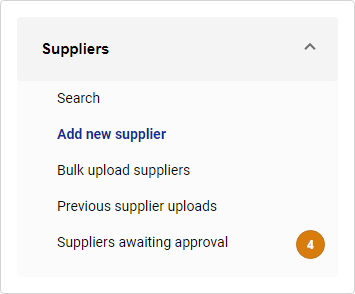
From supplier management, click Add new supplier from the left-hand panel.
Complete the following fields to add a new supplier:
Supplier name
Supplier identifier
Country
Email address
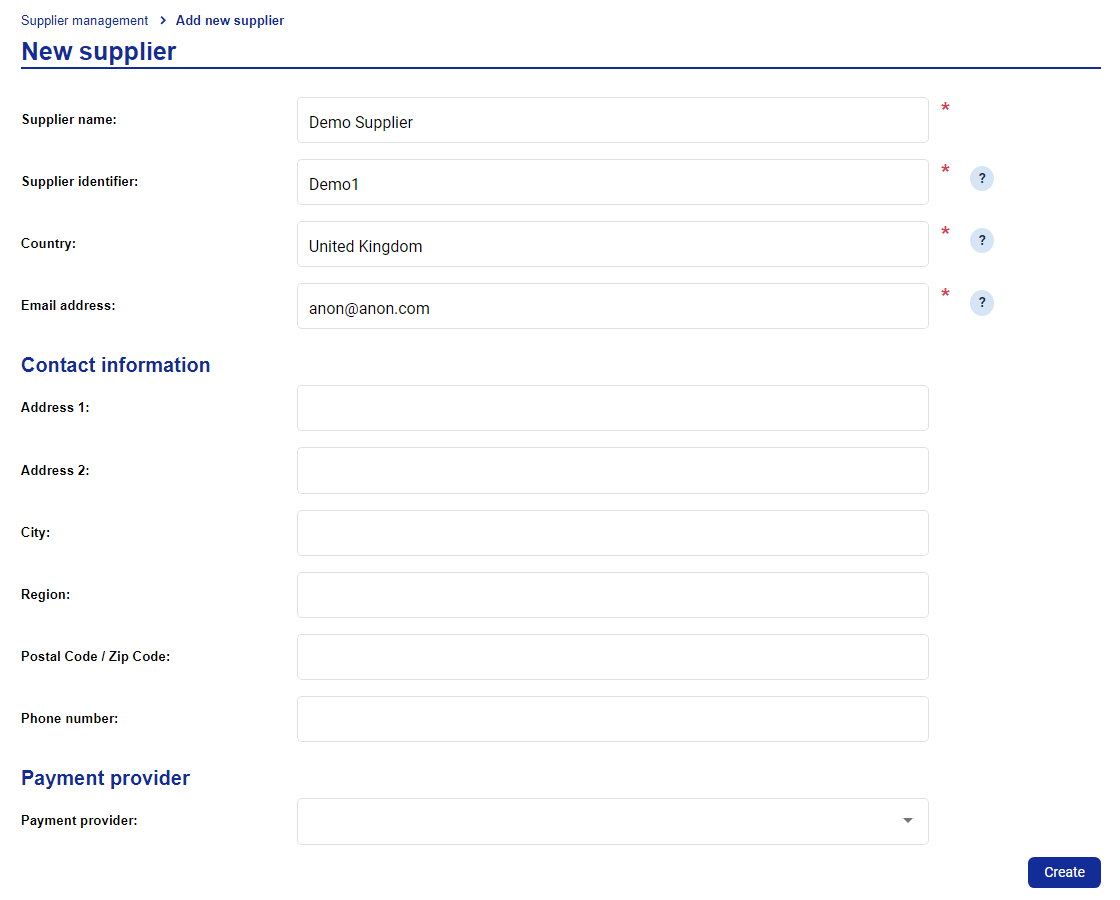
Enter the contact information for the supplier.
Select a payment provider and click Continue setup. If you have not selected a payment provider, click Create.
You can enable or change the provider after the supplier has been created. To enable a payment provider for a supplier that has already been created, select the supplier and then toggle a payment provider on. Once a payment provider has been enabled, click Setup required and follow the set up process for the selected payment provider.

Search for Suppliers
You can search for any suppliers that have been added to Visa Commercial Pay Online.
From supplier management, click Search from the left-hand panel.
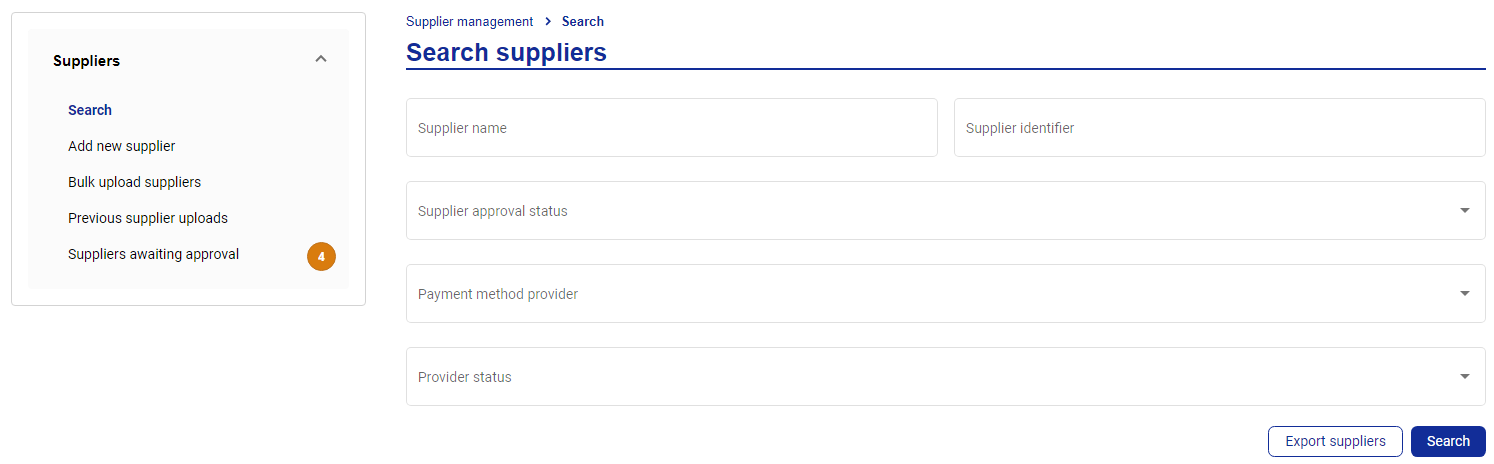
You can search for suppliers using the following fields:
Supplier name
Supplier identifier
Supplier approval status
Pending approval
Active
Rejected
Pending setup
Payment method provider—the provider of the payment method enabled for the supplier
Provider status—the status of the payment method that has been enabled, e.g. Active, Setup required, Information required
Once you have entered your search terms, click Search. The results will be displayed below.
Bulk Upload Suppliers
You can bulk upload suppliers that are using the same payment method provider.
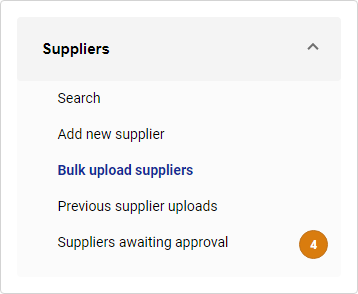
From supplier management, click Bulk upload suppliers from the left-hand panel.
Select a payment method provider.
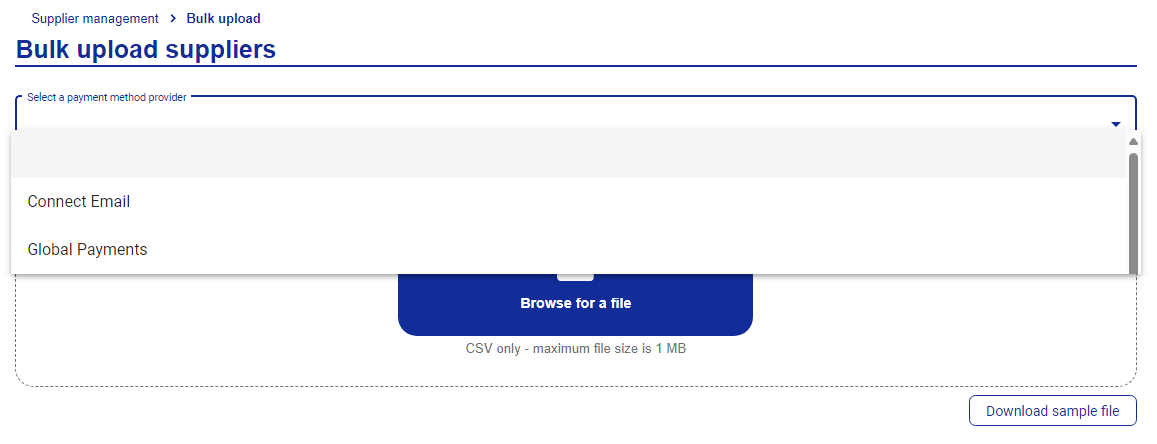
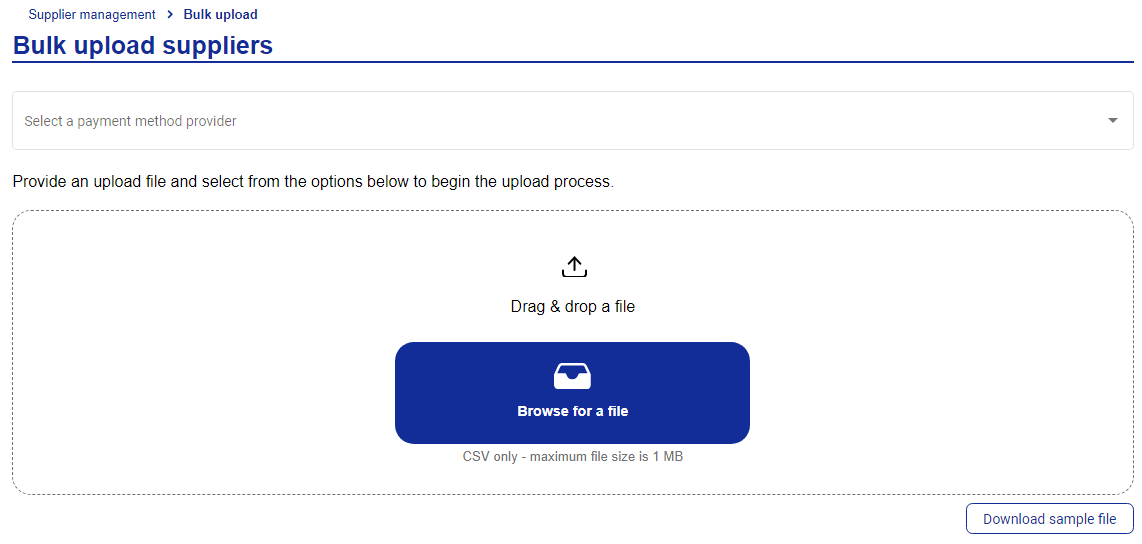
Download the sample file and enter the supplier information requested by replacing the sample row and adding as many row as required. Once complete, upload the file.
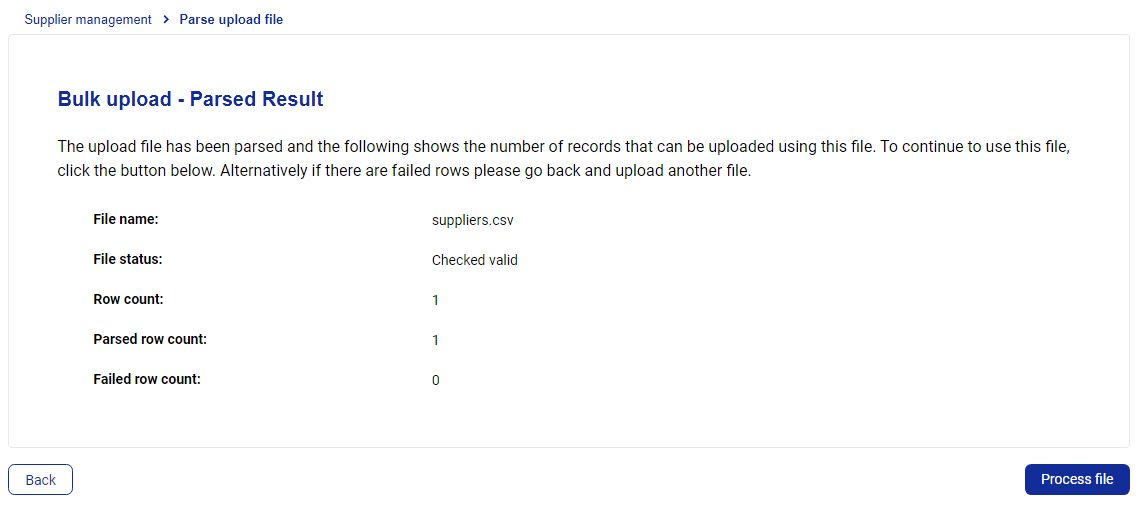
The file will automatically be parsed to check that the format is valid, if valid click Process file. If invalid, check that the file has been formatted correctly and reupload it.
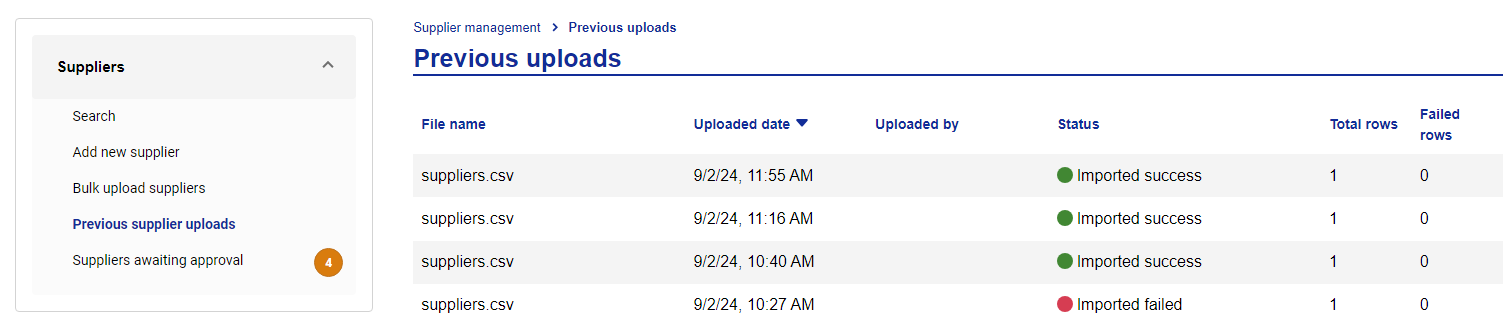
If the file is processed successfully, the file status will be 'Imported success'.
If the file processing fails, check the failure log for errors that prevented the file from being uploaded. Correct the errors and reupload the file.
Previous Supplier Uploads
You can check the previous supplier bulk uploads, including the parsed result.
If a file upload has the status 'Checked valid', the process has not been completed. To complete the process:
Click on a row to select the .CSV file that you want to complete.
Click Process file.
Suppliers Awaiting Approval
Once a supplier has been added, it may require approval from an approver user. A notification icon will be displayed to notify the user of how many suppliers are awaiting approval. Users cannot approve a supplier that they have created themselves.
To approve a supplier:
From supplier management, click Supplier awaiting approval from the left-hand panel.
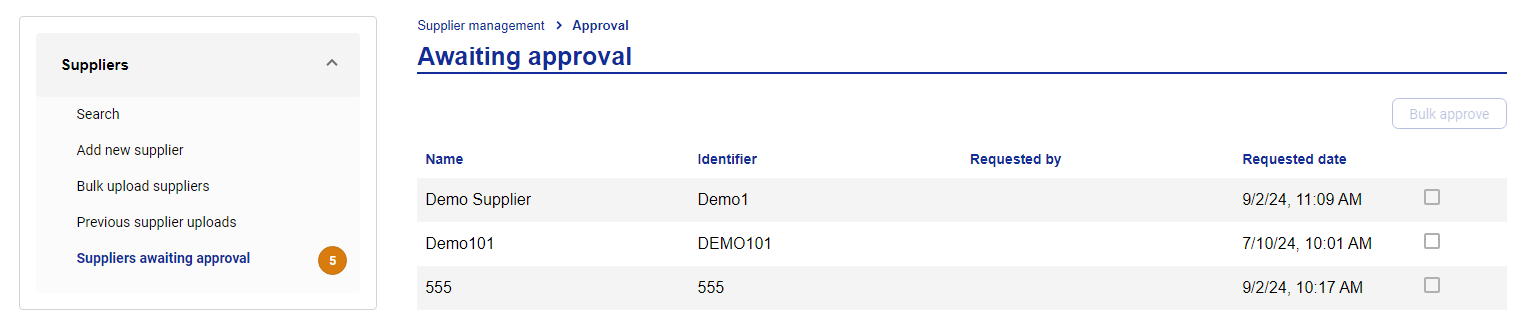
Select the tick box for each supplier that you want to approve, and then click Bulk approve.