Creating an Accommodation Card in Online
Accommodation cards can be used to book hotel stays. You can capture traveler details, hotel information, booking details, and custom data fields. You can also add ancillary details and service fees, if required.
Accommodation cards can be sent directly to app users by adding a traveler that has been registered for the app.
Creating a Card for a Past Booking
When creating a card for a past booking you will be unable to use check-in/out dates that are in the past. To successfully create and charge a card for bookings in the past, we advise that you create a card using check-in/out dates that are in the present. Once the card has been charged, edit the deployment and change the check-in/out dates back to the actual booking dates for accurate reporting and reconciliation.
Create a card with check-in/out dates in the present.
Charge the card for the past booking.
Edit the card and change the check-in/out dates to match the booking dates.
Click Accommodation.
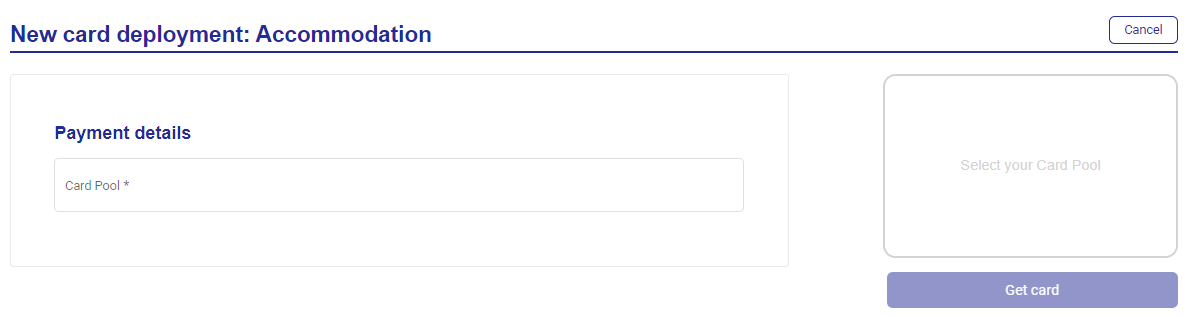
Select your Card Pool from the dropdown.
Enter the payment details:
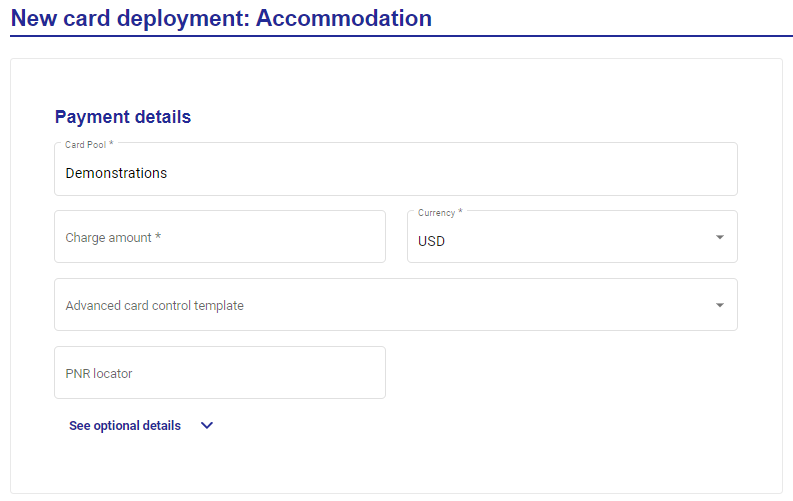
Charge amount
Currency
PNR locator
Click See optional details to enter:
Reference
Customer ID
Customer name
Hotel confirmation reference
Enter the traveler details:
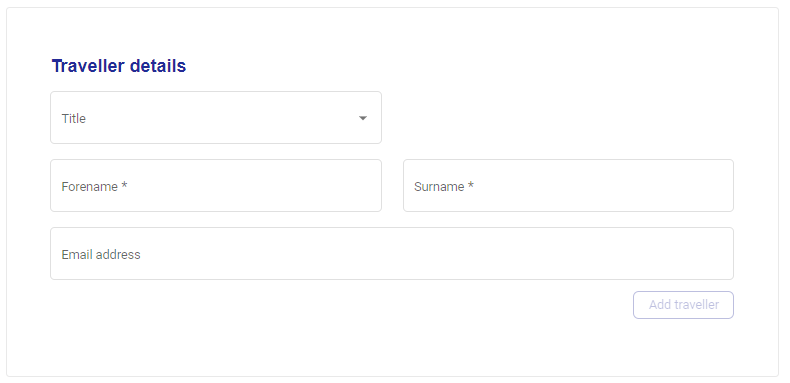
Title
Forename
Surname
Email address
Click Add Traveller.
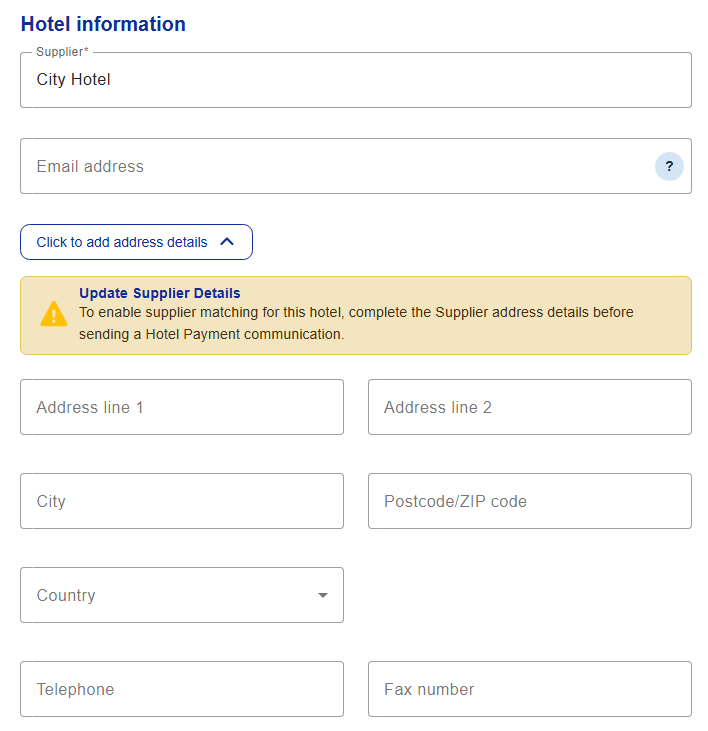
Enter the hotel information:
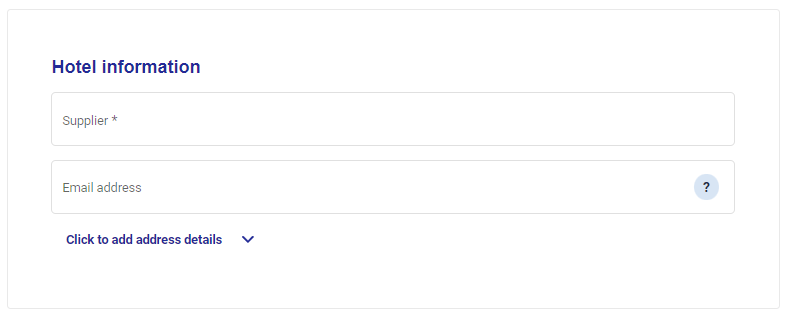
Supplier
Email address
Address details
To generate a communication of the 3rd Party authorization form to the hotel enter the email or fax number.
The system will automatically check the Connect database to see if the hotel has registered for a specific type of communication. If so, it will automatically redirect the communication to the email/fax/secure email/API registered.
Enter the booking details:
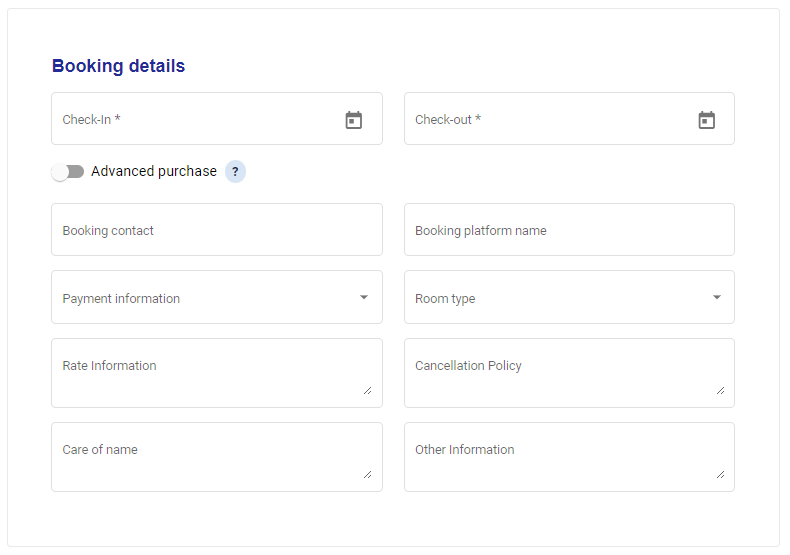
Check-in date
Check-out date
Booking contact
Booking platform name
Payment information
Room type
Rate information
Cancellation policy
Care of name
Other information
Advanced Purchase
Select Advanced purchase when generating a virtual card to ensure your card is available to be charged immediately. The start date of your card deployments open-to-spend period will automatically be set to today.
Enter the ancillary details:
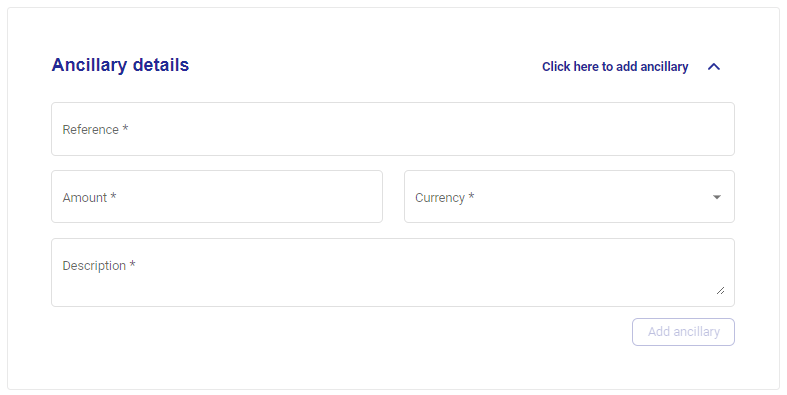
Reference
Amount
Currency
Description
Click Add ancillary.
Enter the service fee details:
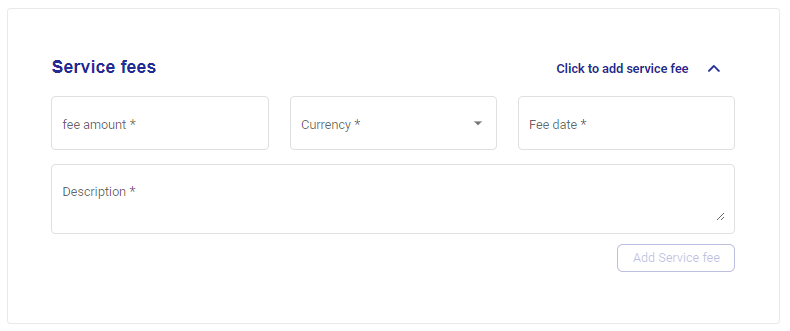
Fee amount
Currency
Fee date
Description
Click Add service fee.
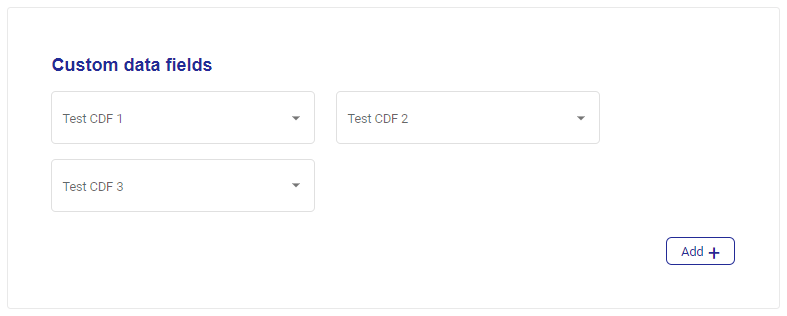
Enter your custom data field values.
Click Get card.
Supplier Details Warning
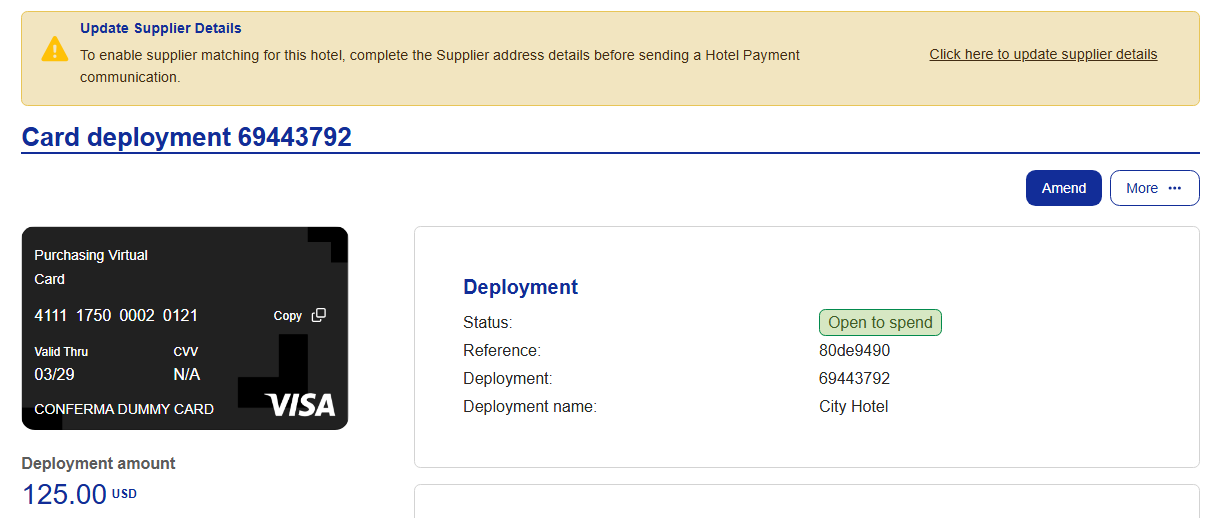
A warning is displayed when creating an Accommodation card in Visa Commercial Pay Online if the hotel information has not been completed. This encourages users to capture key supplier details and helps prevent communication failures with hotels.
Shown on the deployment screen when an unknown supplier has been entered in the Supplier field and the hotel information is incomplete. |
| |
Shown on the deployment details screen when a card has been created without completing the hotel information fields. |
|