Managing Invoices
This is an optional feature that allows you to manually enter a breakdown of spend categories and taxes and generate a report of detailed spend itemization.
Note
The term invoice in Visa Commercial Pay Reporting refers to this manual entry of details. We use the term document to indicate the digital copy of a supplier invoice.
Searching for an Invoice
To search for an invoice, you can use any of the following options:
Spend Type
Card Pool name
Deployment ID
Invoice Reference
Date Type (Invoiced Date or Created Date)
Date Range
Gross Total
Transaction matched to the Invoice: Yes/No/Both
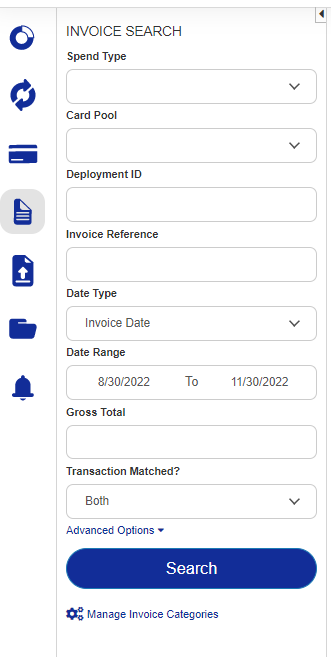 |
Choosing Advanced Options allows you to search by Invoice ID or the user name of the person who entered the invoice. The Invoice ID is the unique identifier allocated to each invoice during invoice creation in Visa Commercial Pay Reporting.
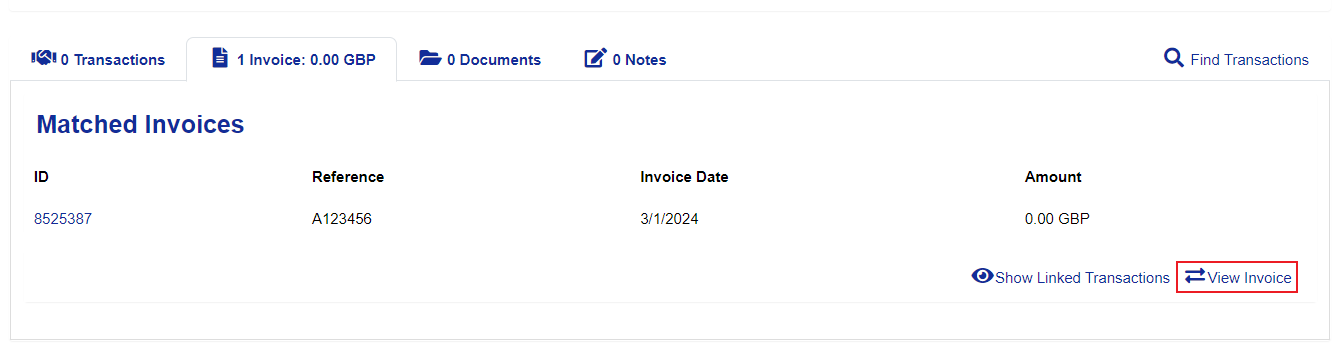
You can also access the Invoice Details from a deployment or transaction that the invoice is linked to. Click into the Invoice tab and select View Invoice.
 |
Add, Edit or Delete an Invoice
When you receive a copy of the invoice/folio from the supplier, use the information it contains to find the deployment or transaction. This could be the traveler name, the hotel name, dates of stay or the last 4 digits of the card charged. Once you’ve found this, check that the traveler name, dates and transaction amount match the invoice.
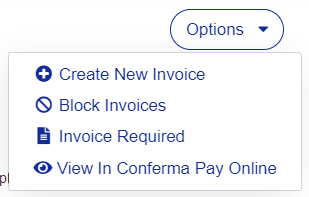
Click Options in the top right and select 'Create New Invoice'.
 |
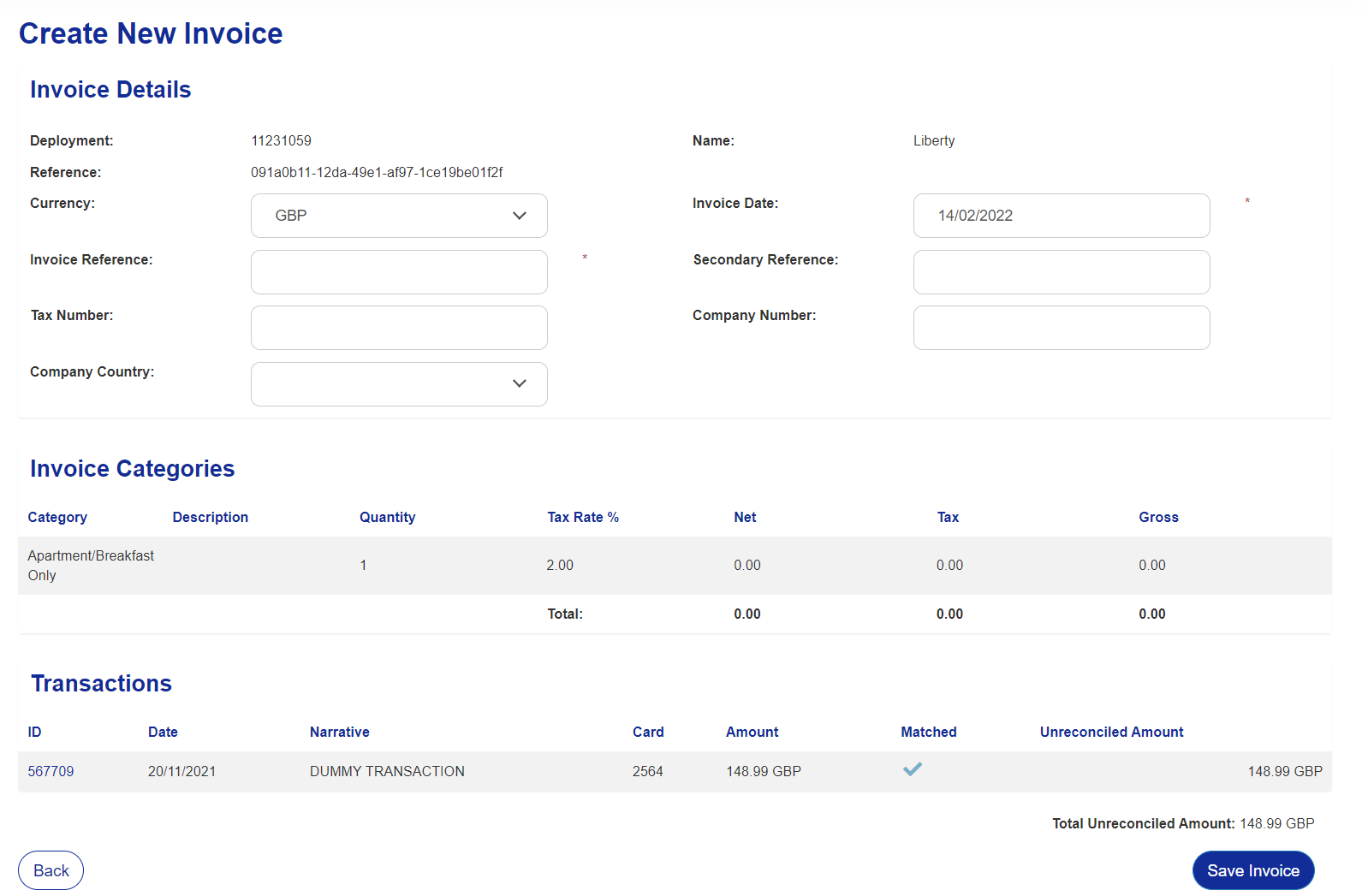
Visa Commercial Pay Reporting will present a basic invoice template, pre-populating the Invoice Date with today's date and any check-in and check-out dates from the deployment. Enter an Invoice Reference (mandatory) which can be the reference on the hotel's invoice or your internal reference, then add the breakdown into the appropriate category. When you’ve added each line item into the template up to the total value on the invoice, click Save Invoice.
 |
You will see a message confirming that the new invoice has been added successfully and the transaction will be marked as reconciled.
Edit Invoice
To edit an invoice:
Open the required invoice.
Click Options from the top right of the screen.
Select Edit Invoice.
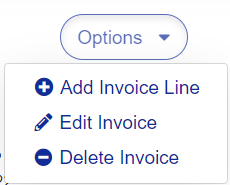
Update the required fields.
Click Save Invoice.
Delete Invoice
To delete an invoice, open the required invoice, click Options from the top right. Select 'Delete Invoice' then click Confirm.
How to Block Invoices or Set Them to Invoice Not Required
Invoice Not Required
If you do not require the line item data to be added into Visa Commercial Pay Reporting but you do wish to use the Invoice Reminders function, you can set a transaction as Invoice Not Required and this will remove it from the invoice reminders list.
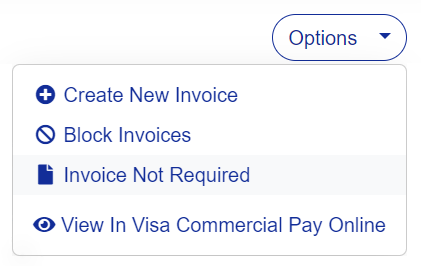
Find the deployment or transaction, click Options in the top right and select 'Invoice Not Required'.
 |
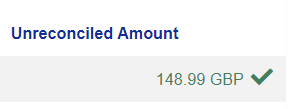
The transaction amount will show in green as reconciled (but the amount is not set to zero).
 |
Automatically Setting Deployments as Invoice Not Required
Visa Commercial Pay will automatically set Deployments as Invoice Not Required once both a transaction and a document is associated to the deployment. This removes the need to manually mark a transaction as reconciled.
Caution
Automatically setting deployments as Invoice Not Required also prevents you from adding invoice line items. This feature should not be activated if you are using Visa Commercial Pay Reporting to report on breakdown of spend.
This automated process operates once daily and relies upon both a transaction and a document being associated to the deployment. If the transaction is received later in the day, the deployment will display in the invoice reminder list and will not be set as Invoice Not Required until the process is run the following morning.
Note
When the transactions are automatically reconciled, the associated deployment is removed from the invoice reminder list.
Blocking Invoices
You can block the addition of the invoice breakdown for specified transactions and deployments, this prevents the addition of duplicate invoices.
To switch off the ability to add an invoice for the transaction in question, click Options in the top right-hand corner of a transaction or deployment profile and select 'Block Invoices'.
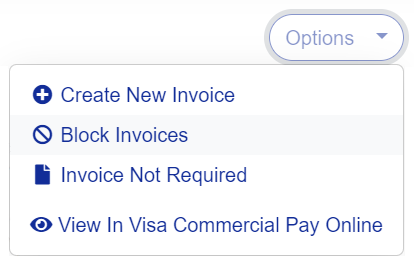 |
The 'Block Invoices' option in the Options menu becomes 'Unblock Invoices' when invoices are blocked. To remove the block on invoices, select 'Unblock Invoices'.