Send a Card
As a Corporate Administrator, you can send cards to any active Team Member from Visa Commercial Pay Control.
You can only send cards from the Visa Commercial Pay App if:
You are also configured as a Team Admin for the Team you are issuing the card to.
The team has been configured so that Team Admins can send cards.
Note
To create a Team Admin, select a user from a Team and toggle Team Administrator on.
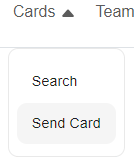
Click Cards and then from the dropdown options, click Send Card.
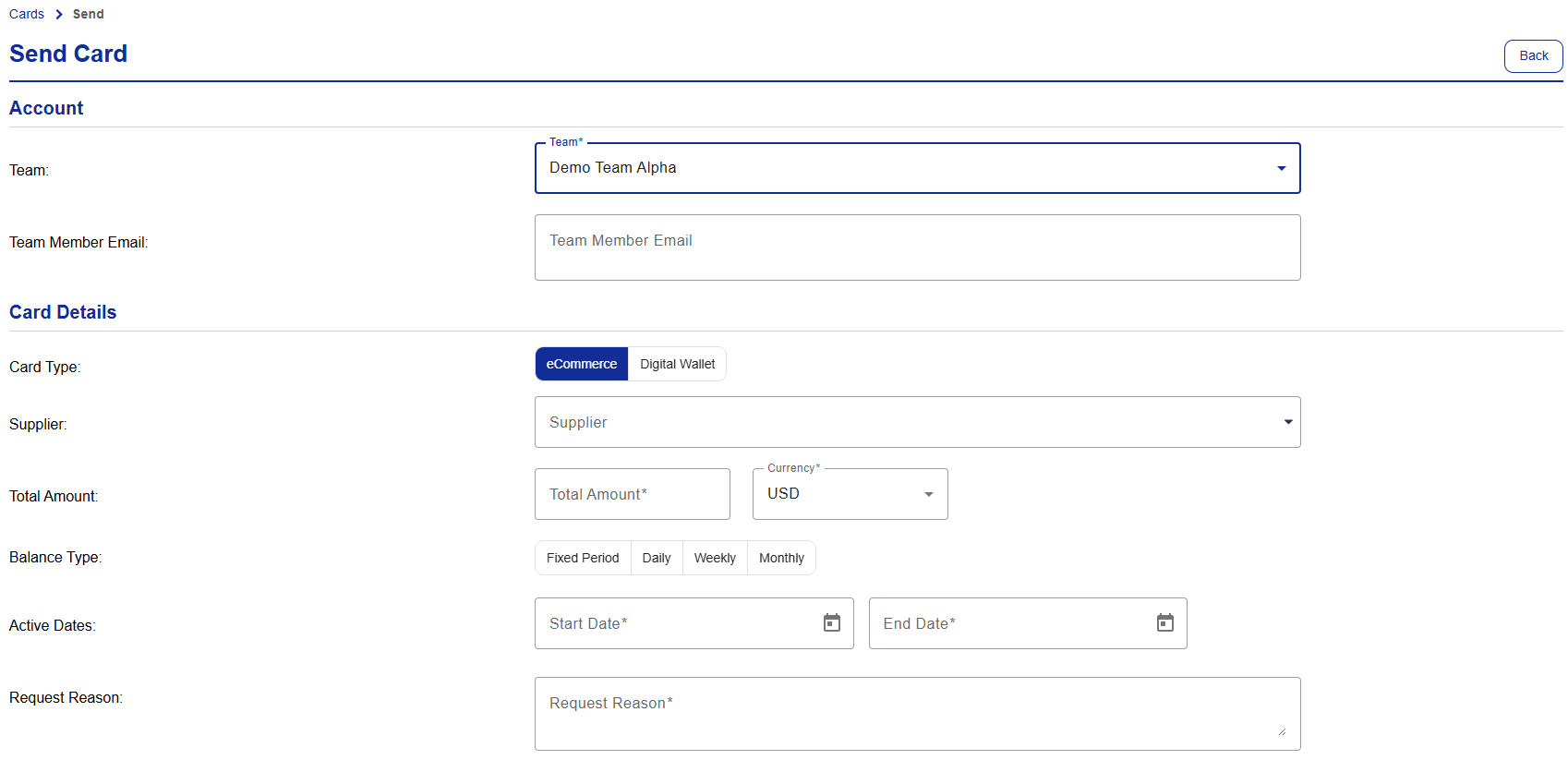
Select a team from the Team dropdown.

After selecting a team, the full options for sending a card will be revealed.
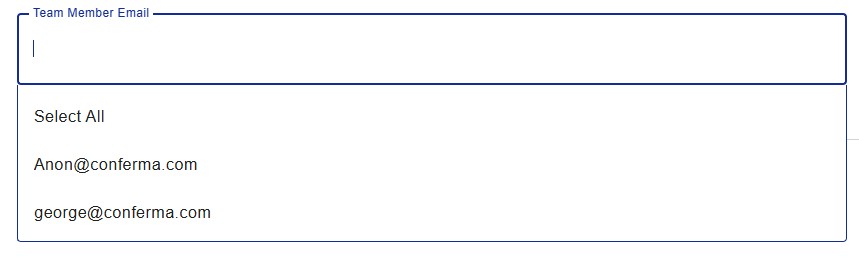
From the Team Member Email field, enter the email addresses of the Team Members that you want to send a card to. You can send a card to one or more users. You can only send cards to multiple users from the same team.

Complete the Card Details and then click Send.
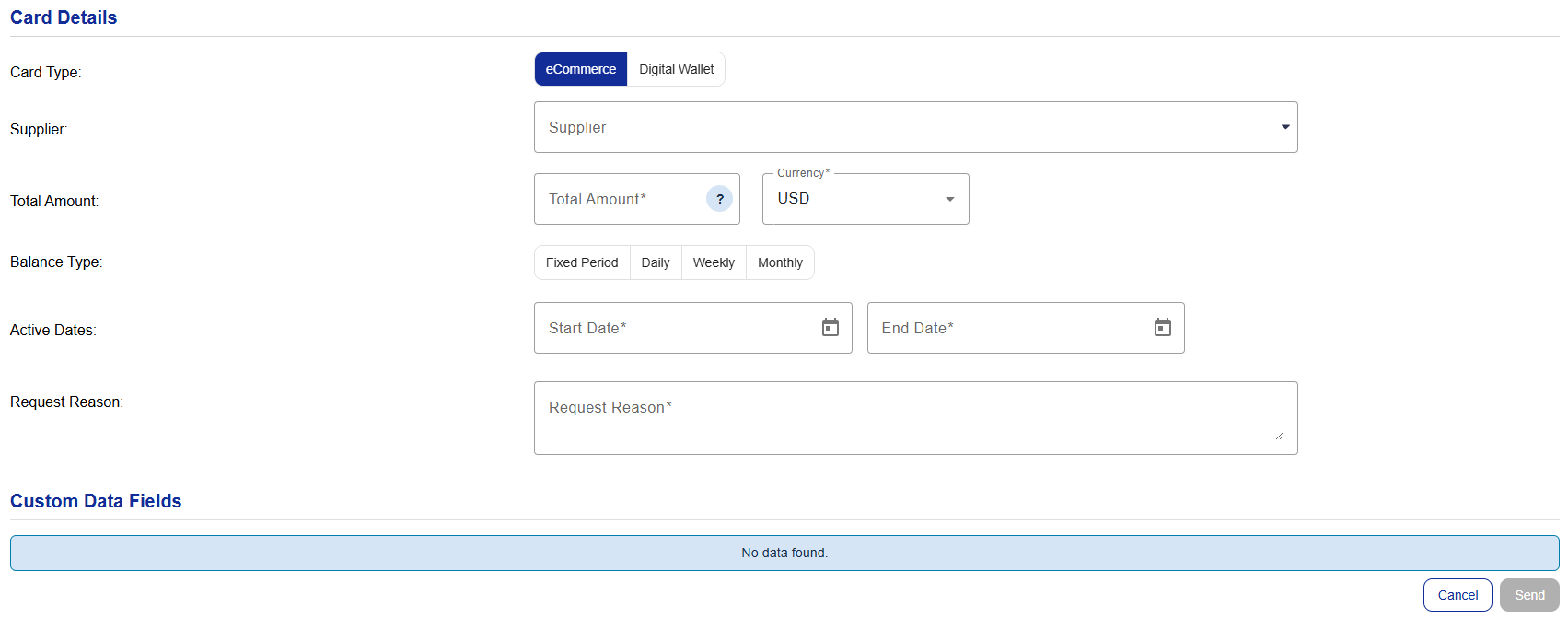
Card Type—eCommerce for online use or Digital Wallet enabled cards.
Supplier—the name of the supplier that the card is for.
Total Amount—the total amount per card deployment
Balance Type—the frequency of the recurring period that the total amount will reset
Active Dates—the duration that the card is available to use
Request Reason—the reason that the card is being sent, for Approvers to review