Expense Policies
Important
Expense Policies created in Visa Commercial Pay Control do not effect cards sent within Visa Commercial Pay Control. Expense Policies are triggered by Air or Accommodation cards created in Visa Commercial Pay Online or integrated third party platforms.
Corporate Administrators can create Expense Policies. An Expense Policy is a configuration of rules that will be triggered when a traveler is sent an Air or Accommodation card in Visa Commercial Pay Online. When triggered, a Digital Wallet Expense Card is automatically sent according to the rules set by the Expense Policy.
The policy will send a Digital Wallet Expense Card for the Default Per Diem Amount, unless you have added a country-specific Allowance.
For example, if a traveler is sent an Accommodation card for a 4-day trip to Geneva and the policy states that the traveler is allowed 100 CHF per day in Switzerland, then the user receives a card in Visa Commercial Pay App with a value of 400 CHF.
If a user is sent both a Accommodation and an Air card for the same trip, they will only receive one Digital Wallet Expense Card for that trip.
Note
Digital Wallet Expense Cards are only compatible with Card Pools that have Digital Wallet enabled.
Digital Wallet Expense Cards cannot be edited by changing the trip dates in the Visa Commercial Pay App.
From the navigation bar click Expense Policies > Policies.

Click Create.

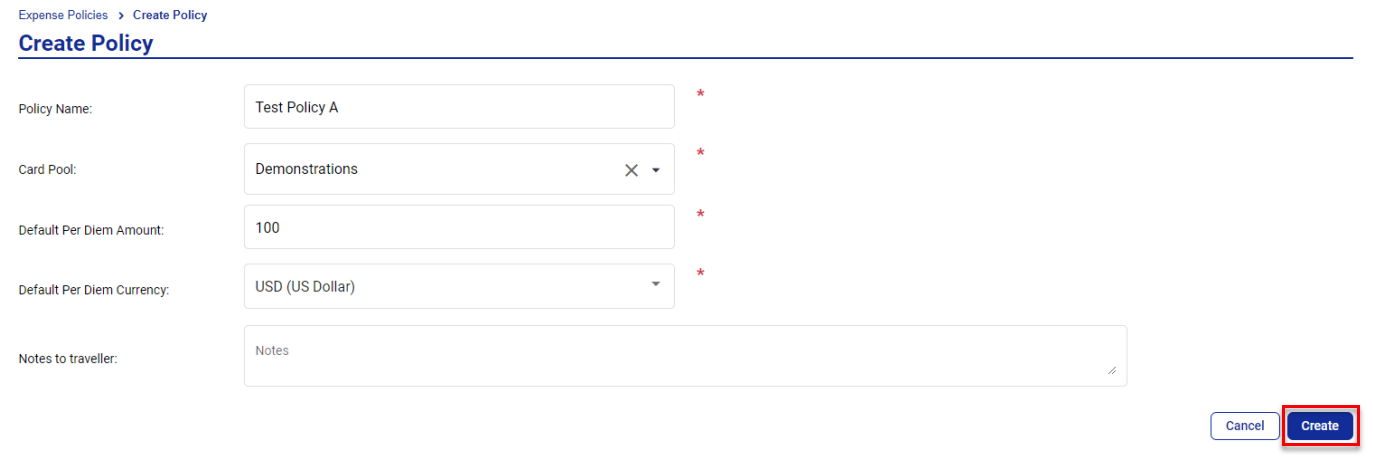
Enter the following details:
Policy Name
Card Pool—this is the Card Pool that the Digital Wallet Expense Card will be sent from
Default Per Diem Amount
Default Per Diem Currency
Notes to traveler
Click Create.
From the Allowance section, click Add to add an allowance.

Enter the following details:
Destination
Amount—per diem amount
Currency
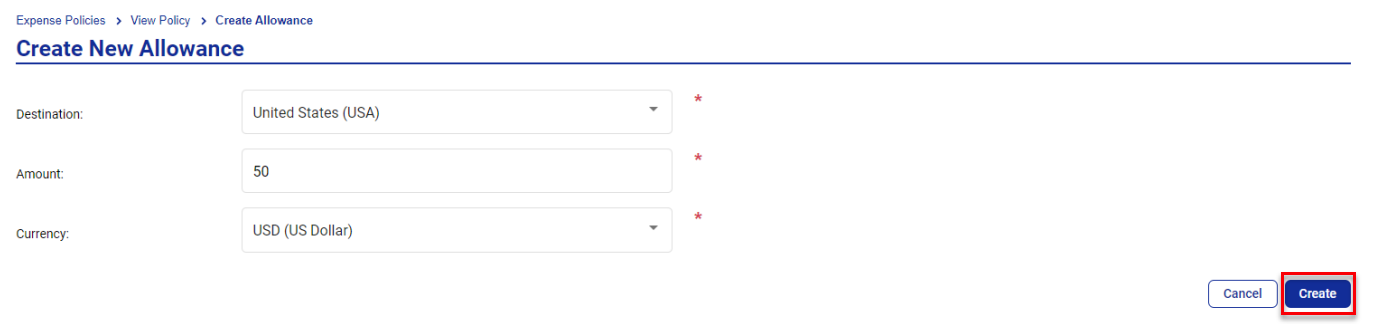
Click Create.
From the Travelers section, click Add Traveller.

Enter the email address of the traveler and click Add.

Where multiple users are found, you will need to select the correct user profile.
You can link additional Card Pools to your expense policy. If a user is sent an Air or Hotel card from a linked Card Pool the Expense Policy will be triggered.
From the Additional Linked Card Pools section, click Add.

From the dropdown, select an additional Card Pool and click Add.

The Expense Policy will be live and ready to use immediately. You can edit this at any time by returning to Expense Policies > Policies and selecting it from your configured Expense Policies.
Note
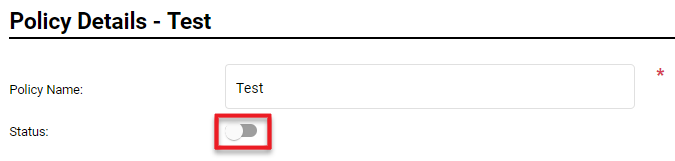
To deactivate an Expense Policy, select it and toggle the Status 'off'.
 |