Advanced Card Controls
Note
Advanced card controls functionality needs to be enabled at card issuer level by the Visa Commercial Pay team and is available for Visa VPA specific Card Pools.
Overview
Advanced card controls (ACCs) allow admins to configure merchant category restrictions, budgeting options and geographical limits for a specific Card Pool. Admins can configure advanced card control templates for Deployers to choose from, or you can allow Deployers to create their own custom advanced card controls when creating a card deployment.
Conditions for Enabling Custom ACCs for Deployers
The following settings determine the options available to Deployers when creating a card:
Condition | Custom ACCs Available | Custom ACCs Unavailable |
|---|---|---|
All or some Advanced Card Controls toggled on | Yes | Yes |
At least one Advanced Card Control template created | Yes | Yes |
Advanced Card Control Template enabled under Manage Mandatory Data | No | Yes |
Advanced Card Control Configuration
To enable advanced card controls as an Admin:
Search for a Card Pool.
Click Advanced card controls.
Enable the advanced card controls that you want your Deployers to be able to use, or create a template.
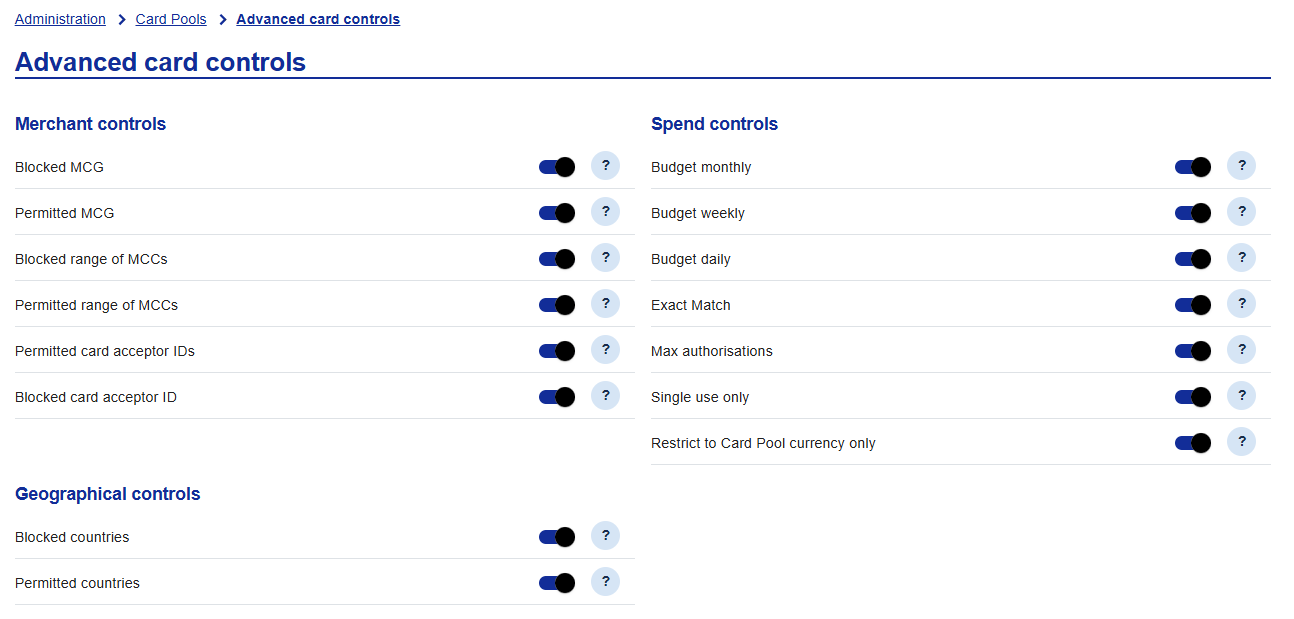
The options selected here will be available for the Deployer to choose from when creating a custom ACC template during card creation.
Control Types
Control Type | Description |
|---|---|
Blocked Merchant Category Groups (Blocked MCG) See compatibility. | You can use merchant controls to limit which types of merchants are able to charge the virtual card. By setting one or more blocked merchant category groups, any merchant in those groups will not be able to charge the card. You can add more than one category group to the block list, with a maximum of 10 groups. |
Permitted Merchant Category Groups (Permitted MCG) See compatibility. | You can use merchant controls to limit which types of merchants are able to charge the virtual card. By setting one or more permitted merchant category groups, only merchants in those groups will be able to charge the card. You can add more than one category group to the allow list, with a maximum of 10 groups. |
Blocked Range of Merchant Category Codes (MCCs) See compatibility. | You can use merchant controls to limit which types of merchant can charge the card. By setting one or more blocked merchant category codes, any merchant with those codes cannot charge the card. You can set a maximum of 15 ranges to the block list. |
Permitted Range of Merchant Category Codes (MCCs) See compatibility. | You can use merchant controls to limit which types of merchant can charge the card. By setting one or more permitted merchant category codes, only merchants with those codes can charge the card. You can set a maximum of 15 ranges to the allow list. |
Blocked Countries | Geographic restrictions allow you to restrict which countries the card can be charged in. By setting one or more blocked countries, any merchant in those countries will not be able to charge the card. You can add more than one country to the block list, with a maximum of 10 countries. |
Permitted Countries | Geographic restrictions allow you to restrict which countries the card can be charged in. By setting one or more permitted countries, only merchants in those countries will be able to charge the card. You can add more than one country to the allow list, with a maximum of 10 countries. |
Blocked Card Acceptor ID | You can use card acceptor ID to limit the locations where the card can be charged. By setting a blocked card acceptor ID, the card cannot be charged to that card acceptor ID. You can set a maximum of 200 IDs to the block list. |
Permitted Card Acceptor ID | You can use card acceptor ID to limit the locations where the card can be charged. By setting a permitted card acceptor ID, the card can only be charged to that card acceptor ID. You can set a maximum of 200 IDs to the allow list. |
Single Use Only | Single use controls allow you to specify if you’d like the card to be restricted to a single charge or allow multiple charges by the merchant. Cards are multi-use by default. |
Max Authorisations | Setting a max number of authorisations will limit the merchant to only charging the card a set number of times. This should be a value between 1 and 99. |
Budget Monthly | Applying the budget monthly control will ensure that your chosen deployment amount will be made available each month. For instance, you may want to set a card with a budget of $1000 per month, to be active for 12 months. |
Budget Weekly | Applying the budget weekly control will ensure that your chosen deployment amount will be made available each week. For instance, you may want to set a card with a budget of $500 per week to be active for 2 months. |
Budget Daily | Applying the budget daily control will ensure that your chosen deployment amount will be made available each day. For instance, you may want to set a card with a budget of $100 per day, to be active for 2 weeks. |
Exact Match | Exact Match allows you to send the deployment request in currency requested at the time of the deployment. When the toggle is off, the deployment request is sent in the Card Pool billing currency. When the toggle is on, the deployment request is sent in the currency requested at the time of the deployment. |
Restrict to Card Pool currency only | Option to restrict the card to the currency of the Card Pool. Card Pool currency controls allow you to restrict what currency the virtual card can be charged in. By restricting the virtual card to the currency of the Card Pool, the virtual card can only be charged in that currency. |
Compatibility Rules
The following advanced card control options are not compatible when used together:
Permitted MCCs & Blocked MCCs
Permitted MCGs & Blocked MCGs
Permitted MCCs & Permitted MCGs
Permitted MCCs & Blocked MCGs
Blocked MCCs & Permitted MCGs
Blocked MCCs & Blocked MCGs
Configuring Advanced Card Control Templates
As an Admin, you can create advanced card control templates for Deployers to select when creating new card deployment.
Manage Mandatory Data
If advanced card controls are enabled under manage mandatory data, Deployers will be forced to select a template and will not be able to create their own advanced card controls when creating a deployment.
To enable advanced card controls under manage mandatory data; search for a Card Pool, click Manage Mandatory Data, select a spend type, and then toggle Advanced Card Control Templates on.
To create an advanced card control template:
From Administration, select a Card Pool and then click Advanced Card Controls
Click Add template.
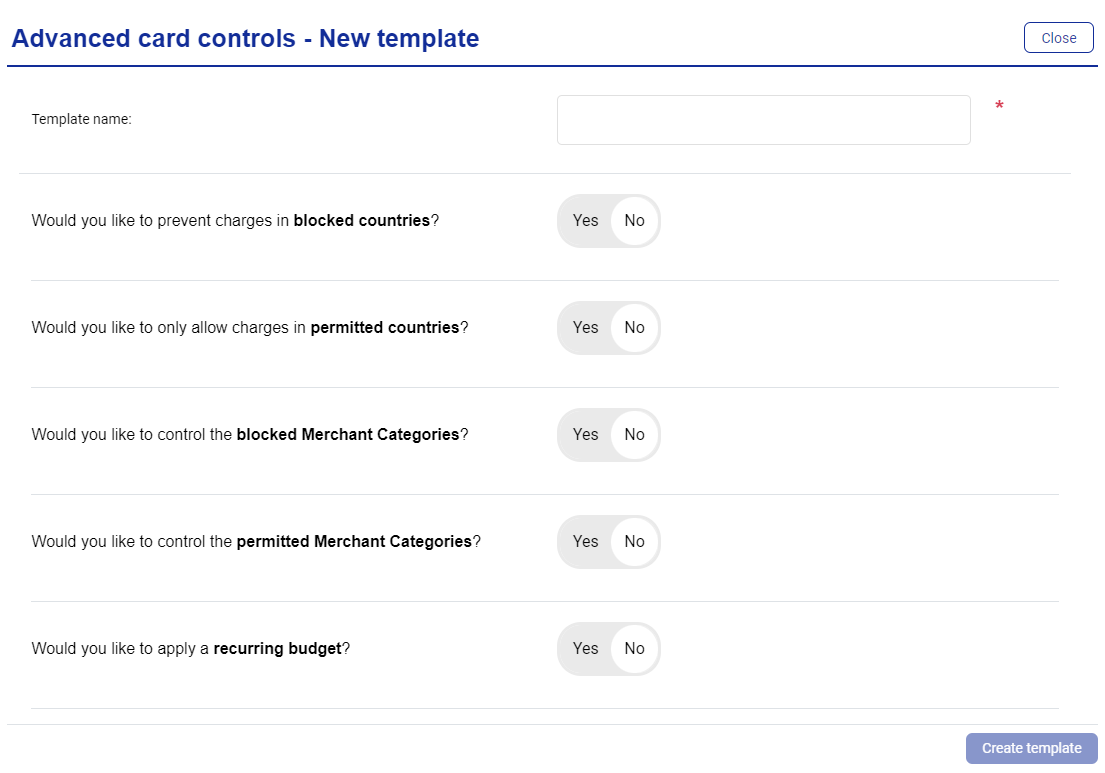
Enter a name for the template.
Visa Commercial Pay will display this template name to Deployers. We recommend entering a friendly name to make it clear that the template should be used for particular supplier payments - or even specific suppliers.
Select the individual advanced card control(s) you wish to apply to the template.
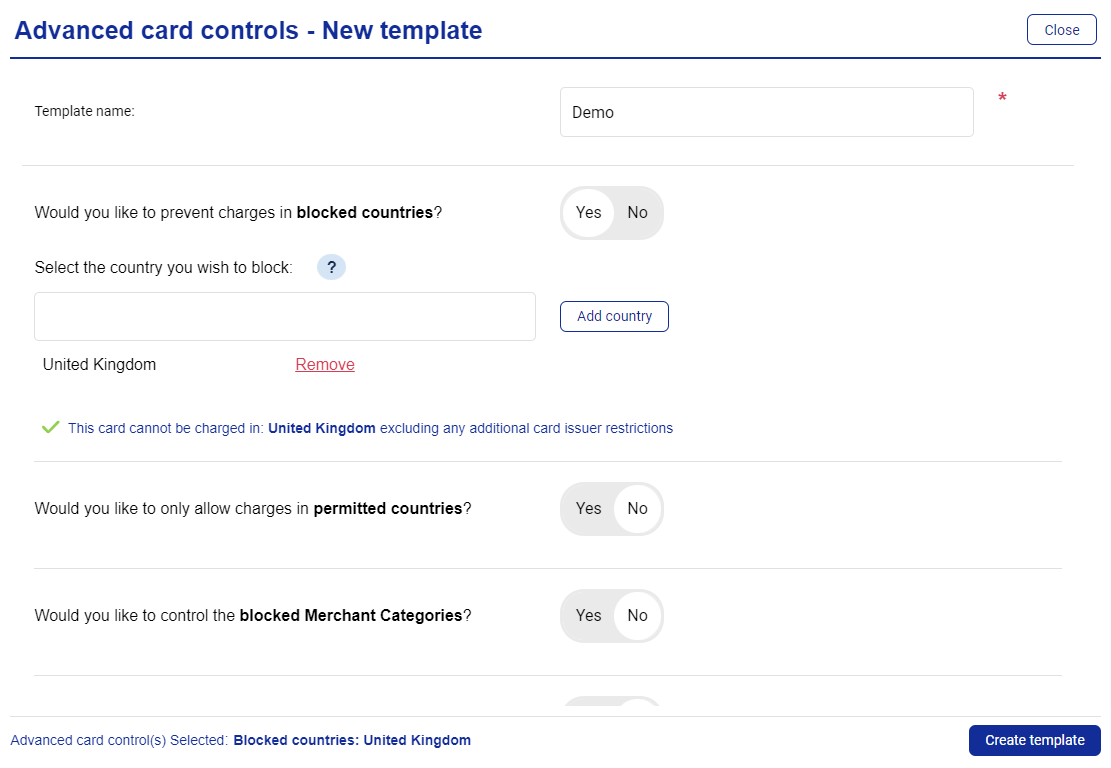
Click Create template.
The template will now be available when creating a new card.
Applying Advanced Card Controls to a Card Deployment
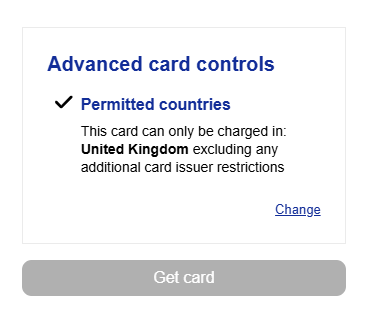
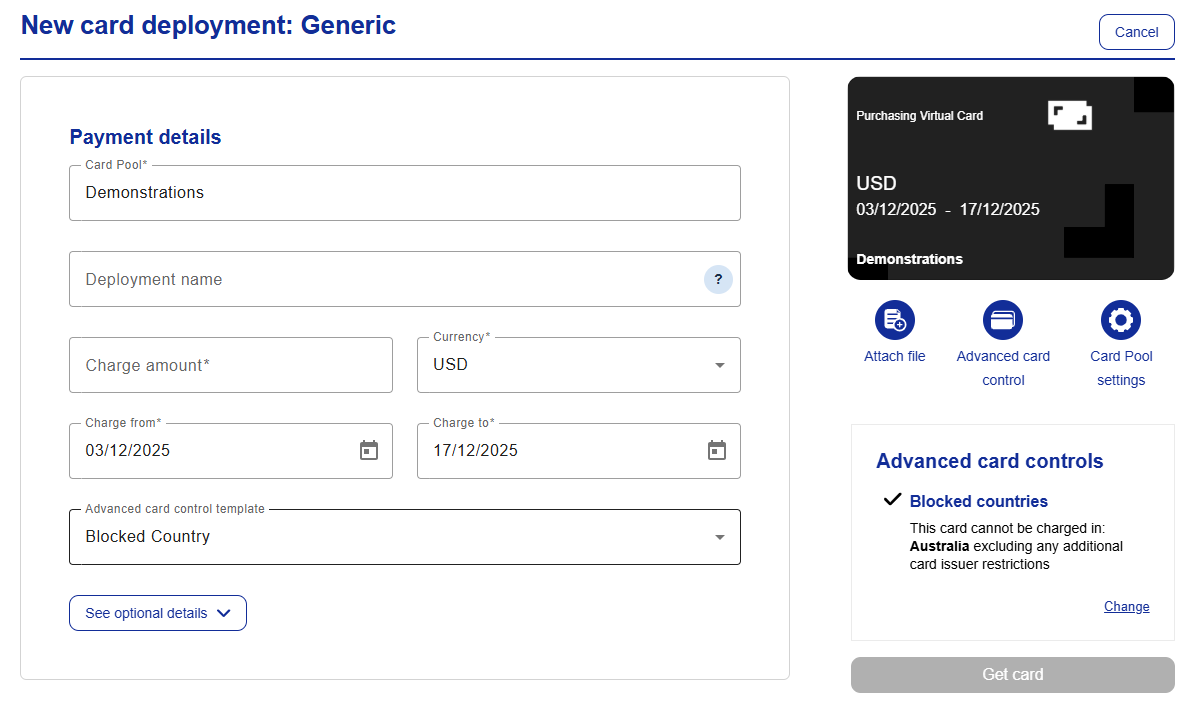
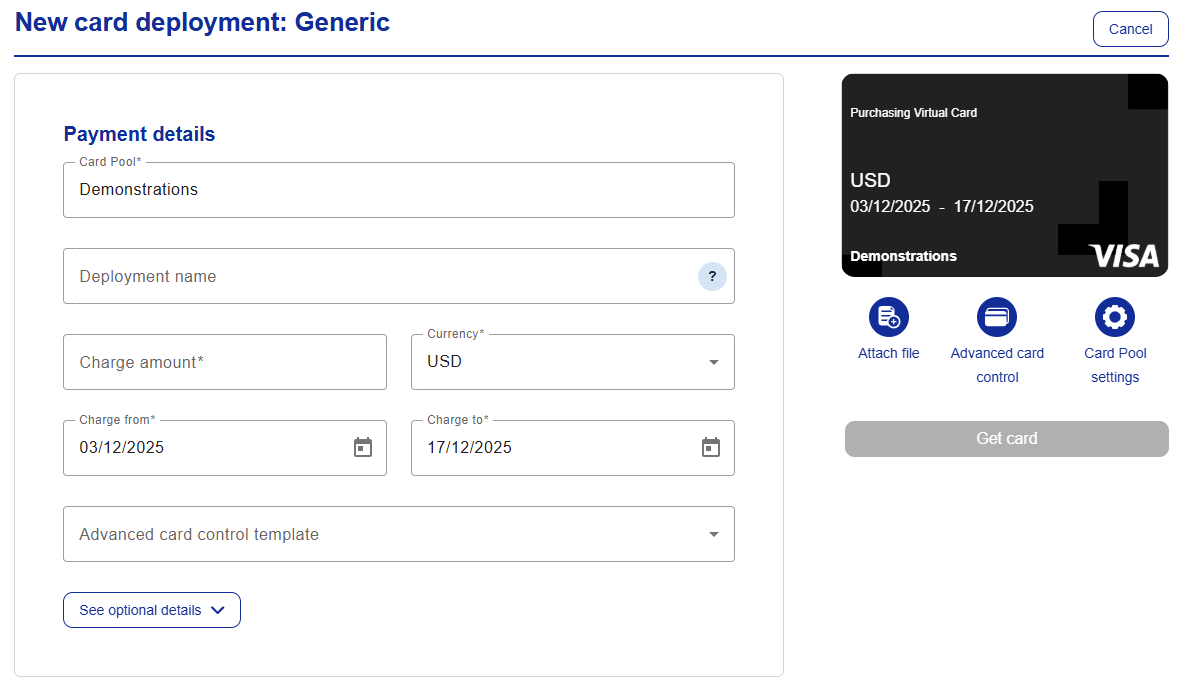
You can apply advanced card controls to a deployment from the new card workflow by selecting an advanced card control template from the dropdown. When custom advanced card controls are available, you will see the icon below the card image when creating a card.
To select an ACC template:
When creating a new card, select a configured ACC from the Advanced card control template dropdown.
The ACC will be applied to the deployment and shown below the card image.
To create a custom ACC template:
Click the ACC icon below the card image.
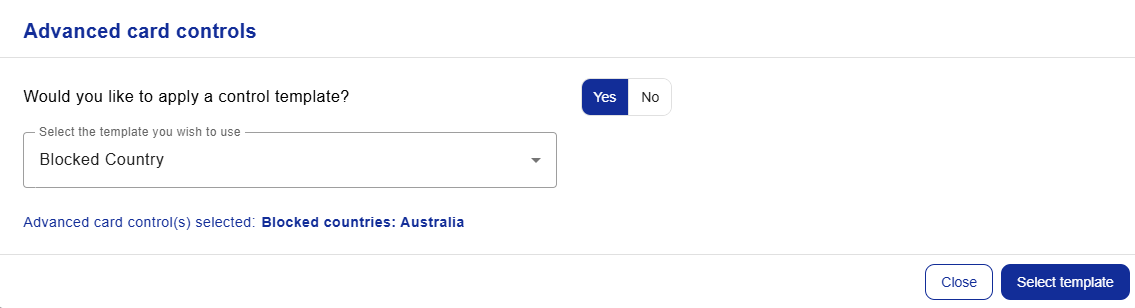
Toggle Would you like to apply a control template? to No.
Toggle the ACCs that you want to apply and complete the requirements.
If you toggle an ACC to Yes, you must complete the requirements or toggle it back to No before continuing.
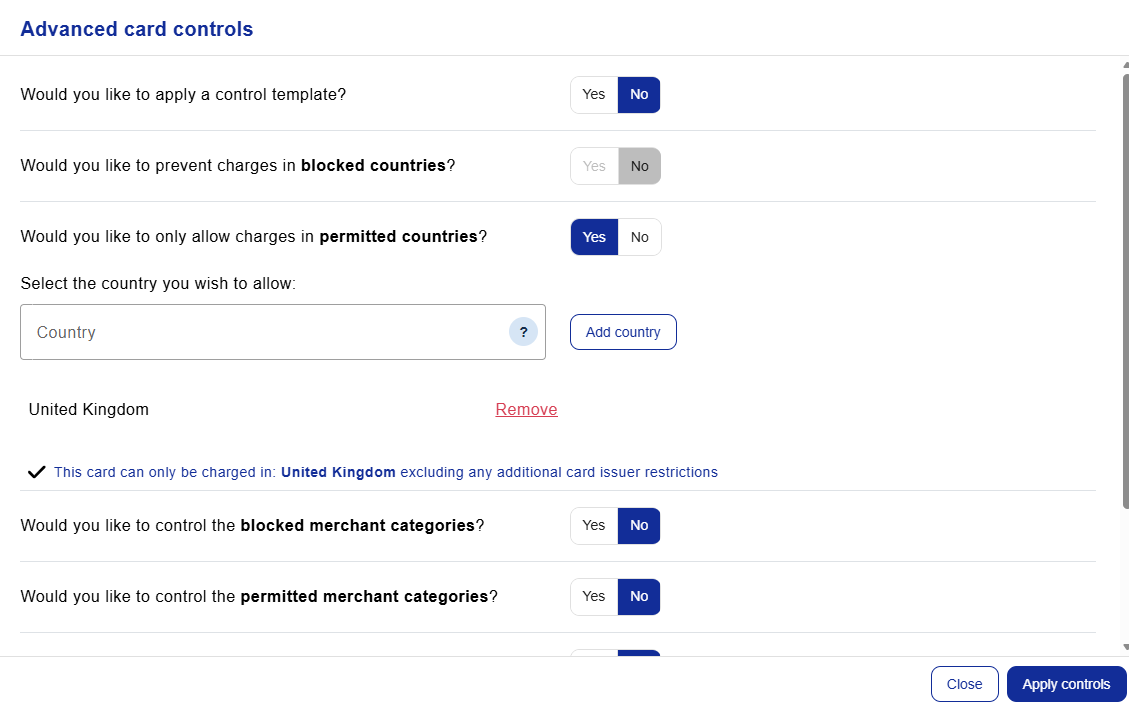
Once configured, click Apply Controls.
The ACC will be applied to the deployment and shown below the card image.