Visa Commercial Pay Online v3.30.3 Release Notes
Visa Commercial Pay Online v3.30.3 introduces the ability for Customer Administrators to create Visa Commercial Pay Reporting-Only users, KYC management for Card Issuer Admins, and bug fixes.
Reporting-Only User Profile
We have added the ability for Customer Administrators in Visa Commercial Pay Online to create Reporting-Only users. Customer Administrators can create Reporting-Only users via the standard user creation flow in the Administration module of Visa Commercial Pay Online, where they can be set as a Reporting Administrator or Reporting User.
Reporting-Only users will receive:
No access to Visa Commercial Pay Online
Access to Visa Commercial Pay Reporting as an admin or standard user
New Reporting-Only users will receive a welcome email which will redirect them to the Visa Commercial Pay Reporting platform.
Creating Reporting-Only Users
To create a Reporting-Only user:
From Administration, click Create new user. Or, search for a user and click Edit user.
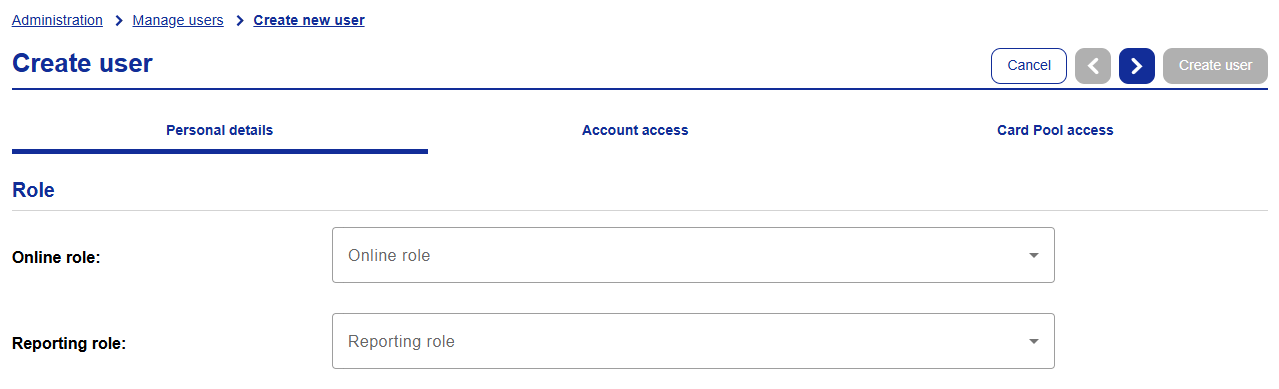
From the Online role dropdown, select None.

This will restrict access to the Visa Commercial Pay Online platform.
From the Reporting role dropdown, select Reporting user or Reporting administrator.

Users must be assigned to at least one user role.
Complete the user profile and click Create user.
Note
Reporting-Only users will not be able to log in via Visa Commercial Pay Online and must use the Visa Commercial Pay Reporting log in portal: https://signin.commercialpay.visa.com/Default?pkn=VISACOMMERCIALPAYREPORTING
KYC Management (Issuers Only)
We have given issuers the ability to create user listing reports so that they can complete KYC checks on all users with access to payment details. This will allow issuers to comply with market regulations, without affecting user experience.
Auto-Pass Configuration | Auto-Pass is the number of days it takes for a new user to be automatically passed. Auto-Pass can be configured by Card Issuer Admins only. |
User Creation Process - Online | New users will be marked as 'Pending' and will be unable to access the platform until they have passed KYC checks. If Auto-Pass is triggered, the user will be marked as 'Passed'. Once the user is marked as 'Passed', a welcome email is triggered. |
User Creation Process - App | New users are sent a welcome email requesting that they self register for the app. Once they have registered, they will be marked as 'Pending' and will be unable to access the platform until they have passed KYC checks. If Auto-Pass is triggered, the user will be marked as 'Passed'. Once the user is marked as 'Passed', they will receive an email prompting them to log in. |
Overriding Status | Card Issuers Admins can override a user's KYC status. The statuses that can be set by a Card Issuer Admin are:
|
User Reporting | A report will be sent daily to issuers via FTP. The report will include the following data for all new users:
|
KYC User Management
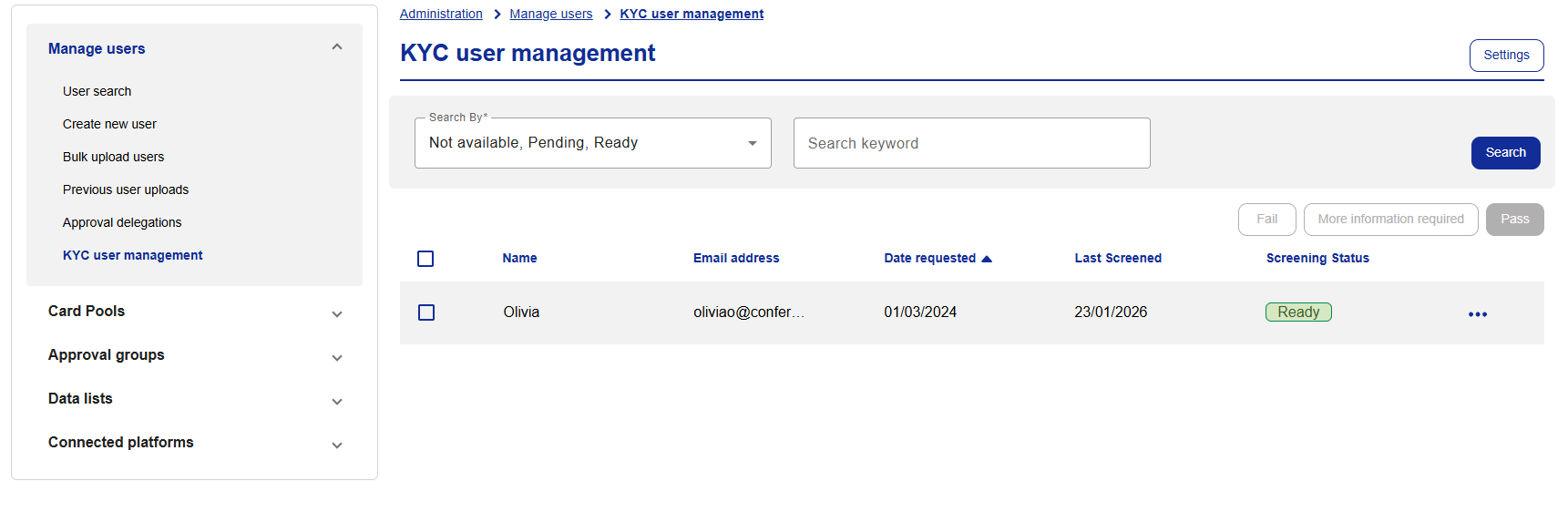
From Administration, Card Issuer Admins can review the KYC status of users associated with their Card Pool groups.
From Administration, click Manage users.
Click KYC user management.
Configuring Auto-Approval
Users are auto-approved after a configured amount of days if they have not been approved manually.
Click Settings.
Enter the amount of days that you want users to be auto-approved after.
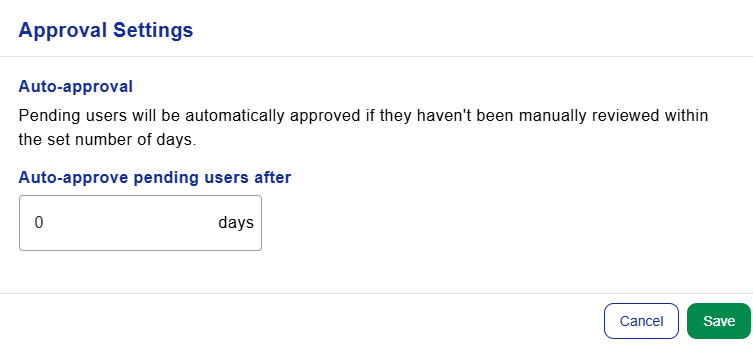
Click Save.
Manual Approval
Card Issuer Admins can manually approve users from the KYC user management section.
Select the corresponding tick box to select the user.

Click Pass, More information required, or Fail to complete the KYC check for the selected user.
If 'More information required' or 'Fail' is selected, the user will lose access to the platform immediately.
Notable Bug Fixes
We have fixed an issue where bulk uploaded payment requests would set the collective due date as the latest payment date, rather than the earliest payment date.
We have fixed an issue where the approval groups table was displaying incorrectly and information was unclear.
We have fixed an issue where the 'Approved' banner was displayed on the card details, even when a card did not trigger the approval workflow.
We have fixed an issue where card deployments were being returned multiple times in the same search results if the card contained multiple transactions with different transaction currencies.
We have fixed an issue where the translations of breadcrumb text in Service Desk were not being applied.
We have fixed an issue where after a user selected a language via My Profile the selection was not displayed or saved.
We have fixed an issue where the hide/unhide button was obscured when creating a new password via My Profile.