Generating Reports
You can use Visa Commercial Pay Reporting to generate a range of reports at a Card Pool level.
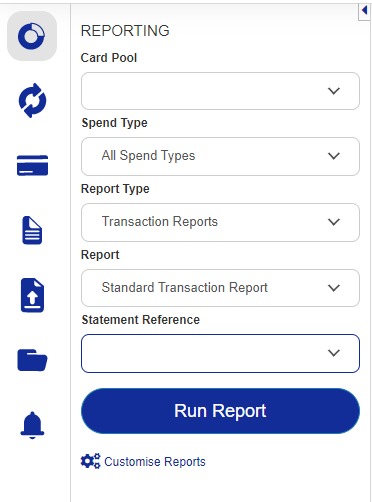
To run a report, click the Reporting icon from the sidebar and using the dropdowns available, select the Card Pool, Spend Type, Report Type, Report and Date Range or Statement Reference you wish to generate the report for.
Note
The fields are dynamic and you will see different options depending on the information entered in previous fields. For example, depending on the Report Type selected, you may see a Statement Reference dropdown that allows you to choose a specific statement period or a Date Range field where you enter specific calendar dates for the report.
The Card Pool, Spend Type and Report Type dropdowns determine the available reports in the Report dropdown and do not filter the contents of the report.
The statement dates in Visa Commercial Pay Reporting match the statements issued by the card provider.
The 'Current Period' in the Statement Reference dropdown covers transactions imported into Visa Commercial Pay Reporting since the last statement was received from your banking provider.
The maximum date range for reports is three months.
Transaction Reports
 |
Transaction Reports contain transactional data supplied by your card provider (bank) alongside the deployment data captured when the virtual card was created.
When Visa Commercial Pay Online receives the transactions, they are automatically matched to the associated deployments. This gives you a detailed breakdown of the transactional spend along with any Custom Data Fields.
Transaction Report Type | Description |
|---|---|
Standard Transaction Report | Use this report for any reconciliation processes. All transactions included in the statement are presented alongside the matched deployment details.
|
Standard Invoice Report | Matches the card transaction to booking data and includes all transactions where the invoice breakdown has been manually added including deployment data. • Provides a line-item breakdown at a transaction level and tax breakout. • Provides details of any ancillary charges that have been applied. • Allows you to review charges in line with your policy controls. • Includes client reference data. |
Transaction Current Reports | Includes transactions between the current date and the last statement date received from your banking partner. |
Transaction Statement Reports | Includes transactions for the selected statement period. |
Deployment Reports
Deployment Reports contain detailed information captured when the virtual card is created including any Custom Data Fields. Deployment Reports do not include any 'actual transaction' values.
Standard Deployment Report
This will generate a report containing relevant deployment data including deployment amount, currency, username, supplier details, booking platform and hotel details.
Air Enhanced Data Deployment Report
This will generate a report containing deployments with an Air spend type. The report contains all of the information in a Standard Deployment Report plus additional data relating specifically to Air including the departure airport and the route.
App Reports
This will generate a report containing details of Visa Commercial Pay App users. There are three different types of App Reports:
Report Type | Report Details |
|---|---|
All User Report | Details all Visa Commercial Pay App users that have downloaded, registered and have deployments linked to the user for specific Card Pools. |
Trips Commencing Today | Details all Visa Commercial Pay App users with linked deployments that have a check-in date of today. |
Trips Ending Today | Details all Visa Commercial Pay App users with linked deployments that have a check-out date of today. |
Post Spend Review Report | A report showing transaction details including all post spend review information, the post spend review status, if it has been flagged, and the name of the reviewer. |
Mobile Approvals Audit Report | A report showing all mobile app deployment details including approval details. |
Enhanced Standard Reports with Configured CDFs
In standard reports configured with CDFs, only CDFs that are defined within the CDF templates in Visa Commercial Pay Online for both the Card Pool and Spend Type will appear as columns in the report. This will increase the performance of Visa Commercial Pay Reporting, and allow you to generate reports more efficiently.
The following reports are available in the optimised format:
Standard deployment report with configured CDFs
Standard transaction report with configured CDFs
Standard invoice report with configured CDFs
Note
Standard reports with configured CDFs will only be effective if custom data field templates have been configured for the Card Pool and Spend Type.
Downloading Reports
To download the data from a report in a .csv file format, click the Download Report link in the bottom left corner of the screen.
 |
Note
The formatting of the cells in the downloaded report will follow standard .csv formatting which is not controlled by Visa Commercial Pay. You will be able to change the formatting in your file in the same way that you can format any .csv file in Excel.
Scheduled Reporting in Visa Commercial Pay Online
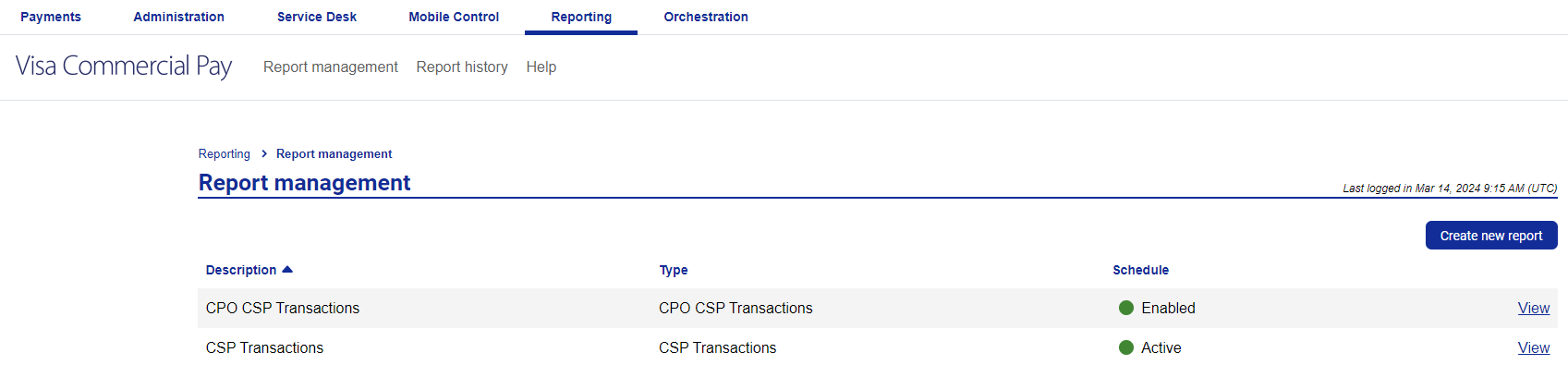
B2B customers that are also a Visa Commercial Pay Reporting Admin can create and view scheduled reports in Visa Commercial Pay Online via the Reporting tab.
Click the Reporting tab to view the report management page, where you can view and create reports.
 |