Pay a Supplier
Paying a Supplier
You can pay suppliers that you have created in Visa Commercial Pay Online using the supplier management function.
You can disable the Pay a Supplier option by contacting Visa Commercial Pay support. When this is disabled, users will still be able to create payments via the payment request fulfillment workflow.
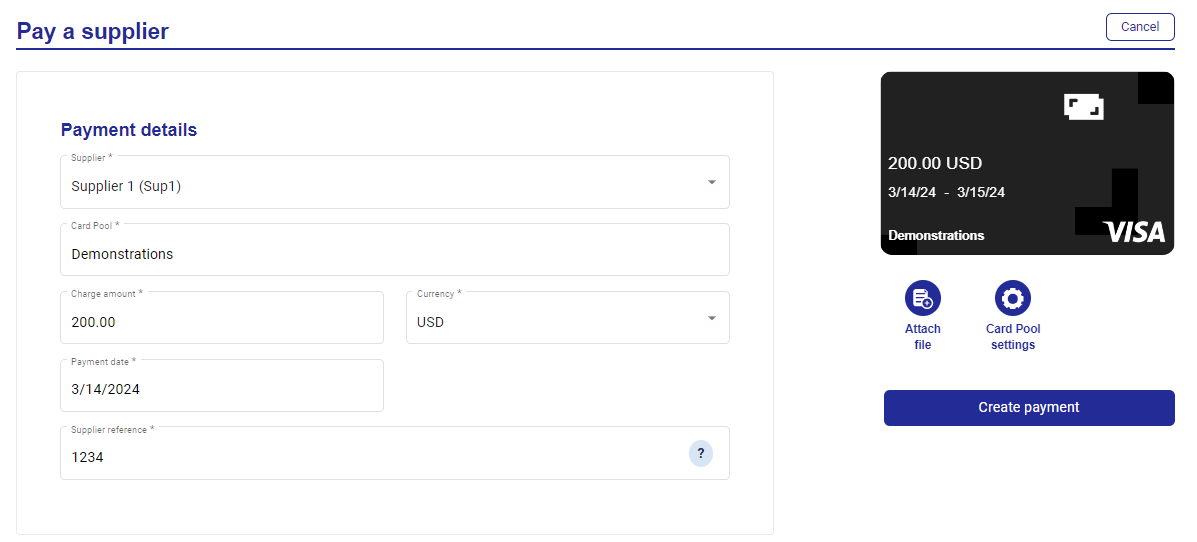
Click Pay a supplier from the navigation bar.

Select a supplier from the dropdown.
Select a Card Pool and enter the following details:
Charge amount
Currency
Payment date
Supplier reference
Complete any required custom data fields.
Click Create payment.
Payment Requests
You can view and pay payment requests in Visa Commercial Pay Online.
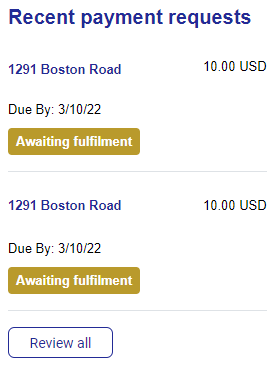
Click Payment requests from the navigation bar.
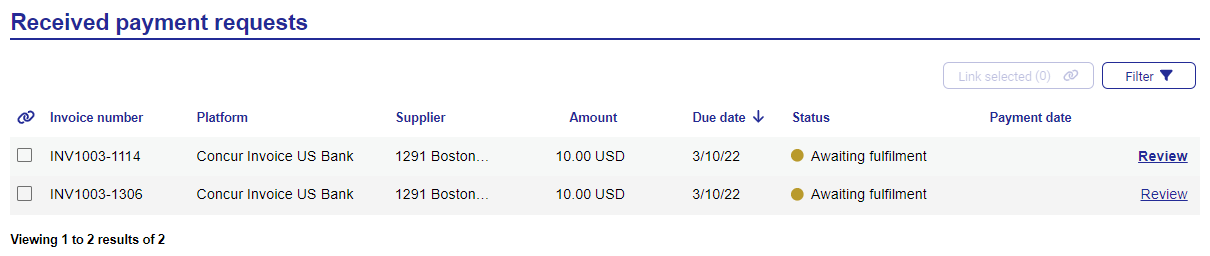
You will see your received payment requests.
Click Review on the payment request you want to fulfill.
Click Make payment
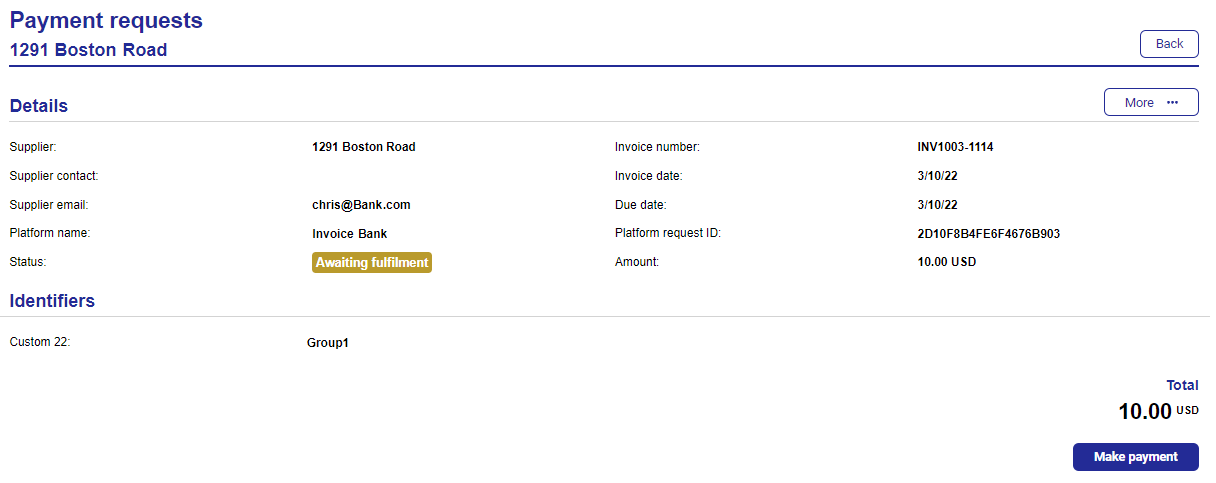
You can review all details of the payment request
Supplier
Supplier contact
Supplier email
Platform name
Status
Invoice number
Invoice date
Due date
Platform request ID
Amount
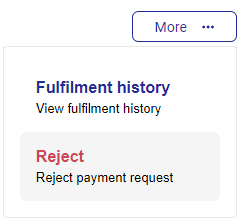 |
To view the fulfillment history, click More and then click Fulfilment history.
To reject a payment request, click More and then click Reject.