Check-In Assistant
The check-in assistant supports app users when making a virtual card payment in-person at a hotel. The check-in assistant provides prompts to help users access their virtual card details during check-in, whilst also offering guidance to users that need assistance with virtual card acceptance when making a payment.
This feature is available automatically to all app users who have been sent a hotel card. If you are unable to make a virtual card payment after following the check-in steps, contact your travel agent.
You can provide feedback on your check-in experience within the app. Our hotel team will work with the hotels to improve the process and the traveler journey.
Using the Check-in Assistant
Note
The troubleshooting tips that are available when using the check-in assistant are dependent on your TMC or card issuer.
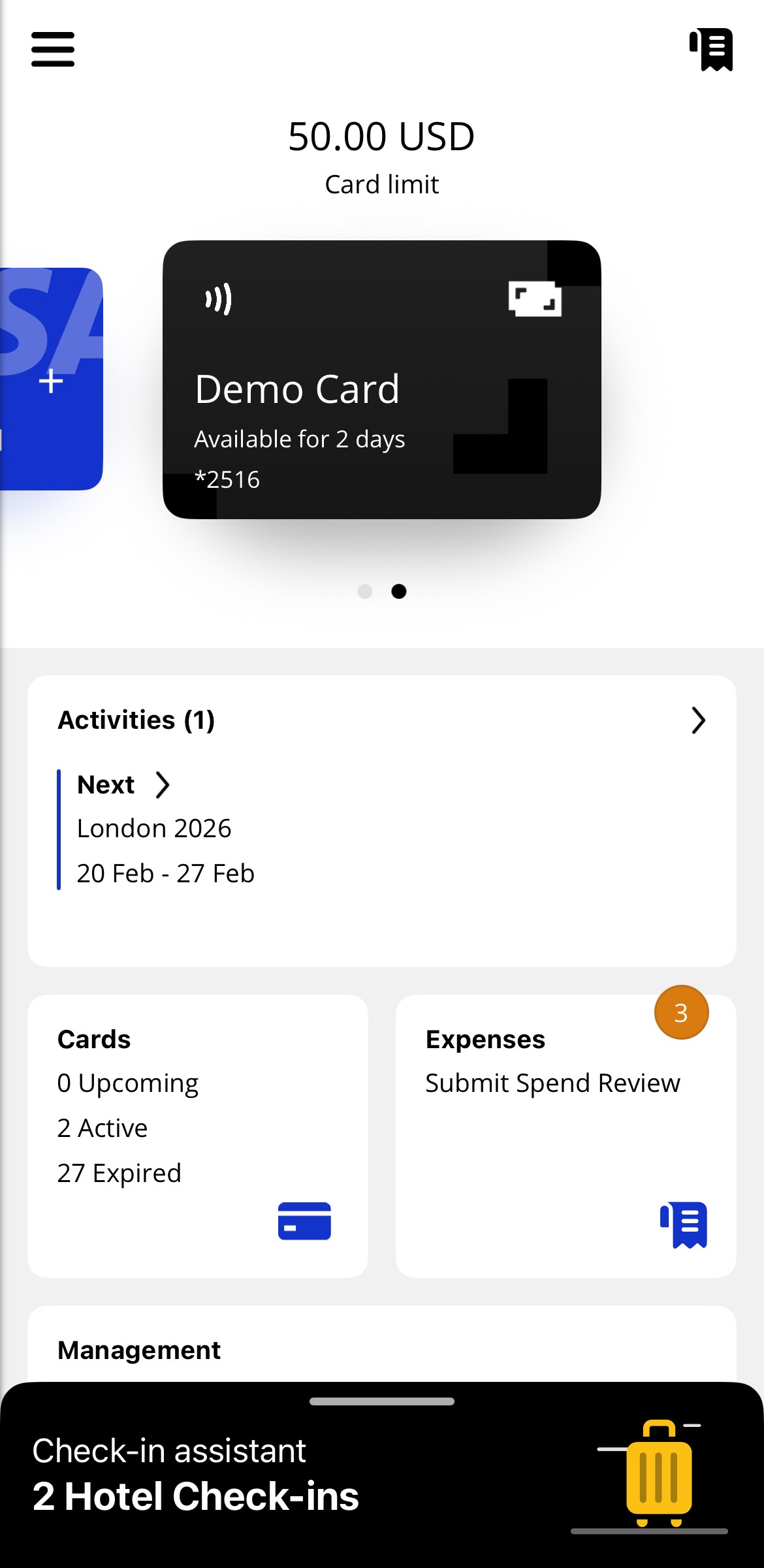
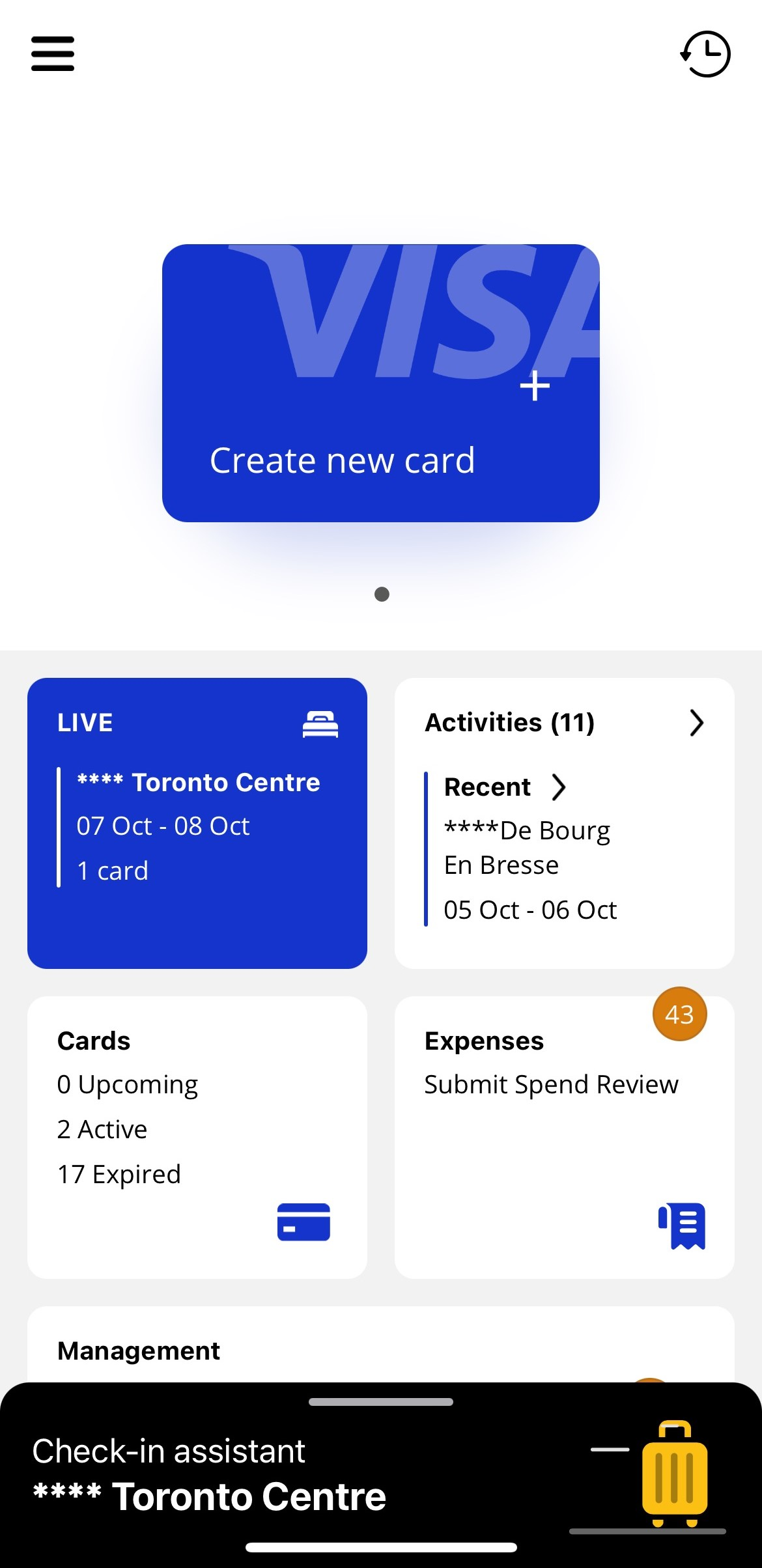
When an activity linked to a hotel card is active, the check-in assistant will be shown at the bottom of the screen.
 |
If you are having trouble with your payment when trying to check-in, you should:
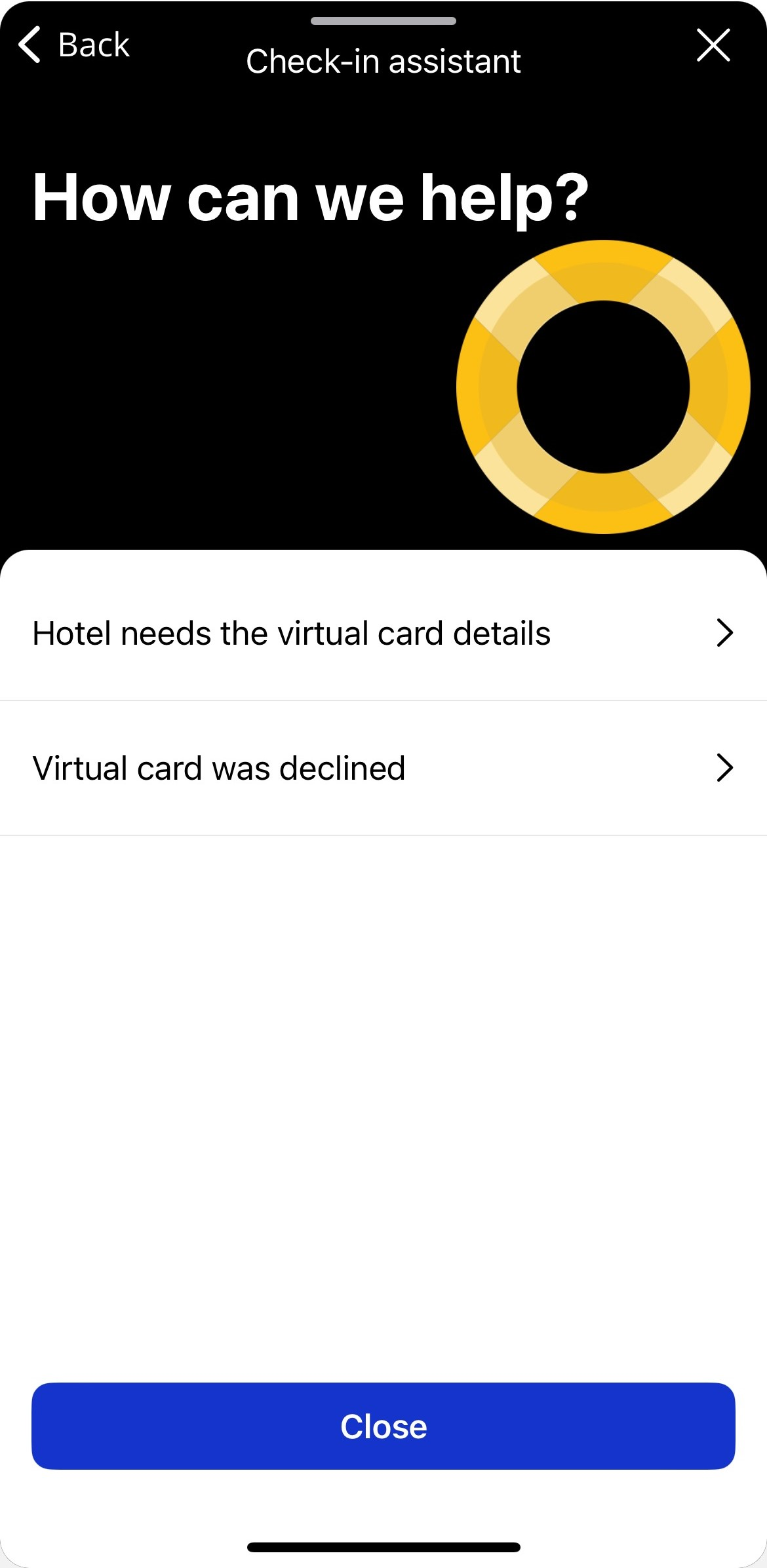
Tap the check-in assistant from the bottom of the screen, tap Need help with a payment? and then tap Hotel needs the virtual card details. Alternatively, you can tap View card to be taken to the card details.
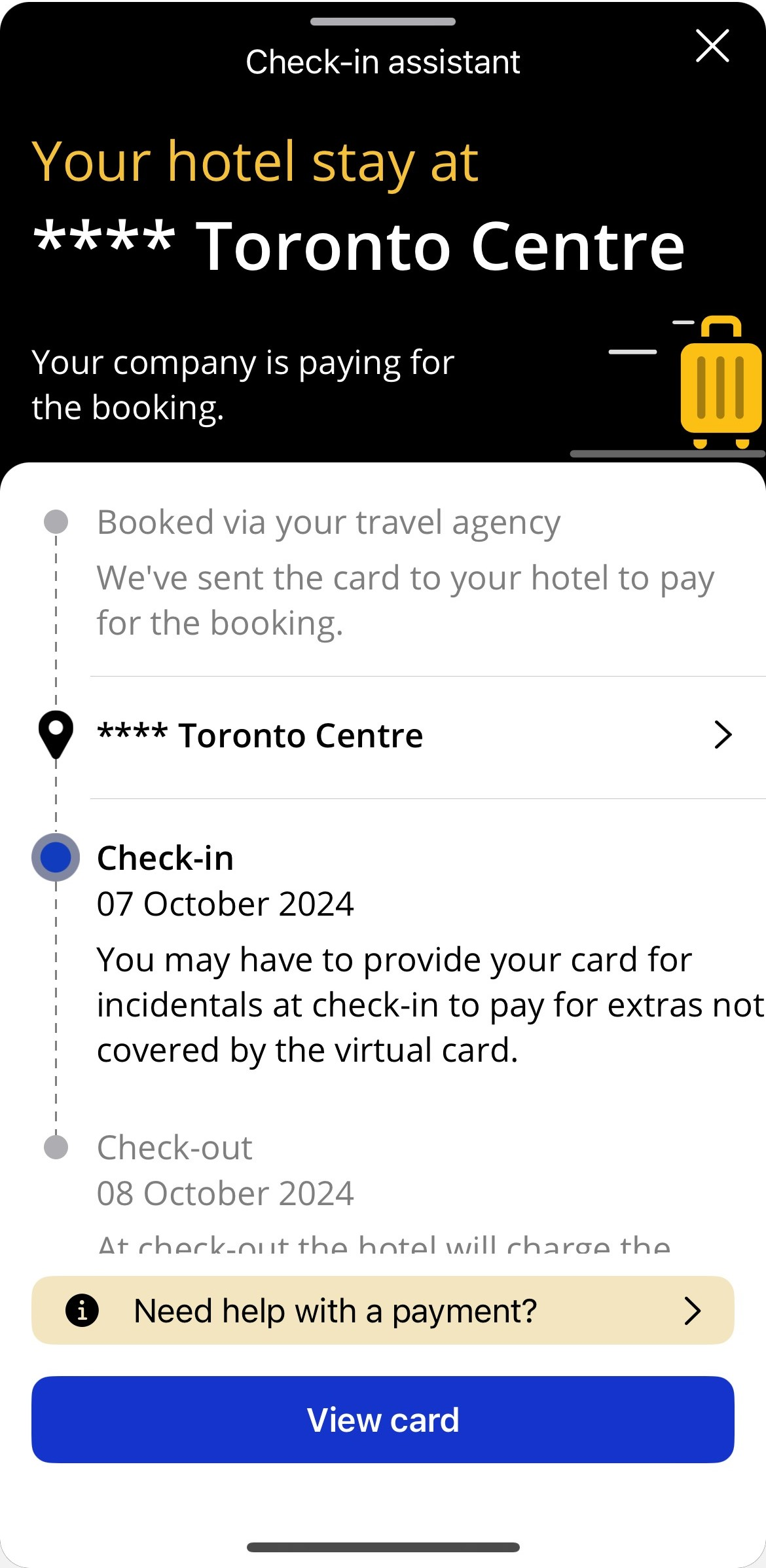
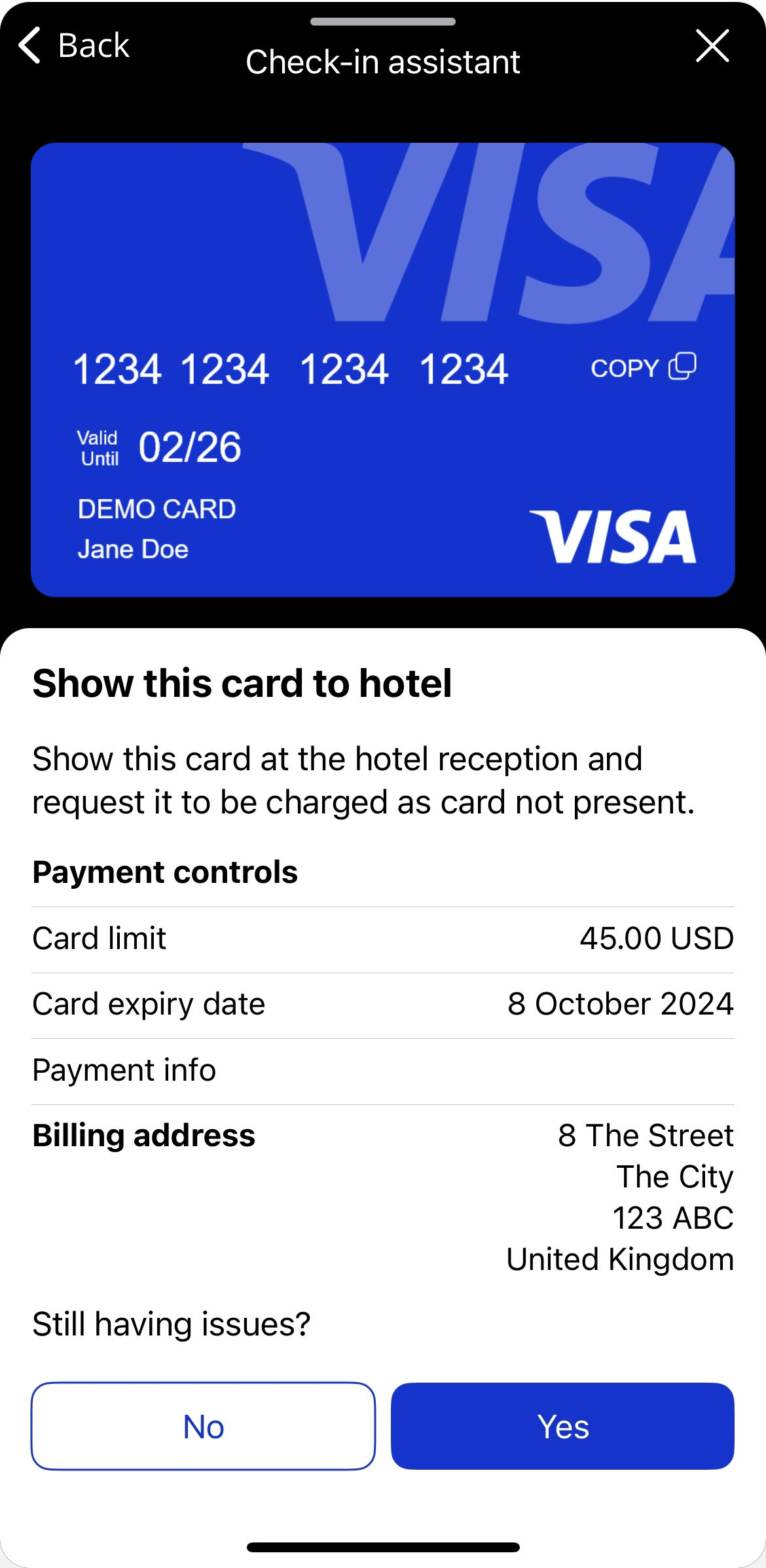
The check-in assistant displays the full card details on-screen, including the card number, expiry date, and security code.
If the hotel is unable to accept this form of payment, tap Yes below 'Still having issues?'.
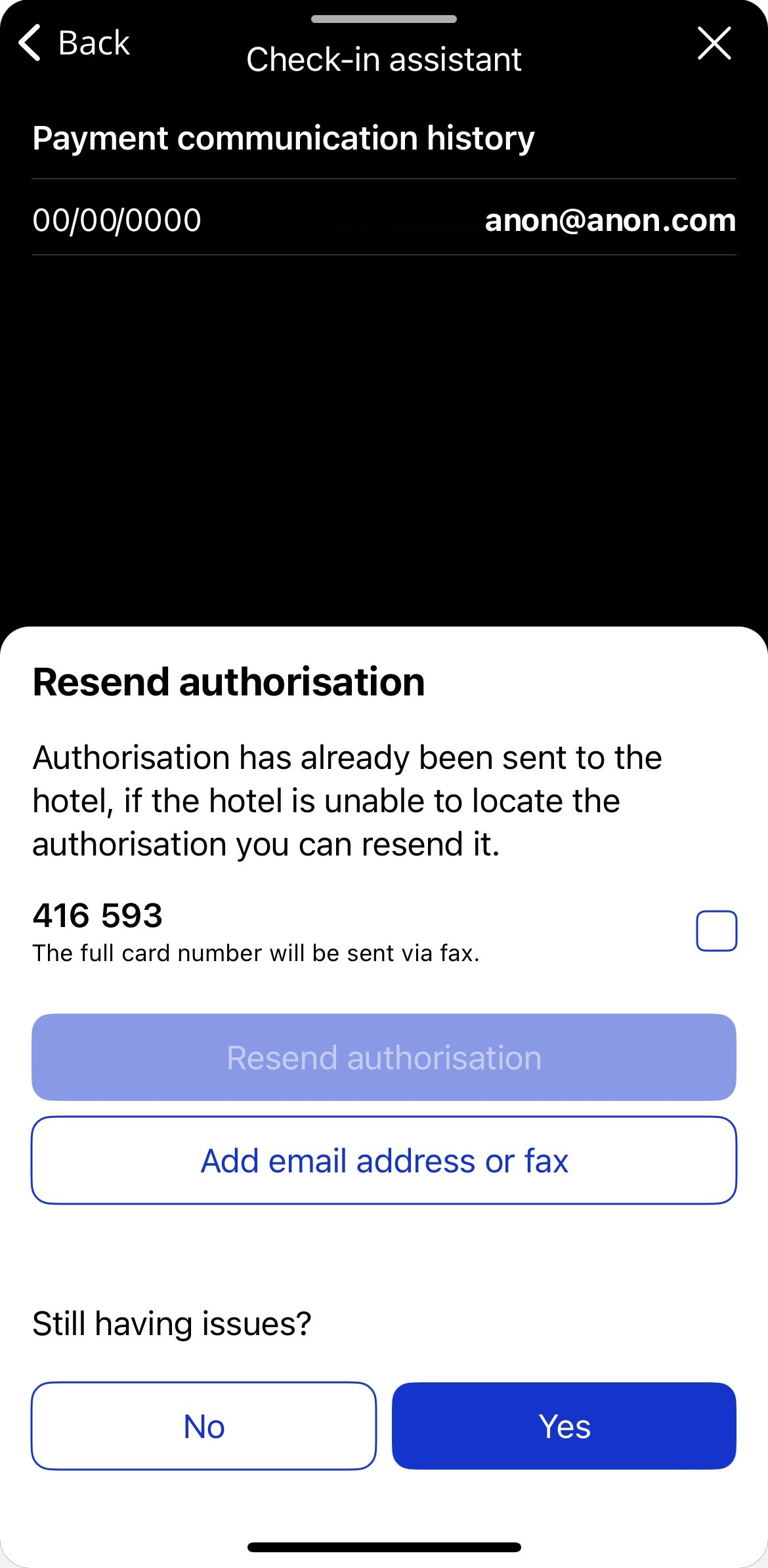
The check-in assistant displays the option to resend the payment authorisation. If the contact details are incorrect, tap Add email address or fax. If the contact details are correct, tap Resend authorisation. An email containing the full card details is sent to the hotel.
If the hotel is unable to accept this form of payment, tap Yes below 'Still having issues?'.
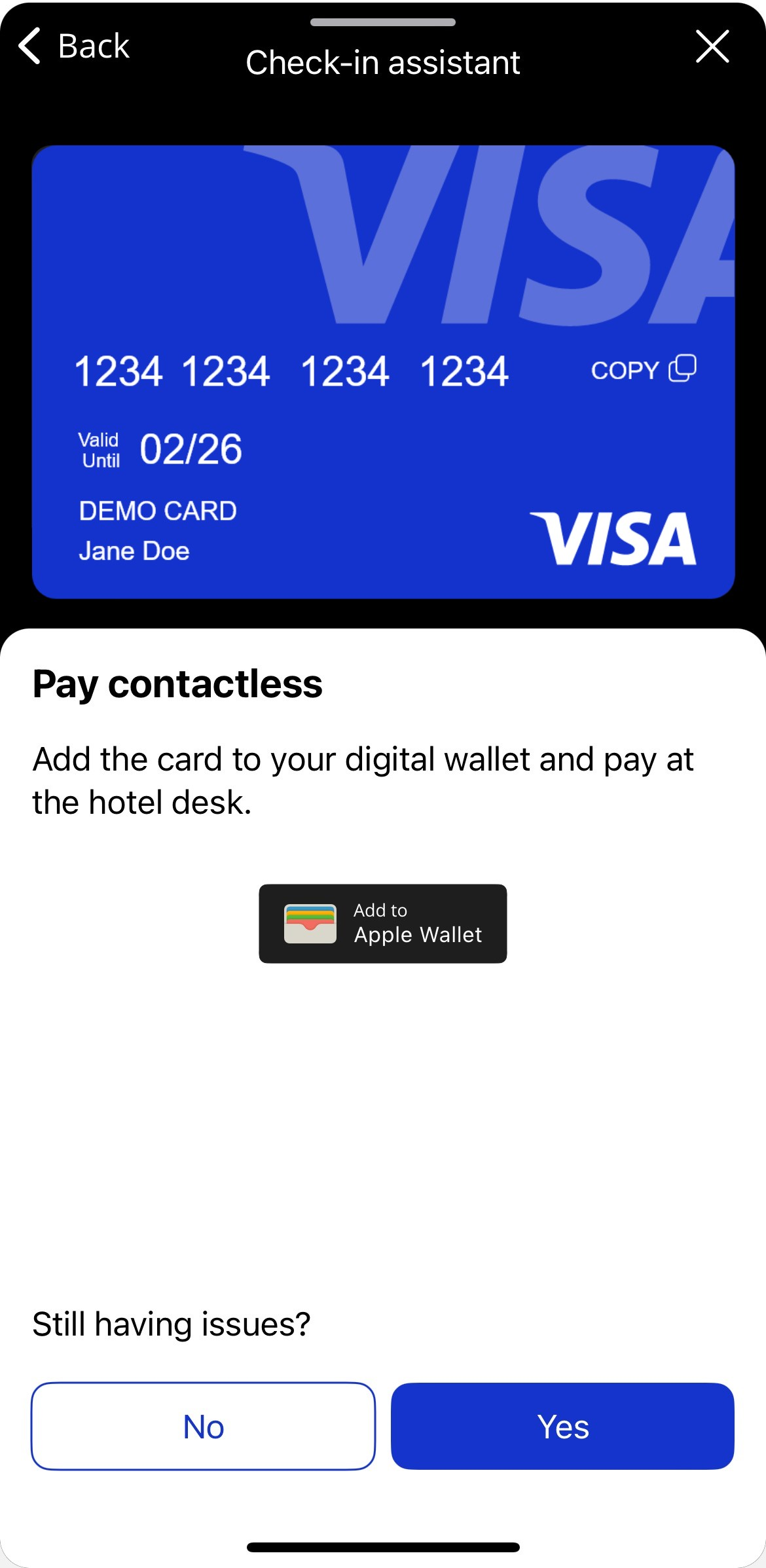
The check-in assistant displays the option to add the virtual card to your device's digital wallet. Tap Add to Apple Wallet or Add to Google Wallet. The card can be used to pay using the card reader terminal at the hotel desk.
If you are unable to complete your payment after using the check-in assistant, contact your corporate travel agent.
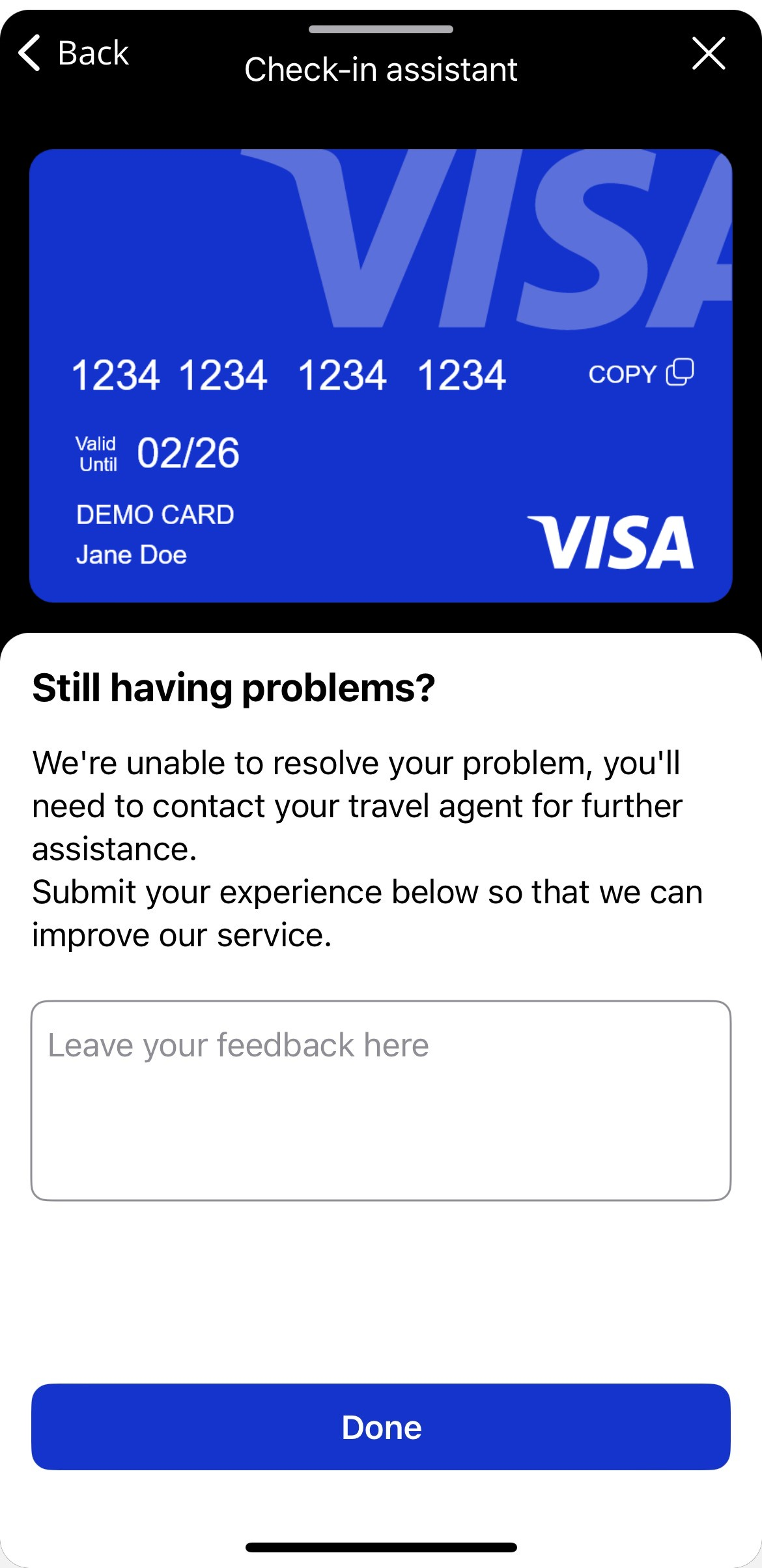 |
Multiple Bookings
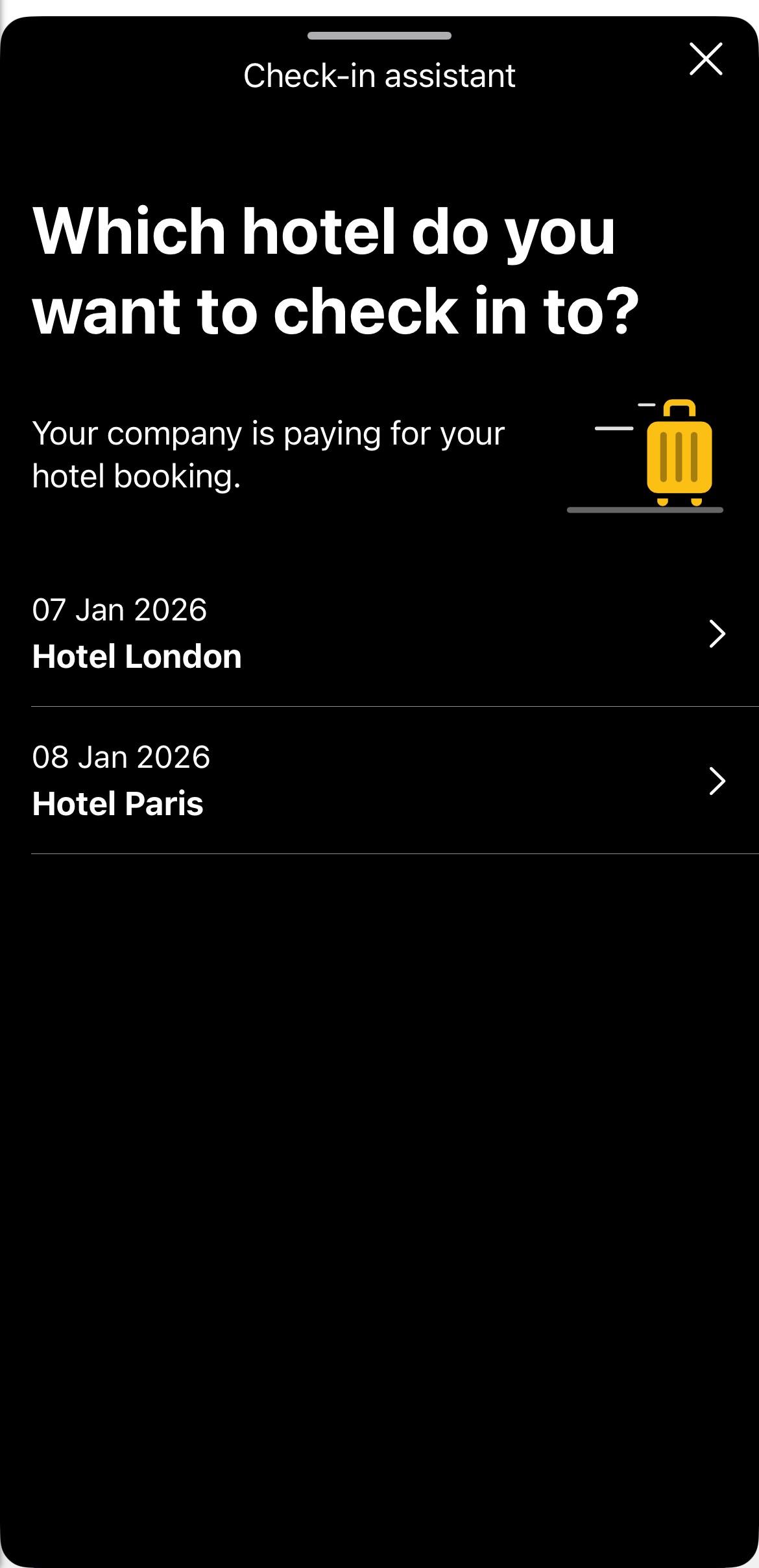
Multiple bookings will be displayed by the Check-In Assistant when there is more than one booking occurring within the same 48-hour period. App users can switch between each booking to view booking confirmations, card details, and add cards to their digital wallet.
When multiple bookings are available, you can select them when opening the Check-In Assistant.
|
|