Mobile Control v1.10 Release Notes
Visa Commercial Pay Control v1.10 introduces: the ability to view the real time available balance of a deployment; the option to add a note to a rejected transaction submission; the ability to bulk create cards for multiple users across more than one team; the ability for admins to reset mobile phone numbers; and various bug fixes.
Real Time Available Balance
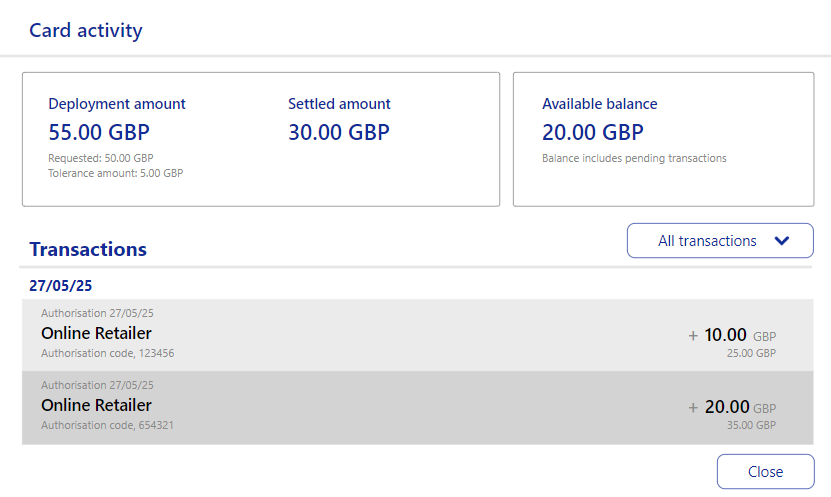
We have extended functionality from Visa Commercial Pay Online to allow cards created in Visa Commercial Pay Control to display the real time remaining balance. Deployments display the deployment amount, settled amount, and the available balance.
To view the available balance and transactions:
Select a card from your Visa Commercial Pay Control dashboard OR click Cards, search for a card, and click View on the card you want to view.

From the card details screen, click Actions and then click Card activity.
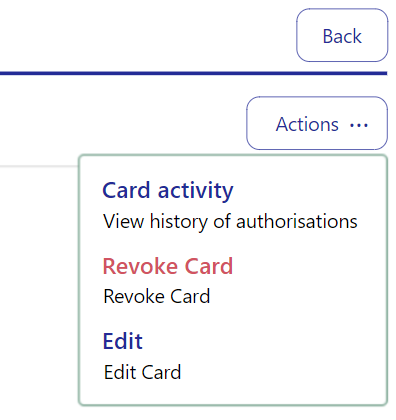
The card activity will show:
Deployment amount
Settled amount
Available balance
Transactions
Tolerances
Note
User Roles Affected: All Visa Commercial Pay Control users
Availability: Visa deployment methods only
Post Spend Review: Adding a Rejection Note
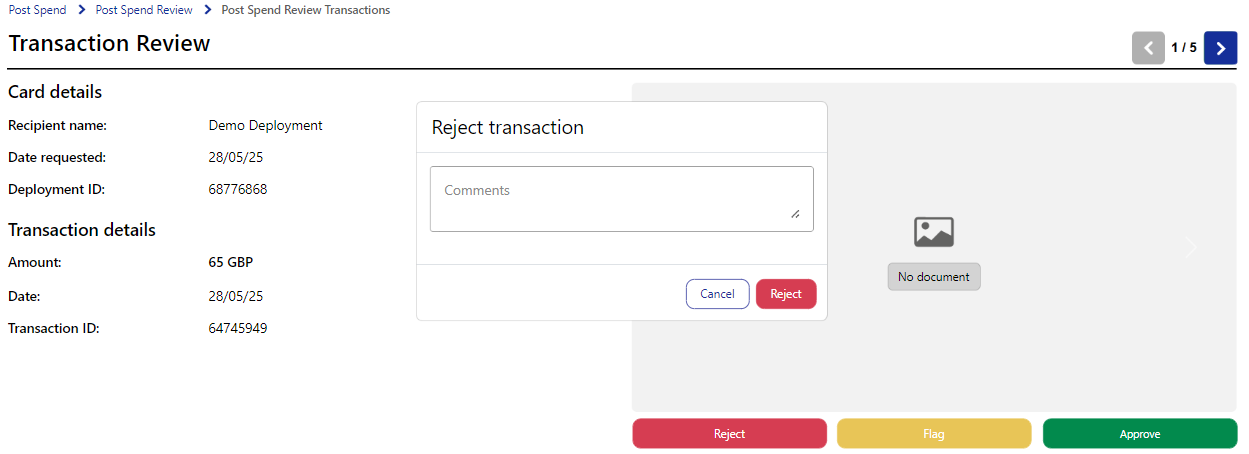
We have added the option for post spend reviewers to add notes when rejecting a post spend review submission. When rejecting a transaction where the post spend review has been submitted, the reviewer will be able to add a note to explain why the transaction has been rejected.
To add a rejection note:
When reviewing a post spend review transaction, click Reject.
Enter the message that you want your Team Member to receive and click Reject.
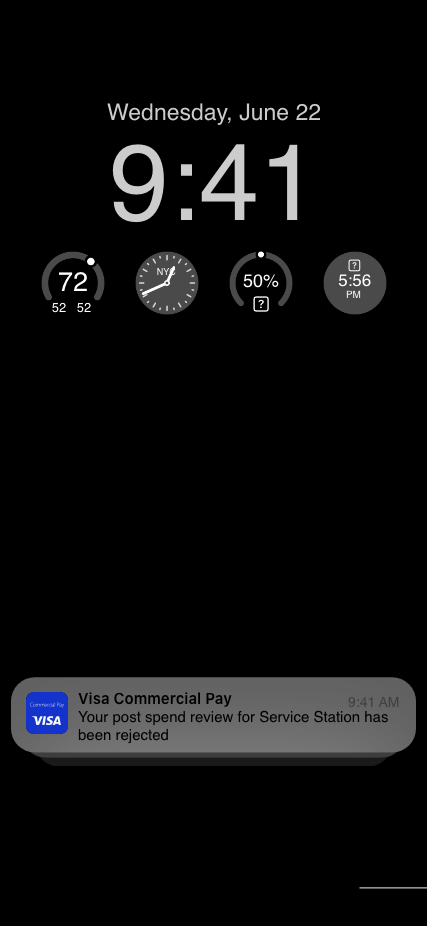
The user will receive a notification.
If a post spend review submission has been rejected, the relevant App User will receive a push notification. The App User can then log in to the Visa Commercial Pay App to amend and resubmit their post spend review for the rejected transaction.
 |
If the user has created the card via Visa Commercial Pay Online, they will receive an email prompting them to log in and amend their post spend review submission.
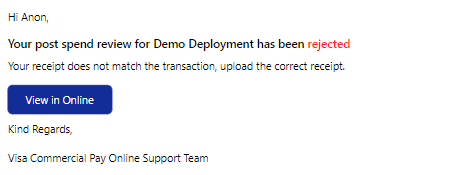 |
The rejection note is also shown in post spend review reports and is added to the transaction details in Visa Commercial Pay Reporting.
Note
User Roles Affected: Post Spend Reviewer
Availability: Post spend review is enabled per team.
Bulk Deploying Cards to Multiple Users
We have extended functionality from the Visa Commercial Pay App to Visa Commercial Pay Control to allow Corporate Administrators the ability to send cards in Visa Commercial Pay Control to multiple users within the same team.
How to send cards to multiple users:
When sending a card, select the Team Member Email field.
Click Select All or manually select each Team Member that you want to send a card to.
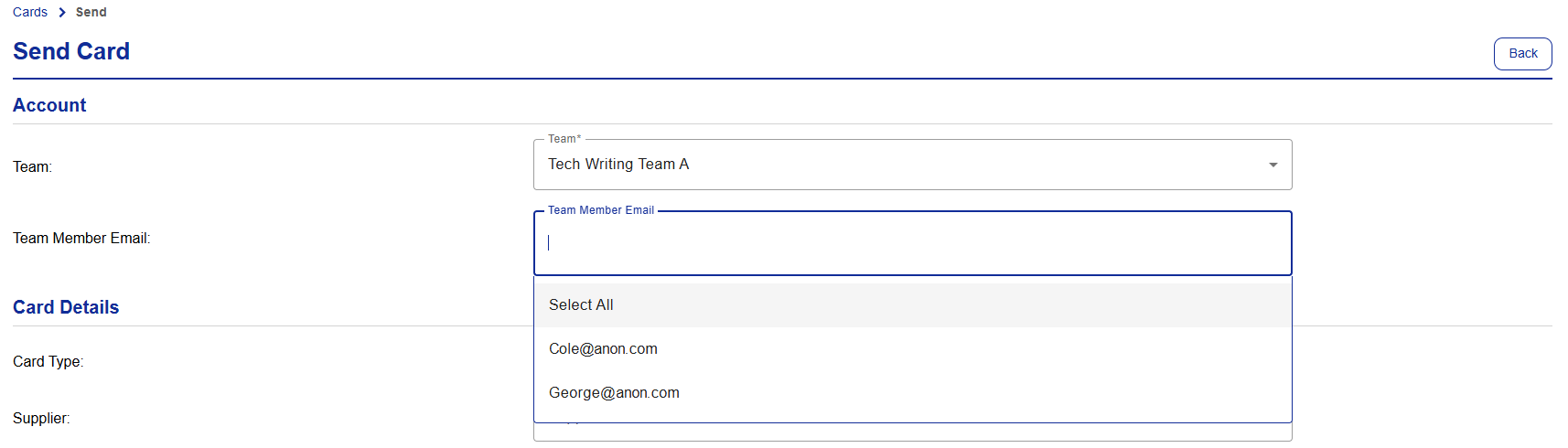

If a Team Member is linked to an approval band, the card is still sent for approval if triggered. Bulk card sending does not override approval bands.
Team Members that have been sent a card will receive an email notification. If the Team Member has not registered yet, they'll receive an email prompting them to register and download the app.
Note
User Roles Affected: Corporate Administrator
Availability: Default functionality
Security Details: Resetting Mobile Numbers
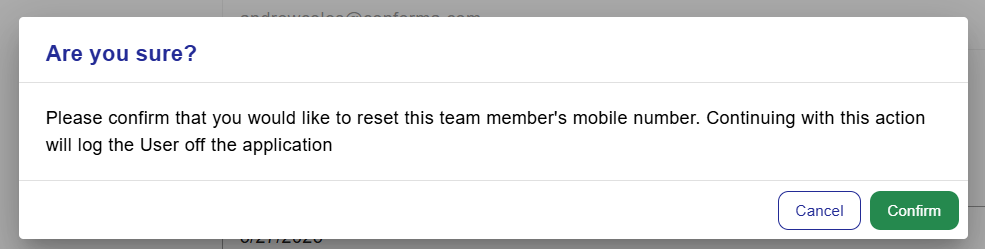
We have allowed Corporate Administrators to reset an App User's mobile number. When triggered, the App User is logged out and will receive an email notifying that their mobile number has been reset. Once a new mobile number has been added the App User will receive an email confirmation of the change.
Note
A Corporate Administrator can reset their own mobile number.
To reset a user's mobile number as a Corporate Administrator:
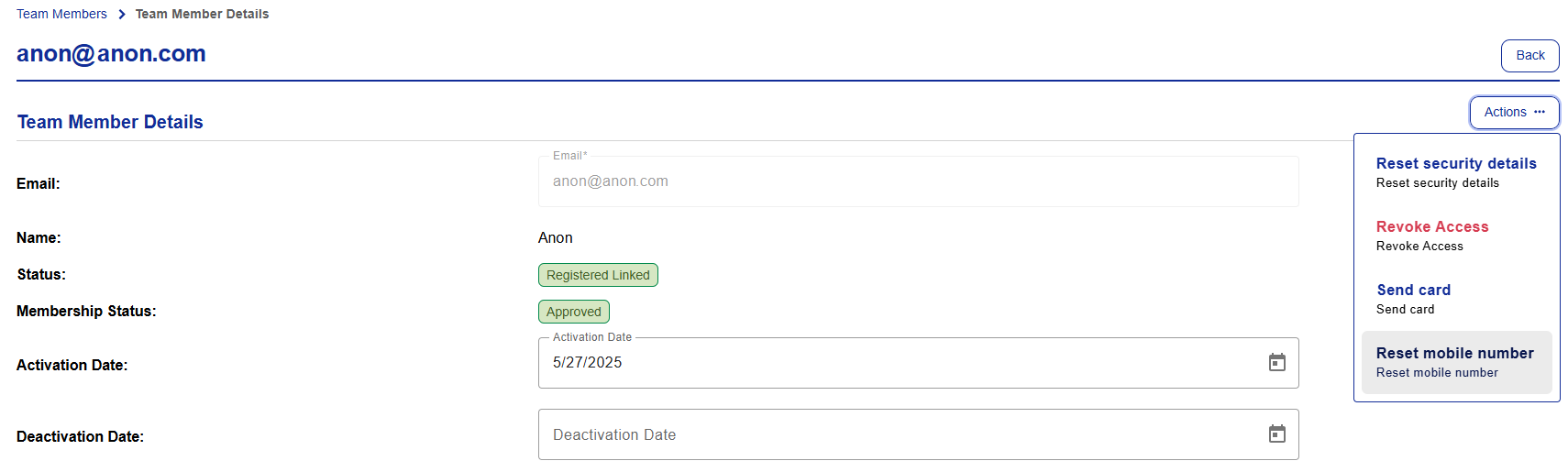
Search for and select a Team Member.
Click Actions and then click Reset mobile number.
Click Confirm.
To reset your mobile number as a Team Member:
If your mobile number has been reset by a Corporate Administrator, you will be logged out of the Visa Commercial Pay App.
To begin the process, log back into the Visa Commercial Pay App or follow the link to the Registration Site in the email notification.
Verify your new mobile number, tap Continue and enter your one-time passcode.
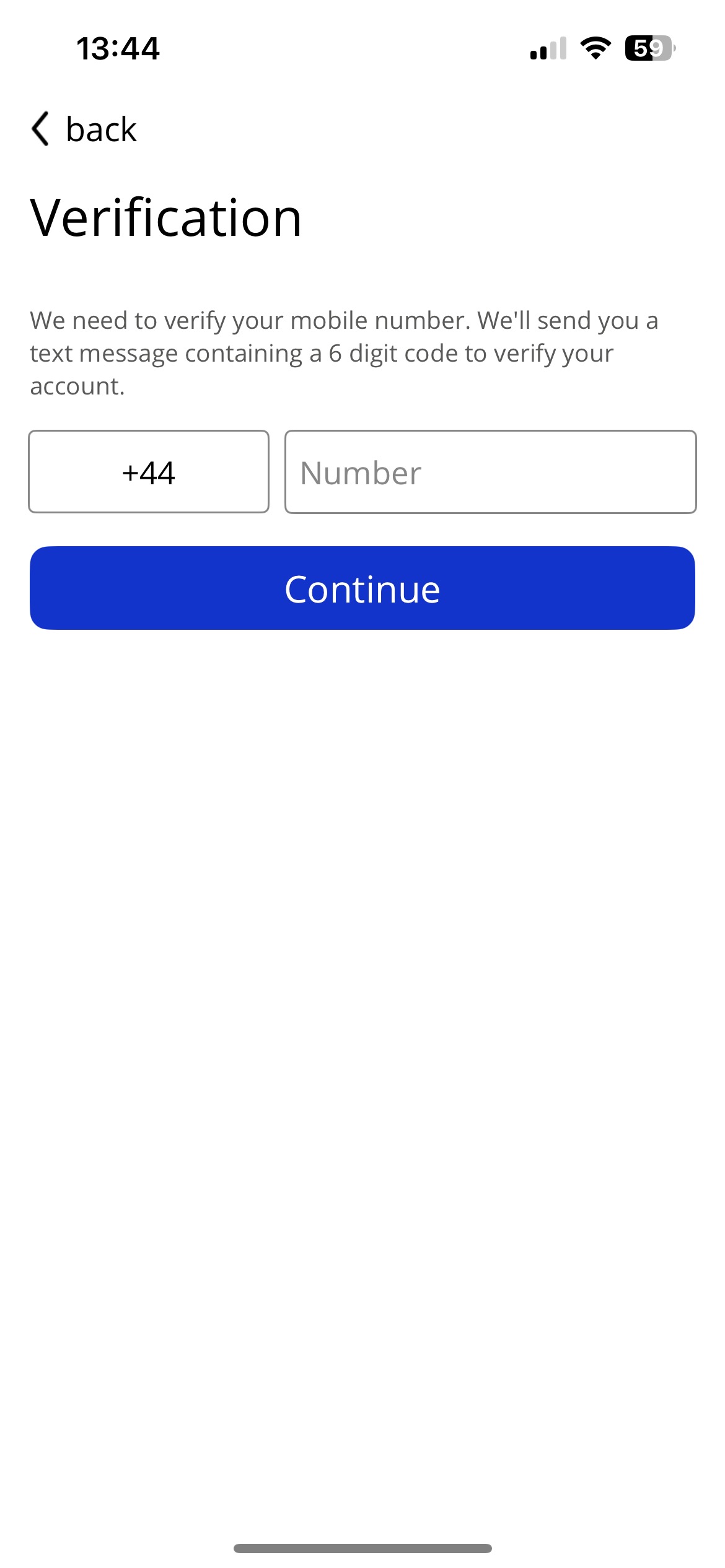
You will then be redirected to the Visa Commercial Pay App dashboard.
Note
User Roles Affected: Corporate Administrator
Availability: Default functionality
Notable Bug Fixes
We have fixed an issue where the prompt to set a default value for hidden profile custom data fields does not appear.
We have improved the error message that is displayed when attempting to set up an expense policy with a Card Pool that is already linked to another expense policy.
We have fixed an issue where hidden profile custom data fields were not visible when viewing a team member's profile.
We have fixed an issue where settings between Advanced Card Controls in Visa Commercial Pay Online and Recurring Budgets in Visa Commercial Pay Control were conflicting.
We have hidden functionality that is not applicable to Corporate Administrators when viewing an Expense Policy.
We have improved the dropdown that is displayed when selecting a team member so that users can scroll through the options available.
We have added complete translations to the 'breadcrumb' menu that is shown when navigating through the platform.
We have fixed an issue where some text was obscured by overlapping with neighbouring columns.
We have improved the wording that is displayed when editing a team budget.
We have removed the chronological sorting option from budget history and replacing it with 'Amended'. This means that if budgets are edited, they will be in the correct order in the budget history.
We have fixed an error on the Visa Commercial Pay App Registration site where the Taiwanese translation was displayed as 'simplified' rather than 'traditional'.
We have fixed an error where cards would immediately expire when created with a duration date of 1 day.