Invoice Category
When creating an invoice in Visa Commercial Pay Reporting you will be prompted to select an invoice category. Users must create their own invoice categories. If there are no invoice categories configured when trying to create a new invoice, users will receive an error message containing a link to manage invoice categories.
To create invoice categories:
Click the Invoices icon
 on the left-hand panel and then from the bottom of the Invoice Search, click Manage Invoice Categories.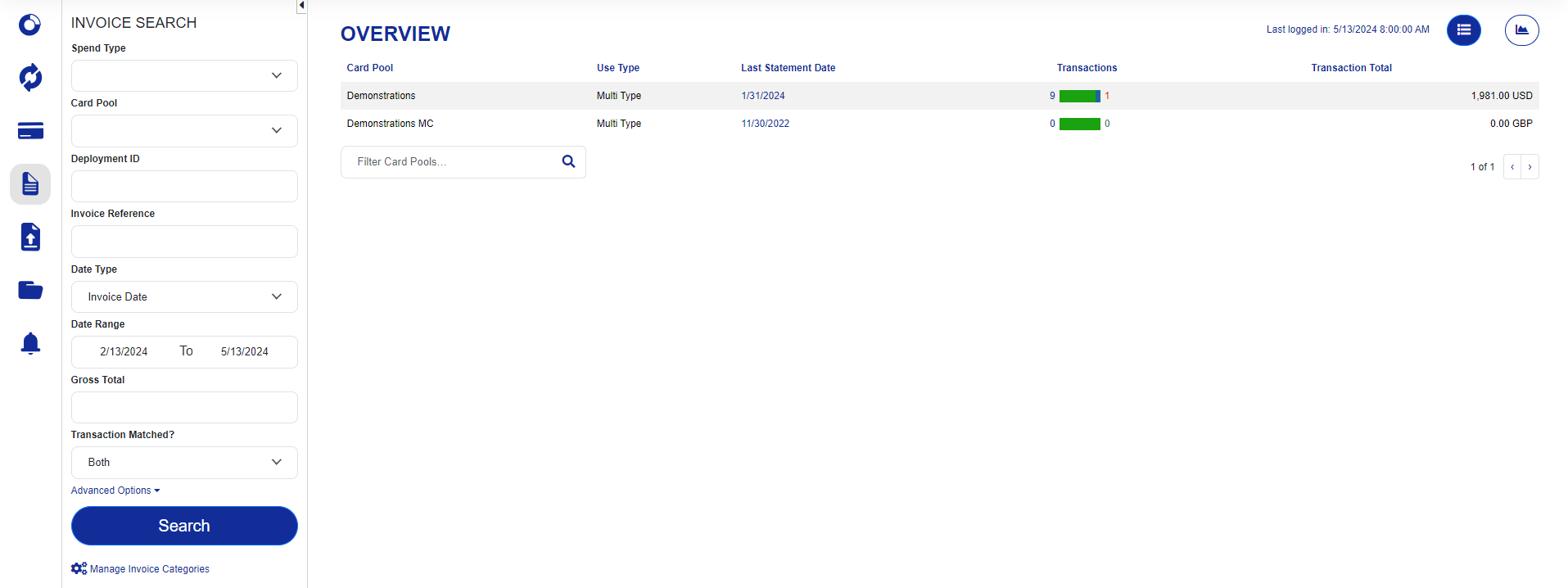
Select a Card Pool that you want to manage invoice categories for.
Select a category from the Category dropdown.
Enter a Tax Rate and GL Code. Tick Commissionable if required.
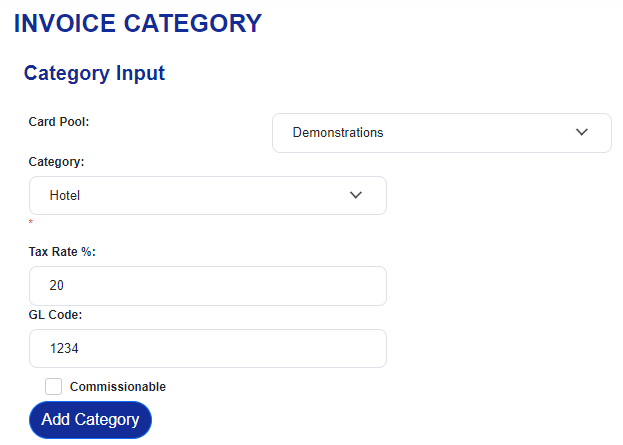
Click Add Category.
Your invoice categories will be shown at the bottom of the page under Existing Categories.
 |
To edit an invoice category, click an item on an existing category and overtype the entry. Once done, click Save.
You can edit:
Tax Rate
Order—this is the order of the invoice category in the drop down list
GL Code
Commissionable
Tick Remove and then click Save to delete an Invoice Category.
 |