Custom Data Field Link
Custom Data Field Link allows you to link a secondary CDF to data list items of a primary CDF. When creating a new card, the secondary CDF will only be shown if the linked data list item is selected from the primary CDF.
Note
User role required: Customer Admin
Availability: Default functionality
How to Configure Custom Data Field Links
To link a secondary CDF to a data list item:
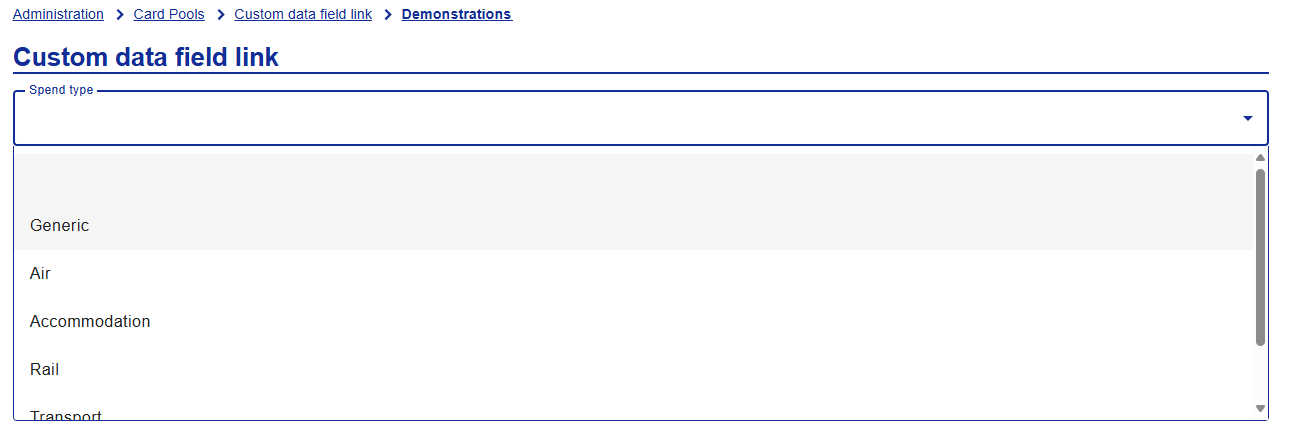
From Administration, search for and select a Card Pool and then click Custom data field link.
Select a spend type from the Spend type dropdown.
Select a Linkable template and then select a data list item from the dropdown.
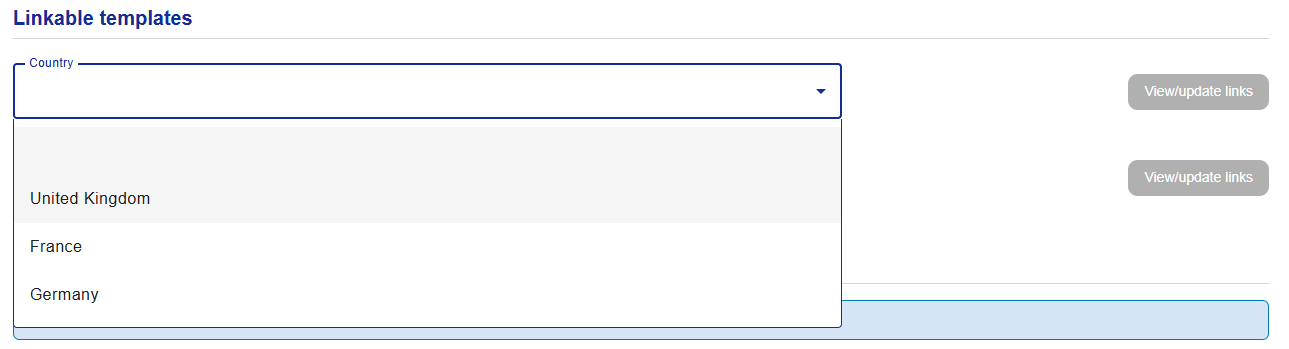
Click View/update Links.

All linkable custom data field templates that are configured for the selected spend type will be shown.
Tick Is linked on the custom data field that you want to link.
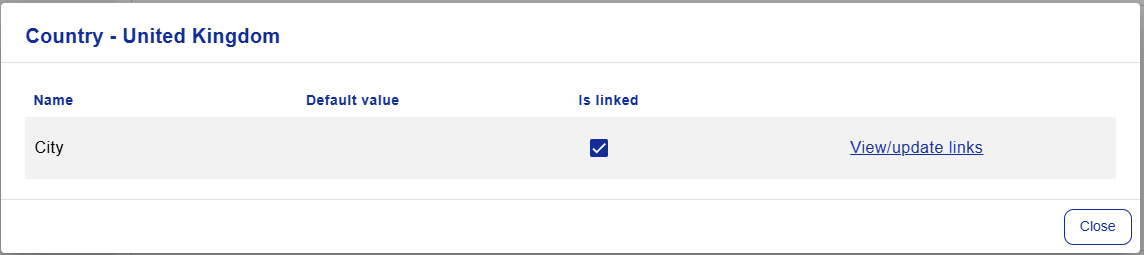
Once configured, selecting the data list item from the primary CDF will trigger the linked secondary CDF to be shown.
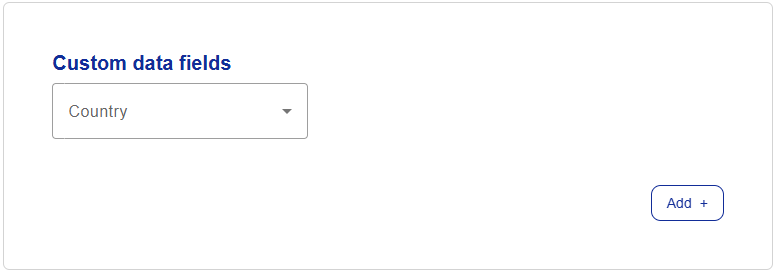 |
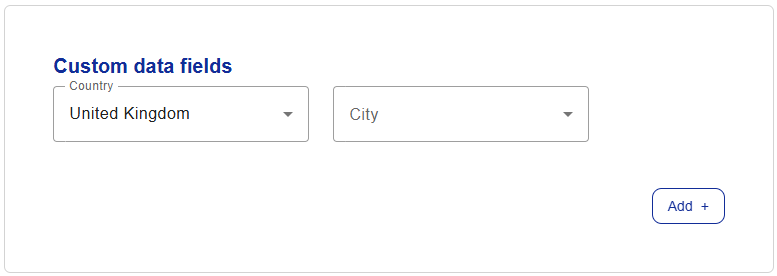 |
Note
CDFs that do not have a data list can not be linked to by a secondary CDF.
The following control types can not be linked to:
Text box
Check box
Choice-Specific Data List Items
Data list items can be shown under the secondary CDF based on the data list item selected under the primary CDF.
Select an existing data field link.

Click View/update links on a CDF that has been linked.
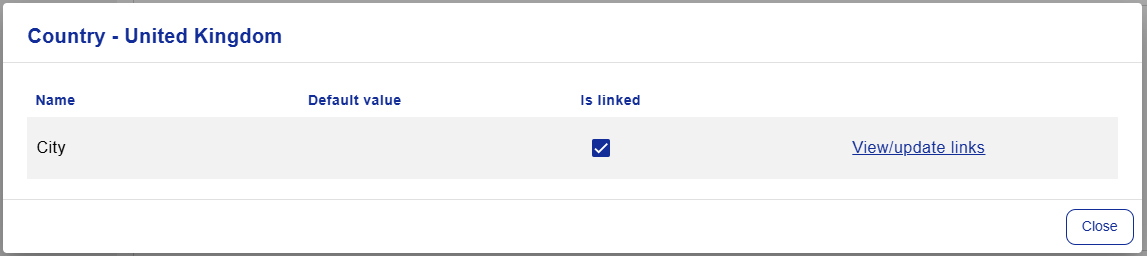
Select all data list items that you want to appear under the secondary CDF when the primary CDF data list item is selected from the primary CDF.
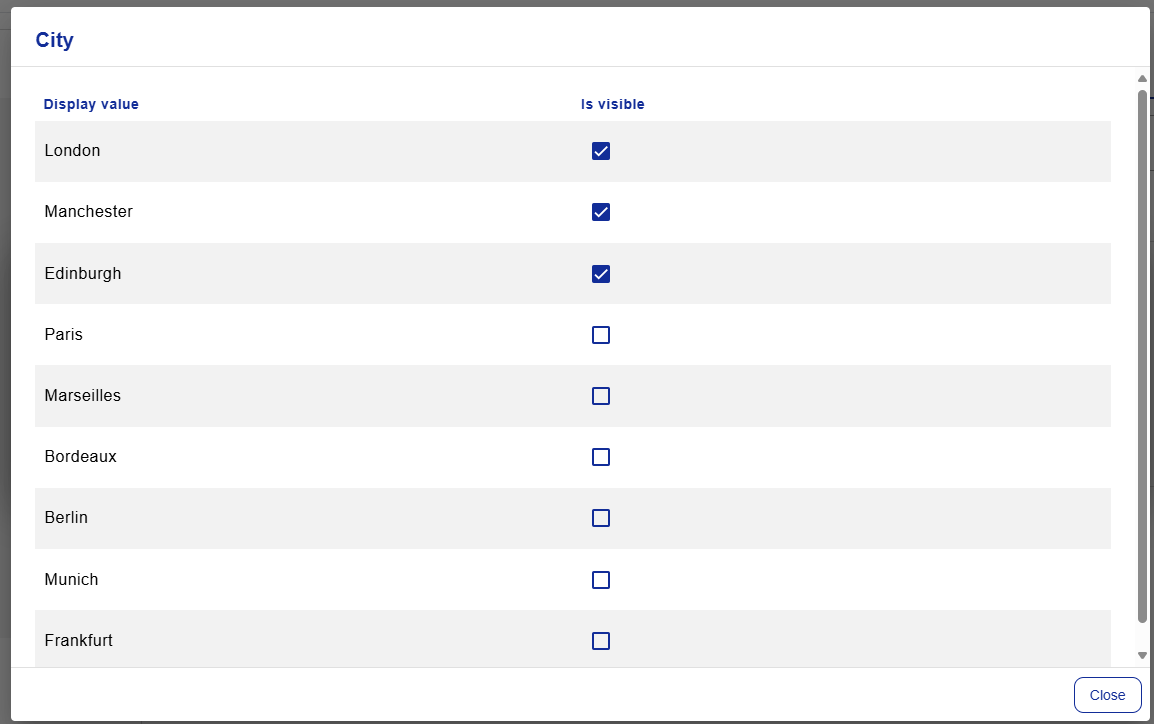
This can be configured for multiple primary CDF data list items.
Example:
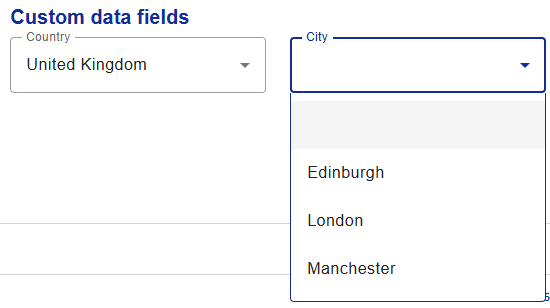
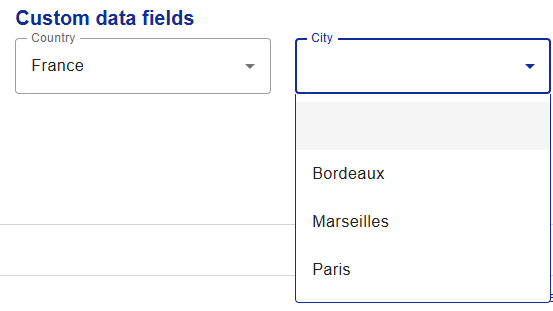
Primary CDF = Country (Data list including countries, e.g. United Kingdom, France)
Secondary CDF = City (Data list including major cities, e.g. London, Paris)
In this example, if the United Kingdom is selected under the primary CDF, the options shown under the secondary CDF can be configured to be London, Manchester, and Edinburgh. Whereas if France is selected under the primary CDF, the options shown under the secondary CDF can be configured to be Paris, Marseilles, and Bordeaux.
 |
 |