Create a User in Online
All Visa Commercial Pay Online Admins are able to create or edit any type of user that matches their own user role level or lower.
The user role hierarchy is as follows:
User roles marked with an asterisk are able to create users.
Highest
Card Issuer Admin*
Customer Super Admin*
Customer Admin*
Approver 2, Approver 1, Deployer Team Manager, Deployer, Search Only, Reporting user, Reporting Administrator
Lowest
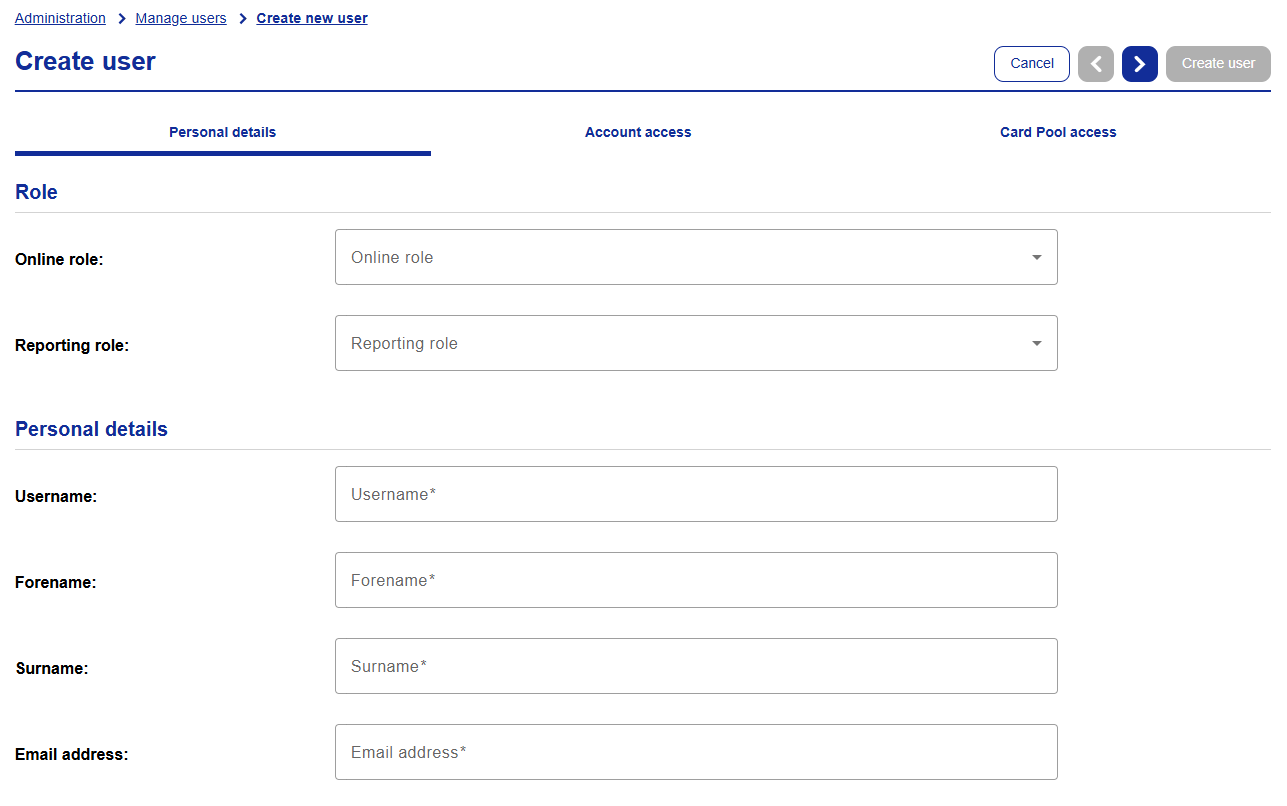
To begin creating a new user, click Administration and then click Create user.
 |
Note
You must complete the Personal details section.
Personal Details*
From the Personal details tab complete the mandatory fields marked with an asterisk(*).
Online role—the user's role in Visa Commercial Pay Online
Deployers and Approvals
If the user is a deployer you must complete the Approval type field, the options are:
Single Approval—this is the standard approval workflow
Approval group—this is the enhanced approval workflow
Reporting role—the user's role in Visa Commercial Pay Reporting
Username—we recommend entering the first part of the user's email address
Forename
Surname
Email address
 |
Toggle Has Visa Commercial Pay Reporting access on if the user requires access to Visa Commercial Pay Reporting.
Toggle User locked on to lock the user's account, once locked the user will be required to reset their password to log in again.
Toggle User disabled on to disable the user's account, once disabled the user will be unable to access their account without an administrator re-enabling their account.
Welcome Email
New users will receive a welcome email prompting them to set up their own password.
The link to complete their registration will expire after 48 hours.
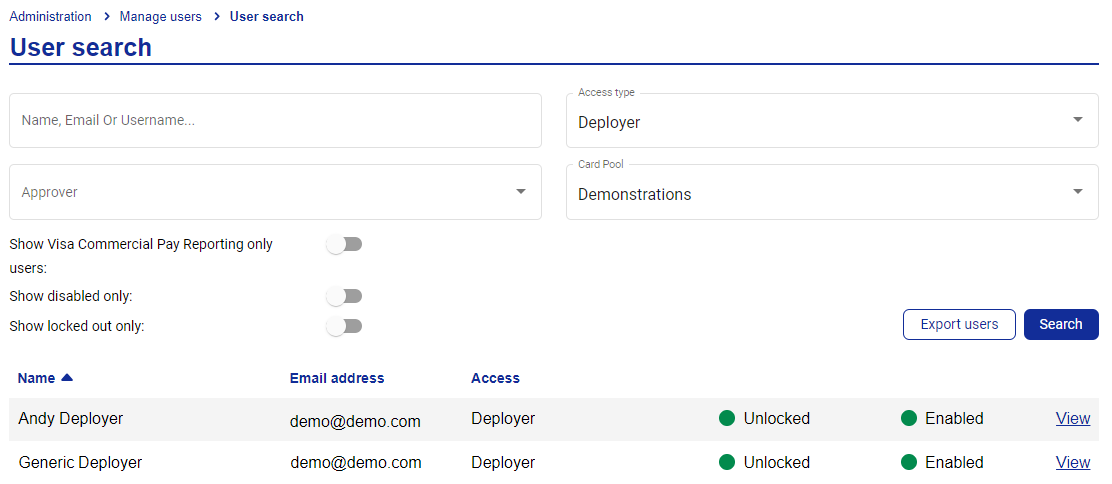
Once you have created users you can export a CSV file containing a full list of all users.
Click User search
Enter your search terms
Click Search
Click Export users to download the CSV file
 |
Account Access
From the Account access tab administrators can configure privileges.
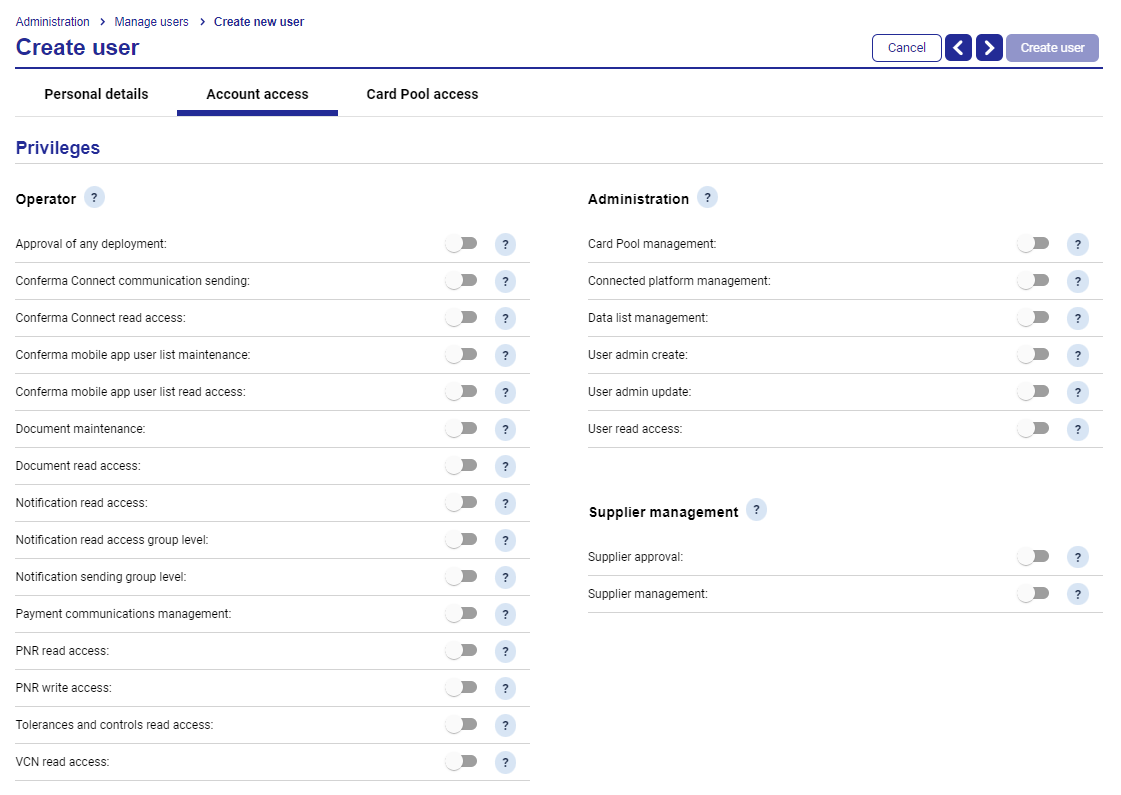 |
Approval of any deployment—allows the user to approve any deployment.
Visa Commercial Pay Connect communication sending—allows the user to resend Visa Commercial Pay Connect communications.
Visa Commercial Pay Connect read access—allows the user to view Visa Commercial Pay Connect communication history.
Visa Commercial Pay mobile app user list maintenance—allows the user to add and remove control over deployment access in the Visa Commercial Pay mobile app.
Visa Commercial Pay mobile app user list read access—allows the user to view Visa Commercial Pay mobile app users and see who has access to a deployment.
Document maintenance—allows the user to manage document uploads.
Document read access—allows the user to view documents.
Notification read access—allows visibility of notifications that have been issued by the Visa Commercial Pay platform.
Notification read access group level—allows visibility of notifications that have been issued by the Visa Commercial Pay platform, across all users in the Card Pool group.
Notification sending group level—allows the user to resend Visa Commercial Pay notifications. This assumes access to all notifications across all users in the Card Pool group.
Payment communications management—allows the user to issue new payment communications through Visa Commercial Pay Connect.
PNR read access—allows the user to view both retrieve PNR and data connector profile.
PNR write access—allows the user to add deployment data to an existing PNR as remarks, or create and entirely new PNR.
Tolerances and controls read access—read only access to Card Pool tolerance configuration.
VCN read access—read only access to full VCN details, including CVV.
Card Pool management—allows the user to manage Card Pools.
Connected platform management—allows the user to access and administrate Connected Platform Management.
Data list management—allows the user to manage data lists.
User admin create—allows the user to create new user accounts.
User admin update—allows the user to update other user accounts.
User read access—read only access to other user accounts.
Supplier approval—allows the user to approve suppliers.
Supplier management—allows the user to manage suppliers.
Card Pool Access
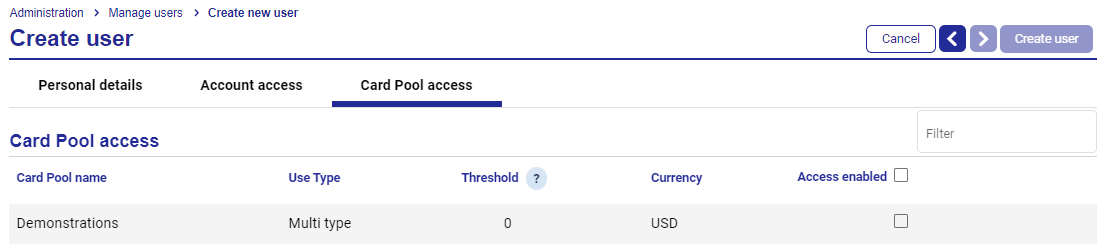
From the Card Pool access tab you can link user's to Card Pools and set Threshold limits. A user will not be able to create a card that exceeds the threshold. Cards that exceed the threshold will need to be approved by an Approver.
 |
Search for and select a user
Select the Card Pool access tab
Click Edit user
Tick Access enabled on the Card Pools that you want to allow the user to access.
Note
If all boxes in the 'Access enabled' column are left unticked, then this user will be granted access to all Card Pools.
Set the threshold, if required.
Click Update user.
Customer Super Admins and Customer Admins will always have access to all Card Pools within their Card Pool Group by default.
Reporting-Only User Profile
Customer Administrators can create Reporting-Only users via the standard user creation flow in the Administration module of Visa Commercial Pay Online, where they can be set as a Reporting Administrator or Reporting User.
What is the difference between a Reporting Administrator and a Reporting User?
A Reporting Administrator is able to create, share, and delete custom reports, as well as manage invoice categories. All other functionality is the same between the two user roles.
Reporting-Only users will receive:
No access to Visa Commercial Pay Online
Access to Visa Commercial Pay Reporting as an admin or standard user
New Reporting-Only users will receive a welcome email which will redirect them to the Visa Commercial Pay Reporting platform.
Creating Reporting-Only Users
To create a Reporting-Only user:
From Administration, click Create new user. Or, search for a user and click Edit user.
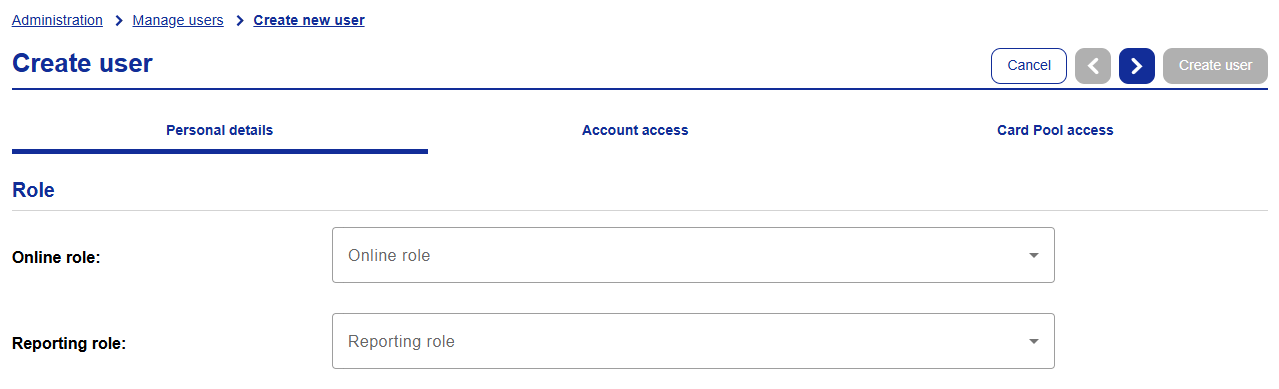
From the Online role dropdown, select None.

This will restrict access to the Visa Commercial Pay Online platform.
From the Reporting role dropdown, select Reporting user or Reporting administrator.

Users must be assigned to at least one user role.
Complete the user profile and click Create user.
Note
Reporting-Only users will not be able to log in via Visa Commercial Pay Online and must use the Visa Commercial Pay Reporting log in portal: https://signin.commercialpay.visa.com/Default?pkn=VISACOMMERCIALPAYREPORTING
KYC Status
Note
KYC checks are handled by your issuer.
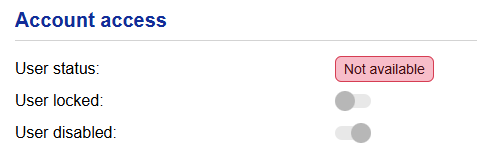
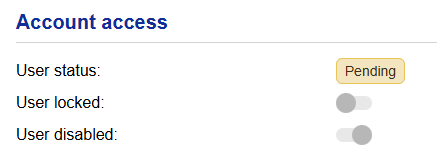
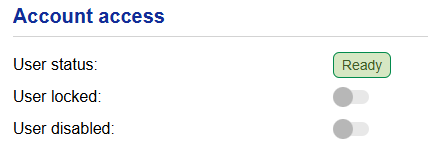
Customer Administrators will be able to see the user's KYC status under User details > Account access > User status. If the status is Pending or Not available, the account will be disabled.
|
|
|