Budget Management
Budget Management allows Corporate Admins to manage team budgets and track a teams spend against the budget. Team Admins will be able to view team budgets in Visa Commercial Pay App.
To create a budget:
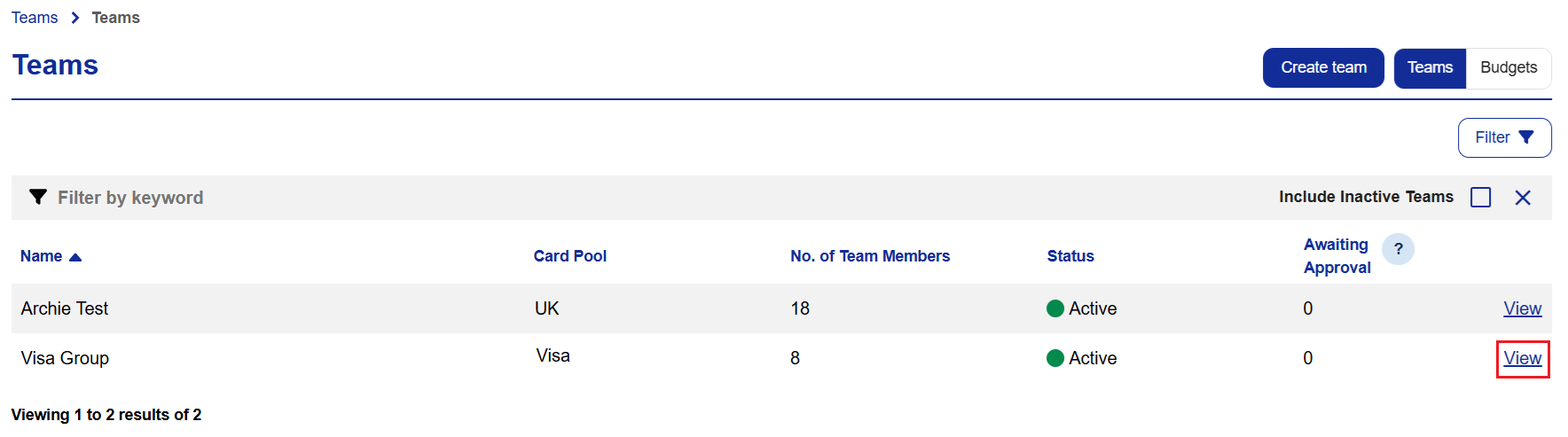
Select Teams from the navigation bar under Mobile Control.
Click Teams from the dropdown.
Select the Team you want to apply the budget against.
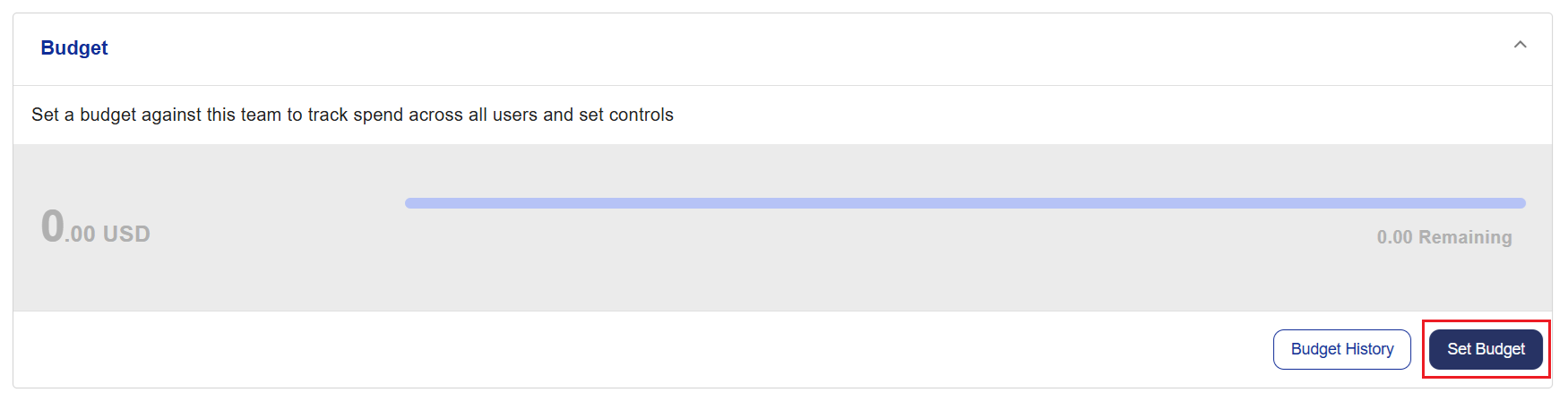
Scroll down to the Budget section, click Set Budget.
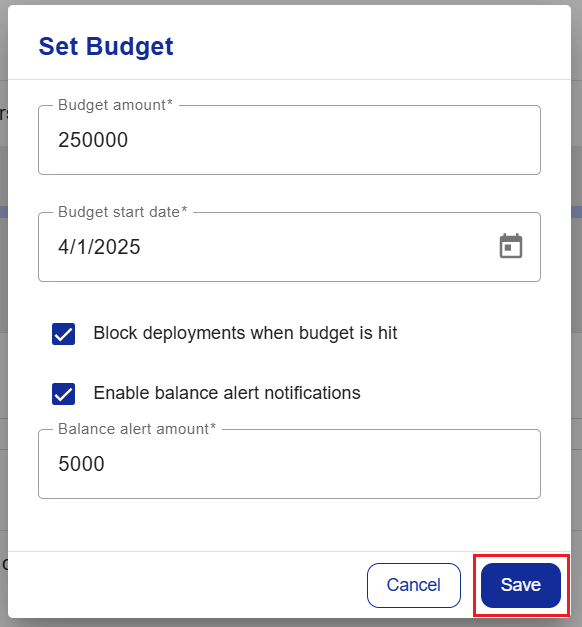
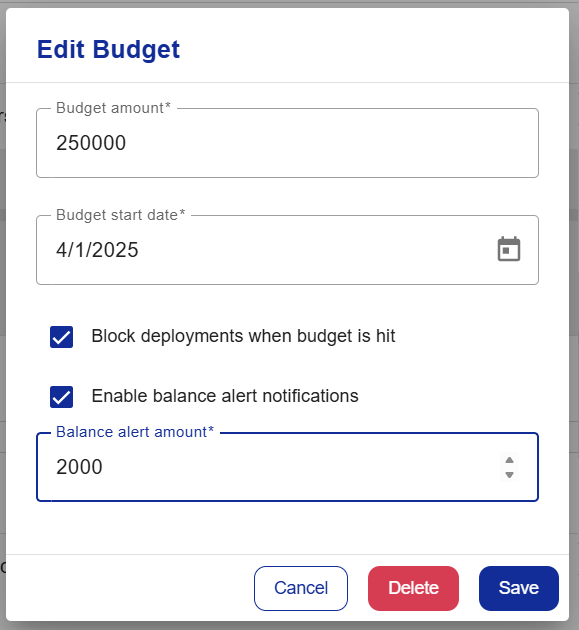
Enter your budget amount.
Choose a budget start date. The budget will reset on the same date the following month.
Tick Block deployments when budget is hit to prevent new deployments from being created when the budget limit has been reached, if required. The budget limit decreases based on settled transaction values, not card deployment values.
Tick Enable balance alert notifications if this required.
Add the Balance alert amount. If this is selected the Team Admins and Corporate Admins will receive a notification when the specified amount has been reached, and when the budget limit has been reached.
Click Save.
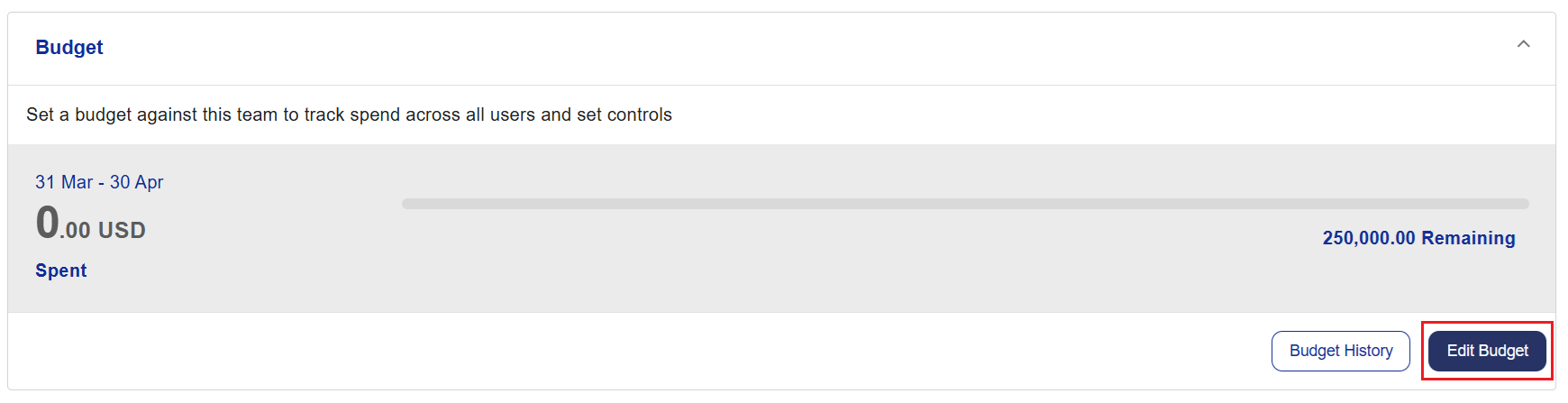
Team Administrators and Corporate Administrators will receive a monthly notification showing team spend against the budget.
Corporate Admins have the ability to edit or delete a budget:
Click Edit Budget.
Make the required changes.
Click Save or Delete.
Note
If changes are made to the budget amount or budget start date, the existing budget and rules will end on the day the change was made. The new budget rules will commence from the start date entered. Changes to block deployments and balance threshold will not impact the active budget.
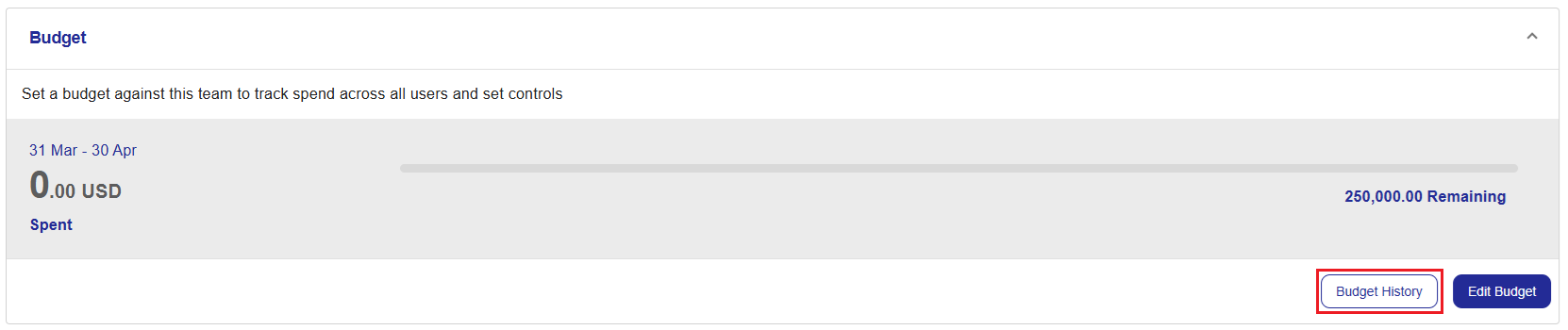
The Budget History button will allow Corporate Admins to view the following:
 |
Past Budget - past budget periods will be displayed.
Actual Expenditures - displays the total amount of transactions carried out during the budget period.
Budget Amount - displays the budget amount that was created by the Corporate Admin.
Budget vs Actual - displays the difference between the budget set and the total expenditure for the period.
Cards issued - displays the number of cards issued during the budget period.
A graphical view of the budget will be displayed.
The download button can be used to download the table view of the budget period or selected budget period into Excel.

Active Budget View
The Corporate Admin can view all teams' active budgets from the Teams list by toggling on Budgets, the following columns will be displayed:
Team - displays the team name.
Actual Expenditures - displays the total amount of transactions carried out during the budget period.
Budget Amount - displays the budget amount that was created by the Corporate Admin.
Budget vs Actual - displays the difference between the budget set and the total expenditure for the period.
Cards issued - displays the number of cards issued during the budget period.
A graphical view of the budget will be displayed.
The download button can be used to download the table view of the budget period or selected budget period into Excel.
 |
Note
The budget period will automatically be created for the next period, the Corporate Admin will not need to set a budget each month. If the budget is deleted, no further budgets will be created and the Corporate Admin will need to create a new budget.