View Deployment Details
Communication History
If you have issued a payment communication to a supplier, you can check the status of the communication via More > Communication history.
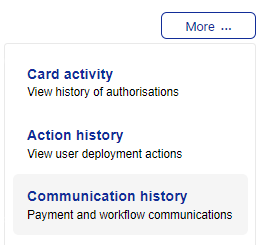 |
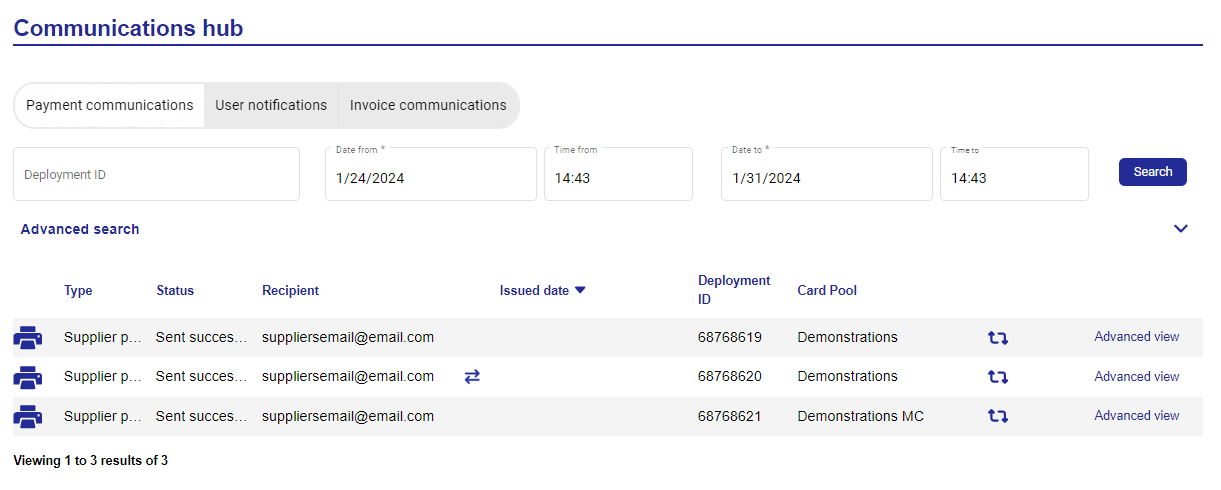
The supplier name, recipient email address, communication type, and status will be displayed together with the date/time stamp.
To resend a communication, go to the payment communication section of the communications hub.
 |
Documents
You can download documents attached to a deployment via More and selecting Documents.
Click Download next to the document you want to download.
Deployment History
To view the history of a deployment, go to the card deployment page, click More and select Deployment history.
The most recent version of the deployment will be displayed. You can navigate through all versions of the deployment by clicking Previous and Next . Alternatively, you can click Skip to to select from a list of the different versions.
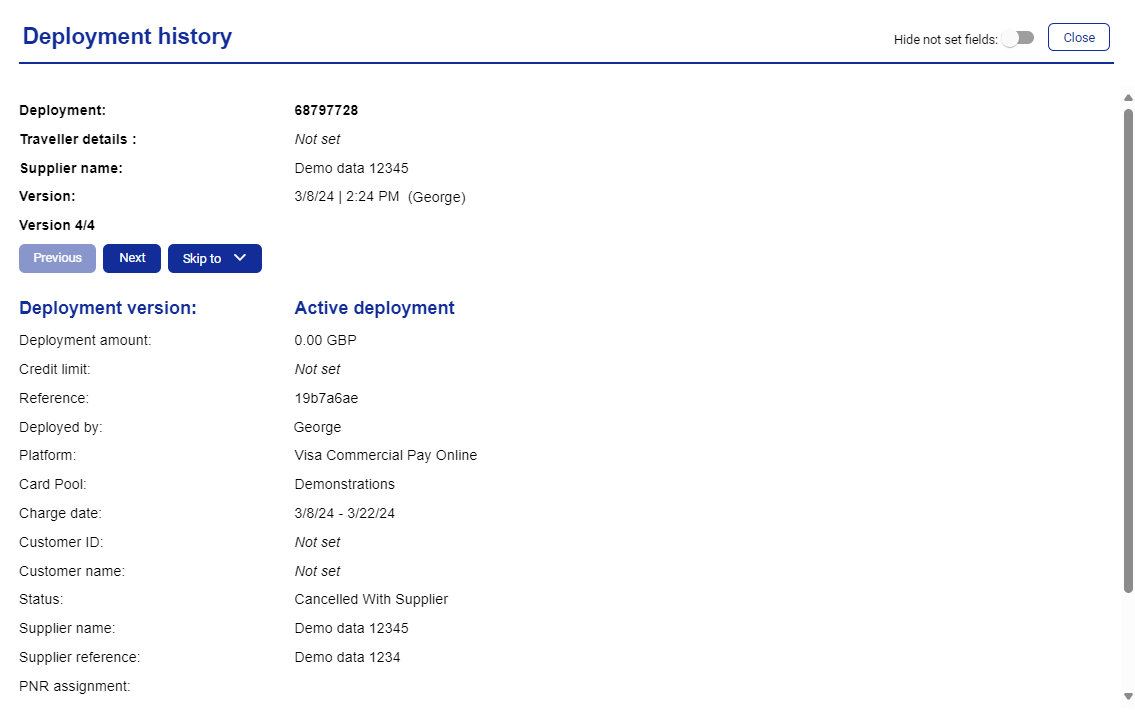 |
The value 'Not set' will appear in any fields where no value was entered at deployment creation. You can toggle visibility of these fields on and off using the Hide not set fields toggle.
App Users
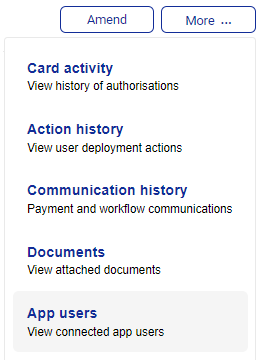
Click More tab and then click App users to display the details of any users that have this deployment linked to their mobile app, or to add in the details for the user.
 |
Note
App users is only visible from the more tab when it has been enabled by Visa support. Contact us if you require this to be enabled.
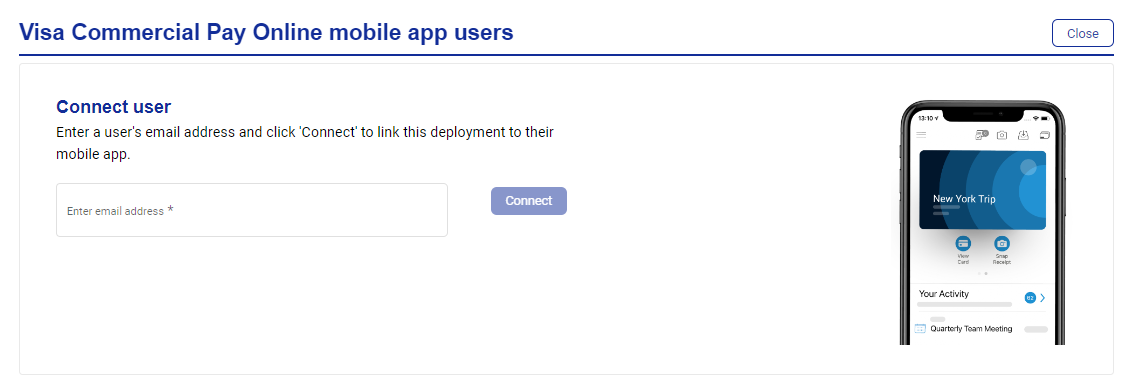 |
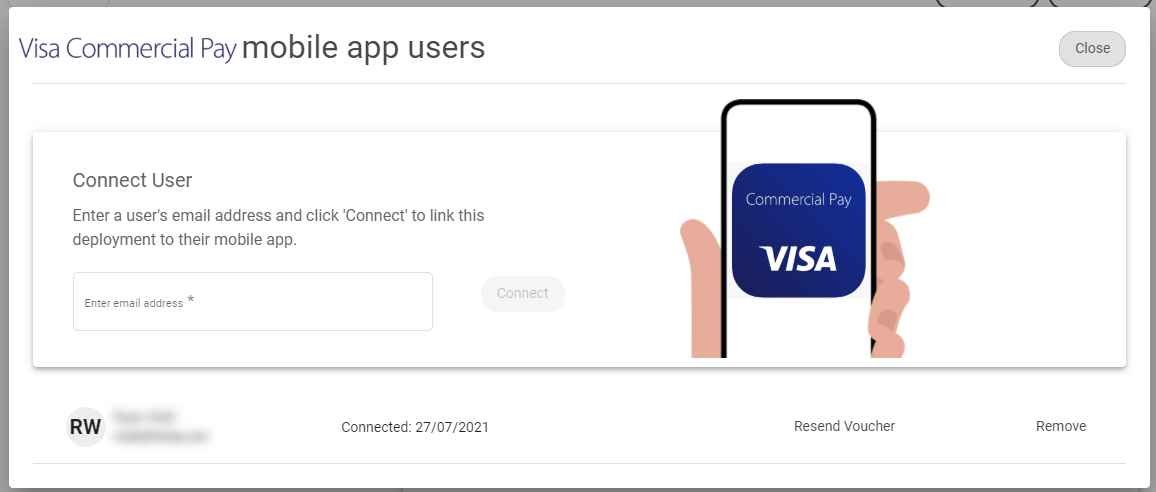 |
View Tolerances
Click More and select tolerances to display the Card Pool settings and controls that have been configured and will be applied to each card deployment.
Click the ? next to each tolerance to see an explanation of the control.
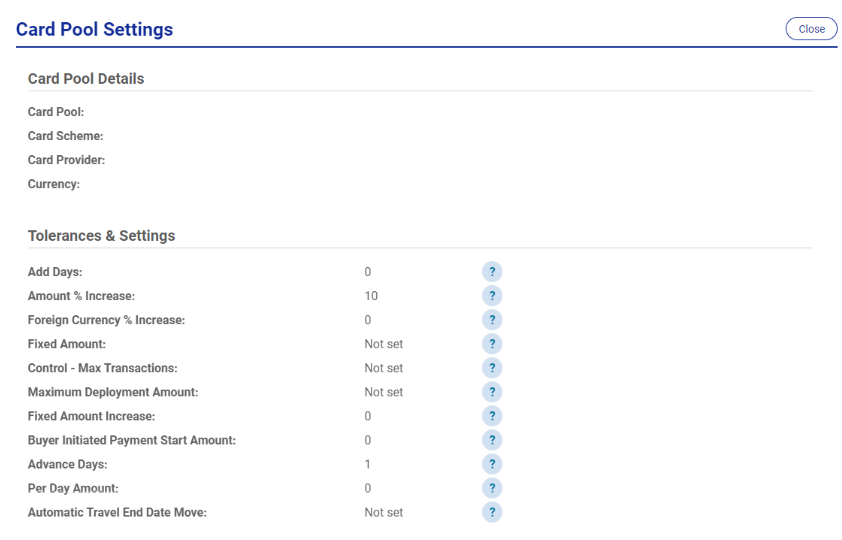 |
Tolerance | Description |
Add days | The number of days after the end date that the card remains available for charging. Adding days available for charging in the tolerances does not extend the date that you can amend the card with the issuer. |
Amount % increase | Percentage increase to be added to cover charges not already included in cost eg. taxes, meals, car parking. |
Foreign currency % increase | Percentage increase to cover foreign exchange fees and currency fluctuations. Only applied to overseas deployments. |
Fixed amount | If set all virtual cards will be requested with this limit in the Card Pool currency. |
Control – max transactions | If set, the card will be limited to this number of transactions. |
Maximum deployment amount | Maximum amount, in the Card Pool currency, that can be requested per deployment. |
Fixed amount increase | Increases credit limit by a fixed amount (in Card Pool currency). |
Buyer initiated payment start amount | Fixed credit limit to be requested (in Card Pool currency). |
Advance days | The number of days prior to the start date that the card is available for charging. |
Per day amount | The fixed daily amount added to the total card value to cover charges not already included e.g. meals. |
Automatic travel end date move | If Y the end date will be set by travel dates. |
Masked Card Details
Depending on your card issuer and deployment method, card details will be masked by default and only the last four digits will be shown.
Users can unmask card details when viewing their own deployments in Visa Commercial Pay Online.
Customer Admins can enable VCN Read Access from Administration within Visa Commercial Pay Online to allow Deployers to unmask card details when viewing other Deployers cards.
The following details will be masked:
Cardholder name
VCN
Expiry date
CVV
To unmask card details:
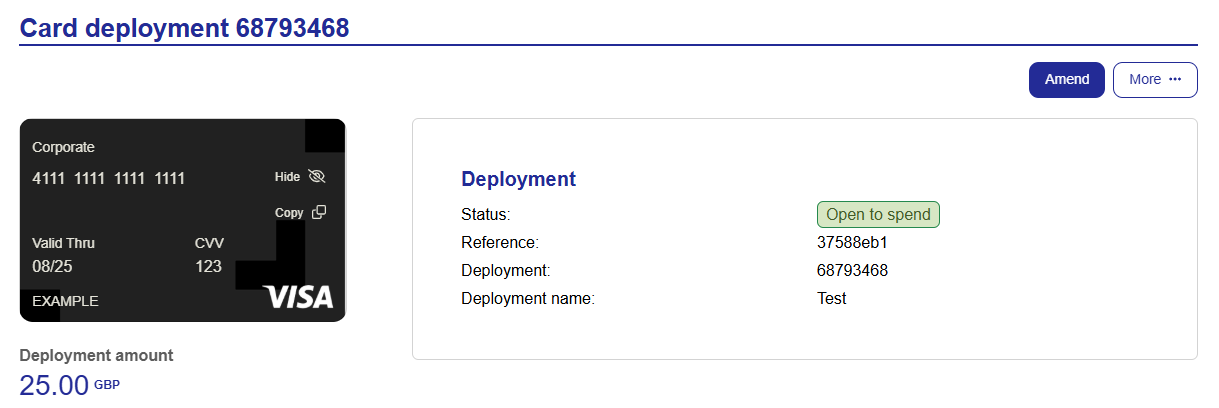
When viewing a deployment, click Show on the virtual card.
The full card details will be revealed.
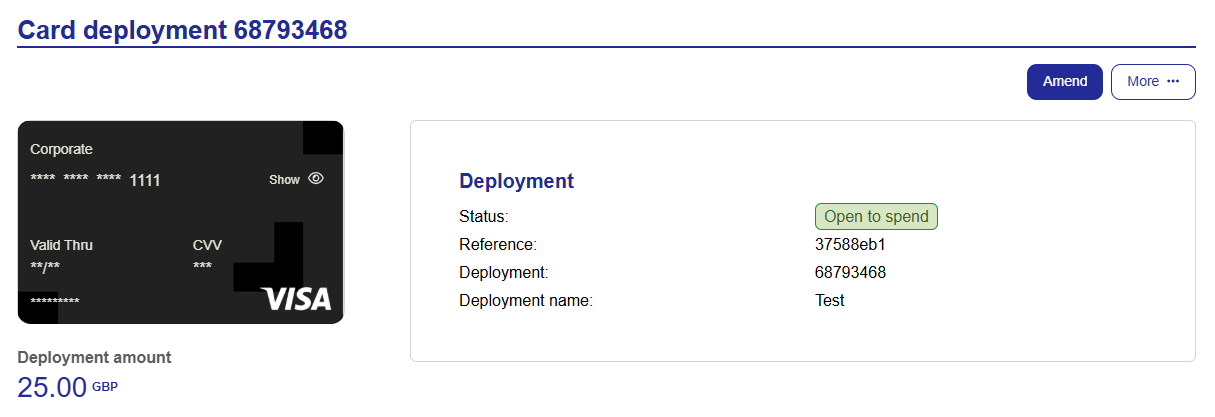
To hide the card details again, click Hide on the virtual card.
The card details will be hidden.
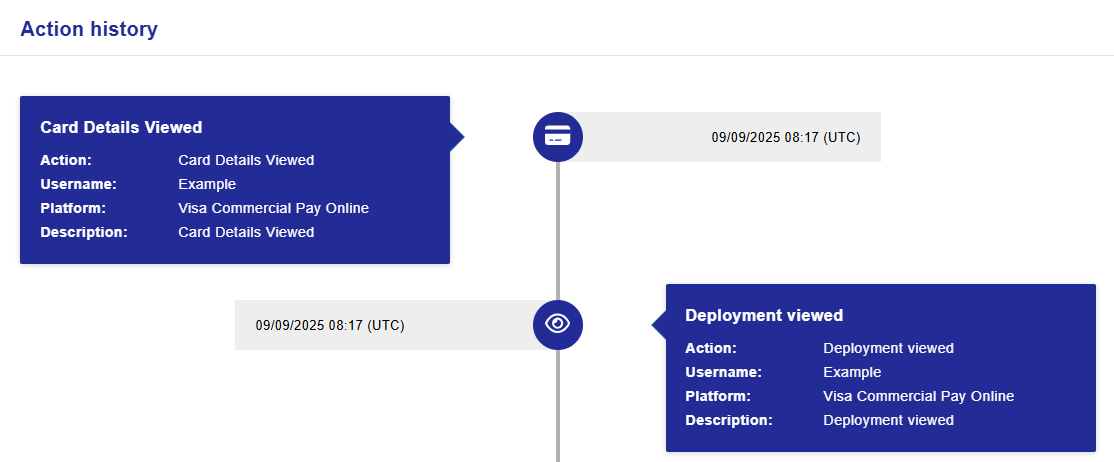
An audit log including the name of the user and the time that the action was completed will be viewable from the action history of the deployment.
The following actions will be recorded:
Unmasking of card details
Copying of card details
To view the card masking audit log:
When viewing a deployment, click More and then click Action history.
The audit log will show all actions recorded against the deployment.
Note
Card details being viewed will be tracked in the audit log regardless of your issuer and deployment method.