Create a Team
A Team is a group of users, each identified by their email address. Teams are a way to group different types of users, link them to a Card Pool and apply restrictions to them.
For example, you may have Teams for different projects or levels of employees. This way, you can set different Approval Bands and maximum monetary limits for different groups of users.
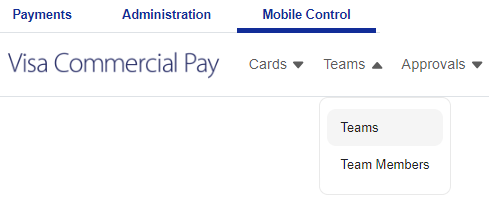
From the navigation bar, click Teams and then select Teams from the dropdown.
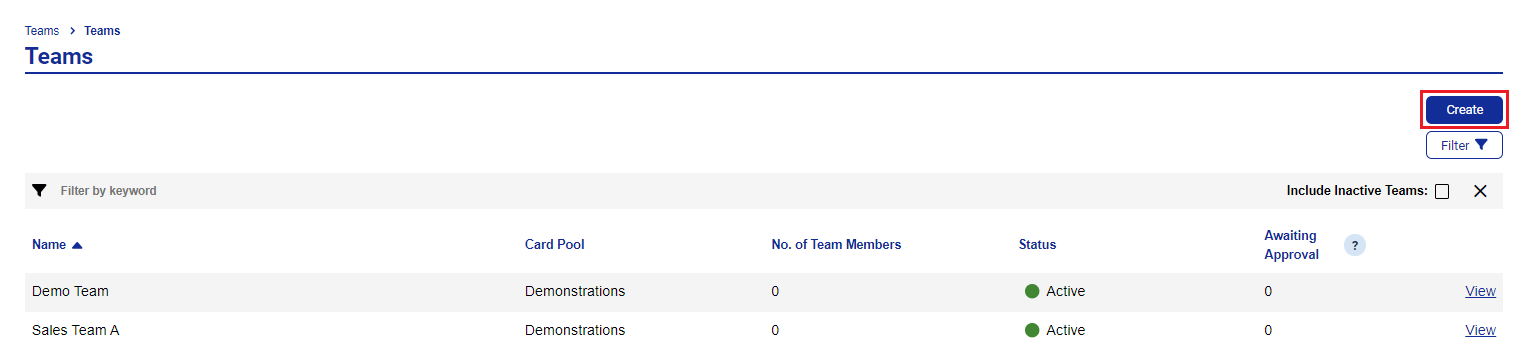
Click Create from the Teams page.
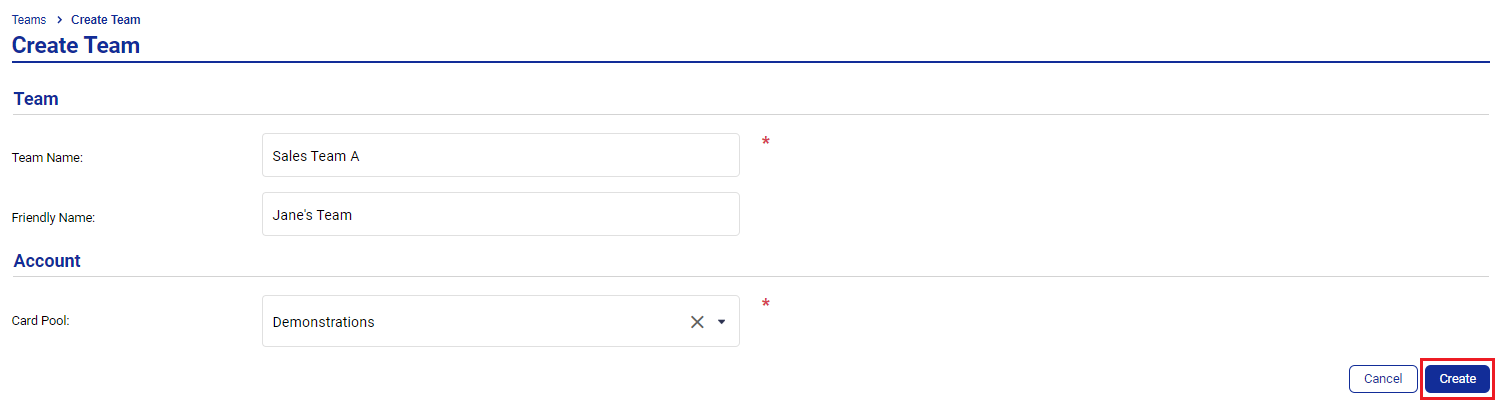
Enter a Team Name - this needs to be unique. If a team with the same name already exists, you will not be able to create it and an error message will be displayed.

Enter a Friendly Name - this will be visible to Team Members in the Visa Commercial Pay App
Choose the Card Pool to link to the Team from the dropdown menu and click Create.
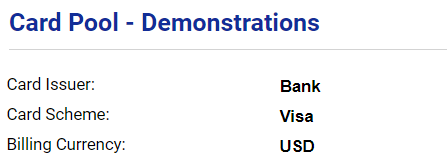
The Card Issuer, Card Scheme and Billing Currency will be displayed:
Note
The Card Pool must be configured as either Multi Type or Generic for it to be available for use within Visa Commercial Pay Control
You will now need to add the Team to any relevant Approval Bands and add any Custom Data Fields for that Team.
Edit Teams
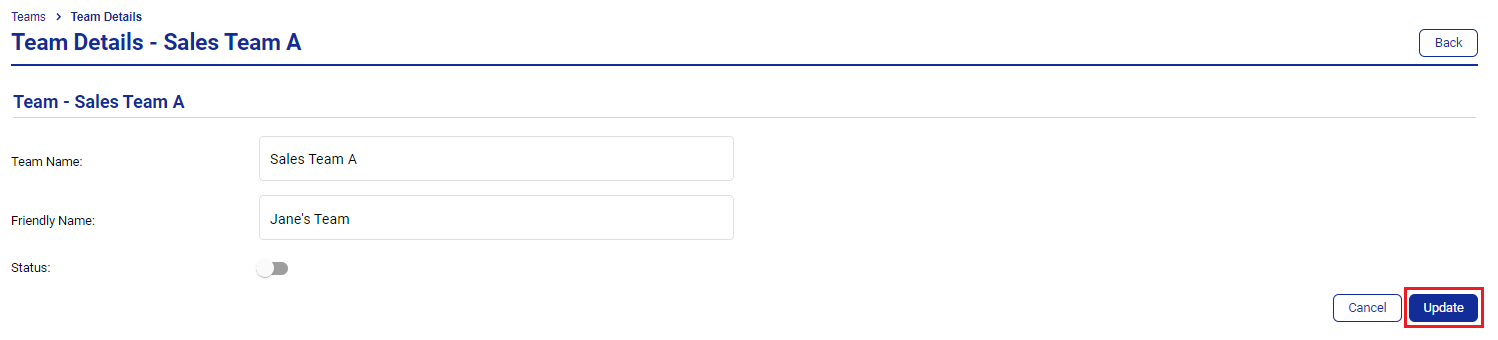
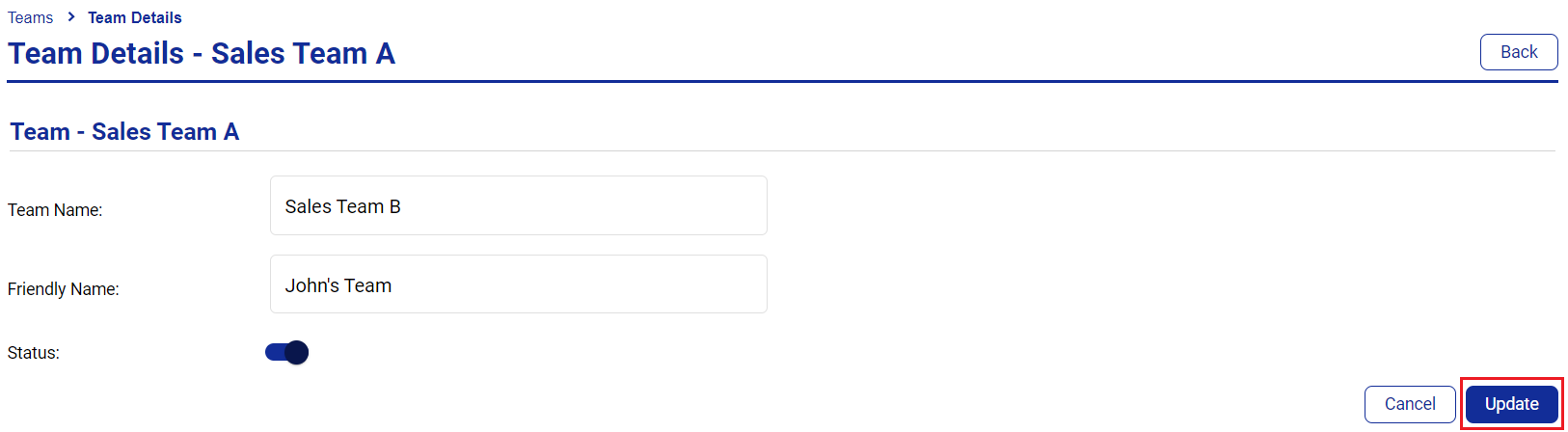
You can edit a Team's Team Name, Friendly Name or Active status. Team Names must be unique, if you edit the Team Name and a Team with the same name already exists, an error message will be displayed and you will not be able to save the update.
|
Select a Team.
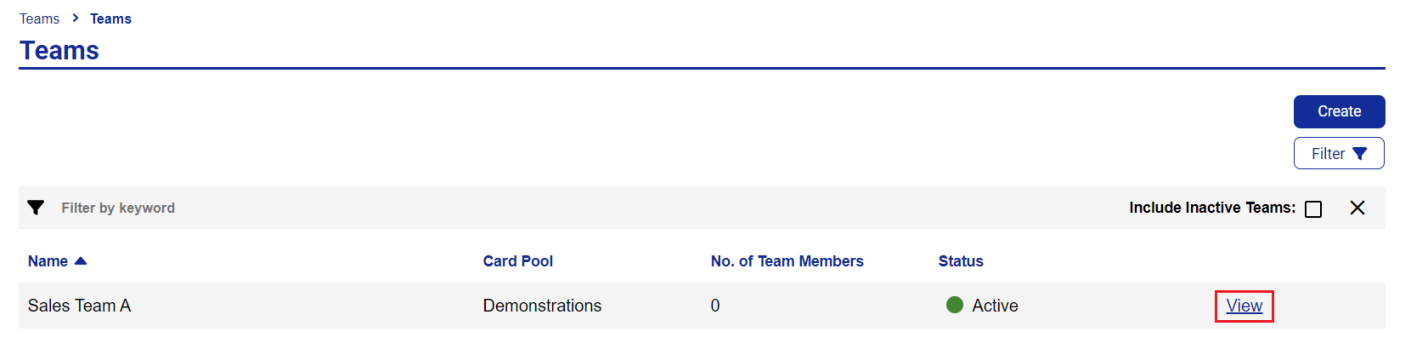
Click Edit.

Once you have edited the details, click Update.
A message will be displayed confirming your update has been successful.
Copy Teams
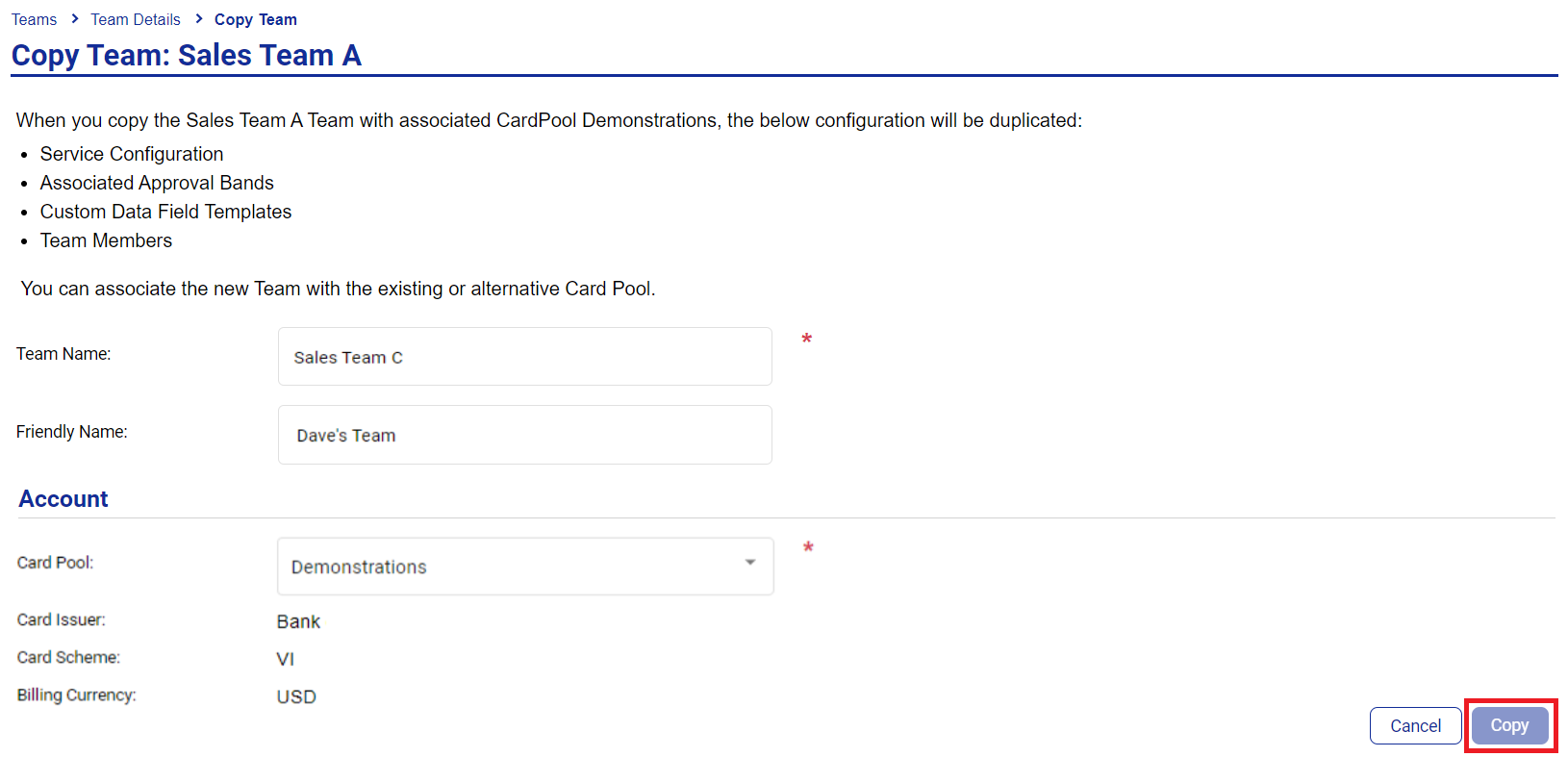
Corporate Administrators can copy a Team to create a new Team with the following configuration elements duplicated to the new Team:
Service Configuration
Associated Approval Bands
Custom Data Field Template
Team Members
You can associate the new Team with either the existing Card Pool or an alternative.
Select a Team.
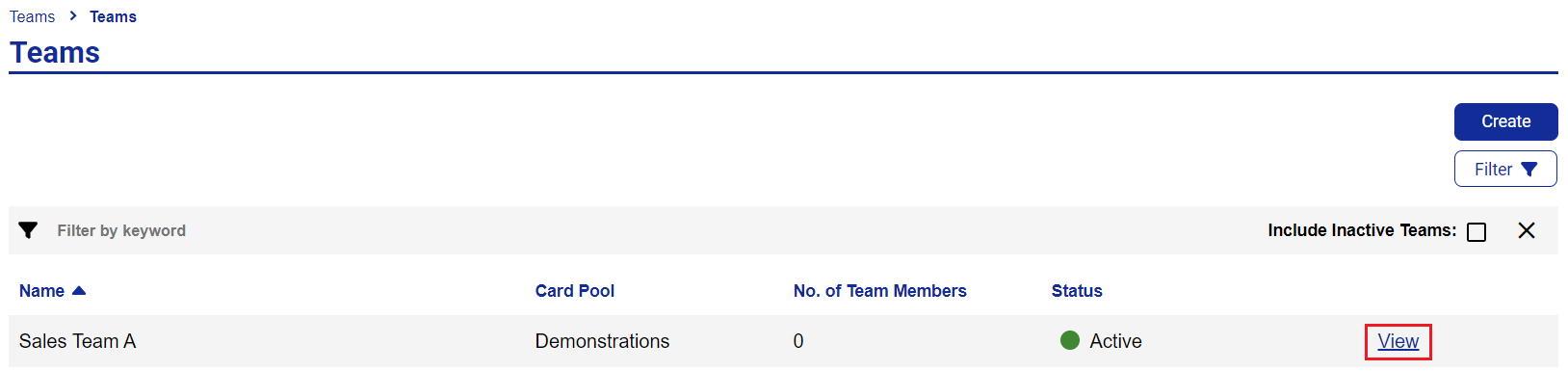
Click Copy.

Enter a new Team Name, Friendly Name and Card Pool. The Card Issuer, Card Scheme and Billing Currency will be displayed:
Click Copy.
Note
You will need to provide a unique name for the new Team. You cannot save a Team with a duplicate name.
Deactivating a Team
Corporate Administrators can deactivate a Team in Visa Commercial Pay Control using the Status toggle. When a Team is deactivated, all Team Members will no longer be able to access historical data relating to the deactivated Team in the Visa Commercial Pay App.
A Team can be reactivated using the same toggle option.
Select a Team.
Click Edit.
Toggle the Status off.
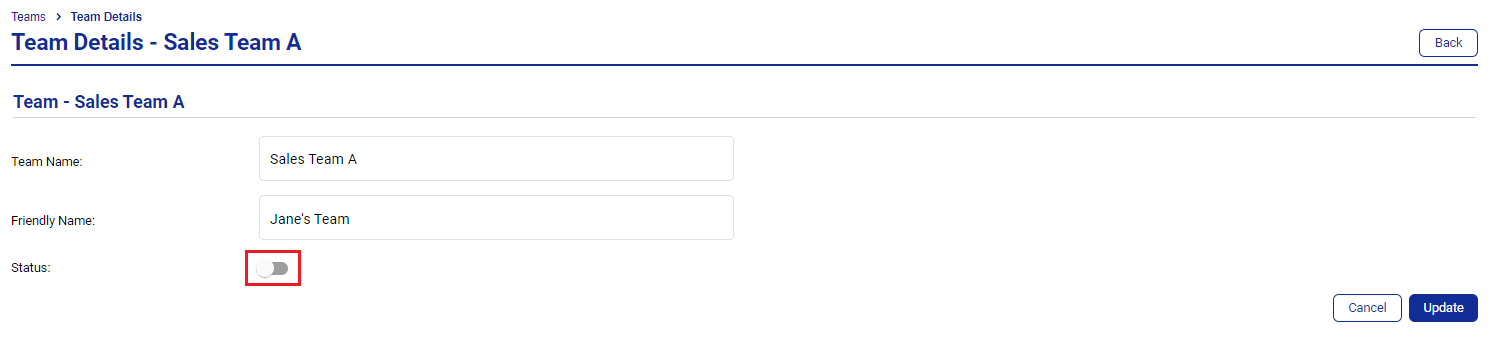
Click Update.