Log in to Online - First Time
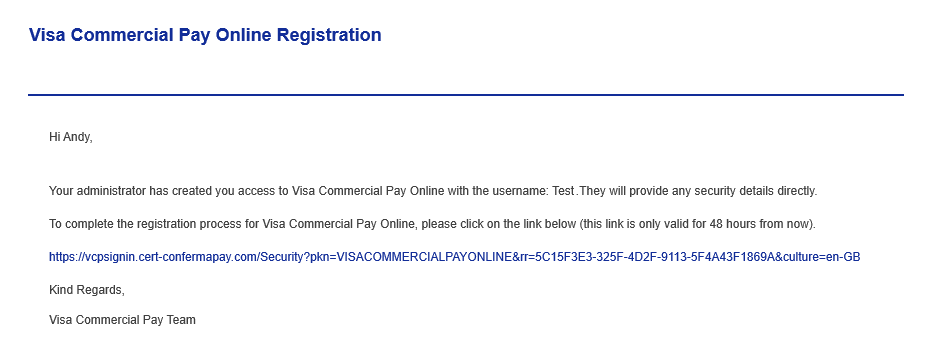
Once an Admin creates a new user in Administration a welcome email will be sent to the new user containing a link to create their account security details.
Visit the URL: https://signin.commercialpay.visa.com/Default?pkn=VISACOMMERCIALPAYONLINE
Note
Visa Commercial Pay Online is available to view in Chinese (Taiwan), Chinese (Hong Kong), French Canadian, English (UK), English (US), French, German, Portuguese, Italian, Spanish, and Japanese. To select your preferred language, click the language dropdown below the sign in block.
Language selection is also available after log in, in the footer of the page.
Click the link in the welcome email.
Create your password. The password requirements will be displayed, these must be met before you can proceed.
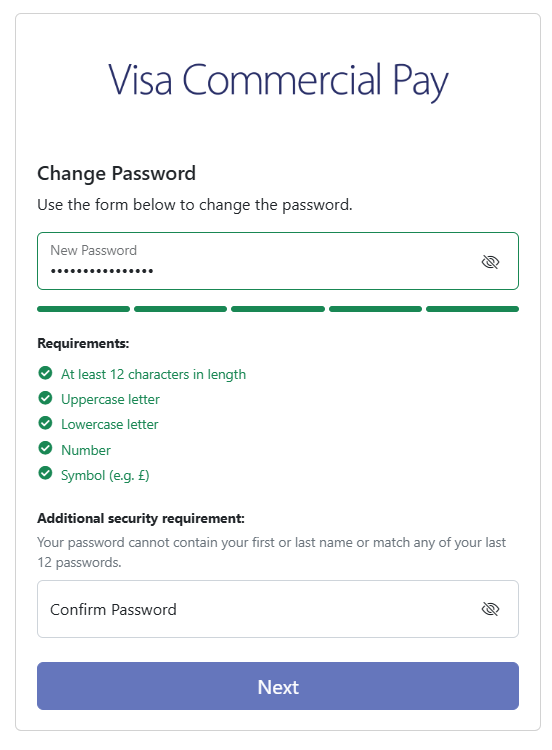
You will be encouraged to choose a stronger password if the one entered isn't deemed strong enough.

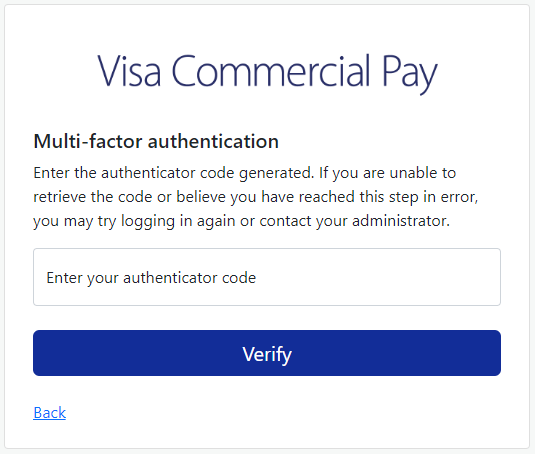
Set up your authenticator method by following the on screen prompts. Once complete, enter your authenticator code.
If the password you choose does not meet the minimum criteria, you will see a warning message and the password will not be accepted. You will need to re-enter a password that meets the criteria. If the password meets the minimum criteria, you will be directed to complete the usual log in procedure using your new password.