Approval Delegation
Admin users can delegate approval when an approver is unavailable. You can set an active period for the delegation, so that it will automatically deactivate after a specified period.
From Manage user > Approval delegations you can view and select all configured approval delegations.
Caution
If you have Dual Approval enabled, any new approval delegations or updates will need to be approved by another Admin user.
Configuring Approval Delegation
To configure an approval delegation:
Search for the user that you want to assign as the delegation.
Click Approver delegations, and then click the Edit user button in the top right-hand corner.
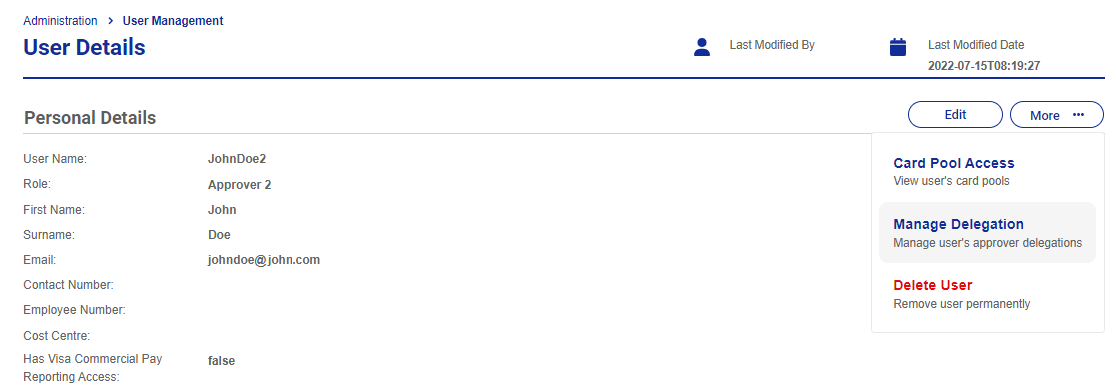
Click Add new approver delegation.

Enter the Approver user that you wish to delegate to and the dates that the delegation will be active.
Click Add and then click Update user.
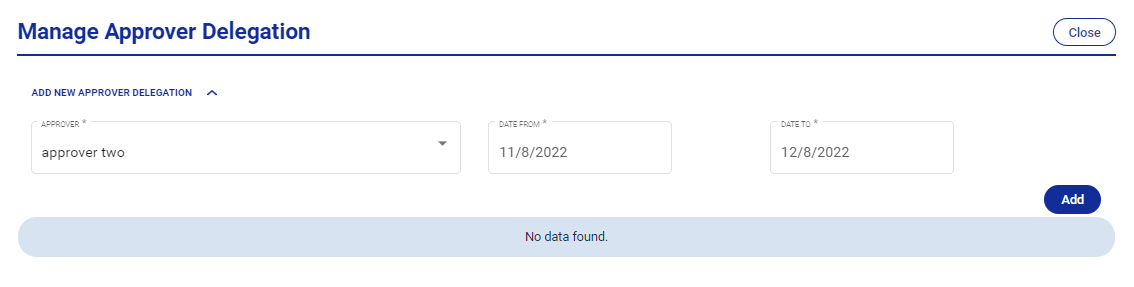
The delegation will now be active.
Note
For delegations to be added across two approval bands you must have back-up users assigned to both the Approver 1 and Approver 2 role. Without the appropriate amount of back-ups, delegation will be unavailable.
Editing and Deleting Approval Delegations
You can view approval delegations via Administration > Manage Users > Approval Delegations.
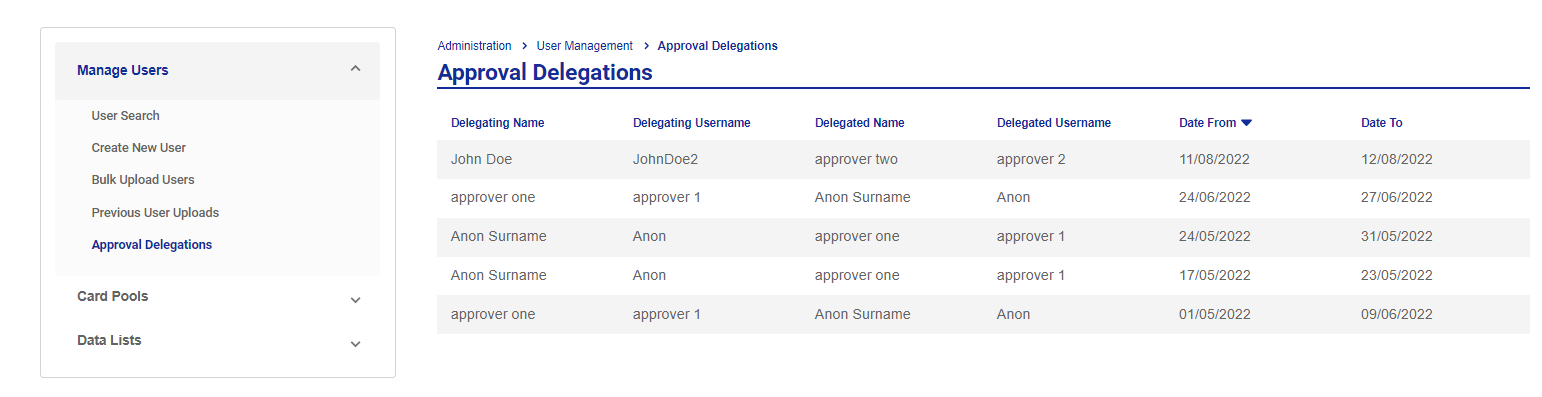 |
Select a user to view the User Details page.
Click Edit user to edit the dates or status of the delegation.
Toggle Active off to make the delegation inactive and click Update user to save the change.
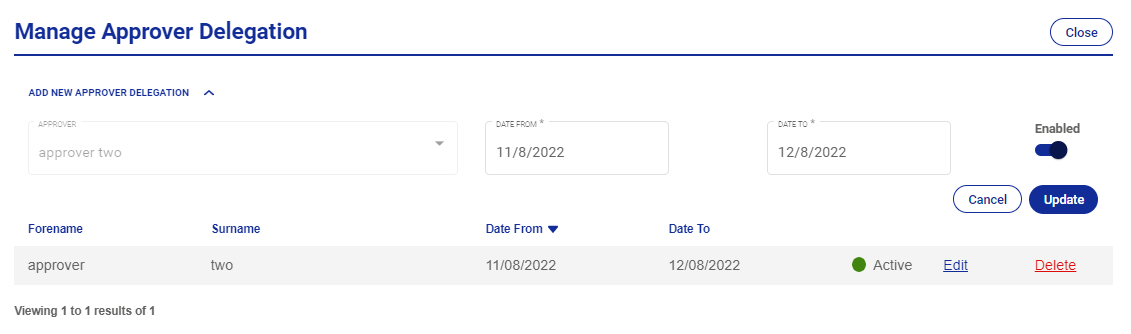
If you made the delegation inactive, you will see that the status is now Inactive. Delegations will also become inactive when the active dates set have passed, even if the Active is toggled on.
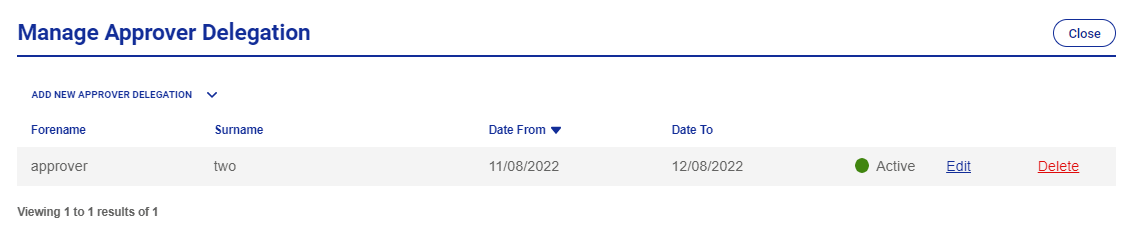
Or click Delete to delete the delegation.