Creating a Transportation Card in Online
Transportation cards can be used to book a rental vehicle. You can capture traveler details, supplier information, and ground transportation details. You can also add ancillary details and service fees, if required.
Click Transportation.
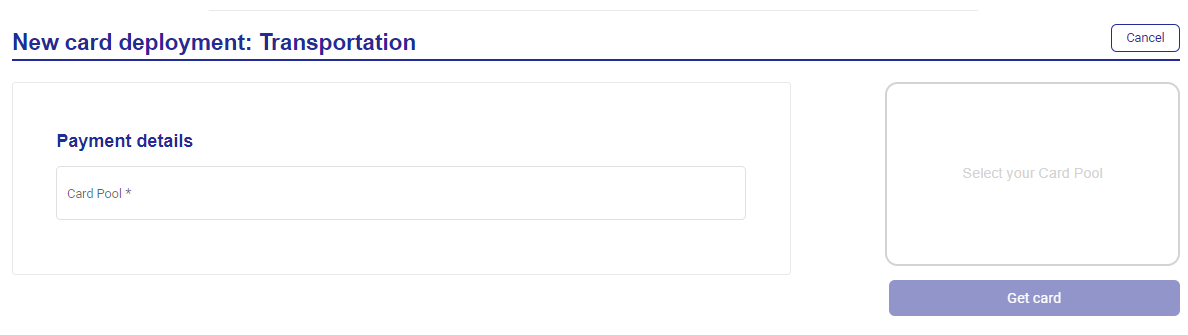
Select your Card Pool from the dropdown.
Enter the payment details:
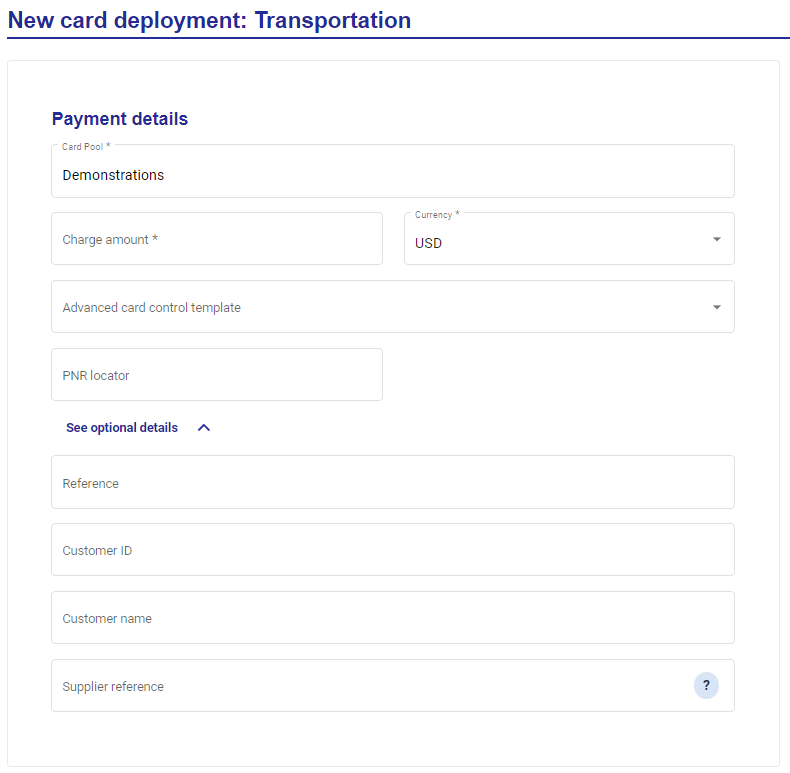
Charge amount
Currency
PNR locator
Click See optional details to enter:
Reference
Customer ID
Customer name
Supplier reference
Enter the traveler details:
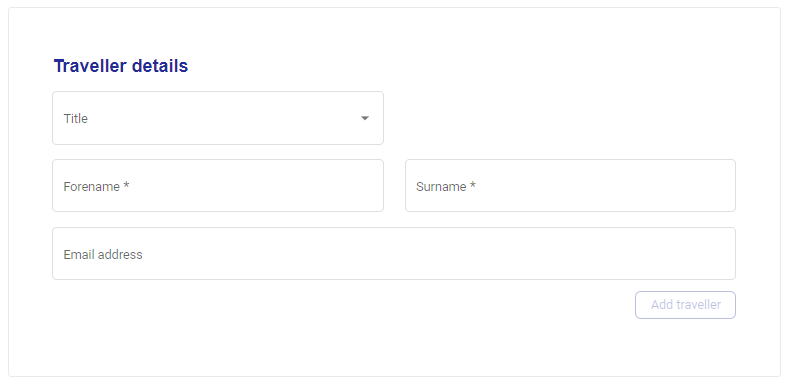
Title
Forename
Surname
Email address
Click Add Traveller.
Enter the supplier information:
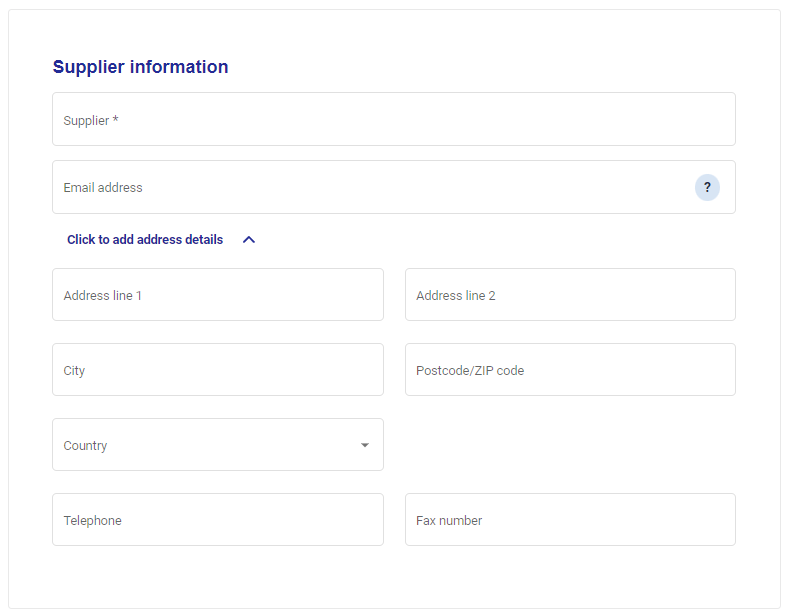
Supplier
Email address
Address details
Enter the ground transportation details:
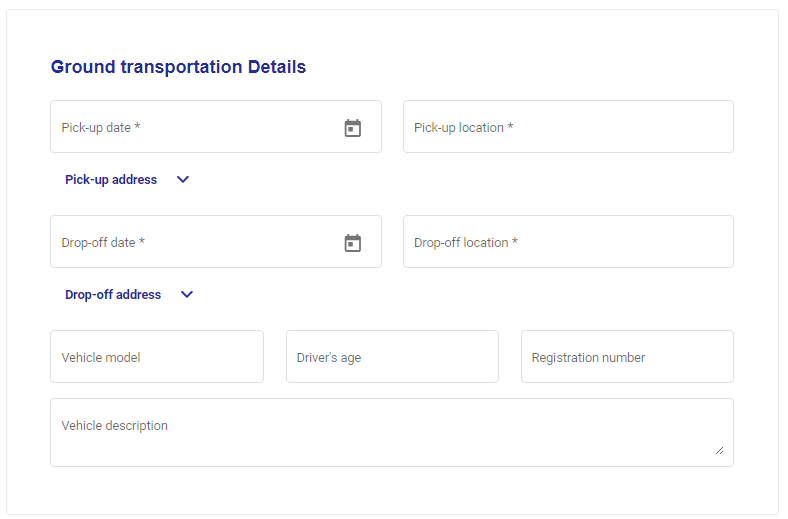
Pick-up date
Pick-up location
Pick-up address
Drop-off date
Drop-off location
Drop-off address
Vehicle model
Driver age
Registration number
Vehicle description
Enter the ancillary details:
Reference
Amount
Currency
Description
Click Add ancillary.
Enter the service fee details:
Fee amount
Currency
Fee date
Description
Click Add service fee.
Enter your custom data field values.
Click Get card.