Card Pool Settings
Linked Card Pool Groups
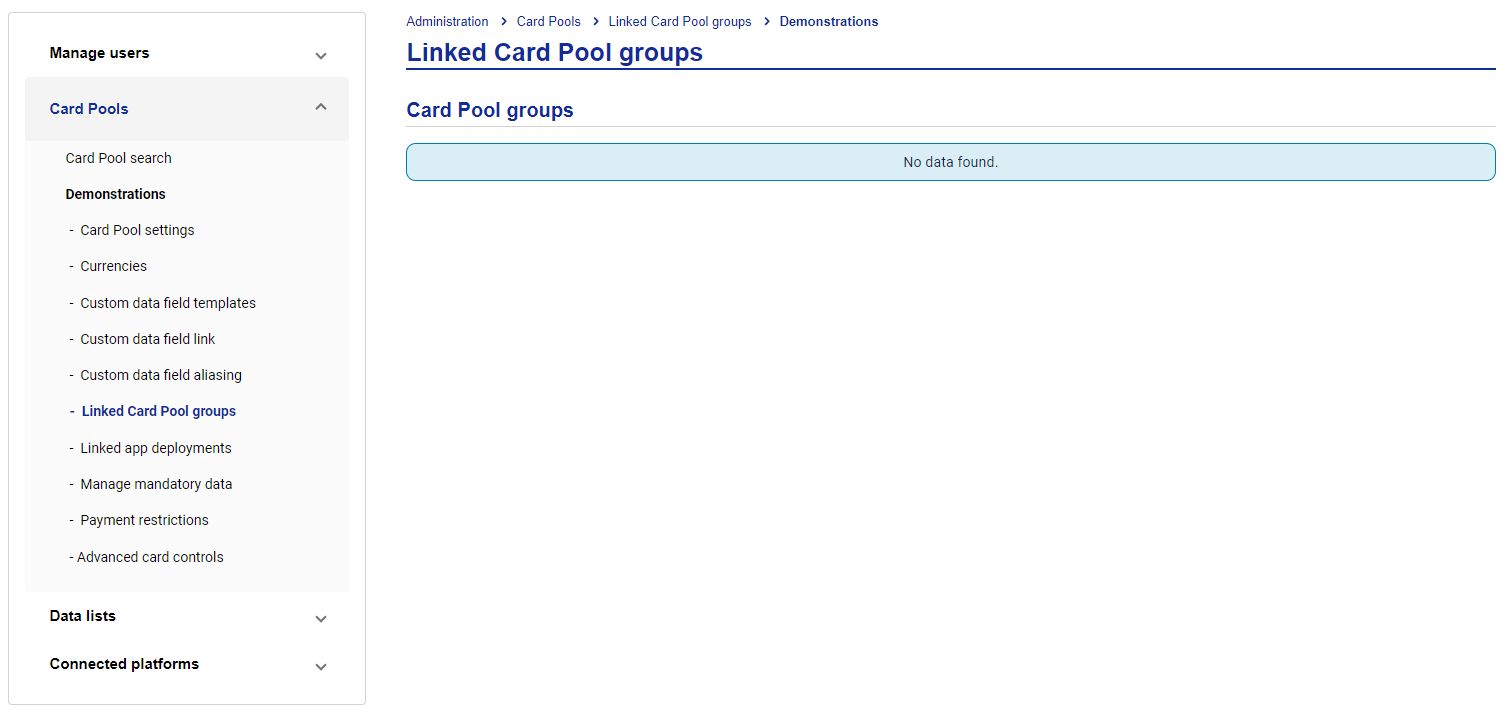
This section displays any other Card Pool groups that the current Card Pool is also linked to. If there are no other linked Card Pool groups you will see a blue banner to notify you of this.
 |
Linked App Deployments
Linked app deployments displays a list of deployments for users who have access to the Visa Commercial Pay App. The accessed column indicates if the user has viewed the card deployment.
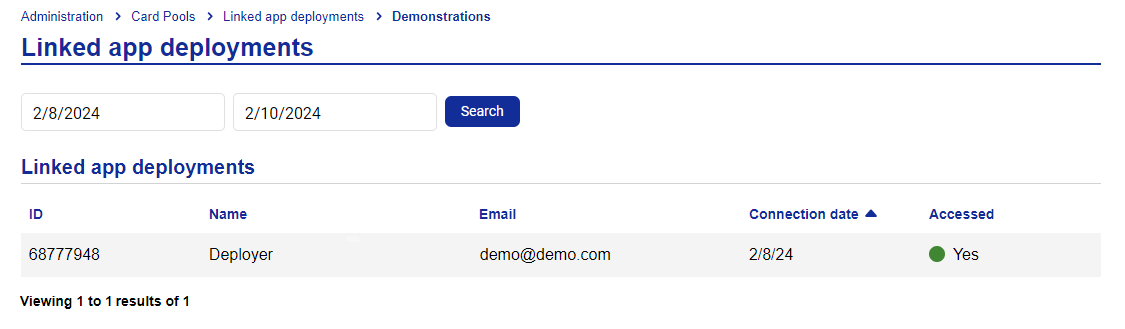 |
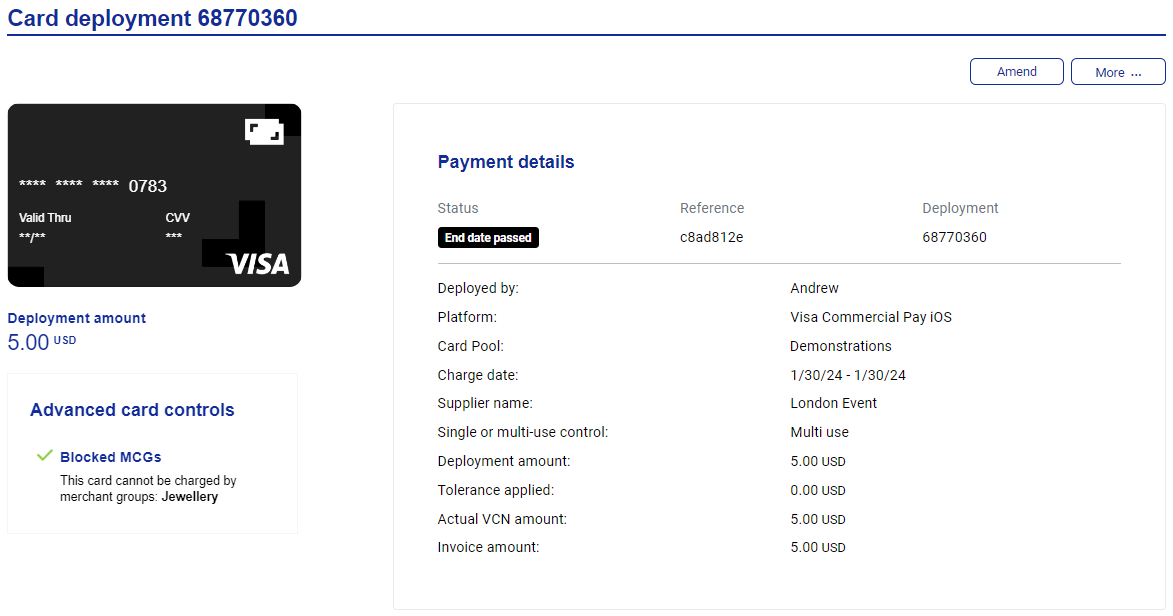
Click on the listed item to access the full deployment information.
 |
Manage Mandatory Data
This section allows certain data fields in the card deployment process to be configured as mandatory.
Once you have selected the Card Pool, select Card Pools from the left-hand panel, and then click Manage mandatory data.
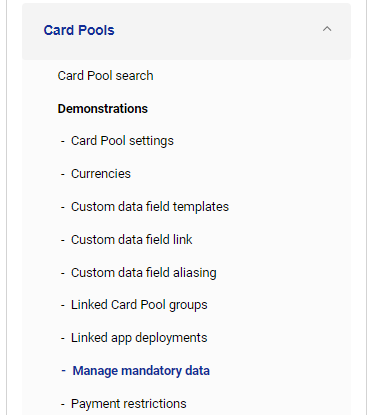
Click Spend type and select a spend type.
Toggle on the fields you want to be mandatory.
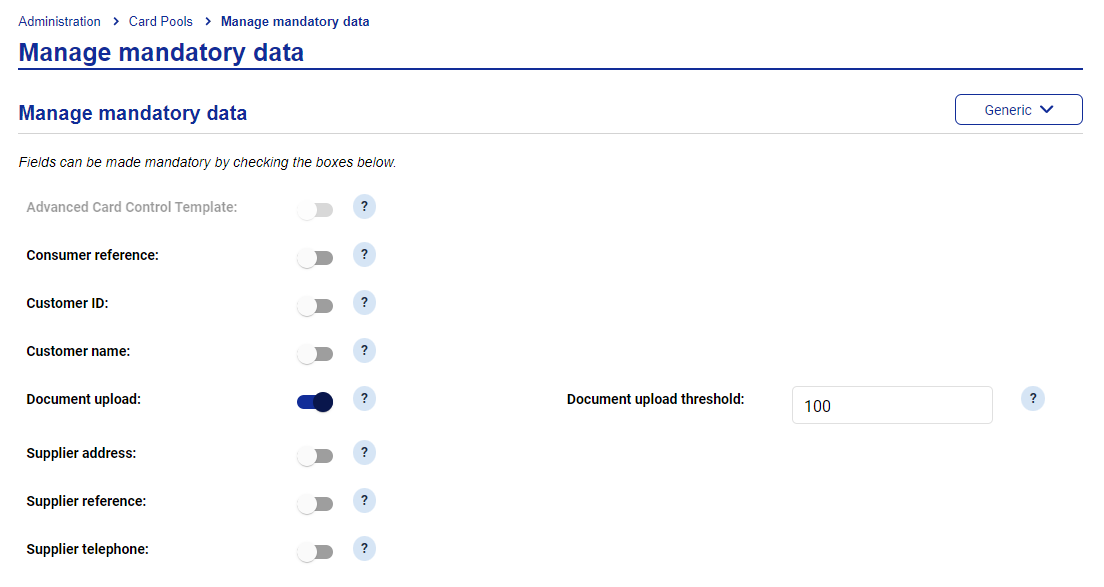 |
The following fields can be made mandatory:
Advanced card control template—if toggled on, users must select an advanced card control template preconfigured by an Admin user from the dropdown menu when creating a virtual card.
Consumer reference—if toggled on, users must fill out the consumer reference field when creating a virtual card.
Customer ID—if toggled on, users must provide a customer identification code when creating a rail and transport virtual card.
Customer name—if toggled on, users must provide the name of the customer when creating a virtual card.
Document upload—if toggled on, users must upload a supporting document via the 'Attach file' functionality when creating a virtual card. File uploads are required for any deployments that meet the configured threshold. If no threshold is set, all deployments require a file to be uploaded.
Supplier address—if toggled on, users must provide the address of the supplier in order to create a virtual card. The postal address entered will only be used for reporting purposes and will not allow you to send payment communications.
Supplier reference—if toggled on, users must provide a unique supplier reference in order to create a virtual card. This will be the reference provided by supplier, for example a booking reference for accommodation.
Supplier telephone—if toggled on, users must provide the telephone number of the supplier in order to create a virtual card.
Payment Restriction Options
During the Accommodation deployment process, the user will be prompted to select the appropriate payment restriction from a pre-configured dropdown.
To configure the dropdown: go to the payment restrictions option from the Card Pool settings page.
Click Administration then click Card Pool search and search for your Card Pool.
Once you have selected the Card Pool, select Card Pools from the left-hand panel, and then click Payment restrictions.
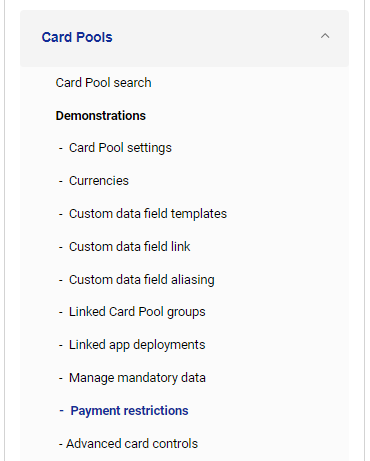
Click Add payment restriction.
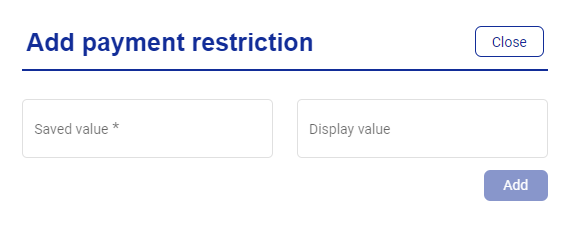
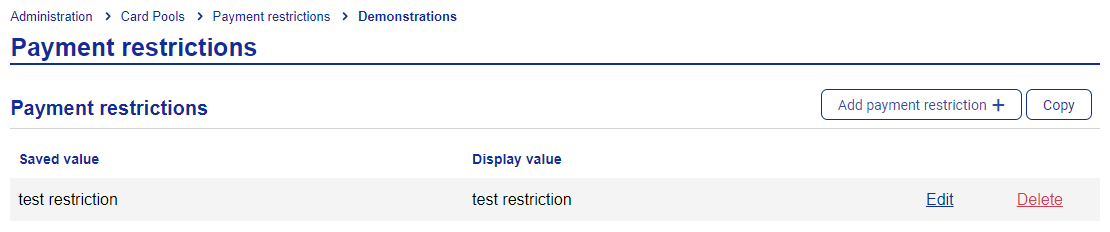
Enter the value to be displayed, and then click Add payment restriction.
Repeat to add further options. These are displayed in the preview pane below.
You can also copy the payment restriction configuration from one Card Pool to another—click Copy and then select the Card Pool to copy to.