Post Spend Review
Post Spend Review in Mobile Control
Post Spend Review allows you to prompt Visa Commercial Pay App users to enrich their payments with a receipt, sales tax, note, and category and have them reviewed by a Post Spend Reviewer Group. This option is configurable at a Team level.
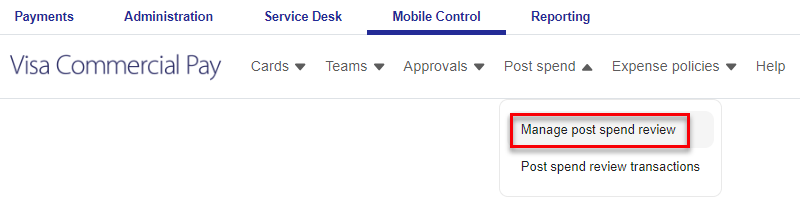
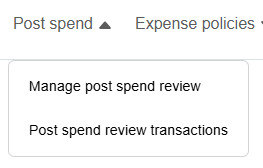
You can access Post Spend Review from the navigation bar.
 |
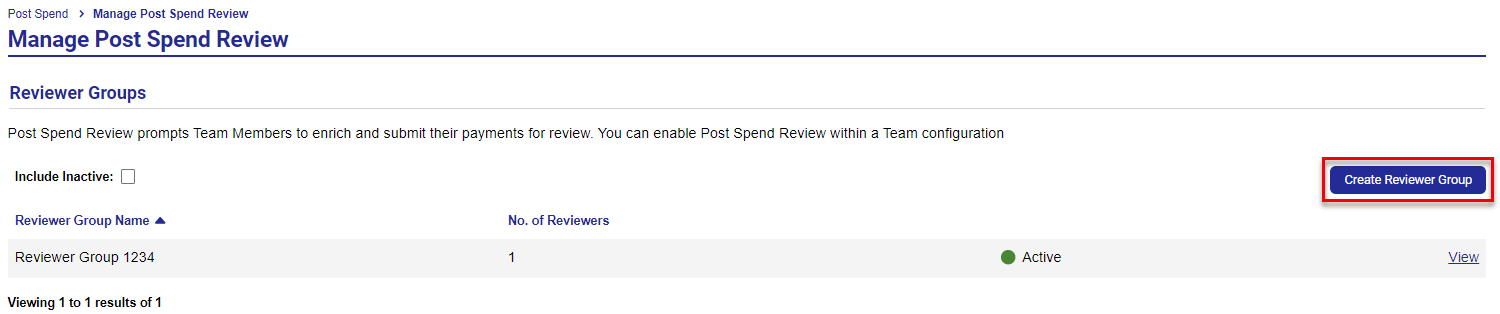
Existing Reviewer Groups will show on the Manage Post Spend Review page. When a Team is copied using the Copy Team button, the Reviewer Group link is also copied to the new team.
 |
To create a new Reviewer Group:
Select Manage Post Spend Review then click Create Reviewer Group.
Enter a name for your reviewer group.

The Active toggle will automatically be set to on. Toggle Allow Self Approval on if this option is required.
Toggle off the display fields you do not want shown to users in the user group.

Click Create to create the group.
Adding Post Spend Reviewers
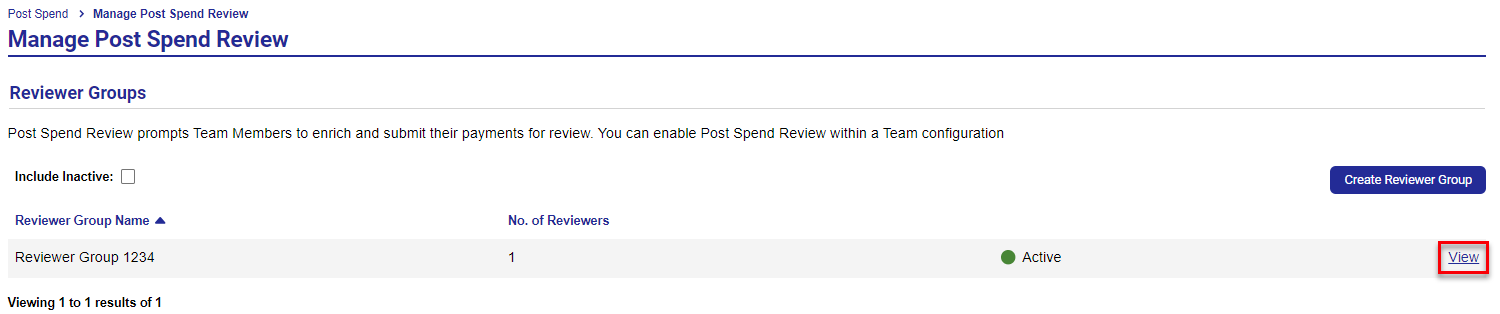
Once a Reviewer Group has been created Corporate Admins can add and remove Post Spend Reviewers from the Manage Post Spend Review page.
To add or delete a reviewer:
Select a Reviewer Group.
Select Add Reviewer.

Enter the email address, this will link to a User ID. If there is more than one User ID for that email address, a list of potential users will be presented for manual connection.
Click Add

Users can be deleted using the Delete button.

Reviewing Post Spend Review Submissions
Corporate Admins can approve, flag, or reject a submitted post spend review transaction from Visa Commercial Pay Control.
Reviewers will receive a daily email with the number of transactions that are pending review.
To review post spend review submissions:
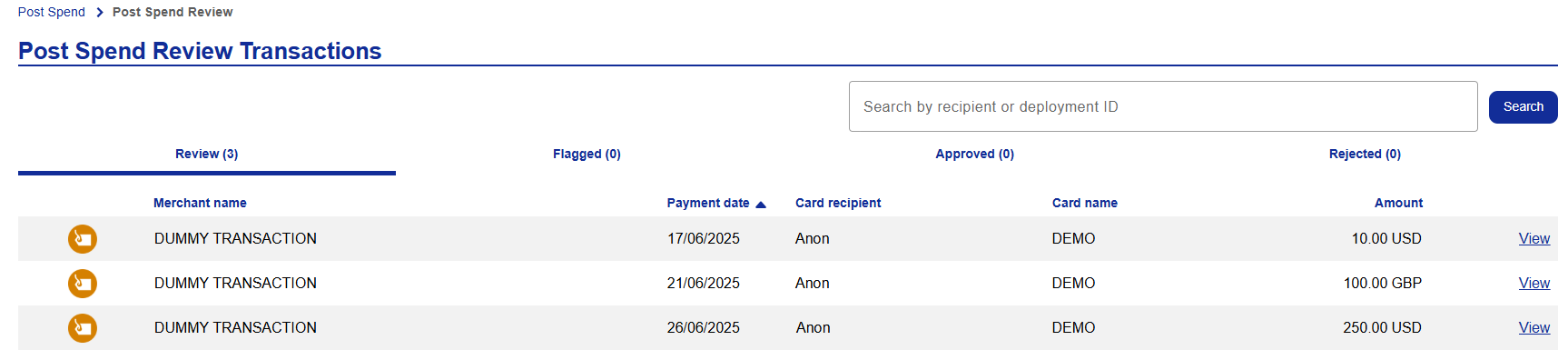
Click Post spend and then from the dropdown click Post spend review transactions.
All transactions that are pending review will be displayed on the dashboard. Select the transaction that you want to view.
The following details are displayed on screen:
Recipient name—the name of the user who received the card
Date requested—the date that the card was requested
Deployment ID—used to identify the card deployment across Visa Commercial Pay platforms
Merchant—the name of the merchant where the payment was made
Amount—the total value of the transaction
Date—the date the transaction was completed
Transaction ID—used to identify the transaction within Visa Commercial Pay Reporting
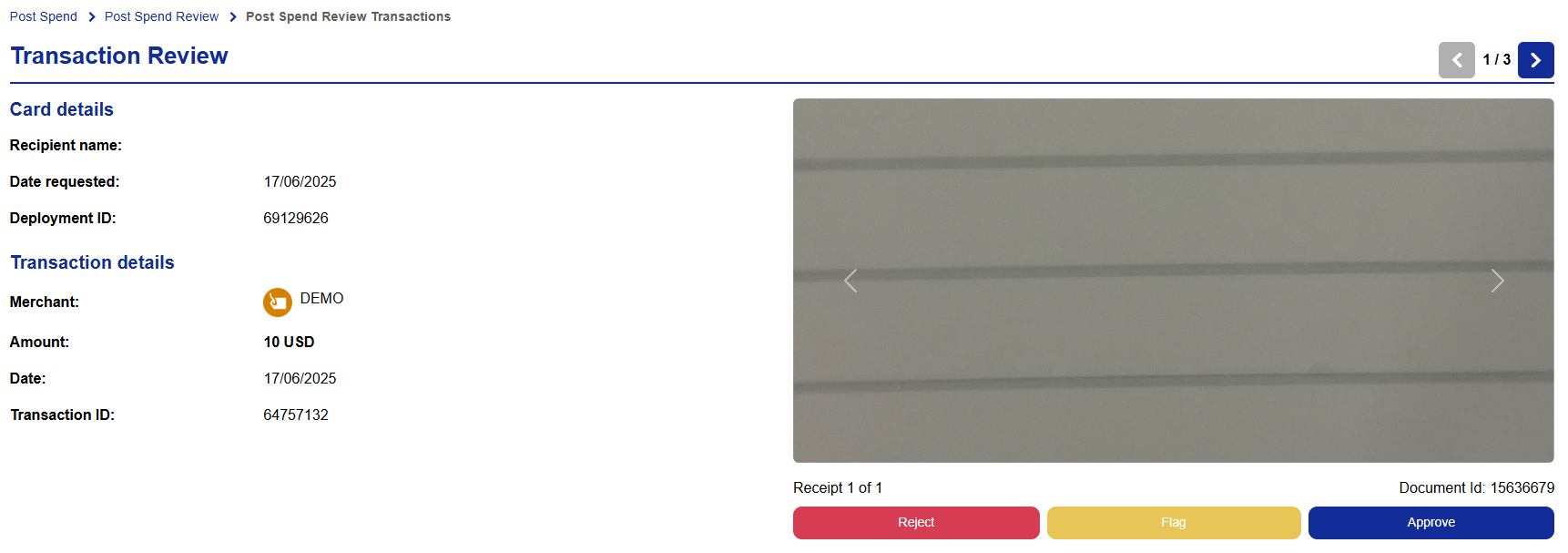
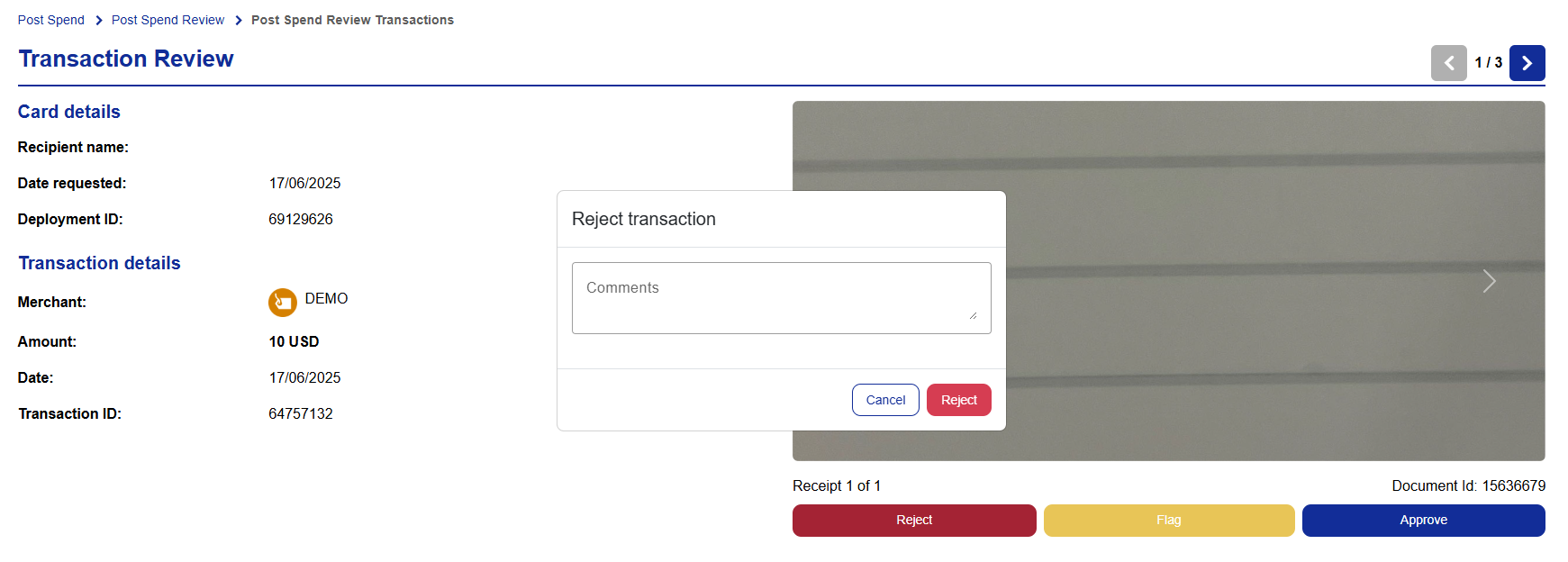
Once you have reviewed the attached document, click Reject, Flag or Approve and, if required, leave a comment.
Once approved, the uploaded document will be added to the transaction in Visa Commercial Pay Reporting.
Adding and Editing Sales Tax
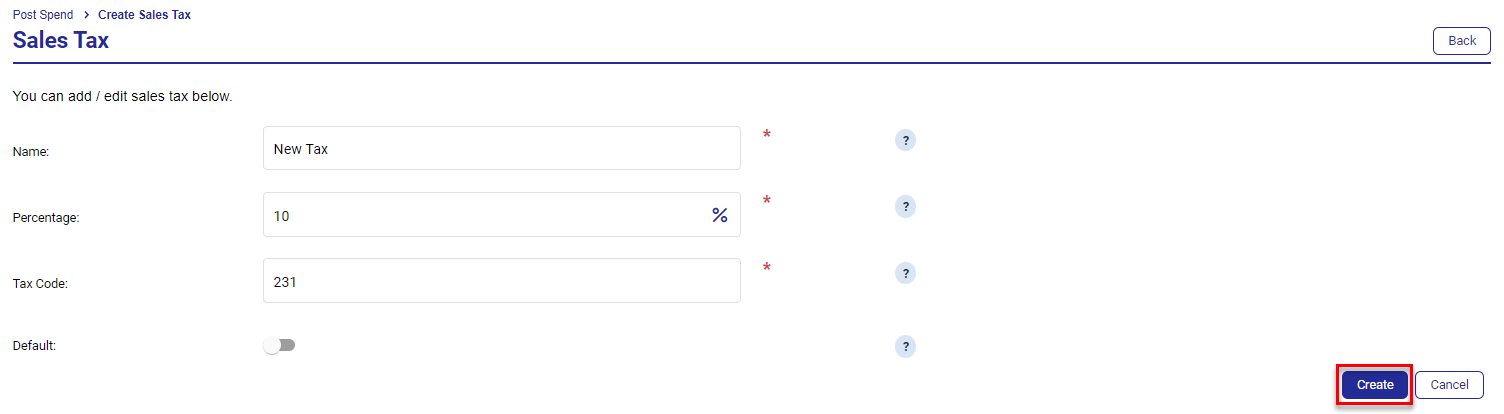
Click Create Sales Tax to configure your sales tax rules on the Manage Post Spend Review page.

Add the name, percentage and tax code. App users will be able to choose from these in a dropdown menu when adding sales tax to a transactions. You can also toggle to set sales tax as the default option. Click Create to save the settings.
Once created, all sales taxes will show on the Manage Post Spend Review page. Click Edit to change the details or to delete the sales tax entirely.

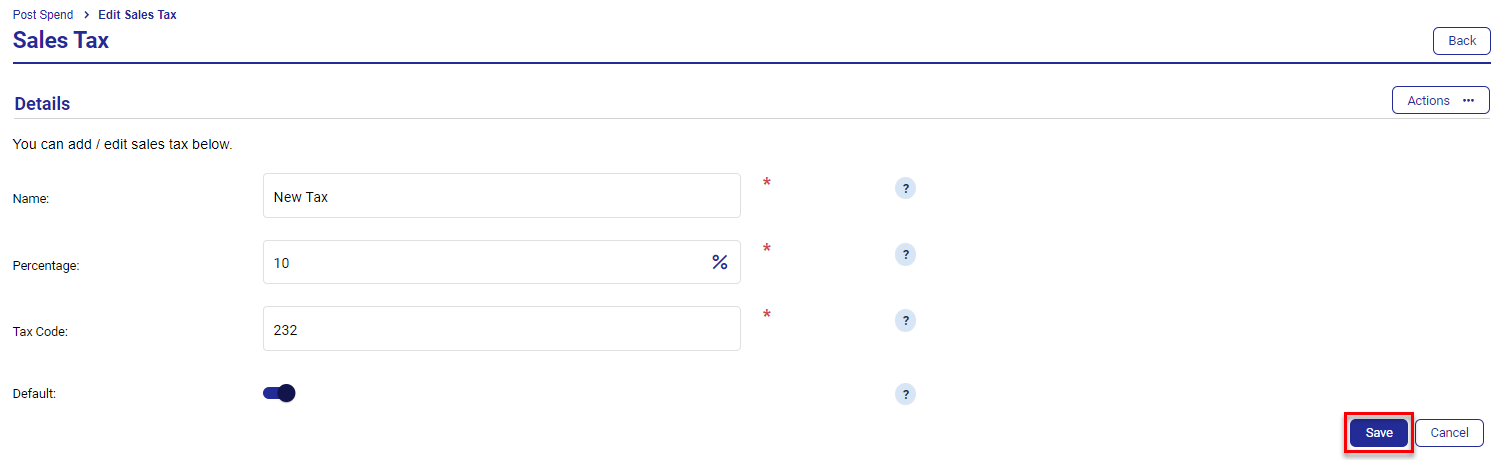
To edit, amend the details and click Save.
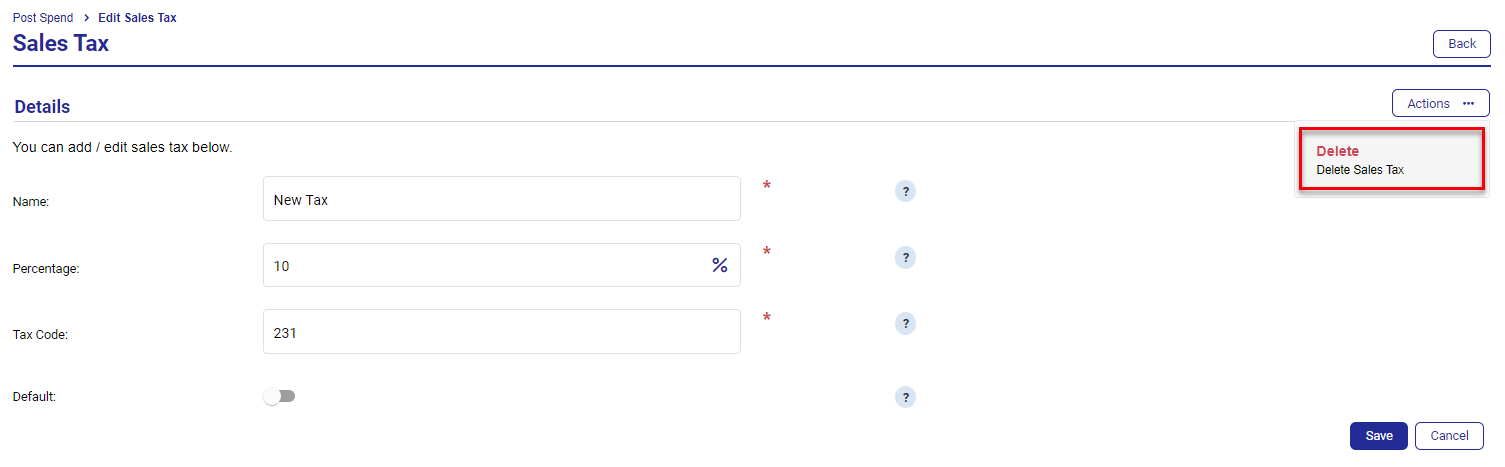
To delete, click Actions and select Delete.
Your default sales tax will be tagged with the Default icon.

Managing Post Spend Review
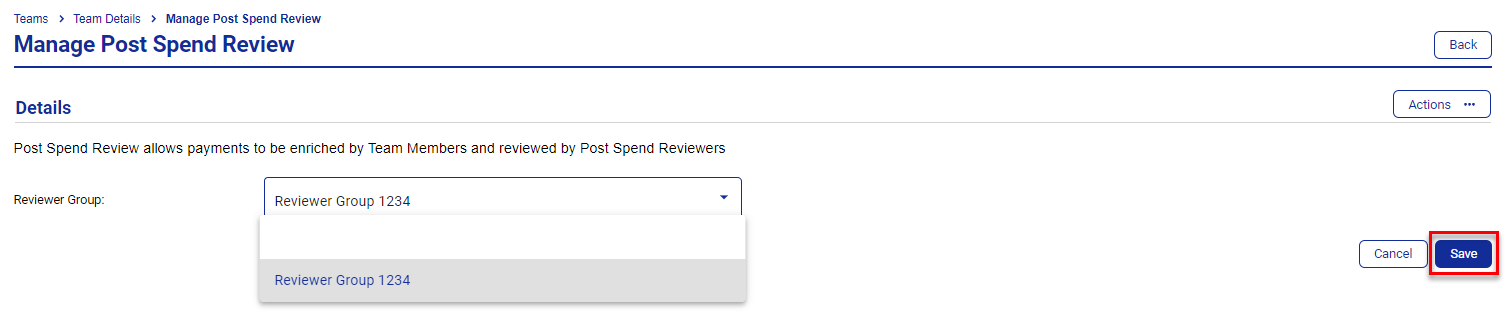
You can add the Post Spend Review function to a team from the Team page. To enable a Reviewer Group:
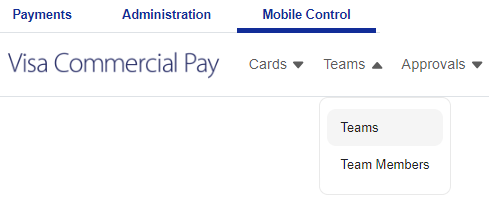
From the navigation bar, click Teams and then select Teams from the dropdown.
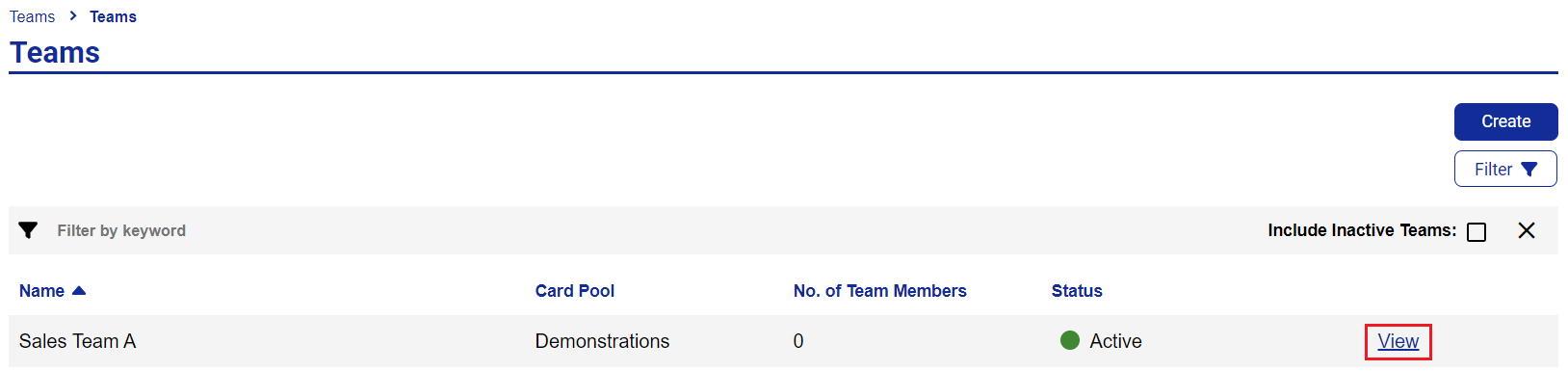
Click View to select a Team.
Scroll down and click Manage Post Spend Review.

Select the appropriate group from the dropdown.
Click Save.
Post Spend Review will show as enabled on the Team page.
 |
Once Post Spend Review is enabled, you can change the Reviewer Group by selecting Manage Post Spend Review and choosing the group you want to link to from the dropdown, then clicking Save.
To unlink Post Spend Reviewer Groups from the Team, click Actions, then Disable.
 |