Bulk Upload Users in Online
You can upload users in bulk in Visa Commercial Pay Online by downloading our sample CSV file, adding your user data and reuploading the file.
Clicking Download sample file will download a sample file named 'users.csv'. Open this file to see an example of the information and format required to bulk upload users.
 |
 |
How to Bulk Upload Users
Caution
Do not include any apostrophes (') or commas (,) when preparing your CSV file for upload. If any apostrophes or commas are used on the CSV file that is uploaded, the file will fail to upload.
Click Administration and then click Manage users.
From Manage users click Bulk upload users.
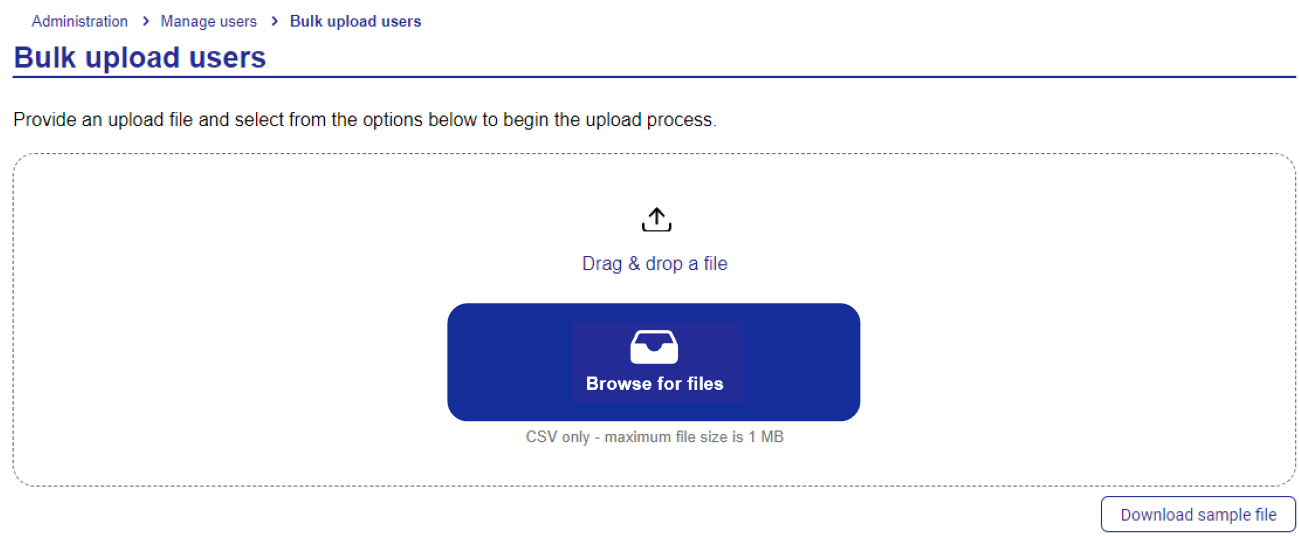
Open your file explorer and locate the file you want to upload, the file must meet the following guidelines:
The file must be in comma-separated values (CSV) format
The first row must contain the column headings
Any values may be enclosed in double quotes ""
Where values contain commas, these must be encased in double quotes ""
Drag the file over the box in Visa Commercial Pay Online. Your file with be uploaded automatically.
You will be taken to the parsed result page, which shows the file status and the file check results.
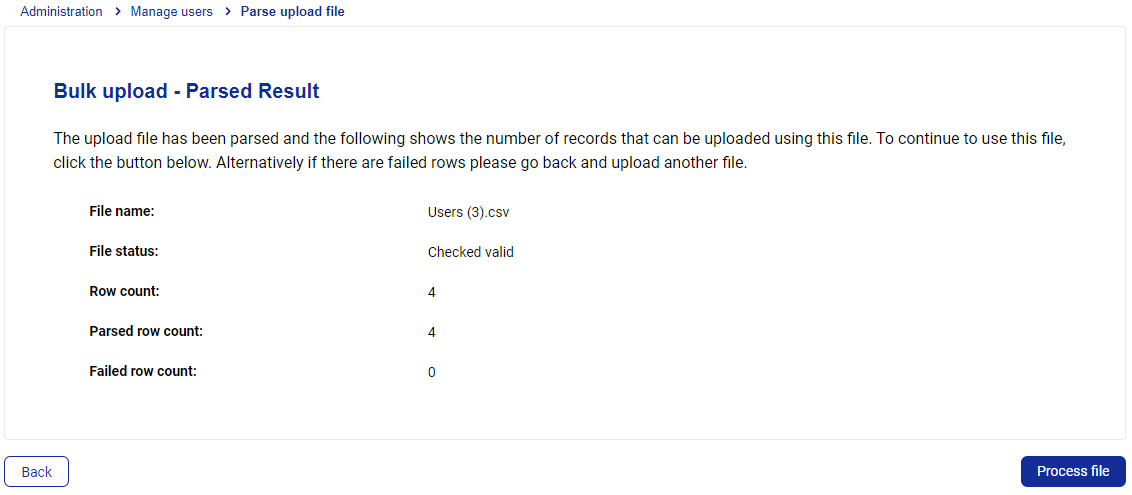
If the file is not accepted, the Process file button will be unavailable, and a failure log will list any issues with the file. Click Back to reupload a new CSV.
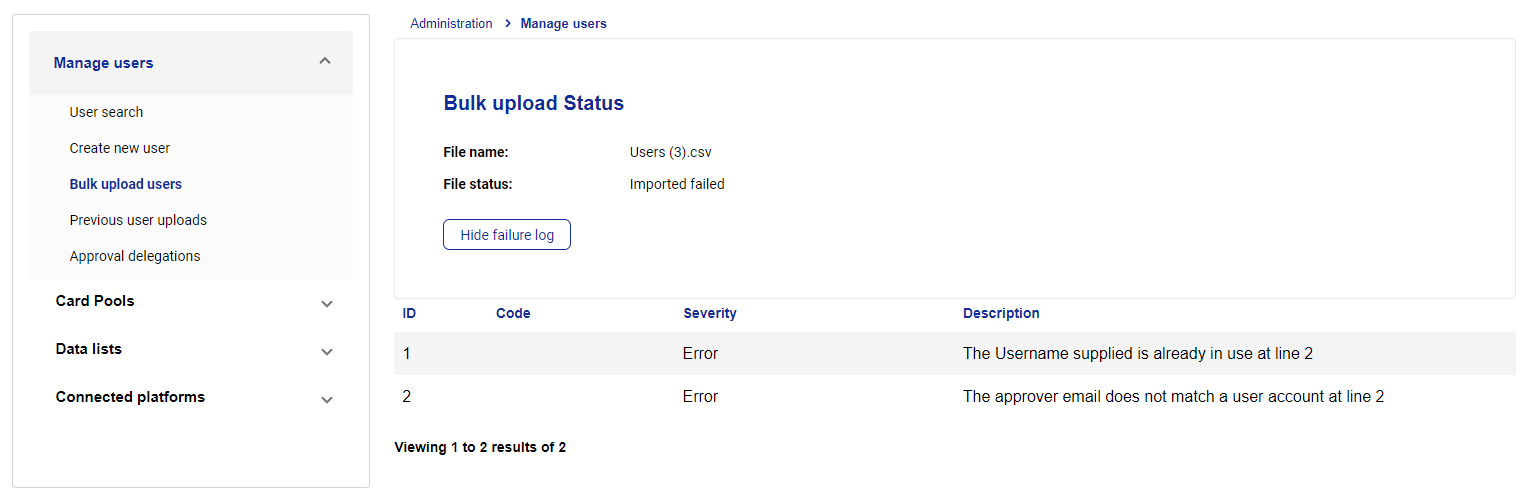
When a correctly formatted CSV file is processed, the Process file button will be available.
Click Process file to upload the users.
If the upload fails, you will see an error message.
If the upload is successful, you will see a confirmation message.

Previous Uploads
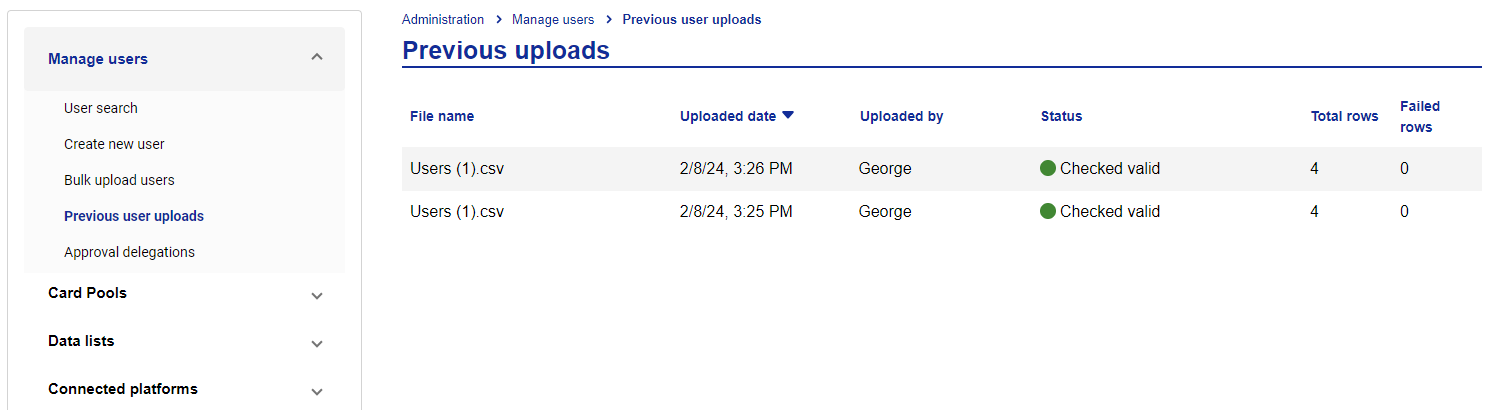
From manage users, click Previous user uploads to view the details of previous uploads.
 |
Bulk Upload Sample File Fields
Field | Description | Mandatory | Example |
|---|---|---|---|
Username | The username of the user. This can be used to log in. | Y | JohnDoe |
Role | The user role of the user. E.g. Deployer, SearchOnly, Approver1, Approver2. | Y | Deployer |
ApproverEmailAddress | The email address of the user that is the approver of the user being created. | N | |
Forename | The first name of the user. | Y | John |
Surname | The second name of the user. | Y | Doe |
EmailAddress | The email address of the user. | Y | |
ContactNumber | The contact number of the user. | N | 07xxxxxxxxx |
EmployeeNumber | The employee number of the user. | N | 152541 |
CostCentre | The associated cost centre of the user. *This field is not in the CSV by default, and must be added manually as a new column. | N | 1234 |
HasReportingAccess | A toggle option that will provide the user access to Visa Commercial Pay Reporting. | Y | Y |
EnableSupplierManagement | A toggle option that will allow the user to manage suppliers. | Y | Y |
EnableSupplierApproval | A toggle option that will allow the user to approve new suppliers. | Y | Y |
1750-Card Pool A | The Card Pool ID and Card Pool name. | Y | Y |
1750-Threshold | The maximum amount that the user can create a card for. | N | 100 |
1750-ReportingEnabled | A toggle option to provide the user access to view deployments created with this Card Pool in Visa Commercial Pay Reporting. | N | Y |