Visa Commercial Pay Online v3.28.2 Release Notes
Visa Commercial Pay Online v3.28.2 introduces improvements to file management and a new field allowing users to capture additional identifying details for suppliers.
Improvement: File Management
We have made improvements to how files are named when uploaded or downloaded in Visa Commercial Pay Online.
When a file is uploaded and there is already a file of the same name, a version number will be added to the end of the file name, e.g. Receipt(1).
When a file is downloaded it will be labelled with an identifier which will show the type of file, e.g. an attachment against an invoice will be appended with INV, followed by a unique ID, e.g. INV-1234567. Subsequent downloads will be appended, e.g. INV(1)-7654321.
This allows you to easily identify files you've downloaded, by matching them with the type and ID shown in Visa Commercial Pay Online.
New Field: Deployment Name
We have added a new optional field when creating a card in Visa Commercial Pay Online labelled 'Deployment Name'. This allows users to enter a different data value to that entered in the 'Supplier Name' field, preventing unclear deployment labelling. This field is not available when creating batch deployments.
The deployment name will be displayed in the following areas:
Editable under 'Supplier Information' when creating or editing a new card in Visa Commercial Pay Online
Editable under 'Supplier Reference' when completing a new supplier payment in Visa Commercial Pay Online
Displayed within the deployment details in Visa Commercial Pay Online
Displayed alongside the supplier reference in all transaction based reports in Visa Commercial Pay Reporting
Displayed alongside the supplier reference in all deployment based reports in Visa Commercial Pay Reporting
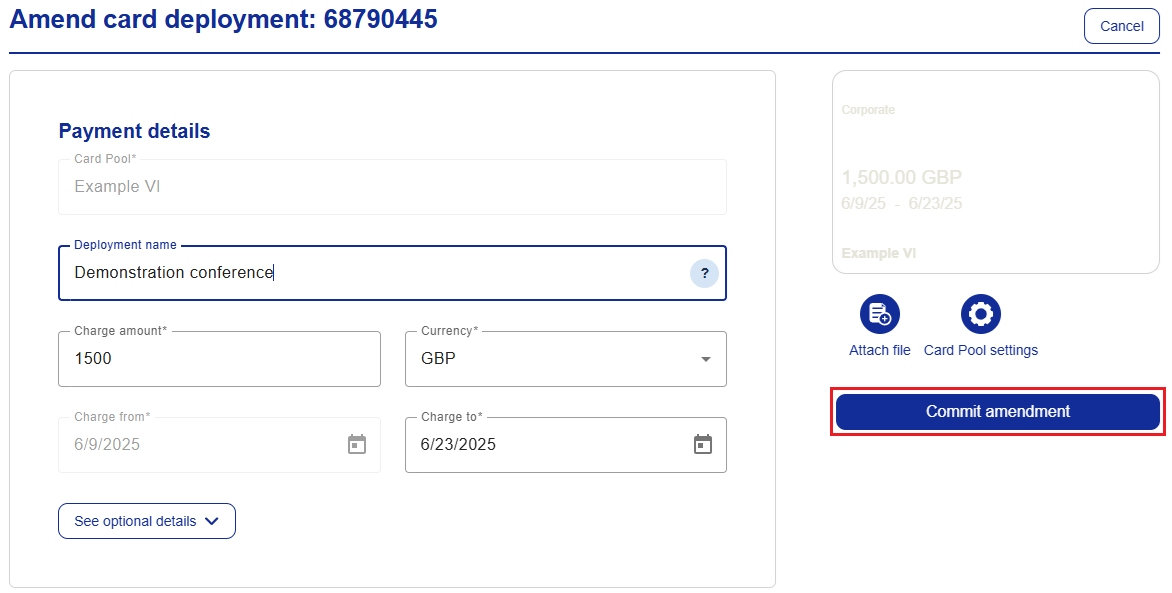
The 'Deployment Name' field can be amended when editing an active card, any changes will be captured in the audit log. If the field has been edited, previous transactions linked to the deployment will not be affected.
To enable the deployment name field:
Select Administration
Click Card Pool search, or select Card Pools from the options on the left and click Card Pool search
Search for the card pool you want to enable the deployment name field on, either by name or spend type and click Search
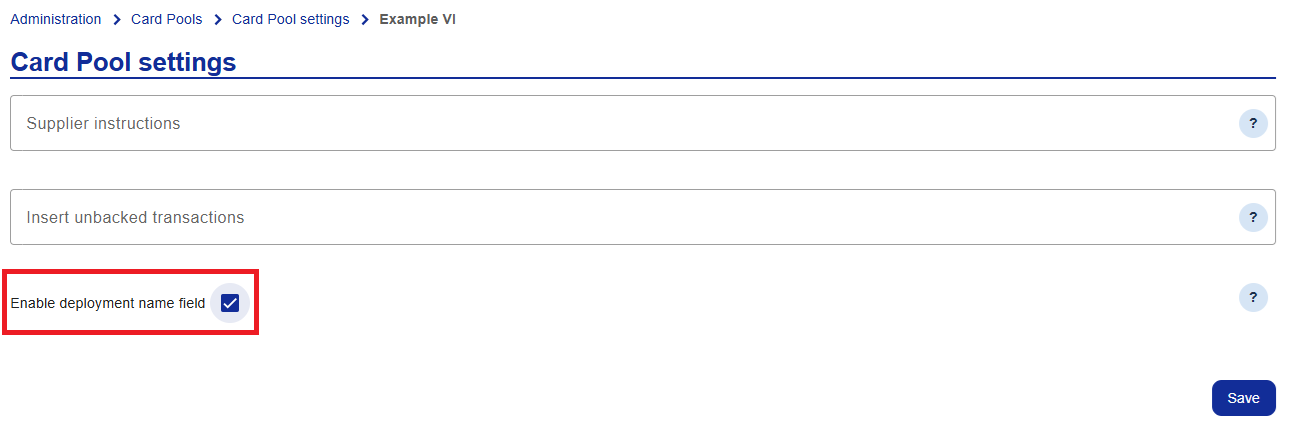
Select the card and tick the box next to Enable deployment name field, click Save and confirm your choice
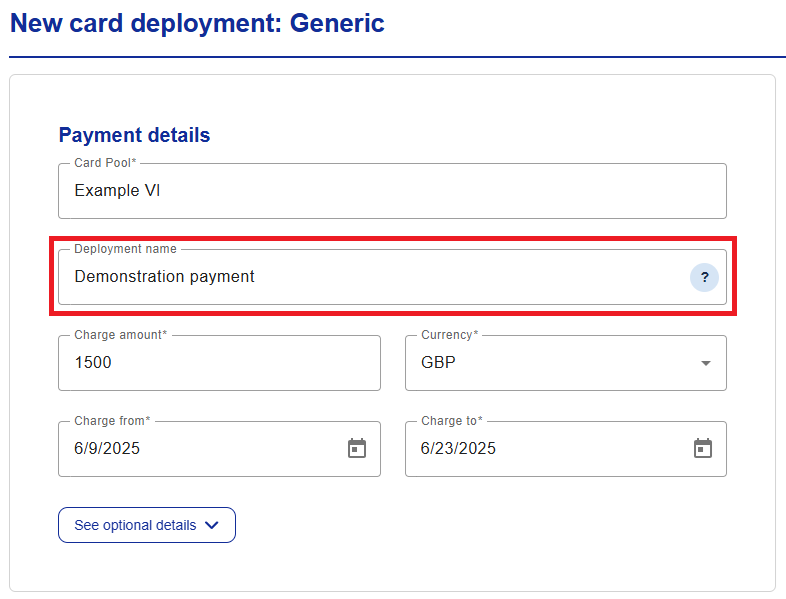
The Deployment name field will be visible when you create a card
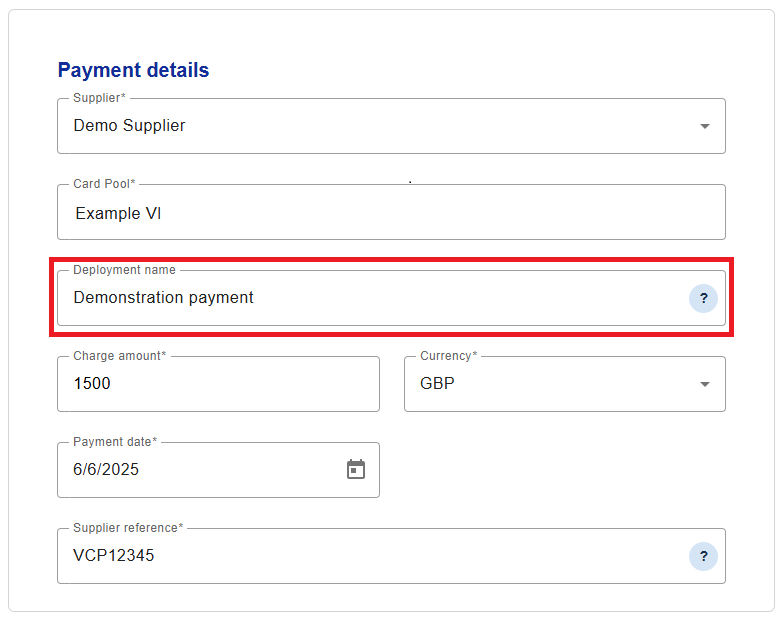
The Deployment name field will also be visible when you complete a new supplier payment
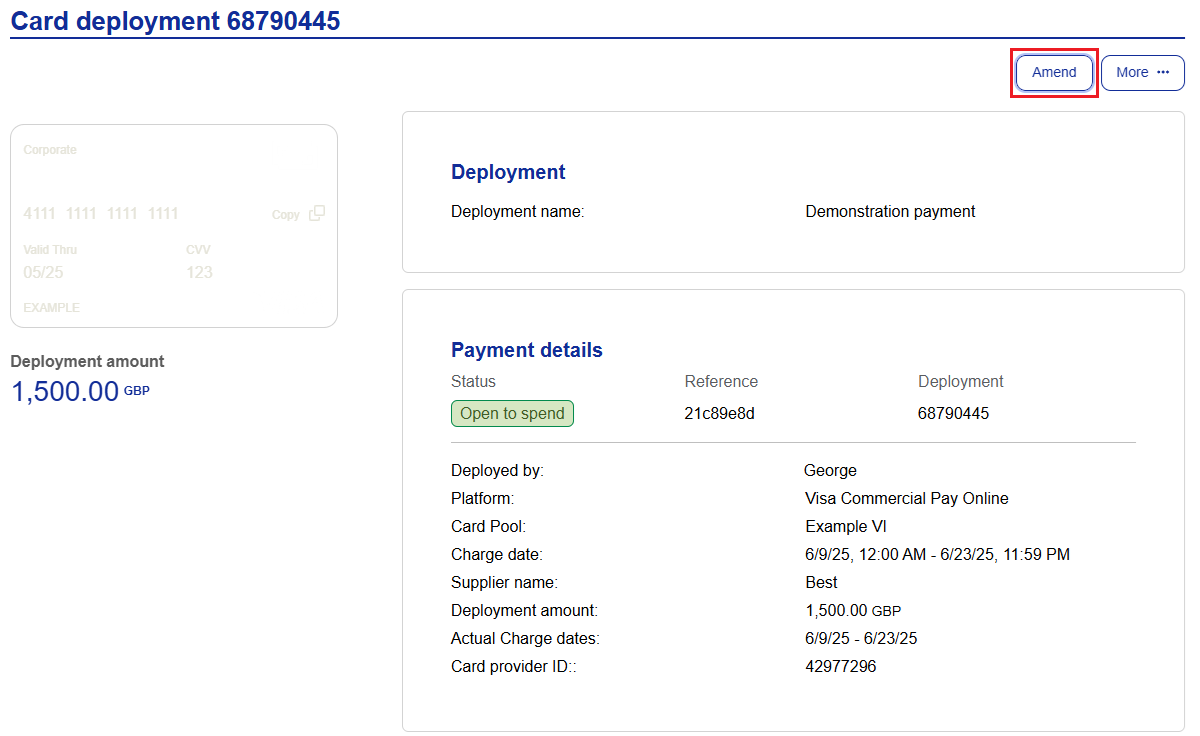
The deployment name can be edited up until the charge end date:
Open the deployment that you want to amend.
Click Amend to make any required changes.
Click Commit amendment.
Note
User Roles Affected: All Visa Commercial Pay Online users able to deploy cards.
Availability: Configured per Card Pool.
Notable Bugs
We have fixed an issue where when adding data into the Fields box in Custom Data Fields, the max value was incorrect.
We have fixed an issue in Visa Commercial Pay Reporting that prevented users from uploading .CSV files.
We have fixed an issue in Visa Commercial Pay Control where when rejecting a deployment, the status was set to 0.
We have fixed an issue in Visa Commercial Pay Reporting where unlinked documents were not shown in a document search.
We have fixed an issue where pending Visa Commercial Pay App approvals had a status of 0.
We have changed the way that team budget history can be sorted by adding an 'Amended' column.