Logging in to the App
Caution
You will need to be part of a Team to gain full access to the app.
If you are not part of a team, you will only be able to receive cards to your app account from your Travel Management Company or Travel Manager.
Your Corporate Administrator can add you to a Team, this will allow you to make full use of the app, e.g. create and send cards, approve and edit cards, review spend.
Registering for the app
If you are already a registered user of any of the Visa Commercial Pay portals, you can log in using your existing username and password. You will only need to register if you are creating a new account.
To register for the app, go to: app.commercialpay.visa.com
Alternatively, you can access the registration site via the invite email sent by your Travel Manager/Corporate Administrator or via the registration link within the app.
1. Open the registration site and enter the following details:
Click Register. |
| |
2. Check the email account that you registered with for a verification email and click Click here to verify your account to complete your registration. | ||
3. Enter your password and click Complete registration. |
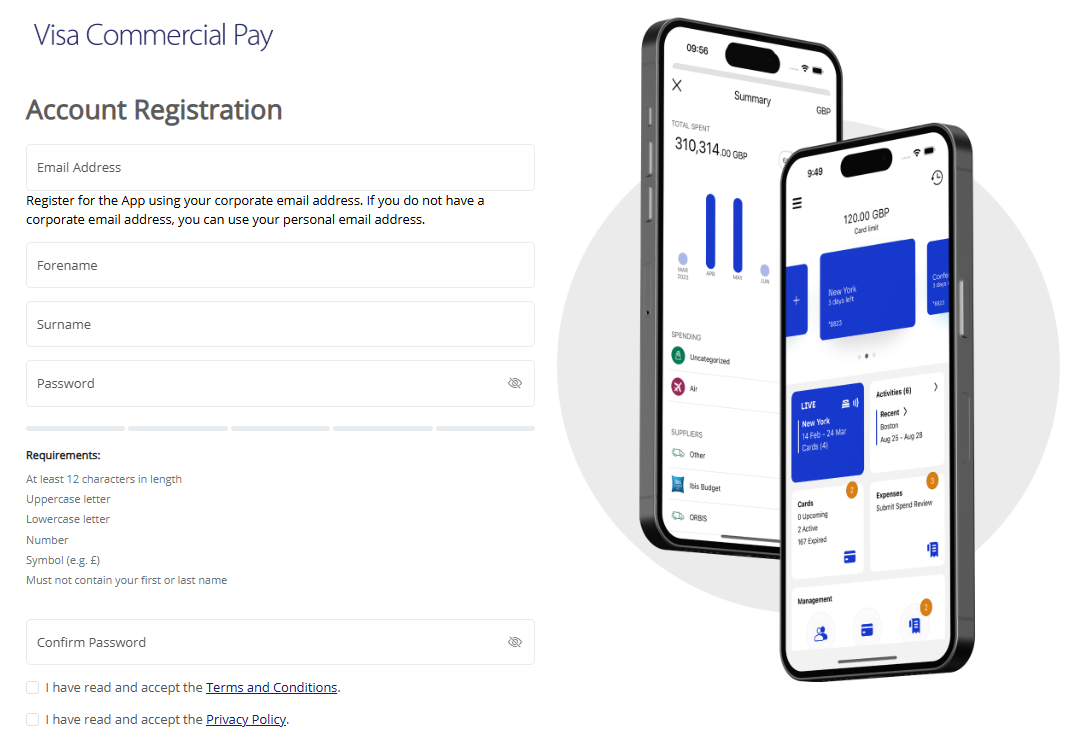
* When self-registering for the app, your email address will become your username.
Using MFA to log in
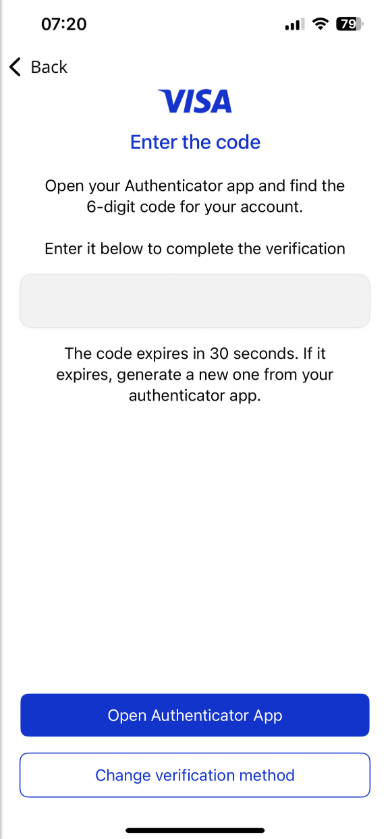
NoteiOS Passwords app If you're using iOS, tap Open Authenticator App to open the iOS Passwords app. If you prefer, you can use a different authentication app, but the Open Authenticator App button will always open the iOS Passwords app and can not be linked to other authentication apps. If you're using Android, the Open Authenticator App button is not displayed. Instead, you'll see a Verify button. Android users must manually open their chosen authentication app to complete verification. | Android view:
|
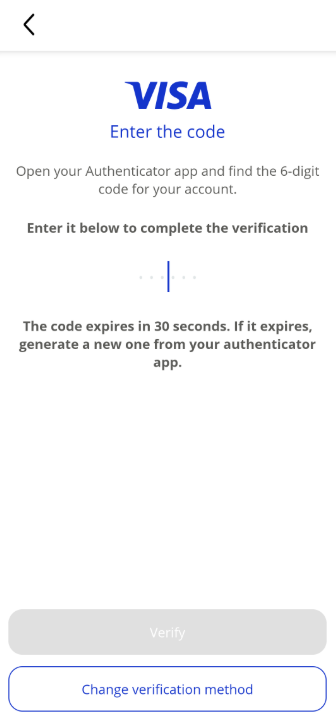
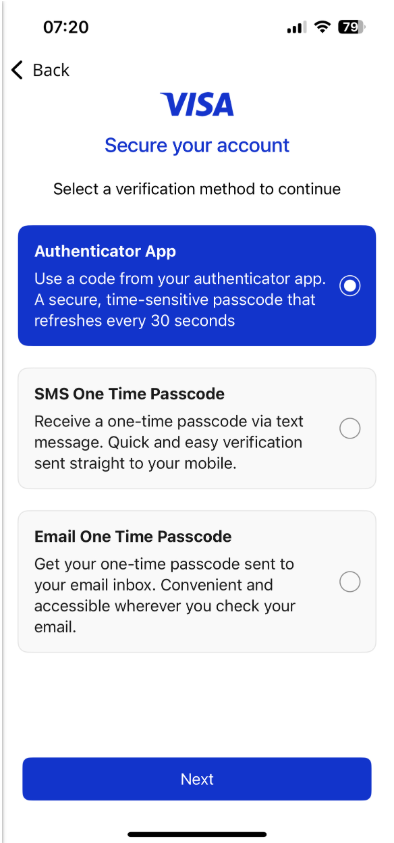
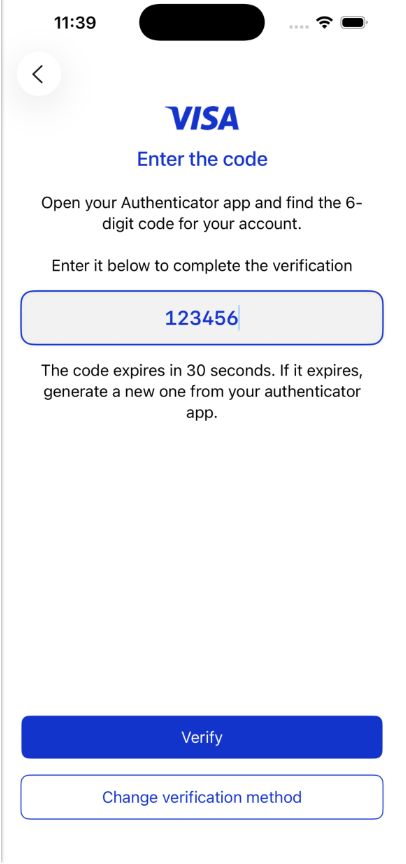
Authenticator App
See: Setting up your authenticator app
A code generated by an authenticator app.
Tap Authenticator App.
| Enter the 6-digit code from your authenticator.
| Tap Verify.
|
SMS OTP
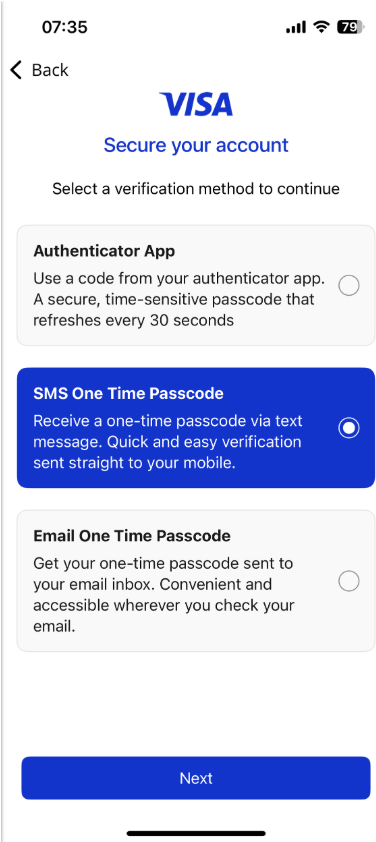
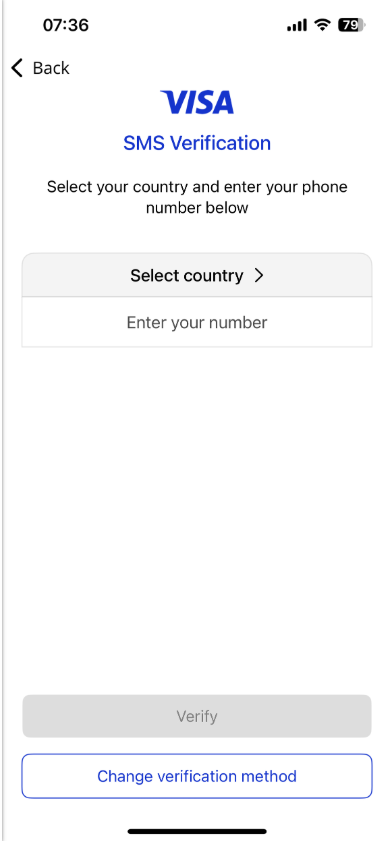
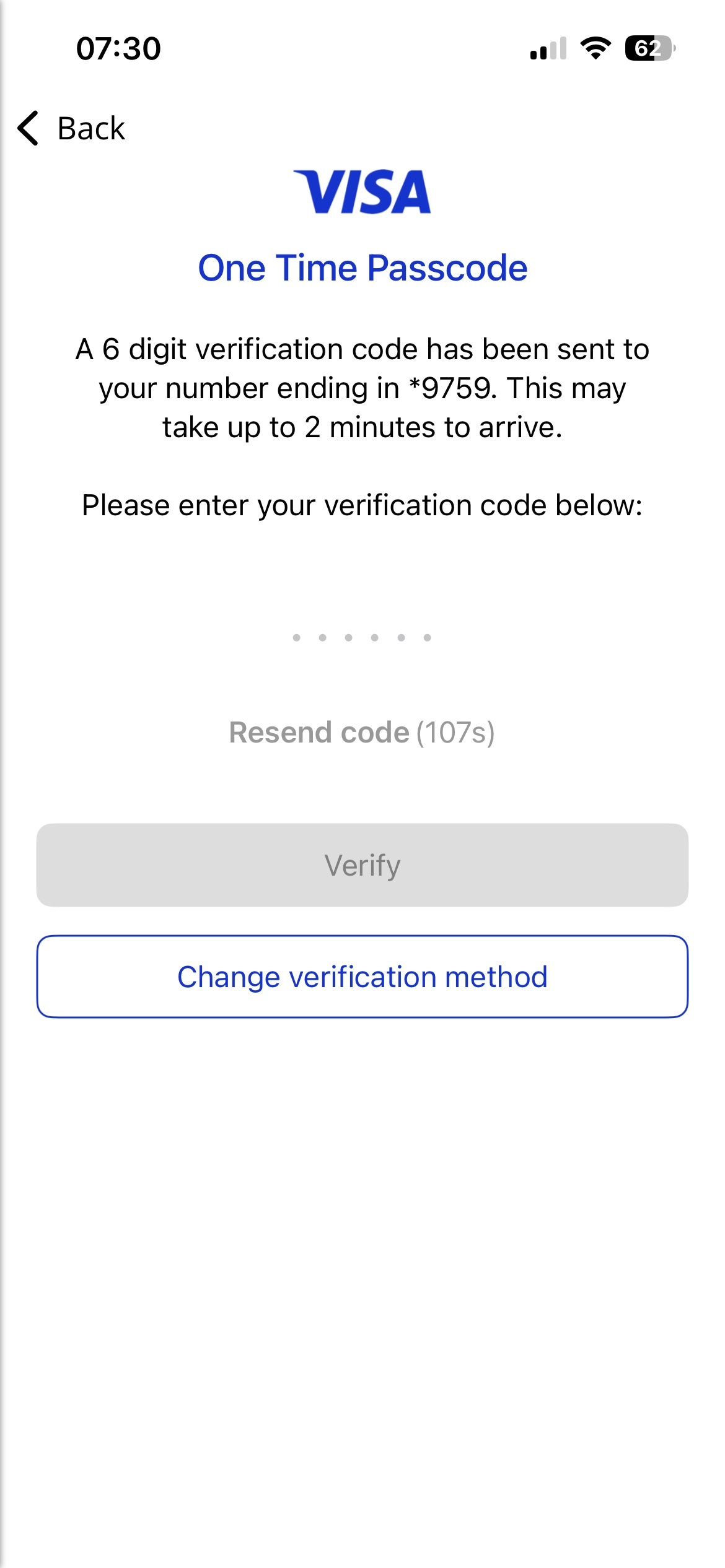
A code sent to a mobile number.
Tap SMS One Time Passcode.
| Enter your phone number and tap Verify.
| Enter the 6-digit code from the SMS and tap Verify.
|
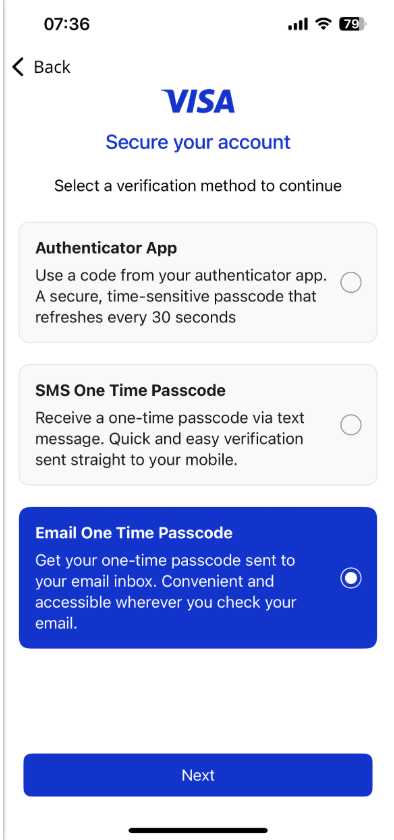
Email OTP
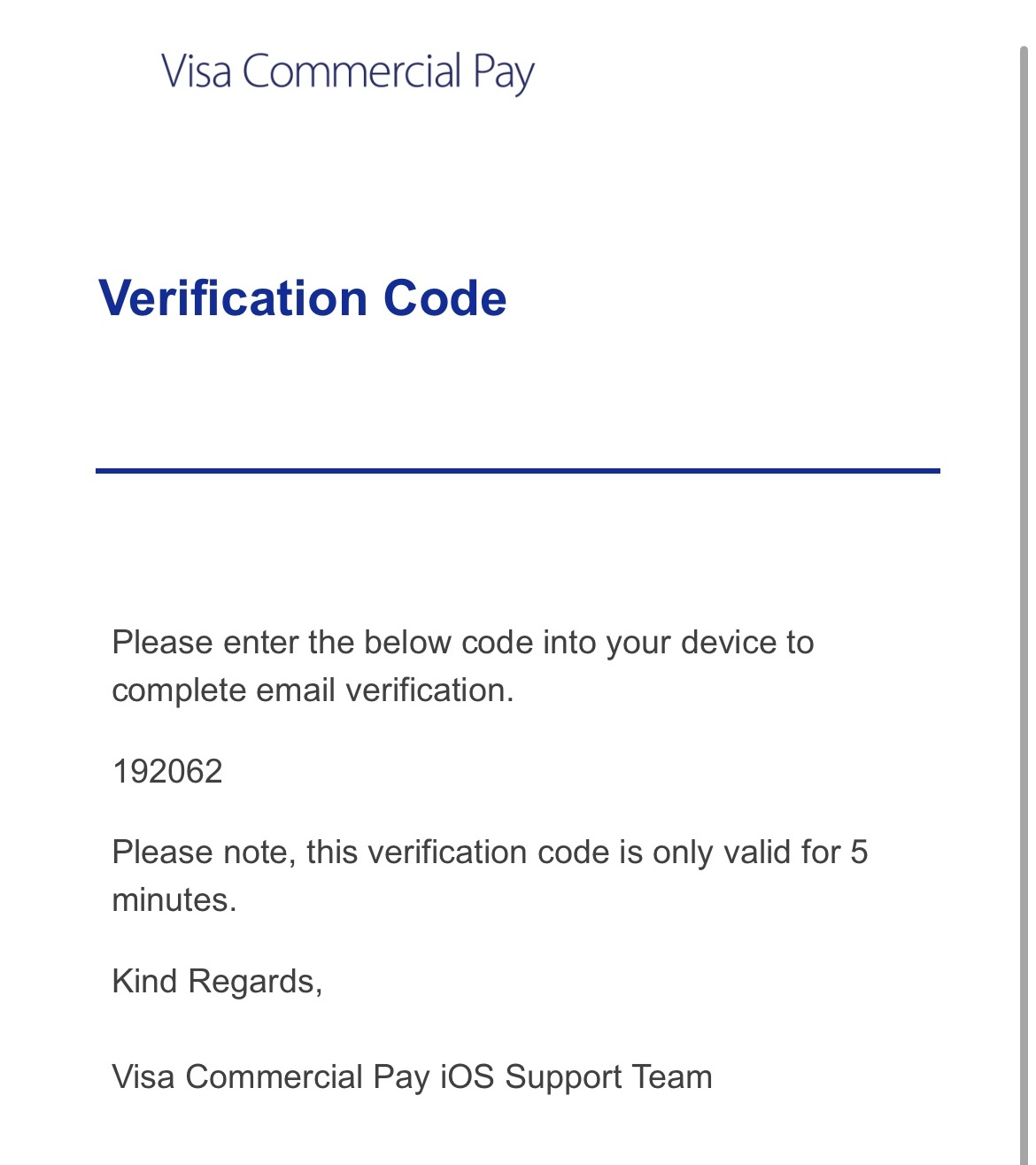
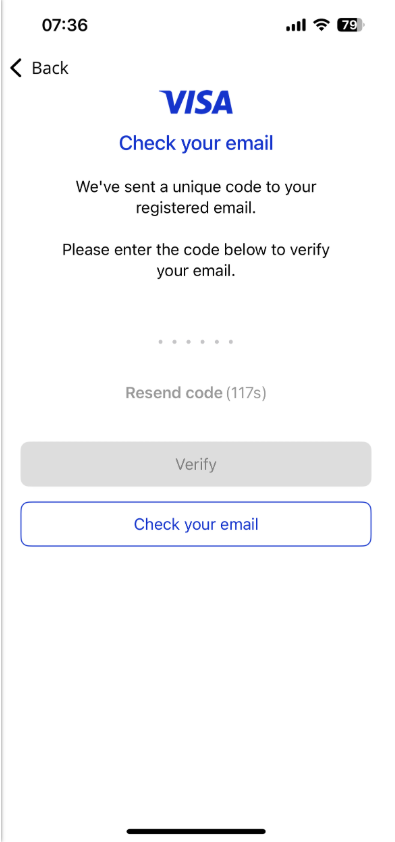
A code sent to the email address you have used to register.
Tap Email One Time Passcode.
| Enter the 6 digit code from the email.
| Tap Verify.
|
Setting up your authenticator app
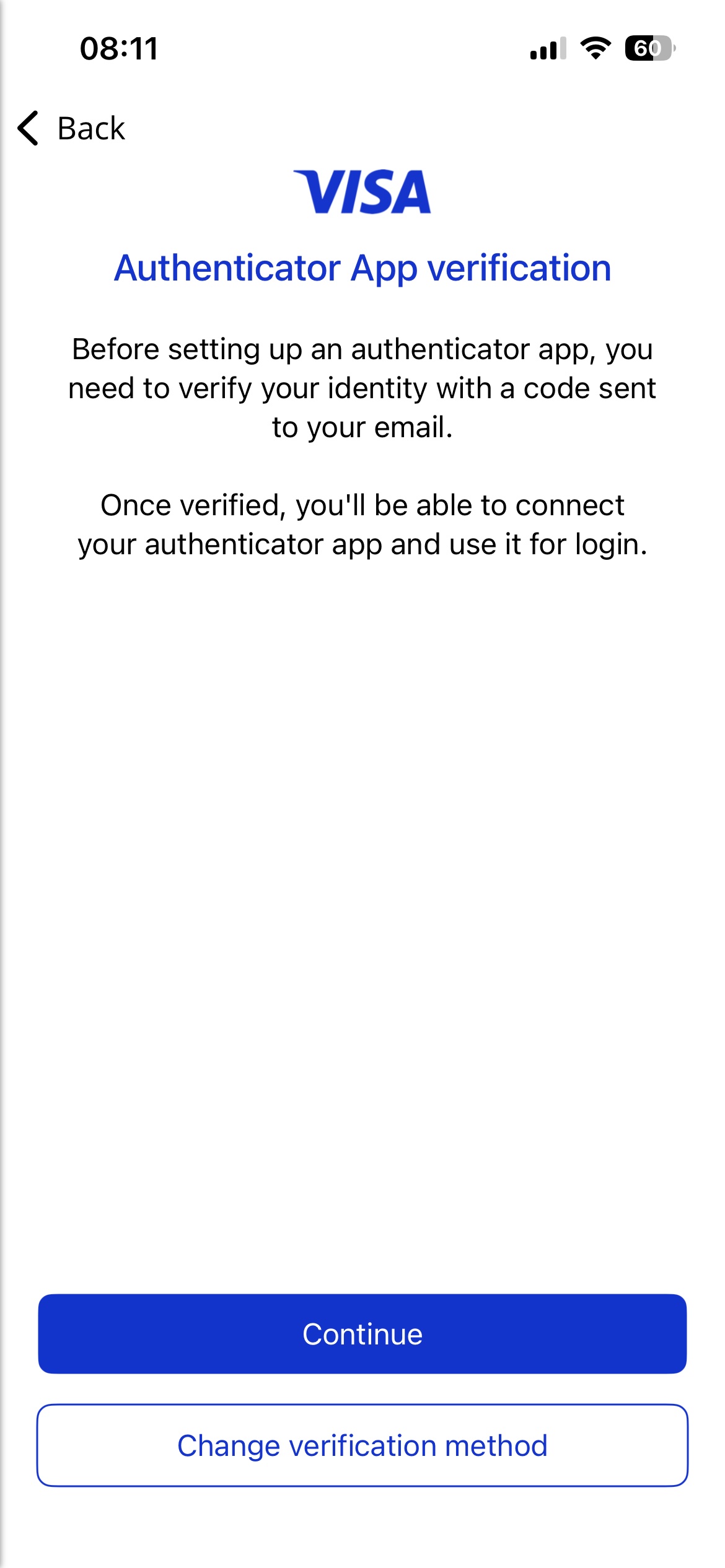
You can set up an authenticator app by tapping Authenticator App from the verification options. If you do not already have an authenticator app configured, you will be directed to the Authenticator App verification flow.
* Set up may differ depending on the third-party authenticator app you use.
1. Select Authenticator App and then tap Continue to start. |
| |
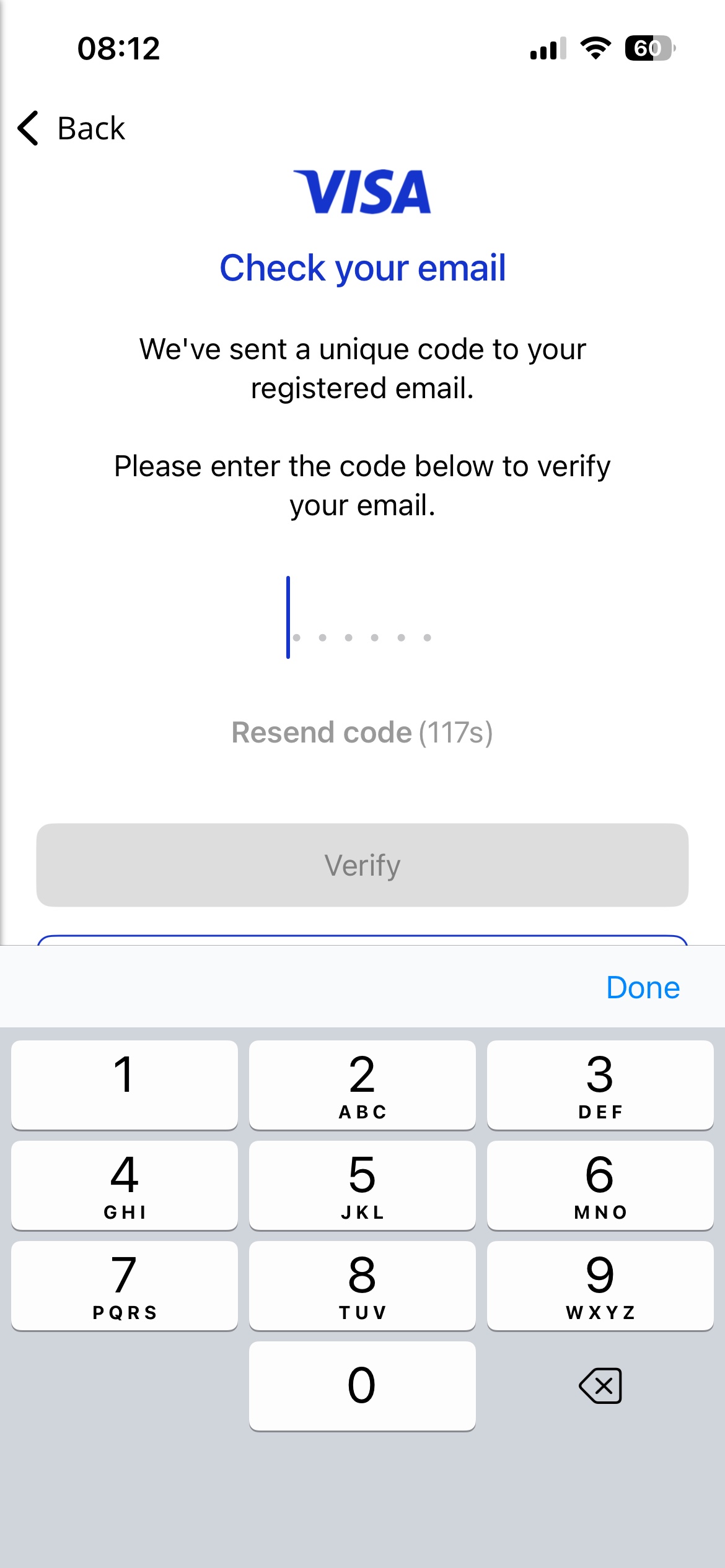
2. Enter the verification code sent to your email address and tap Verify. This is an added layer of security to make sure only you can change your authenticator app. |
| |
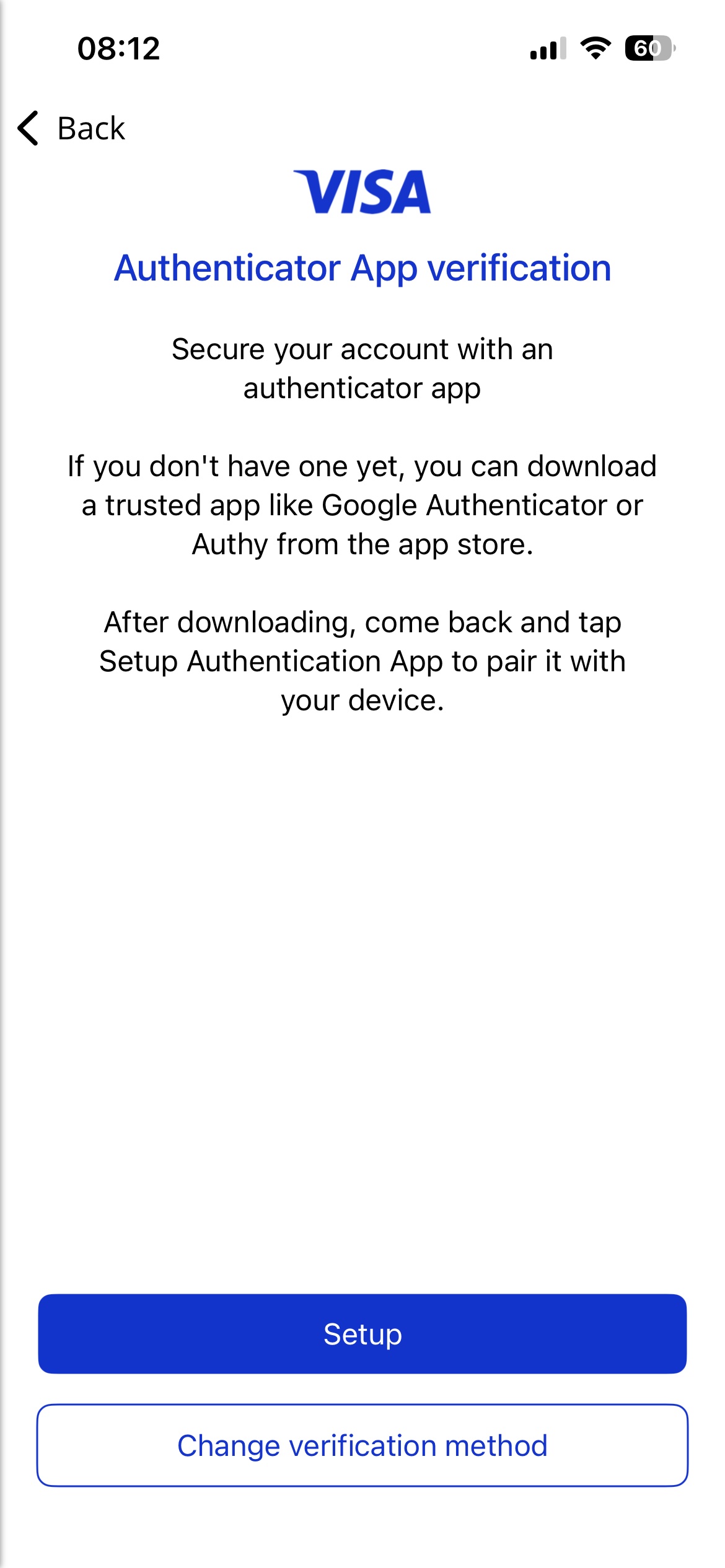
3. Tap Setup to begin configuring your authenticator. |
| |
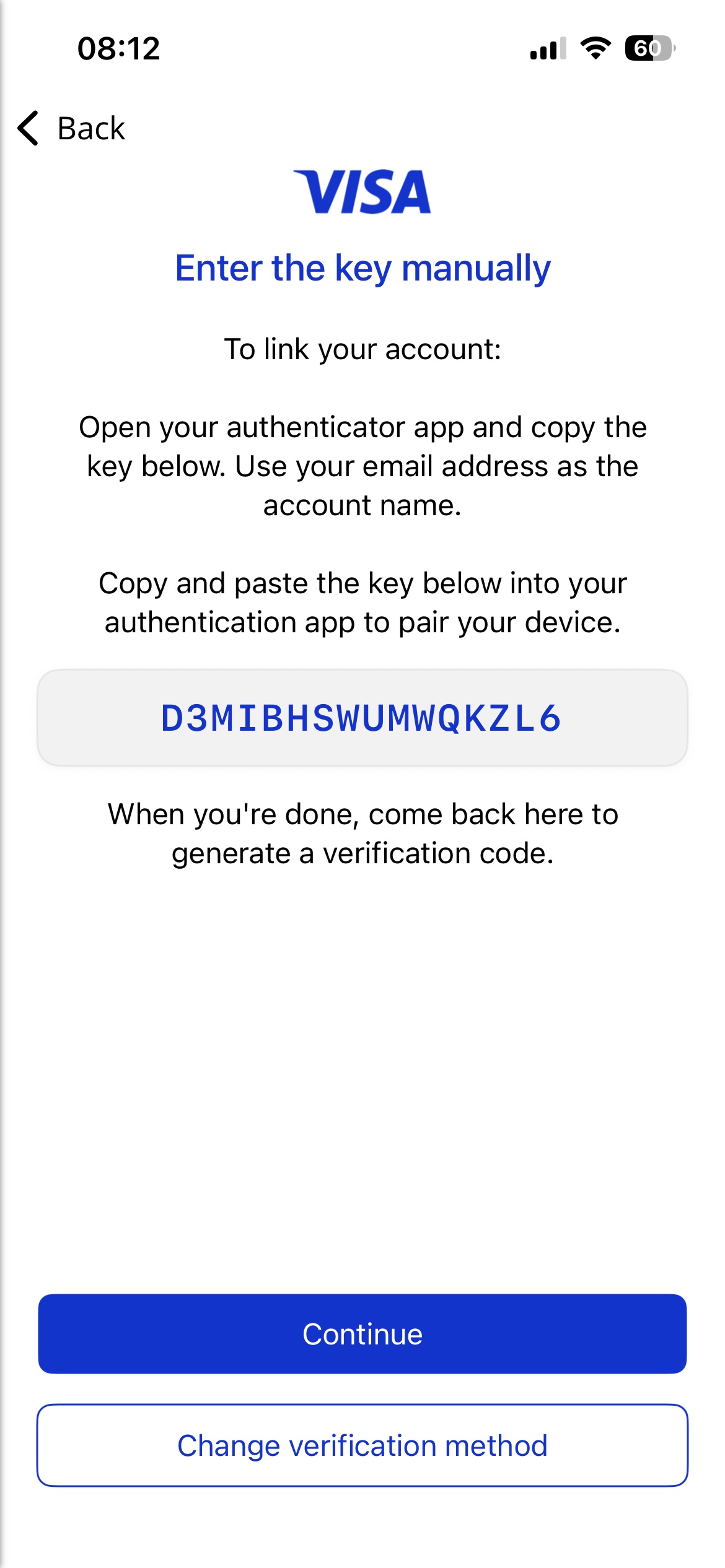
4. A Secret Key will be displayed on screen. Tap the Secret Key to copy it to your clipboard. |
| |
5. Open your chosen third-party authenticator app and add a new account. To enter the code, look for the option to enter a code manually. If using the iOS Passwords app, locate your Visa Commercial Pay account, tap Edit, Set Up Code, and paste the Secret Key in the Setup Key field. Refer to the iOS user manual for additional support. | ||
6. Once your authenticator is set up, make a note of the 6 digit code, return to the Visa Commercial Pay App, and enter the code into the field shown. |
|
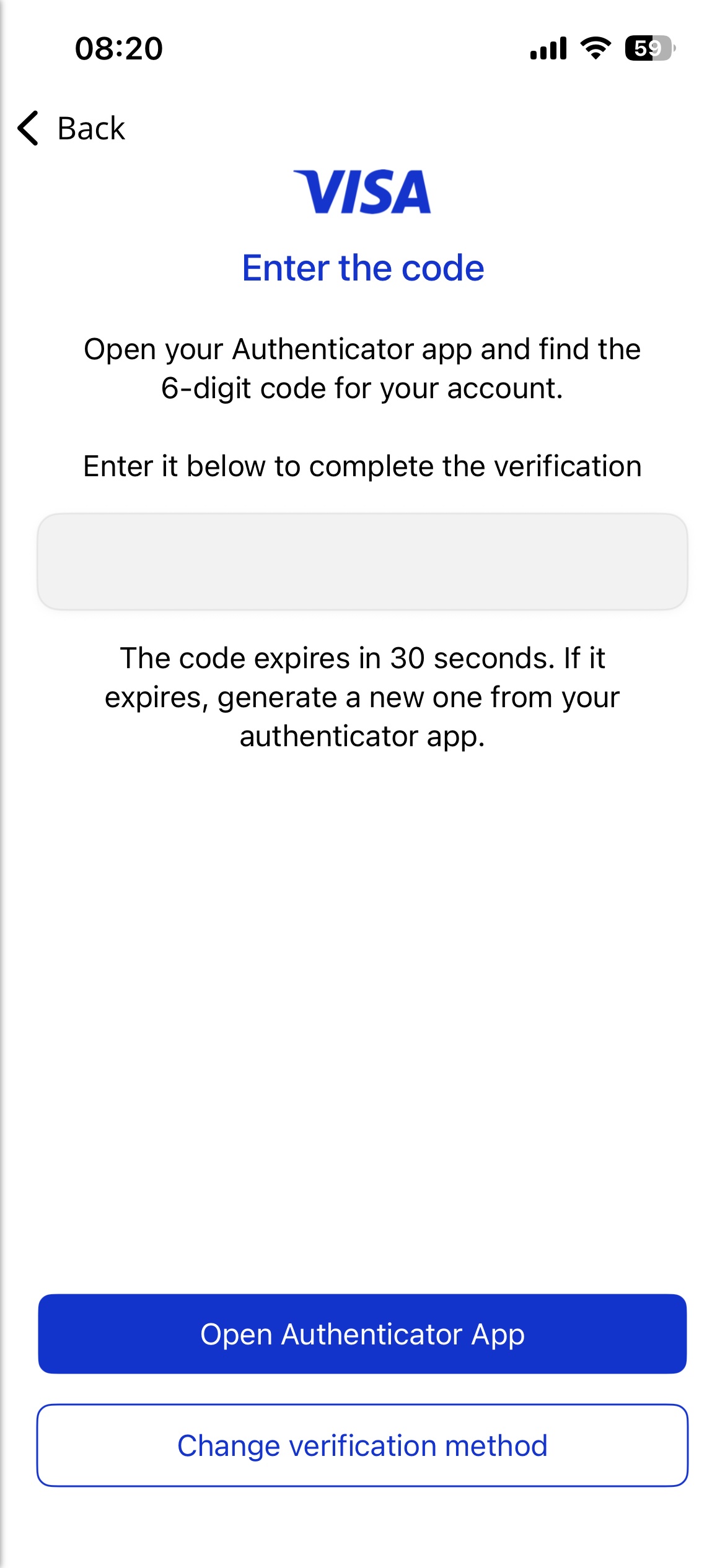
After this initial set up, you will be only be required to repeat step 6 each time you log in.
Logging in to the app
1. Enter your Username and Password. Your username may be the same as your email address. If you do not know your username, contact your Corporate Administrator. |
| |
2. Complete one of the displayed MFA methods. | ||
3. If you have biometrics such as fingerprint or facial recognition enabled on your device, you will be prompted to accept them as an authentication method for the Visa Commercial Pay App. You will be able to log in using biometrics for 90 days from your last log in to the Visa Commercial Pay App. Every 90 days, or after an app update, you will need to complete the full log in process, including receiving an SMS verification code. |
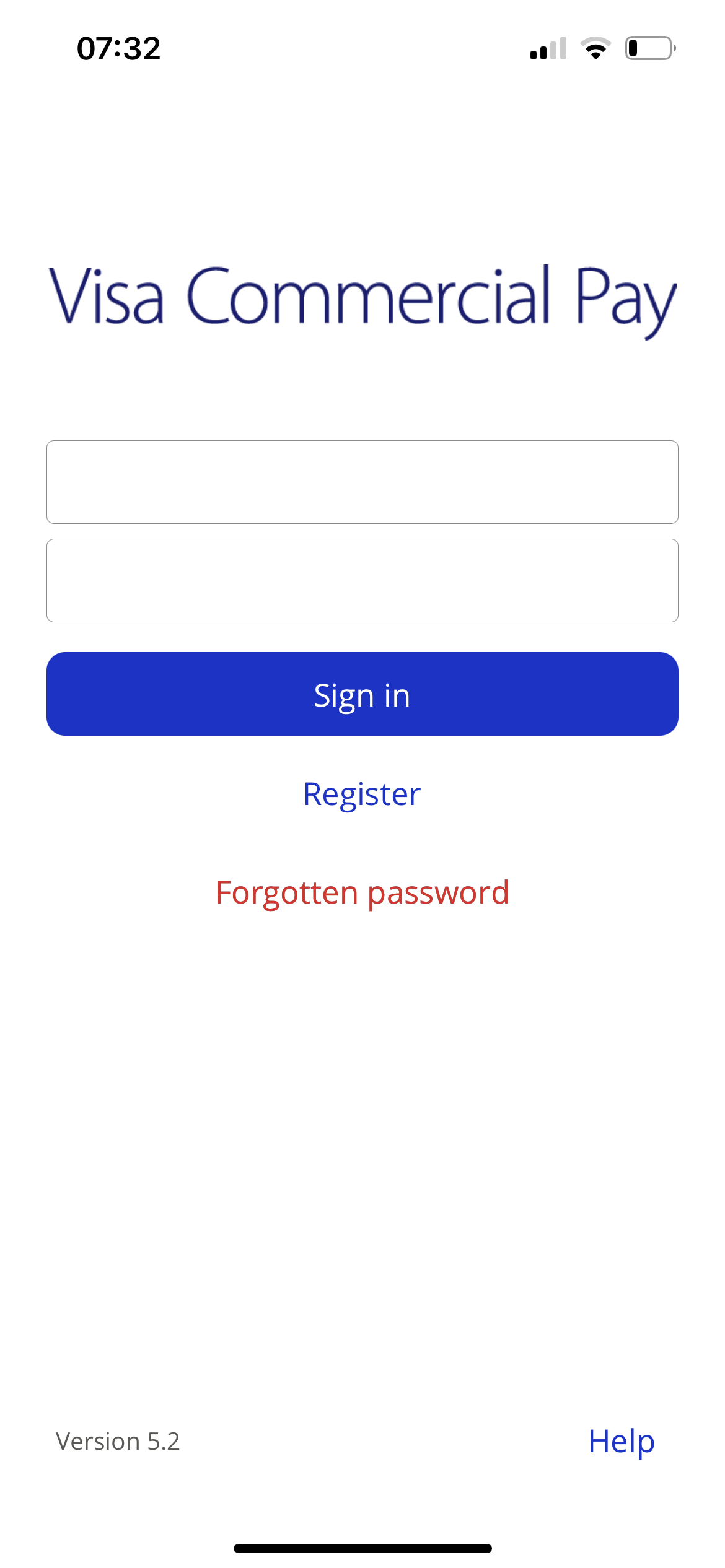
Caution
Your user account will be locked after three consecutive unsuccessful log in attempts or if you have entered information incorrectly when trying to log in for the first time. You will see an on-screen message instructing you to wait for an email which will allow you to reset your password and unlock your account.
If you don't receive a locked out notification email, contact your Team Admin for confirmation of your username. Your Team Admin can also manually unlock your account.
Resetting your password
When resetting your password, you will only be required to enter your username.
Tap Forgotten Password.
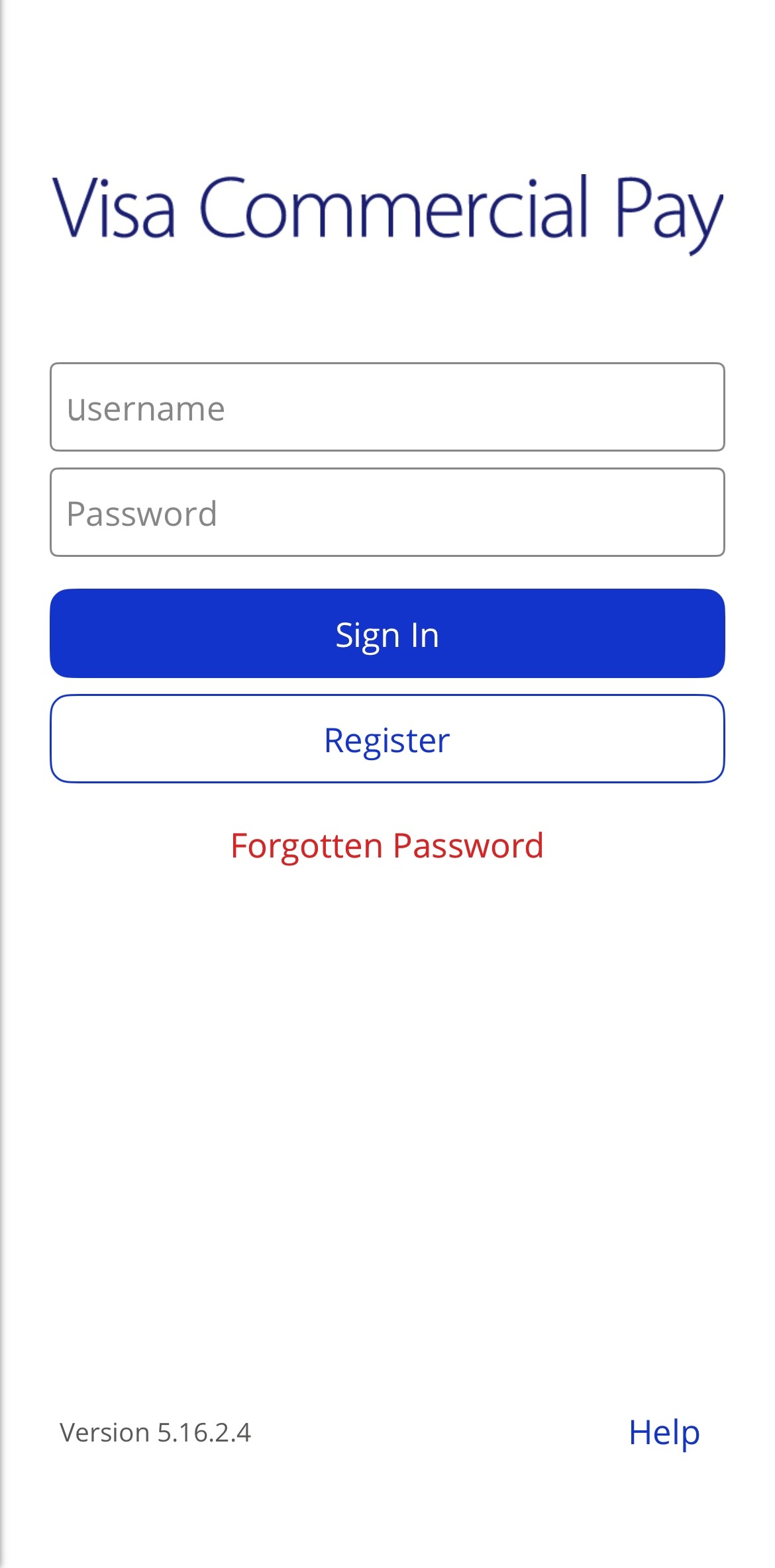
Enter your username and tap Reset password.
If your username is associated with a registered account, you'll receive an email allowing you to reset your password.
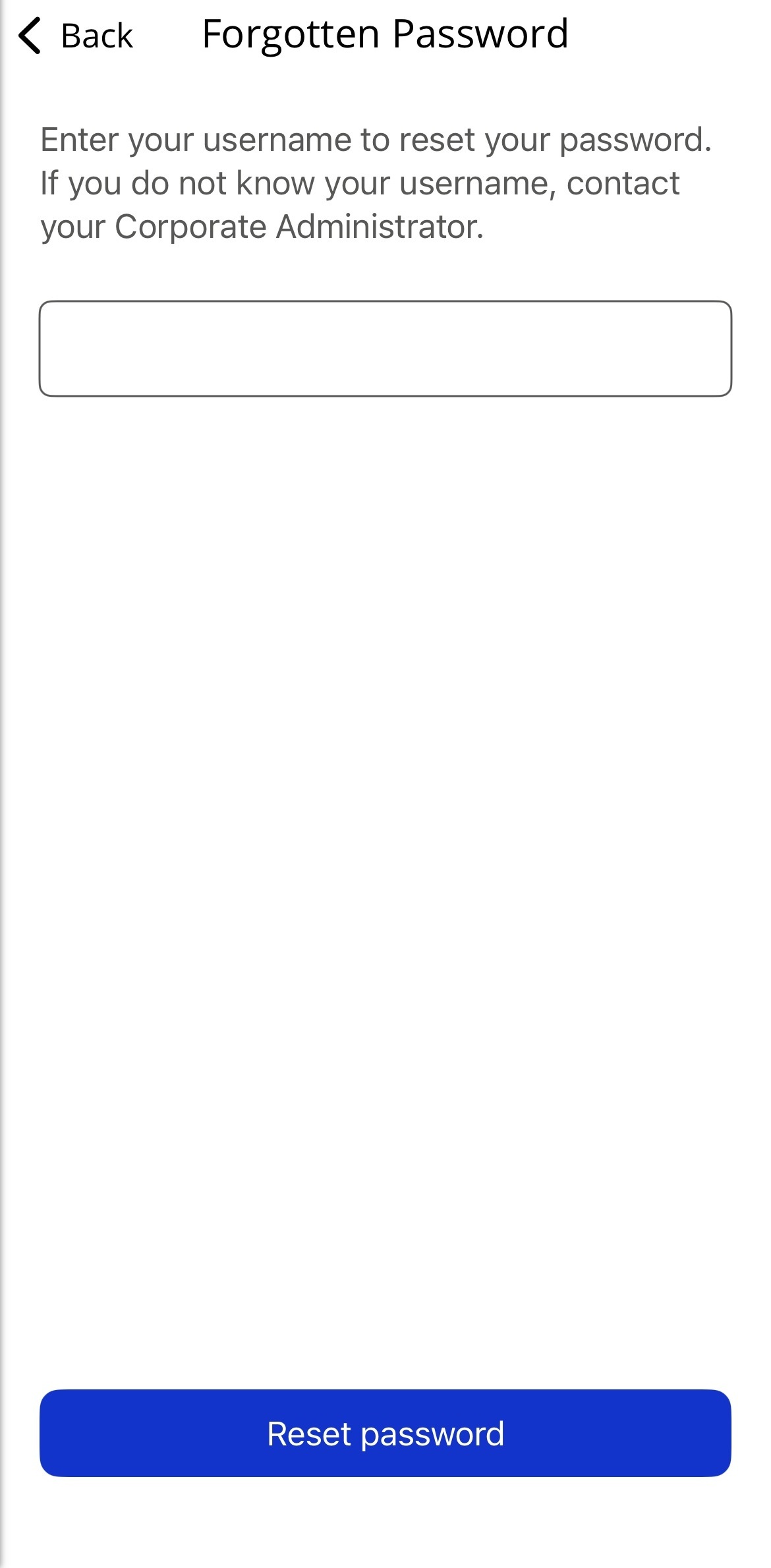
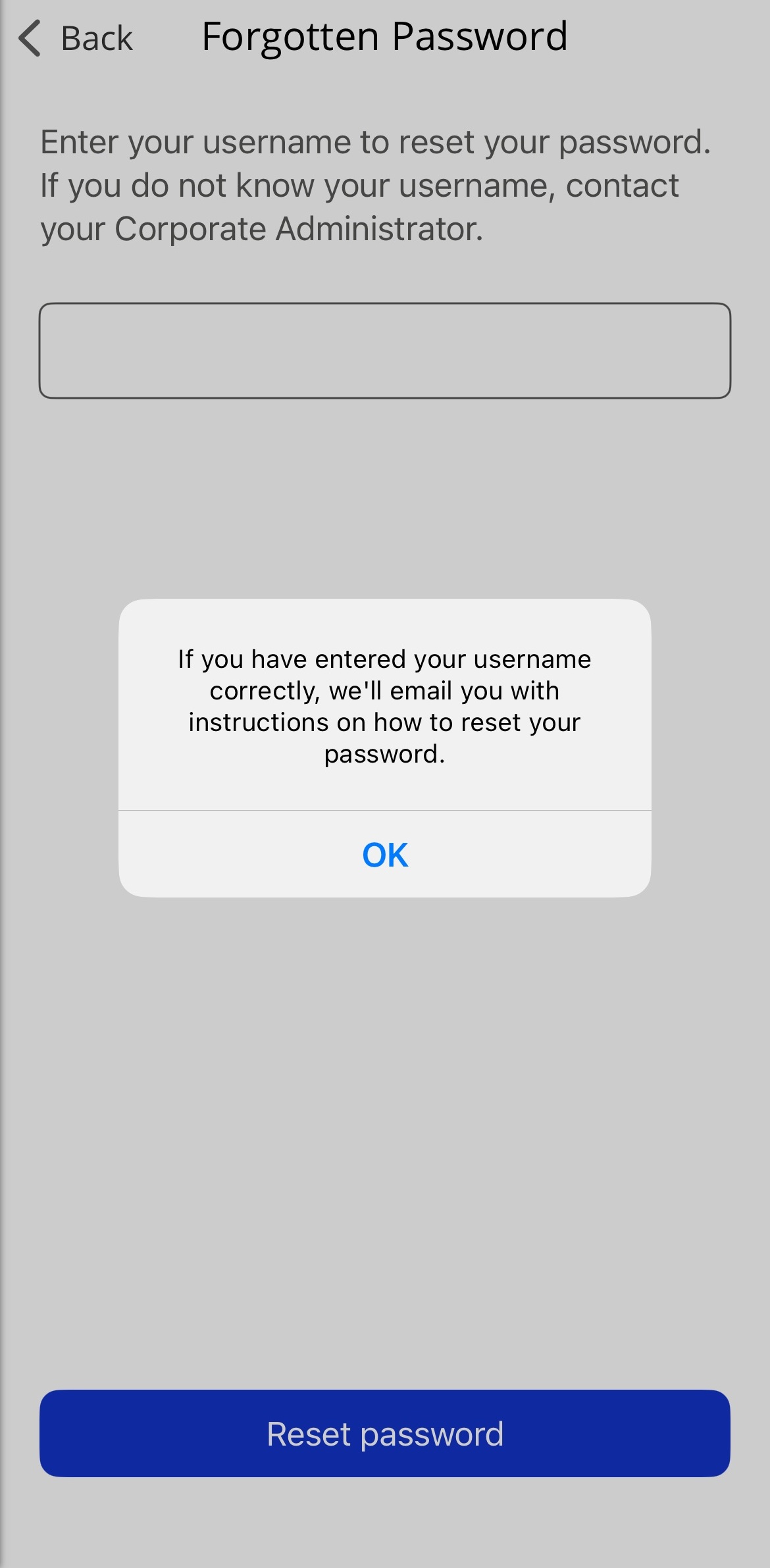
You must enter your username and not your email address, unless your username and email address is the same value.