Mobile Application v5.14 Release Notes
Mobile Application v5.14 introduces; Receipt Storage, language updates, Check-In Assistant improvements, user feedback requests, and bug fixes.
Minimum iOS & Android Version
The minimum supported iOS version for the Visa Commercial Pay App is now iOS 16.
The minimum supported Android version for the Visa Commercial Pay App will remain Android 12 until v5.14.1.
Receipt Storage
We have added the ability for Visa Commercial Pay App users to upload files via the home page. This allows users to easily add receipts to the Visa Commercial Pay App on the go without immediately needing to link them to a transaction.
Visa Commercial Pay App users can upload multiple files at once, which will all be added to the Receipt Storage section.
Adding New Receipts
App users have the option to quickly add receipts to their Receipt storage, which can be organised and linked to transactions later.
To add new receipts:
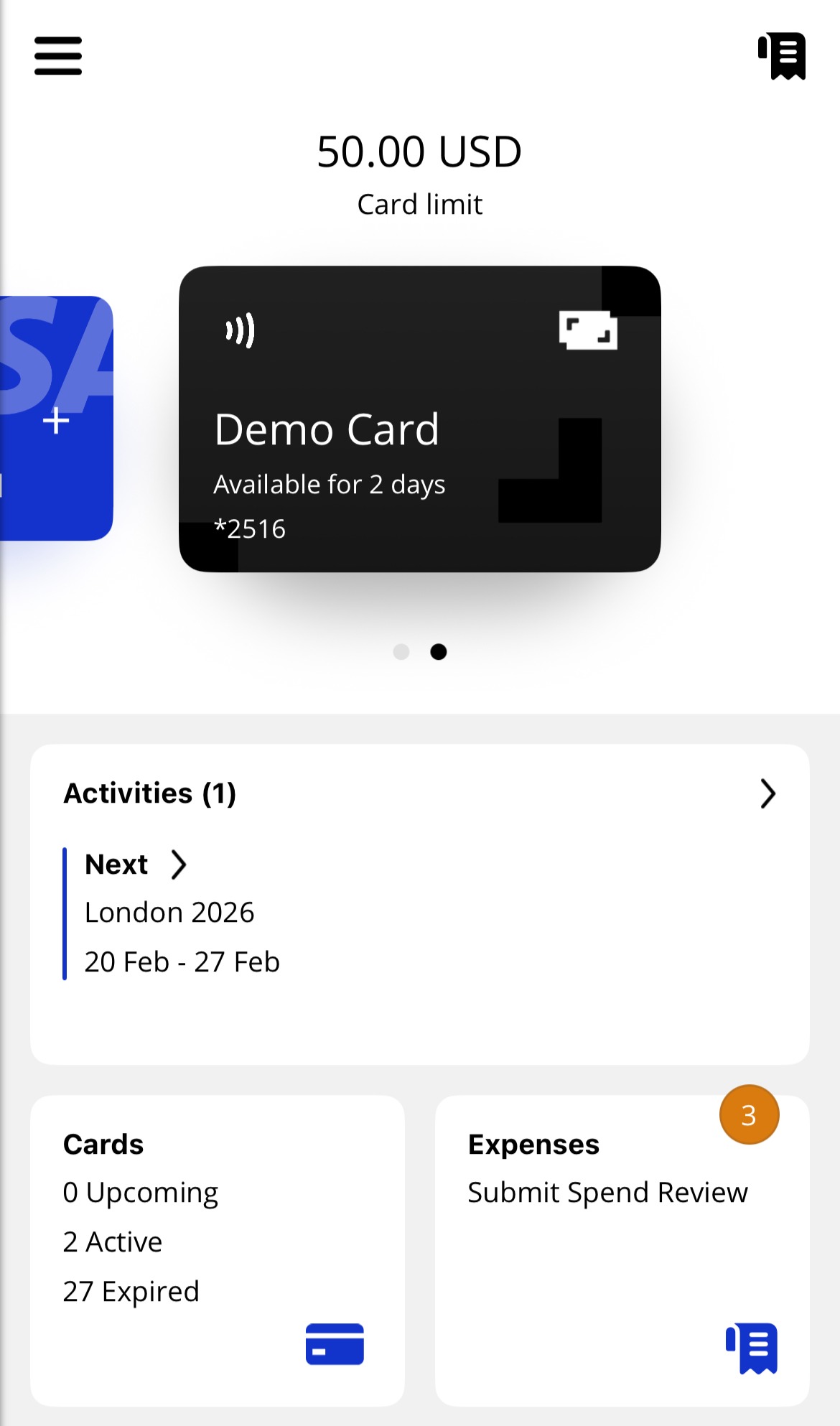
Tap the Receipt storage icon from the top right-hand corner of the Home screen.
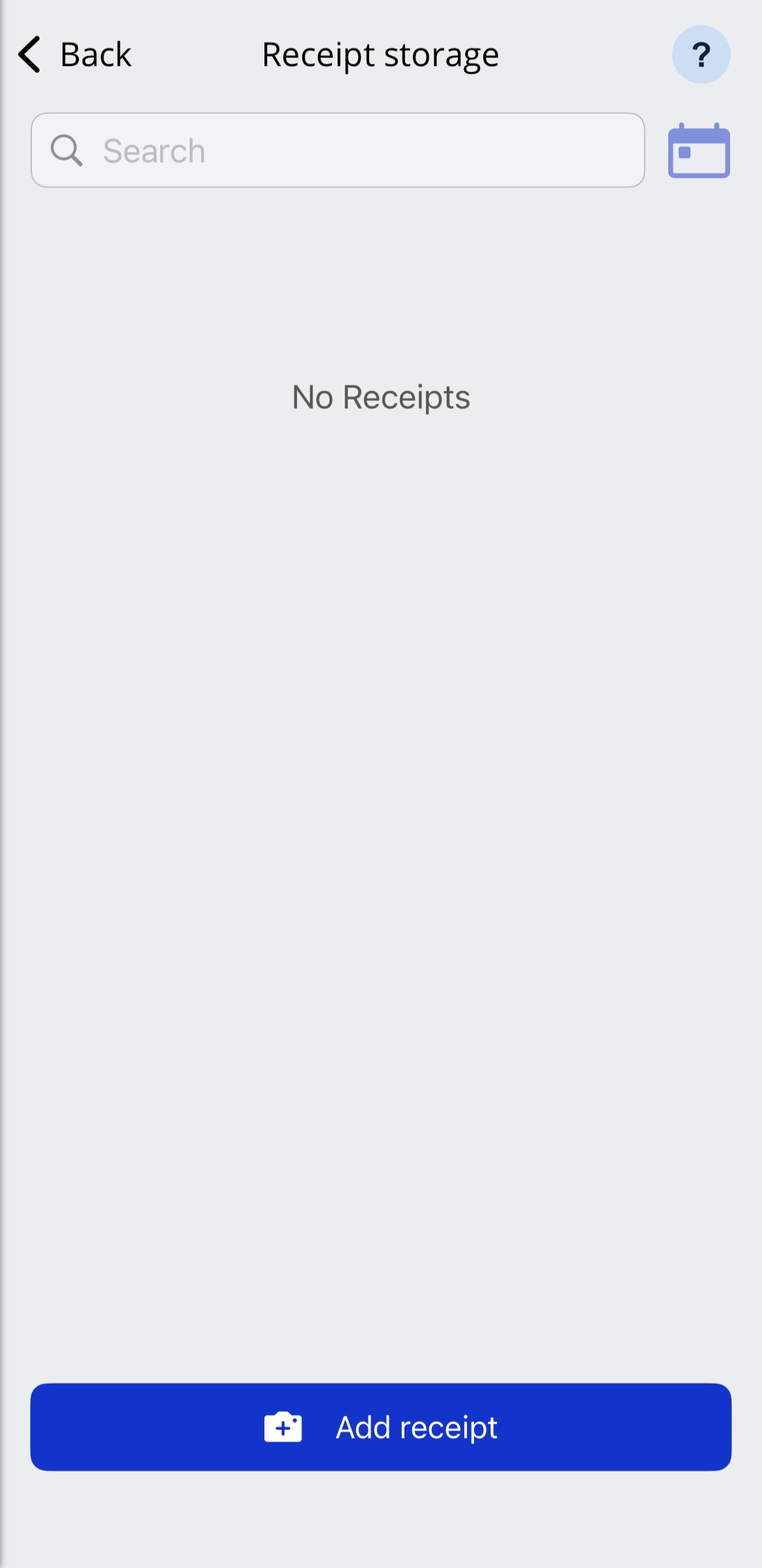
Tap Add receipt.
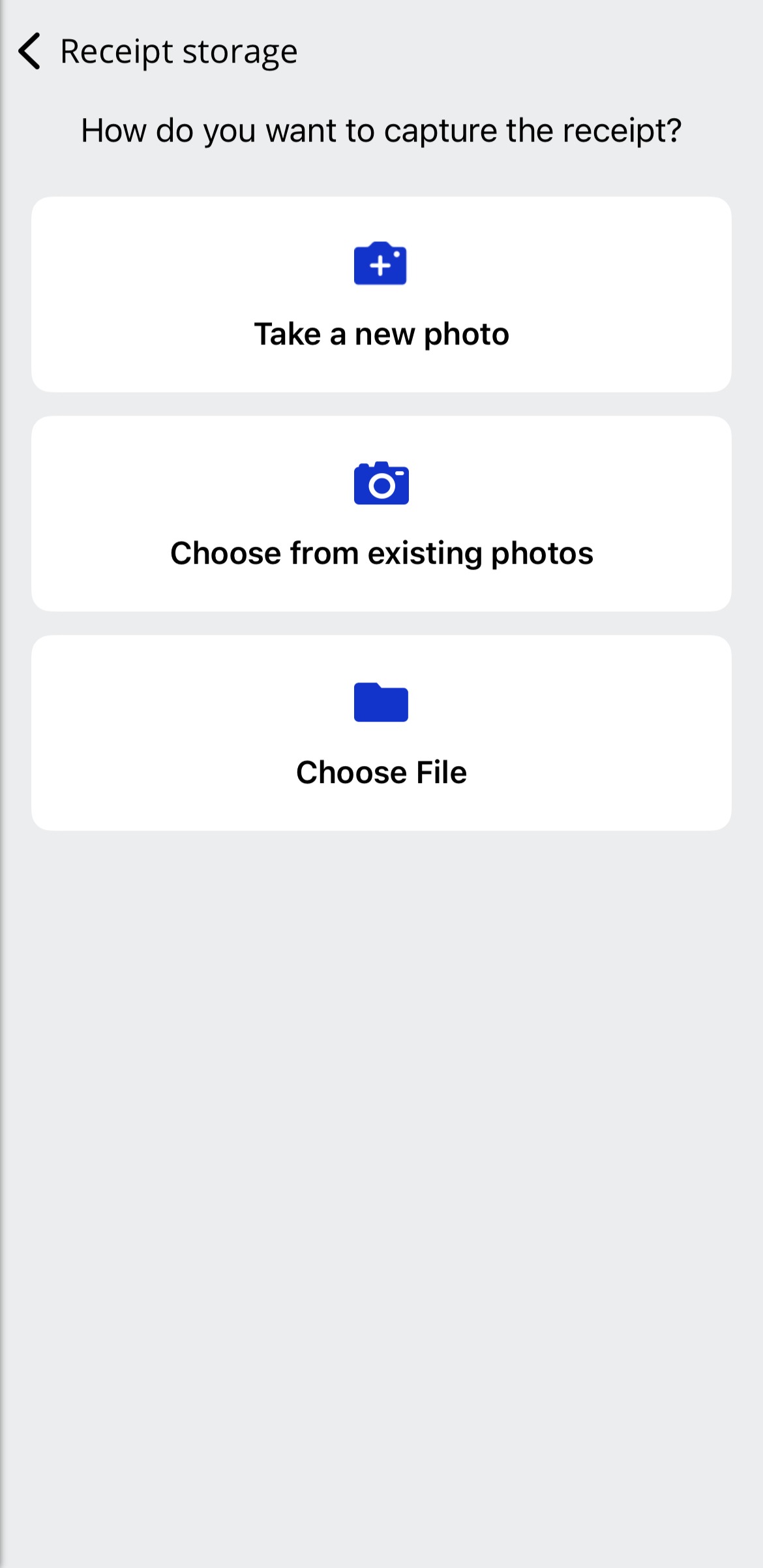
Select an option for uploading a receipt.
Take a new photo
Choose from existing photos
Choose file
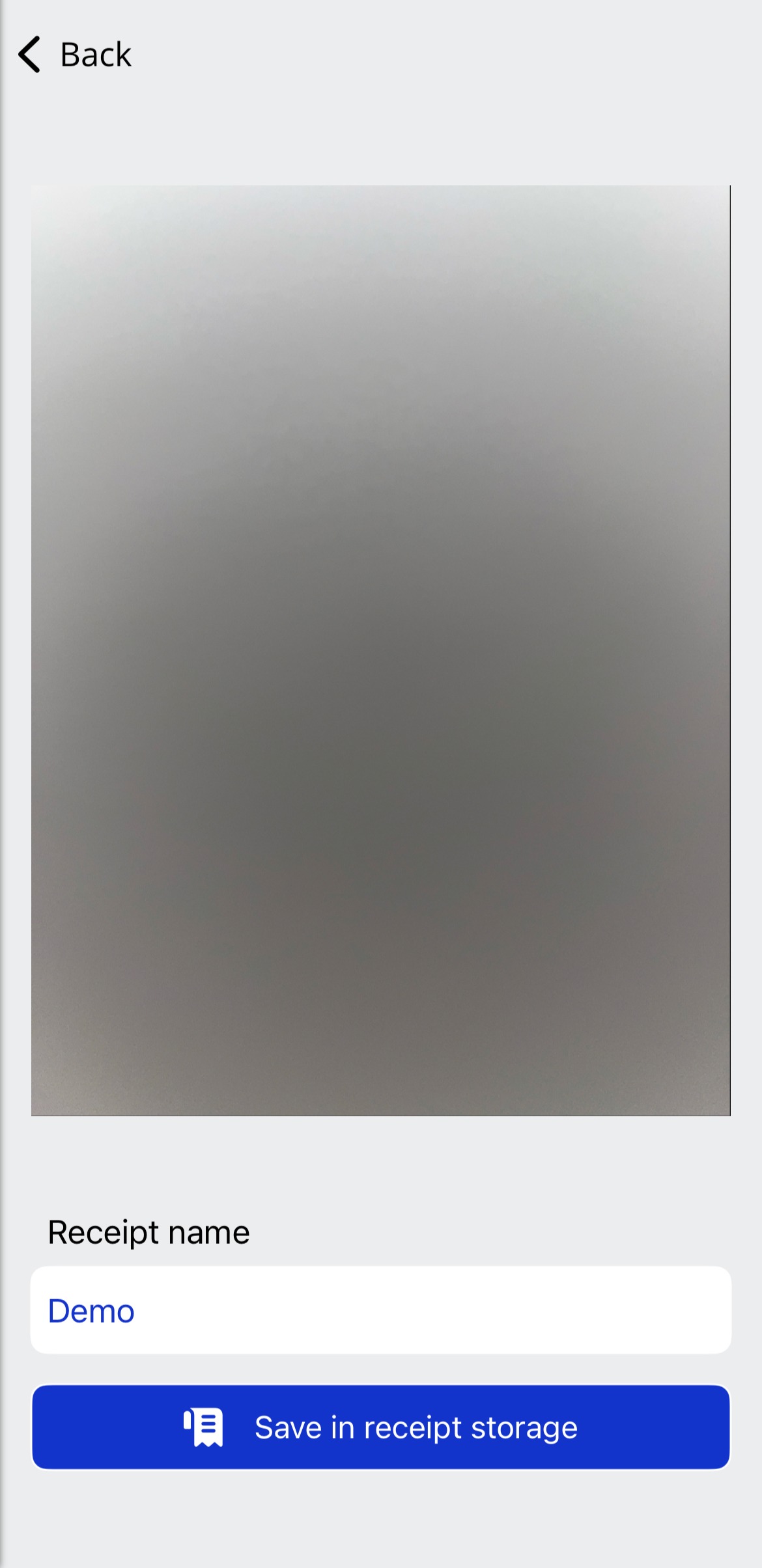
Once uploaded, enter a Receipt name, and tap Save in receipt storage.
If uploaded successfully, the receipt will be shown in the Receipt storage.
Searching for Receipts
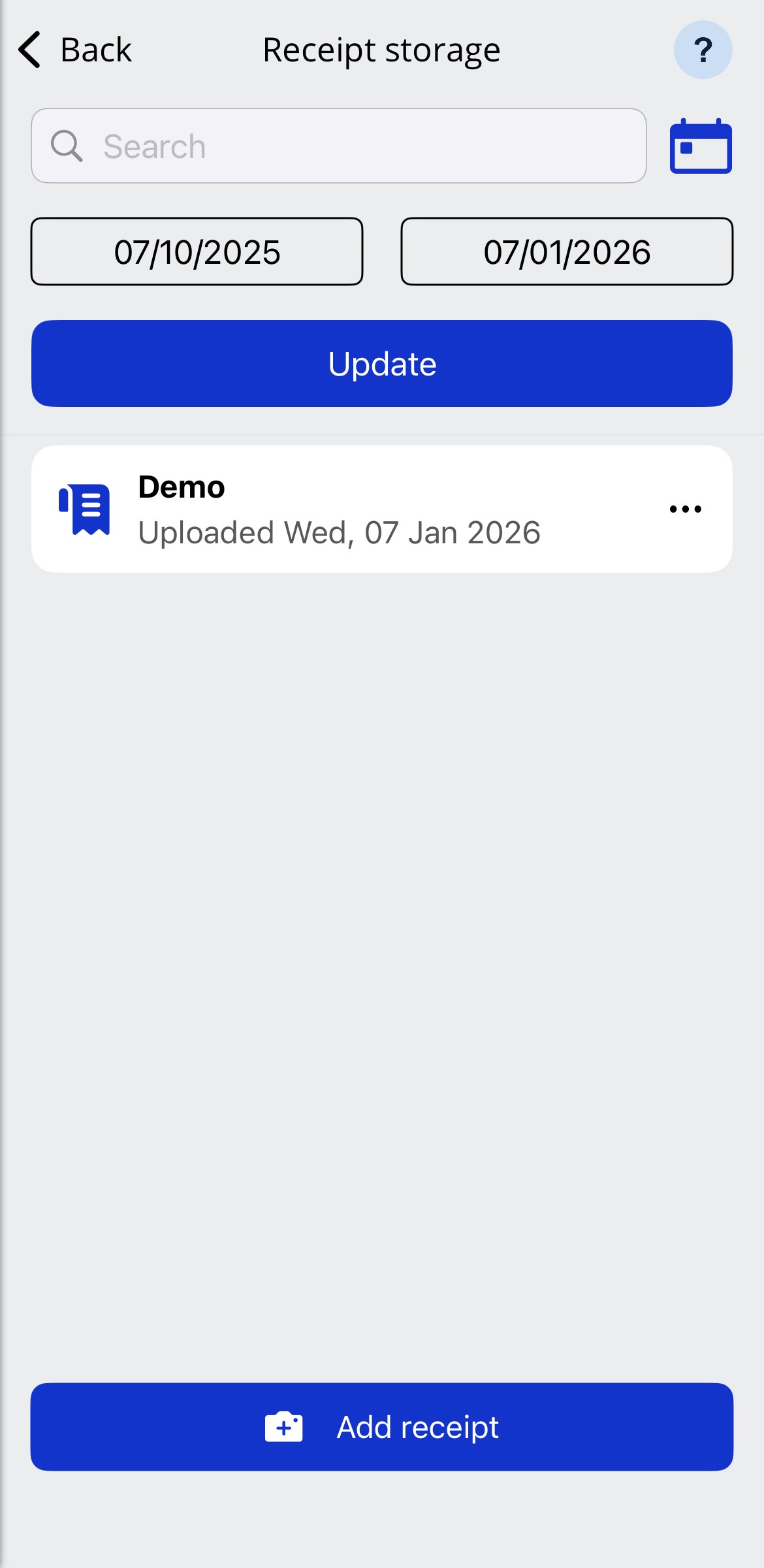
You can search for receipts that you have uploaded to the app by entering the receipt name or changing the upload dates to view all receipts from a specific period.
To view an uploaded receipt, tap a receipt tile.
 |
Linking Receipts to Transactions
To link a receipt to a transaction:
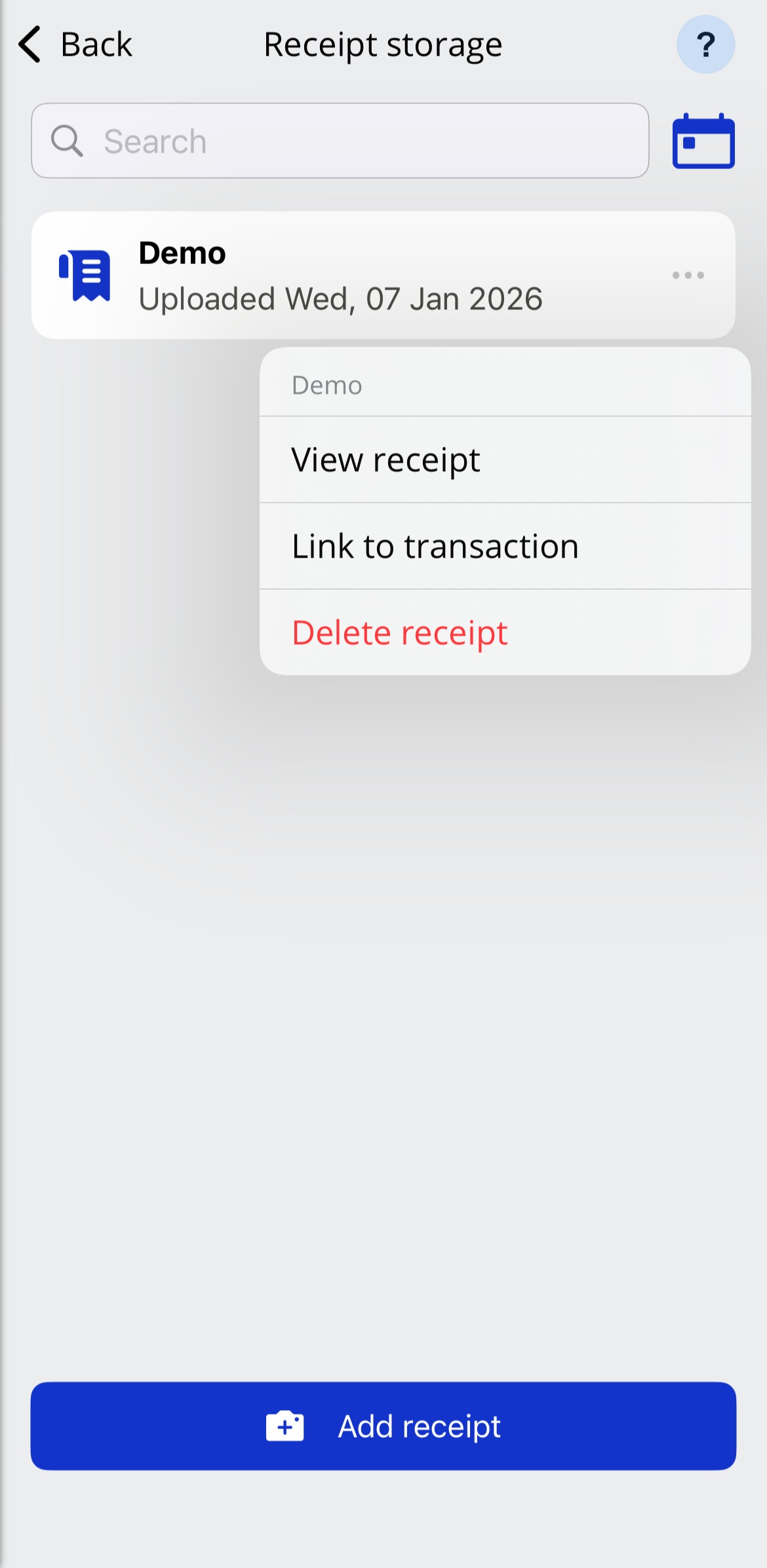
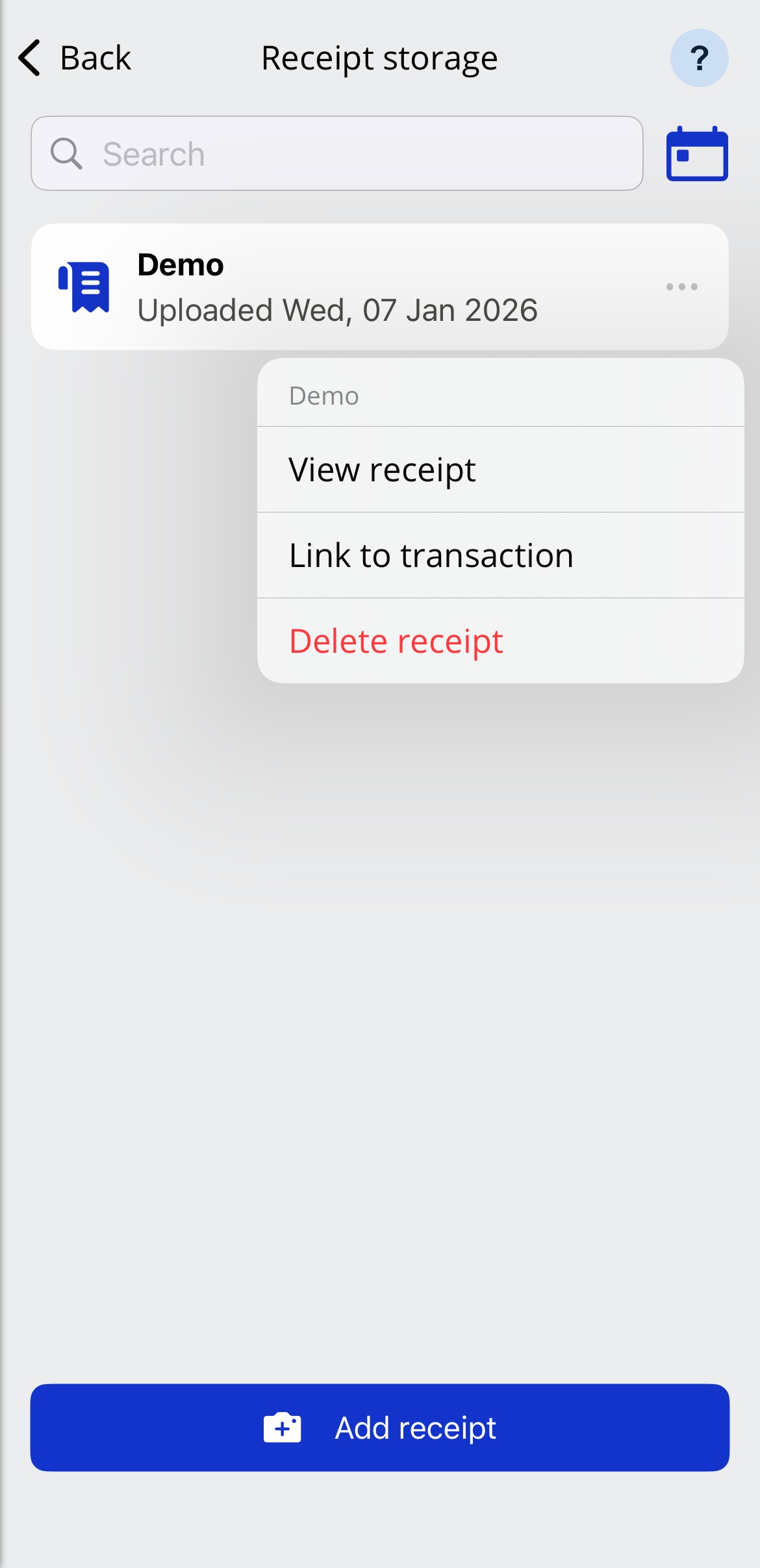
Tap the 3-dots on the right-hand side of a receipt tile, and then tap Link to transaction.
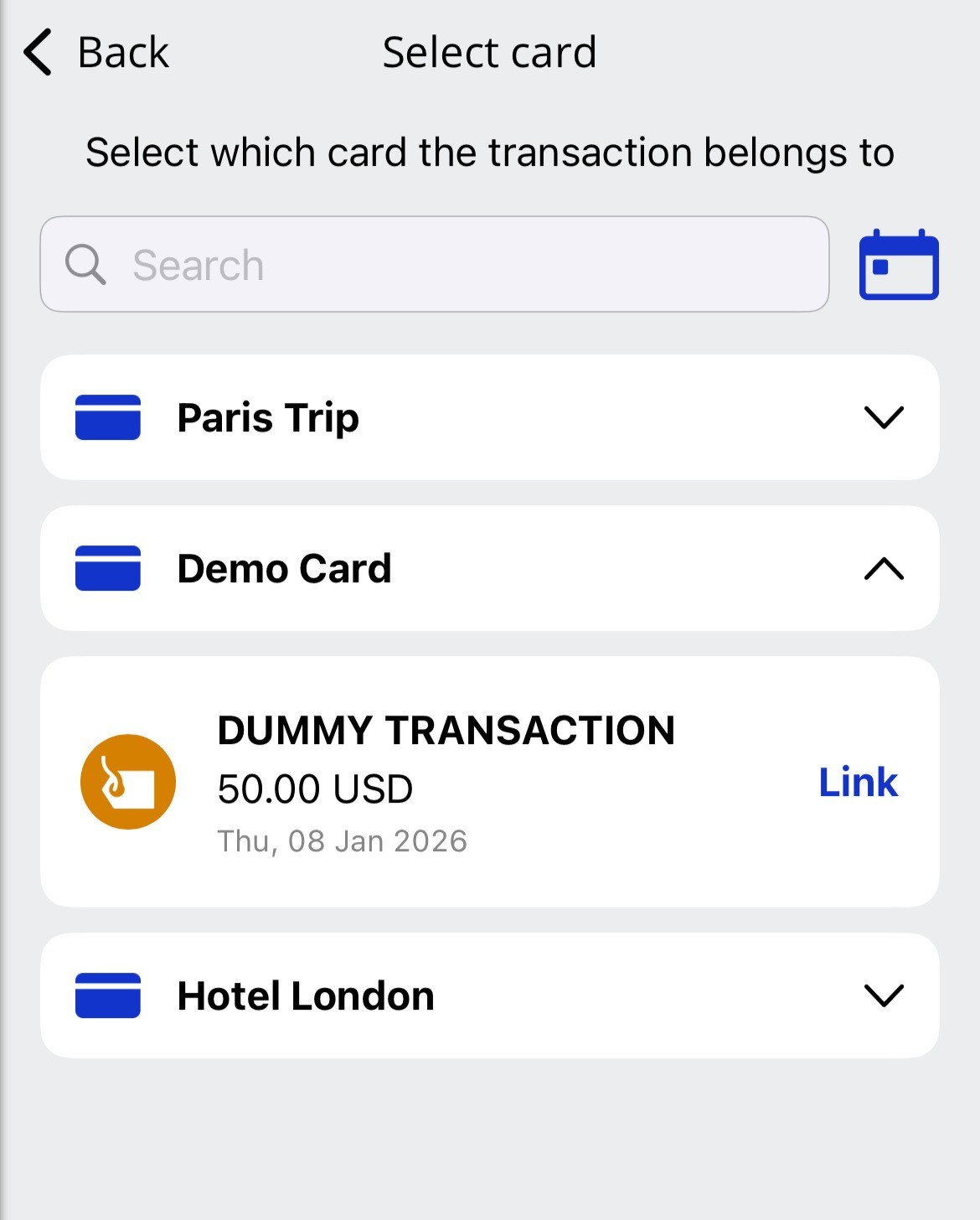
Select the card that you want to link the receipt to, and then tap Link on the transaction that you want to link the receipt to.
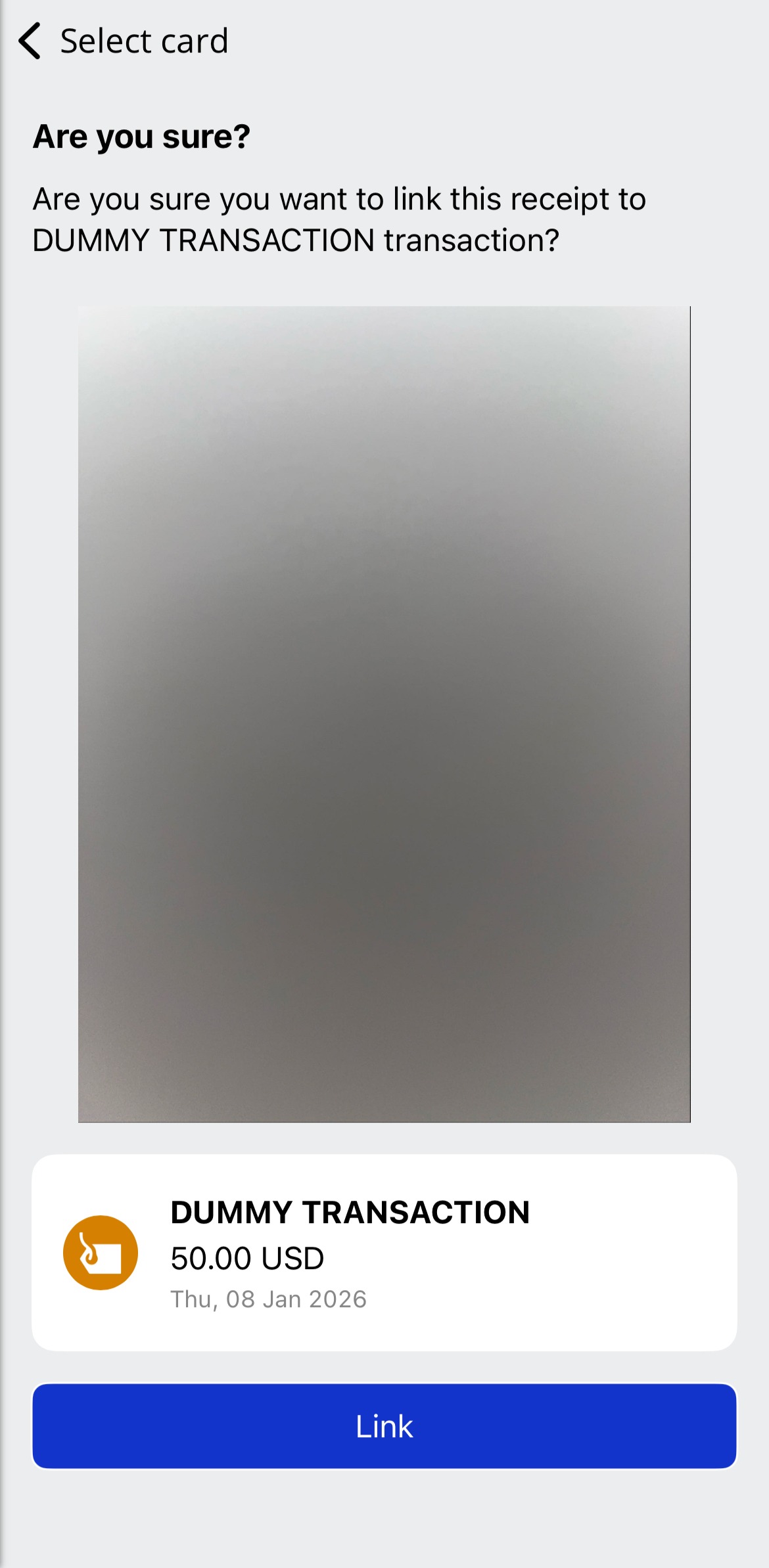
To confirm, tap Link.
Deleting Receipts
To delete a receipt:
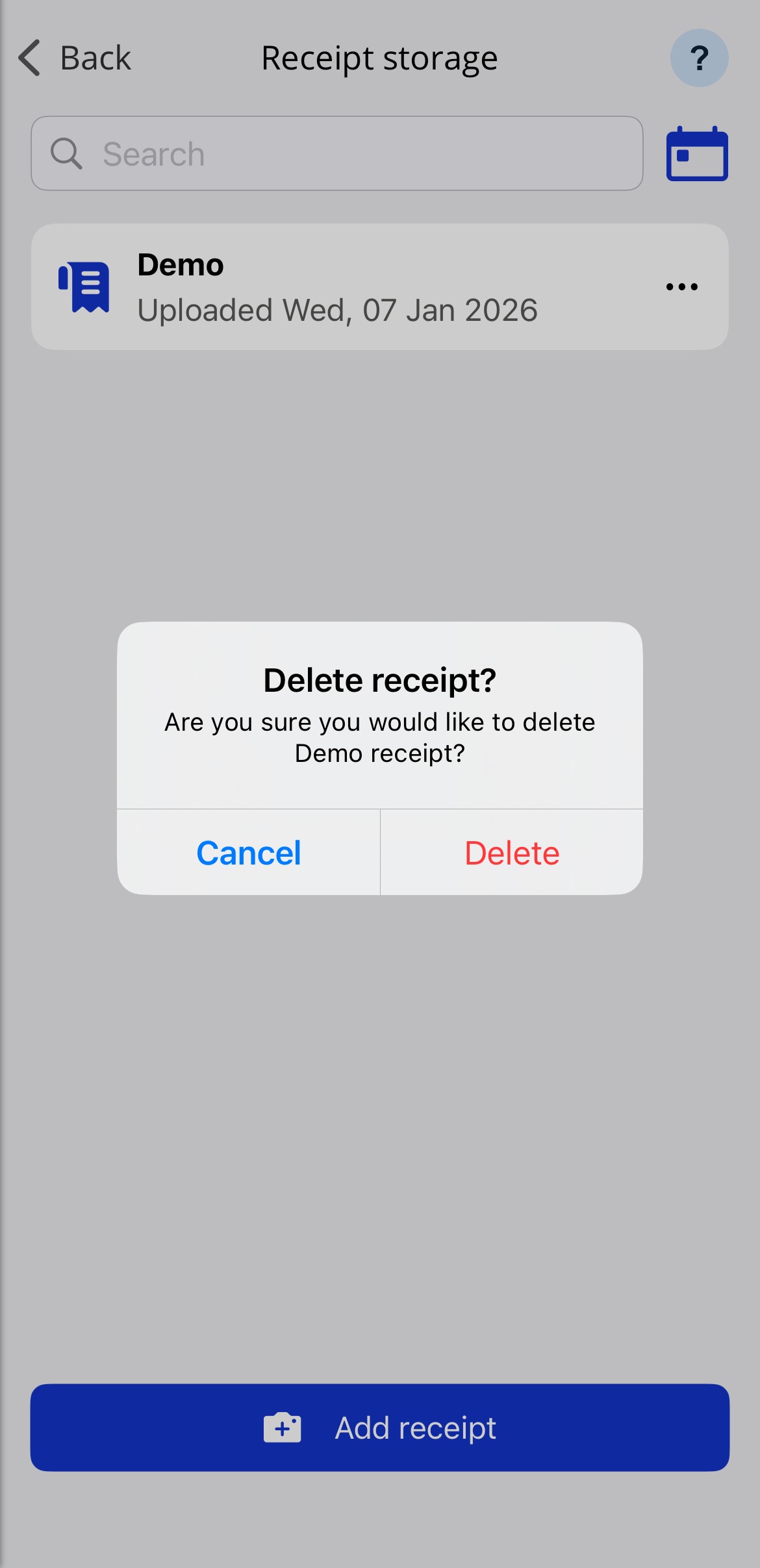
Tap the 3-dots on the right-hand side of the receipt tile, and tap Delete receipt.
Tap Delete again to confirm.
Multiple Bookings Displayed (Check-In Assistant)
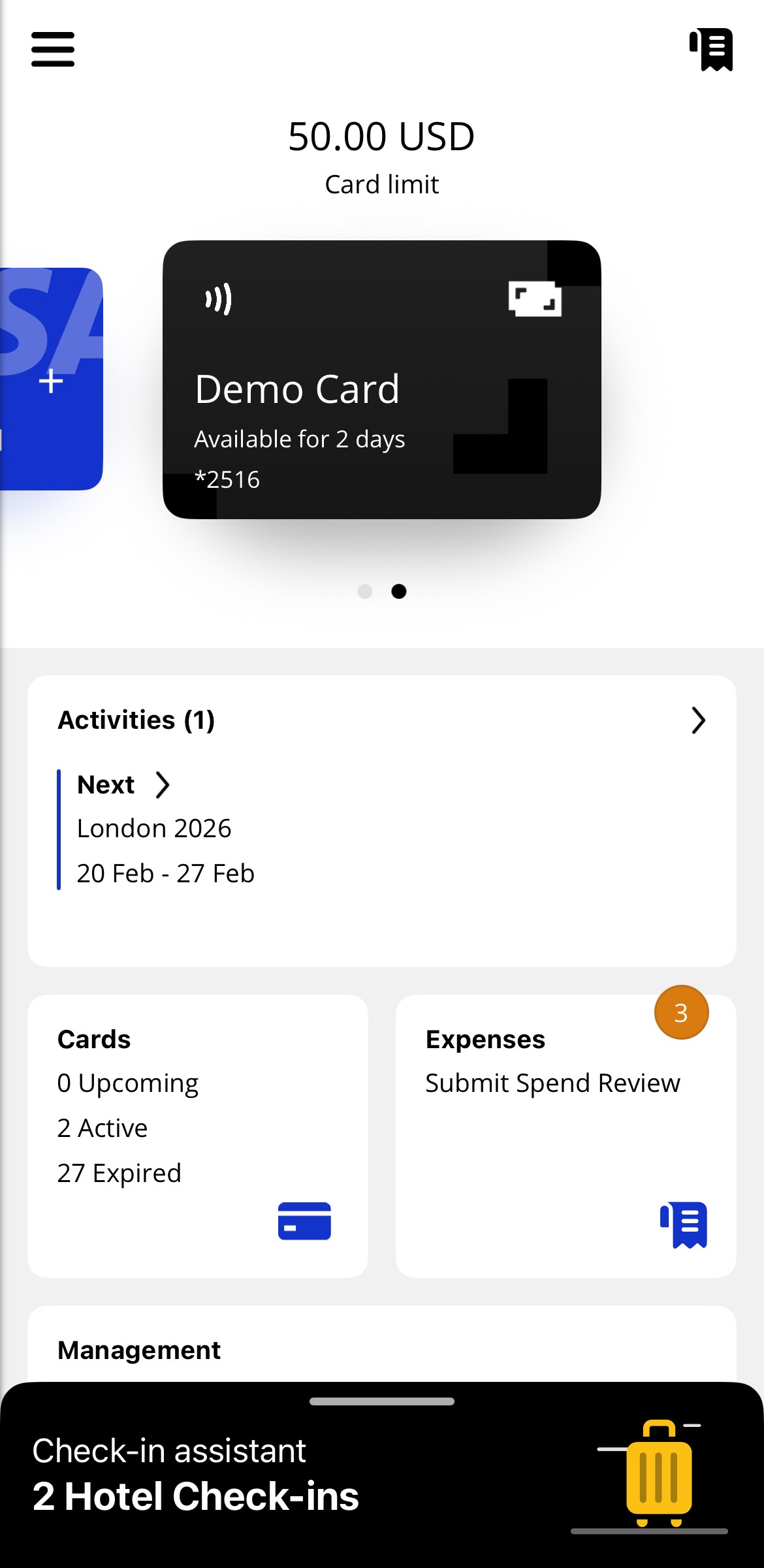
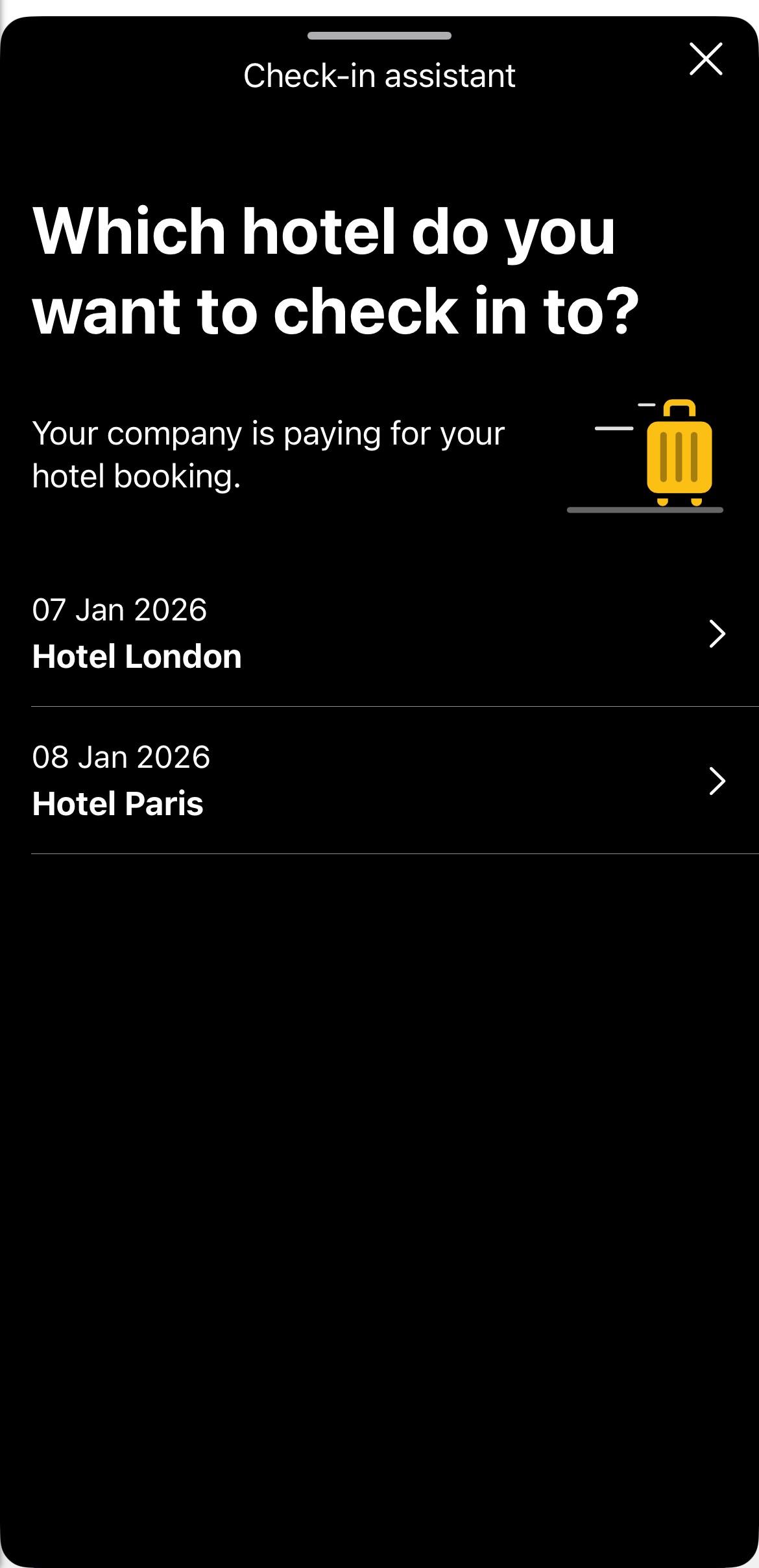
To improve the usability of the app for travellers with overlapping bookings, we are now allowing multiple bookings to appear in the Check-In Assistant when they occur within the same 48-hour period. App users can switch between each booking to view booking confirmations, card details, and add cards to their digital wallet.
When multiple bookings are available, you can select them when opening the Check-In Assistant.
|
|
User Feedback
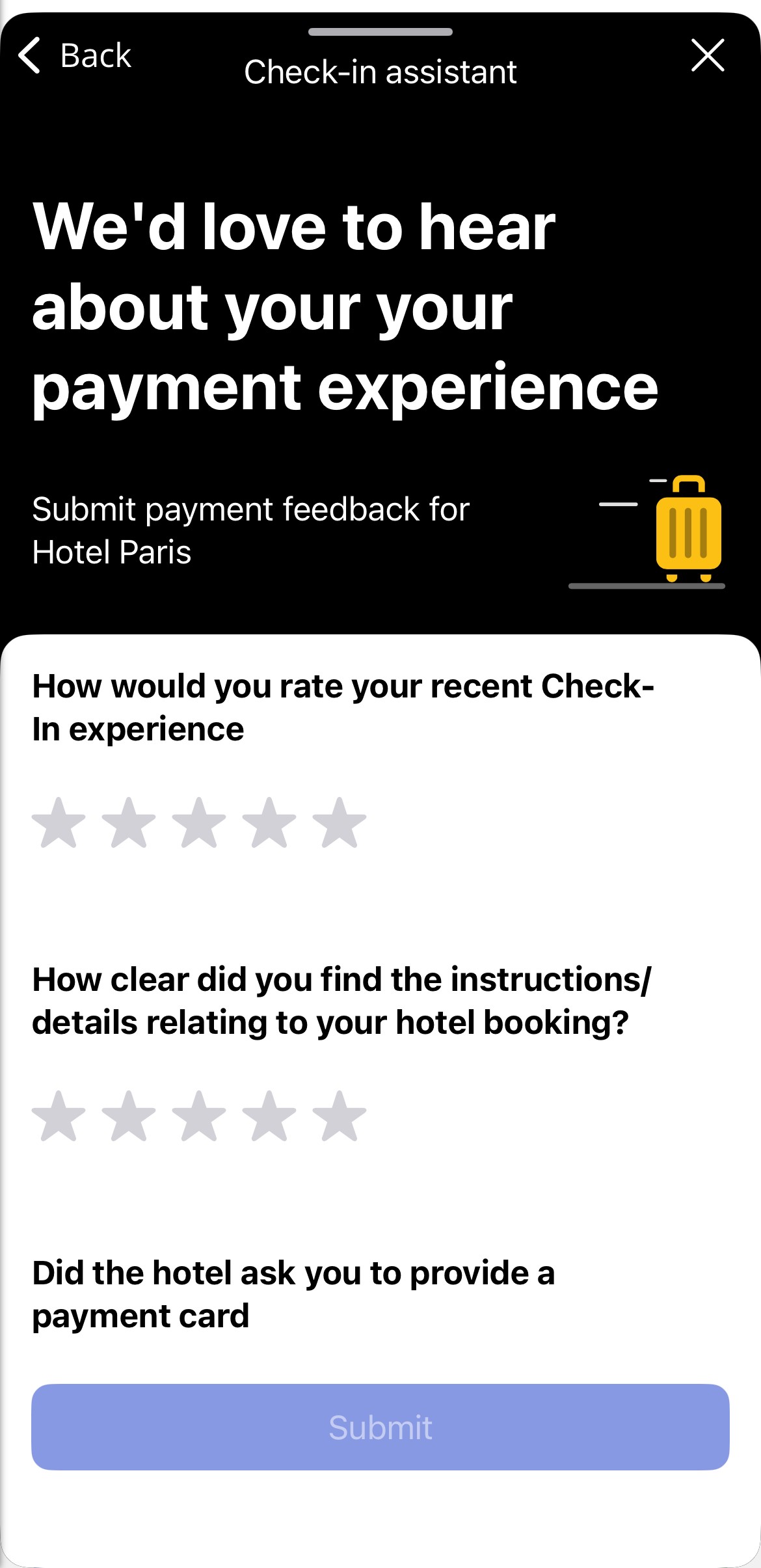
We have added a prompt to request user feedback from travellers after their check-in date. If the user initially dismisses the request, they will be able to access the feedback form at any point during or after their trip.
If the user does not complete the feedback form, a reminder email will be sent after a set period.
 |
Language Update (Unregistered Email Voucher to Traveller Notification)
To improve the global accessibility and localisation of the Visa Commercial Pay App, we have applied translations to the 'Unregistered Email Voucher to Traveller' notification. We have added support for all languages that are already available on the Visa Commercial Pay platform.
Notable Bug Fixes
(iOS) Fixed an issue where the card art was not displayed on the home page carousel.
(Android) Fixed an issue preventing users from seeing the text field when naming a file shared from their device.
(Android) Fixed an issue where the 'Back' button was not functional when users shared a file from their device.
(Android) Fixed an issue where the recurring period was not shown when viewing a card as an Approver.
(Android) Fixed an issue where if a team had a hidden and mandatory custom data field in Mobile Control, and the field was empty, cards could not be created.
Removed 'Payment Info' section from Payment Controls when there was no payment info to be shown.
Fixed various UI errors seen only on the offline log in screen.
Fixed an issue where PDFs shared from the user's device would only show the first page in the preview.
Fixed an issue where the Check-In Assistant still shows the booking details of a stay after the check-in date has been moved outside of the 48-hour range.
Fixed an issue where the team member count only showed active team members instead of total team members when viewing a team budget.
Fixed an issue preventing users from creating a card if they had previously requested an amount that exceeded the daily limit.
Fixed an issue where push notifications were sent in English regardless of the user's selected language.
Fixed an issue where the budget alert threshold would change after being set if tolerances had been applied to the Card Pool.
Fixed an issue where users were incorrectly shown an error message (500) after successfully uploading documents.
Updated the error message displayed after entering the wrong username, password, or authentication code.
Changed the Update button to stay greyed out until the user has made a change when editing their profile.
Fixed an issue where User History was not shown if post spend review was not enabled.
Changed the colour of the feedback link on the Check-In Assistant to improve visibility against the dark background.
Fixed an issue where the charge dates on Air and Accommodation cards were incorrectly changed to match the check-in and departure dates.
Fixed an issue that caused the Check-In Assistant message history to fail to load.