Creating an Air Card in Online
Air cards can be used to purchase flights. You can capture traveler details, supplier information and flight details. You can also add ancillary details and service fees, if required.
Air cards can be sent directly to app users by adding a traveler that has been registered for the app.
Click Air.
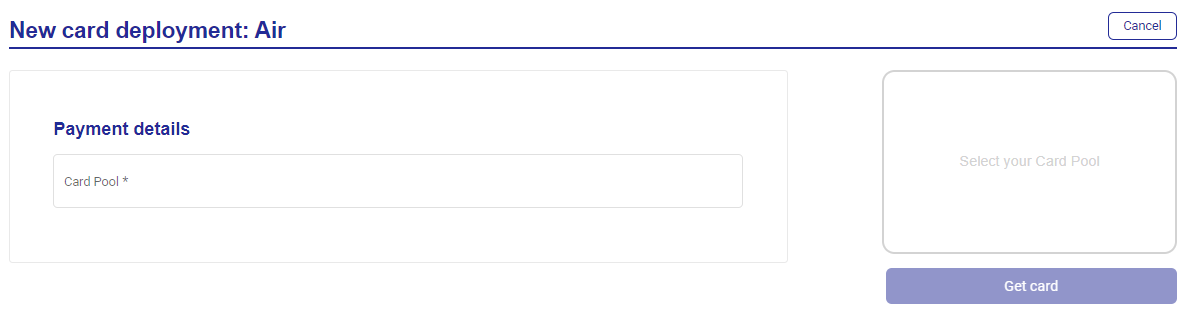
Select your Card Pool from the dropdown.
Enter the payment details:
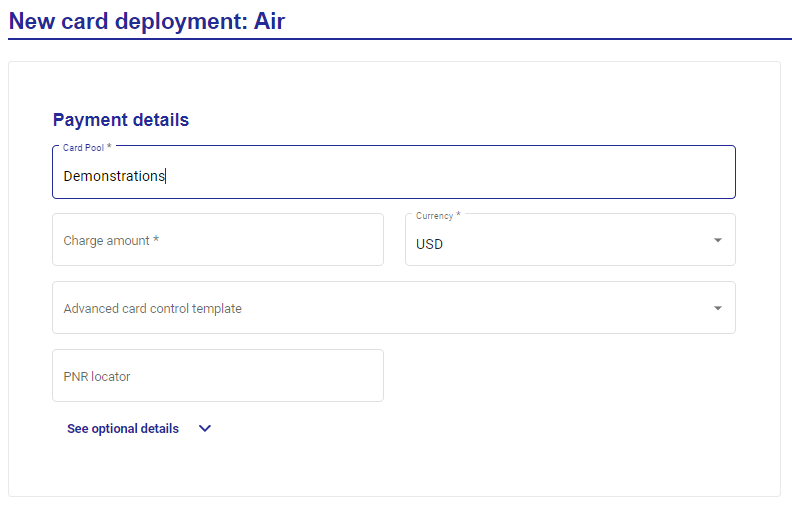
Charge amount
Currency
PNR locator
Click See optional details to enter:
Reference
Customer ID
Customer name
Supplier reference
Enter the traveler details:
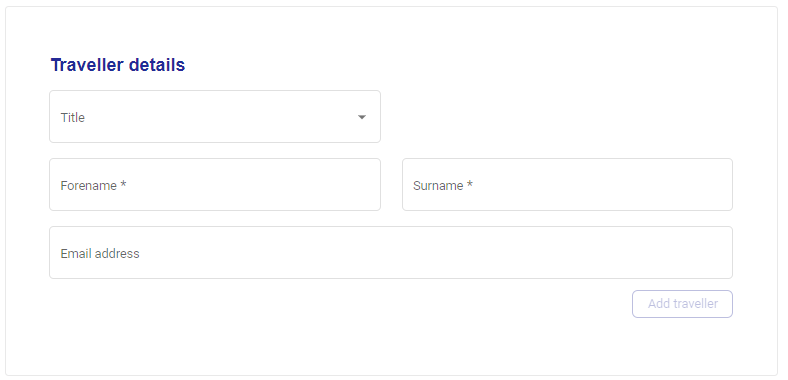
Title
Forename
Surname
Email address
Click Add Traveller.
Enter the supplier information:
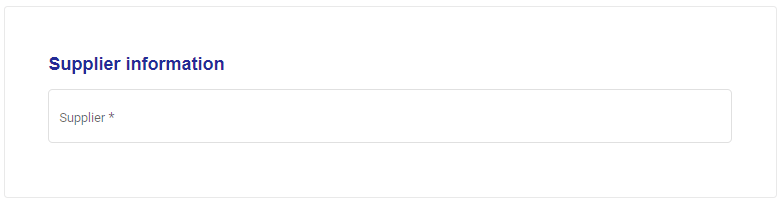
Supplier—select an option from the dropdown or free-type.
The carrier code will be automatically populated based on the airline you selected in the previous step. You can overtype the pre-populated code if required.
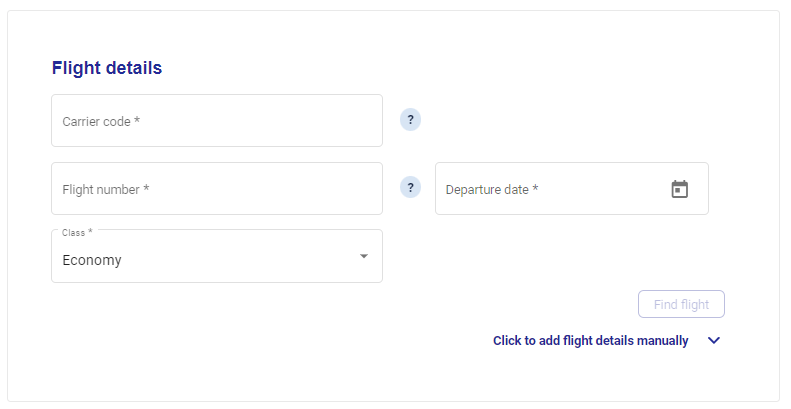
Enter the following flight details:
Carrier code (2 character IATA code)
Flight number (4 character IATA number)
Departure date
Class
Note
Only an IATA code can be accepted as a carrier code.
Click Find flight.
Alternatively, you can add flight details manually.
Enter the remaining flight details:
From—departing destination
To—arrival destination
Departure date
Departure time
Arrival date
Arrival time
Click Add to route.
If required, enter the ancillary details:
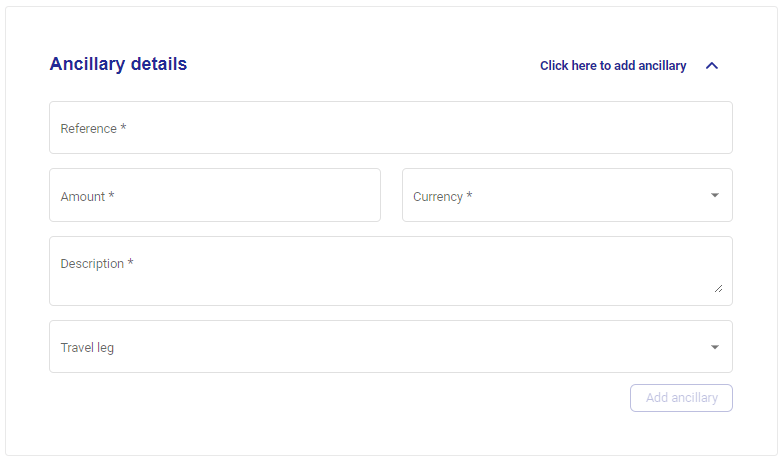
Reference
Amount
Currency
Description
Travel leg
Click Add ancillary
If required, enter the service fee details:
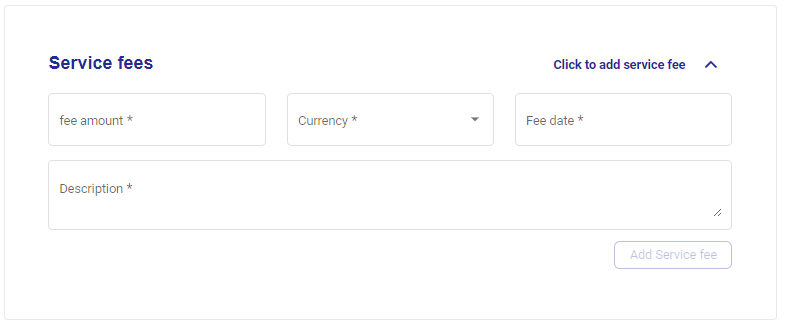
Fee amount
Currency
Fee date
Description
Click Add service fee.
Enter your custom data field values.
Click Get card.
Copying an Air Card
When copying an air card, you will need to add new flight details if the flight details from the previous deployment are in the past.
Scroll to Flight details, and click Delete and then enter your new flight details.
 |