Mobile Application v5.4 Release Notes
Mobile Application v5.4 introduces the ability to edit a card and improvements to overall app performance.
Edit a Card
We have added the ability for users to edit a card in the app.
Cards can only be edited by users that have permission to request a card.
Cards can be edited before they become active and during the active dates.
A card start date can't be edited if the start date has passed.
Editing a card will re-trigger the approval flow.
Users will be shown a message to alert them if they exceed their approval limit when editing the card.
Note
Cards cannot be edited when they are pending approval.
To edit a card:
Select a live card.
From the card details screen tap Manage and then tap Edit Card.
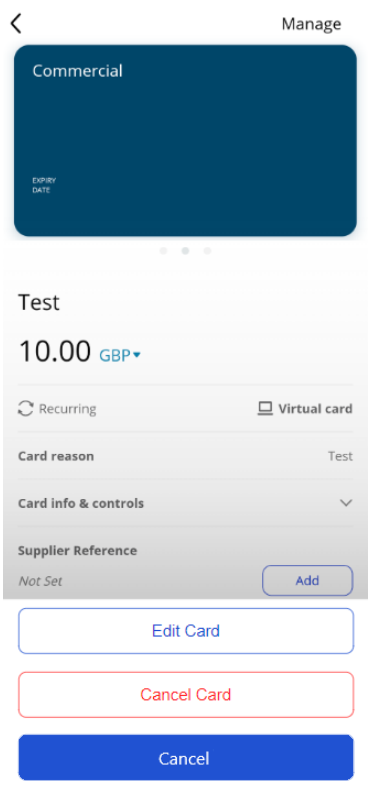
You can edit the following details:
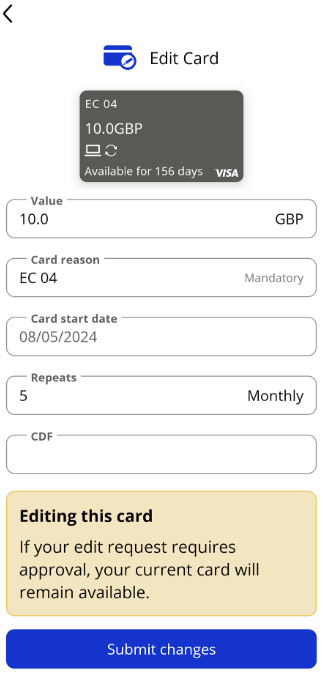
Value
Card reason
Card start date—if the date has already passed, you can not edit the start date.
Repeats—if the card has a recurring balance you can change how many time the card repeats.
Custom data fields
Once you have completed your changes, tap Submit changes.
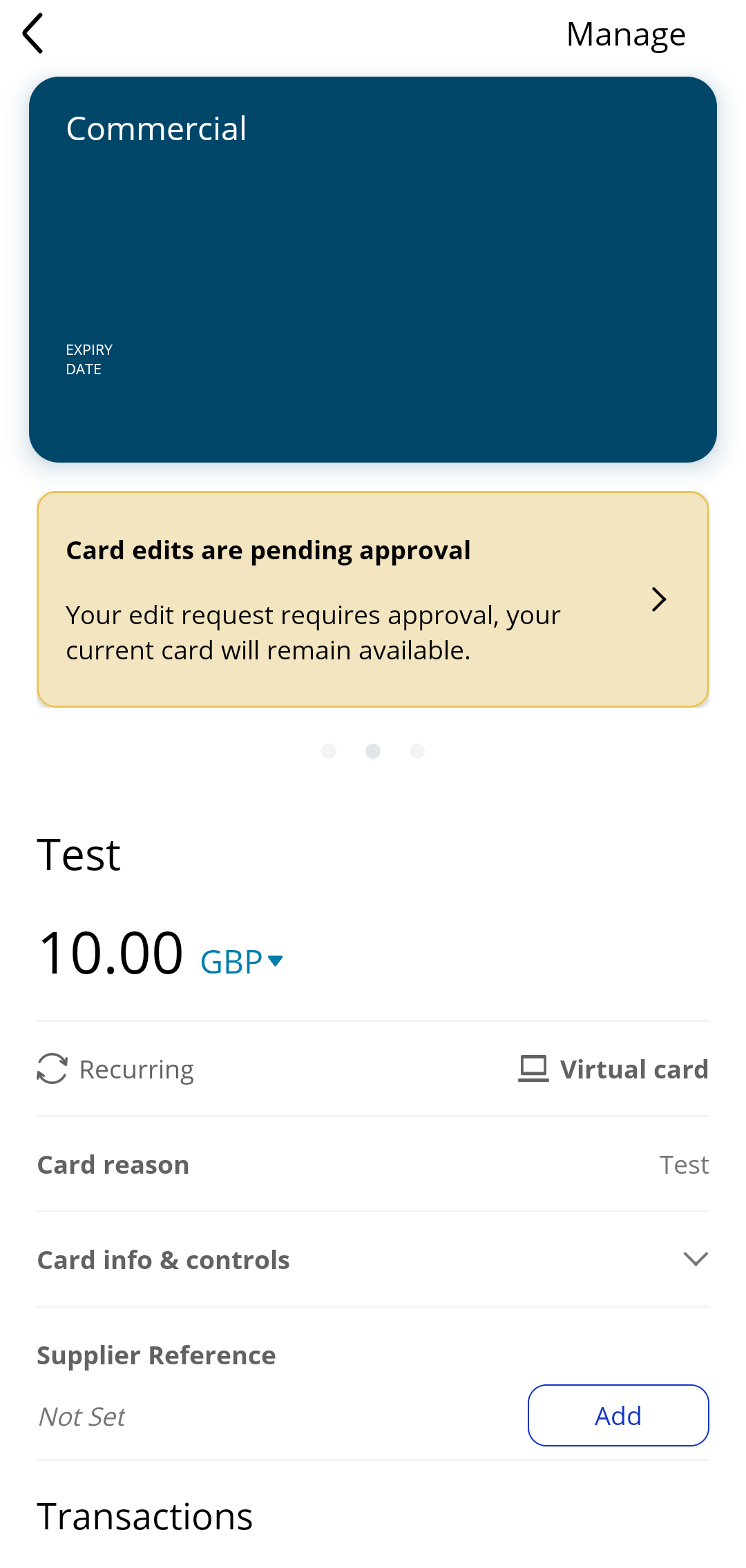
If you have triggered the approval workflow, your card will have a banner stating that the edits are pending approval.
Note
Cards will still be valid with their current details whilst they are pending approval.
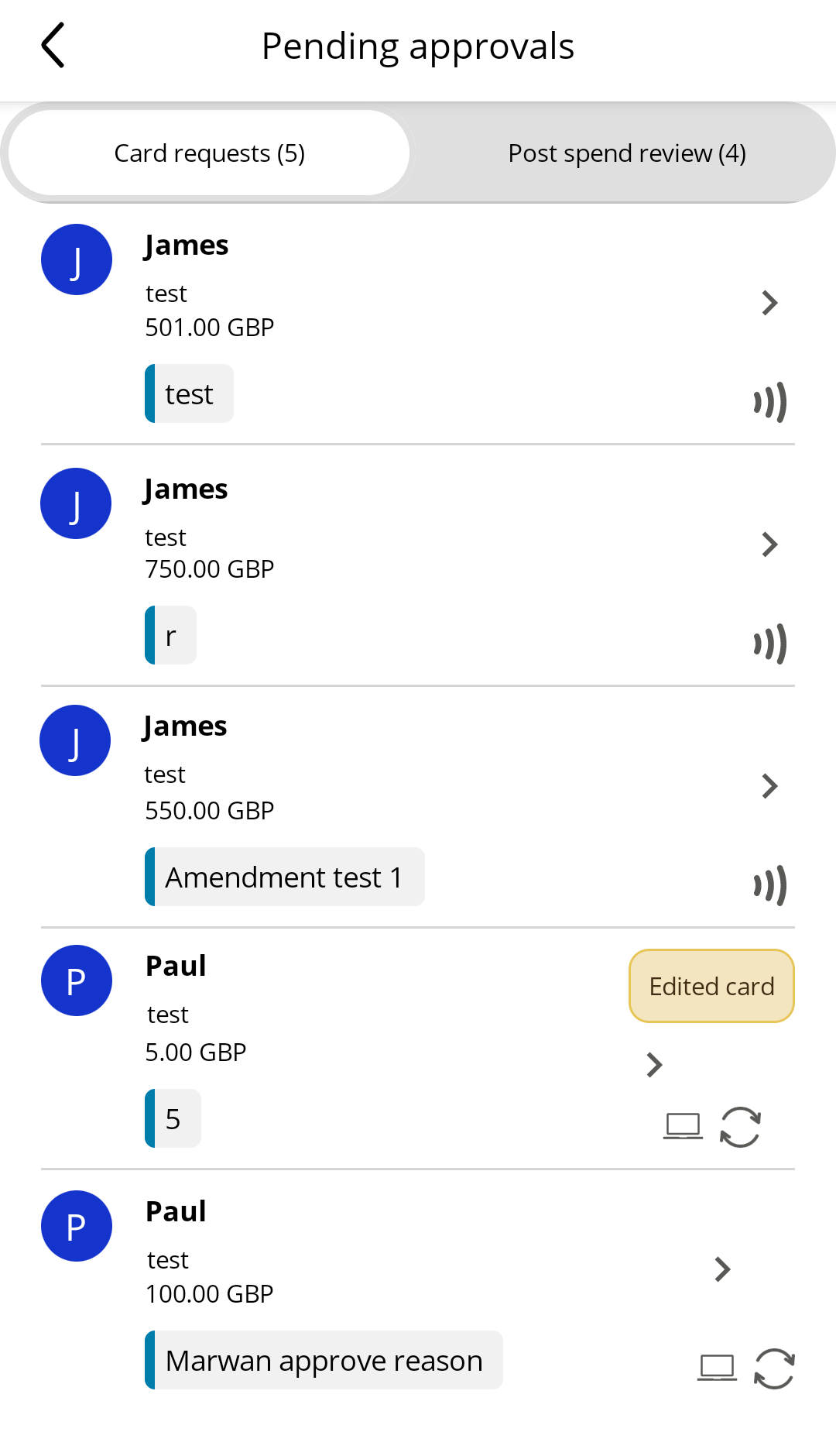
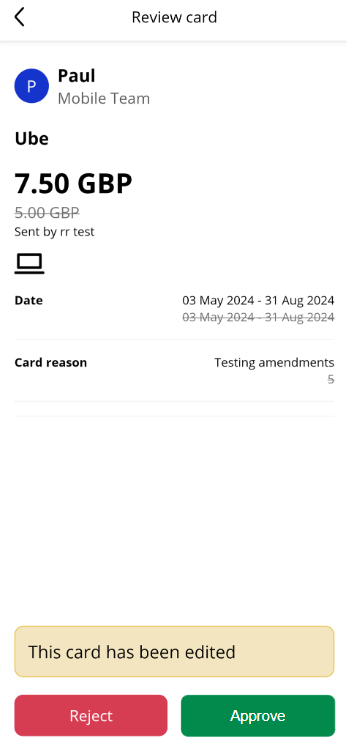
As an Approver, you can Approve or Reject pending edits if the approval workflow has been triggered.
From the Pending approvals screen tap the card request marked with the 'Edited card' icon.
The Review card screen will show all changes that have been made. Previous values will be crossed out with the new value above.
Tap Reject or Approve to reject or approve the edit request. Once approved, the edited card will be live.
Note
The user that edited the card will receive a notification that their card has been approved or rejected.
A rejection reason can be added when rejecting an edit request.
Team Member Activity
As a Team Admin, you will be able to see all edit requests from the Team Member Activity screen.
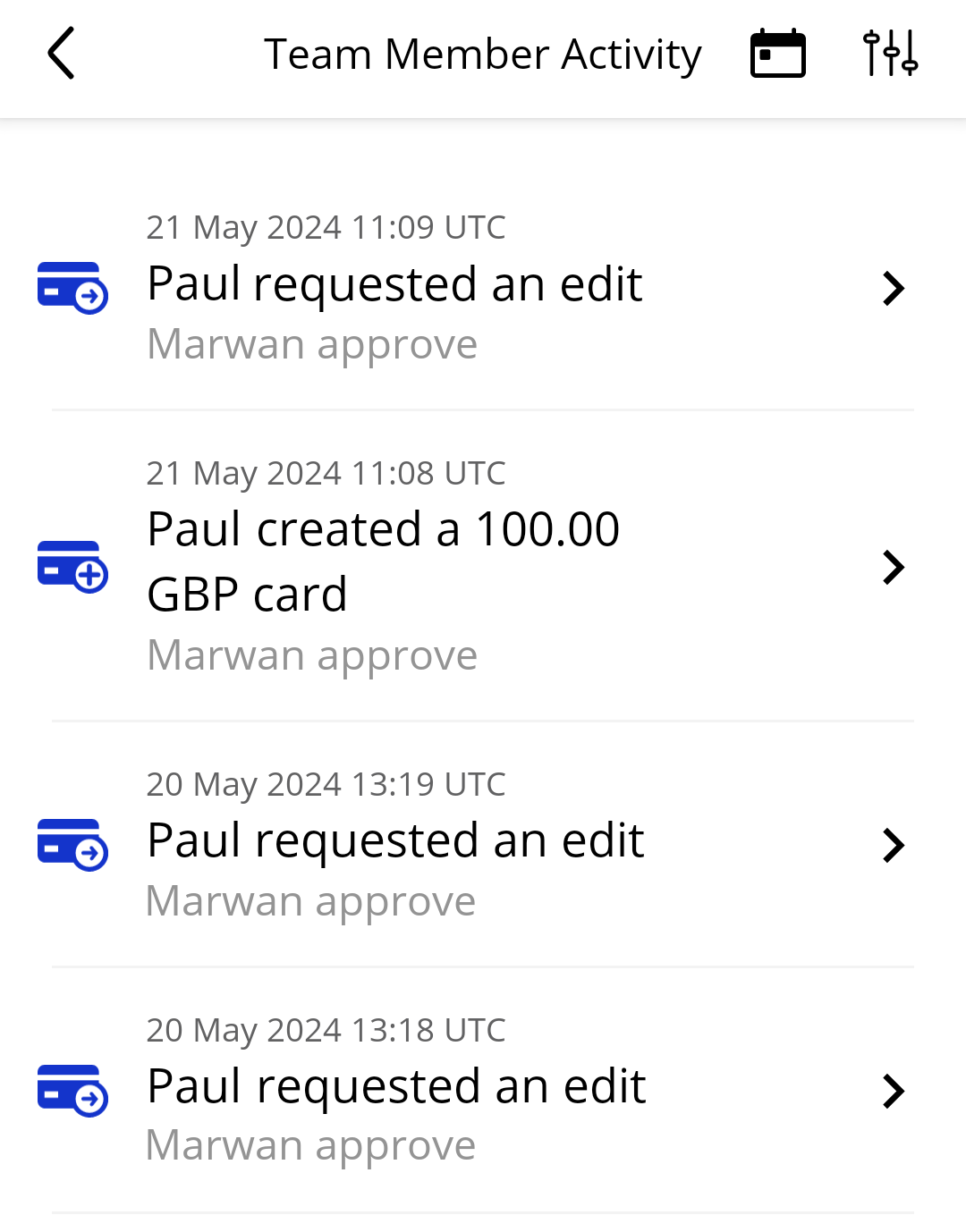 |
If you tap an edit request activity, you will be taken to the card details screen.