Searching for Transactions
Click the Transactions icon from the menu to search for specific transactions, groups of transactions or transactions over a specific date range.
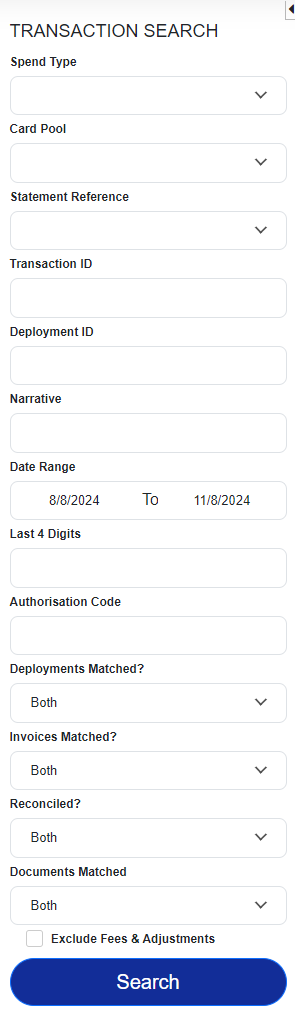 |
Select a Spend Type or leave blank to view all spend types. If you select a Card Pool, you can also select a Statement Reference from the dropdown list.
You can search for a specific transaction using the unique Transaction ID or Deployment ID if you have it.
Transaction ID is the unique number assigned by Visa Commercial Pay Online to the transaction when it is received from the issuer and imported into the system.
Deployment ID is assigned when the Virtual Card Number (VCN) is generated.
Narrative is the text provided by the merchant when the transaction is processed. This is the same text that appears on the statement you receive from the bank and is usually the merchant's name.
Date Range restricts the search to transactions processed within the defined period. You can choose dates from the pop-out calendar or type them into the field.
Note
The Date Range is restricted to a three-month period.
Add the Last 4 Digits (of the VCN) or the Authorization Code used by the hotel to retrieve all transactions charged to that VCN.
You can also use the additional filters to restrict results to:
'Deployment Matched' (transactions that have already been matched to a deployment)
'Invoice Matched' (an invoice or folio has been manually added into Visa Commercial Pay Reporting)
'Reconciled' (a transaction has been matched to a deployment and an invoice added or marked as Invoice Not Required
The default search option is 'Both' for all three criteria. This search criteria will be retained for future searches until amended.
Click Search to view a list of matching results.
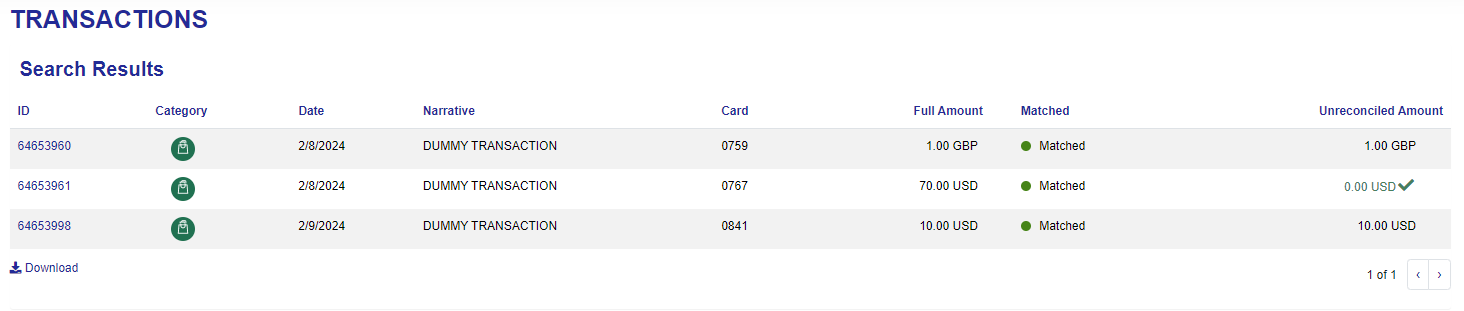 |
Search Results:
Field | Description |
|---|---|
Transaction ID | The unique identifier that Visa Commercial Pay Online assigns to each transaction when uploaded into the system. |
Date | The date that the merchant charged the Virtual Card Number. |
Category | The category that the transaction falls under, based on the merchant category code. |
Narrative | This is usually the merchant's name and refers to the text provided by the merchant when the transaction is processed. |
Card | The last four digits of the Virtual Card Number used to settle the transaction. |
Full Amount | The amount that has been charged to the card and currency. |
Matched | A green circle icon in the Matched column indicates that the transaction has been successfully matched to a deployment, or the deployment has been successfully matched to a transaction. |
Unreconciled Amount | Any Unreconciled Amounts indicate the difference between the Full Amount and the total value of the invoice created. If the Unreconciled Amount shows in green with a tick, this indicates that the transaction has been fully reconciled (i.e. matched to a deployment and an invoice/folio added or manually marked as invoice not required). If the Unreconciled Amount is not displayed in green with a tick, the transaction value is not linked to an invoice breakdown. |
To export the search results into an Excel spreadsheet (.csv format), click the Download link below the results table.
Click a specific transaction in Visa Commercial Pay Reporting to see further information about that transaction.
 |
Field | Description |
|---|---|
Transaction Amount | In local currency. |
Statement Amount | In the currency the account was set up in. |
Statement Ref | Specifies which statement the transaction can be found in. If it is ‘not set’ the transaction is in the current period and has not yet been allocated to a statement. |
Matching State | Automatic - the transaction has auto-matched to the deployment without any manual intervention. Manual - the transaction has been manually linked to a deployment by a Visa Commercial Pay Reporting user. Click here to see details of the user and the date and time that the match took place. |
Acquiring Reference Number | The ARN (Acquiring Reference Number) is displayed if one is available. |
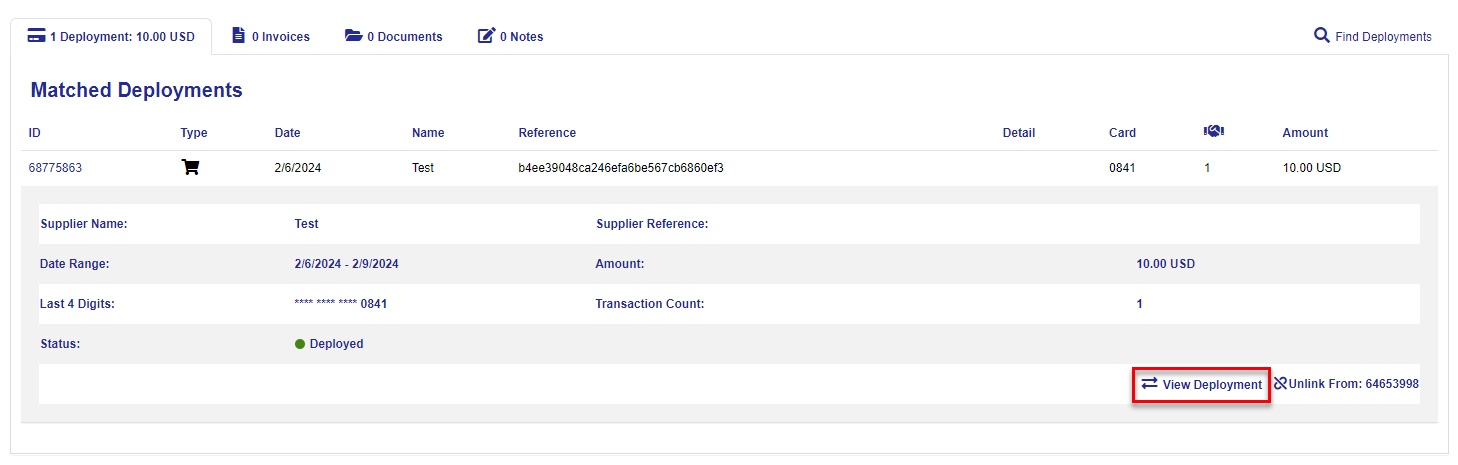
If the transaction has been matched to a deployment, the details of the deployment are shown in the bottom pane. Click View Deployment to view the deployment in more detail.
 |