Linking Receipts to Transactions
You can upload images of your receipts directly to the Visa Commercial Pay App. You can associate the receipt with either a card or a transaction. When a receipt is associated to a specific transaction, the transaction is marked with a bold receipt with a tick icon.
When a receipt/invoice is uploaded against a transaction, the document will be available to view in Visa Commercial Pay Reporting.
You can link a receipt to a transaction via three different routes:
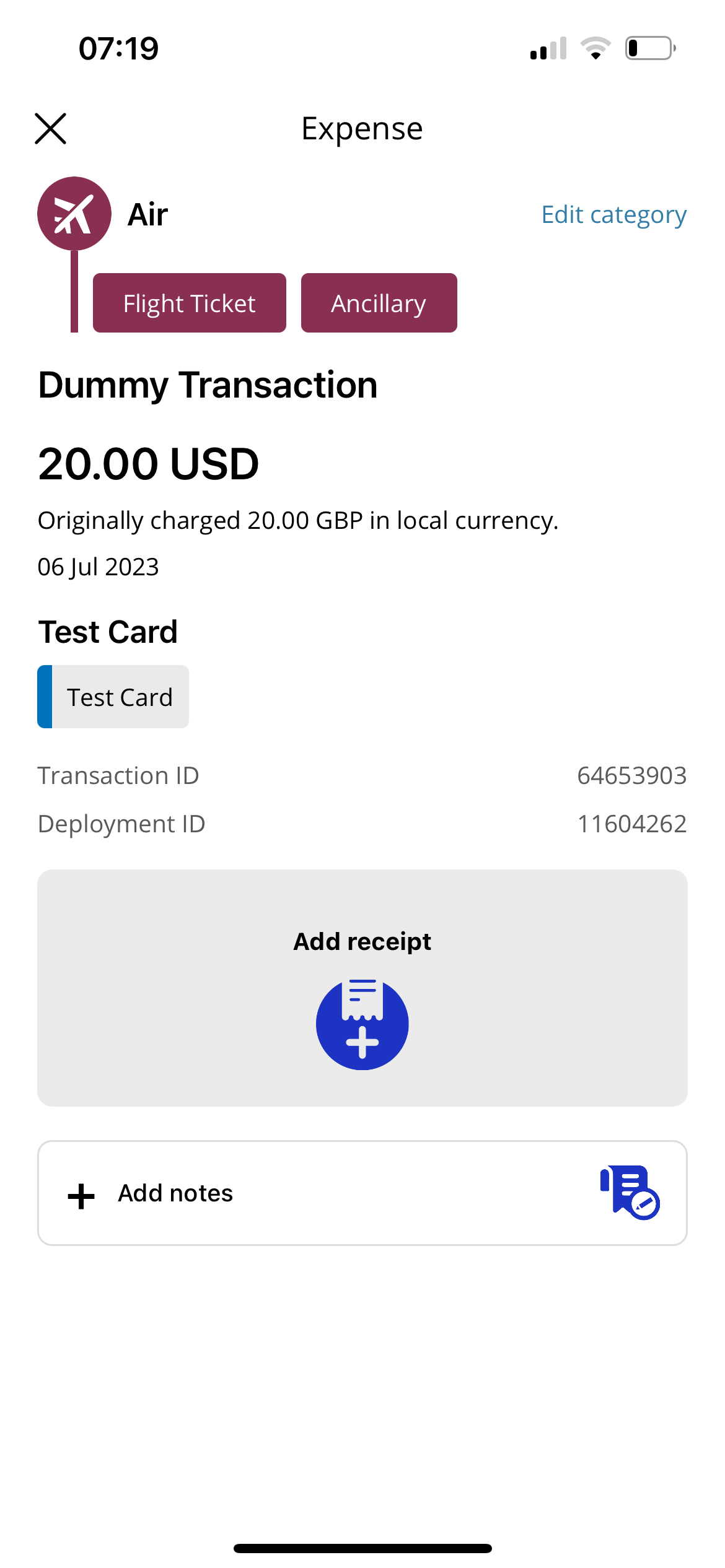
Go to a card with a transaction, tap the transaction and then tap Add receipt.
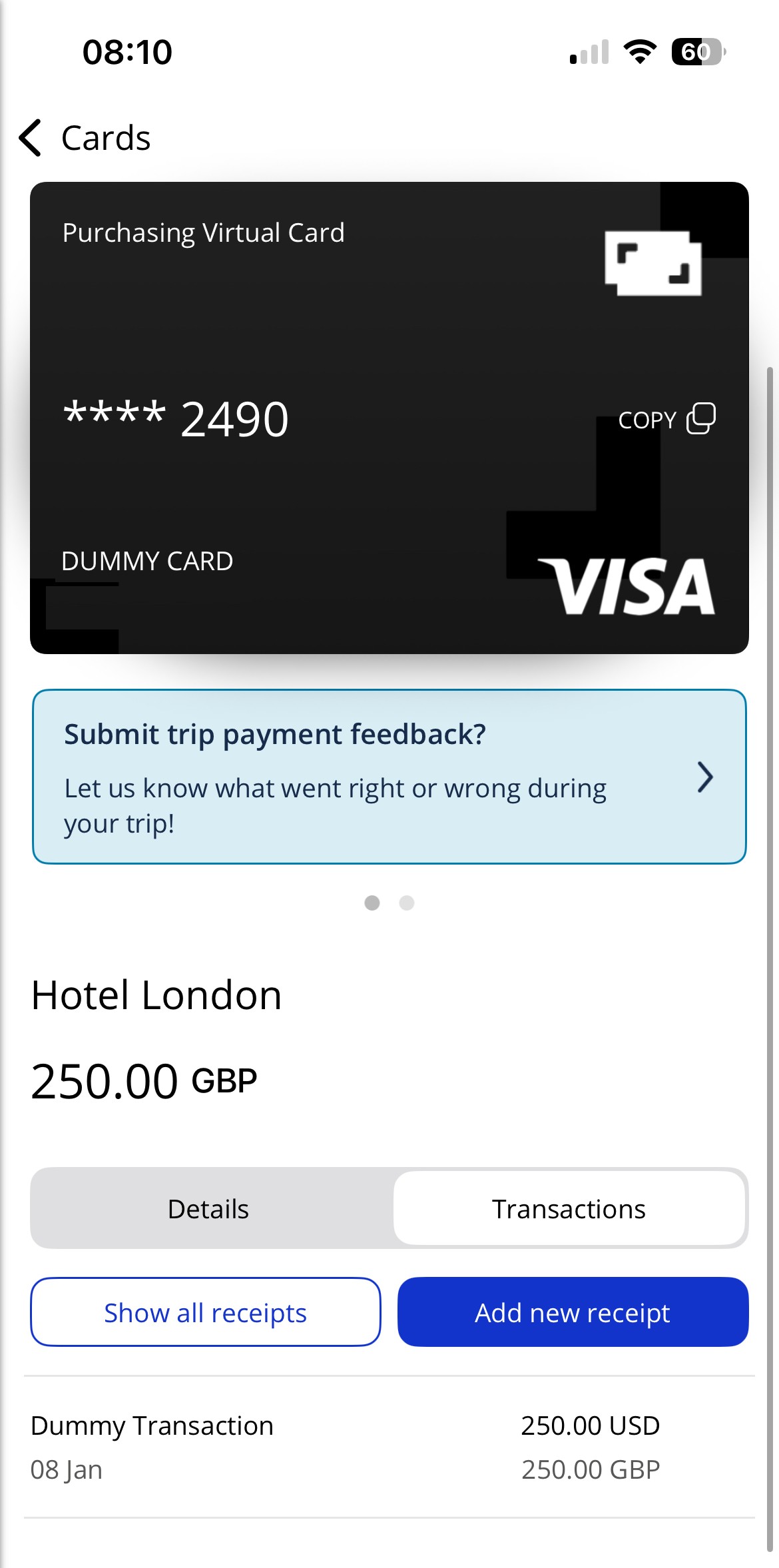
Go to a card with a transaction, tap Transactions, tap Add new receipt and then select the transaction.
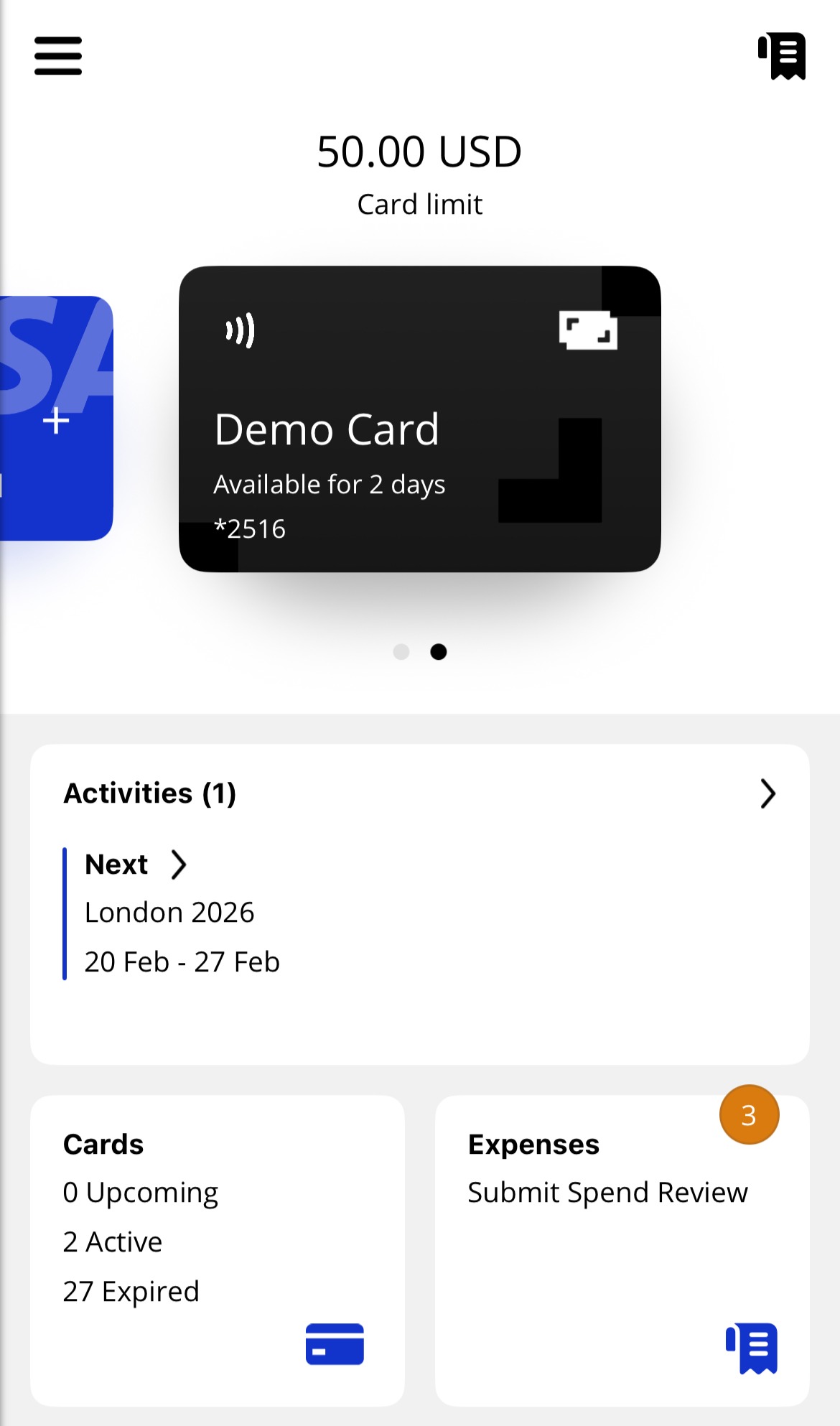
From the home screen, tap the Receipt storage icon from the top-right corner.
You will then be given four options to upload a receipt:
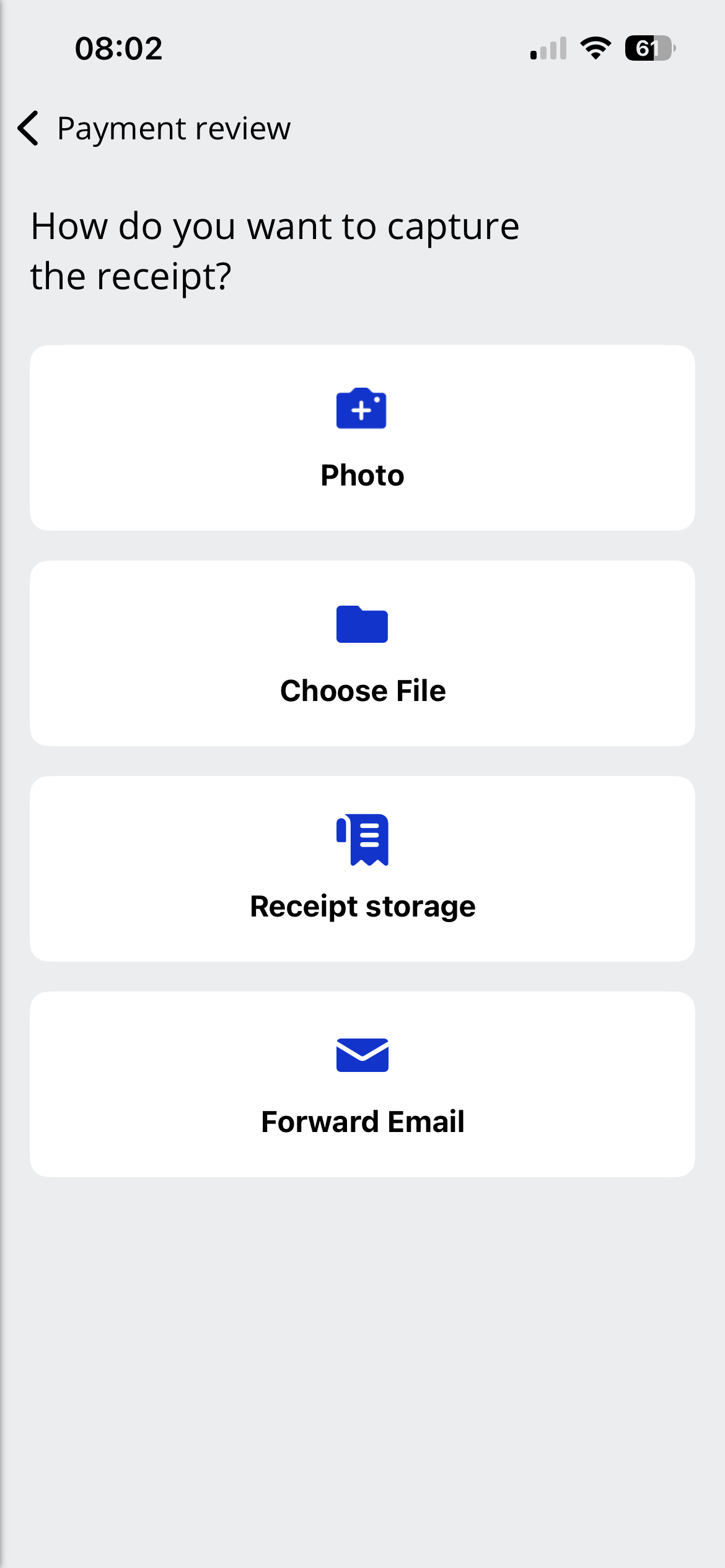
Photo—you can take a new photo or select one from your device
Choose file—you can select a file from your device to upload
Receipt storage—you can select a receipt that you have upload already
Forward email—you can forward an email to the email address provided in the app, tap Copy to copy the email address
Once you have uploaded the receipt you will be redirected to the transaction with the receipt uploaded.
Note
There is a maximum file limit of 5mb. Accepted file types are .JPG .PNG .PDF and .TIFF
Receipt Storage
App users can upload files via the home page, this allows for receipts to be added easily whilst on the go without immediately needing to link them to a transaction. Multiple files can be uploaded at once, which will all be added to the Receipt Storage section.
Adding New Receipts
App users have the option to quickly add receipts to their Receipt storage, which can be organised and linked to transactions later.
To add new receipts:
Tap the Receipt storage icon from the top right-hand corner of the Home screen.
Tap Add receipt.
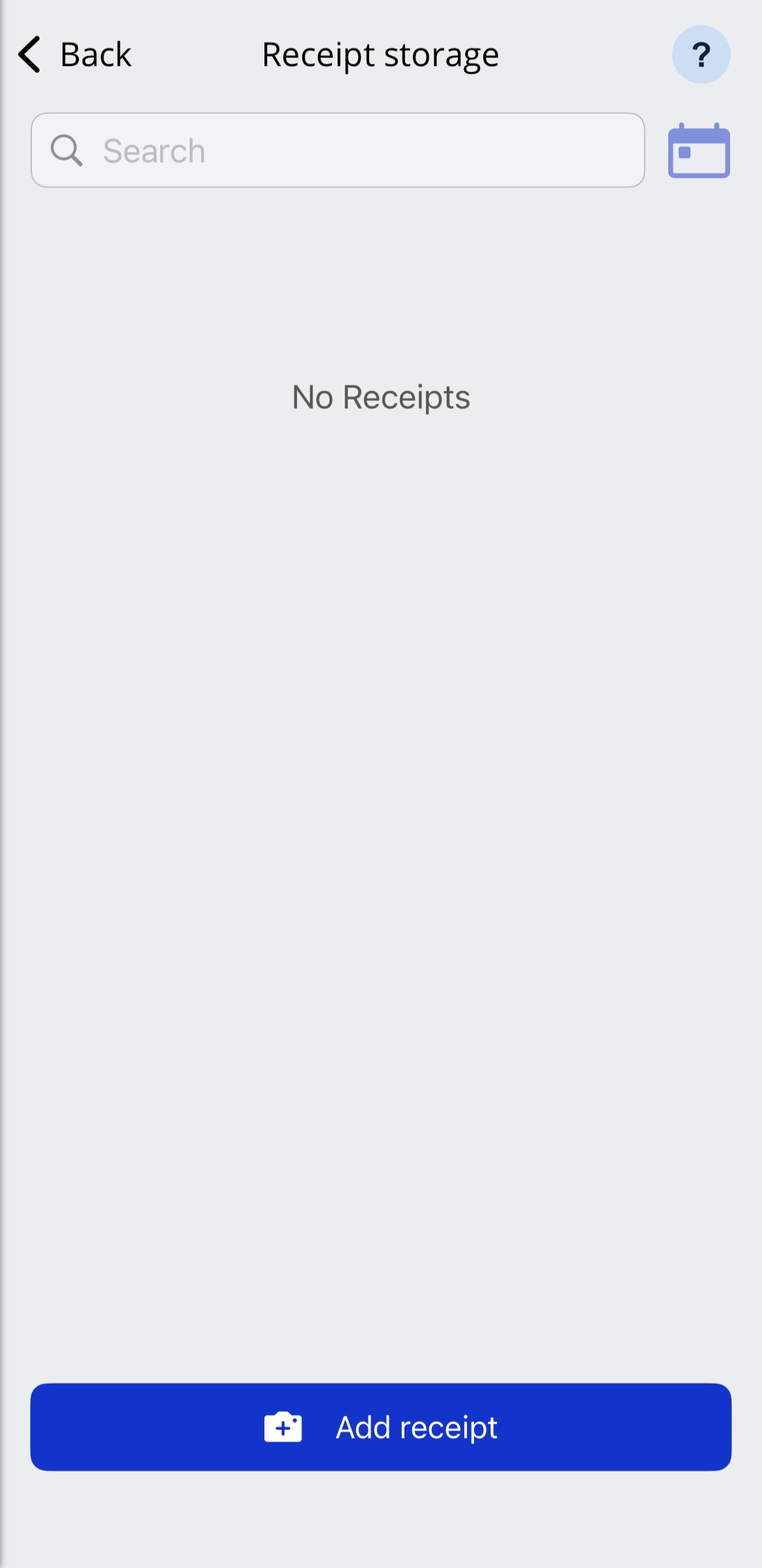
Select an option for uploading a receipt.
Take a new photo
Choose from existing photos
Choose file
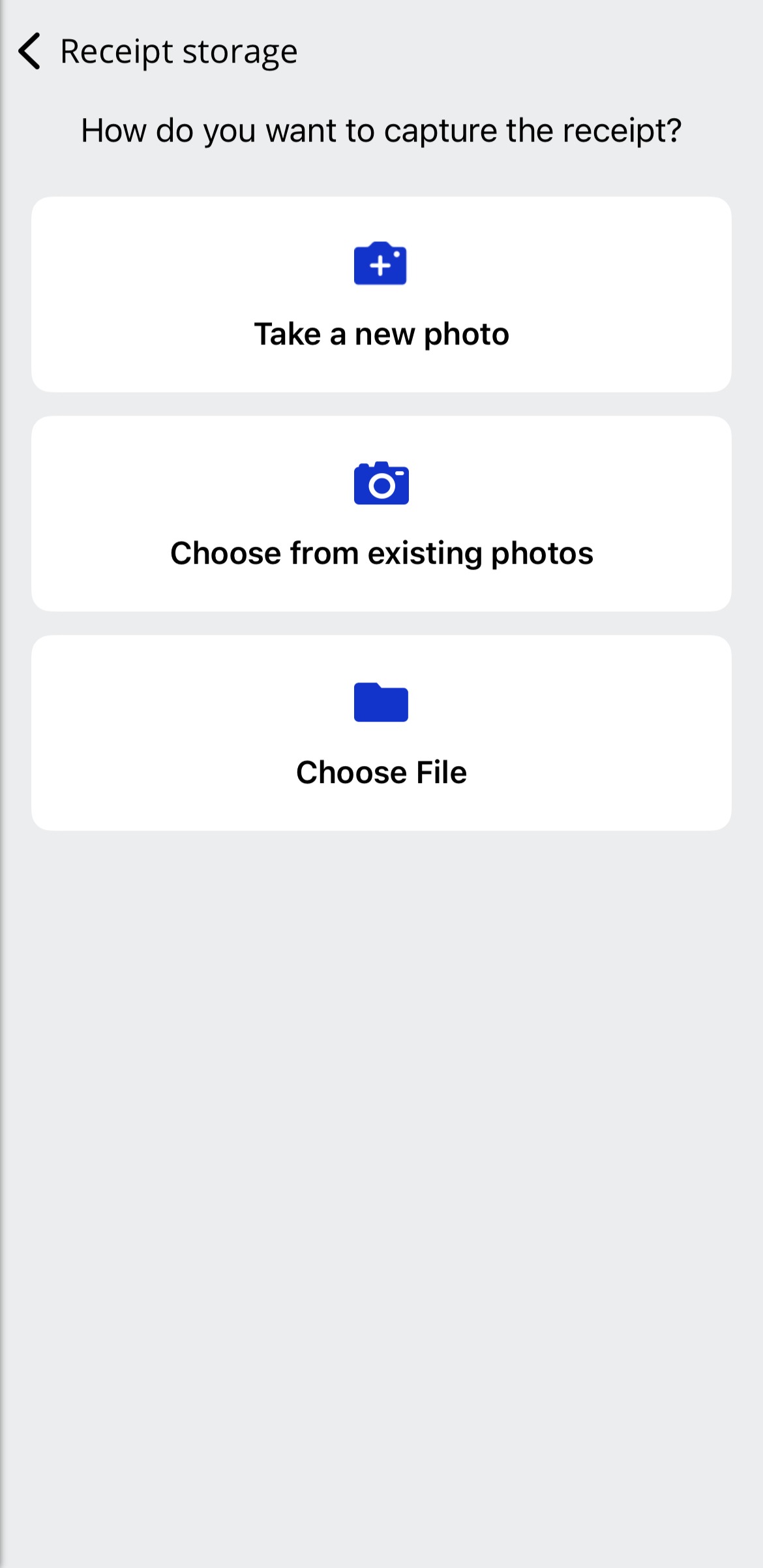
Once uploaded, enter a Receipt name, and tap Save in receipt storage.
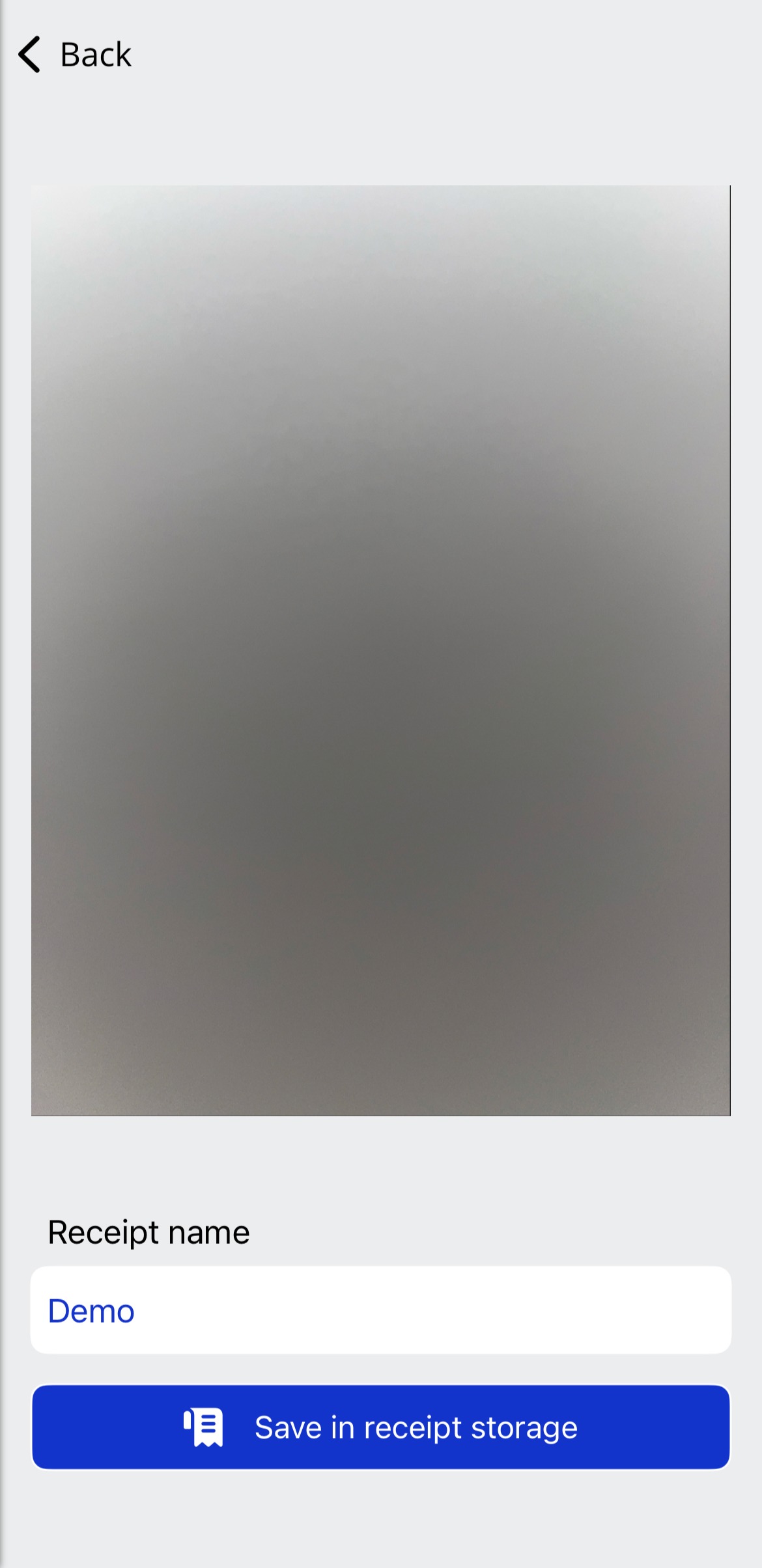
If uploaded successfully, the receipt will be shown in the Receipt storage.
Searching for Receipts
You can search for receipts that you have uploaded to the app by entering the receipt name or changing the upload dates to view all receipts from a specific period.
To view an uploaded receipt, tap a receipt tile.
 |
Linking Receipts to Transactions
To link a receipt to a transaction:
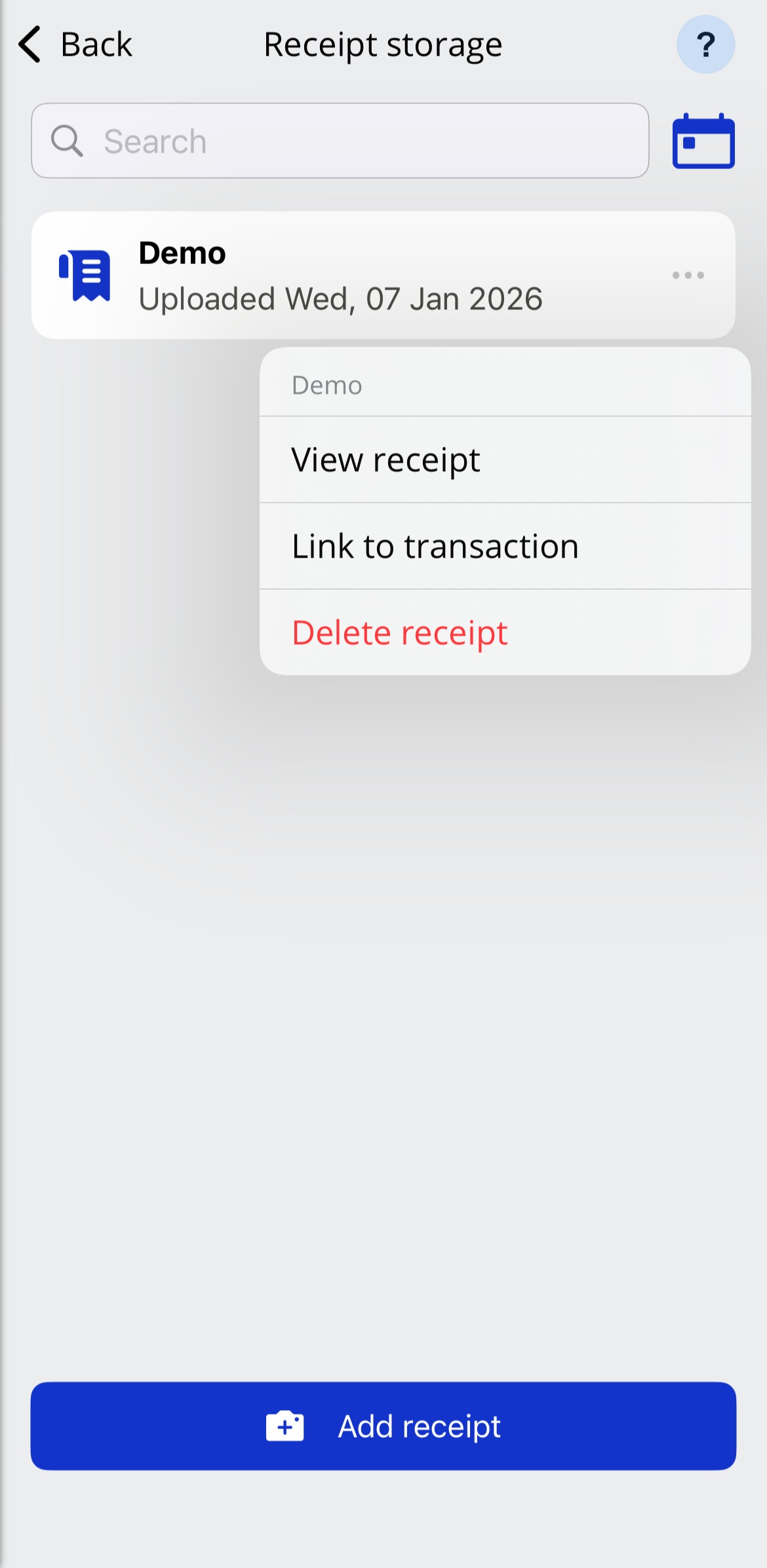
Tap the 3-dots on the right-hand side of a receipt tile, and then tap Link to transaction.
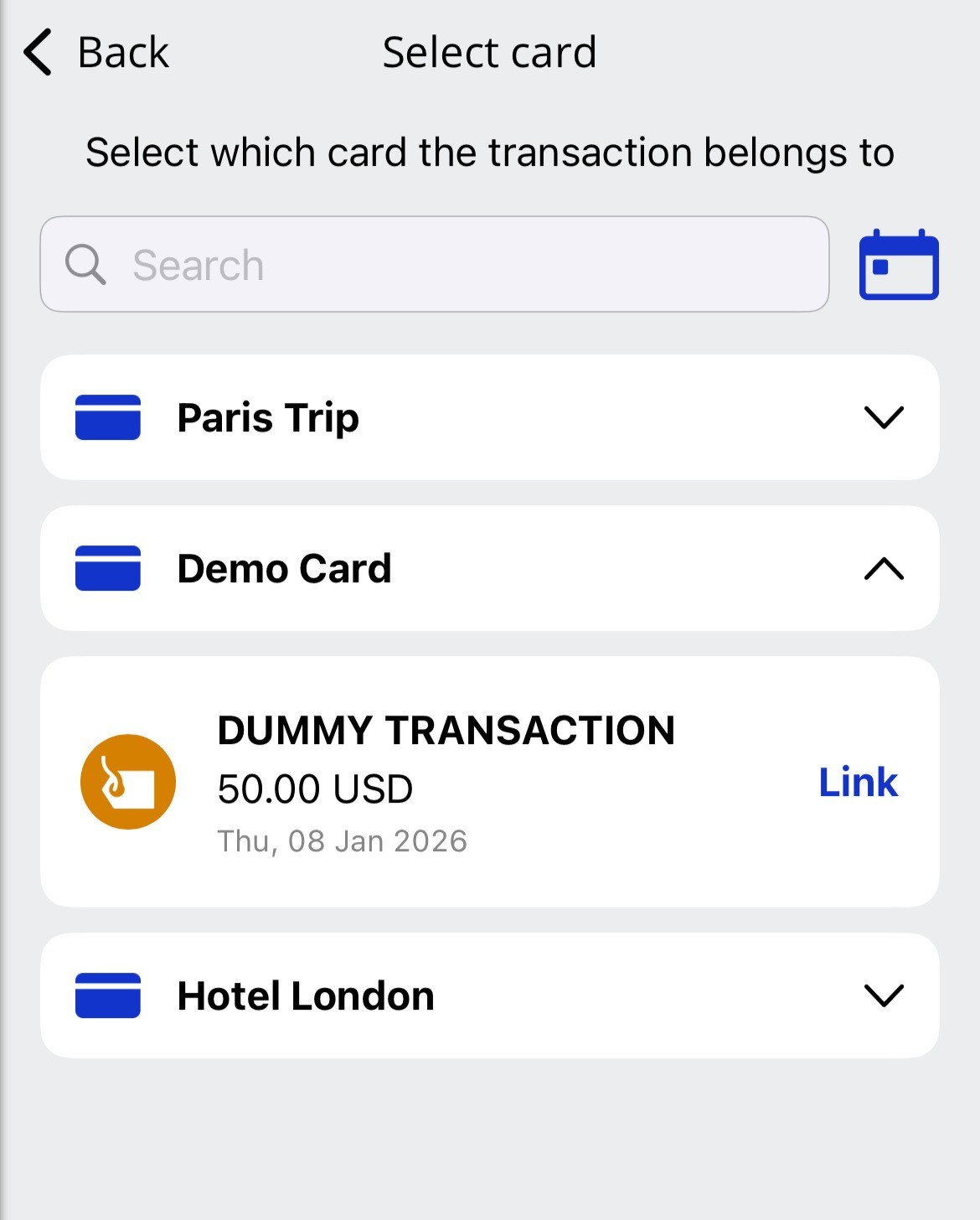
Select the card that you want to link the receipt to, and then tap Link on the transaction that you want to link the receipt to.
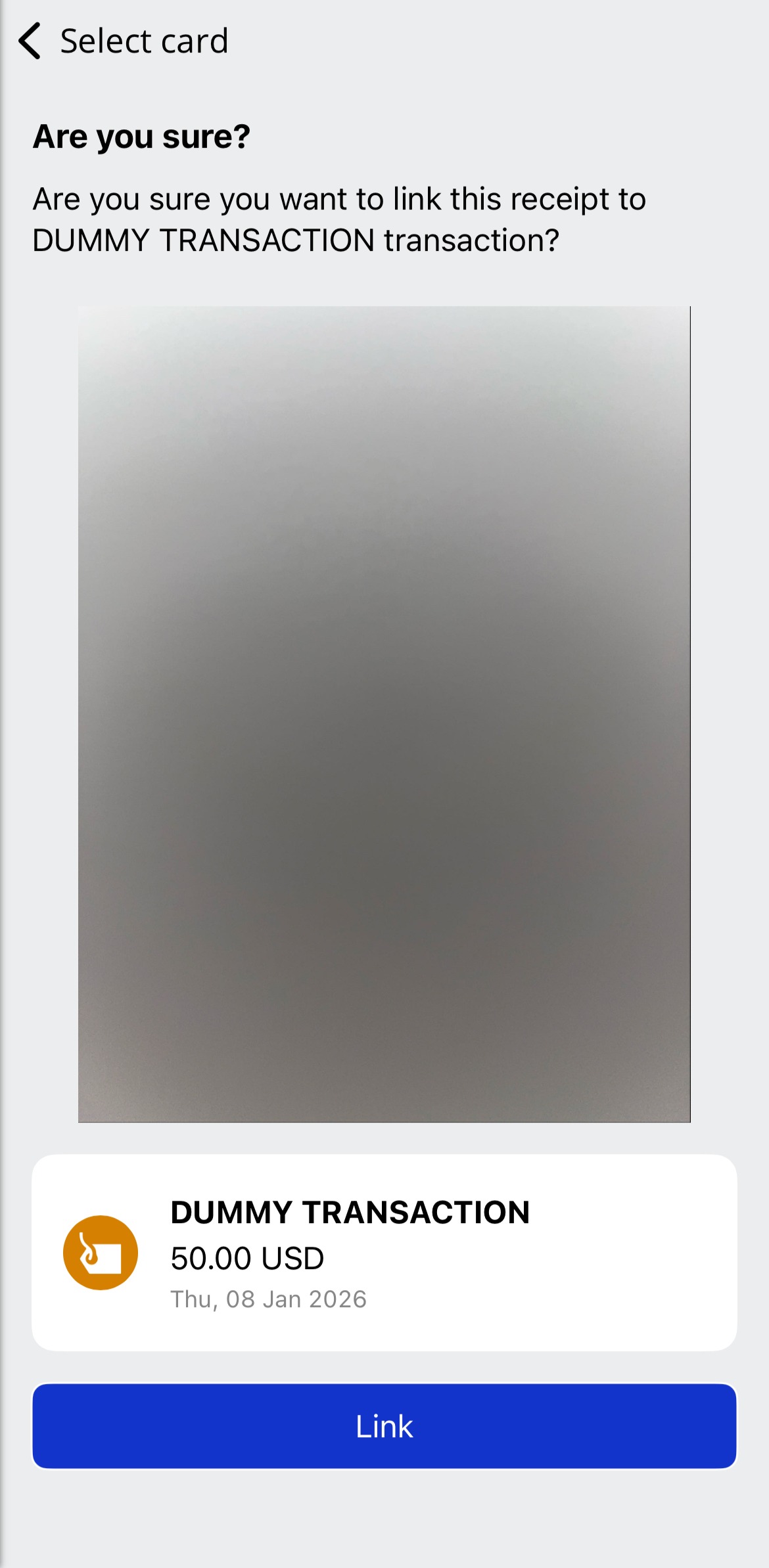
To confirm, tap Link.
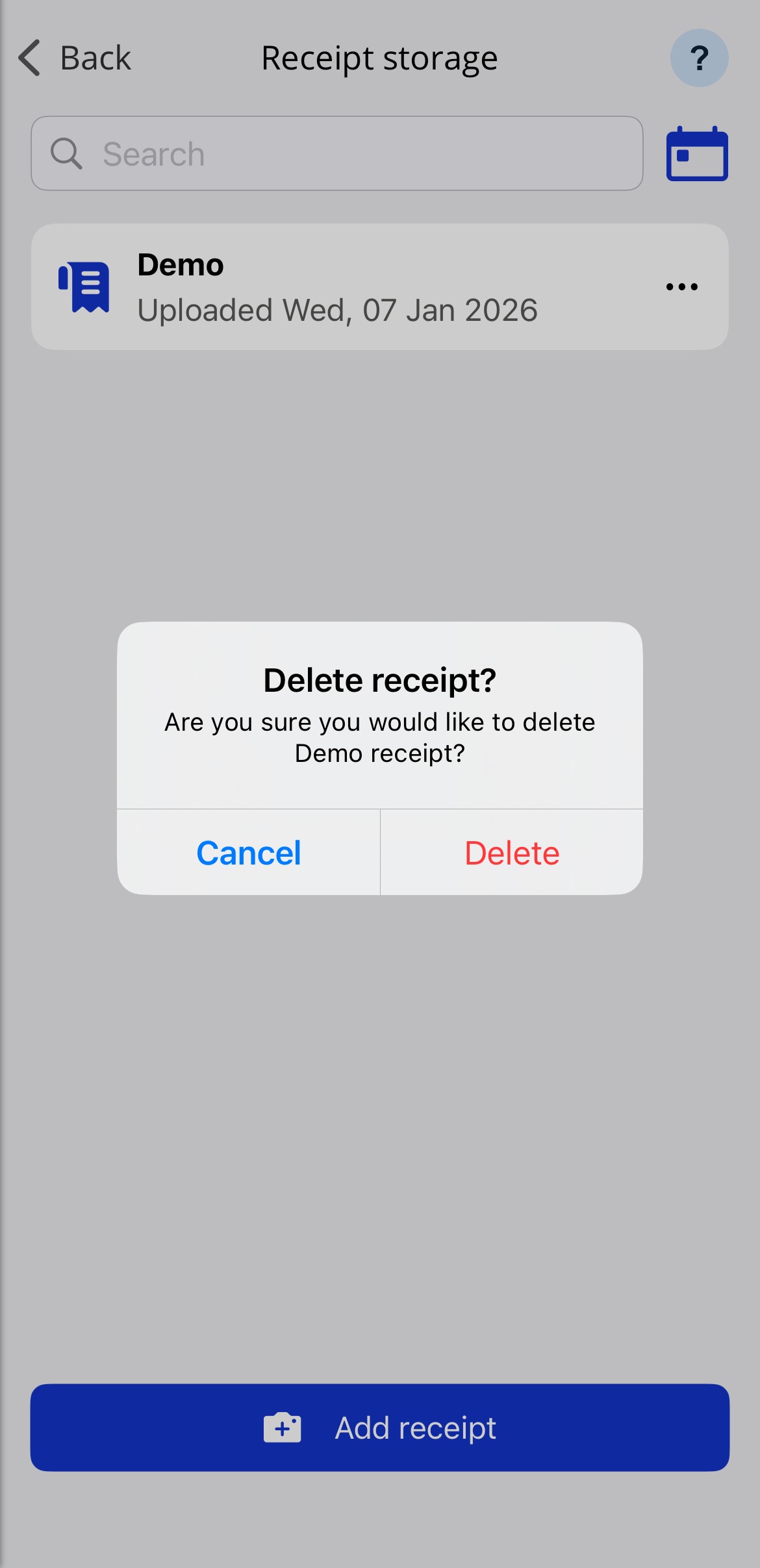
Deleting Receipts
To delete a receipt:
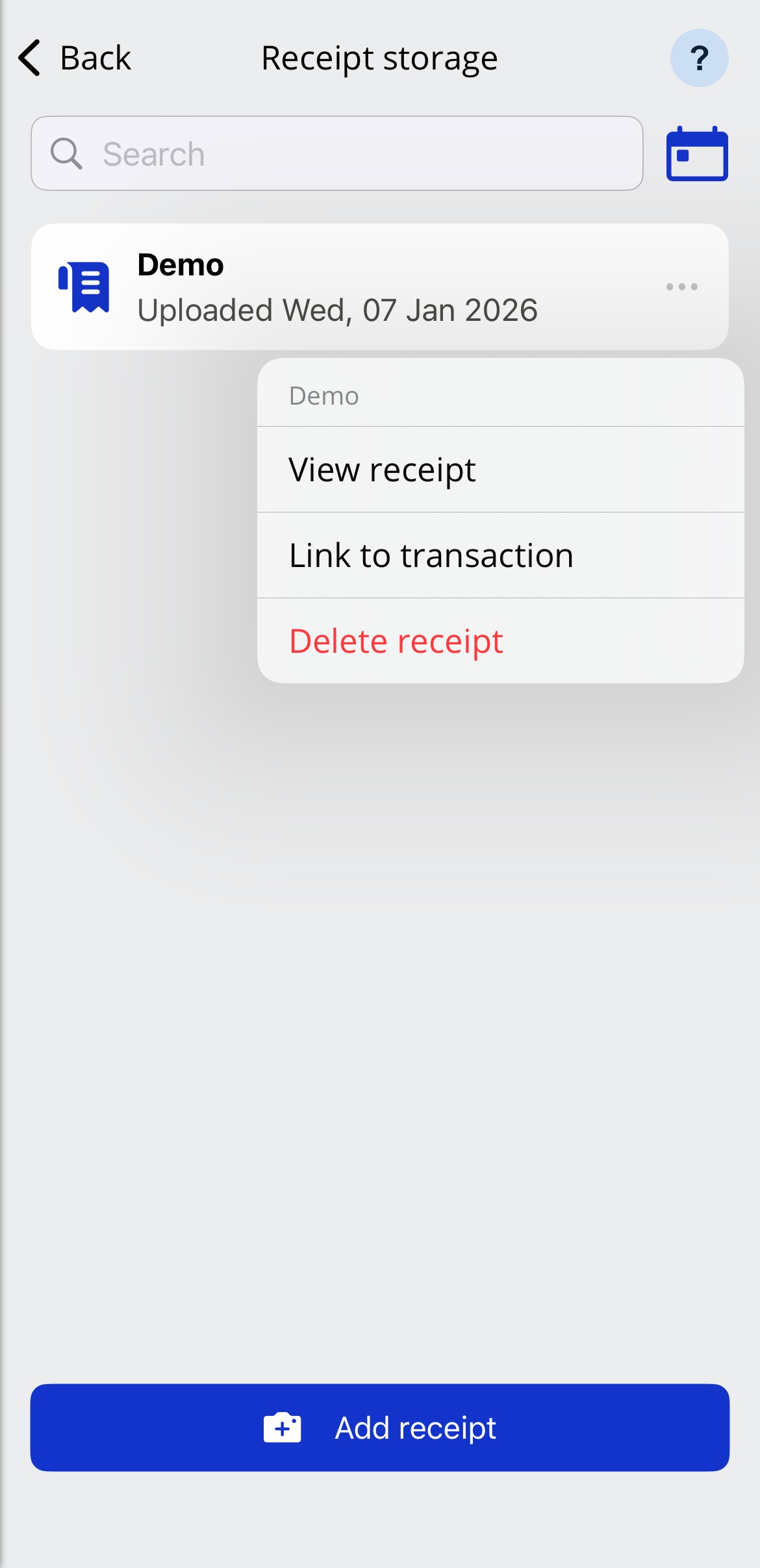
Tap the 3-dots on the right-hand side of the receipt tile, and tap Delete receipt.
Tap Delete again to confirm.
Delete or Unlink a Receipt
If a receipt has been incorrectly associated to a transaction, you can change which transaction is linked to the image by navigating to the Show all receipts screen and selecting the correct transaction.
Locate the linked receipt that you want to delete by navigating to the card and then opening the transaction.
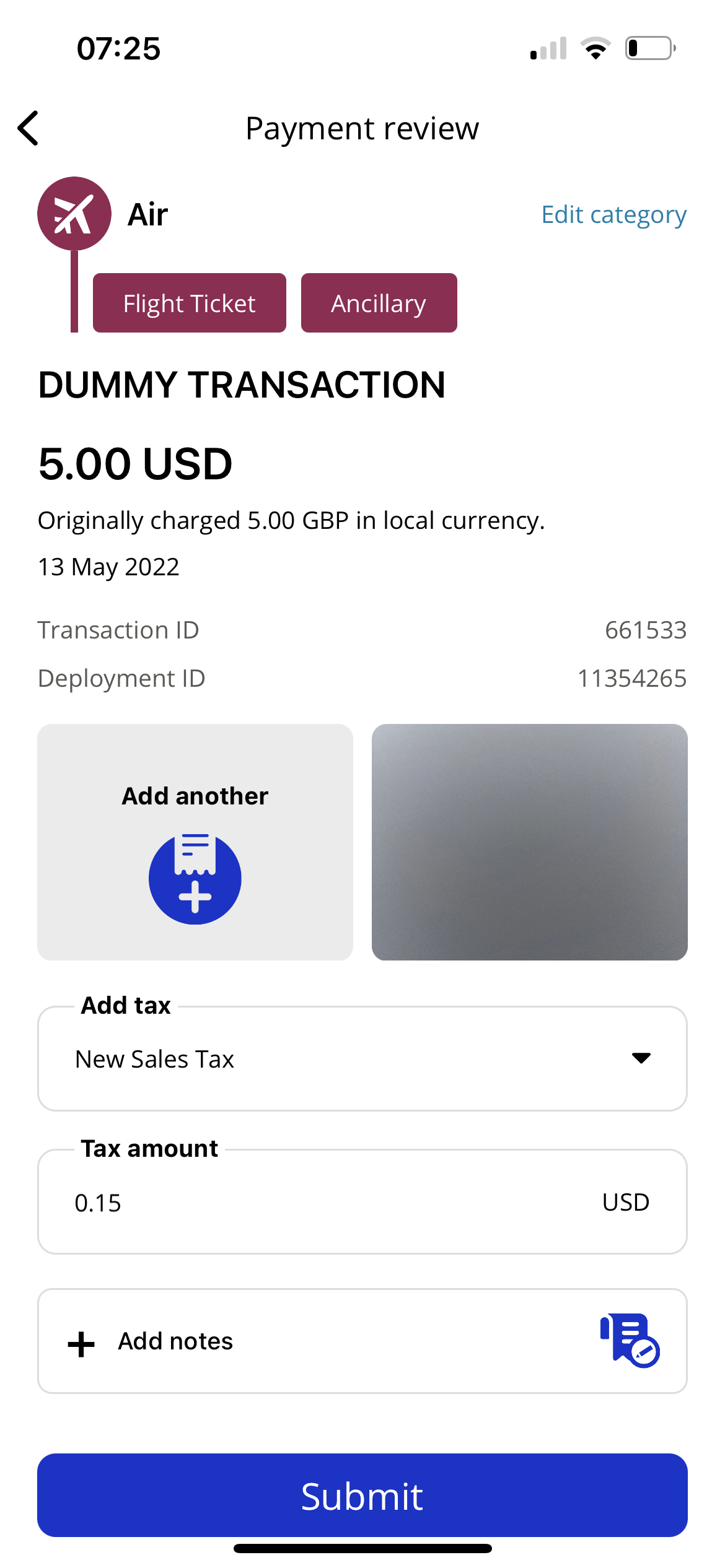
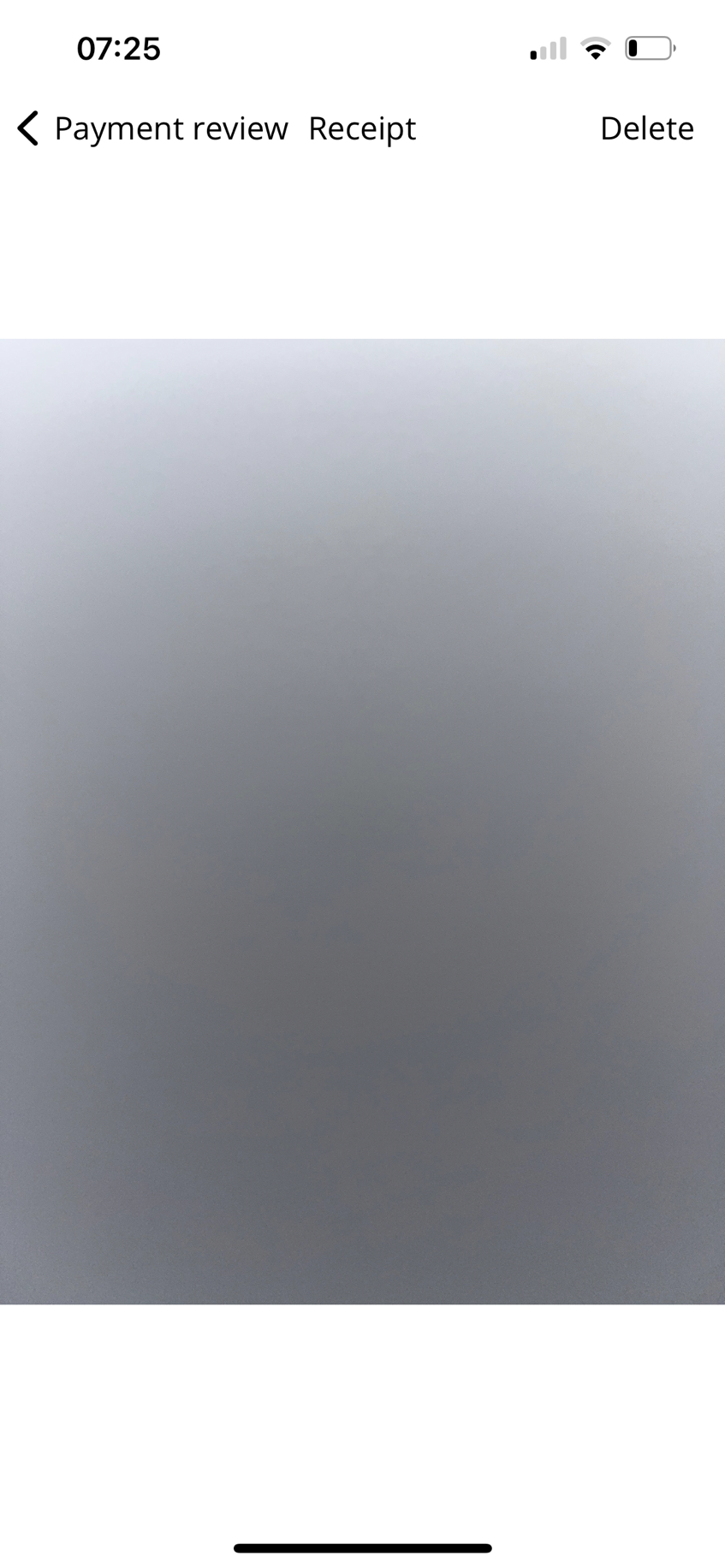
Tap the receipt and then tap Delete.
Share From Device
You can add documents to the app via your device's share option. The option to send a document to the app will appear alongside other share options available on your device.
To add a receipt from a third party app on your device (e.g. Photos, Files):
Tap the option to share a file or image.
Select the Visa Commercial Pay App and tap Save in receipt storage.
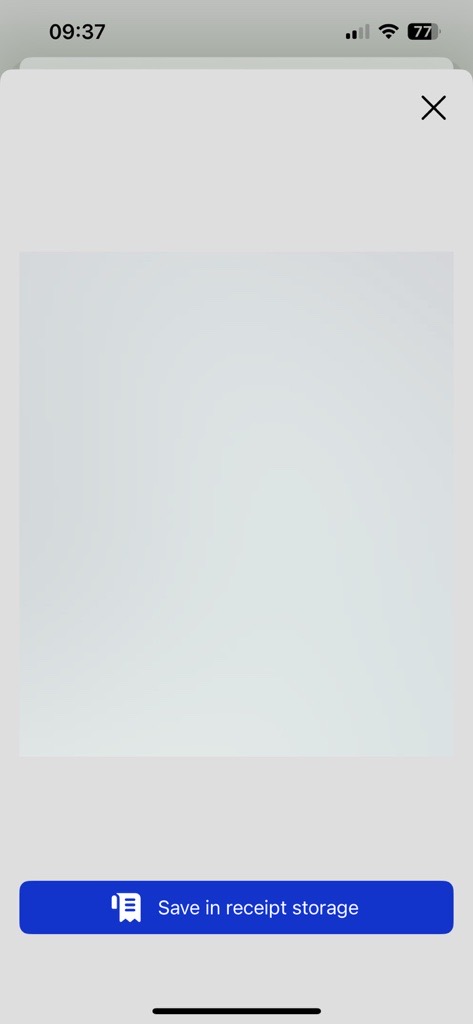
Once uploaded, the file can be found in the inbox of the Expenses section in the Visa Commercial Pay App.