Menus and Controls
Overview and Analytics in Visa Commercial Pay Reporting
When you log in, Visa Commercial Pay Reporting will open on the Overview page. Click Dashboard at the top of the screen to access this page at any time.
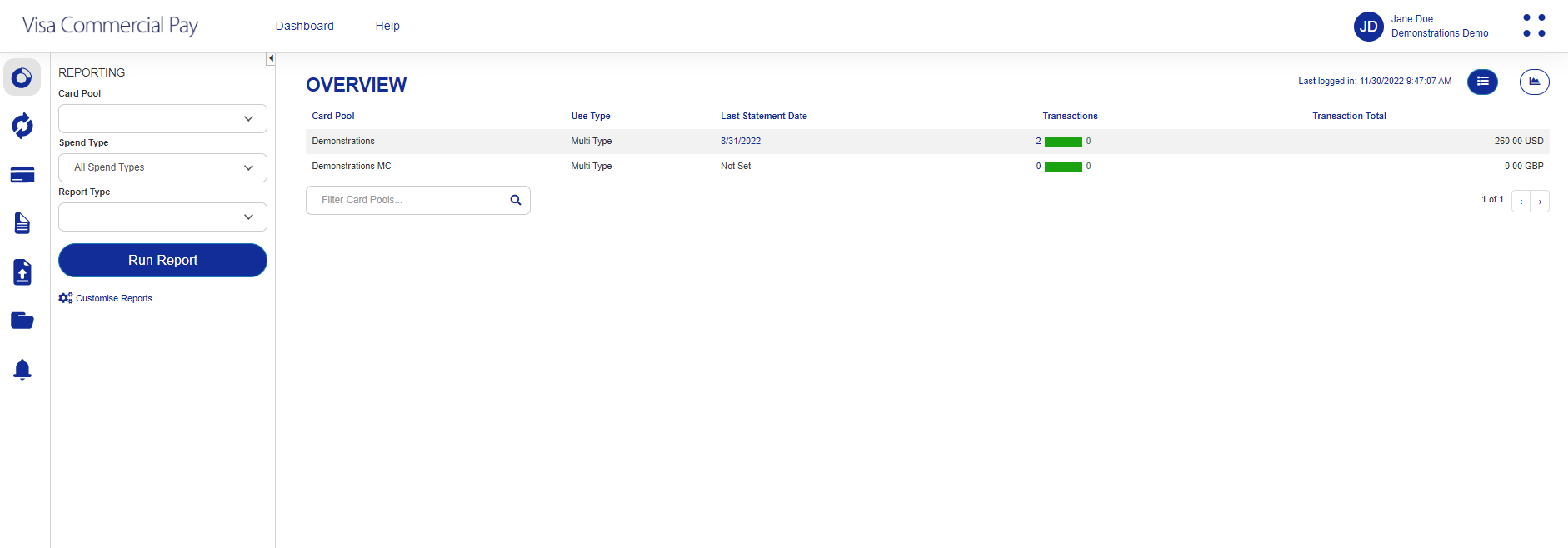 |
Overview provides a summary of your active Card Pools.
Field | Description |
|---|---|
Card Pool | Name of the card account |
Use Type | Spend type of the Card Pool |
Last Statement Date | The date of the last statement cut that was imported into Visa Commercial Pay Reporting by your banking partner |
Transactions | Number of matched transactions within the current period are shown in green and the number of transactions that still need to be matched to deployments are shown in red |
Transaction Total | Total value of all transactions in the current period. (This is a preview of the current spend that will show on your next statement) |
Menu panel
You can use the menu panel on the left of the screen to easily navigate around the reconciliation and reporting tool.
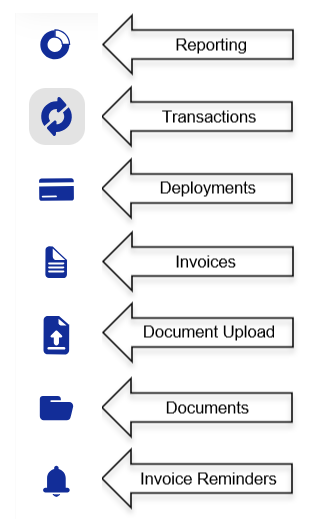 |
Each option on the menu enables you to filter search results to control what is visible in the main Visa Commercial Pay Reporting dashboard.
Once you have conducted a search you can hide the search panel by clicking on the minimize arrow. This will hide the search panel, giving you a larger workspace within Visa Commercial Pay Reporting. Click the menu icon if you wish to expand the search panel.
You can navigate through your search results using the arrows at the bottom of the screen.