Uploading a File
Use this option if you wish to upload a copy of a receipt that you have received directly from a supplier or an invoice breakdown in a delimited file.
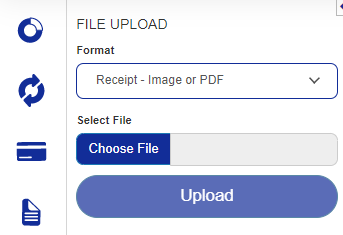 |
To upload a receipt, click Choose File and locate the image or PDF you would like to upload, then click Upload. Once uploaded, you can click Options and link the document to a deployment or invoice or delete the document.
Delimited files of Invoice Breakdown can have comma, tab, semicolon, colon or vertical bar as the column delimiter. The most commonly used are Comma {,} files.
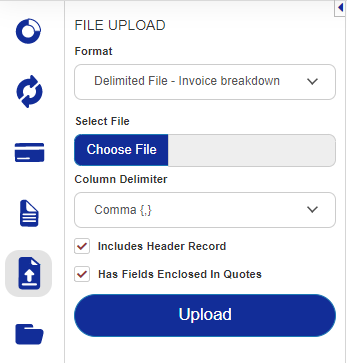 |
Before the invoice data can be uploaded, you will need to use the dropdown lists to match the Visa Commercial Pay Reporting Invoice fields with those found within the file. To do this, select the data item or item name from each dropdown list that corresponds with the label shown next to it. Once all dropdowns are chosen, click Process File.