Online Multi-Factor Authentication (MFA)
To comply with industry standard regulations and ensure secure usage of our platform, MFA is required for all users when accessing Visa Commercial Pay applications.
Logging In with Multi-Factor Authentication
Once MFA has been set up on your account, follow the log in process below.
Enter your username.
Enter your password.
You will be prompted to enter the one-time passcode. You can get the code from the Visa Commercial Pay App on your device or the 3rd-party authenticator you used when you set up MFA.
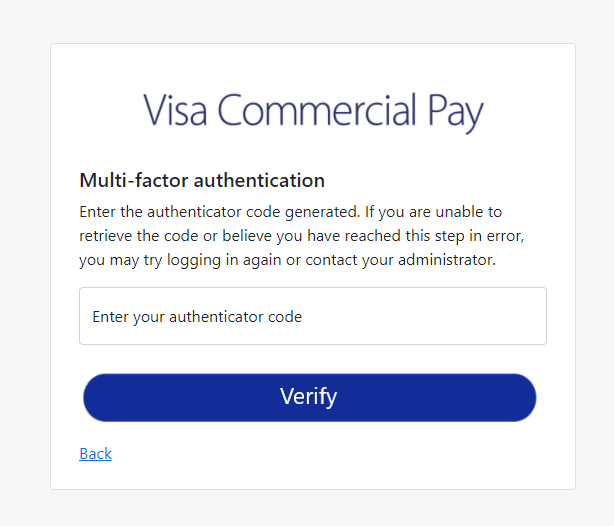
If you enter the code correctly, you will be logged in.
If you do not enter the code correctly, you will be prompted to retry.
Setting Up Multi-Factor Authentication
MFA adds a layer of protection to the log-in process. When MFA is set up, you will be required to provide additional identity verification in the form of a time-based one-time passcode.
When logging in for the first time, you will be presented with the option to download the Visa Commercial Pay App, or you can choose to use a 3rd-party authenticator app.
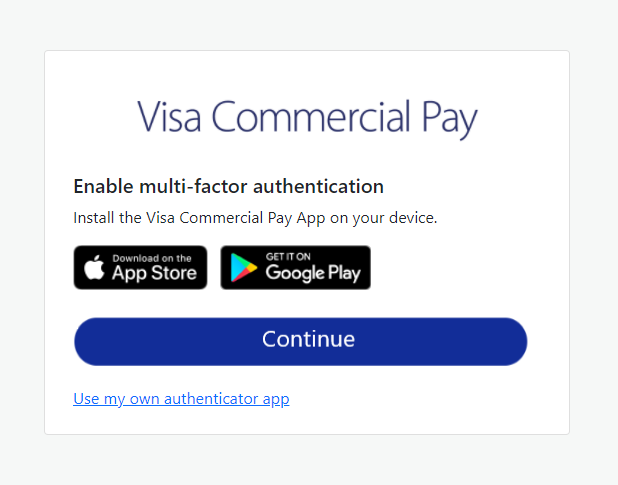
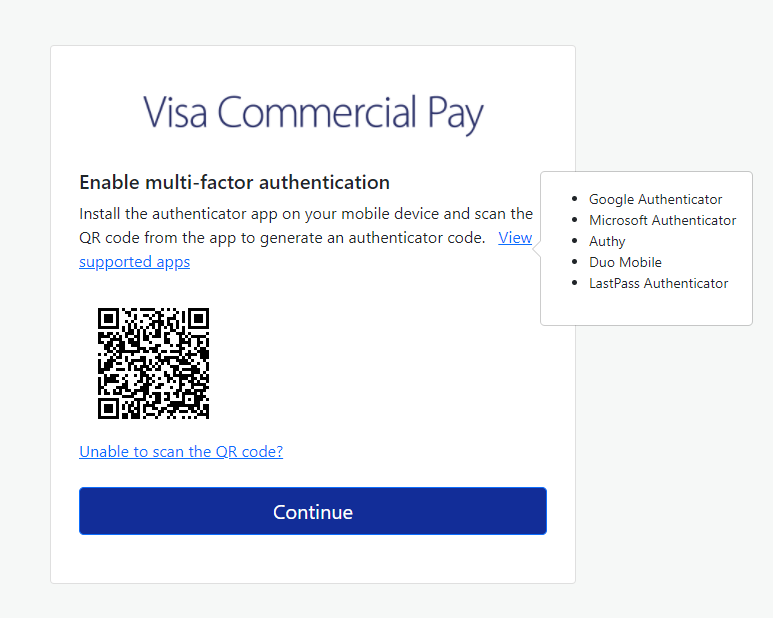
If you choose to use your own authenticator, you will be presented with a QR code to scan, click View supported apps to see a list of compatible apps.
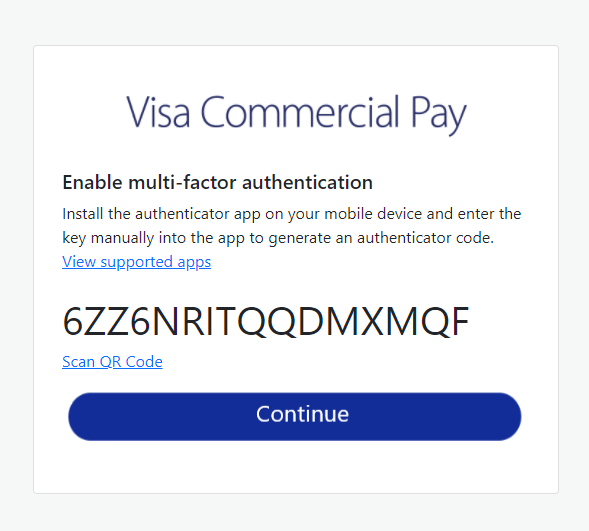
If you are unable to scan the QR code, click the Unable to scan the QR code? link to get a manual key to enter. Enter the manual key into the authenticator app, then click Continue.
Enter the code from your authenticator app and click Verify.
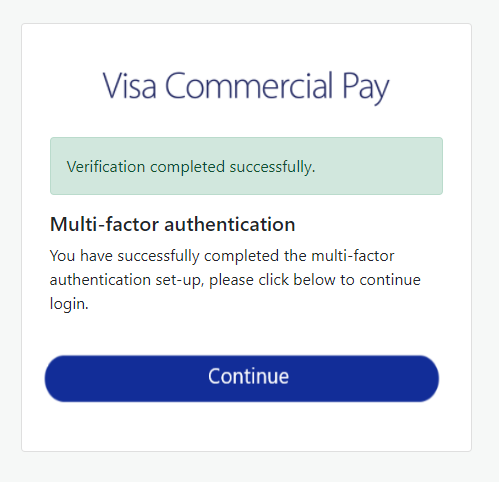
A confirmation message will be displayed. Click Continue to complete your login.
Authentication Apps
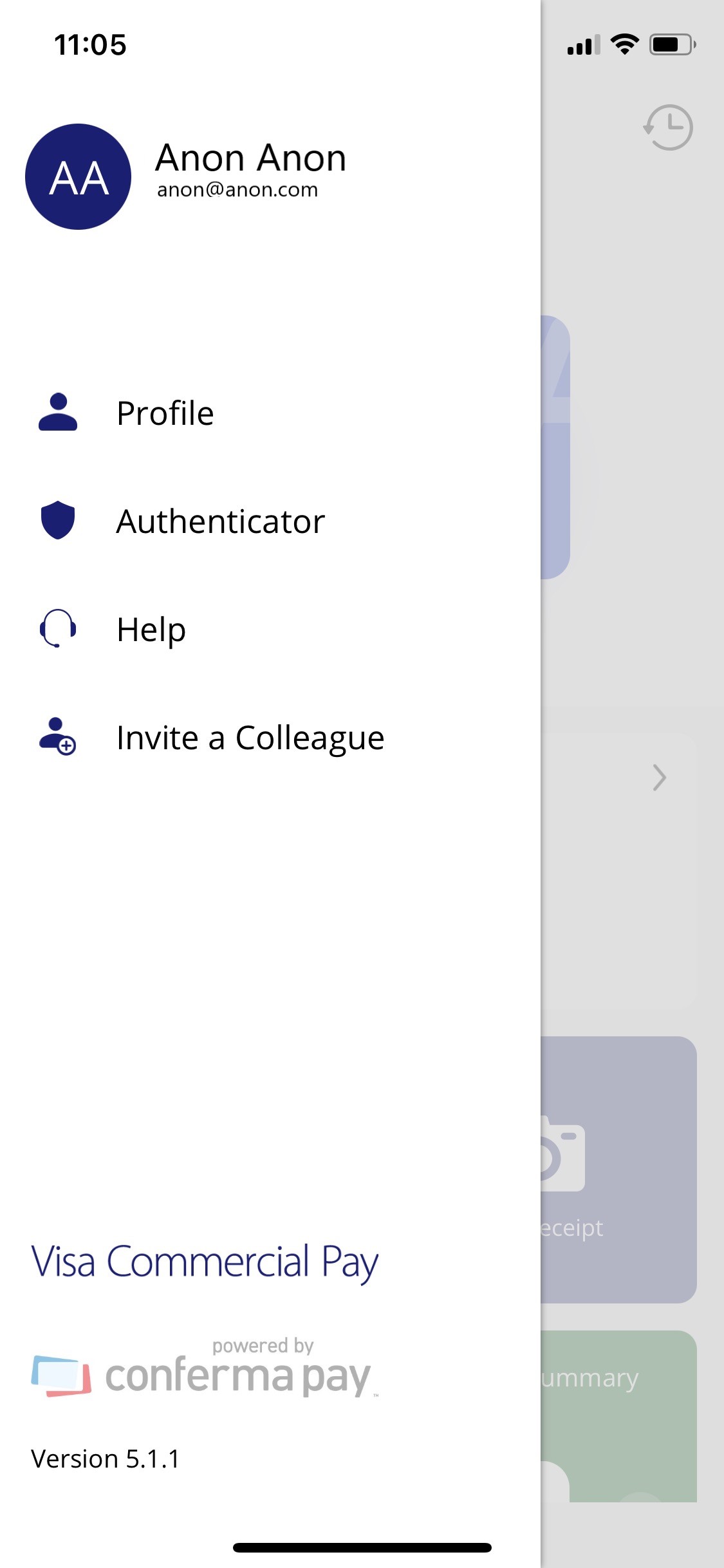
The app will automatically include an authenticator menu when you are logged in.
 |
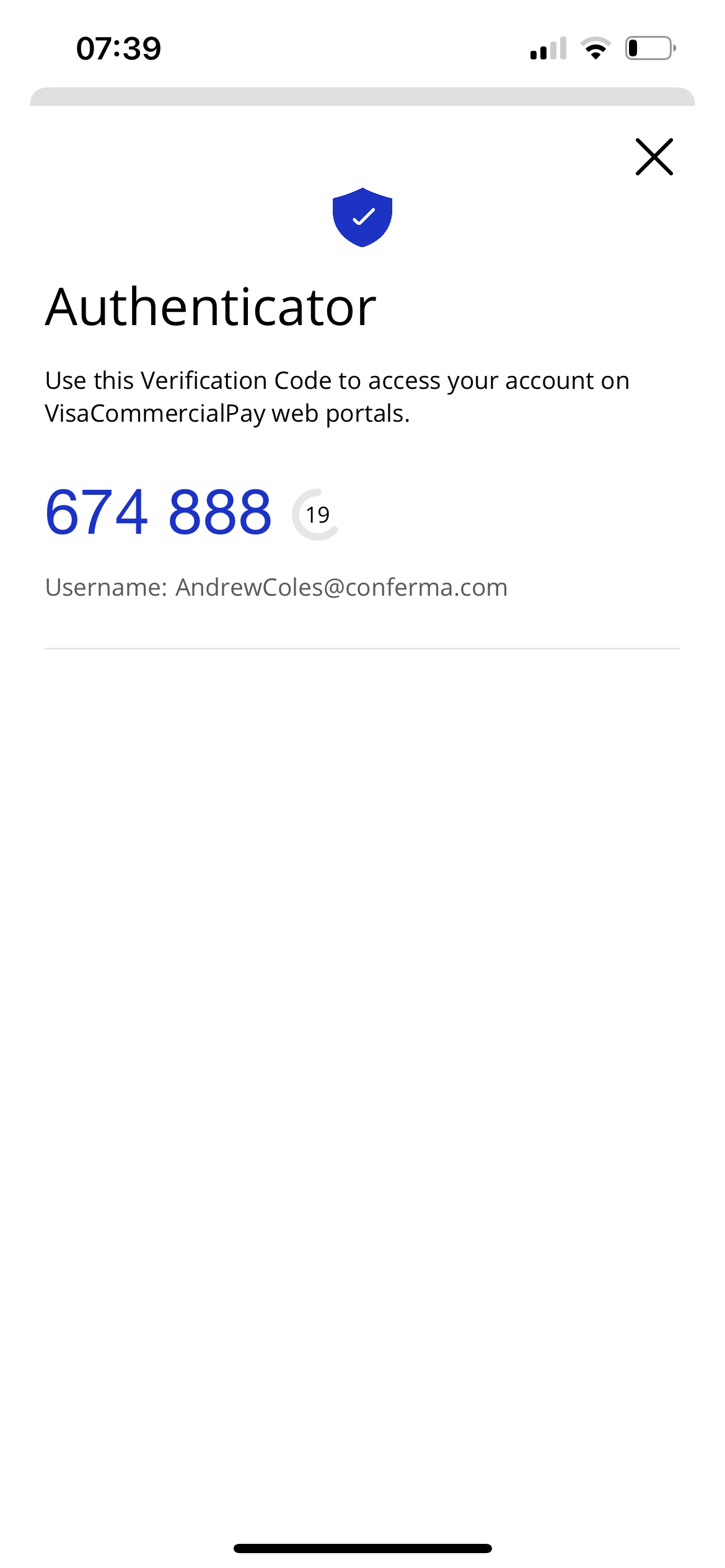 |
The passcode will refresh every 30 seconds.
Warning
Visa Commercial Pay is unable to provide support relating to 3rd-party authentication apps. If you need assistance with setting up or using any 3rd-party authenticator, refer to the provider's support documentation. For example, if you are using Google Authenticator, refer to Google's support documentation for any assistance.
What if a user doesn't have access to their device?
If an end user cannot access their device to complete MFA during log in, they will not able to log in without having their account reset by one of the following:
Visa Commercial Pay support
Corporate Administrator
Issuer Administrator
As a Corporate Administrator, you can check a user's MFA status and reset their account from User details in Visa Commercial Pay Online.
Go to the two-factor authentication section and click Reset two-factor authentication.
Can I change my authenticator?
If you have already set up MFA and want to change your authenticator, you will need to request for your account to be reset by one of the following:
Visa Commercial Pay support
Corporate Administrator
Issuer Administrator
The next time you log in after your account has been reset, you will be able to complete the MFA setup process again.