Pending , Approved and Rejected Cards
Approval in the App
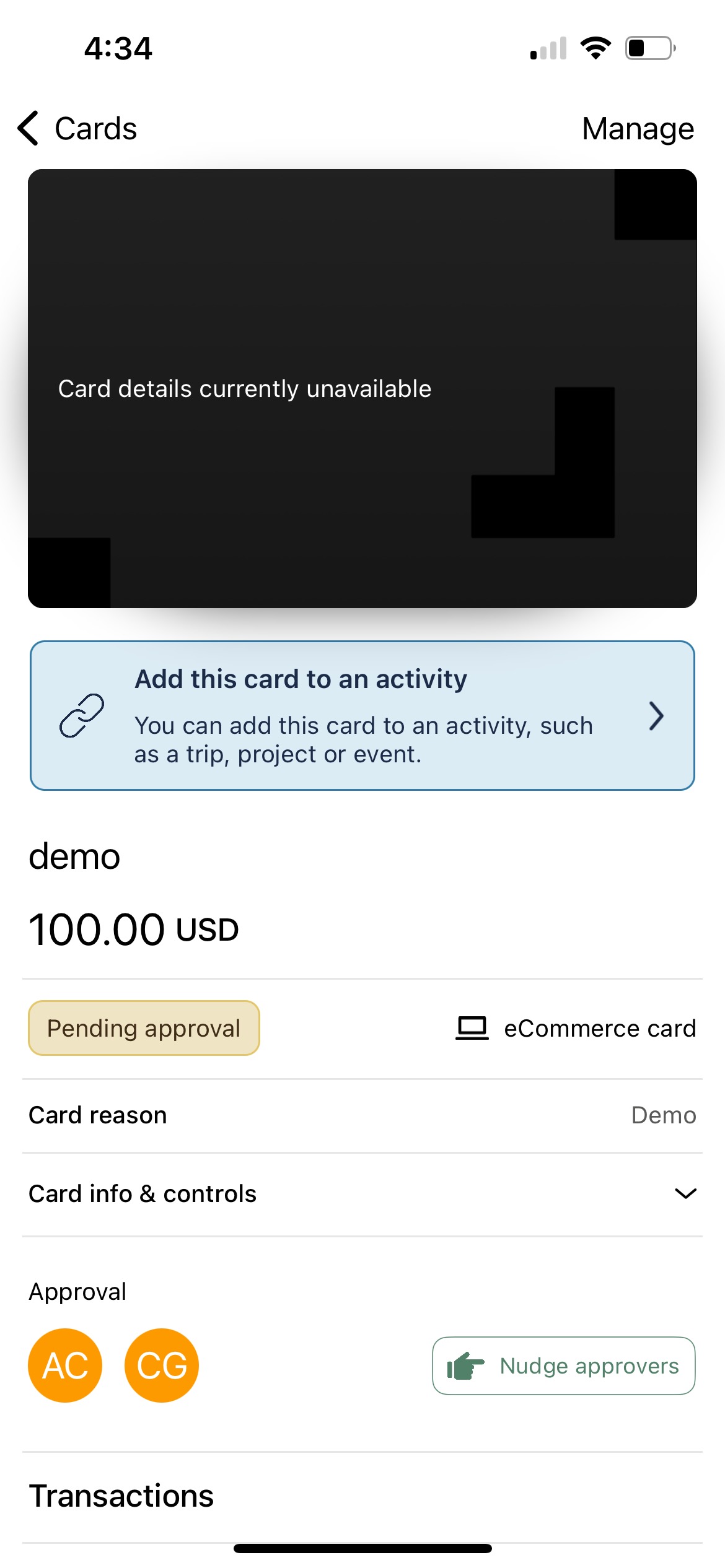
Cards may require approval before they can be used. If approval is required, you can see the status of the approval on the Card details screen. Card details will be unavailable until the card has been approved.
 |
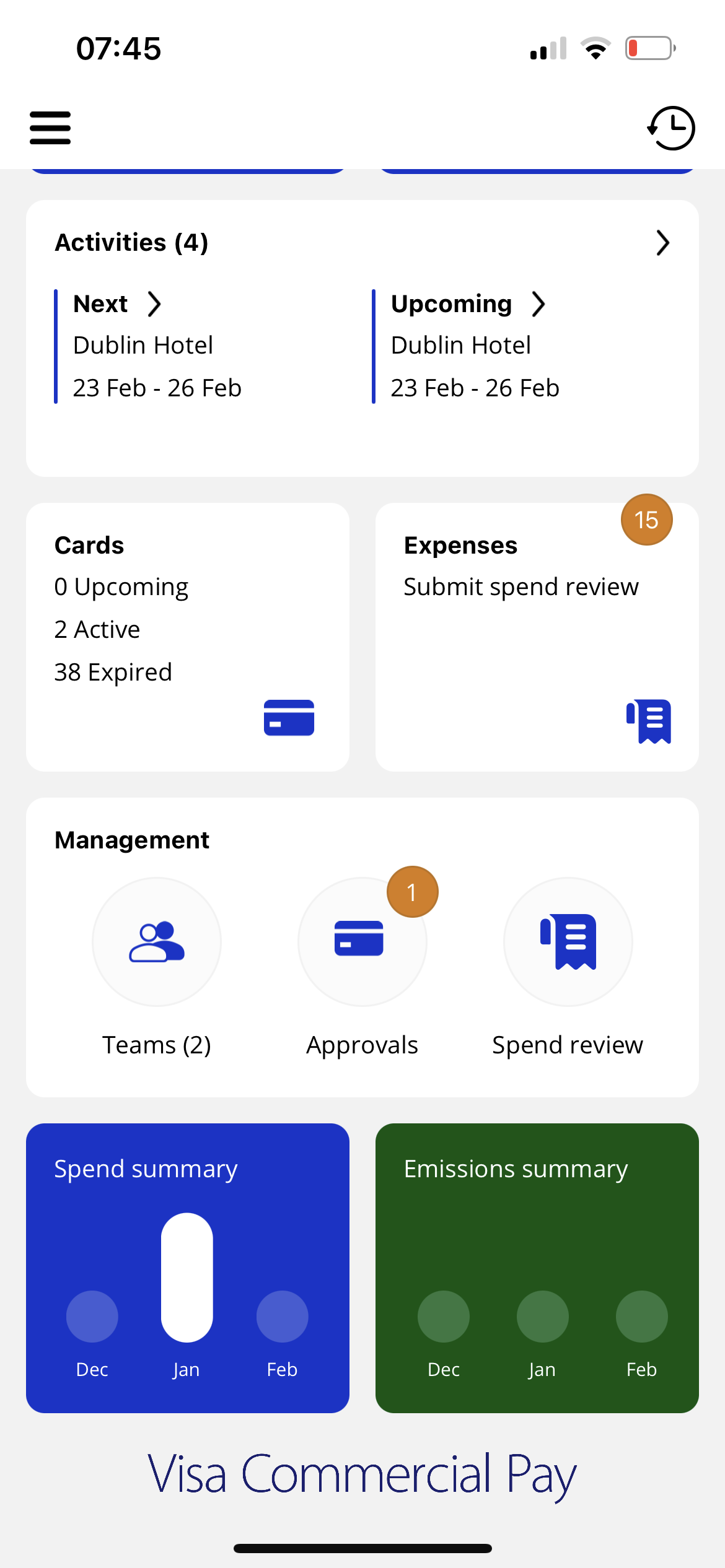
The approver will see the number of approvals requested from their home screen by scrolling to the management section. The Approvals tile will display a number. As an approver:
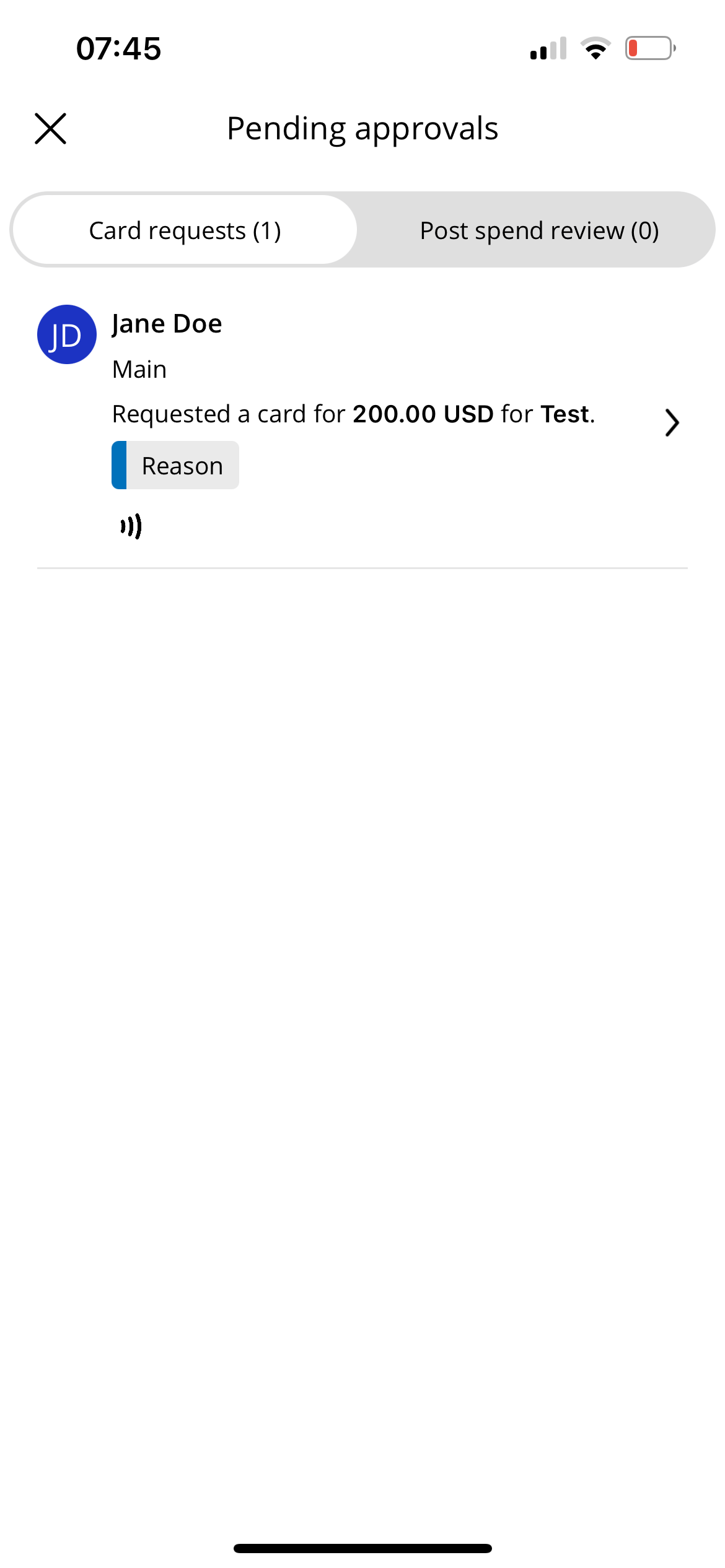
Tap Approvals and then tap a card request.
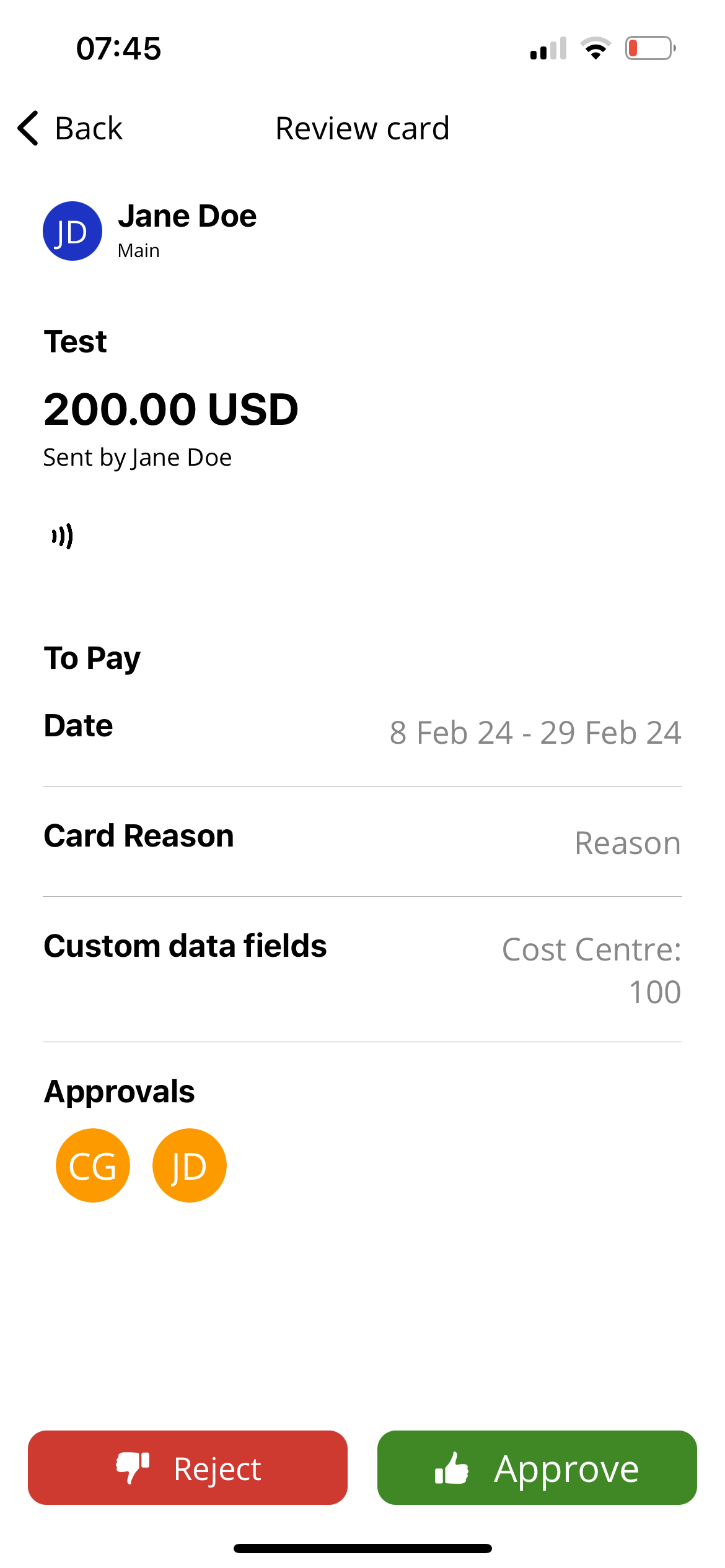
You will be directed to the card details, tap Reject or Approve.
The available statuses are:
Pending approval—you will not be able to view card payment details.
Approved—payment card details are available.
Rejected—you will not be able to view card payment details. If the Approver has provided a rejection reason, it will be displayed here.
When a card is pending approval, the potential Approvers in that approval band will be listed on the Card details screen.
Each Approver has their initials displayed in a circle with a color coded status:
 Green—approved
 Yellow—pending approval
 Red—rejected
Tap an Approver circle, to see further context:
Approver full name
Date of action
Rejection reason (if rejected)
The Team Member will receive an email to notify them when a card is approved or rejected.
Where a card request is pending within a particular Approval Band, all potential Approvers within the current Approval Band will be displayed. If a card request escalates to a new Approval Band, then only Approvers that approved the card request from earlier Approval Bands will be displayed in green.
The approval timeline will be displayed for your card, a Team Admin when viewing a card, and an Approver when reviewing pending approvals.
Nudge an Approver
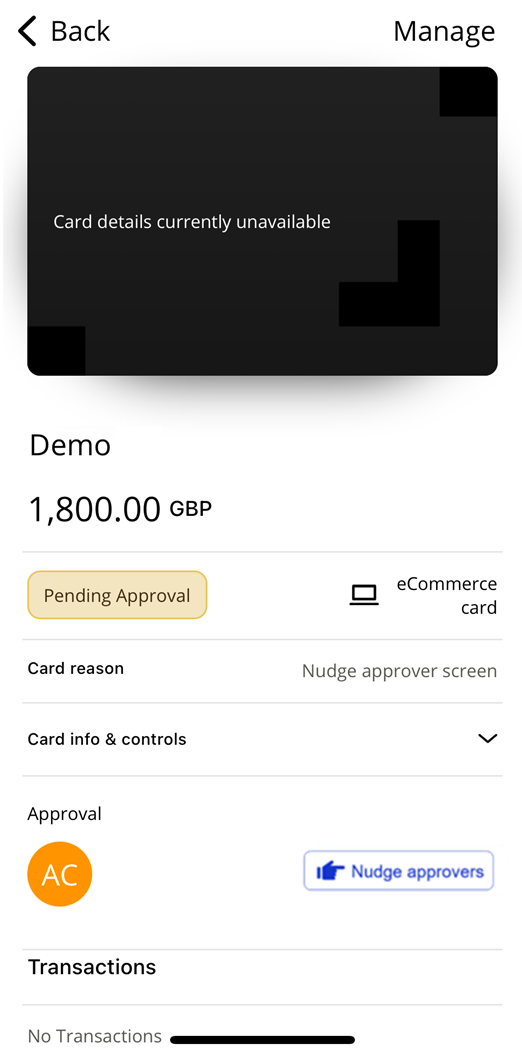
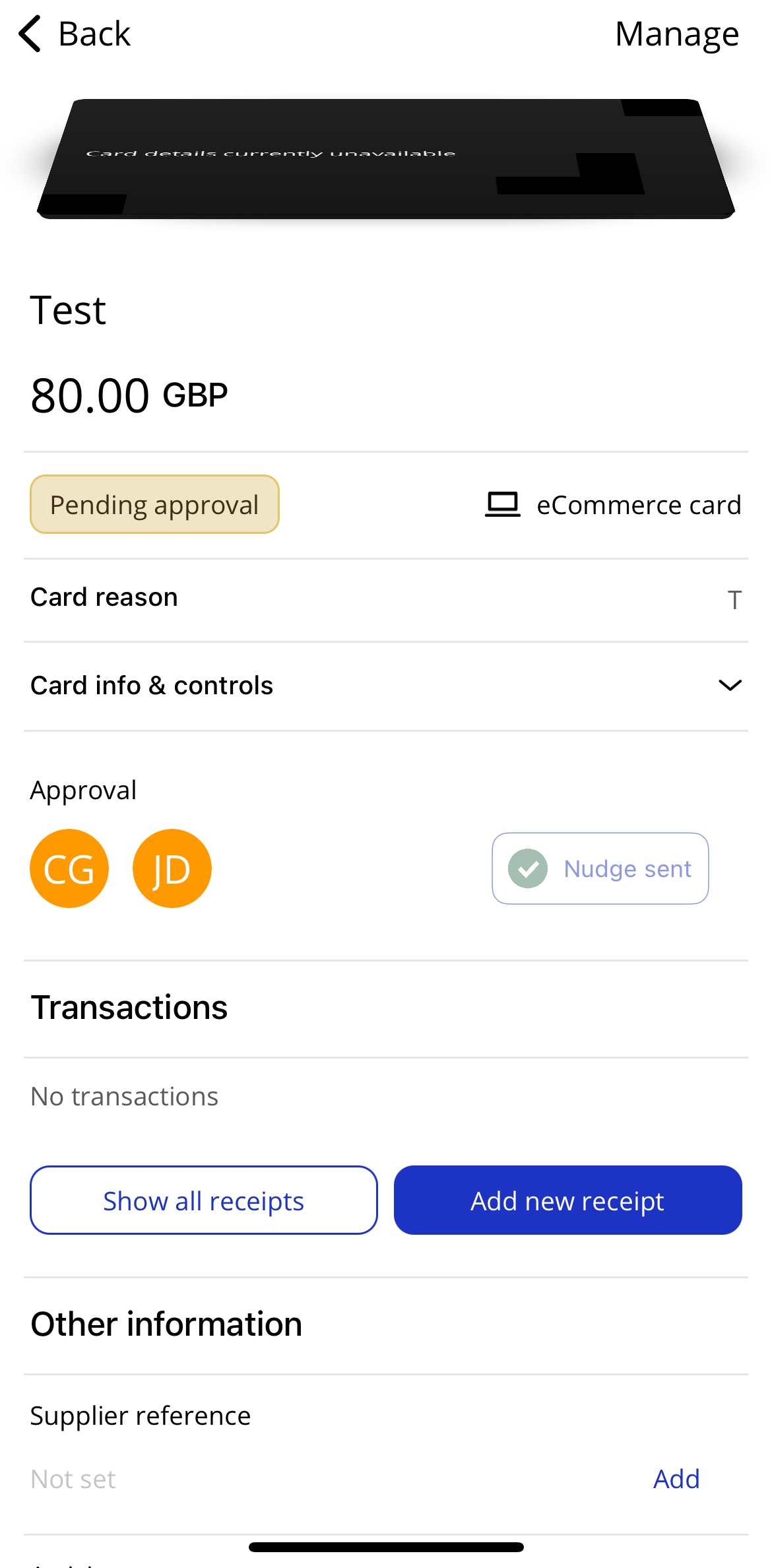
Users can nudge approvers when cards are pending approval, this will send a push notification prompting the approver to launch the Visa Commercial Pay App to approve the card. This functionality is limited to once a day per card.
Select a pending card.
Scroll down to the Approval section of the card details.
Tap Nudge approvers.
 |
 |
Cancel a Card
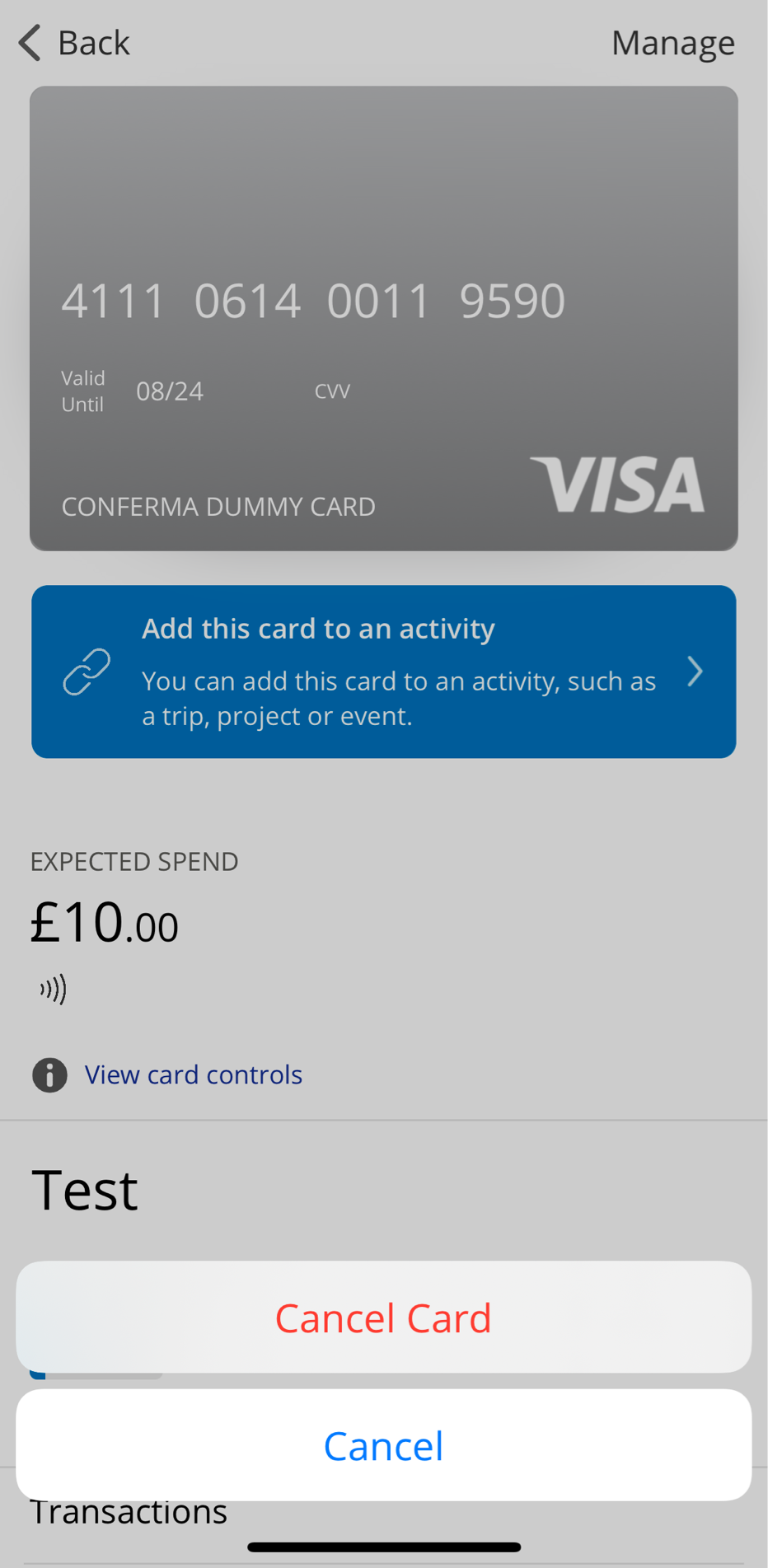
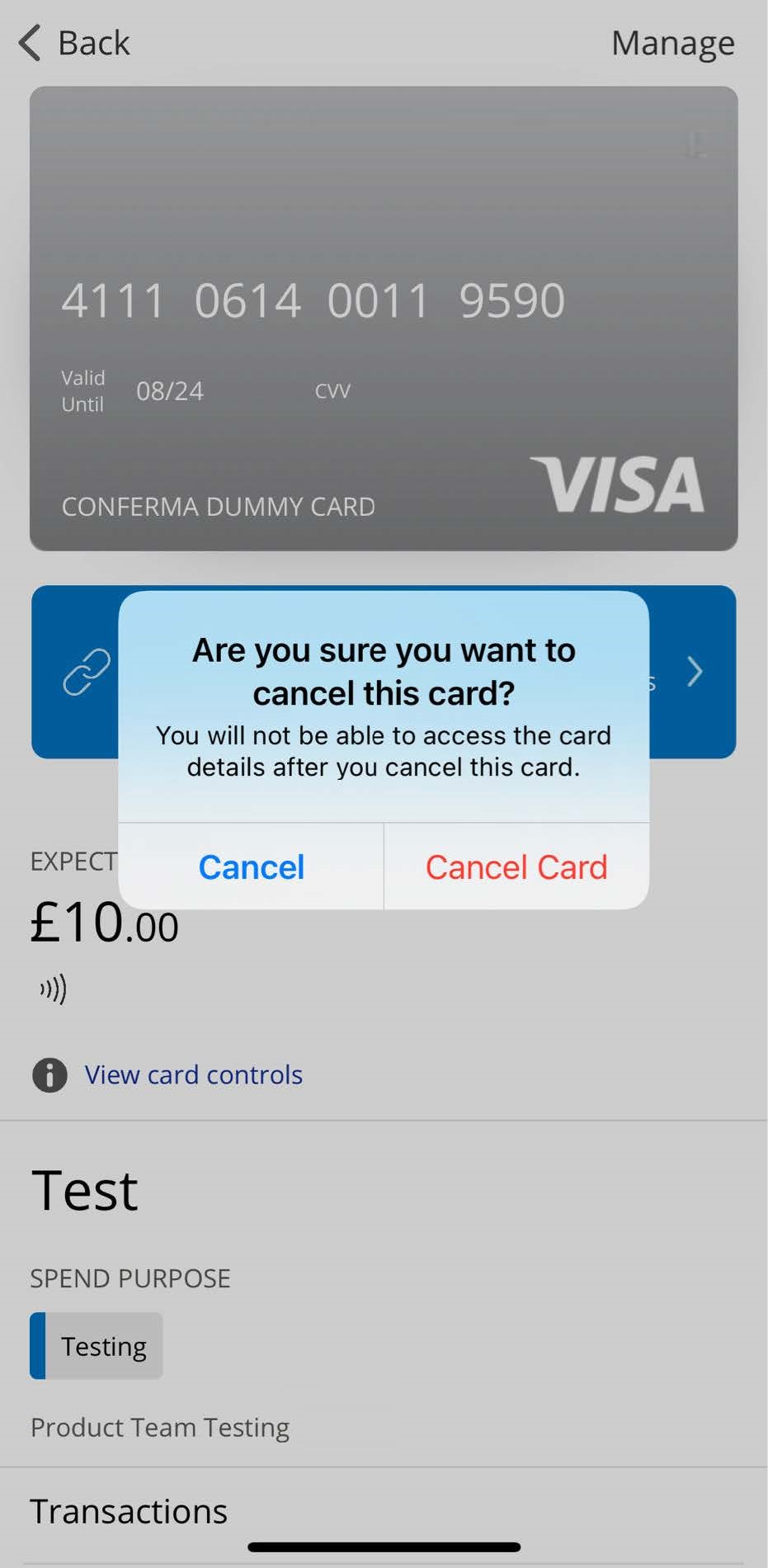
You can cancel cards that are in a Pending Approval or Active (deployed) status by tapping Manage > Cancel card. You will be asked to confirm that you want to cancel the card.
Click Cancel card to confirm the cancelation.
|
|
Note
Canceled cards cannot be reactivated.