Visa Commercial Pay Online v3.22 Release Notes
Note
This release was originally intended to be v3.23. Release v3.23 now contains Orchestration enhancements.
Visa Commercial Pay Online v3.22 introduces the option to make document uploads mandatory when users create a deployment, and the addition of Visa logo placement where it was previously plain text.
Mandatory Document Images
We have added the ability to make document uploads mandatory. When users request a card above a set threshold they are required to upload a file, such as a purchase order.
If no threshold is set but mandatory document upload is on, all deployments from the configured Card Pool and spend type require a file to be uploaded.
Note
Mandatory data settings are configured per individual Cards Pools and spend types. Mandatory data settings do not affect the standard approval workflow.
Setting Up Mandatory Documents as a Admin User
Admin users can configure the requirement for a user to upload a document against their request for a virtual card.
To configure mandatory documents for a user:
From the Administration module, search for and select a Card Pool.
From the left-hand panel, click Manage mandatory data and select a Spend type. Mandatory document requirements are configured per spend type.
Toggle Document upload on and enter a Document upload threshold amount.
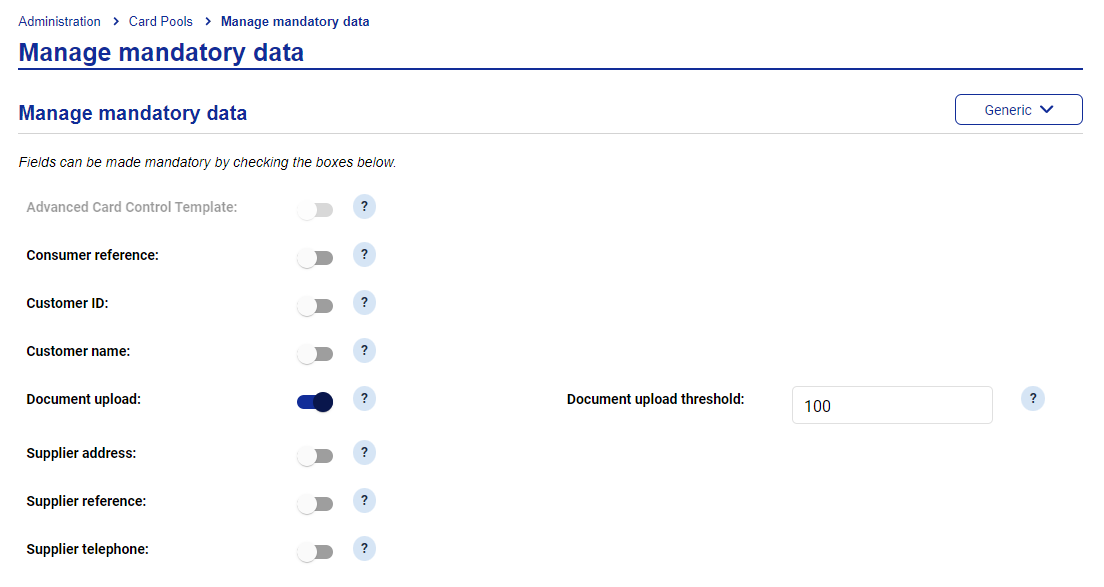
File uploads are required for any deployments that meet the configured threshold. If no threshold is set, all deployments require a file to be uploaded.
Uploading Mandatory Documents to a Deployment as a Deployer User
To upload a document to a deployment:
Click New card, select a Card Pool and enter an amount for the card. If the mandatory document threshold is triggered when entering an amount for a new card, file uploads are mandatory. The user is notified that they need to attach a file to the card deployment.
Click File upload and upload the relevant document(s).
Complete the rest of the card deployment and create the card.
If the card also triggers the approval workflow, it is sent to the relevant approver users.
Visa Logo Placement
In the Card Pool list and Card Pool dashboard, the word ‘Visa’ has been replaced with the Visa logo, except where the word 'Visa' is part of a sentence.