Supplier Integration: Instant Supplier Payment Powered by Cybersource
Instant Supplier Payment
Instant Supplier Payment is a payment gateway specializing in secure payment processing and automated fraud protection. Users can set up suppliers in Visa Commercial Pay Online that integrate with Instant Supplier Payment. This functionality is available to all users within Supplier Management that are able to set up suppliers in Visa Commercial Pay Online where the issuer supports it.
Our Instant Supplier Payment integration allows Visa Commercial Pay users to:
Automate supplier payments
Increase payment acceptance
Reduce exposure of card details to the supplier
Allow Corporate Administrators to enter merchant details
Send an email link to the supplier to capture merchant details
Email a remittance notification to a supplier
Once a supplier has been created and integrated with Instant Supplier Payment, the buyer will be able to initiate a payment via the Pay a Supplier functionality in Visa Commercial Pay Online.
Creating a Supplier with Instant Supplier Payment
Buyers can create suppliers using the Instant Supplier Payment integration by sending a request to the supplier. The supplier will receive a notification that will provide them one-time access to Visa Commercial Pay Online to allow them to set up their details. Once they have been approved, the supplier will be boarded and the information will be sent to Instant Supplier Payment.
From the navigation bar, click More and then from the dropdown click Supplier management.

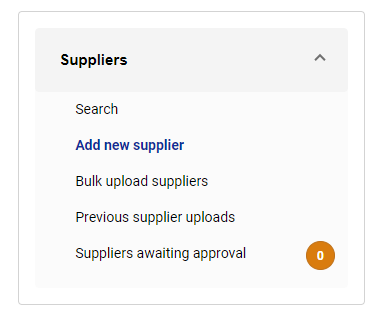
Click Add new supplier from the left-hand panel.
Complete the following mandatory fields:
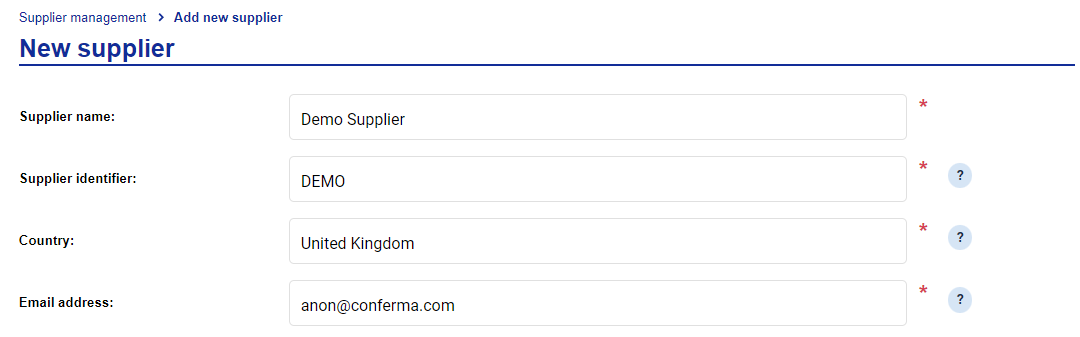
Supplier name
Supplier identifier
Country
Email address
Enter the suppliers contact information.
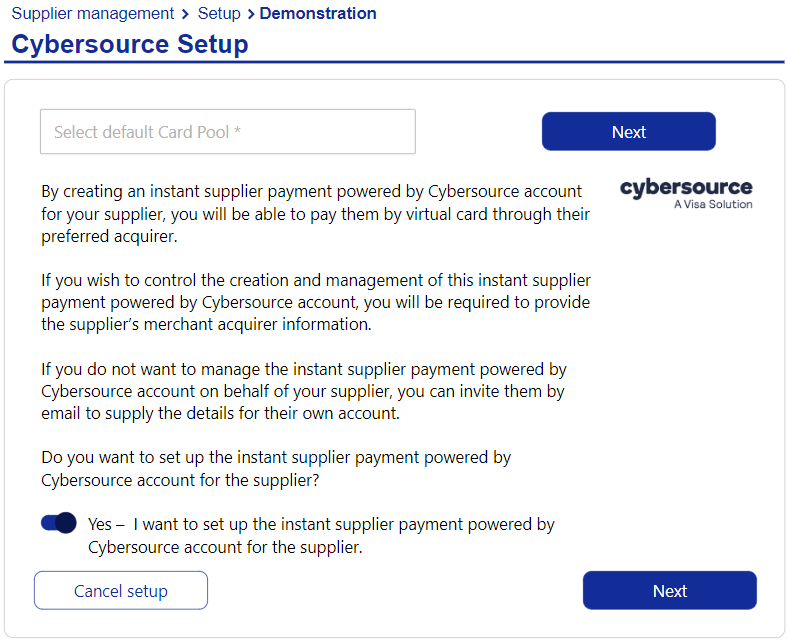
From the Payment provider field, select Cybersource and then click Continue set up.

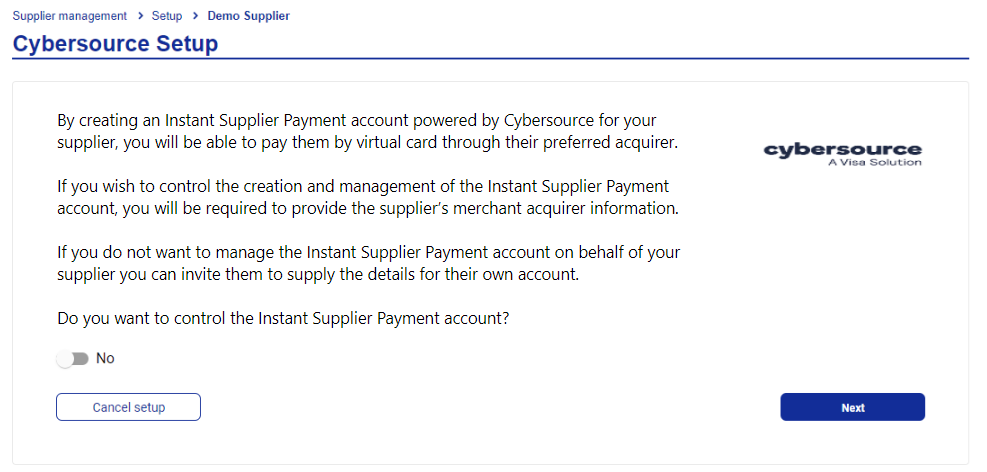
If you want to control the account, set the toggle to Yes and then click Next. If you want the supplier to control their own account, skip to step 7.
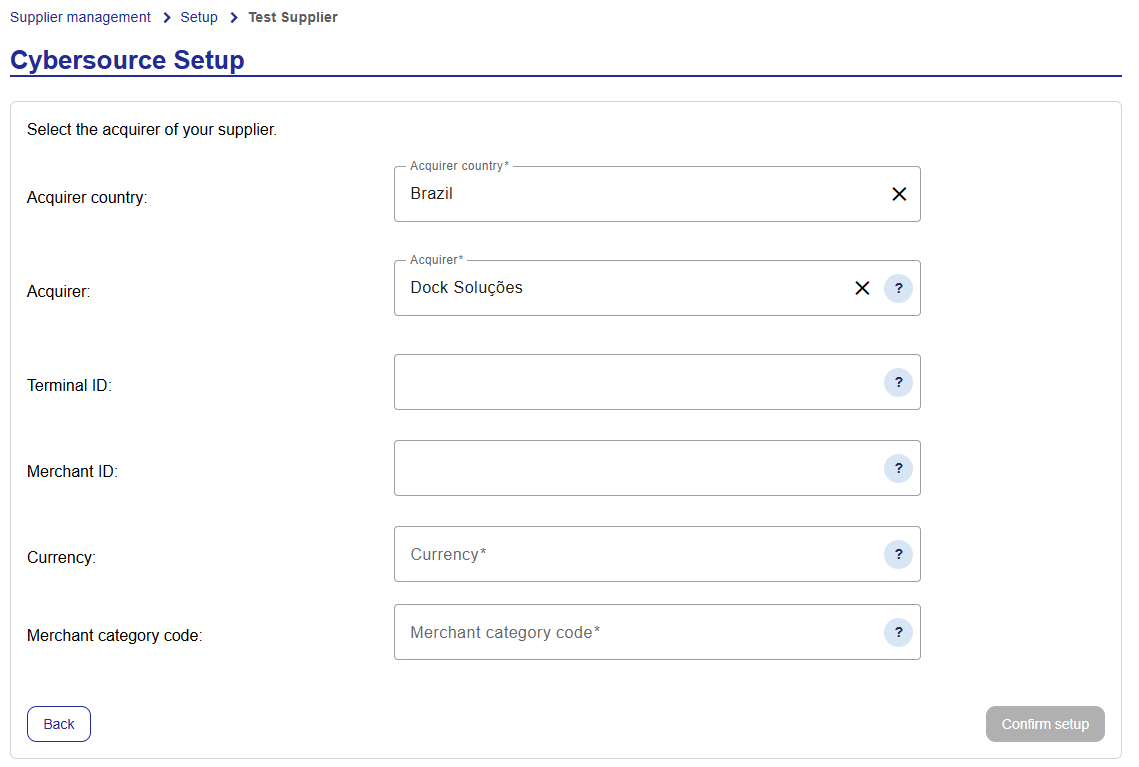
Select an acquirer country from the Acquirer country dropdown, select an Acquirer and then complete the following mandatory fields:
 UI Tool Tips
Acquirer—Instant Supplier Payment will require additional details of your supplier's business or personal information about their employees. This data will be used to perform the required checks in order to operate an account and facilitate payments to the supplier.
Terminal ID—An alphanumeric identifier used to track the terminal used to process a transaction. Located on the supplier's transaction receipts.
Merchant ID—An alphanumeric identifier used to identify the supplier's merchant account. Located the supplier's merchant account statement.
Currency—The account primary currency.
Merchant category code—The 3-4 digit merchant category code associated with the suppliers business.
Click Confirm setup.
You will be redirected to the supplier details. If a supplier requires approval, there will be a message on the screen stating "this supplier is awaiting approval". Suppliers can be approved by another corporate admin user.
If you want the supplier to control their own account, set the toggle to No and then click Next.
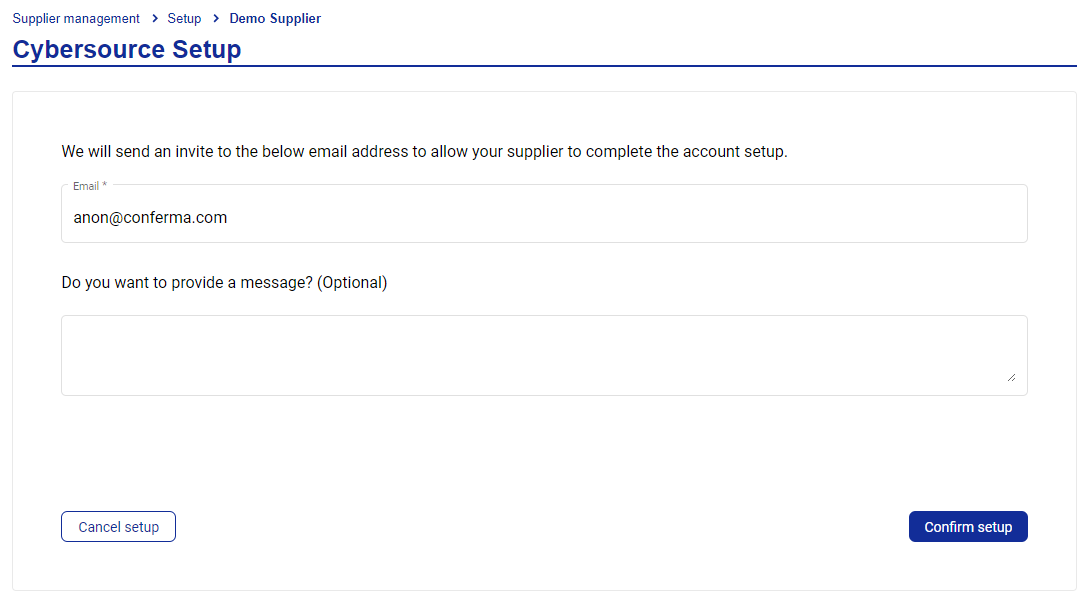
Ensure that the email address is correct and enter a message if required. Click Confirm set up.
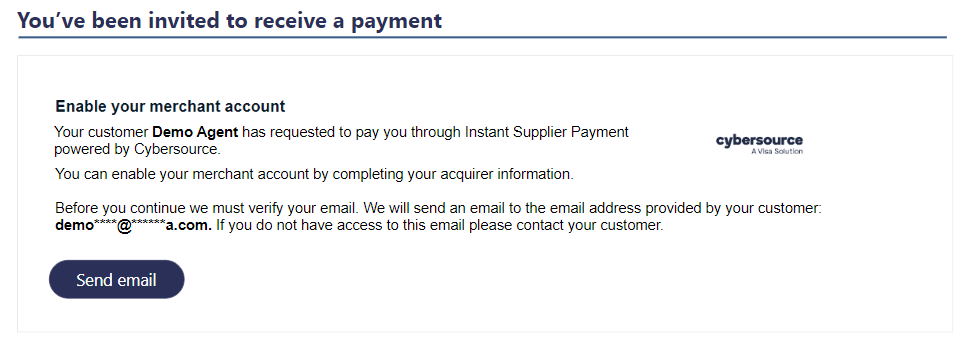
The user will receive an email with a one-time access link to Visa Commercial Pay Online prompting them to verify their email address. The user must click Send email to continue.
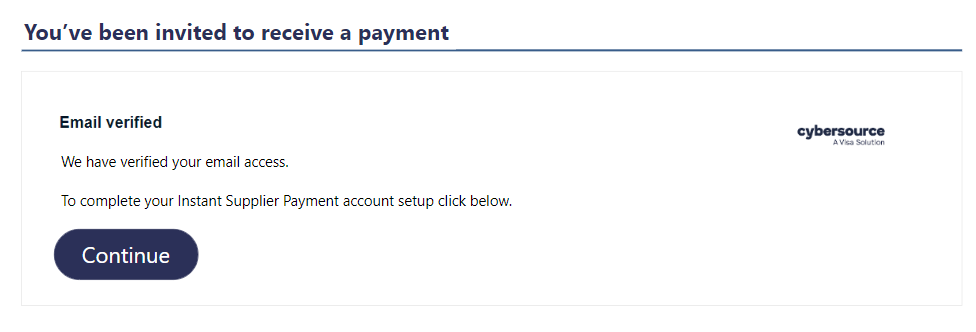
The user will receive a second email with another link. If the user clicks the link, the email address will be verified. The user must then click Continue.
The user must select an acquirer country from the Acquirer country dropdown, select an acquirer, and then complete the following mandatory fields:
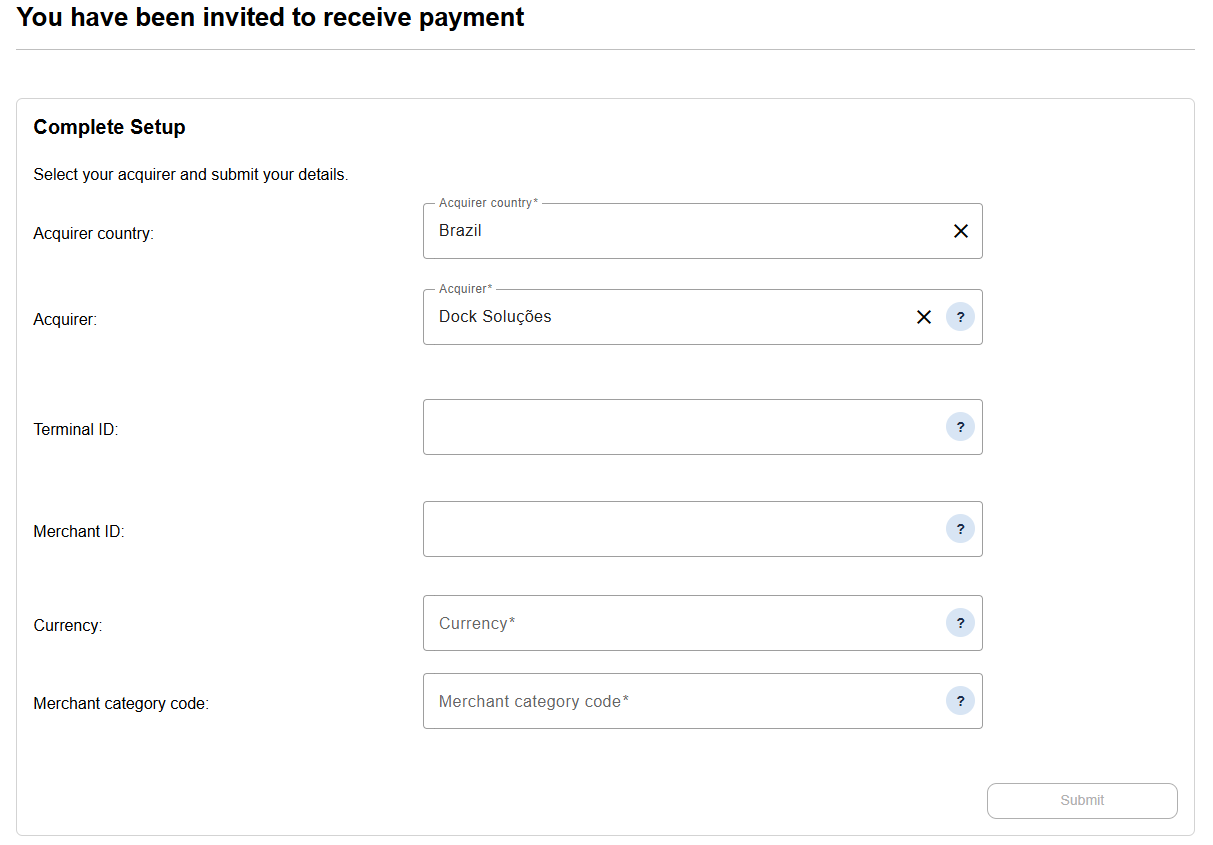 UI Tool Tips
Acquirer—The financial institution that will process the card payments. Transaction fees will be applied and charged at the point of payment.
Terminal ID—An alphanumeric identifier used to track the terminal used to process a transaction. Located on the supplier's transaction receipts.
Merchant ID—An alphanumeric identifier used to identify the supplier's merchant account. Located the supplier's merchant account statement.
Currency—The account primary currency.
Merchant category code—The 3-4 digit category code associated with the merchant type.
The user must then click Submit. The set up will be complete and the Instant Supplier Payment account will be connected.
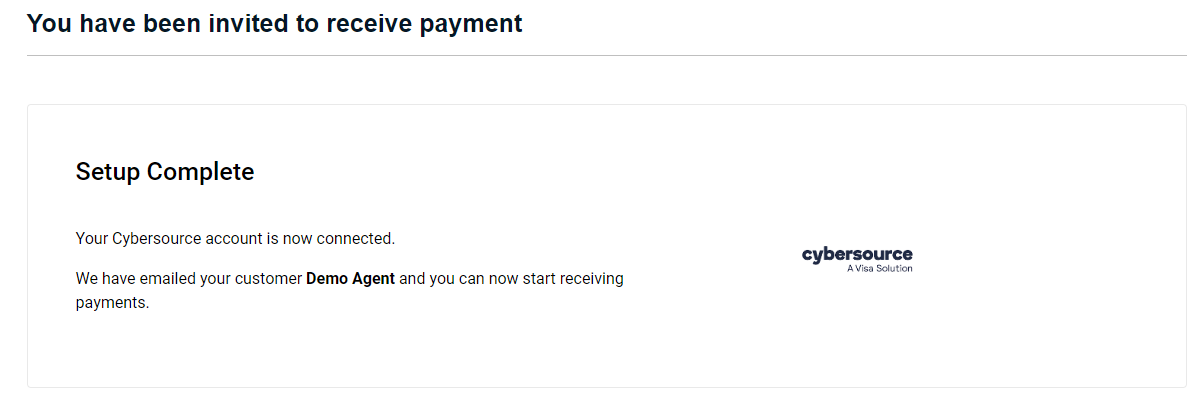
Users can revoke the one-time access invite.
Click More and then click Supplier management. From the left-hand panel, click Search.
Search for the supplier.
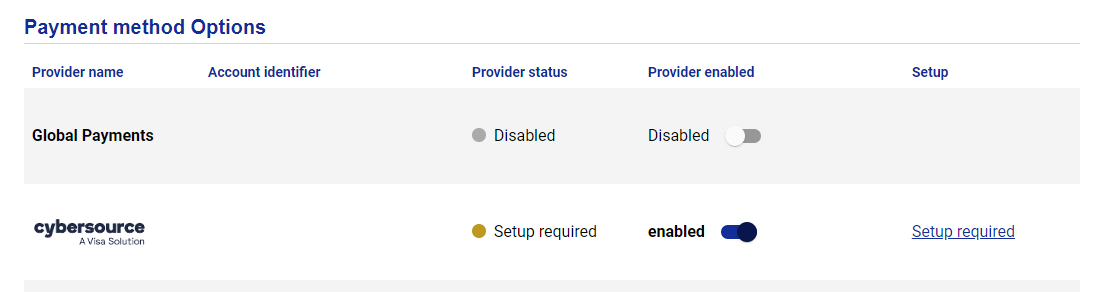
Select the supplier and then scroll to Payment method options and click Setup required alongside the Instant Supplier Payment row.
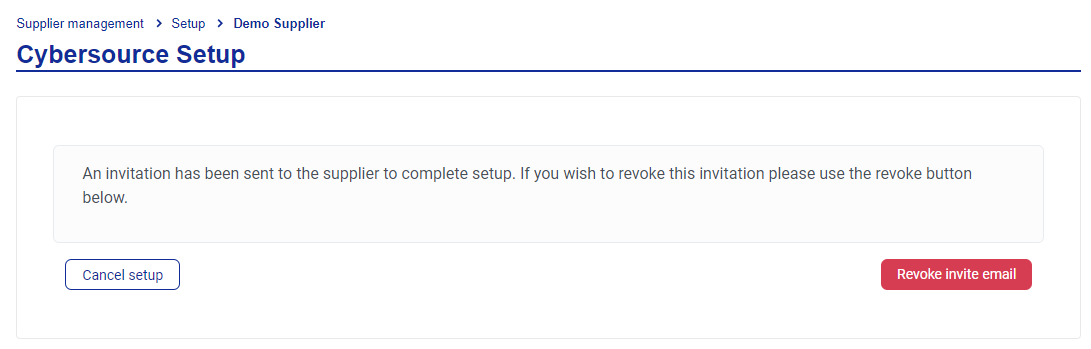
Click Revoke invite email. The email that was previously sent to the supplier will no longer be valid.
Creating a Payment with Instant Supplier Payment
Buyers can create payments to suppliers set up with Instant Supplier Payment. All card details and payment data is exchanged securely via the Cybersource API. Once a payment has been processed, the buyer will receive a notification.
From the navigation bar, click Pay a supplier.
Select a Supplier that has been connected to Instant Supplier Payment.
Select the Card Pool that you want the payment to be created from and enter the following:
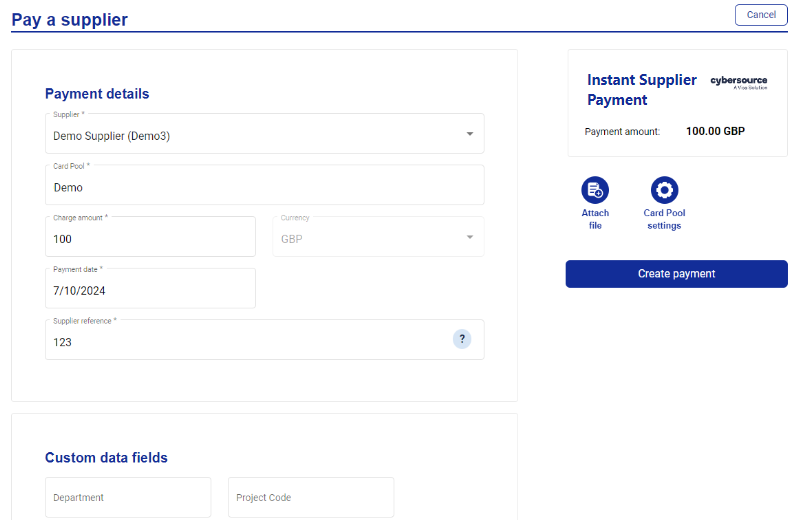
Charge amount
Currency
Payment date
Supplier reference
Click Create payment. You will be redirected to the card deployment screen for the supplier payment.
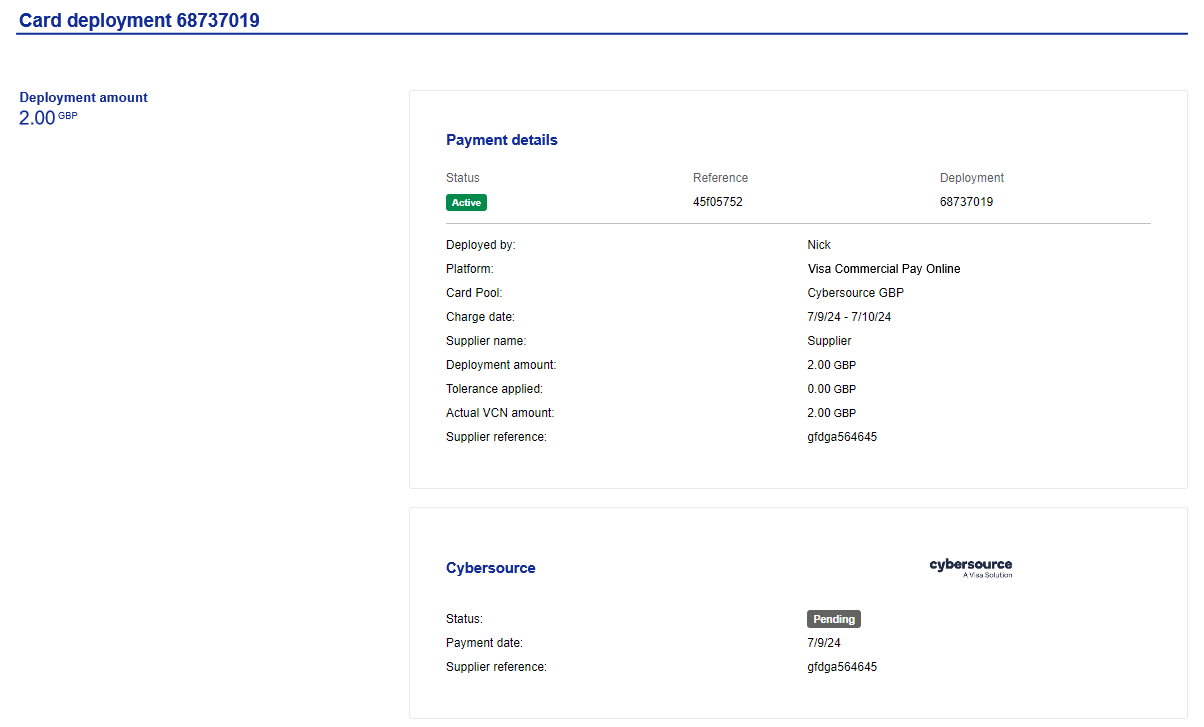
If an Instant Supplier Payment payment has been successful, both the Buyer and the Supplier will receive an email containing confirmation of the payment. If an Instant Supplier Payment payment has been unsuccessful, only the Buyer will receive an email containing the failure notification.
Note
Custom data fields and advanced card controls that are linked to the Card Pool will be captured against cards that are deployed via Instant Supplier Payment.
Email Notifications
A Buyer will receive the following email notification upon successfully creating an Instant Supplier Payment:
Hello
We are pleased to confirm that your payment to Supplier: DemoSupplier, with payment reference 123ABC for £100.00 has been processed successfully.
This is an automated email message. Please do not respond directly using this email address.
A Supplier will receive the following email notification upon successfully being sent an Instant Supplier Payment:
We are pleased to inform you that the payment from Buyer: DemoBuyer for £100.00 with payment reference 123ABC has been processed successfully. You should receive this in your bank account shortly.
For all queries related to this transaction, please contact DemoBuyer.
This is an automated email message. Please do not respond directly using this email address.
Approving a Supplier with Instant Supplier Payment
To approve a supplier that has been connected to Instant Supplier Payment:
Click More and then click Supplier management.
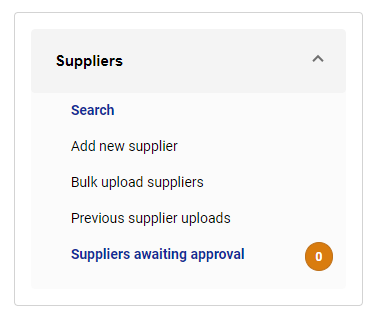
From the left-hand panel, click Suppliers awaiting approval.
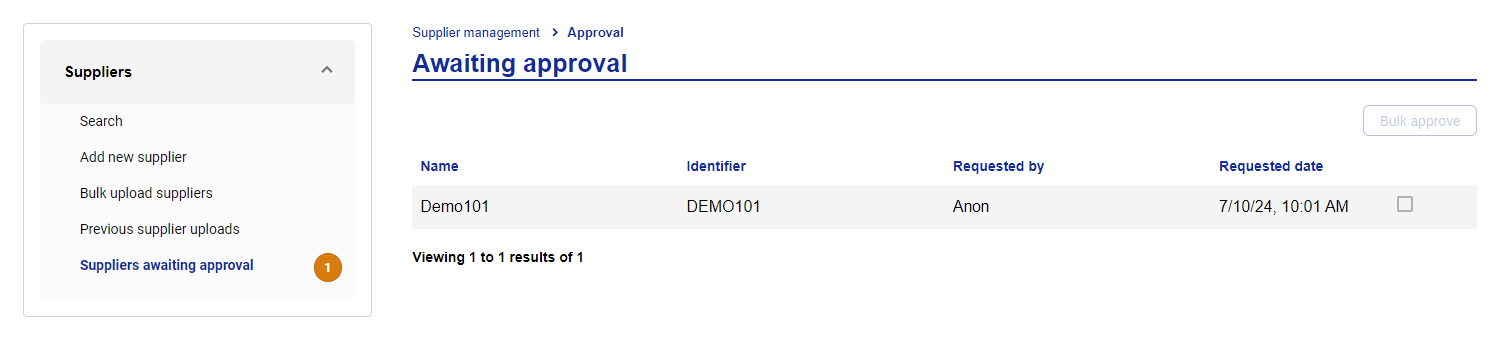
All suppliers awaiting approval will be listed. To approve the supplier select the tick box alongside the supplier and click Bulk approve.
Enabling Supplier Approval Per User
To allow a user to approve suppliers, supplier approval must be enabled. To enable supplier approval:
Click Administration.
Search for a user.
Select the user, click Account access and click Edit user.

Under Supplier management toggle Supplier management and Supplier Approval on. This will give the user permissions to see the supplier management tab, as well as approve any suppliers that require approval.
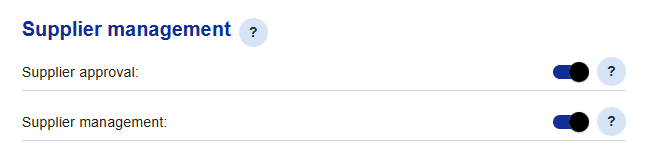
Click Update user to commit your changes.
Account Details Verification (Zero Authorization)
A Zero Authorization verification via the Cybersource API verifies the supplier before a payment is sent. This is triggered on creation of a new supplier or when a supplier has been amended. No monetary charge is made to verify the account details.
The buyer receives an email notification if the verification succeeds or fails. If the verification is successful, the supplier will be ready to receive payments. If the verification fails, payments cannot be initiated until the details have been amended and verification has been successful.
The notifications are as follows:
Buyer provisioned (Failed) - Sent to the Buyer
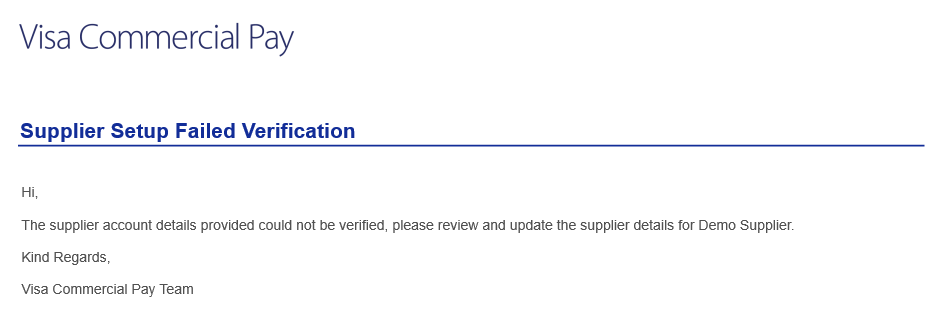
Supplier provisioned (Failed) - Sent to the Buyer
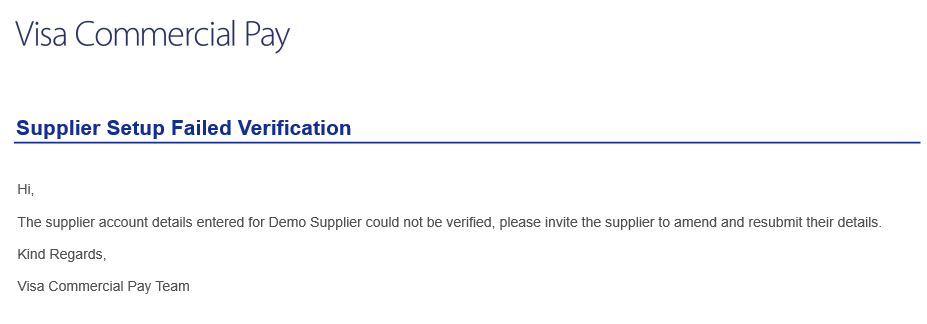
Supplier provisioned (Failed) - Sent to the Supplier
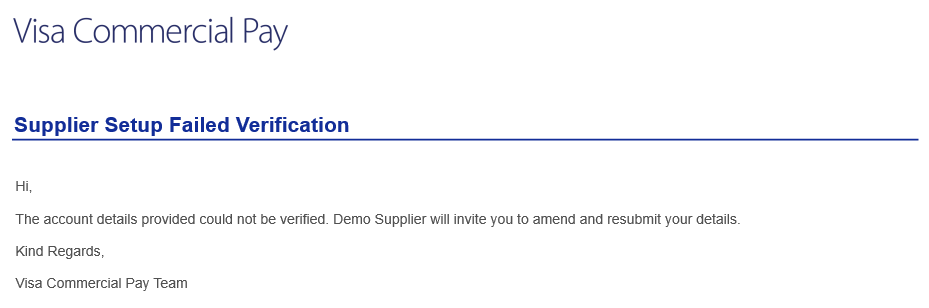
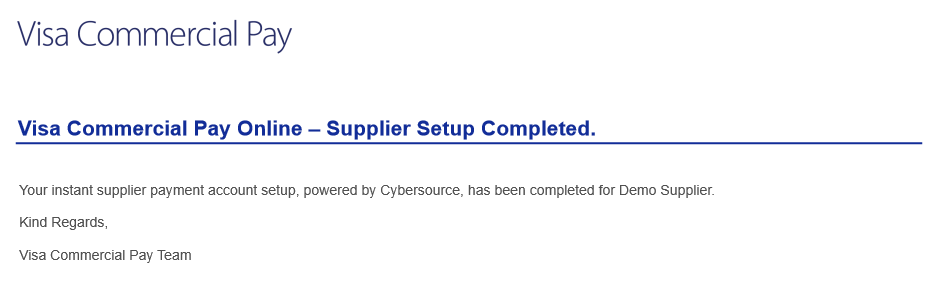
Supplier setup completed (Success) - Sent to the Buyer
Troubleshooting and Errors
The following errors can occur when attempting to set up a supplier or create a payment using Instant Supplier Payment:
The following errors can occur which will prevent the payment from being created:
Internal or external services may be down, causing the payment to fail. Users can attempt to retry or check the status page for further information. An error message will be displayed when this error occurs.
If the Merchant ID and Terminal ID are not correct, then the payment will fail.
If the Merchant Category Codes are not legitimate and do not match real world Merchant Category codes, the payment will fail.
Note
A new supplier will need to be created if the following are incorrect:
Merchant ID
Terminal ID
Merchant Category Code
If the supplier invite has timed out or has been deleted, the supplier will be unable to accept the one-time access invite. The invite link will need to be resent. The initial invite email expires after 24 hours, the email verification then expires after 15 minutes. If the email verification has expired, the user can click the invite link again if it is within the same 24 hour period.
A supplier may not be active because they have not been approved within Visa Commercial Pay Online. An approver can check the Supplier waiting approval section to approve any pending suppliers.
When setting up a supplier, the supplier's acquirer may not appear in the acquirer list. Submit a support to request your required acquirer.