Searching for Deployments
A deployment contains all of the details that were submitted at the time the virtual card was created, including any Custom Data Field information. You can search in Visa Commercial Pay Reporting for deployments as soon as a virtual card is created.
You can search for individual deployments, groups of deployments or deployments over a specific date range.
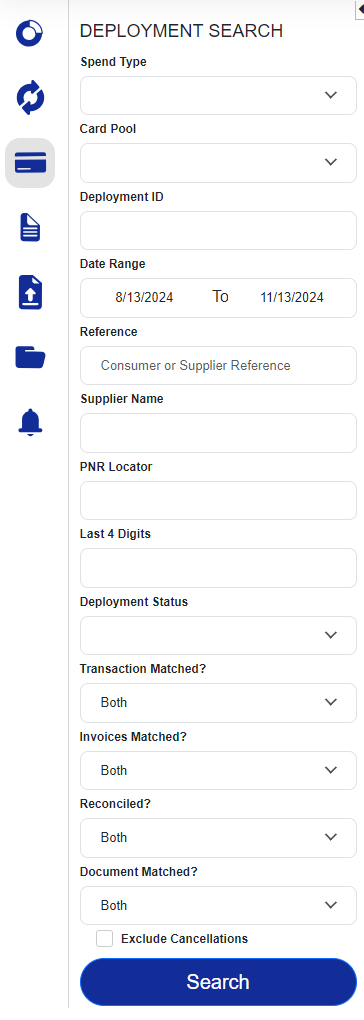 |
You can narrow this down to the Spend Type and Card Pool or leave blank to view all.
You can also search using:
Deployment ID (the number allocated at card creation)
Supplier Name (as it shows in the booking tool)
Reference (i.e. the booking reference at the hotel)
PNR Locator
Last 4 Digits (of the card)
Deployment Status
If you do not wish to use any of these parameters you will need to use a date range, of up to three months, which defaults to one month back from the current date. Select dates using the calendar or manually type them in, and this will return deployments created within the specified range.
You can also narrow deployment searches down using filters:
Transaction Matched? (returns results that have been matched to a transaction)
Invoices Matched? (returns results where an invoice/folio has been matched)
Reconciled? (returns results where a deployment has been matched to a transaction and an invoice has either been added or marked as Invoice Not Required)
Document Matched? (returns results where document has been matched)
If you select a Spend Type of Hotel, Air or Rail, you will see additional relevant search parameters under Advanced Options:
Hotel—Hotel Name, Address, Check-Out Date Range and Traveler.
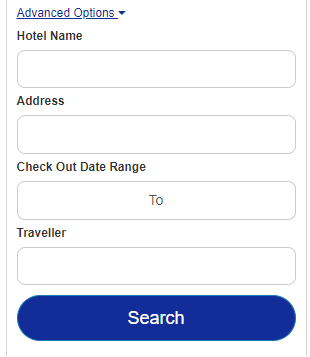
Air—Departure Airport Code, Departure Date and Traveler.
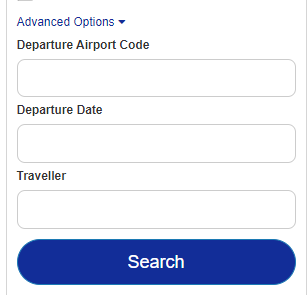
Rail—Departure Station, Departure Date and Traveler.
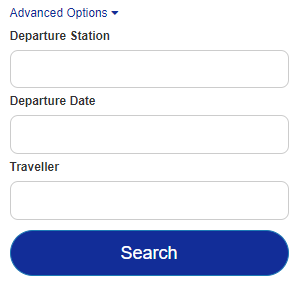
Click Search and the system will return a list of all deployments within the selected criteria.
The results of a deployment search will display:
Deployment ID
Card Pool Spend Type icon
Date the deployment was created
Reference
Name of supplier
Supplier reference
PNR locator
Detail
Card recipient
Amount deployed
Number of transactions that have been matched to the deployment
Last 4 Digits of the card number
 |
Select a deployment to view the deployment details.
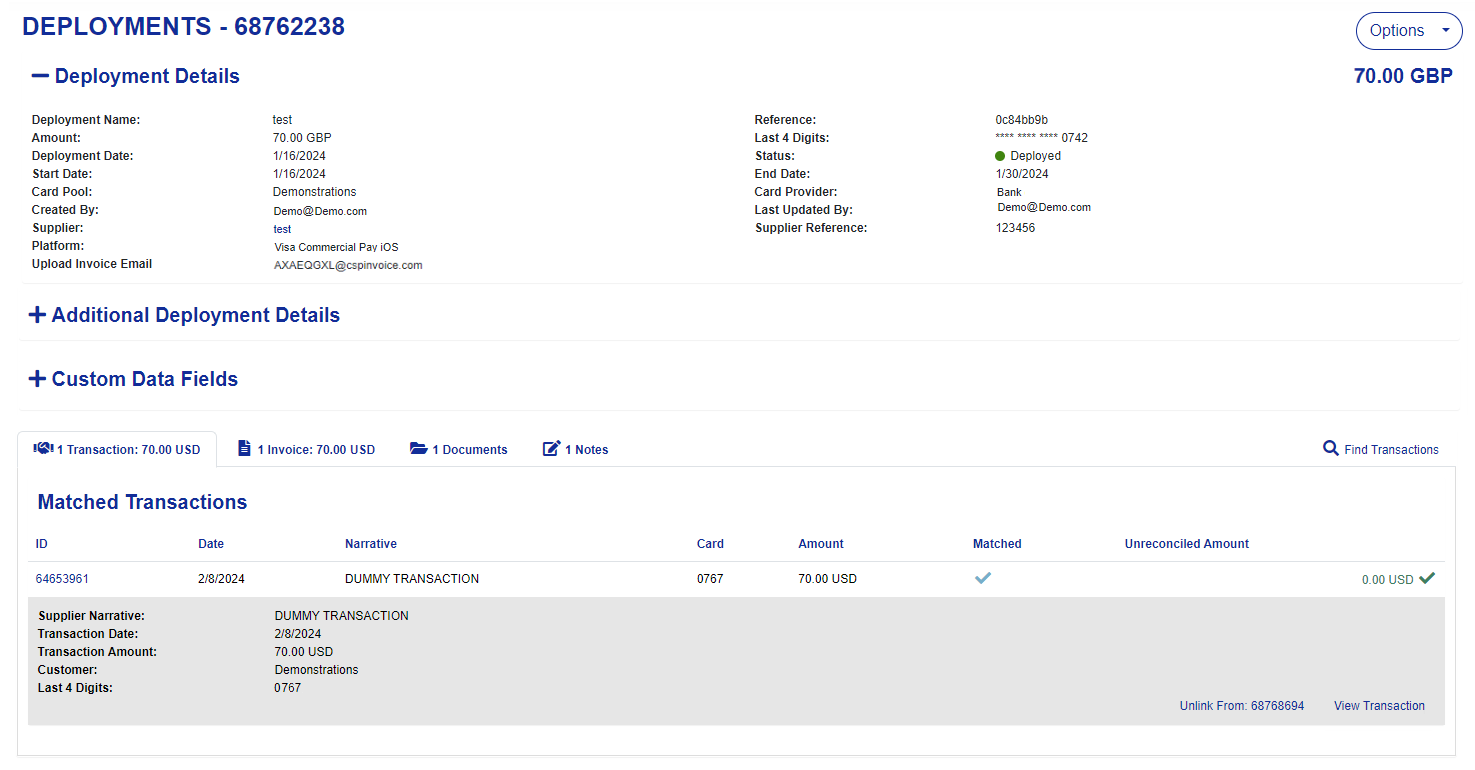 |
Use the + to view Additional deployment details and Custom data fields details.
Note
Additional deployment details will only be displayed when a card has been requested via Visa Commercial Pay App or Visa Commercial Pay Control, and routed through an approval workflow, or where an Advanced card control template has been used.
Additional deployment details:
Requested by
Card recipient
Approved by
Approval date
Advanced card control template used
Team name

Custom data fields will display any custom data fields populated during the deployment process.
 |
If the deployment has been matched to a transaction(s), invoice(s), document(s), or has any notes, the details will show in the bottom pane.
Transactions match to the deployment. To view the associated transaction, click View Transaction.
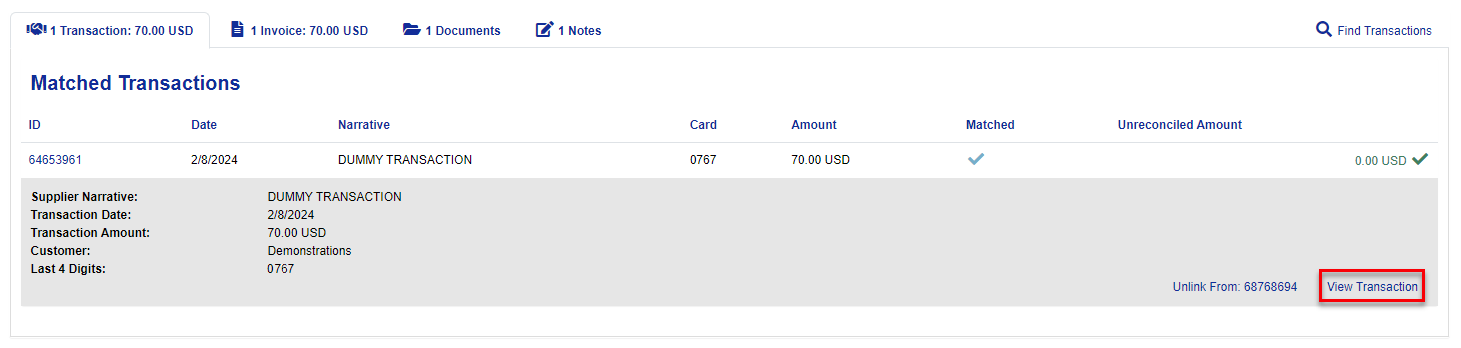
Invoices manually added to deployment. Click the invoice ID to view the matched invoice.

Documents linked to the deployment. Click the document ID to view the linked document.

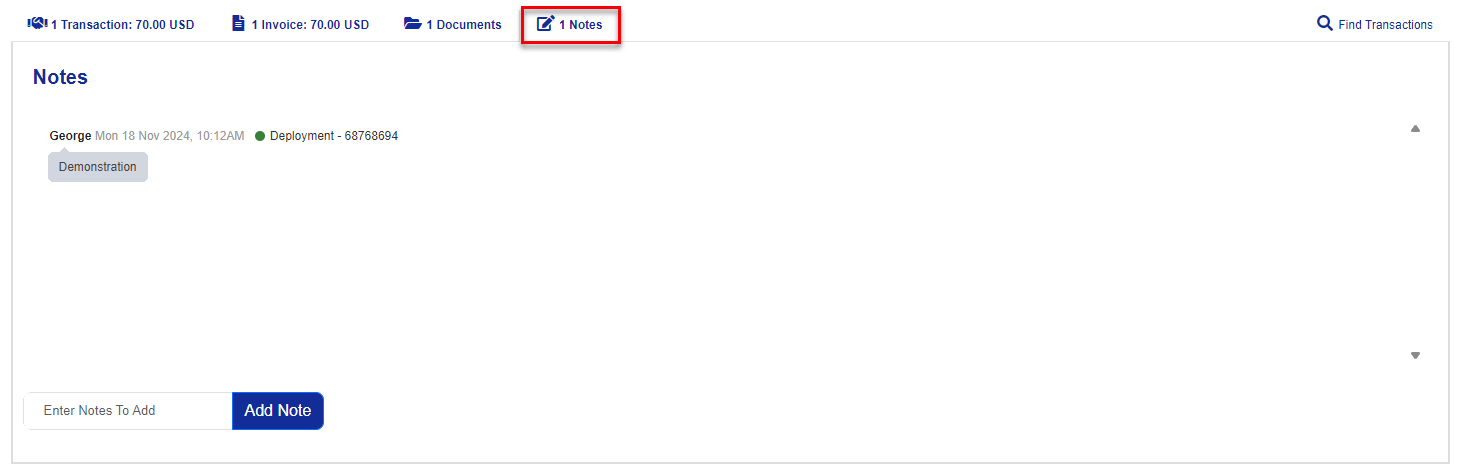
Notes added to the deployment.