Home Page
The Home page contains a dashboard with a view of your most recent deployments in the center.
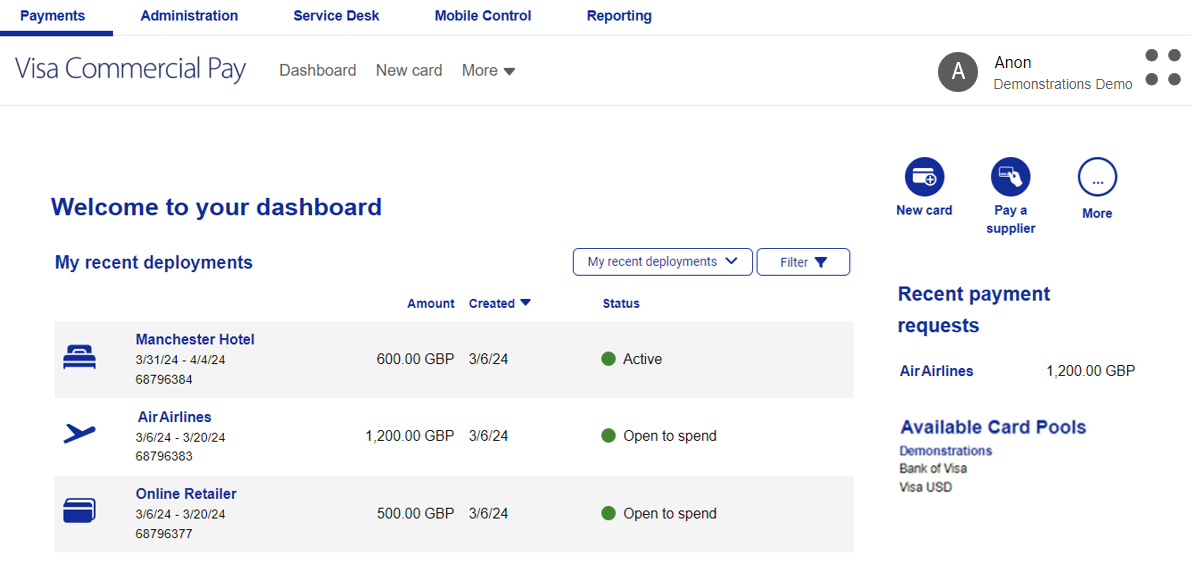 |
A list of available Card Pools will be displayed on the right-hand side, underneath a set of action icons which allow users quick access to key functionality. The actual functions available via the action icons will depend upon your user role and the functions you have enabled.
The overview of your recent deployments displays your last 15 card deployments as the default. You can use the dropdown to view different information, including all of your deployments.
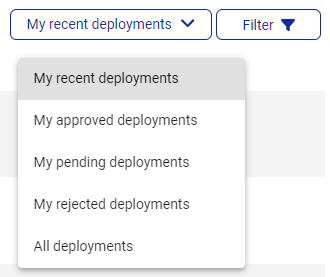 |
My approved deployments—view cards that have been approved.
My pending deployments—view cards awaiting approval.
My rejected deployments—view cards that have been rejected.
All deployments—view all deployments.
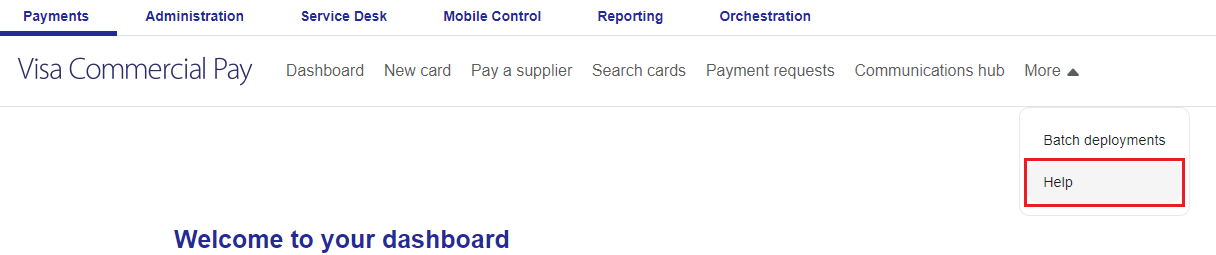
If your screen size does not fit the entire menu, click More in the menu bar to see all functionality.
 |
Help Desk Articles
Users have the ability to move directly to a help desk article from within the Visa Commercial Pay Online platform. This feature provides quick access to relevant help articles to support in addressing any queries that the user may have while using the Visa Commercial Pay Online platform.
The help articles can be accessed from the menu bar by clicking the Help:
 |
My Profile
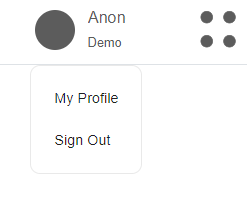
You can access your profile from the navigation bar. Click your user icon to activate the dropdown menu and click My profile.
 |
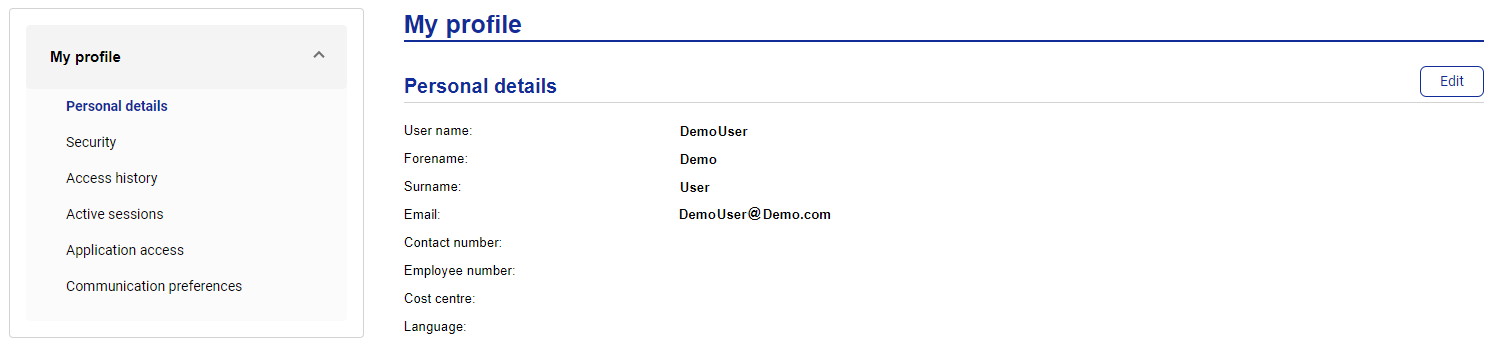
You can view the following information:
Personal details—your name and contact details. Click Edit to update your name details and any custom data fields (CDFs) that are set at a profile level.
If you have multi factor authentication (MFA) switched on, you will also see a section displaying your two factor authentication status. This is read-only.
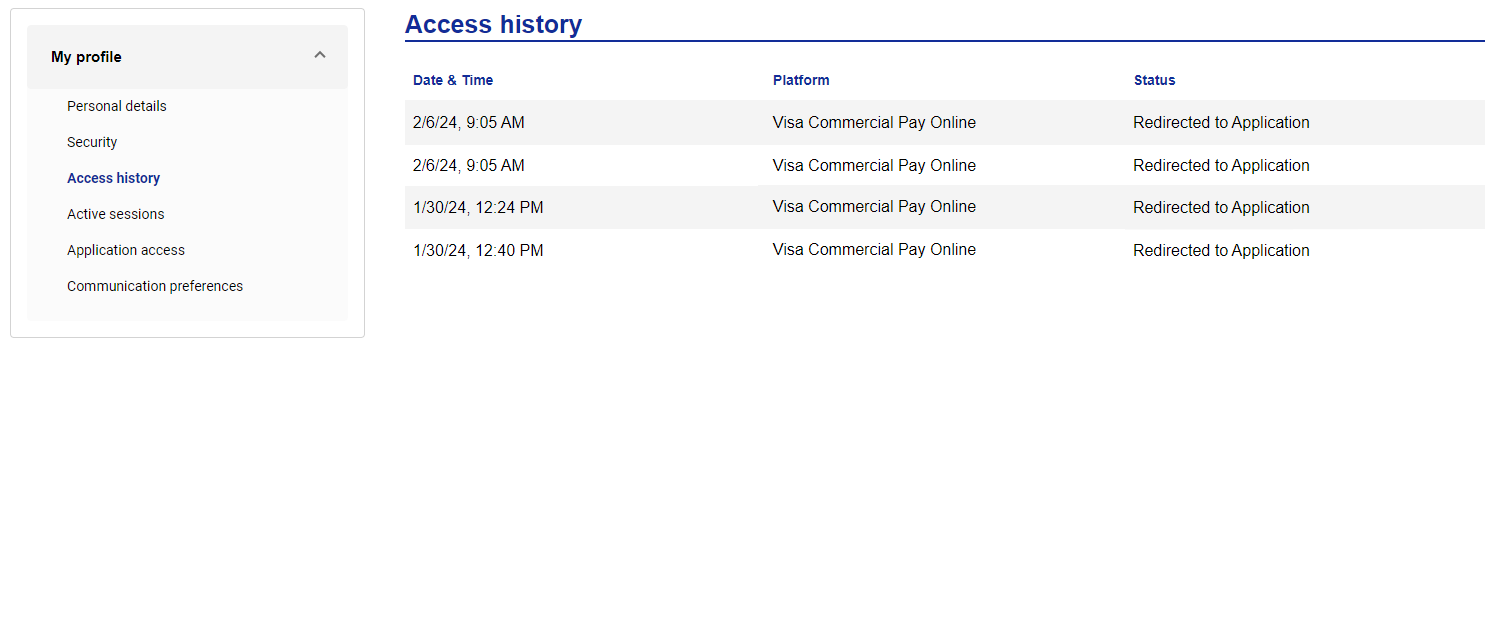
Access history—your login history across all platforms. This includes both successful and failed log in attempts.
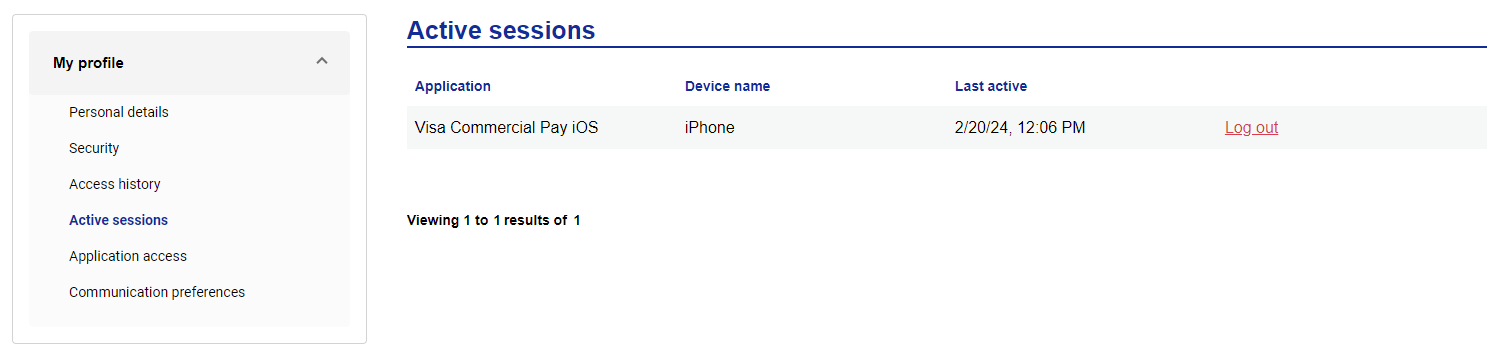
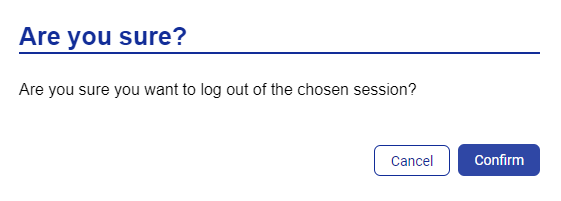
Active sessions—view your active mobile sessions and connected devices. Click the Log out next to a session to log out.
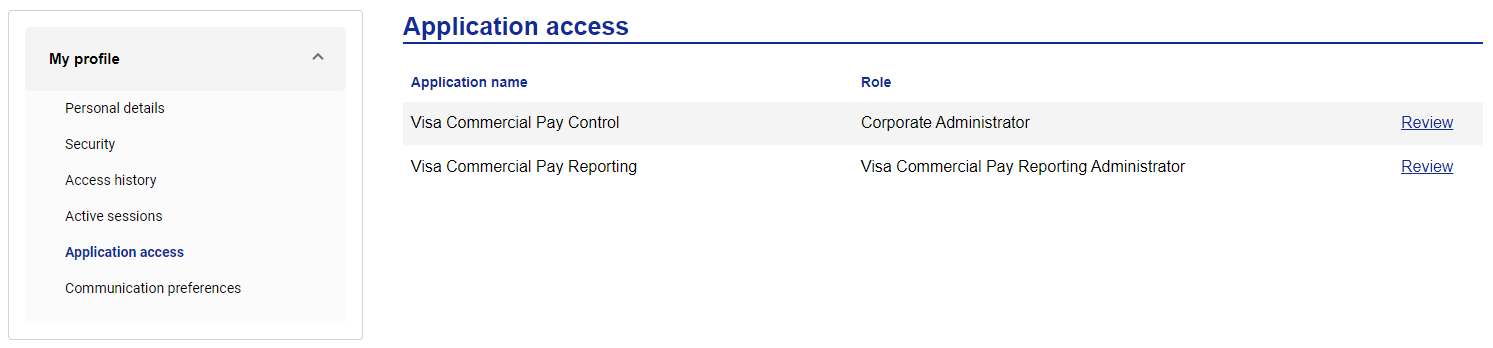
Application access—view your user roles and applications (platform names) you have access to.
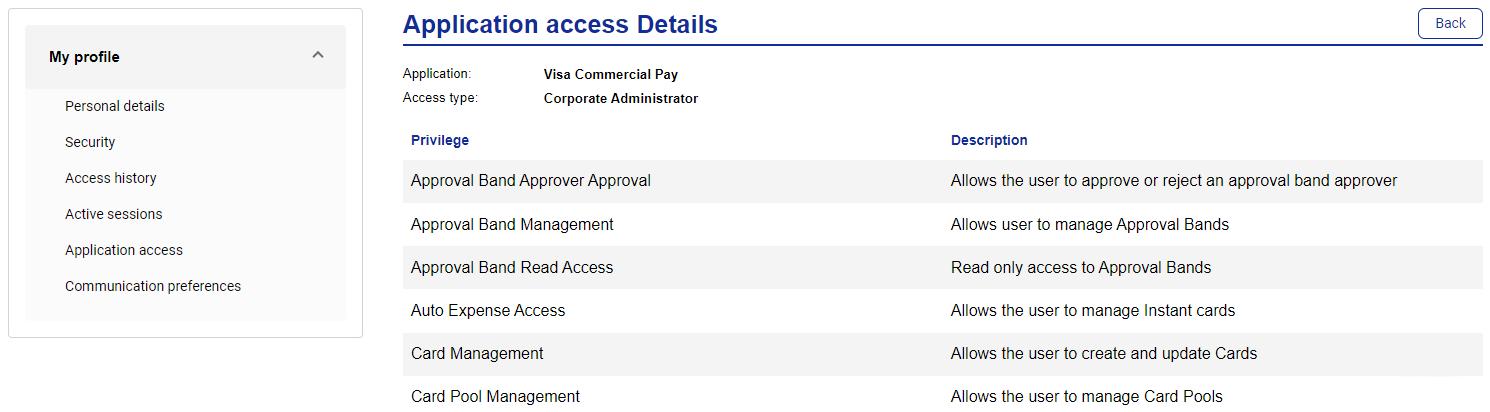
Click the review link next to each role to see the user role privileges associated with your access levels.
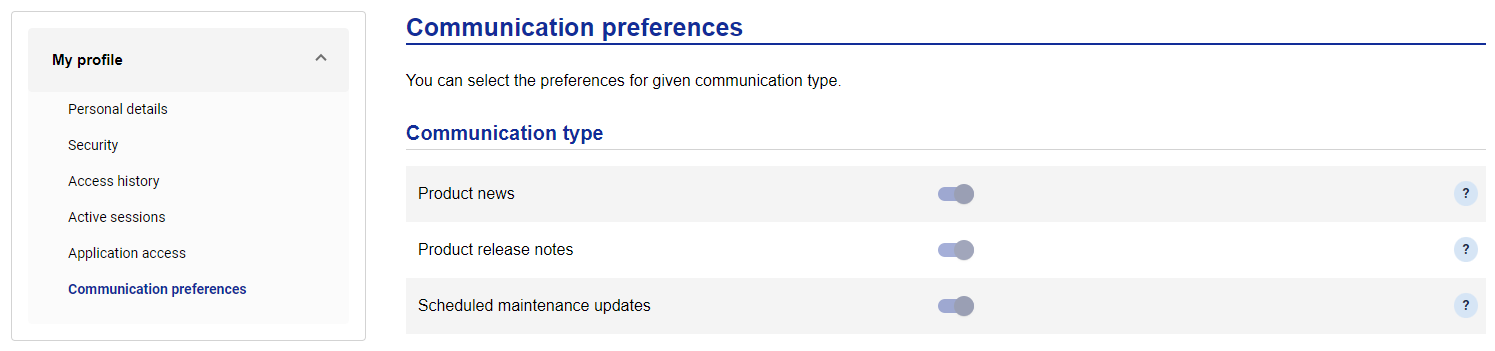
Communication preferences—view your communication preferences. You can opt in or out of receiving communications on release notes, scheduled maintenance updates, and product news. To change your setting, toggle each setting on or off.