Team Admins
Team Admins have additional access levels. If you are a Team Admin you will see the Team administration option in the the app menu.
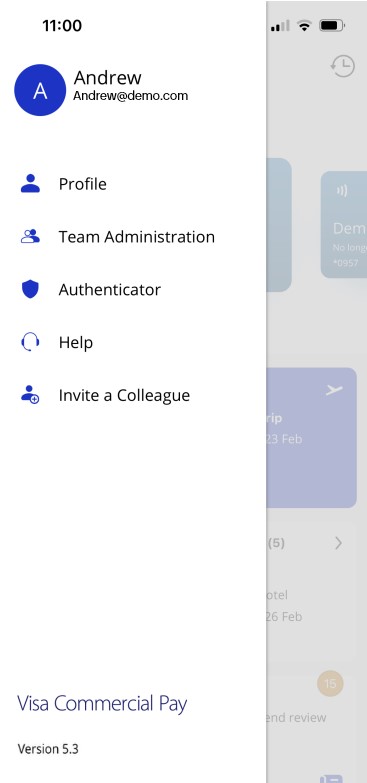
You can be a Team Member of multiple teams, but you will only be a Team Admin for teams selected by your Corporate Administrator.
Team Admin Additional Access
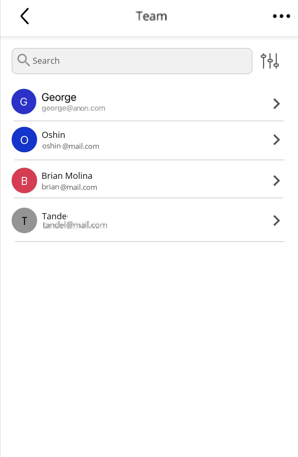
As a Team Admin, you can navigate to a list of Team Members via the Team administration option in the app menu. If you are a Team Admin for multiple teams, you can select which team you want to view.
The list will show the following information for each Team Member:
Team Member name—the forename and surname of the Team Member as entered by the end user during registration.
Team Member email—the email address of the Team Member.
Activity indicator—indicates the Team Member active status.
Note
An inactive Team Member in one team could be an active Team Member in another team. You can filter the list to only display active Team Members by clicking the filter icon.
Tap an individual Team Member to view:
Status display | User's status |
|---|---|
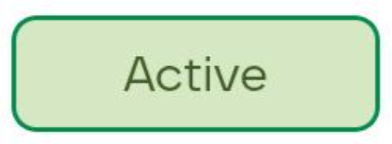 | Active—the Team Member is able to view and receive cards. |
Locked out—the user has been locked out after three consecutive unsuccessful log in attempts or if they have entered information incorrectly when trying to log in for the first time. An on-screen message will be displayed, instructing them to wait for an email which will allow them to reset their password and unlock their account. | |
Pending email verification—the user needs to verify their email address to complete registration. | |
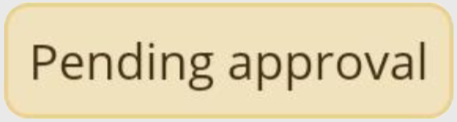 | Pending approval—the user needs to be approved by a Corporate Administrator in Mobile Control. |
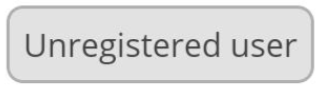 | Not registered—the Team Member needs to register for the app. |
 | Inactive—the Team Member is no longer active, based on the activation dates entered when they were added as a Team Member. |
Profile details—Team Member name, and any pre-configured custom data fields for the team.
User status— the Activity indicator indicates Team Member active status.
User history—displays recent actions for the Team Member of the specified team.
Send Card—enables the user to deploy a card for the Team Member of the specified team.
Active cards—lists all current active cards for the Team Member for the specified team.
Expired cards—lists all expired cards for the Team Member for the specified team.
Tap an active or expired card to view the card details, transaction and receipts. As a Team Admin you can also cancel active cards.
Note
The first 12 digits of the card number and the CVV number are masked for security.
New Team Member Approval
The Visa Commercial Pay Online platform supports a card issuer level setting of a dual Team Member approval process. This approval process means that a Corporate Administrator must confirm the addition of a new Team Member to a team, prior to the Team Member accessing any card details in full.
If a Team Member was added to a team by a Team Admin in the Visa Commercial Pay App, a Corporate Administrator must approve the addition of the Team Member within Visa Commercial Pay Control.
If a Team Member was added to a Team by a Corporate Administrator within Visa Commercial Pay Control, a second Corporate Administrator must approve the addition of the Team Member.
Email notifications will be sent to Corporate Administrators when a Team Member is pending approval.
Note
Team Member approval is a card issuer level setting and cannot be individually enabled or disabled by a Corporate Administrator. A Corporate Administrator with access to multiple Card Pools from differing card issuers may experience a different Team Member management workflow dependent on the card issuer.