Batch Deployments in Online
You can create batch deployments from a CSV file upload. The batch deployments functionality is controlled at a Card Pool group level, and will not be visible unless you have it switched on. Contact Visa Commercial Pay support if you wish to have this functionality enabled.
Creating Batch Deployments
Caution
Do not include any apostrophes (') or commas (,) when preparing your CSV file for upload. If any apostrophes or commas are used on the CSV file that is uploaded, the file will fail to upload.
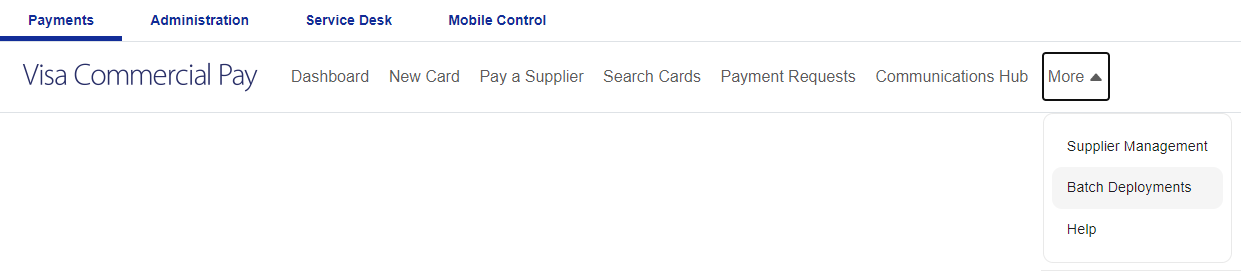
Click More and then click Batch deployments from the dropdown.
Click Download sample file and open the CSV file from your device.
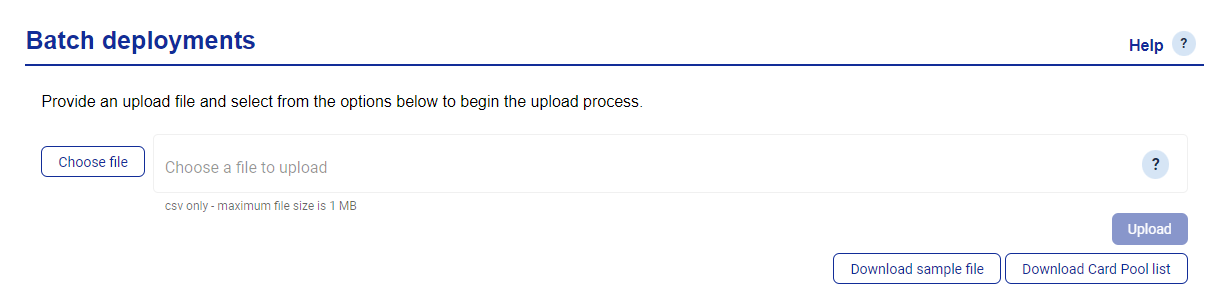
Clicking Download sample file will download a sample file named 'batchdeployments.csv.' Open this file to see an example of the information and format required to bulk upload deployments.
Clicking Download Card Pool list will download a sample file named CardPoolsList.csv. Open this file to see a list of the Card Pools available and the client ID associated with each Card Pool.
Remember
Copy the ClientID for the Card Pool you want to use from the CardPoolsList.csv and paste it in the ClientID column (column C) in the Sample File.
If you do not enter the ClientID correctly, you will receive the error message "Error creating deployment No cardpool found for client".
Enter the dates that you want the cards to be active for in ChargeStartDate (column I) and ChargeEndDate (column J). If the dates are not set correctly, you will receive the error message "Error creating allocation".
You will need to upload a file containing the details of the deployments. The deployments will be created from the Card Pool linked to the Client ID that you enter in the Client ID column. Any individual deployments in the batch that exceed the deployment amount will go through the usual approvals process.
Once you have added and saved the details of your deployments to the file, drag the file over the box in Visa Commercial Pay Online. Your file will be uploaded automatically.
The file must be in CSV format and not exceed 1 MB
The first line must contain the column headings
Any values may be enclosed in double quotes ""
Where values contain commas, they must be encased in double quotes ""
Once the file is uploaded, click Upload.
Note
An error message will be displayed unless a file in the correct format has been selected.
When the file has been processed, the results will appear on the page with the following information:
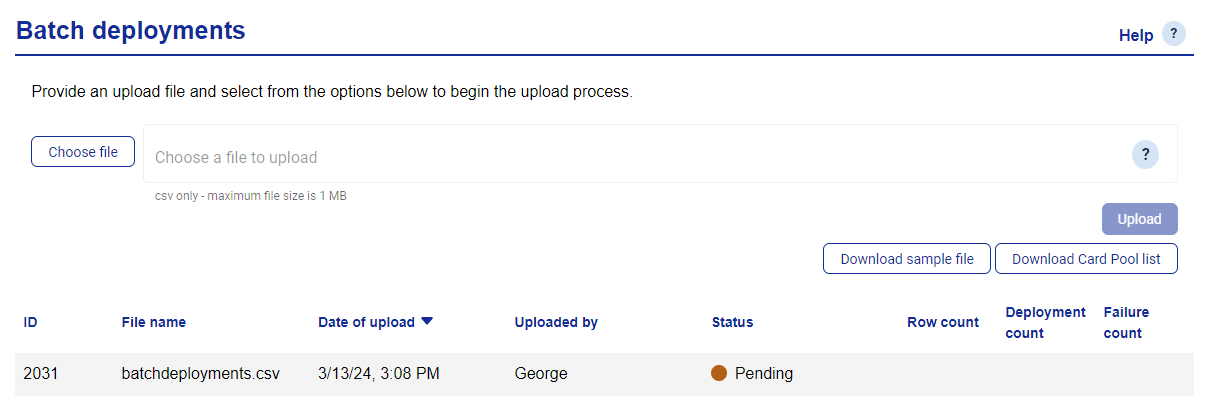
ID—the unique identifier for the batch deployment file upload.
File name—the name of the file that was uploaded.
Date of upload—the date the file was uploaded.
Uploaded by—the username of the user that uploaded the file.
Status—a green circle indicates that the file was correctly processed. The text status indicator specifies if the deployments were created successfully:
Completed—no deployment failures.
Completed with deployment failures—some or all deployments failed.
Row count—the number of rows that contained deployment details.
Deployment count—the number of successful deployments.
Failure count—the number of failed deployments.
Click on the batch deployment upload to view additional details:

Index—the file row of the deployment.
Created date—the date the deployment was uploaded.
Error code—the code for the specific error.
Error message—details of the deployment failure. This column is blank for successful deployments.
Deployment ID—the deployment ID of the created deployment. Clicking this will take you to the Deployment details page for that deployment.
Note
Code 100 in the error code column indicates a successful deployment.
When creating your batch deployment file, 1 = Yes/Enable and 0 = No/Disable
Creating Single-Use or Multi-Use Deployments
Whether a deployed card is single-use or multi-use is determined by the advanced card controls (ACCs) set against the Card Pool and can not be flagged per deployment in the batch file. For example, "Max Transaction = 1" and "Singe use only" ACCs will both restrict deployments to a single transaction.
Enter the Client ID that is linked to a Card Pool that matches the deployment requirements. For example:
If you need to create a single-use card via the batch file, you must use a Card Pool configured as single-use (e.g. Max Transactions = 1 or Singe use only)
If you need to create a multi-use card, you must use a Card Pool configured as multi-use (e.g. Max Transactions = 100)
You can add more than one single-use or multi-use Card Pool throughout the same batch file.
Batch Deployment History
You can view and manage previous batches from the Batch deployments page and re-upload a batch if a failure occurs. Re-uploading the batch does not remove the previously failed uploads from the list.
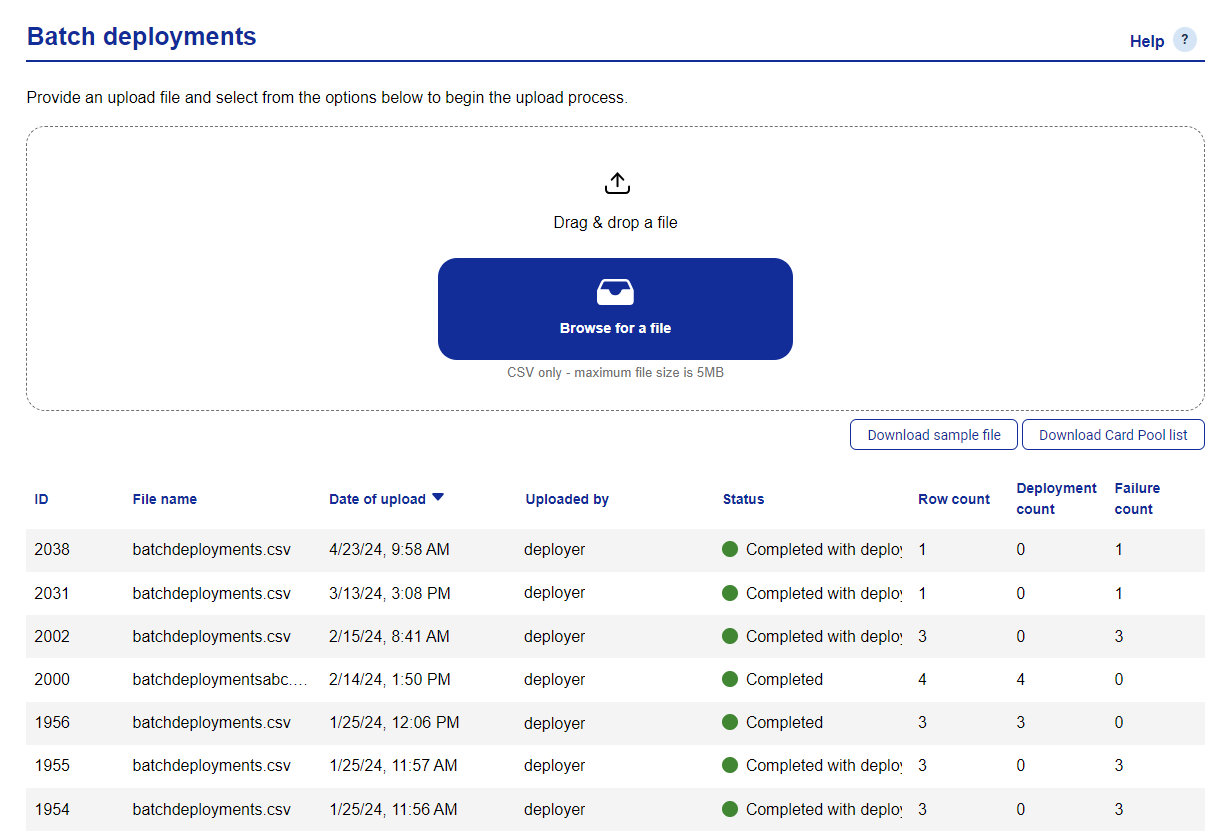 |
To view the status of previous batch deployment uploads click Batch deployments from the navigation bar. There will be a list below the drag & drop area containing all previously uploaded files. Each row shows the following data:
ID
File name
Date of upload
Upload by
Status
Row count
Deployment count
Failure count
Batch Deployment Sample File Fields
Field | Description | Format | Quoted | Max Length | Mandatory | E.g. |
|---|---|---|---|---|---|---|
SequenceNumber | All deployment requests must be sequentially numbered. This is used for index purposes to reference the row. | Numeric | N | 8 | Y | 1 |
ConsumerReference | A unique reference provided for the Deployment. | Alpha-Numeric | Y | 50 | Y | REF1234 |
ClientID | The unique identifier for the Card Pool. | Numeric | N | 10 | Y | 654987 |
Type | Details what type of Deployment is being made. | Alpha | Y | 20 | Y | Generic |
Amount | The Deployment amount required. Decimal only excluding any symbols or currency. | Numeric | N | 10 | Y | 95 |
Currency | 3-letter ISO currency code. This is not a currency conversion, the balance will be linked to the Card Pool currency. | Alpha | N | 3 | Y | GBP |
InvoiceAmount | Used only when the purchase amount is different to the amount needed on the card. | Numeric | N | 10 | N | 100 |
InvoiceAmountCurrency | 3-letter ISO currency code. | Alpha | N | 3 | N | GBP |
ChargeStartDate | The date the card needs to be available from. | yyyy-MM-dd OR dd-mm-yyyy | N | 10 | Y | 2024-05-01 OR 08-05-2024 |
ChargeEndDate | The date the card needs to be available until. | yyyy-MM-dd OR dd-mm-yyyy | N | 10 | Y | 2024-05-08 OR 08-05-2024 |
CustomerID | A consumer defined Customer Identifier. | Alpha-Numeric | Y | 50 | N | APPINK01 |
CustomerName | A consumer defined Customer Name. | Alpha-Numeric | Y | 50 | N | Test Company Inc |
NotificationEmailAddress | Email address used for any status communications e.g. payment failure notices. | Valid Email Address | Y | |||
SendPaymentEmail | User should provide 1 to issue email to SupplierEmail, 0 to not. | Numeric | N | 1 | Y | 1 |
SendPaymentFax | User should provide 1 to issue fax to SupplierFax, 0 to not. | Numeric | N | 1 | Y | 0 |
SupplierIdentifier | User’s unique identifier for the Supplier. Note: When using Bank Transfer this must match an existing Supplier record. | Alpha-Numeric | Y | 50 | N | ABC1234G |
SupplierName | The name of the supplier taking payment. | Alpha-Numeric | Y | 100 | Y | My Supplier Ltd |
SupplierAddress1 | Suppliers address line 1. | Alpha-Numeric | Y | 100 | N | Suite 10 |
SupplierAddress2 | Suppliers address line 2. | Alpha-Numeric | Y | 100 | N | 5 Green Road |
SupplierCity | Suppliers city name. | Alpha-Numeric | Y | 100 | N | Capital City |
SupplierPostalCode | Suppliers postcode or ZIP code. | Alpha-Numeric | N | 30 | N | CP 1TY |
SupplierCountryCode | 2-letter ISO country code. | Alpha | N | 2 | N | GB |
SupplierTelephone | Suppliers telephone number. | Alpha-Numeric | N | 30 | N | 0161 123 4567 |
SupplierFax | Suppliers fax number. | Alpha-Numeric | N | 30 | N | 0161 123 4567 |
SupplierEmail | Suppliers email address. | Valid Email Address | Y | 100 | N | |
SupplierReference | Supplier’s purchase or confirmation reference for the deployment. | Alpha-Numeric | Y | 50 | N | REF2134A |
DiscountOptionLevel | Flag to indicate at which level the discount or fee percentage is applied: account level or deployment. 1 = use default, 2 = apply provided | Numeric | N | 1 | Y* mandatory for Bank Transfer Only | 1 |
DiscountOptionPercentage | Percentage of discount or fee share to be applied. Decimal. Default 0. Only required when Discount Option Level = 2 | Numeric | N | 1 | N Y* mandatory for Bank Transfer Only | 0 |
STPEnabled | Enabled for Straight Through Processing. | Numeric | N | 1 | Y | 0 |
Advanced Card Controls | ACCs can be added as the following additional columns. ACC:MaxAuthorisations, ACC:BlockCountries, ACC:BlockedMCG, ACC:BudgetMonthly, ACC:BudgetWeekly, ACC:PermittedCountries, ACC:PermittedMCG, ACCBudgetDaily | Alpha-Numeric | N | 50 | N | See table below |
Custom Data Fields | CDFs can be added as one or more additional columns. A CDF column must be labelled with a prefix 'CDF:' no space and then the CDF 'Name' value. | Alpha-Numeric | N | 200 | N | CDF:EmployeeID |
The Advanced Card Controls format for the Batch Deployment Row Input can be found when creating an Advanced Card Control template under 'Active controls' in the Administration module.
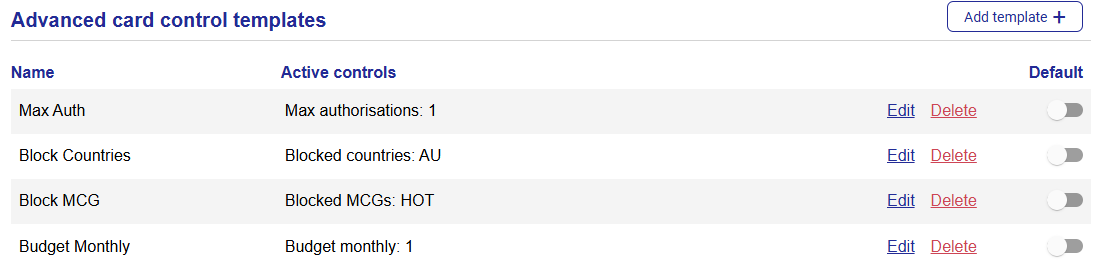 |
Advanced Card Controls | Batch Deployment Column Label | Example Batch Deployment Row Input |
|---|---|---|
Max Authorisations | ACC:MaxAuthorisations | 1 |
Blocked Countries | ACC:BlockedCountries | ISO 3166-1 ALPHA2, e.g. AU |
Blocked Merchant Category Groups | ACC:BlockedMCGs | HOT |
Budget Monthly | ACC:BudgetMonthly | 1 |
Budget Weekly | ACC:BudgetWeekly | 1 |
Budget Daily | ACC:BudgetDaily | 1 |
Permitted Countries | ACC:PermittedCountries | ISO 3166-1 ALPHA2, e.g. AU |
Permitted Merchant Category Groups | ACC:PermittedMCGs | HOT |
Batch Deployments: Client ID
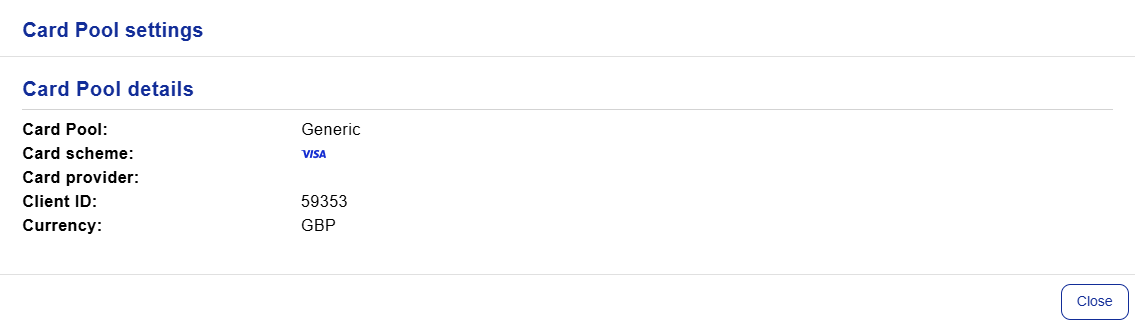
The Client ID is available under Card Pool settings. This allows users who deploy cards via the Batch Deployments API to easily view the Card Pool Client ID without needing to log into Visa Commercial Pay Setup Portal.
What is the 'Client ID'?
The Client ID is a system generated identifier of a Card Pool, used only when creating batch deployments. Excluding the Client ID from a batch deployment file/request will prevent the Card Pool from being found which will cause the associated deployment to fail.
Creating cards in Visa Commercial Pay Online does not require manual input of the Client ID.
Access
Required User Role: Customer Administrator, Deployer
Availability: Default functionality.
Viewing the Client ID
The Client ID can be found in various places within Visa Commercial Pay Online.
From the dashboard, click Review all under 'Available Card Pools'.
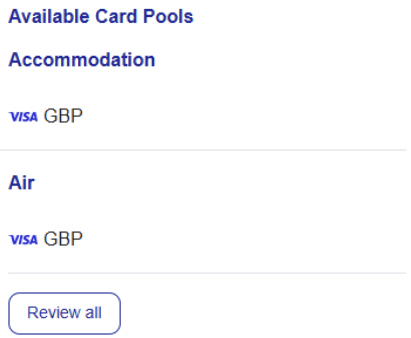
Select a Card Pool.

The Client ID will be shown.
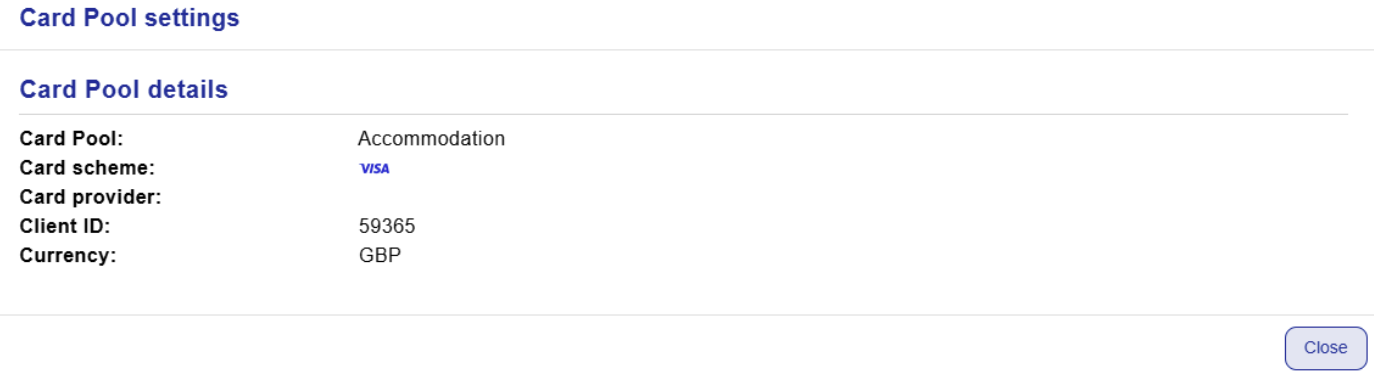
Alternatively, the Client ID can be viewed directly from a deployment;
select a deployment, click More and then click Card Pool settings.
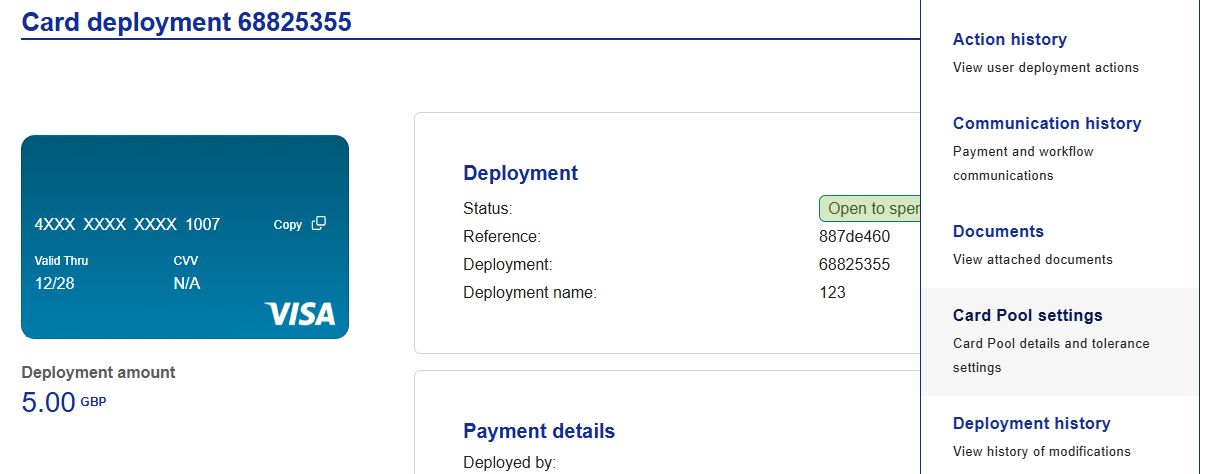
OR
click New card, select a spend type, and then click Card Pool settings.
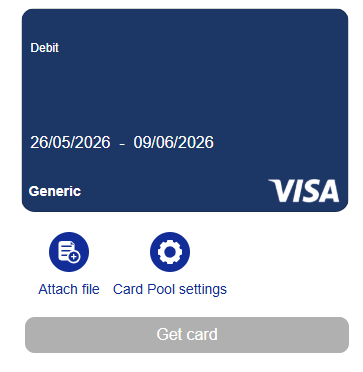
The Client ID will be shown.
 |